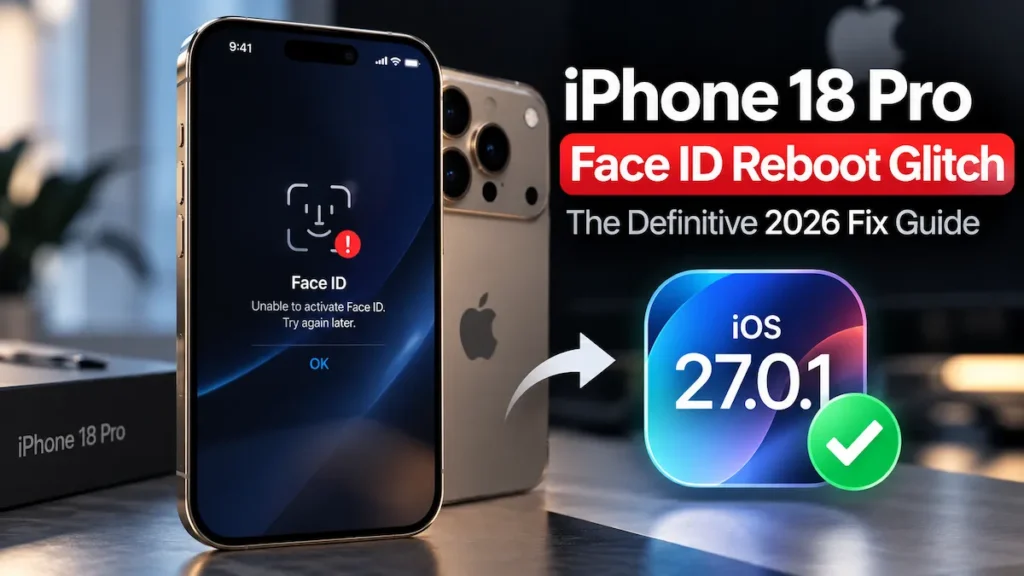
Does your iPhone 18 Pro restart unexpectedly when Face ID fails to recognize your face? This is different from an ordinary Face ID error, where the phone simply asks for your passcode.
Apple acknowledged a specific issue affecting the iPhone 18 Pro and iPhone 18 Pro Max, where unsuccessful Face ID authentication could trigger an unexpected restart. The company listed a fix in its iOS 27.0.1 release notes.
If your iPhone is experiencing this issue, installing the latest compatible iOS update is the most important first step.
This guide explains what Apple has confirmed, how to update safely, and what to check if the problem continues.
Table of Contents
Quick Answer
Apple lists a fix for unexpected restarts following failed Face ID authentication on iPhone 18 Pro models in iOS 27.0.1.
To check your software:
- Open Settings.
- Tap General.
- Select Software Update.
- Check which iOS version is installed and whether a newer update is available.
- Back up important information before updating.
- Install the latest compatible stable update.
You don’t need to downgrade to iOS 27.0.1 if your device already runs a newer release.
If the issue persists after updating, distinguish between a genuine device restart and an ordinary Face ID recognition failure before trying additional fixes.
1. Identify the Exact Problem
Different Face ID symptoms require different troubleshooting.
The iPhone unexpectedly restarts: The screen goes black, the Apple logo appears, and the device starts up again following a failed Face ID attempt. This matches the type of issue identified in Apple’s iOS 27.0.1 release notes.
Face ID fails but the iPhone stays on: The device may simply request your passcode. This doesn’t necessarily indicate the reboot bug.
Face ID displays an unavailable message: The TrueDepth camera or authentication system may require separate troubleshooting.
Face ID fails only inside one application: The issue could involve that app’s Face ID permissions rather than device-wide authentication.
Before proceeding, identify which symptom is occurring. If you have an ordinary recognition problem without restarting, see our Face ID Not Working After iOS 27 guide.
2. Install the Official Software Fix
Apple’s iOS 27.0.1 release notes specifically document a correction for unexpected restarts following unsuccessful Face ID authentication on the iPhone 18 Pro and iPhone 18 Pro Max.
This is the strongest documented starting point for the problem.
How to Update
- Connect your iPhone to a reliable internet connection.
- Make sure you have sufficient battery power or connect the device to a charger.
- Back up important information.
- Open Settings > General > Software Update.
- Install the latest compatible stable iOS update offered for your device.
- Allow the installation to complete.
After the update, use your iPhone normally and monitor whether the unexpected restarts continue.
Don’t deliberately trigger repeated authentication failures simply to reproduce the problem.
For the original release information, consult Apple’s iOS 27 update notes.
3. Check the TrueDepth Camera
If your iPhone no longer restarts but Face ID recognition remains unreliable, inspect the TrueDepth camera area.
On iPhone 18 Pro models, Apple places the TrueDepth camera toward the upper-left area of the display.
An obstruction can interfere with authentication.
What to Check
- Make sure nothing covers the TrueDepth camera.
- Remove a newly installed or incompatible screen protector if it obstructs the sensor area.
- Gently clean the camera area with a soft, lint-free cloth.
- Avoid covering the upper-left portion of the display with your hand.
- Temporarily remove obstructive accessories when testing.
Apple also recommends checking whether glasses, masks, heavy makeup, or extreme backlighting are affecting recognition.
These steps address possible Face ID recognition problems. They aren’t substitutes for installing the documented software fix for unexpected restarts.
4. Check Face ID Settings
If Face ID fails to authenticate after updating, confirm that it is configured correctly.
- Open Settings.
- Select Face ID & Passcode.
- Enter your device passcode.
- Confirm that Face ID is configured.
- Check which features are enabled under Use Face ID For.
- Review the authentication settings for any affected apps.
If Face ID works when unlocking your iPhone but fails in a particular application, check that application’s permissions under Face ID & Passcode > Other Apps.
If recognition is inconsistent because your appearance varies significantly, Apple’s alternate appearance feature may help.
However, changing these settings will not necessarily resolve unexpected device restarts.
5. Restart and Recheck
If the software is updated but you still experience occasional authentication problems, try a normal restart.
- Hold the Side button and either Volume button.
- Drag the power-off slider.
- Wait for the device to shut down.
- Press and hold the Side button to turn it on again.
After restarting, enter your passcode.
Apple requires passcode authentication after a device restart as part of its normal security behavior.
Once you’ve entered the passcode, monitor Face ID during ordinary use.
A restart can resolve some temporary issues, but it isn’t a replacement for the official software update.
6. Reset Face ID If Recognition Still Fails
If Face ID remains unreliable after you’ve updated iOS and checked the camera, you can consider setting it up again.
- Open Settings > Face ID & Passcode.
- Enter your passcode.
- Select Reset Face ID.
- Follow the instructions to set it up again.
- Check whether recognition works normally.
Resetting Face ID removes existing enrolled facial information, including any alternate appearance. You’ll need to enroll again.
It does not ordinarily erase your photos, messages, or installed applications.
Important: Reset Face ID only when appropriate for a recognition problem. Apple doesn’t identify resetting facial enrollment as the primary fix for the iPhone 18 Pro unexpected-restart issue.
7. When to Contact Apple Support
Contact Apple Support if the iPhone continues restarting unexpectedly after installing the latest compatible software update.
Professional assessment is also appropriate if:
- Face ID setup repeatedly fails.
- The device displays a TrueDepth camera warning.
- Face ID stopped working after physical damage.
- Authentication remains unavailable despite the supported troubleshooting steps.
When contacting Apple, provide your iPhone model, installed iOS version, the approximate time the problem occurs, and whether the device actually restarts or simply requests a passcode.
Avoid disassembling the TrueDepth camera or attempting unofficial hardware repairs.
Apple’s Face ID troubleshooting guide explains when service may be necessary.
Frequently Asked Questions
Did Apple confirm the iPhone 18 Pro Face ID reboot issue?
Yes. Apple’s iOS 27.0.1 release notes identify an issue in which iPhone 18 Pro and iPhone 18 Pro Max devices could restart unexpectedly after failed Face ID authentication.
Is every Face ID failure caused by the reboot bug?
No. Face ID may request a passcode or fail to recognize a face without restarting the device. These symptoms can have different causes.
Should I install iOS 27.0.1 if my iPhone has a newer version?
No downgrade is necessary. Install the latest compatible stable update offered through your iPhone’s Software Update settings.
Will resetting Face ID delete my photos?
No. Resetting Face ID removes facial enrollment information, not ordinary personal files. You will need to set up Face ID again.
Does a continuing restart mean my iPhone is defective?
Not necessarily. Persistent restarts can have software or hardware causes. Apple Support can help determine whether further diagnosis or service is necessary.
Final Thoughts
The iPhone 18 Pro Face ID reboot issue has a documented software fix.
Apple addressed unexpected restarts following failed Face ID authentication in iOS 27.0.1. If your device experiences that specific symptom, updating to the latest compatible software should be your first step.
If Face ID recognition remains unreliable without restarting, investigate the camera, authentication settings, and facial enrollment separately.
Avoid assuming that every Face ID failure involves the same bug, and seek professional assistance if unexpected restarts continue.
Last reviewed: October 30, 2026