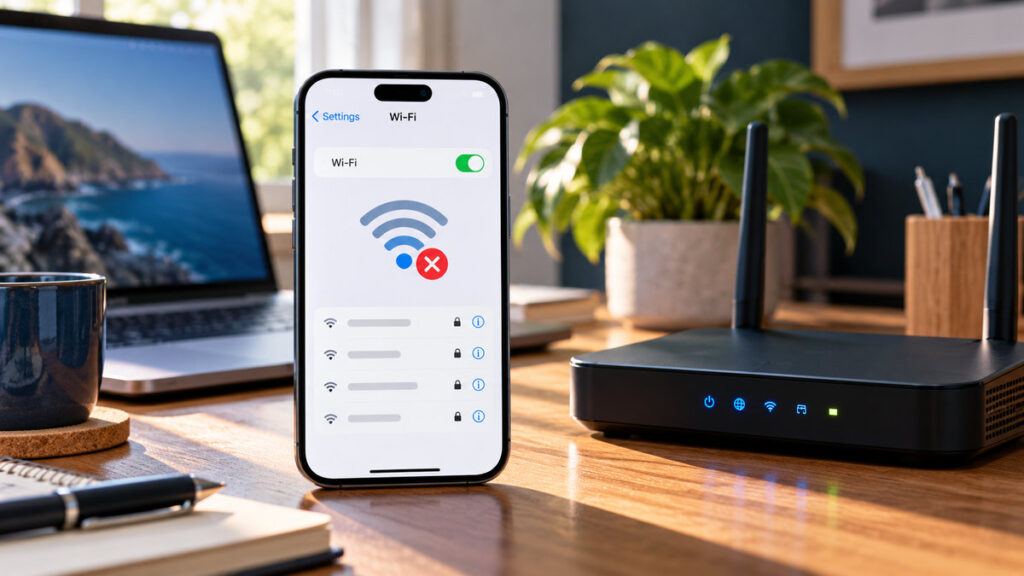
If your iPhone Wi-Fi keeps disconnecting, even when you’re sitting near your router, there are several practical fixes you can try. Your iPhone might randomly switch to mobile data, lose its connection during video calls, or disconnect when you move between rooms.
An unstable Wi-Fi connection can interrupt video calls, downloads, streaming, gaming, and everyday browsing. It can also make your mobile data usage increase without you noticing.
Fortunately, repeated disconnections do not always mean something is wrong with your iPhone. Weak signal strength, router problems, incorrect network settings, VPN software, and wireless interference are common possible causes.
In this guide, we’ll explain 12 practical fixes for an iPhone Wi-Fi connection that keeps dropping, starting with simple checks and ending with the more advanced solutions.
Quick Answer: How to Stop iPhone Wi-Fi From Disconnecting
If your iPhone keeps losing its Wi-Fi connection, try these steps first:
- Open Settings → Wi-Fi and turn Wi-Fi off and back on.
- Move closer to your wireless router.
- Check whether other devices are experiencing the same problem.
- Restart your iPhone.
- Restart your router and modem.
- Make sure Auto-Join is enabled for your preferred network.
- Forget the Wi-Fi network and reconnect using its password.
If the connection still drops, continue with the detailed fixes below.
Table of Contents
iPhone Wi-Fi Keeps Disconnecting: Why It Happens
Your iPhone communicates with the router using wireless radio signals. Anything that interferes with that communication can affect the connection.
Common causes include:
- Weak or inconsistent Wi-Fi signal.
- Router or modem software problems.
- Interference from nearby wireless networks and electronics.
- Outdated iOS or router firmware.
- An iPhone automatically joining another saved network.
- VPN or security software conflicts.
- Compatibility issues with particular router settings.
- Incorrect or corrupted network configurations.
Before making changes, it’s important to understand whether your iPhone is actually disconnecting from Wi-Fi or simply losing internet access.
Wi-Fi disconnected: The Wi-Fi indicator disappears or your phone no longer shows a connection to the network.
Wi-Fi connected but no internet: Your iPhone remains connected to the router, but websites and apps cannot access the internet.
If the second situation describes your problem, see our related guide: iPhone Connected to Wi-Fi but No Internet? 10 Fixes to Try (2026).
Now let’s fix the connection problems one by one.
1. Turn Wi-Fi Off and Back On in Settings
One of the easiest ways to troubleshoot a temporary Wi-Fi connection issue is to restart the iPhone’s Wi-Fi connection.
Follow these steps:
- Open Settings.
- Tap Wi-Fi.
- Turn Wi-Fi off.
- Wait about 10 seconds.
- Turn Wi-Fi back on.
- Reconnect to your preferred wireless network.
For this test, use the Settings app rather than relying only on Control Center.
Apple explains that tapping the Wi-Fi button in Control Center generally disconnects your device from Wi-Fi networks without fully disabling the Wi-Fi radio.
After reconnecting, use your phone normally for several minutes and check whether the connection remains stable.
2. Check Whether Other Devices Have the Same Problem
Before changing your iPhone’s settings, determine whether the problem is specific to your phone.
Connect a laptop, tablet, or another phone to the same Wi-Fi network.
Then try opening websites, streaming a short video, or performing another ordinary online task.
Pay attention to the results.
If every device disconnects: The problem may involve the router, modem, wireless interference, or internet service provider.
If only your iPhone disconnects: Focus on the iPhone’s saved network settings, software, and compatibility with the router.
If the iPhone works on another Wi-Fi network: Your home or office network is a stronger suspect.
This simple comparison helps you avoid resetting a perfectly functional iPhone when the actual problem is your router.
3. Move Your iPhone Closer to the Router
Weak wireless coverage is one of the most common reasons for unstable Wi-Fi.
The farther you move from the router, the weaker the signal may become. Walls, floors, furniture, and other physical obstacles can make the problem worse.
Try the following:
- Move into the same room as your router.
- Keep the iPhone within a few feet of it.
- Use the connection for 10 to 15 minutes.
- Check whether Wi-Fi continues to disconnect.
If the connection becomes stable near the router but drops in another room, the problem is likely related to coverage or interference.
Consider moving your router to a more central, elevated position away from large metal objects and thick walls.
For larger homes, a properly configured mesh Wi-Fi system or additional access point may provide more reliable coverage.
4. Restart Your iPhone
A simple restart can resolve temporary network or software problems.
For an iPhone with Face ID:
- Press and hold the Side button and either Volume button.
- Wait for the power-off slider.
- Drag the slider to turn off the iPhone.
- Wait approximately 30 seconds.
- Press and hold the Side button until the Apple logo appears.
Once your iPhone restarts, connect to Wi-Fi again.
Test the connection while browsing, watching a video, or using the app that previously experienced disconnections.
If the issue happens only inside one particular app, test other apps too. The problem might involve that application’s connection rather than the iPhone’s entire Wi-Fi system.
5. Restart Your Wi-Fi Router and Modem
Your wireless router manages connections between devices on your network. Like other electronic devices, it can occasionally experience temporary software or connection problems.
Restarting the router can help restore normal operation.
Here’s how:
- Save any work that requires an active internet connection.
- Disconnect power from your router.
- If you use a separate modem, disconnect it too.
- Wait approximately 30 seconds.
- Restore modem power first, if applicable, and wait until it is ready.
- Restore router power.
- Wait for the Wi-Fi network to become available.
- Reconnect your iPhone and test the connection.
Do not press the small factory-reset button on the router. That can erase your router’s configuration.
If the network keeps dropping across several devices, contact your internet provider or router manufacturer.
6. Make Sure Auto-Join Is Enabled
Your iPhone can automatically reconnect to Wi-Fi networks you have previously joined.
If Auto-Join is disabled for your preferred network, the phone may not reconnect automatically after leaving its coverage area.
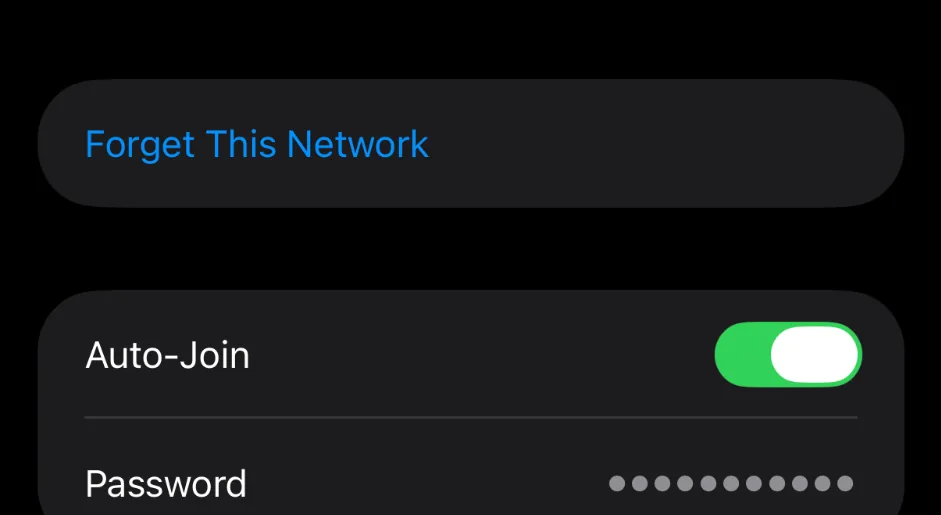
Check the setting:
- Open Settings → Wi-Fi.
- Tap the information button ⓘ beside your preferred network.
- Find Auto-Join.
- Turn it on if you want your iPhone to reconnect automatically.
Also check whether your phone has saved another nearby network that you no longer want it to join.
For example, a weak guest network or an old router network might provide a less reliable connection than your main home network.
You can turn off Auto-Join for an unwanted saved network without deleting its password.
Avoid automatically joining unknown or untrusted public networks.
7. Forget Your Wi-Fi Network and Reconnect
If your iPhone keeps disconnecting from one particular network, forgetting and reconnecting to it may help resolve a saved-network problem.
Before starting, make sure you know the correct Wi-Fi password.
Follow these steps:
- Open Settings → Wi-Fi.
- Tap ⓘ beside the network.
- Select Forget This Network.
- Confirm your decision.
- Return to the available networks.
- Select your network again.
- Enter the password and reconnect.
If the Forget This Network option is unavailable on a managed device, contact your school or workplace administrator.
Important: Apple notes that forgetting a network may also remove the saved network from other devices using the same Apple Account with iCloud Keychain.
This step does not erase your photos, apps, or personal documents.
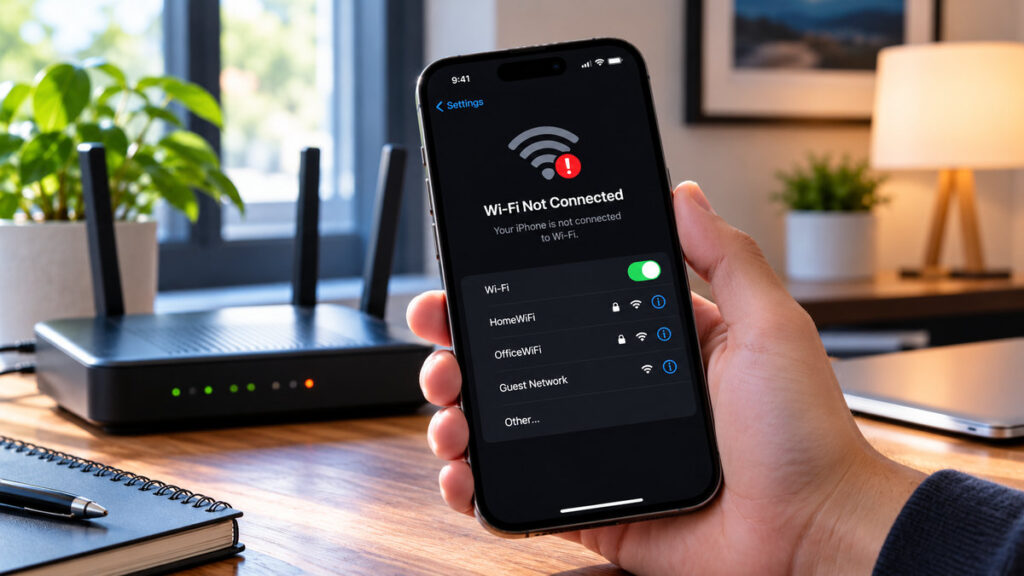
8. Try a Different Wi-Fi Frequency Band
Many modern routers support multiple Wi-Fi frequency bands, including 2.4 GHz and 5 GHz. Some newer devices and routers also support 6 GHz.
The bands have different strengths.
2.4 GHz: Typically provides greater coverage but may experience more interference.
5 GHz: Often provides faster performance with less congestion, although its range through obstacles can be shorter.
6 GHz: Available on compatible devices and networks, with additional spectrum that may help in suitable environments.
If your router displays separate Wi-Fi network names for different bands, test another supported band.
For example, if your iPhone regularly disconnects from a weak 5 GHz network in a distant room, the 2.4 GHz network may provide a more stable connection.
Some routers automatically manage the bands using one network name. In that situation, you may not need to select a band manually.
Avoid permanently disabling supported bands unless your router manufacturer recommends it for a specific issue.
9. Check VPN and Security Software
VPN applications and some security tools can affect how your iPhone reaches the internet.
A VPN problem can sometimes look like a Wi-Fi disconnection even though your phone is still connected to the router.
If you use a VPN:
- Open the VPN application’s settings.
- Temporarily disconnect it for a controlled test, if doing so is safe and permitted.
- Check whether the Wi-Fi connection itself stays connected.
- Re-enable your VPN after testing.
If the problem disappears only while the VPN is disconnected, check for an app update or contact the VPN provider.
For stronger troubleshooting, Apple recommends following the software provider’s instructions when investigating VPN or security-software conflicts.
Do not remove workplace management profiles or required security tools without permission.
If you don’t use a VPN, skip this step.
10. Update iOS and Your Router’s Firmware
Software updates can contain compatibility improvements, stability fixes, and security patches.
For your iPhone:
- Open Settings.
- Tap General.
- Select Software Update.
- Check whether a compatible update is available.
- Back up important data before installing a major update.
Next, check your router manufacturer’s official website or management app for available firmware updates.
Apple recommends keeping router firmware updated and enabling automatic firmware updates when the router supports them.
Important: Do not install firmware intended for another router model. An incorrect update can make the router unusable.
After updating, test the Wi-Fi connection again.
11. Reduce Wireless Interference and Check Router Settings
Interference can cause Wi-Fi connections to become slow, unstable, or disconnected.
Apple identifies several possible interference sources, including nearby wireless networks, microwave ovens, and certain other electronic devices.
Try placing your router away from common interference sources and large physical obstructions.
If you control your router, review its setting.
For additional troubleshooting, follow Apple’s official Wi-Fi connection guide for iPhone and iPad.
11. Reduce Wireless Interference and Check Router Settings
If your iPhone Wi-Fi keeps disconnecting even when the signal looks strong, wireless interference or an incompatible router configuration may be responsible.
Start with these checks:
- Move your router away from large metal objects, microwave ovens, and other potential sources of interference.
- Check whether the disconnections happen only in certain rooms.
- Make sure your router is running the latest firmware available from its manufacturer.
- If you manage the router, review its wireless security, channel, and channel-width settings.
- Test the connection again before making additional changes.
Apple generally recommends automatic Wi-Fi channel selection, a 20 MHz channel width for 2.4 GHz, and WPA3 Personal or WPA2/WPA3 Transitional security where supported.
Avoid switching your router to outdated security modes or disabling security protections just to troubleshoot a connection issue.
For detailed guidance, consult Apple’s recommended Wi-Fi router settings.
If only one iPhone experiences disconnections while other devices remain connected, continue with the final troubleshooting step.
12. Reset Network Settings on Your iPhone
Reset Network Settings is a last-resort troubleshooting option when repeated Wi-Fi disconnections continue after you have tested the router, restarted your devices, and rejoined the network.
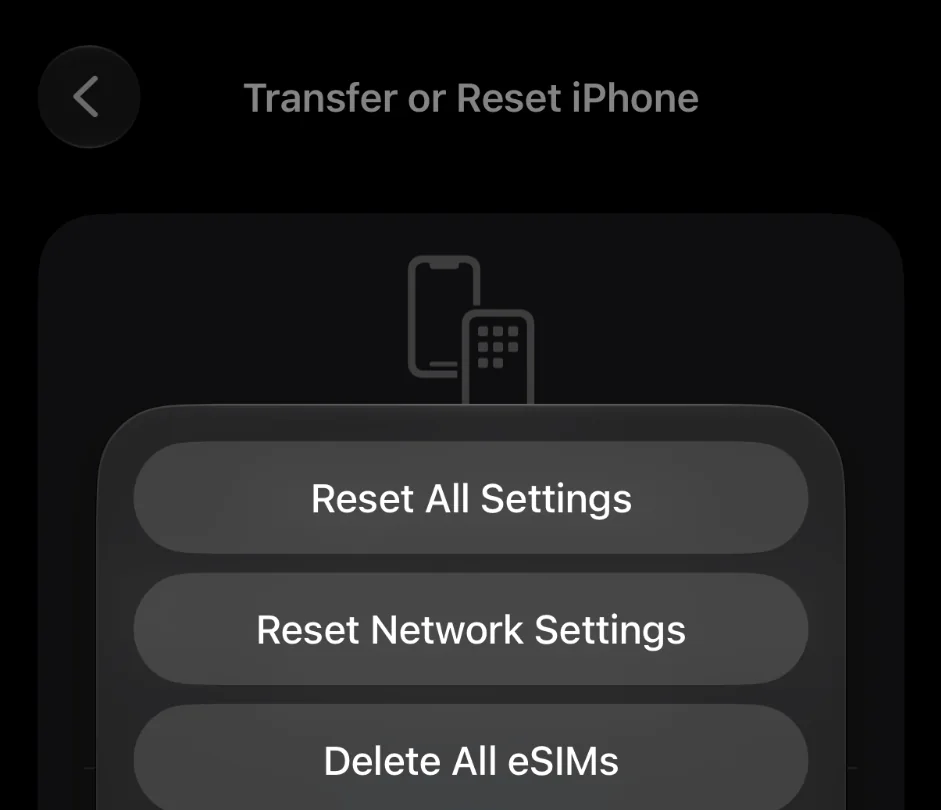
Before proceeding, make sure you have your Wi-Fi passwords available.
To reset network settings:
- Open Settings on your iPhone.
- Tap General.
- Select Transfer or Reset iPhone.
- Tap Reset.
- Choose Reset Network Settings.
- Follow the onscreen instructions.
- Reconnect to your Wi-Fi network and test the connection.
Important: This resets saved Wi-Fi networks and passwords, cellular network settings, and VPN and APN settings. It does not erase your photos, apps, or personal files.
If your iPhone belongs to your employer or school, consult the network administrator before resetting its settings.
If your iPhone still cannot maintain a connection to any Wi-Fi network, contact Apple Support. If only your home network is affected, contact your router manufacturer or internet provider.
Source: Apple’s official Wi-Fi troubleshooting guide.
Frequently Asked Questions
Why does my iPhone keep disconnecting and reconnecting to Wi-Fi?
An unstable wireless signal, router interference, saved network configuration, or software problem can cause repeated disconnections. Check whether other devices experience the same problem, then test your iPhone on another trusted Wi-Fi network to narrow down the cause.
What settings can stop an iPhone from disconnecting from Wi-Fi?
Start by checking that Auto-Join is enabled for your preferred network. Update iOS, check the router’s firmware and recommended settings, and avoid automatically connecting to unwanted networks. No single setting can prevent every disconnection.
Why does my iPhone Wi-Fi keep dropping even when I am close to the router?
A strong Wi-Fi signal does not guarantee a stable connection. Router software problems, interference, network configuration, or VPN software may still affect connectivity. Test another device and another trusted Wi-Fi network to help identify the cause.
Why does my iPhone show Wi-Fi but have no internet connection?
Your iPhone may remain connected to the router even when the router has lost internet access. Check another device on the same network. If the Wi-Fi connection remains active but websites do not load, follow our separate guide: iPhone Connected to Wi-Fi but No Internet.
Should I reset my iPhone to fix Wi-Fi disconnections?
A full factory reset is not an appropriate first troubleshooting step. Start with simpler checks, such as restarting your iPhone, testing another network, and verifying router settings. Reset Network Settings only if earlier fixes fail.
Final Thoughts
If your iPhone Wi-Fi keeps disconnecting, begin by identifying whether the problem involves your iPhone, your router, or your internet connection.
Simple steps such as checking Auto-Join, restarting the router, updating software, and reconnecting to the network may resolve the issue. If the connection fails across multiple trusted Wi-Fi networks, further troubleshooting or Apple Support may be necessary.
The most effective approach is to identify the cause before changing advanced network settings.