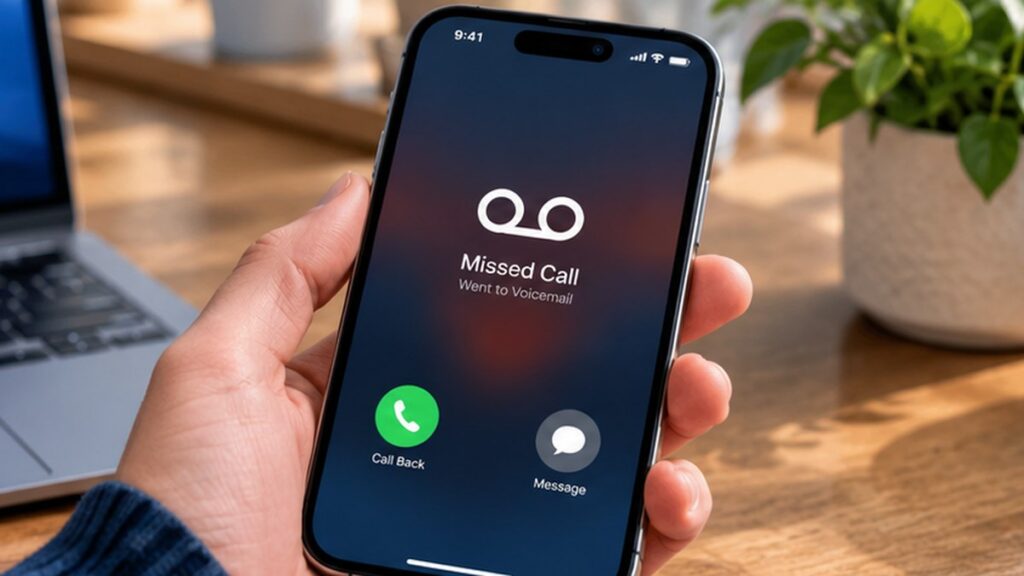
iPhone calls going straight to voicemail? Maybe your iPhone never rings, incoming calls don’t appear on the screen, or friends say they reach your voicemail even when your phone is turned on.
This problem can be frustrating, especially when you’re missing important calls from family, work, or delivery services.
Sometimes the problem is caused by Do Not Disturb, unknown-caller screening, or a blocked number. In other cases, call forwarding, poor cellular coverage, or your carrier’s network settings may be responsible.
The good news is that many of these problems can be investigated without resetting your iPhone or changing your phone number.
In this guide, we’ll explain 12 practical fixes for iPhone calls going straight to voicemail, starting with simple settings and moving toward more advanced troubleshooting.
Quick Answer: How to Stop iPhone Calls Going Straight to Voicemail
If your iPhone isn’t ringing and callers are reaching voicemail, try these checks first:
- Open Control Center and turn off Do Not Disturb or any active Focus.
- Open Settings → Apps → Phone → Screen Unknown Callers and select Never.
- Review blocked contacts and caller filtering settings.
- Check whether Call Forwarding is enabled.
- Make sure your iPhone has a working cellular connection.
- Restart the iPhone.
- Ask someone to call you again to test the changes.
On older iOS versions, some Phone settings may appear directly under Settings rather than Settings → Apps → Phone.
If the issue continues, follow the detailed solutions below.
Why Are My iPhone Calls Going Straight to Voicemail?
Before changing your settings, try to identify what happens when someone calls.
Only unknown numbers go to voicemail: Unknown-caller screening, silence settings, or carrier spam protection may be responsible.
One specific person cannot reach you: Their number may be blocked, or a Focus setting may be silencing that caller.
Every incoming call goes to voicemail: Check Focus, call forwarding, cellular coverage, your mobile account, and carrier service.
Your iPhone shows missed calls but never rings: Silent mode, ringtone volume, or Focus may be involved. This isn’t always the same as a call being sent directly to voicemail.
Calls fail when you’re outside or traveling: Weak signal, roaming restrictions, or carrier coverage problems may be responsible.
For troubleshooting, ask someone whose number is saved in Contacts and someone with an unsaved number to call separately.
This simple comparison can help identify whether the problem is related to caller screening or your entire cellular service.
1. Turn Off Do Not Disturb and Other Focus Modes
One of the first things to check is whether Focus is silencing your incoming calls.
Focus helps reduce interruptions during work, sleep, and other activities. However, its settings can prevent certain callers from alerting you.
To check:
- Swipe down from the top-right corner to open Control Center.
- Find the Focus control.
- Look for an active mode, such as Do Not Disturb, Sleep, Work, or Personal.
- Tap the active mode to turn it off.
- Ask someone to call your iPhone again.
If your phone rings after disabling Focus, you’ve identified a likely cause.
You can adjust Focus rather than leaving it turned off permanently.
Open Settings → Focus, choose the Focus you use, and review the People settings.
Depending on your configuration, you can allow calls from selected contacts or groups of people.
You can also review whether repeated calls are allowed.
Important: If Focus switches itself back on later, check its schedules, automations, or linked Lock Screens. Otherwise, the same problem may return.
2. Check Screen Unknown Callers Settings
If calls from people who aren’t saved in your Contacts go straight to voicemail, your unknown-caller settings deserve attention.
On newer iOS versions, Apple provides different methods for handling incoming calls from unsaved numbers.
To check:
- Open Settings.
- Tap Apps.
- Select Phone.
- Find Screen Unknown Callers.
- Review the available options.
You may see:
- Never: Incoming calls from unsaved numbers ring normally.
- Ask Reason for Calling: The iPhone screens unknown callers before ringing.
- Silence: Unsaved callers are silenced and sent to voicemail.
If you want calls from unknown numbers to ring without screening, select Never.
Then ask someone whose number isn’t saved on your iPhone to call you.
If the call comes through, unknown-caller screening was likely responsible.
On older iOS versions, this feature may be called Silence Unknown Callers.
Be aware that allowing all unknown calls can also increase interruptions from unwanted callers.
You can turn screening back on later if you prefer additional protection.
3. Review Spam Call Filtering and Caller Identification
Your iPhone and cellular carrier may offer tools that identify unwanted calls.
Some carriers can flag suspicious calls as spam or fraud.
Depending on your settings and provider, certain calls may be silenced and sent to voicemail.
To review:
- Open Settings.
- Tap Apps → Phone.
- Find Call Filtering.
- Review any Spam filtering options.
- Temporarily adjust the relevant setting if you suspect legitimate calls are being flagged.
On supported versions, Unknown Callers under Call Filtering organizes unknown calls into a separate call-history list. That filtering option is different from the Screen Unknown Callers → Silence setting, which actually silences unsaved callers.
If an important call seems to have disappeared, check the Phone app’s filtered call lists.
Also review any third-party call-identification applications you’ve installed.
If your carrier provides its own spam-blocking service, check its official application or contact support.
Don’t disable all call protection permanently without considering the consequences. First identify whether legitimate calls are actually being blocked.
4. Check Your Blocked Contacts
If one particular person cannot reach your iPhone, their number may have been blocked accidentally.
Blocked callers may be unable to reach you through normal incoming calls.
To review blocked numbers:
- Open Settings.
- Select Apps → Phone.
- Open Blocked Contacts.
- Review the list for the affected number.
- Remove the block if the person was blocked unintentionally.
On some software versions, blocked contacts may also be managed through centralized privacy settings.
If the number isn’t blocked, verify that the caller is dialing your correct phone number.
You should also check whether the number is saved correctly in Contacts, particularly if the caller uses a different country code.
After making changes, ask the person to call again.
If other callers can reach you normally but the same individual still cannot, the issue may involve their phone, their provider, or a carrier-level restriction.
5. Check Whether Call Forwarding Is Enabled
Call forwarding redirects incoming calls to another phone number.
If enabled unintentionally, your iPhone may not ring because calls are being redirected elsewhere.
To check:
- Open Settings.
- Tap Apps.
- Select Phone.
- Tap Call Forwarding, if available.
- Check whether forwarding is enabled.
If you don’t use the feature, turn it off and test an incoming call.
If your iPhone supports Dual SIM, check the correct cellular line.
Call forwarding features can differ depending on your provider and network type.
Some carriers also offer conditional forwarding when your line is busy, unanswered, or unreachable.
These carrier-controlled settings may not all appear in the iPhone’s regular Call Forwarding menu.
If callers are still being redirected, contact your carrier and ask it to verify your forwarding settings.
Don’t enter random call-forwarding codes found online. Some commands can change network settings or redirect calls unexpectedly.
6. Check Silent Mode and Ringtone Volume
Silent mode doesn’t normally redirect every incoming call straight to voicemail.
However, it can make your phone appear not to receive calls because it doesn’t play a ringtone.
Start by checking whether Silent mode is enabled.
On supported iPhone models with an Action button, review its Silent mode behavior.
On models with a Ring/Silent switch, check the switch position.
You can also open:
Settings → Sounds & Haptics
Review the ringtone and alert volume.
Make sure the volume is high enough to hear in your normal environment.
Choose an audible ringtone and check your vibration or haptic settings.
Ask someone to call and watch the iPhone screen.
If the incoming call appears but you don’t hear a ringtone, the issue may be related to sound settings rather than voicemail routing.
If no incoming call appears, continue investigating network and call-handling settings.
7. Check Cellular Signal and Toggle Airplane Mode
Poor cellular coverage can prevent incoming calls from reaching your iPhone.
If your device isn’t connected to the carrier network, incoming calls may be sent to carrier voicemail when that service is available.
Look at your cellular signal indicator.
If the phone displays No Service, Searching, or SOS, normal incoming service may be unavailable.
Try these steps:
- Move to an area with better mobile coverage.
- Open Settings.
- Turn on Airplane Mode.
- Wait at least 15 seconds.
- Turn Airplane Mode off.
- Wait for the cellular connection to return.
- Ask someone to call again.
If the signal improves and calls start working, weak coverage or a temporary network registration issue may have contributed.
If your phone can access cellular data but cannot receive voice calls, check with your carrier rather than assuming data connectivity proves the voice service is functioning.
Related Reading: iPhone Cellular Data Not Working? 12 Fixes to Try (2026).
This related guide covers cellular connection problems, carrier settings, and troubleshooting when mobile data isn’t working.
8. Check Wi-Fi Calling
If your cellular signal is weak indoors, Wi-Fi Calling may help you receive calls over a compatible Wi-Fi connection.
However, the feature must be supported by your mobile carrier and may not be available for every account or region.
To check:
- Open Settings.
- Select Apps → Phone.
- Look for Wi-Fi Calling.
- Enable it if your carrier supports the feature and you want to use it.
- Complete any required carrier setup.
On some iPhone configurations, Wi-Fi Calling appears under Settings → Cellular → [Your Line] → Wi-Fi Callinginstead.
Once it’s configured, connect to a reliable Wi-Fi network.
Ask someone to call your phone while you’re in an area where cellular reception is weak.
If Wi-Fi Calling works, it may improve call reliability indoors.
If your provider doesn’t support it, the option may not appear.
Wi-Fi Calling also depends on your internet connection.
If your Wi-Fi connection is unstable, troubleshoot that connection first.
Related Reading: iPhone Connected to Wi-Fi but No Internet? 10 Fixes to Try (2026).
9. Restart Your iPhone
Restarting can resolve some temporary software problems that affect cellular connectivity or call handling.
It’s a useful step after reviewing Focus, screening, and other settings.
For an iPhone with Face ID:
- Press and hold the Side button and either Volume button.
- Wait for the power-off slider.
- Slide to turn off the iPhone.
- Wait approximately 30 seconds.
- Turn it back on.
After restarting, allow your cellular service to reconnect.
Then ask a contact to call.
If your iPhone has more than one SIM or eSIM, check that the line associated with the incoming number is enabled.
If the problem disappears after restarting but returns repeatedly, note when it happens.
For example, the problem might coincide with scheduled Focus activation, poor reception at a particular location, or a specific cellular line.
Those details can help narrow down the cause.
10. Update iOS and Carrier Settings
Outdated software or carrier configuration can sometimes affect voice calling.
Apple recommends checking software and carrier updates when an iPhone cannot make or receive calls.
To check for iOS updates:
- Open Settings.
- Tap General.
- Select Software Update.
- Review any available update.
- Back up important information before installing.
Next, check carrier settings:
- Connect to a working Wi-Fi or cellular network.
- Open Settings.
- Tap General → About.
- Wait briefly for any available carrier settings update prompt.
- Follow the instructions if an update is offered.
Not every visit to the About screen will show an update.
After installing a relevant update, restart if required and test incoming calls.
An update won’t fix every issue, especially if the problem is related to your carrier account, call forwarding, or weak network coverage.
11. Check Your SIM, eSIM, and Active Cellular Line
If your iPhone uses Dual SIM, make sure the phone number people are calling is associated with an active cellular line.
A disabled or improperly activated line may be unable to receive normal calls.
To review:
- Open Settings.
- Tap Cellular or Mobile Data.
- Look under your SIMs or cellular plans.
- Select the line associated with your incoming phone number.
- Verify that the line is enabled.
If you recently changed carriers or transferred an eSIM, the line may still require activation.
Contact your mobile provider if the number hasn’t been transferred successfully.
Avoid deleting an eSIM as a troubleshooting shortcut.
Removing an eSIM may require a replacement activation code or carrier assistance.
Related Reading: iPhone eSIM Not Activating? 10 Fixes to Try (2026).
This guide explains how to investigate incomplete eSIM activation, QR code problems, and cellular plan transfers.
If you’re using a physical SIM, contact your carrier if the iPhone reports a persistent SIM error.
The carrier can help determine whether your SIM needs replacement or reactivation.
12. Contact Your Carrier and Consider Network Reset as a Last Resort
If all incoming calls continue going straight to voicemail after checking the previous settings, contact your mobile carrier.
The problem may involve call routing, carrier voicemail configuration, account restrictions, or a service outage.
Ask the provider to verify:
- Your account is active.
- Your voice-calling service is enabled.
- There are no local network outages.
- No unexpected call forwarding is active.
- Your SIM or eSIM is properly registered.
- Incoming calls are reaching the correct phone number.
Give your carrier the exact symptoms.
For example, explain whether all callers are affected or whether only unknown numbers reach voicemail.
If your carrier confirms that the account and network are working correctly, Apple may recommend additional device troubleshooting.
One possible last-resort step is resetting network settings.
To do so:
- Open Settings.
- Tap General.
- Select Transfer or Reset iPhone.
- Tap Reset.
- Choose Reset Network Settings.
- Follow the confirmation instructions.
Important: Resetting network settings removes saved Wi-Fi networks and passwords along with other network configurations. It doesn’t normally erase photos, messages, or personal applications.
Make sure you have the information necessary to reconnect afterward.
Don’t erase the entire iPhone simply because calls are reaching voicemail.
If network resetting doesn’t help, contact Apple Support for further assistance.
Why Do Calls From Unknown Numbers Go Straight to Voicemail?
If saved contacts can call you normally but unknown numbers cannot, check Screen Unknown Callers first.
On supported iOS versions, selecting Silence for unknown callers can send unsaved numbers directly to voicemail without ringing your iPhone.
Selecting Ask Reason for Calling screens callers before your phone rings.
If you want unsaved callers to ring normally, choose Never.
You should also review spam-filtering settings and any carrier-provided blocking services.
If you’re expecting important calls from a new number, saving that number in Contacts can help prevent it from being treated as an unknown caller.
However, this won’t override every carrier-level call restriction.
Why Does My iPhone Show Missed Calls Without Ringing?
If missed calls appear in your call history but your phone doesn’t ring, there may be a notification or sound-related issue.
Check Silent mode, ringtone volume, and active Focus modes.
You should also review unknown-caller screening.
A call that is silenced may still appear in your call history.
For example, when an unknown caller is silenced and sent to voicemail, the caller’s information may still be available under recent or filtered calls.
Also remember that pressing the Side button twice during an incoming call can decline the call and send it to voicemail, depending on carrier and region.
If the call never appears on your screen, investigate cellular connection and call-routing settings instead.
Does Live Voicemail Cause Calls to Go Straight to Voicemail?
Live Voicemail lets you see a transcription while a caller leaves a voicemail, where the feature is available.
It doesn’t mean every incoming call should automatically bypass ringing.
However, if unknown-caller silencing is enabled, unknown calls may go directly to Live Voicemail without ringing.
To review Live Voicemail:
- Open Settings.
- Go to Apps → Phone.
- Find Live Voicemail, if available.
- Review its setting.
Live Voicemail availability varies by country, region, and language.
If your iPhone is switched off or outside network coverage, your carrier’s voicemail service may handle calls instead.
Focus on the actual cause before disabling voicemail features unnecessarily.
If your iPhone has weak cellular coverage but a reliable Wi-Fi connection, Wi-Fi Calling may help you make and receive calls, provided your carrier supports it. If the feature isn’t working, read our guide, iPhone Wi-Fi Calling Not Working? 12 Fixes to Try (2026), for detailed troubleshooting steps.
Frequently Asked Questions
Why are my iPhone calls going straight to voicemail?
Possible causes include Focus settings, unknown-caller silencing, blocked contacts, call forwarding, poor cellular service, or carrier-level issues.
Why does my iPhone go straight to voicemail even when Do Not Disturb is off?
Check Screen Unknown Callers, blocked contacts, spam filtering, call forwarding, and cellular coverage. Do Not Disturb is only one possible cause.
How do I stop unknown callers from going to voicemail?
Open Settings → Apps → Phone → Screen Unknown Callers and select Never, if available. Older iOS versions may use a Silence Unknown Callers switch.
Why does my iPhone not ring for one person?
Their number may be blocked, or a Focus setting may be silencing them. Check whether their number is saved correctly and whether other callers can reach you.
Does Silent mode send calls directly to voicemail?
Not normally. Silent mode suppresses ringing sounds, but it doesn’t automatically mean the call was redirected before arriving.
Can poor cellular signal cause calls to reach voicemail?
Yes. If your phone is unreachable on the cellular network, your carrier may send incoming calls to voicemail.
Does Call Forwarding affect incoming calls?
Yes. Depending on the forwarding configuration, incoming calls can be redirected to another number. Check your iPhone settings and any carrier-level forwarding services.
Why are unknown calls silenced after an iOS update?
Review your Phone app’s unknown-caller screening and filtering settings. An update may introduce new options, but it isn’t safe to assume that the update automatically enabled them.
Will resetting network settings delete my photos?
No. It normally removes saved network configurations rather than personal photos or application files.
Can Wi-Fi Calling help when calls don’t ring indoors?
It may help if cellular reception is weak, provided your carrier supports Wi-Fi Calling and your internet connection is reliable.
Can a blocked caller leave voicemail?
Depending on your carrier and voicemail setup, blocked callers may still be able to leave voicemail, but you won’t receive the normal notification.
When should I contact my carrier?
Contact your carrier if all calls are affected, your line has No Service, forwarding appears incorrect, or the issue continues after the usual device checks.
Final Thoughts
If iPhone calls are going straight to voicemail, begin by identifying whether the problem affects every caller or only certain numbers.
For unknown callers, review Screen Unknown Callers and spam-filtering settings.
If calls from your saved contacts don’t ring, check Focus, blocked contacts, call forwarding, and your cellular service.
If the phone displays missed calls without making a sound, review Silent mode and ringtone volume.
For widespread calling failures, verify your SIM or eSIM status and contact your carrier before attempting significant resets.
Most importantly, test an incoming call after each meaningful change. This helps identify the actual cause rather than changing several unrelated settings at once.
For official guidance, see:
- Apple: If calls don’t ring and go straight to voicemail
- Apple: Manage unknown callers
- Apple: If your call fails or you can’t receive calls
- Apple: Set up call forwarding on iPhone
The Synced Desk | Practical solutions for everyday technology problems.