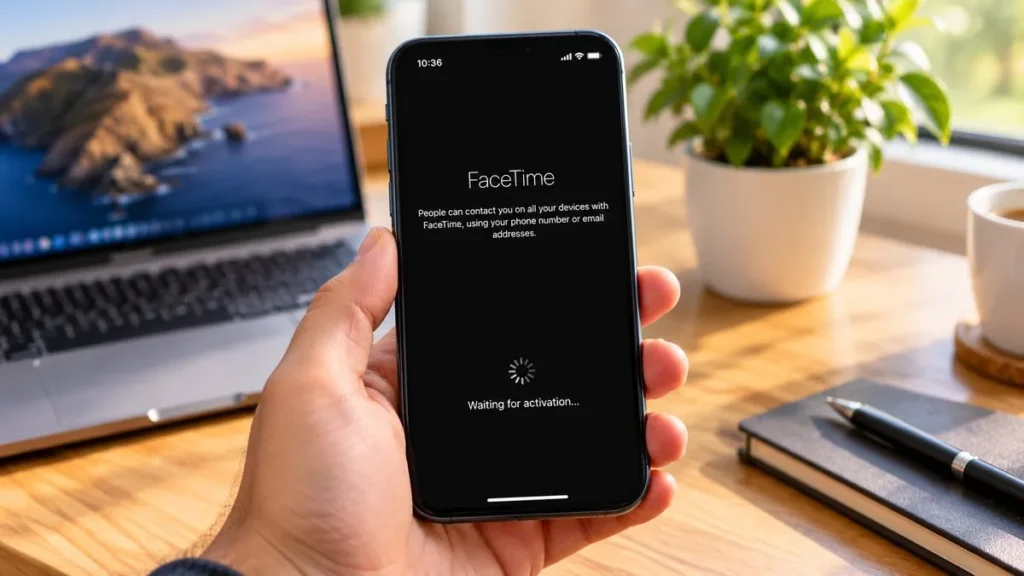
FaceTime waiting for activation? You open FaceTime on your iPhone, but instead of seeing your contacts or making a video call, the screen displays “Waiting for activation…” and never seems to finish loading.
Sometimes FaceTime stays on this screen for several minutes. Other times, it continues for hours, even when your iPhone has a working Wi-Fi or cellular connection.
You may also notice that your phone number isn’t available for FaceTime, or that iMessage is stuck verifying the same number.
Fortunately, FaceTime waiting for activation doesn’t automatically mean your iPhone is damaged. The problem may involve your mobile carrier, SMS verification, an incorrect time zone, an Apple Account issue, or a temporary activation delay.
In this guide, we’ll explain 10 practical fixes for FaceTime waiting for activation on iPhone, including how to check your SIM or eSIM, restart activation, use an email address temporarily, and determine when to contact Apple Support.
Quick Answer: How to Fix FaceTime Waiting for Activation
If FaceTime is stuck on the activation screen, try these steps:
- Confirm your iPhone has a working internet connection.
- Check Apple’s System Status for FaceTime problems.
- Set the correct date, time, and time zone.
- Install the latest compatible iOS update.
- Make sure your SIM or eSIM is active and supports international SMS.
- Turn off iMessage and FaceTime, restart your iPhone, then turn them back on once.
- Check whether FaceTime works with a verified Apple Account email address.
- Allow up to 24 hours for phone-number verification.
- Try Apple’s online activation assistance.
- Contact your carrier or Apple Support if activation still fails.
Important: Apple says phone-number verification can take up to 24 hours. Repeatedly turning iMessage and FaceTime on and off is unnecessary when verification is already in progress.
Why Is FaceTime Stuck on Waiting for Activation?
FaceTime must complete an activation process before you can use it on your iPhone.
The activation process can involve your Apple Account, an internet connection, and your mobile carrier.
When activating a phone number, Apple requires SMS messaging. Your carrier may charge for the activation SMS.
If verification isn’t complete, FaceTime may display an activation message rather than becoming available.
Several problems can contribute to this situation.
SMS restrictions: Your carrier may not support the international SMS needed for phone-number activation.
Inactive SIM or eSIM: The phone number you’re trying to activate may belong to a cellular plan that isn’t active.
Internet connection problems: FaceTime needs a working connection to Apple’s services.
Incorrect date and time: An inaccurate time zone may interfere with activation.
Apple Account problems: Your account or email address may require verification.
Temporary activation delays: Your carrier may still be processing the phone-number verification.
Dual SIM confusion: On devices with multiple cellular plans, the number you want to activate may differ from the number currently being used for mobile data.
The best approach is to check the relevant settings in order rather than repeatedly resetting the iPhone.
1. Check Your Internet Connection
FaceTime requires a working internet connection.
Even if your iPhone displays Wi-Fi or 4G at the top of the screen, that doesn’t necessarily prove it can access Apple’s activation services.
Start by checking your connection.
- Open Safari.
- Visit a website you don’t already have open.
- Confirm that the page loads.
- If you’re using Wi-Fi, try another trusted network if available.
- If your cellular plan provides data, test the cellular connection.
- Return to FaceTime after verifying connectivity.
If Safari cannot load websites, resolve the internet problem first.
You can also check whether a hotel, office, or public Wi-Fi network requires a browser sign-in.
Avoid immediately resetting every network setting. You may lose saved network configurations without solving the actual problem.
Related Reading: Phone Connected to Wi-Fi but No Internet? 10 Fixes to Try (2026).
That guide provides additional troubleshooting steps for internet connectivity problems.
2. Check Apple’s System Status
Sometimes FaceTime activation problems may be related to an Apple service disruption rather than your own phone.
Before making major changes, check whether Apple reports a service issue.
Open:
Look for FaceTime and other relevant services.
If Apple reports an ongoing problem, wait for the service to recover before repeating activation attempts.
If there are no reported outages, continue with the next troubleshooting steps.
Remember: A green service status doesn’t guarantee that your individual carrier or Apple Account is working correctly. It simply helps rule out a reported wider service disruption.
3. Set Date and Time Automatically
Incorrect time-zone settings are one of the issues Apple specifically recommends checking when FaceTime or iMessage won’t activate.
To review your settings:
- Open Settings.
- Tap General.
- Select Date & Time.
- Enable Set Automatically, if the option is available.
- Confirm that the displayed time and time zone are correct.
If your device is managed by an organization or has restrictions, you may not be able to change automatic time settings.
In that case, verify the time-zone configuration through the settings available to you.
After checking the time, return to FaceTime.
This simple step doesn’t require you to delete messages, remove your SIM, or reset the device.
4. Update Your iPhone to the Latest Compatible iOS Version
Apple recommends keeping your iPhone updated when troubleshooting FaceTime activation.
Software updates can address compatibility issues and bugs.
To check:
- Open Settings.
- Tap General.
- Select Software Update.
- Wait while your iPhone checks for updates.
- Install an available compatible update if appropriate.
Back up important information before installing a major update.
After your iPhone restarts, check whether FaceTime can activate.
If FaceTime started failing immediately after an iOS update, record the iOS version and when the issue began.
The timing may be useful for troubleshooting, but it doesn’t automatically mean the update is the underlying cause.
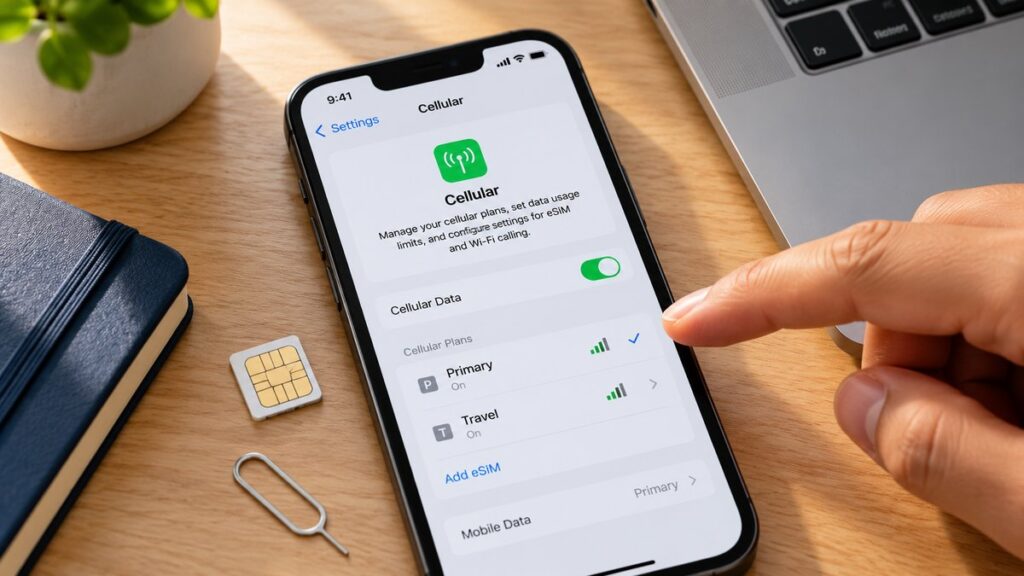
5. Check the Active SIM or eSIM
If FaceTime is trying to activate your mobile phone number, that number must be associated with the appropriate active cellular service.
This is particularly important when using Dual SIM or eSIM.
For example, your iPhone might contain a Bangladesh number and a US number.
One line may provide mobile data while another is the number you want to register with FaceTime.
To check:
- Open Settings.
- Select Cellular, Mobile Data, or Mobile Service, depending on your region.
- Review your installed SIM and eSIM plans.
- Identify the line containing the phone number you want to use.
- Confirm that the cellular plan is enabled and active.
- Check whether that line can send ordinary SMS messages.
An active internet connection through one line doesn’t automatically activate the phone number associated with another.
Likewise, a data-only travel eSIM may not provide the phone-number or SMS capability needed for phone-number registration.
Important: Don’t delete an eSIM just because FaceTime is stuck. Deleting a cellular plan may require carrier assistance to restore it.
Related Reading: iPhone eSIM Not Activating? 10 Fixes to Try (2026).
If your mobile plan itself is failing to activate, resolve that issue before troubleshooting FaceTime phone-number registration.
6. Restart FaceTime and iMessage Activation Once
Apple recommends restarting iMessage and FaceTime when activation fails.
Follow the steps in this order:
- Open Settings → Apps → Messages.
- Turn iMessage off.
- Return to Settings → Apps → FaceTime.
- Turn FaceTime off.
- Restart your iPhone normally.
- Turn iMessage back on.
- Turn FaceTime back on.
On older versions of iOS, the Messages and FaceTime settings may appear directly in Settings.
If FaceTime displays the activation screen again, allow the verification process to continue.
Do not repeatedly perform this sequence.
Apple explains that a spinning verification indicator means the iPhone is already trying to verify the number.
Repeated restarts or toggling are unlikely to help while a legitimate verification request is still pending.
7. Try FaceTime With Your Apple Account Email Address
FaceTime can use verified Apple Account email addresses as well as supported phone numbers.
This can be helpful when phone-number verification hasn’t completed.
To review email-based FaceTime access:
- Open Settings → Apps → FaceTime.
- Check whether you are signed in to your Apple Account.
- If FaceTime is available beyond the activation screen, scroll to You Can Be Reached By FaceTime At.
- Review the listed email addresses.
- Select a verified email address you want to use.
If FaceTime doesn’t open far enough to display those options, you may need to complete Apple Account activation first.
You can verify and manage your email addresses at account.apple.com.
If an email address is unverified, complete the verification process before trying to use it.
Note: Successfully using FaceTime with an email address doesn’t mean your mobile phone number has been activated.
Email-based access can be a temporary alternative while the carrier verification issue is being resolved.
8. Wait Up to 24 Hours for Phone Number Activation
One of the most important facts about FaceTime activation is that verification isn’t always immediate.
According to Apple, it may take up to 24 hours for your carrier to verify your phone number.
During this period:
- Keep the relevant SIM or eSIM active.
- Maintain working internet access.
- Make sure your time zone remains correct.
- Allow the required SMS verification.
- Avoid repeatedly turning FaceTime and iMessage off and on.
If the iMessage settings show a spinning indicator next to the phone number, Apple says your device is automatically attempting to verify it.
Wait for the process to finish before making more disruptive changes.
After 24 hours, check the relevant activation settings again.
If the number remains unavailable, contact your mobile carrier to confirm that international SMS is working.
Related Reading: iMessage Phone Number Spinning? 10 Fixes to Try (2026).
That guide explains the phone-number verification process in greater detail.
9. Try Apple’s Online FaceTime Activation Assistance
Apple provides an online activation assistance process for certain iMessage and FaceTime account problems.
You can access it here:
Apple iMessage and FaceTime Activation Assistance
To use it:
- Open the Apple activation assistance page.
- Find Enable Apple Account.
- Select Get Started.
- Sign in to your Apple Account.
- Follow the instructions.
- If requested, enter the phone number associated with your activation issue.
Apple will email you when your account is ready to use iMessage and FaceTime, if the activation request succeeds.
This tool can help address certain account-level activation problems.
However, it doesn’t replace the required carrier SMS verification when you want to activate a cellular phone number.
If your account is ready but the phone number still cannot activate, investigate the mobile carrier requirements.
10. Contact Your Carrier or Apple Support
If FaceTime remains stuck after you’ve completed the appropriate steps and allowed the verification period, contact your carrier or Apple Support.
Contact your carrier first for phone-number activation
Ask your carrier:
- Is my SIM or eSIM fully active?
- Can this line send and receive international SMS?
- Are international activation SMS messages blocked?
- Does my prepaid balance cover possible SMS charges?
- Are there roaming restrictions affecting SMS?
- Are there any account restrictions that could prevent verification?
This is especially important if you’re using a number from one country while staying in another.
For example, a US phone number used abroad may require working SMS and roaming support from the US carrier.
Contact Apple Support for remaining activation problems
If the carrier confirms that SMS activation is supported but FaceTime still fails, contact Apple Support.
You can visit Apple Support.
Have this information available:
- Your iPhone model.
- Your iOS version.
- Your mobile carrier.
- Whether you use a physical SIM or eSIM.
- Whether iMessage also fails to activate.
- The exact error message.
- How long the problem has continued.
Avoid posting unmasked phone numbers, Apple Account addresses, or other personal details when asking for help online.
FaceTime Waiting for Activation With Dual SIM or eSIM
Dual SIM users may see multiple phone numbers associated with one iPhone.
The presence of two different phone numbers is not automatically a problem.
A device might have a local mobile plan and an international line installed at the same time.
However, phone-number activation still depends on the mobile service associated with the number being registered.
If one number activates and the other doesn’t, check whether the failing line can send the required SMS.
Also confirm that the number isn’t associated with an inactive cellular plan.
Apple documents a specific iOS 26 problem involving an inactive SIM with exactly the same number as an active SIM.
Apple recommends iOS 26.1 or later for that issue, which primarily affects iMessage phone-number activation.
This duplicate-number situation is different from simply using two legitimate phone numbers.
Don’t delete a working SIM or eSIM without identifying the affected line and confirming how it can be restored.
FaceTime and iMessage Both Waiting for Activation?
FaceTime and iMessage share parts of Apple’s activation system.
If both services fail to activate the same phone number, it may point toward a shared issue, such as carrier SMS verification, an inactive SIM, or an account problem.
Start by checking whether the intended cellular line is active.
Then verify internet access, time settings, and international SMS support.
Complete Apple’s restart procedure once if you haven’t already done so.
Allow up to 24 hours for phone-number verification.
If both services continue failing, contact your carrier first and then Apple Support if needed.
There is no benefit in repeatedly performing identical resets without identifying the cause.
Can You Use FaceTime Without a Phone Number?
You may be able to use FaceTime with a verified Apple Account email address rather than a cellular phone number.
This requires FaceTime to be available in your region and the Apple Account to be properly activated.
A compatible internet connection is also required.
If you can sign in and select a verified email address under FaceTime settings, contacts can reach you using that address.
However, an email address doesn’t automatically solve a separate phone-number verification problem.
People who specifically want to use a mobile number with FaceTime must still complete the appropriate activation process.
Frequently Asked Questions
Why does FaceTime keep saying Waiting for Activation?
FaceTime may still be verifying your Apple Account or phone number. Carrier SMS restrictions, connectivity problems, incorrect time settings, and temporary delays can contribute.
How long does FaceTime activation take?
Apple says phone-number verification can take up to 24 hours. If the number still isn’t verified afterward, contact your carrier.
Does FaceTime need SMS to activate?
Activating a cellular phone number with FaceTime requires SMS support. Your carrier may charge for the activation SMS.
Can FaceTime activate using Wi-Fi only?
You can use FaceTime with an eligible verified Apple Account email address over Wi-Fi. Activating a cellular phone number still requires the appropriate carrier SMS support.
Why are FaceTime and iMessage both stuck activating?
Both services can depend on the same phone-number verification process. Check your SIM, international SMS support, and Apple Account activation.
Should I keep turning FaceTime off and on?
No. Complete Apple’s restart procedure once if needed. When verification is already underway, repeatedly toggling FaceTime or iMessage is unnecessary.
Will restarting my iPhone fix FaceTime activation?
Restarting may help with a temporary software problem, and Apple recommends a restart as part of its activation troubleshooting procedure. It does not guarantee success if the carrier cannot complete SMS verification.
Can I use FaceTime with an email address instead of my number?
Yes, where supported, a verified Apple Account email address can be used for FaceTime after account activation.
Why won’t FaceTime activate on my eSIM?
The issue may involve the associated line, carrier SMS capability, account status, or verification delay. Confirm that the eSIM is active and supports the required service.
Does using a foreign SIM prevent FaceTime activation?
Not automatically. However, the carrier must support the required SMS functionality. Roaming or international SMS restrictions may interfere.
Should I reset my iPhone to fix FaceTime activation?
A factory reset is not a recommended first step. Check the cellular line, SMS, internet, date and time, and Apple activation instructions first.
What should I do after 24 hours?
If your phone number still isn’t verified after completing the recommended checks, contact your carrier. If SMS support is confirmed and the issue remains, contact Apple Support.
Final Thoughts
If FaceTime is waiting for activation, don’t immediately assume your iPhone is damaged or that you need to erase the device.
Begin with your internet connection, Apple’s service status, and the correct date and time.
Then confirm that the relevant SIM or eSIM is active and supports international SMS.
Follow Apple’s activation restart instructions once if necessary, and allow up to 24 hours for phone-number verification.
If your Apple Account supports it, using a verified email address may provide an alternative while you investigate phone-number activation.
For persistent issues, contact your mobile carrier and Apple Support rather than repeatedly resetting your iPhone.
Official Apple Support References
- Apple: If you can’t turn on or sign in to iMessage or FaceTime
- Apple: iMessage phone-number activation problems in iOS 26
- Apple System Status
- Apple iMessage and FaceTime Activation Assistance
The Synced Desk | Practical solutions for everyday technology problems.