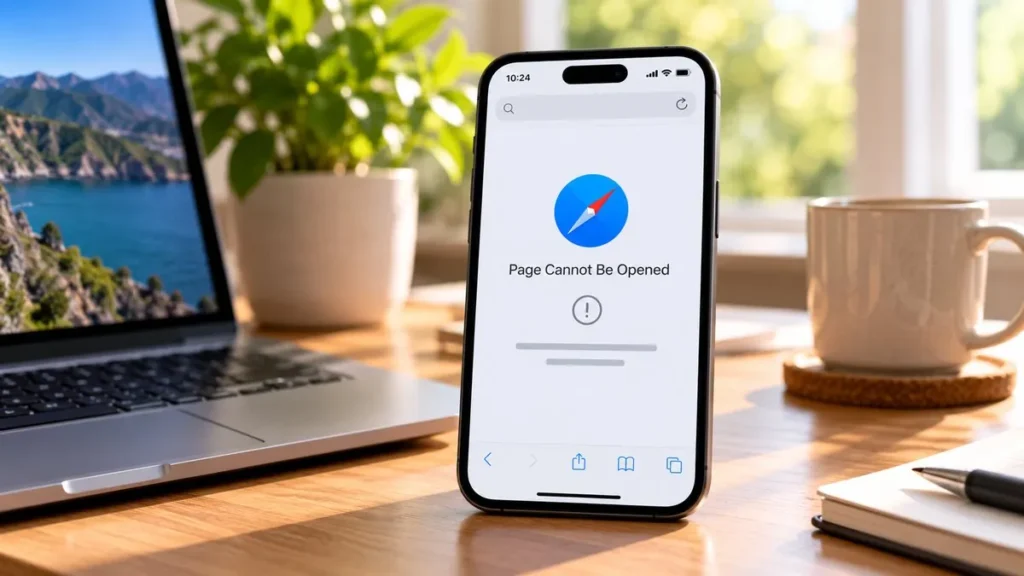
iPhone Safari not loading websites? Maybe Safari opens a blank page, keeps spinning, displays “Safari cannot open the page,” or refuses to load one particular website. You might even have working Wi-Fi and functioning apps while Safari seems stuck.
These symptoms do not always mean Safari itself is damaged. The cause could be the internet connection, a captive Wi-Fi login, a VPN, a Safari extension, old website data, JavaScript settings, or an issue with just one website.
In this guide, we’ll walk through 12 practical fixes for iPhone Safari not loading websites, starting with quick checks and saving disruptive steps until later. The instructions are written for recent iOS versions, although some settings may have slightly different locations on older iPhones.
Quick Answer: How to Fix iPhone Safari Not Loading Websites
- Try another reliable website to check whether just one site is affected.
- Switch from Wi-Fi to cellular data or test a different Wi-Fi network.
- Check Airplane Mode and whether your mobile data is available.
- Complete any required hotel, airport, or public Wi-Fi sign-in.
- Close and reopen Safari, then restart your iPhone if necessary.
- Temporarily check whether a VPN or network filter is interfering.
- Test without Safari content blockers and extensions.
- Clear Safari history and website data if other fixes fail.
- Make sure JavaScript is enabled in Safari’s advanced settings.
- Investigate iCloud Private Relay if only certain sites fail.
- Check automatic date, time, and time zone settings.
- Update iOS and contact the website owner or Apple if needed.
Important: Don’t erase your iPhone or reset its network settings just because Safari fails to load one page. Identify whether the problem affects a specific website, one network, or the browser as a whole.
Why Is Safari Not Loading Websites on My iPhone?
Safari needs a working connection to reach most websites. It also relies on settings that control scripts, extensions, privacy, and website data. Problems in any of those areas can interrupt a page.
Common symptoms include:
- Safari says it cannot open the page: Your network may not be connected, the website may be unavailable, or a filter may interfere.
- Safari shows a blank white page: A site may have a script problem, a content blocker may prevent content from loading, or website data may conflict.
- Safari works on cellular data but not Wi-Fi: The Wi-Fi network, router, sign-in page, DNS, or filtering system deserves attention.
- Safari fails on one website only: The site itself, a login cookie, a content blocker, or Private Relay compatibility may be involved.
- Safari closes unexpectedly: A temporary app or iOS issue may require restarting or updating.
Begin with a normal, trusted website such as Apple’s support page. Don’t keep refreshing a suspicious link that may be unsafe.
1. Check Whether the Problem Affects One Website
Before changing iPhone settings, compare different websites.
- Open Safari.
- Type a known website directly in the address field, such as apple.com.
- Try a second trusted website.
- Return to the website that failed.
- Note whether only one page or all pages fail.
If every page fails, focus first on internet access. If other websites work normally, the failing site might be temporarily unavailable or may require different browser settings. Try visiting it later or contacting the website owner.
Tip: A single broken webpage isn’t good evidence that your iPhone needs repair.
2. Switch Between Wi-Fi and Cellular Data
Apple’s official Safari troubleshooting instructions recommend testing another network.
To isolate the issue:
- Open Settings → Wi-Fi.
- If Wi-Fi is connected, temporarily turn it off.
- Confirm mobile data is enabled and available for your plan.
- Open Safari and try the same website using cellular data.
- Then reconnect to Wi-Fi and test again.
If Safari loads over cellular data but not Wi-Fi, investigate the original Wi-Fi network or router. If both connections fail, proceed with the Safari-specific checks.
Related reading: iPhone Connected to Wi-Fi but No Internet? 10 Fixes to Try (2026). That guide explains what to do when Wi-Fi connects but online services cannot reach the internet.
3. Check Airplane Mode and Cellular Data Availability
Airplane Mode normally disables cellular connections. It is easy to forget that it is enabled, especially after traveling or troubleshooting another network problem.
Open Control Center or Settings and check whether Airplane Mode is on. If you need to browse over cellular data, turn it off and confirm your plan has a usable data connection.
Next, check Settings → Cellular (or Mobile Data). If you use two SIMs or eSIMs, check which line is providing mobile data. A phone can show a signal but still have no working data service.
If other apps also cannot connect over cellular data, this is probably a broader network problem rather than a Safari-only issue.
Related reading: iPhone Cellular Data Not Working? 12 Fixes to Try (2026). Use that guide if mobile apps and Safari both fail over LTE or 5G.
4. Complete a Public Wi-Fi Sign-In Page
Hotels, airports, cafés, offices, and campuses sometimes use a captive portal. Your iPhone connects to Wi-Fi, but the network requires you to sign in or accept conditions before opening websites.
Try these steps:
- Open Settings → Wi-Fi and select the network you are authorized to use.
- Wait for the network login page, if one appears.
- Complete the required sign-in.
- Return to Safari and test a trusted website.
- If the portal won’t appear, reconnect to the network or ask its operator for help.
Avoid submitting sensitive information to unfamiliar login pages. If a network restricts general web access after sign-in, contact its administrator rather than changing security settings without permission.
5. Close and Reopen Safari, Then Restart the iPhone
A page can get stuck even when the connection is otherwise healthy. Try opening a fresh tab first. If Safari seems unresponsive, close the app and reopen it.
On iPhones with Face ID, swipe up from the bottom and pause to open the app switcher. Find Safari, then swipe its preview upward. Reopen Safari and test again.
If the issue continues, restart the iPhone:
- Press and hold the Side button with either Volume button.
- Drag the power-off slider.
- Wait about 30 seconds.
- Hold the Side button to turn the phone back on.
- Reconnect and test Safari.
A normal restart doesn’t erase photos, apps, or passwords. If Safari now loads normally, avoid making additional changes without a reason.
If Safari loads websites normally but your iPhone keyboard doesn’t appear when you tap the address bar or a text field, the problem may involve the keyboard rather than your internet connection. Read our guide, iPhone Keyboard Not Working? 12 Fixes to Try (2026), for detailed troubleshooting steps.
6. Check Whether a VPN or Security Filter Is Interfering
Apple notes that VPN settings can prevent some apps or websites from loading. A VPN server outage, network filter, or security tool may affect Safari while other services still appear to work.
If you personally manage a VPN:
- Open its app or check Settings → VPN.
- Temporarily disconnect it as a controlled test.
- Try the same website in Safari.
- Reconnect your VPN after testing.
If the page loads only when the VPN is off, check your VPN’s settings or contact its provider. Don’t remove school- or employer-managed VPNs, security profiles, or filtering software without permission.
A VPN isn’t automatically the cause just because one website is slow. Compare multiple sites and networks before making a conclusion.
7. Test Safari Without Content Blockers or Extensions
Safari extensions and content blockers are useful, but some can interfere with scripts, sign-in pages, and other website features.
On many recent iOS versions:
- Open Settings → Apps → Safari.
- Tap Extensions.
- Review installed extensions and content blockers.
- If you control the extension, temporarily disable the relevant one.
- Reload the website.
- Restore the extension afterward if it isn’t responsible.
You can also check the page menu in Safari for per-site extension or content-blocker options when available.
If the website loads after an extension is disabled, check for an extension update or adjust that extension’s site-specific rules. Avoid turning off essential security controls permanently.
8. Clear Safari History and Website Data Carefully
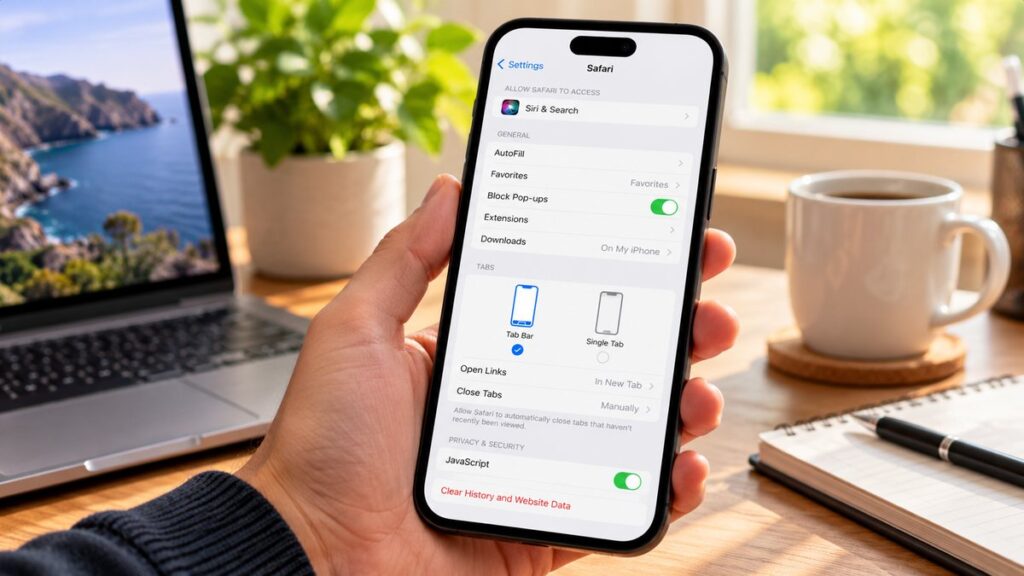
Old cookies or website data can sometimes contribute to sign-in loops, broken pages, or unusual site behavior. Apple includes clearing Safari data among its troubleshooting steps.
Before you proceed, understand the effect: clearing history and website data removes browsing history and cookies for the selected period or profiles, and may sign you out of websites. It does not normally erase photos or saved contacts.
To clear it on recent iOS versions:
- Open Settings → Apps → Safari.
- Tap Clear History and Website Data.
- Choose the available time range and profile options as appropriate.
- Confirm the action.
- Return to Safari and retry the website.
If you want a less disruptive approach, Settings → Apps → Safari → Advanced → Website Data may let you remove stored data for a specific problematic website. The exact menu options can vary by iOS release.
Don’t clear all data repeatedly if it doesn’t help. Try one controlled test and move on.
9. Make Sure JavaScript Is Enabled
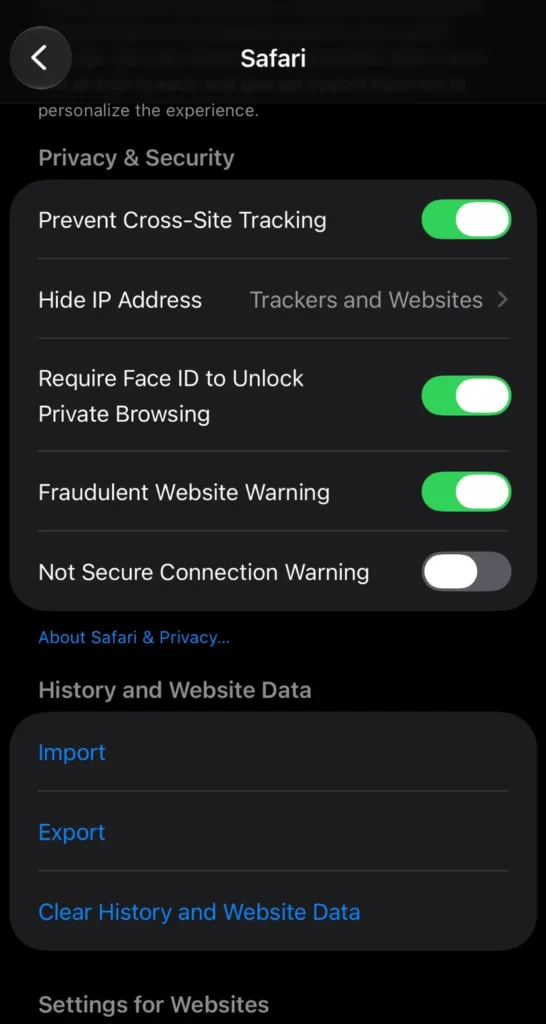
Many websites use JavaScript for buttons, interactive menus, forms, and loading content. If JavaScript is disabled, some pages may appear blank or fail to work correctly.
Apple’s recommended path on recent iOS versions is:
- Open Settings → Apps → Safari.
- Tap Advanced.
- Find JavaScript.
- Confirm it is switched on.
- Return to Safari and reload the website.
You don’t need to install a separate JavaScript app. If JavaScript is already enabled, leave it alone and continue troubleshooting.
If only one website fails despite normal Safari settings, report the issue to that website’s operator.
10. Check iCloud Private Relay for a Site-Specific Problem
If you use iCloud+ Private Relay, some sites that depend on IP-based filtering or verification may not work as expected. Apple recommends checking Private Relay when only a particular website is affected.
On supported configurations, Safari may offer a Show IP Address option in the page menu for a specific site. This allows the site to see your IP address for that browsing session while you test compatibility.
If you choose to test more broadly, review Private Relay under Settings → [your name] → iCloud → Private Relay, if available. Changes to Private Relay can reduce browsing privacy, so restore your preferred settings after troubleshooting.
Do not turn off Private Relay unnecessarily when all sites work. If a website refuses access even after testing, contact its support team.
11. Verify Automatic Date, Time, and Time Zone
Incorrect device time can sometimes contribute to problems with secure website connections, logins, or certificates.
To review it:
- Open Settings → General → Date & Time.
- Check the displayed time and time zone.
- Enable Set Automatically if available and appropriate for your device.
- Return to Safari and try the website again.
This is a diagnostic check, not a reason to manually adjust the clock until a website loads. Be cautious about website certificate warnings; don’t ignore security warnings just to continue to a page.
12. Update iOS and Seek the Right Support
If Safari still fails across different websites and networks, check for a compatible software update:
- Back up important information.
- Go to Settings → General → Software Update.
- Review any available update.
- Install it using Apple’s normal procedure if suitable.
- Test Safari again.
If only one website fails, send the site owner the error message and a description of what happens. If Safari fails on all working networks after the other tests, contact Apple Support for assistance.
Don’t begin with a factory reset. It is unnecessarily disruptive for most page-loading problems, and it won’t fix an offline website or an incompatible network filter.
Safari Works on Cellular Data but Not Wi-Fi
This points toward the Wi-Fi network, router, public-network sign-in, or a network-specific restriction. Check whether other devices can reach the internet through that Wi-Fi connection, and whether your iPhone can load the same website on a different Wi-Fi network.
If every device has the problem, speak with your internet provider or the network administrator. If only the iPhone has it, review its saved Wi-Fi configuration or VPN settings carefully.
Safari Loads Some Websites but Not Others
A particular website may be unavailable, may block traffic from your VPN or Private Relay connection, or may conflict with a Safari extension. Compare that site with other trusted websites and, if appropriate, test another connection.
Clearing only the problematic site’s data is often preferable to removing all browsing history. Do not bypass certificate warnings or disable privacy protections permanently just to access one page.
Quick diagnostic test: Open two trusted websites in Safari. If one loads and the other fails, try the failing site on a different network. If you have another browser installed, test the same address there as well.
If the site works in another browser but not Safari, investigate Safari extensions, stored website data, and privacy-related compatibility. If it fails in every browser and on multiple networks, the website itself may be unavailable.
Avoid clearing all your browsing history before identifying whether the issue affects one website or Safari generally.
Safari Opens a Blank Page or Keeps Loading
Try reloading the tab, then open a new tab and load a different site. If the problem repeats, test another network, pause a personally managed VPN, and review Safari extensions.
If the page relies on JavaScript, make sure the Safari JavaScript setting is on. If Safari itself freezes or quits across many sites, restart the iPhone and check for updates.
Frequently Asked Questions
Why does Safari say it cannot open the page?
The internet connection may be unavailable, the website may be down, or a VPN, network filter, or website setting may interfere. Try another site and network first.
Why does Safari not work even though Wi-Fi is connected?
Wi-Fi connectivity doesn’t guarantee internet access. The router may be offline, or a public Wi-Fi login may still be required. Test another device and a different network.
Why does Safari work on mobile data but not Wi-Fi?
The problem may be specific to the Wi-Fi network, router, DNS, or restrictions on that network. Try another trusted Wi-Fi connection before resetting the iPhone.
Will clearing Safari history delete my photos?
No, clearing Safari history and website data doesn’t normally delete personal photos. It can remove cookies and sign you out of websites, however.
Why does Safari show a blank white page?
Possible causes include a site-specific problem, disabled JavaScript, an incompatible extension, or a failed network request. Compare other websites and test JavaScript and extensions.
Can a VPN stop Safari from loading websites?
Yes. Apple notes that VPN configurations may affect website or app loading. Temporarily test without a VPN you personally control, then restore it afterward.
Does iCloud Private Relay cause some sites to fail?
Some websites that rely on IP filtering or verification may have trouble with Private Relay. Apple describes options for testing individual websites while keeping privacy in mind.
Why is the Clear History button greyed out?
There may be no relevant history to clear, or restrictions such as Screen Time could prevent the action. Don’t bypass managed or family restrictions.
Should I reset network settings to fix Safari?
Not at first. Check the network, site, VPN, extensions, JavaScript, and Safari data. Resetting network settings removes saved Wi-Fi networks and other network configurations.
How do I fix Safari after an iOS update?
Start with another network and a normal restart. Review installed extensions, check for another compatible update, and contact Apple Support if Safari still fails everywhere.
Can I reinstall Safari to fix the issue?
Safari is an Apple system browser. Don’t assume reinstalling it will solve a website or network problem. Use the targeted tests first.
When should I contact Apple Support?
If Safari repeatedly freezes, closes, or cannot load trusted sites across several functioning networks after restarting and updating, Apple can help investigate the device.
Final Thoughts
If your iPhone Safari is not loading websites, begin by checking whether the problem affects one website or everything you open. Test Wi-Fi against cellular data, complete any public-network sign-in, and restart Safari or your iPhone if necessary.
If the problem remains, investigate a VPN, Safari extensions, website data, JavaScript, and Private Relay, making one change at a time. Don’t erase your iPhone or permanently disable important privacy and security tools simply to make one website load.
A careful test usually tells you whether the next call should be to your internet provider, the website owner, or Apple Support.
Official Apple Support Resources
- Apple: If Safari isn’t loading websites or quits on iPhone
- Apple: Manage iCloud Private Relay for websites and networks
- Apple: Clear history, cache, and cookies from Safari
- Apple: If your iPhone won’t connect to Wi-Fi
The Synced Desk | Practical solutions for everyday technology problems.