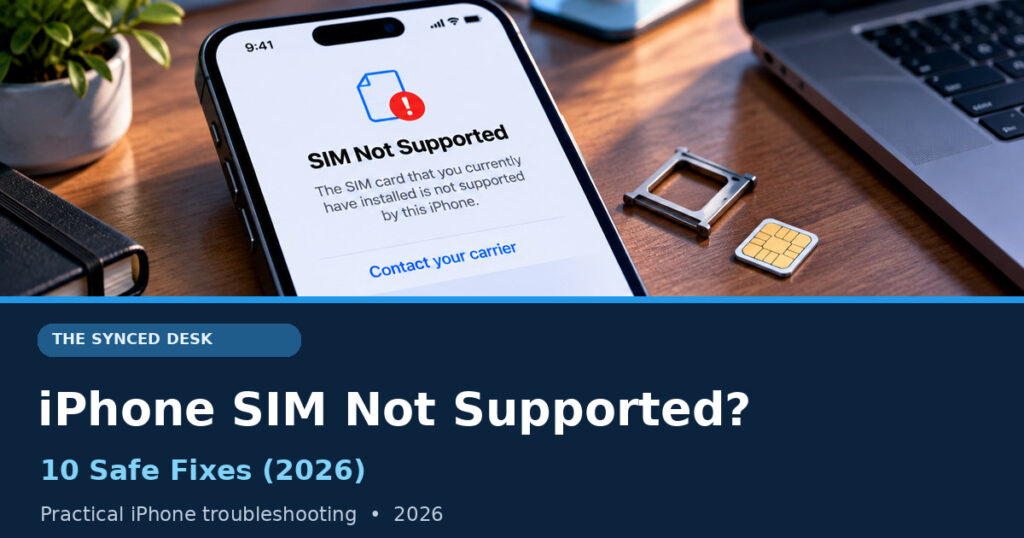
Seeing an iPhone SIM not supported message when setting up your phone or switching carriers? Maybe you’ve inserted a new SIM card, transferred to a different network, or purchased a secondhand iPhone that refuses to activate.
The message can be frustrating because the SIM card might work perfectly in another phone.
In many cases, the problem involves a carrier lock rather than a damaged SIM or a temporary iOS glitch.
However, other activation and compatibility problems can sometimes produce similar warnings.
The good news is that you can investigate the cause without downloading questionable unlocking tools or immediately resetting your iPhone.
In this guide, we’ll cover 10 safe fixes and checks for iPhone SIM not supported errors, including carrier restrictions, SIM compatibility, activation problems, eSIM issues, and what to do when switching to a new network.
We’ll also explain when you need to contact your carrier because the issue cannot be fixed through iPhone settings alone.
Table of Contents
Quick Answer
If your iPhone displays SIM Not Supported, start with these steps:
- Read the exact SIM error message.
- Check Carrier Lock in iPhone settings.
- Identify the carrier that originally locked the iPhone.
- Request an official carrier unlock if eligible.
- Confirm that the carrier has completed the unlock.
- Check physical SIM compatibility and installation.
- Retry activation using reliable Wi-Fi.
- Check iOS and carrier settings updates.
- Verify eSIM compatibility and carrier provisioning.
- Use Apple’s official computer activation process or contact support.
Important: If your iPhone is locked to a particular carrier, only that carrier can officially unlock it. Apple cannot remove the carrier lock for you.
Do not pay an unknown website to bypass a SIM restriction without verifying its legitimacy.
Why Does iPhone Say SIM Not Supported?
An iPhone needs a compatible SIM or eSIM configuration to use a cellular network.
Some iPhones are sold unlocked and can accept supported service from different carriers.
Others are sold with restrictions that allow them to use cellular service only through a particular provider.
When a locked iPhone is activated using a SIM from an unsupported carrier, an error may appear.
Apple documents a message explaining that the inserted SIM card is not supported and that a compatible carrier SIM is required.
Carrier Lock
A carrier lock restricts which mobile network providers can activate service on the device.
This is one of the most important causes to investigate.
Unsupported or Incompatible SIM
A SIM may be incompatible with a particular device, network, or activation requirement.
For example, the carrier may not support that iPhone model or may need to provision service differently.
eSIM Activation Problems
Some newer iPhones use eSIM instead of physical SIM cards.
An eSIM may require carrier activation, a compatible device, or an officially assigned cellular plan.
Activation Errors
An iPhone may also display an error when it cannot complete activation through Apple’s servers or a cellular provider.
However, an activation-server problem is different from a confirmed carrier lock.
The best solution depends on the exact message displayed.
1. Read the SIM Error
Before making changes, identify exactly what your iPhone says.
Different SIM warnings can look similar, but they don’t always mean the same thing.
SIM Not Supported
This often appears during activation when the inserted SIM isn’t accepted for that device.
A carrier restriction is an important possible cause.
No SIM
This means the iPhone is not detecting an installed physical SIM or an appropriate cellular configuration.
A physical SIM tray, card, or hardware problem may need investigation.
Invalid SIM
This can indicate a problem with SIM recognition, activation, compatibility, or a carrier restriction.
SIM Locked
This wording can refer to a SIM PIN lock in some contexts, while the Carrier Lock field in Settings refers to restrictions on the iPhone’s supported providers.
These are different security features.
Activation Lock
Activation Lock is an Apple Account security feature associated with Find My.
It isn’t the same as a carrier lock.
If your iPhone requests the previous owner’s Apple Account credentials, follow Apple’s official Activation Lock procedures rather than SIM troubleshooting.
First step: Record the exact error and whether it appears during setup, after installing a new SIM, or when activating an eSIM.
This information will help determine the next step.
2. Check Carrier Lock
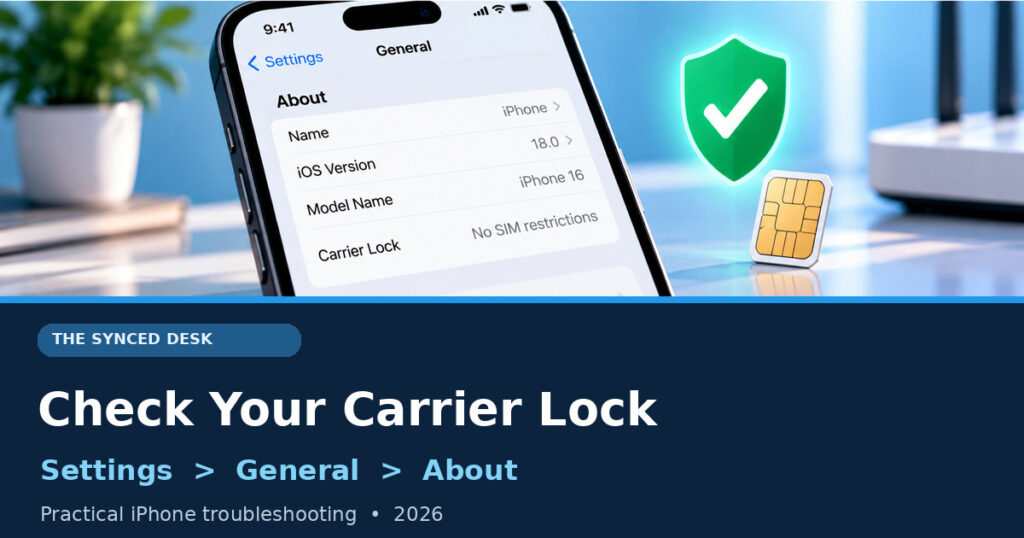
The most useful diagnostic step for an iPhone SIM not supported error is checking whether the device is locked to a carrier.
Apple provides this information directly in iPhone settings.
How to Check
- Open Settings.
- Tap General.
- Select About.
- Scroll to Carrier Lock.
- Review the displayed status.
No SIM Restrictions
If the field says No SIM restrictions, Apple identifies the iPhone as carrier-unlocked.
This means the device isn’t restricted to a single carrier through that lock.
However, your SIM still needs to be compatible with the device and supported by your carrier.
A Different Carrier Lock Status
If the field does not say No SIM restrictions, the device may still have a carrier restriction.
Contact the current or original locking carrier for clarification.
What If You Can’t Open Settings?
If the iPhone is stuck on the activation screen, you may not be able to reach General → About.
In that situation, contact the carrier associated with the device and provide the exact activation message.
You can also ask Apple Support which official activation procedure applies.
Remember: Removing and reinserting a SIM cannot remove a genuine carrier lock.
3. Identify the Original Carrier
If the iPhone is carrier-locked, you need to identify the provider responsible for the restriction.
This is particularly important when you purchase a used phone or receive one from another person.
For example, a secondhand iPhone may have originally been sold through AT&T, Verizon, T-Mobile, or another provider.
A SIM from a different carrier may not work until the original restriction is removed.
What to Check
- Review your purchase receipt or original order.
- Check whether the seller disclosed a carrier restriction.
- Look through any available carrier account documentation.
- Ask the seller which provider originally supplied the device.
- Contact the likely carrier through its official support channel.
If you purchased the iPhone from a private seller, ask them to help identify the original carrier.
What About an Unlocked iPhone?
An unlocked iPhone can generally be used with compatible participating carriers.
However, unlocked status does not guarantee compatibility with every mobile network or every cellular plan.
Your provider may still need to activate the line or issue an appropriate SIM or eSIM.
If your iPhone already shows No SIM restrictions, continue to the compatibility and activation checks below.
4. Request a Carrier Unlock
If the device is locked, the next step is requesting an official unlock from the responsible carrier.
Apple states that only the carrier can unlock an iPhone for use with another provider.
How to Request an Unlock
- Visit the original carrier’s official website.
- Find its device-unlocking information.
- Review the eligibility requirements.
- Sign in to the relevant account if necessary.
- Submit an unlock request or contact customer service.
- Complete any required account verification.
- Keep the confirmation or reference number.
Different carriers have different policies.
Some may require the device to be fully paid off, to have completed a minimum service period, or to meet other eligibility requirements.
For example, US carriers may have specific rules for prepaid devices, installment plans, and accounts associated with reported losses or fraud.
How Long Does Unlocking Take?
It depends on the carrier and the eligibility review.
Apple notes that a carrier may need several days to process an unlock request.
The important point is that the provider must confirm the restriction has been removed.
Do not repeatedly factory reset the iPhone while an official unlock request is still pending.
Resetting the device cannot force a carrier to approve an unlock.
5. Confirm Unlock Completion
Sometimes an unlock request has been approved, but the user hasn’t completed the next activation step.
Before changing additional settings, ask the carrier to confirm whether the unlock is fully applied.
Check the Status
If the iPhone is accessible:
- Open Settings.
- Tap General.
- Select About.
- Find Carrier Lock.
- Check whether it now says No SIM restrictions.
If the status hasn’t changed, contact the carrier again.
After the Unlock
Apple recommends following the appropriate process for the type of SIM you use.
For a supported physical-SIM iPhone, insert the new carrier’s compatible SIM after the original carrier confirms the unlock.
The device should then attempt activation.
For an eSIM, follow the new carrier’s official activation process.
Should You Erase Your iPhone?
Not normally.
Apple describes a backup-and-restore option in certain unlocking situations, including when another physical SIM is unavailable.
However, erasing is disruptive and should not be the first step.
For a modern iPhone, confirm the carrier has completed the unlock and ask whether a restore is genuinely needed.
If a restore is required, back up your information first and follow Apple’s official instructions.
6. Check SIM Compatibility
If your iPhone shows No SIM restrictions but still rejects a SIM card, investigate physical SIM compatibility and provisioning.
Start by checking which SIM format your iPhone supports.
Physical SIM or eSIM?
Some iPhones have a physical SIM tray.
Other models depend entirely on eSIM.
For example, iPhone 14 and later models sold in the United States use eSIM rather than a physical SIM tray.
Models sold in other countries or regions may have different configurations.
Check your exact iPhone model before trying to insert a physical SIM.
Check a Physical SIM
If your model has a SIM tray:
- Turn off the iPhone when appropriate.
- Use the correct SIM-eject tool.
- Remove the tray carefully.
- Check that the SIM is correctly positioned.
- Inspect for obvious damage.
- Reinsert the tray completely.
- Turn the iPhone on.
- Review the error again.
Don’t force a SIM tray into the device.
A tray from another iPhone model may not fit correctly.
Test Another SIM
If you still see a SIM error, ask your carrier to test a known-working compatible SIM.
A carrier store can help determine whether the card needs replacement.
However, a different SIM from another carrier will not bypass an existing carrier lock.
Contact Your Carrier
Ask whether your plan, SIM, and device model are supported.
The carrier may need to provision the line or provide a replacement card.
Avoid modifying or cutting a SIM card yourself.
7. Retry iPhone Activation
If the iPhone displays SIM Not Supported during initial setup, check whether the device can communicate with Apple’s activation services.
Apple recommends restarting the iPhone and using a reliable Wi-Fi connection for activation troubleshooting.
Restart Your iPhone
For most Face ID models:
- Press and hold the Side button and either Volume button.
- Wait for the power-off slider.
- Turn off the iPhone.
- Wait approximately 30 seconds.
- Turn the device on again.
If your phone uses another restart method, follow Apple’s instructions for that model.
Connect to Wi-Fi
During setup:
- Choose a trusted Wi-Fi network.
- Enter the correct password.
- Confirm the connection works.
- Continue the official activation steps.
A working network is important because the iPhone may need to communicate with Apple’s servers.
Check Apple’s Activation Service
If the alert says the activation server is unavailable, check Apple’s System Status page.
If iOS Device Activation is experiencing an outage, try again after service is restored.
Important: A working Wi-Fi connection can help complete activation, but it does not remove a carrier restriction.
If activation still says your SIM is unsupported by the carrier, return to the carrier-lock checks.
8. Check Software Updates
Software and carrier settings updates may help resolve certain compatibility and connectivity issues.
However, updating iOS does not unlock a carrier-locked phone.
Check iOS
If your iPhone has completed setup:
- Open Settings.
- Tap General.
- Select Software Update.
- Review available compatible updates.
- Back up important information before a major update.
- Follow Apple’s official installation instructions.
Check Carrier Settings
Apple also supports updates to carrier settings.
To check:
- Connect to Wi-Fi or a working cellular network.
- Open Settings.
- Tap General.
- Select About.
- Wait briefly for an available carrier update prompt.
- Install it if appropriate.
Not every visit to About produces an update.
If you recently inserted a new SIM or activated an eSIM, your device may need updated carrier configuration.
What If Setup Isn’t Complete?
If your iPhone is still locked on the activation screen, you may not be able to access ordinary update controls.
In that case, follow Apple’s official activation guidance or use the computer-based process described in Fix 10.
Avoid downloading unofficial firmware or carrier-unlocking software.
9. Check eSIM Activation
If you use an eSIM, the troubleshooting process differs from that of a physical SIM card.
An eSIM is a digital cellular profile that your carrier provides.
It must be compatible with your iPhone and activated through a supported method.
Verify Your Carrier
Ask your carrier whether:
- Your device supports its eSIM service.
- Your plan is active.
- The eSIM has been assigned to the correct device.
- The activation code remains valid.
- A carrier lock is preventing the new plan from being added.
Check Cellular Settings
If your iPhone is already set up:
- Open Settings.
- Tap Cellular.
- Review the SIMs or cellular plans shown.
- Select the relevant line.
- Check whether the line is enabled.
- Follow any official carrier activation instructions.
Don’t delete a working or partially activated eSIM simply because another plan isn’t installing.
Removing an eSIM may require the carrier to reissue the activation details.
eSIM Transfer Problems
Some carriers support transferring an eSIM between compatible iPhones.
Others require a QR code, carrier application, or manual activation.
If your new iPhone says the eSIM is unsupported, confirm that it is unlocked and that the carrier supports the device.
If your problem is an eSIM stuck on Activating rather than a carrier lock, follow our separate guide:
iPhone eSIM Not Activating? 10 Fixes to Try (2026)
That article covers eSIM activation and transfer issues in more detail.
10. Use Official Support
If your iPhone still cannot activate after checking the carrier lock and SIM compatibility, Apple recommends trying activation through a computer.
This is particularly useful when the on-device setup process fails.
Try Computer Activation
- Make sure your Mac or Windows computer has a working internet connection.
- Update the relevant Apple device-management software.
- Connect the iPhone using a compatible cable.
- Open Finder on a supported Mac, or the appropriate Apple device-management application on Windows.
- Locate the iPhone.
- Follow the available activation instructions.
If the computer reports that the SIM or eSIM is incompatible, Apple recommends contacting the carrier.
If the error concerns invalid activation information, follow Apple’s specific recovery instructions or contact Apple Support.
Contact the Correct Provider
Contact your original carrier when:
- The iPhone is carrier-locked.
- An unlock request is pending.
- The SIM is rejected because of a provider restriction.
- The device needs carrier-specific verification.
Contact your new carrier when:
- An unlocked iPhone cannot activate a new plan.
- A new SIM or eSIM isn’t provisioned correctly.
- You need a compatible replacement SIM.
- An eSIM QR code or carrier activation fails.
Contact Apple Support when:
- The iPhone cannot complete activation despite compatible service.
- Apple reports invalid activation information.
- SIM detection appears to fail with multiple compatible cards.
- A hardware or system fault may be involved.
Apple Support may recommend further diagnostics or service.
The key is avoiding unnecessary resets and contacting the provider that can actually resolve the restriction.
SIM Not Supported on New iPhone?
If a newly purchased iPhone displays SIM Not Supported, check whether it was sold unlocked or through a carrier-specific agreement.
Review the purchase documentation.
If it was bought through a mobile provider, confirm whether that carrier placed a restriction on the device.
If you purchased an unlocked iPhone directly from a legitimate retailer, check Settings → General → About for the Carrier Lock status, if accessible.
Then contact the retailer or carrier if the error conflicts with the advertised unlock status.
Don’t assume that a brand-new phone must always be unlocked.
The purchase arrangement and sales region can matter.
SIM Not Supported After Switching Carriers?
Switching from one mobile carrier to another can reveal a lock that wasn’t previously noticeable.
For example, an iPhone may work normally with its original carrier but reject a new provider’s SIM.
Start by checking Carrier Lock.
If the phone is restricted, contact the original carrier.
If the phone is unlocked, ask the new provider to confirm that the SIM or eSIM is compatible and correctly activated.
Avoid changing unrelated Wi-Fi, Bluetooth, and VPN settings when the underlying issue is carrier authorization.
SIM Not Supported on Used iPhone?
Secondhand iPhones require additional checks.
Before buying, confirm whether the device is unlocked and whether the seller can demonstrate successful activation with a compatible carrier.
If you’ve already bought the phone:
- Ask the seller for the original carrier information.
- Check the device’s Carrier Lock status if possible.
- Ask the responsible carrier about unlock eligibility.
- Review your purchase agreement and available return options.
If the seller advertised the phone as unlocked but it is still restricted, contact the seller promptly.
Be especially cautious if someone suggests paying an unknown third party to bypass carrier restrictions.
An unsupported SIM problem is not always something an ordinary repair shop can solve.
SIM Not Supported vs No SIM
These messages should not be treated as identical.
SIM Not Supported: Often points toward carrier acceptance or activation compatibility.
No SIM: Indicates that the device isn’t detecting an appropriate SIM.
Invalid SIM: Can involve SIM recognition, activation, or compatibility problems.
No Service: Means the device isn’t connected to normal cellular service through its carrier.
The troubleshooting steps differ.
For example, reinserting a physical SIM may help when a phone cannot read the card.
But it won’t remove a carrier restriction.
If the phone accepts the SIM and connects to the carrier but mobile internet still fails, see our iPhone Cellular Data Not Working guide.
What Not to Do
A SIM restriction can lead users toward misleading online advice.
Avoid the following:
- Installing unknown carrier-unlocking software.
- Paying websites that promise guaranteed unlocks without verifying legitimacy.
- Using unofficial SIM bypass accessories.
- Attempting to alter the iPhone’s device identifiers.
- Repeatedly factory resetting a locked phone.
- Removing a working eSIM without a recovery plan.
- Sharing carrier account passwords or one-time verification codes with unexpected callers.
A real carrier lock is controlled by the responsible mobile provider.
The safest approach is to confirm eligibility and request an official unlock.
If the issue involves a defective SIM or activation error instead, use the proper carrier or Apple support process.
Frequently Asked Questions
Why is my iPhone SIM not supported?
A common reason is that the iPhone is locked to a particular carrier and the installed SIM belongs to another provider. Other possibilities include SIM incompatibility or activation problems. Check Carrier Lock and the exact error message.
How do I fix SIM Not Supported on iPhone?
Start with Settings → General → About → Carrier Lock. If the phone isn’t unlocked, contact the responsible carrier. If it shows No SIM restrictions, investigate SIM compatibility and activation with the provider.
Can Apple unlock a carrier-locked iPhone?
No. Apple states that only the responsible carrier can unlock an iPhone for use with a different carrier.
Does restarting fix SIM Not Supported?
A restart may help with a temporary activation problem, but it cannot remove a genuine carrier lock.
How do I know if my iPhone is unlocked?
Open Settings → General → About. If Carrier Lock says No SIM restrictions, Apple identifies the device as carrier-unlocked.
Can I fix SIM Not Supported without a computer?
Often, yes. You can check the lock status and contact the carrier directly. However, some activation problems may require Apple’s computer-based activation process.
Why does my SIM work in another phone?
The other phone may be unlocked or compatible with your carrier. Your iPhone may have a carrier restriction or another compatibility problem.
Is SIM Not Supported the same as Activation Lock?
No. Carrier lock restricts cellular providers. Activation Lock is an Apple Account security feature associated with Find My.
Does factory resetting remove a carrier lock?
No. Erasing the device does not itself authorize it for another carrier. The carrier must approve and apply the unlock.
Can an eSIM be unsupported on an unlocked iPhone?
Yes. Even an unlocked iPhone needs a compatible carrier, supported activation method, and properly provisioned cellular plan.
Who should I contact for SIM Not Supported?
Contact the original carrier for unlocking. Contact the new carrier for SIM compatibility or activation. Contact Apple when the issue involves device activation errors or possible hardware faults.
Final Thoughts
If your iPhone SIM is not supported, don’t start by erasing the phone or downloading an unlocking utility.
The most important first step is checking whether the device is carrier-locked.
If the iPhone is restricted to a particular carrier, request an official unlock and confirm that the provider has completed the process.
If Carrier Lock says No SIM restrictions, investigate SIM compatibility, carrier activation, and software settings.
For physical SIM devices, check that the card is compatible and correctly installed.
For eSIM devices, verify that the provider has assigned and activated the correct cellular plan.
Use Apple’s official activation process when necessary.
The goal is not simply to hide the error. It’s to make sure your iPhone is legitimately unlocked, correctly activated, and connected to a supported cellular network.
Official Apple References
- Apple Support: How to Unlock Your iPhone for Use With a Different Carrier
- Apple Support: Invalid SIM or No SIM on iPhone
- Apple Support: If You Can’t Activate Your iPhone
- Apple Support: If You Can’t Set Up an eSIM
- Apple Support: Update Carrier Settings
- Apple Support: Set Up Your iPhone
- Apple System Status
Last reviewed: October 22, 2026. Carrier unlock eligibility, SIM availability, supported activation methods, and iPhone settings may vary by carrier, device model, and country.