Is your iPhone Dictation not working even though the keyboard appears normally? Maybe the microphone button has disappeared, your iPhone stops listening when you speak, or voice typing opens but refuses to turn your words into text.
Dictation is a useful iPhone feature that lets you write messages, emails, and notes without typing everything manually. When it stops working, even a simple message can become frustrating.
Fortunately, the problem doesn’t always mean your microphone is damaged. Dictation may be disabled, a Screen Time restriction could be blocking it, the selected keyboard language might be unsupported, or another voice feature could be changing how speech input works.
In this guide, we’ll explain 12 practical fixes for iPhone Dictation problems, including missing microphone buttons, speech-to-text errors, and Dictation that stops unexpectedly.
Table of Contents
Quick Answer: How to Fix iPhone Dictation Not Working
If Dictation isn’t responding, try these steps first:
- Open Settings → General → Keyboard.
- Find Enable Dictation and make sure it’s turned on.
- Open the Notes app and create a blank note.
- Tap the keyboard’s microphone button.
- Speak a short sentence and check whether text appears.
- If the button is missing, check Screen Time restrictions and Voice Control.
- Switch to a supported keyboard language, such as English (US).
- Restart your iPhone if Dictation still won’t respond.
If speech-to-text works in Notes but fails in a particular app, investigate that app separately.
Important: Apple’s built-in Dictation is different from recording a voice message, using Siri, or tapping a third-party app’s microphone button.
Why Is My iPhone Dictation Not Working?
Before changing settings, identify what actually happens when you try to dictate.
The most common causes include:
- Dictation is turned off in Keyboard settings.
- Screen Time restrictions prevent Siri and Dictation from being used.
- Voice Control is enabled instead of standard Dictation.
- The active keyboard language doesn’t support the feature.
- A third-party keyboard handles voice typing differently.
- A connected Bluetooth microphone or headset is interfering with audio input.
- The iPhone microphone isn’t capturing speech clearly.
- An application is temporarily unresponsive.
- A temporary software or connection issue is affecting speech recognition.
These problems don’t all require the same solution.
For example, a missing microphone button usually suggests a setting, restriction, or keyboard problem. A microphone button that responds but produces no text requires a different investigation.
Let’s start with the easiest checks.
1. Check That Enable Dictation Is Turned On
If your iPhone Dictation is not working, the first thing to check is whether the feature is enabled.
Apple provides a specific switch for Dictation in the iPhone’s keyboard settings.
To turn it on:
- Open Settings.
- Tap General.
- Select Keyboard.
- Scroll until you find Enable Dictation.
- Turn the switch on if it’s disabled.
- Confirm by tapping Enable Dictation if prompted.
- Open Notes or Messages and check the keyboard microphone button.
If Enable Dictation is already on, you can leave it enabled while you investigate other causes.
On a supported keyboard, the microphone button normally appears near the lower part of the onscreen keyboard.
Tap it, wait for the Dictation interface, and begin speaking.
What if the switch is missing or greyed out?
Check whether restrictions or a managed device profile are controlling the feature. We’ll cover those possibilities shortly.
Don’t reset your iPhone simply because you cannot immediately find the Dictation switch.
2. Test Dictation in the Notes App
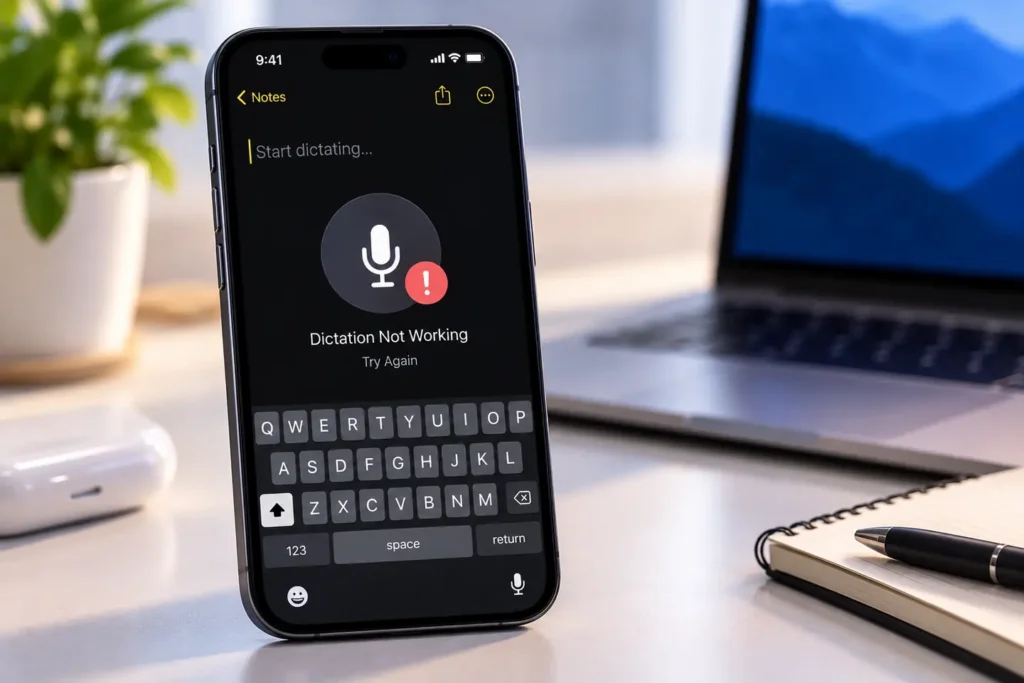
One of the most useful ways to diagnose a speech-to-text problem is to test Dictation in a different application.
The Notes app is a good place to start because it provides an ordinary editable text field.
Follow these steps:
- Open Notes.
- Create a new, empty note.
- Tap inside the note to open the keyboard.
- Find the microphone button on the keyboard.
- Tap the button.
- Clearly say, “This is a test of iPhone Dictation.”
- Check whether the words appear on the screen.
If the sentence appears correctly, your iPhone’s built-in Dictation is functioning in that test.
Try repeating the process in Messages or Mail.
If Dictation works in Notes but fails in another app, the problem could involve the affected application’s text field, keyboard integration, or own voice-input feature.
Make sure you’re using the correct microphone button
Some applications include their own recording controls.
For example, an app may offer a button for recording audio messages instead of converting spoken words into text.
The built-in keyboard microphone is the one you want when testing Apple’s Dictation feature.
For a separate problem involving the onscreen keyboard itself, read our iPhone Keyboard Not Working troubleshooting guide.
3. Review Screen Time Restrictions
If the Dictation microphone has disappeared and Enable Dictation is unavailable, Screen Time restrictions are worth checking.
Apple allows Siri and Dictation features to be restricted on supported devices.
These controls may be managed by a parent, school, employer, or the device owner.
To investigate:
- Open Settings.
- Tap Screen Time.
- Select Content & Privacy Restrictions.
- Look for the section controlling Siri & Dictation.
- Check whether the feature is allowed.
- If you manage the device, restore access when appropriate.
- Return to Keyboard settings and check Dictation again.
Depending on your iOS version, the relevant options may appear under Allowed Apps & Features, Intelligence & Siri, or another Siri-related restrictions section.
If a Screen Time passcode is required, use the authorized passcode.
For managed devices: Don’t attempt to bypass workplace, school, or parental restrictions. Contact the person responsible for the device’s configuration.
If restrictions aren’t enabled, continue with the next step.
4. Check Whether Voice Control Is Enabled
This is an important distinction that many troubleshooting guides overlook.
Voice Control and Dictation are not the same feature.
Voice Control is an accessibility feature that lets you operate your iPhone through spoken commands.
It can also enter text, but Apple explains that when Voice Control is enabled, standard Dictation isn’t available in the usual way.
If you want to use the normal keyboard microphone, check Voice Control.
To investigate:
- Open Settings.
- Tap Accessibility.
- Select Voice Control.
- Check whether Voice Control is enabled.
- If you don’t need it, turn it off temporarily.
- Open Notes and test the keyboard microphone again.
If you rely on Voice Control for accessibility, don’t disable it permanently just to restore a particular keyboard experience.
Instead, use the text-entry commands available through Voice Control.
The two features are designed for different purposes.
5. Check Your Keyboard and Dictation Language
If Dictation opens but doesn’t recognize what you’re saying, the selected language may be involved.
Apple supports Dictation in many languages and regions, but not every language has the same features.
To check your keyboard language:
- Open Settings.
- Go to General → Keyboard.
- Tap Keyboards.
- Review the installed languages.
- Tap Add New Keyboard if your preferred supported language isn’t listed.
- Choose an appropriate keyboard, such as English (US).
- Return to Notes.
When the keyboard appears, touch and hold the globe or keyboard-switch button, if available, to select the language you want to use.
Now try Dictation again.
If English Dictation works but another language doesn’t, check whether that language is supported on your current iOS version.
Apple publishes an iOS feature availability page with information about supported Dictation languages and capabilities.
Tip: Select a keyboard language that matches the language you’re actually speaking. Don’t assume the selected keyboard will correctly interpret unrelated languages.
6. Switch to Apple’s Built-In Keyboard
Third-party keyboards can provide alternative designs, custom layouts, and additional voice features.
However, their microphone controls and speech-input behavior may differ from Apple’s built-in keyboard.
If you use a third-party keyboard, compare it with the standard iPhone keyboard.
Follow these steps:
- Open Notes or Messages.
- Tap an editable text field.
- Touch and hold the globe or keyboard-switch control.
- Select your regular Apple language keyboard.
- Check whether the Dictation microphone appears.
- Try speaking a short sentence.
If Dictation works using Apple’s keyboard but not a third-party keyboard, the problem may be specific to that keyboard application.
Check for available updates to the keyboard app.
You can also review installed keyboards under Settings → General → Keyboard → Keyboards.
If you no longer need a particular third-party keyboard, you can remove it, but only after confirming that you have another usable keyboard available.
Don’t grant additional permissions without understanding why the keyboard application needs them.
7. Test Your iPhone Microphone With Voice Memos
If the Dictation interface opens but doesn’t convert speech into text, investigate whether your iPhone can capture your voice clearly.
Apple recommends the Voice Memos app when checking microphone performance.
To test:
- Open Voice Memos.
- Tap the Record button.
- Speak toward the bottom of your iPhone.
- Record a short, normal sentence.
- Stop recording.
- Play the recording and listen carefully.
Your voice should be reasonably clear.
If the recording is silent, extremely muffled, or distorted, examine the microphone openings.
Apple recommends removing cases or screen protectors that could interfere with microphones and clearing visible debris from the openings.
Use safe cleaning methods and avoid inserting sharp objects or spraying liquids into the microphone openings.
If Voice Memos works normally, that is useful evidence, but it doesn’t guarantee every microphone or audio route is functioning perfectly.
If microphone problems also occur during calls, our separate guide explains how to investigate an iPhone Microphone Not Working on Calls.
8. Disconnect Bluetooth Headphones and External Microphones
If your iPhone is connected to wireless earbuds, a headset, or an external microphone, audio input may be using an accessory rather than the phone’s built-in microphone.
This can complicate Dictation troubleshooting, especially if the accessory’s microphone is blocked, muted, or unreliable.
To compare:
- Disconnect any external microphone or wired audio accessory.
- Temporarily disconnect Bluetooth headphones.
- If necessary, turn off Bluetooth in Settings → Bluetooth for the test.
- Open Notes.
- Tap the keyboard microphone.
- Speak normally toward your iPhone.
- Check whether Dictation responds.
If Dictation works when the accessory is disconnected, reconnect it and investigate that device.
For example, test its microphone during a voice recording or call where supported.
An external device may have its own battery, connection, microphone, or firmware problem.
After testing, restore your preferred Bluetooth settings.
9. Check Internet Connectivity Only When Needed
A common assumption is that all iPhone Dictation requires a constant internet connection.
That isn’t always correct.
Apple states that Dictation is processed directly on the device in many supported languages, so an internet connection isn’t required for those cases.
However, functionality varies by language, device, and feature.
Some requests or services can involve network processing.
If Dictation isn’t responding and the other checks haven’t helped:
- Check whether your iPhone has a working internet connection.
- Open Safari and load a trusted website.
- Compare Dictation while connected to Wi-Fi.
- If appropriate, test using cellular data.
- Check whether the issue occurs in one particular language.
- Avoid assuming that every Dictation failure is caused by poor internet.
If on-device Dictation works normally offline, there is no reason to reset your network solely for this feature.
If general connectivity is failing too, our iPhone Connected to Wi-Fi but No Internet guide covers that separate problem.
10. Check Whether Only One App Is Affected
Sometimes iPhone Dictation works in Notes but fails in WhatsApp, a browser form, or another application.
In that situation, the application’s behavior deserves closer attention.
Start with these steps:
- Test Apple’s keyboard Dictation in Notes.
- Return to the affected app.
- Make sure you’re using a text field that supports the keyboard.
- Close and reopen the affected app if it is unresponsive.
- Check the App Store for an available update.
- Test the feature again.
Some third-party apps provide their own microphone button, voice recorder, or speech-to-text service.
Those features may require microphone or speech recognition permissions that are separate from the iPhone’s standard keyboard Dictation.
To review a third-party app’s microphone permission:
- Open Settings.
- Tap Privacy & Security.
- Select Microphone.
- Find the affected app, if listed.
- Enable access only if that application genuinely needs microphone input.
If a third-party app uses Apple’s speech recognition permission, review Privacy & Security → Speech Recognitionwhere applicable.
Important: The built-in keyboard Dictation feature doesn’t normally require you to grant microphone access to Notes, Messages, or every app individually.
Only change permissions that are relevant to the specific feature you’re troubleshooting.
11. Restart Your iPhone and Refresh Dictation
If your iPhone Dictation is not working across several applications, a normal restart is a reasonable next step.
Restarting can clear temporary system problems without erasing your personal content.
Restart an iPhone with Face ID
- Press and hold the Side button and either Volume button.
- Wait for the power-off slider.
- Drag the slider to turn off the iPhone.
- Wait approximately 30 seconds.
- Press and hold the Side button until the Apple logo appears.
- Unlock your iPhone and test Dictation in Notes.
For an older iPhone with a Home button, follow the restart procedure appropriate for that model.
Refresh the Dictation setting
If the problem continues and you control the device:
- Open Settings → General → Keyboard.
- Turn off Enable Dictation.
- Close Settings.
- Reopen Keyboard settings.
- Turn Enable Dictation back on.
- Confirm any prompt.
- Test the keyboard microphone again.
This can be a useful configuration check, but it isn’t a guaranteed repair.
Don’t reset your entire iPhone or delete personal content simply because Dictation briefly stops responding.
12. Update iOS and Get Additional Support
If the microphone works, supported keyboard languages are selected, and Dictation still fails in multiple apps, check whether an appropriate software update is available.
To check:
- Open Settings.
- Select General.
- Tap Software Update.
- Review available compatible updates.
- Back up important information before installing an update.
- Follow the onscreen installation instructions.
- Test Dictation again afterward.
Software updates can contain compatibility improvements and bug fixes, although they don’t guarantee that every Dictation problem will disappear.
If the problem affects only one app, update that application as well.
If Dictation continues failing throughout your device, contact Apple Support.
Before contacting support, record:
- Your iPhone model.
- Your iOS version.
- The keyboard language you’re using.
- Whether the microphone button appears.
- Whether Voice Memos records your voice normally.
- Whether Dictation fails in Notes and other apps.
- Whether Screen Time or device management restrictions are active.
These details help explain the problem without requiring unnecessary troubleshooting steps.
iPhone Dictation Microphone Button Missing
If the microphone button isn’t visible on the keyboard, start with Settings → General → Keyboard → Enable Dictation.
If the switch is off, turn it on.
If the option is unavailable, review Screen Time restrictions and determine whether the iPhone is managed.
Also check whether Voice Control is enabled, because Apple treats Voice Control and standard Dictation differently.
If you’re using a third-party keyboard, switch to Apple’s built-in keyboard and compare the result.
A missing microphone button doesn’t automatically indicate that the physical microphone is damaged.
iPhone Dictation Microphone Works but No Text Appears
This symptom is different from a missing microphone button.
If you tap the keyboard microphone and Dictation appears to start listening, but no words are entered, test in Notes first.
Then check the microphone using Voice Memos.
If your voice is recorded clearly, review the selected Dictation language and compare results without a connected Bluetooth headset.
You should also check whether the issue occurs in multiple apps.
For a supported on-device language, an internet connection may not be necessary. For features that require connectivity, compare a stable Wi-Fi or cellular connection.
If the problem remains consistent after restarting, contact Apple Support with your test results.
iPhone Dictation Stopping After a Few Seconds
If Dictation stops during a pause, it may not be broken.
Apple explains that standard Dictation automatically stops when you remain silent for approximately 30 seconds.
The actual behavior you see may depend on the context and feature.
If Dictation stops immediately while you’re speaking continuously, however, investigate the microphone, audio accessories, active keyboard, and application.
You can also test in a quiet room to reduce background noise.
For long passages, speak in shorter sections and review the transcribed text as you go.
iPhone Dictation Typing the Wrong Words or Language
If Dictation hears your voice but enters incorrect words, start with the selected keyboard language.
Use a keyboard that matches the language you’re speaking.
For US English, try an English (US) keyboard.
Apple also provides Dictation commands for punctuation and formatting.
For example, you can say:
- “New paragraph” to begin another paragraph.
- “Question mark” to insert a question mark.
- “Exclamation point” to add an exclamation mark.
- “Period” to end a sentence.
Supported languages can also insert punctuation automatically.
If automatic punctuation is causing unwanted results, review Settings → General → Keyboard → Auto-Punctuation, where supported.
Dictation accuracy can vary with accents, background noise, unfamiliar names, and language availability.
Frequently Asked Questions
Why is my iPhone Dictation not working?
Dictation may be disabled, restricted through Screen Time, affected by Voice Control, or using an unsupported keyboard language. Microphone and app-specific problems are other possibilities.
How do I turn on Dictation on my iPhone?
Open Settings → General → Keyboard and turn on Enable Dictation. Then open Notes and tap the keyboard microphone.
Why is the Dictation microphone missing from my iPhone keyboard?
Check Enable Dictation, Screen Time restrictions, Voice Control, and whether you’re using Apple’s built-in keyboard. A managed device may also restrict the feature.
Why can I hear my voice in Voice Memos but Dictation doesn’t work?
Voice Memos and Dictation use different software functions. Clear audio in Voice Memos suggests that microphone recording works in that test, but language settings, restrictions, app behavior, or speech recognition may still affect Dictation.
Does iPhone Dictation need the internet?
Not always. Apple supports on-device Dictation in many languages, and those can work without an internet connection. Some other uses and language capabilities may require connectivity.
Why is Dictation not working after an iOS update?
The timing may indicate a software or configuration issue, but it doesn’t prove the update is responsible. Check Enable Dictation, the selected language, and available updates before considering more disruptive steps.
Does Siri need to be enabled for Dictation?
Standard keyboard Dictation and Siri have different purposes. You don’t normally need to activate Siri’s voice assistant to dictate into a text field, although Screen Time can group restrictions for Siri and Dictation together.
Why does iPhone Dictation stop when I pause?
Apple explains that Dictation stops automatically after approximately 30 seconds of silence. If it stops while you are actively speaking, investigate the microphone, audio connection, or app.
Can I fix iPhone Dictation without resetting my phone?
Yes. Most useful troubleshooting steps involve checking Dictation settings, keyboard language, restrictions, microphone input, and software updates. A factory reset isn’t an appropriate first solution.
What if Dictation works in Notes but not WhatsApp or another app?
Test the text field in the affected app, update the application, and confirm you’re using the keyboard’s microphone rather than the app’s audio-message button. If the app has its own voice-input feature, review the relevant permissions.
Final Thoughts
If your iPhone Dictation is not working, start with the setting that matters most: Enable Dictation under General → Keyboard.
Next, test speech-to-text in Notes, check Screen Time restrictions, and make sure Voice Control isn’t changing the expected keyboard behavior.
If Dictation starts but doesn’t recognize speech, compare the microphone in Voice Memos, try an appropriate keyboard language, and disconnect external audio devices for testing.
Most importantly, avoid resetting your entire iPhone or changing unrelated privacy settings before you identify the symptom.
With a few focused checks, you can determine whether the issue involves Dictation settings, a particular app, audio input, or something that requires additional Apple support.