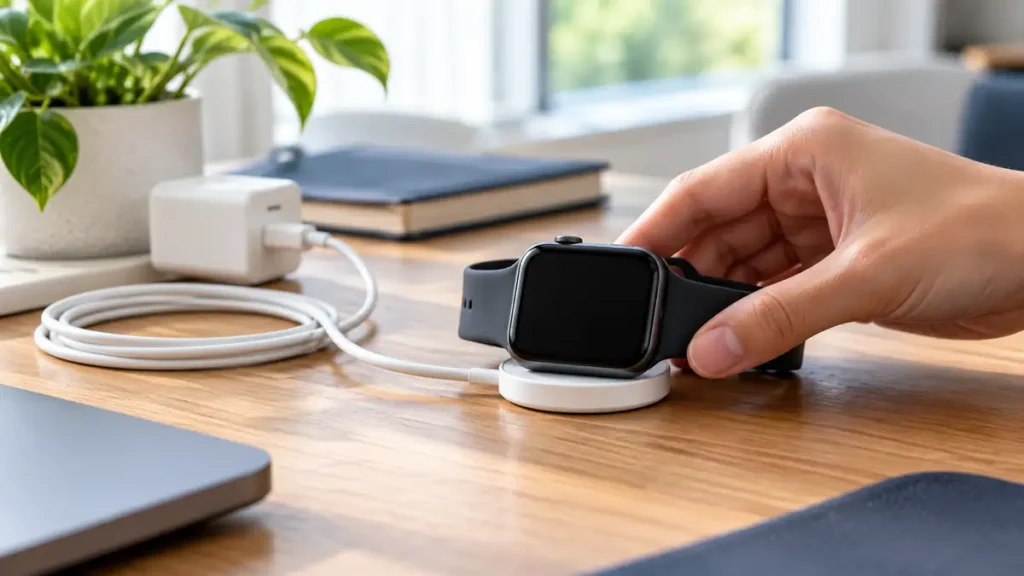
Apple Watch won’t turn on even though you’ve tried pressing the side button? Maybe the screen stays completely black, your watch doesn’t respond after charging, or a red lightning bolt appears without the Apple logo.
Sometimes an Apple Watch stops responding after its battery drains completely. In other cases, the magnetic charger appears connected, but the watch still refuses to start.
Fortunately, an Apple Watch that won’t turn on doesn’t automatically need a new battery or replacement. The problem may involve a deeply discharged battery, an improperly aligned magnetic charger, an unsuitable power adapter, or a temporary software issue.
In this guide, we’ll explain 12 safe troubleshooting steps for an Apple Watch that won’t turn on, including solutions for black-screen problems, charging failures, unresponsive buttons, and watches that remain off after charging.
These checks apply to Apple Watch Series, SE, and Ultra models, although charging accessories and some features vary between generations.
Safety warning: If your watch is swollen, unusually hot, visibly damaged, or shows signs of liquid damage, stop charging it and arrange professional inspection. Don’t attempt to open its battery or case.
Table of Contents
Quick Answer: Fix Apple Watch Won’t Turn On
If your Apple Watch won’t power on, try these checks first:
- Press and hold the side button to turn it on.
- Look for a red lightning bolt indicating an extremely low battery.
- Connect the watch to a compatible magnetic charger.
- Allow up to 30 minutes for a deeply discharged watch to respond.
- Test a working wall outlet and power adapter.
- Reposition the watch on its magnetic charging pad.
- Clean and dry the charging surfaces.
- Try a different compatible charging cable.
- Check whether a case or charging dock interferes with the connection.
- Let the watch return to a normal temperature.
- If the watch appears active but its screen stays black, check Screen Curtain.
- If no update is running, try a force restart.
If the Apple Watch still doesn’t respond, it may require hardware service.
Why Won’t My Apple Watch Turn On?
An unresponsive Apple Watch can have several possible causes.
The most common include:
- A completely discharged battery.
- A faulty magnetic charging cable.
- An improperly aligned charging pad.
- An unsuitable or malfunctioning power adapter.
- A damaged wall outlet or USB connection.
- Debris or moisture around the charging surfaces.
- A case that prevents proper charger contact.
- Temperature-related charging restrictions.
- A frozen operating system.
- A display or button problem.
- An aging battery or internal hardware failure.
The first important distinction is whether the Apple Watch is genuinely powered off or whether its screen simply isn’t showing an image.
A completely dead watch, a watch stuck during startup, and a watch with an inactive display may require different troubleshooting methods.
Let’s identify the problem before making unnecessary changes.
1. Press the Side Button
Before investigating the charger or battery, check whether your Apple Watch is simply turned off.
To turn on Apple Watch normally:
- Locate the side button below the Digital Crown.
- Press and hold the side button.
- Watch for the Apple logo.
- Release the button when the startup logo appears.
- Allow the watch to finish starting.
Don’t confuse the round Digital Crown with the side button.
If the watch is already running, a normal button press or screen interaction may wake its display instead.
Try tapping the screen or pressing the Digital Crown.
If your watch shows the time or responds normally, it may have been asleep rather than powered off.
If nothing appears, continue with the battery checks.
2. Check the Battery Symbol
A red lightning bolt is an important clue when an Apple Watch won’t turn on.
Apple explains that a red lightning bolt indicates the battery doesn’t have enough power to start the watch.
When the device is connected to its magnetic charger, the red lightning bolt may appear inside a ring.
This indicates that the watch recognizes the charging connection but still has insufficient power to start normally.
What to do:
- Look for a red lightning symbol.
- If it appears, connect the watch to its magnetic charger.
- Make sure the charging connection is secure.
- Allow time for the battery to recover.
- Try turning on the watch again after charging.
Don’t mistake the low-battery symbol for a software error.
If no symbol appears at all, the battery might still be completely depleted, or the display or charging equipment might not be functioning.
3. Charge for 30 Minutes
If your Apple Watch won’t turn on after its battery reaches zero, it may need additional charging time before it responds.
A deeply discharged Apple Watch doesn’t necessarily show the charging indicator immediately.
Apple advises that a watch with a blank screen may need up to 30 minutes of charging before it can turn on.
Follow these steps:
- Connect a compatible Apple Watch magnetic charger to a suitable power adapter.
- Plug the adapter into a working wall outlet.
- Position the back of the Apple Watch on the charger.
- Leave it connected for up to 30 minutes.
- Check whether a charging symbol or Apple logo appears.
Avoid repeatedly removing the watch from its charger or pressing buttons during the initial charging period.
The purpose is to give a depleted battery time to accumulate enough power for startup.
If the watch remains completely unresponsive, the next step is to verify that the charger is actually supplying power.
4. Check the Power Outlet
Sometimes an Apple Watch won’t charge or turn on because the power source isn’t working.
A faulty extension cord, disconnected adapter, or unreliable USB port may prevent charging.
What to do:
- Disconnect your current charger.
- Check that the charging cable is firmly connected to its adapter.
- Plug the adapter directly into a known-working wall outlet.
- Avoid using an unpowered USB hub during testing.
- Place the Apple Watch on the charging pad again.
If the watch begins charging when connected directly to a wall outlet, the previous power source or accessory may have been responsible.
Also check that the adapter is compatible with the charging cable.
If you’re using a USB-C magnetic charging cable, it needs a suitable USB-C connection.
If charging still doesn’t begin, investigate the charging cable itself.
5. Use a Compatible Charger
Not every round magnetic charging accessory is suitable for every Apple Watch.
Apple recommends using an Apple charging cable or a properly certified Made for Apple Watch charger.
Counterfeit or incompatible accessories can cause unreliable charging or other problems.
Check the following:
- You’re using an Apple Watch magnetic charging cable or a supported certified alternative.
- The cable and connector are not visibly damaged.
- The power adapter provides suitable power.
- The charger is designed to work with your Apple Watch model.
- The connector is seated securely.
Some newer Apple Watch models support faster charging when used with a compatible USB-C Magnetic Fast Charging Cable and suitable power adapter.
However, fast charging is not essential for basic troubleshooting.
The priority is to establish a reliable charging connection.
If you’re using an unfamiliar third-party charging pad and the watch doesn’t respond, try Apple’s original compatible charging cable if available.
6. Reposition the Watch
A magnetic charging pad may appear attached even when the watch isn’t positioned correctly.
Apple recommends repositioning the back of the Apple Watch so that its charging components align properly.
Try this:
- Lift the Apple Watch off its charger.
- Place the magnetic pad on a stable, flat surface.
- Position the back of the watch directly over the charging area.
- Allow the magnets to align.
- Look for a charging indicator.
If you’re using a charger built into a stand, try laying the charging pad flat if the design allows it.
Don’t force the watch against the pad.
A properly positioned charger should make secure contact without excessive pressure.
If charging starts after repositioning the watch, the problem may have been poor alignment rather than a damaged battery.
7. Clean the Charging Surfaces
Dust, dirt, or residue on the back of the Apple Watch or its charging pad may interfere with a secure charging connection.
Apple recommends keeping both surfaces clean.
Before cleaning:
- Disconnect the charger from power.
- Remove the watch from the charging pad.
- Check for visible dirt or residue.
- Wipe the accessible surfaces gently using a clean, nonabrasive, lint-free cloth.
- Ensure everything is completely dry before reconnecting.
Also make sure any protective plastic film has been removed from both sides of the magnetic charger.
Don’t use sharp objects to scrape the charger.
Avoid applying excessive pressure or inserting tools into any openings.
If you suspect that the watch has been damaged by liquid, don’t reconnect it until it’s safe to do so.
Once the charging surfaces are clean and dry, test the watch again.
8. Try Another Charging Cable
A damaged charging cable can make an otherwise functional Apple Watch appear completely dead.
If your current charger isn’t working, try a different compatible Apple Watch magnetic charging cable.
What to do:
- Disconnect the existing cable.
- Inspect it for visible damage.
- Connect a known-working compatible magnetic charging cable.
- Use a suitable power adapter and outlet.
- Position your Apple Watch correctly.
- Check whether charging begins.
If the watch responds with another charging cable, the original cable may have failed.
You can also test a different compatible power adapter.
For the most useful diagnosis, change one component at a time.
This helps identify whether the fault is related to the cable, adapter, or charging connection.
If multiple known-working charging combinations produce no response, continue with the next checks.
9. Check the Case and Charging Dock
Some Apple Watch accessories can interfere with charging alignment.
A bulky protective case or certain charging stands may prevent the magnetic connector from making proper contact.
This is particularly worth checking with larger Apple Watch models and older charging docks.
Try the following:
- Remove any protective case that covers the back or charging area.
- Place the watch directly on its compatible magnetic charger.
- Check whether the charging symbol appears.
- If using a supported adjustable dock, try another charging angle.
- Test the charger in a flat position if possible.
Apple notes that larger Apple Watch models may require repositioning when used with certain charging docks.
For Apple Watch Ultra models, removing the band can sometimes help the watch align more reliably with a compatible dock.
If the watch charges correctly without its case or with a different pad position, investigate that accessory before assuming the watch needs repair.
10. Check the Temperature
Extreme temperatures can affect Apple Watch charging.
An unusually hot or cold watch may charge more slowly or temporarily stop charging to protect its internal battery.
What to do:
- Move the watch away from direct sunlight or excessive heat.
- Remove it from your wrist if it feels unusually hot.
- Disconnect it from the charger if overheating is suspected.
- Allow it to return naturally to a comfortable room temperature.
- Retry charging when the device is safe to use.
Don’t place the watch in a refrigerator, freezer, or directly against a heating device.
Also avoid charging it while wet.
After swimming or exposure to moisture, follow Apple’s recommended care instructions and ensure the watch and charger are dry before charging.
If the watch displays a temperature warning, follow Apple’s instructions rather than repeatedly attempting to restart it.
11. Check Screen Curtain
Sometimes an Apple Watch appears to have a completely black screen even though the device is still running.
One possible explanation is Screen Curtain, an accessibility feature designed to keep the display off while VoiceOver remains active.
This is worth investigating if:
- Your watch still makes sounds.
- You feel haptic vibrations.
- The paired iPhone appears to communicate with the watch.
- The screen remains dark despite those signs of activity.
If the watch is connected to your iPhone, try:
- Open the Watch app on your iPhone.
- Select My Watch.
- Open Accessibility.
- Tap VoiceOver.
- Check Screen Curtain.
- Turn it off if enabled.
This setting only applies when VoiceOver is enabled.
If Screen Curtain was responsible, turning it off may restore the visible display.
If the watch still produces sounds or vibrations but the display remains black, a display hardware problem is also possible.
Don’t erase the watch just because its screen is dark.
12. Force Restart Apple Watch
If your Apple Watch still won’t turn on after the charging checks, a force restart may help recover from a temporary software freeze.
Apple recommends this step for an unresponsive Apple Watch that cannot be restarted normally.
How to force restart:
- Locate the Digital Crown.
- Locate the side button below it.
- Press and hold both buttons at the same time.
- Continue holding for at least 10 seconds, until the Apple logo appears.
- Release both buttons.
- Allow the Apple Watch to finish starting.
A force restart normally doesn’t erase personal data.
However, do not force restart while a watchOS update is actively installing. Interrupting an update can create additional problems.
If the Apple logo appears and then remains frozen, you’re dealing with a different startup issue.
Read our separate Apple Watch Stuck on Apple Logo guide for that situation.
If the screen remains completely blank and none of the charging equipment works, professional diagnosis may be necessary.
Apple Watch Won’t Turn On After Charging?
If you’ve charged your Apple Watch but it still refuses to turn on, the next step is to establish whether it actually received power.
A watch resting on a magnetic charging pad isn’t proof that charging occurred.
Check whether:
- The power adapter and outlet work.
- The magnetic charger is compatible.
- The charging surfaces are clean and properly aligned.
- The watch has been connected long enough to recover from a depleted battery.
- A charging symbol appears.
If all these checks pass but the watch still doesn’t start, try Apple’s force-restart procedure when no update is running.
If the watch remains unresponsive, a battery, display, button, or internal component may require inspection.
Apple Watch Won’t Turn On After Being Dead?
If your Apple Watch battery has been completely empty for an extended period, it might not respond immediately when connected to power.
Apple advises allowing up to 30 minutes before assuming that a blank screen means charging has failed.
Use a compatible magnetic charger and a known-working power source.
Avoid repeatedly disconnecting the watch during this initial charging period.
If it begins showing a low-battery symbol, allow the battery additional time to charge.
If there’s still no response with a known-working charger, consider professional diagnosis.
Apple Watch Black Screen but Vibrates?
An Apple Watch that vibrates but displays nothing may still be powered on.
First, try waking the display normally.
Next, check whether VoiceOver Screen Curtain is enabled through the paired iPhone.
If Screen Curtain is disabled, and the watch continues producing notifications or haptic feedback without displaying an image, the problem may involve the screen or its internal components.
Charging and restarting may help rule out temporary problems, but neither can repair a physically damaged display.
Avoid factory resetting the watch before considering a possible display failure.
Apple Watch Won’t Turn On After an Update?
If the problem appeared during a watchOS update, check whether the update is still installing.
During some updates, the watch displays the Apple logo and a circular progress indicator.
Do not interrupt an active installation.
If the update has finished but the watch repeatedly stops at the Apple logo, use our Apple Watch Stuck on Apple Logo guide.
You can also read our Apple Watch Not Updating guide if the issue involves an update that won’t download, verify, or install.
The important distinction is whether the watch cannot power on at all or is failing during a software startup process.
When to Get Apple Watch Service
If your Apple Watch remains unresponsive after using known-working charging equipment and performing Apple’s supported checks, hardware assessment may be appropriate.
Possible faults include:
- A failed or severely deteriorated battery.
- Damage to the magnetic charging connection.
- A malfunctioning side button or Digital Crown.
- A damaged display.
- Internal corrosion or liquid damage.
- A charging or power-management circuit failure.
Avoid opening the watch or attempting to replace its built-in battery yourself.
If the watch is under warranty or covered by AppleCare, review your available service options before arranging third-party repairs.
Visit Apple Support to review repair and service options.
Frequently Asked Questions
Why Won’t My Apple Watch Turn On?
A completely drained battery, defective charger, software freeze, or hardware problem may prevent your Apple Watch from turning on. Start with a compatible magnetic charger and allow up to 30 minutes for a depleted battery to respond.
How Do I Turn On an Apple Watch That Won’t Turn On?
Press and hold the side button until the Apple logo appears. If nothing happens, charge the watch using a compatible charger, check the power connection, and try a force restart if no update is running.
Why Is My Apple Watch Screen Completely Black?
The battery may be empty, the watch may be powered off, Screen Curtain may be enabled, or the display may have failed. Check for sounds, vibrations, and charging indicators to help distinguish these possibilities.
Why Does My Apple Watch Show a Red Lightning Bolt?
A red lightning bolt indicates that the battery doesn’t have enough charge to turn on. Connect the watch to its charger and allow time for the battery to recover.
How Long Should I Charge a Dead Apple Watch?
Apple advises that an Apple Watch with a blank screen may need up to 30 minutes of charging before it turns on or displays a charging symbol. Further charging may be needed before normal use.
Why Won’t My Apple Watch Turn On or Charge?
The power adapter, charging cable, magnetic connection, battery, or internal hardware may be responsible. Test a known-working compatible charger and outlet before assuming the battery needs replacement.
Can I Force Restart an Apple Watch With a Black Screen?
Yes, if it’s unresponsive and no watchOS update is actively installing. Press and hold the side button and Digital Crown together for at least 10 seconds until the Apple logo appears.
Will Force Restarting My Apple Watch Delete Data?
A force restart normally doesn’t delete your Apple Watch content. It attempts to restart the device without performing a factory reset.
Why Won’t My Apple Watch Turn On After Swimming?
Possible explanations include moisture affecting charging, temperature restrictions, or physical damage. Dry the device according to Apple’s instructions and don’t charge it while wet. If damage is suspected, arrange professional inspection.
Does an Apple Watch Need a New Battery if It Won’t Turn On?
Not necessarily. A faulty charger, depleted battery, temporary software freeze, or display issue can produce similar symptoms. Battery replacement should be considered only after proper diagnosis.
Can I Use a Third-Party Apple Watch Charger?
A compatible, properly certified Made for Apple Watch charger may work. Avoid counterfeit or uncertified accessories that could cause unreliable charging or damage.
What if My Apple Watch Still Won’t Turn On?
If you have tested compatible charging equipment, allowed sufficient charging time, and tried the appropriate restart procedure without success, contact Apple Support for service options.
Final Thoughts
If your Apple Watch won’t turn on, don’t immediately assume that its battery has failed.
Start by pressing the side button, checking for a red lightning symbol, and connecting the watch to a reliable magnetic charger.
Allow a depleted battery up to 30 minutes to respond before moving on to other checks.
Next, confirm that the power adapter works, reposition the charging pad, clean and dry the charging surfaces, and try another compatible charging cable.
If the watch remains unresponsive, a force restart may help, provided no software update is actively running.
A black screen with continuing sounds or vibrations may indicate a different problem, so investigate Screen Curtain and possible display issues.
If none of these steps work, professional diagnosis is safer than attempting to open the watch or erase its data unnecessarily.
For a different Apple Watch startup issue, read our Apple Watch Stuck on Apple Logo troubleshooting guide.
Official Apple References
- Apple Support: If Your Apple Watch Won’t Turn On or Won’t Charge
- Apple Support: Restart Apple Watch
- Apple Support: Charge Your Apple Watch
- Apple Support: Identify Certified Apple Watch Chargers
- Apple Support: Screen Curtain and VoiceOver
- Apple Support: How to Clean Apple Watch
- Apple Support: Apple Watch Charging Speeds