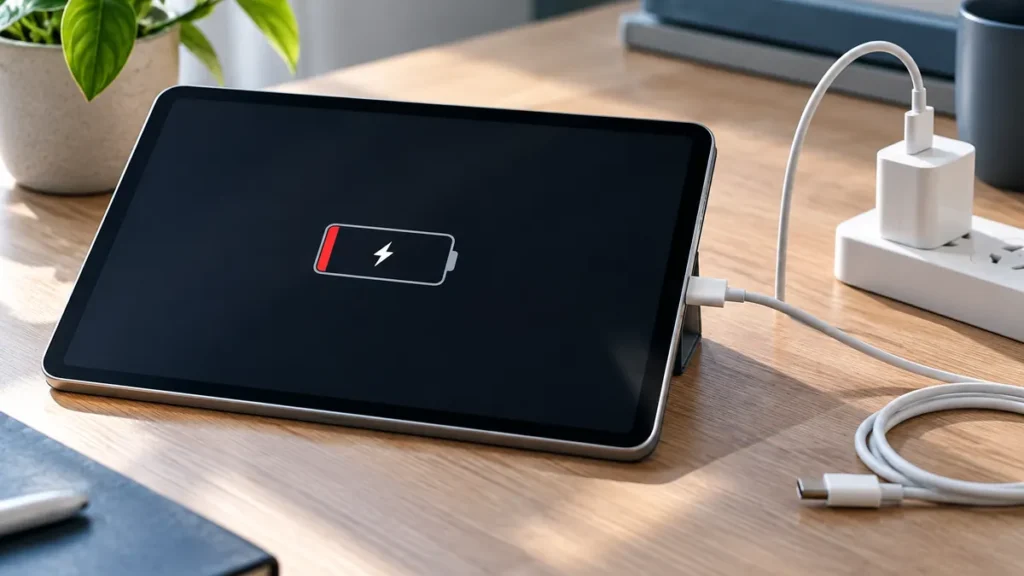
iPad not charging even though it’s plugged in? Maybe the battery percentage isn’t increasing, the charging symbol appears but nothing happens, or your iPad keeps showing a “Not Charging” message.
Sometimes an iPad charges extremely slowly. In other cases, the screen stays completely black, even when you’ve connected it to a power adapter.
Fortunately, an iPad not charging doesn’t automatically mean its battery is damaged. The problem may involve an unsuitable charger, a damaged cable, a blocked charging port, temperature restrictions, or a temporary software issue.
In this guide, we’ll walk through 12 practical fixes for an iPad not charging, including solutions for USB-C and Lightning models, slow charging, charging stuck at 80%, and an iPad that refuses to turn on.
Table of Contents
Quick Answer: Fix an iPad Not Charging
If your iPad isn’t charging, try these checks first:
- Connect it directly to a working wall outlet.
- Use a compatible charger with sufficient power.
- Try another USB-C or Lightning cable.
- Check the charging port for visible damage or debris.
- Leave a deeply discharged iPad connected to power.
- Force restart the iPad.
- Allow the device to return to a normal temperature.
- Check whether a charging limit is enabled.
If the iPad still doesn’t respond, follow the detailed fixes below.
Safety note: If your iPad or charger is damaged, unusually hot, swollen, smells burnt, or has been exposed to liquid, disconnect it from power and seek professional assistance rather than continuing to charge it.
Why Is My iPad Not Charging?
Several problems can stop an iPad from charging properly.
Common causes include:
- A damaged or incompatible charging cable.
- A power adapter that doesn’t provide enough power.
- A faulty electrical outlet or USB hub.
- Dust, debris, or physical damage in the charging port.
- A deeply discharged battery.
- A temporary iPadOS issue.
- Charging paused because of excessive heat or cold.
- A battery charging limit on a supported iPad.
- A hardware problem involving the battery or charging circuit.
The symptoms help narrow down the cause.
For example, an iPad showing “Not Charging” while connected to a computer might be receiving insufficient power. An iPad stuck around 80% may be following a battery protection setting.
Let’s work through the possible solutions.
1. Use a Wall Charger
If your iPad is not charging when plugged in, begin with the power source.
A USB port on a laptop, monitor, or keyboard may not supply enough power to charge an iPad efficiently.
What to do:
- Disconnect your iPad from the current charger.
- Connect a compatible USB-C or Lightning charging cable.
- Plug the cable into a suitable USB power adapter.
- Connect the adapter directly to a working wall outlet.
- Check whether the charging indicator appears.
Use the charger supplied with your iPad if you still have it. Otherwise, choose a reliable, compatible charger that meets the requirements of your model.
A USB-C iPad may benefit from a suitable higher-wattage adapter, but the amount of power it can draw depends on the device.
Apple also supports charging from powered computer ports and certain compatible accessories. However, a wall charger is a useful first test because it removes uncertainty about a computer’s power output.
2. Try Another Cable
A charging cable can fail internally even when it appears undamaged.
Repeated bending, fraying near the connector, or damaged contacts may interrupt power delivery.
Try this:
- Unplug the existing charging cable.
- Examine it for fraying, exposed wires, or bent connectors.
- Stop using it if you notice damage.
- Connect another compatible charging cable.
- Check whether charging begins.
Make sure you use the appropriate connector for your device. Newer iPads generally use USB-C, while many older models use Lightning.
If the iPad charges normally with the replacement cable, the original cable was likely responsible.
Avoid forcing a connector into the charging port.
3. Test the Power Adapter
If changing the cable doesn’t help, check the adapter itself.
A power adapter can be faulty or unsuitable even if it works with a smaller device.
What to do:
- Disconnect the existing power adapter.
- Try another compatible adapter from a reputable manufacturer.
- Connect it to a known working outlet.
- Use a charging cable that you know works.
- Watch for the charging indicator.
If your iPad charges slowly with a small adapter, insufficient power may be the reason.
For supported USB-C models, a properly rated higher-wattage USB-C adapter can improve charging speed.
You don’t need to choose the highest-powered adapter available. Choose one that is compatible and meets applicable safety standards.
4. Check the Outlet
Sometimes the iPad and charger are working correctly, but the power source isn’t.
Faulty extension cords, switched-off outlets, and unreliable USB hubs can interrupt charging.
Try connecting the charger directly to another working wall outlet.
If you’re using a dock or hub, bypass it temporarily and connect the charger directly to your iPad.
If the problem disappears, investigate the accessory or power source rather than the iPad itself.
For compatible iPad and Magic Keyboard combinations, Apple also supports charging through the keyboard’s USB-C power pass-through connection.
5. Inspect the Charging Port
If your charging cable feels loose or doesn’t connect properly, the charging port might be obstructed or damaged.
Dust, lint, or debris can interfere with a secure connection.
Check safely:
- Disconnect your iPad from power.
- Turn the iPad off if possible.
- Use a light to examine the charging port.
- Look for visible lint, damage, corrosion, or moisture.
- Check whether the cable fits normally without force.
Don’t insert metal objects, pins, or sharp tools into the port.
Avoid compressed air and liquid cleaning products. If debris is lodged inside or the connector appears damaged, have the port inspected by a qualified technician.
Important: If you suspect moisture inside the charging port, don’t reconnect the charger until the device has been assessed and is safe to charge.
6. Charge a Dead Battery
If your iPad battery is completely depleted, the screen might remain black immediately after connecting a charger.
This doesn’t necessarily mean the iPad has failed.
Apple explains that an iPad with extremely low power may initially show a blank display before displaying the depleted-battery symbol.
What to do:
- Connect your iPad to a compatible wall charger.
- Leave it connected without repeatedly pressing buttons.
- Check for the low-battery symbol after several minutes.
- Allow additional charging time before trying to turn it on.
A very low battery may need up to 10 minutes of charging before the iPad becomes usable.
If the screen remains black after a reasonable charging period, test a different cable, adapter, and outlet before assuming the battery is defective.
7. Force Restart Your iPad
A temporary software problem can sometimes make an iPad appear frozen or prevent it from reporting its charging status correctly.
A force restart may help.
The button combination depends on whether your iPad has a Home button.
iPad Without a Home Button
- Press and quickly release the volume button closest to the top button.
- Press and quickly release the volume button farthest from the top button.
- Press and hold the top button.
- Release it when the Apple logo appears.
iPad With a Home Button
- Press and hold the Home button and the top or side button together.
- Keep holding until the Apple logo appears.
- Release both buttons.
After the restart, connect your charger again and check the battery indicator.
A force restart does not normally erase your personal data.
If the iPad still won’t turn on, continue troubleshooting the charger and battery before attempting recovery or restoration.
8. Check the Temperature
Your iPad may temporarily slow down or stop charging if its internal temperature becomes too hot or too cold.
This is a built-in protection mechanism.
Apple recommends using iPad in ambient temperatures between 32°F and 95°F (0°C and 35°C).
What to do:
- Move the iPad away from direct sunlight or a hot car.
- Remove its case if it is trapping heat.
- Stop demanding activities while the device cools.
- If the iPad is very cold, bring it indoors and allow it to warm gradually.
- Resume charging when the device returns to a normal temperature.
Don’t place an overheated iPad in a refrigerator or use external heat to warm a cold device.
If the screen says Charging On Hold, charging should resume when the temperature returns to an acceptable range.
9. Fix Slow Charging
An iPad that charges very slowly may look as though it isn’t charging at all.
This can happen when the power source supplies less energy than the iPad needs during active use.
For example, playing demanding games or using a bright display can increase power consumption while the charger is trying to replenish the battery.
To investigate:
- Connect the iPad to a suitable wall adapter.
- Close demanding apps.
- Lock the screen and let the device charge.
- Check the battery percentage again.
- On supported iPadOS versions, open Settings > Battery and look for a Slow Charger indication.
If charging improves when the screen is off, the connected power source may be insufficient for the workload.
Apple notes that charging may take longer when you’re using or syncing the iPad.
10. Check the 80% Limit
If your iPad consistently stops charging near 80%, it may be working as designed.
Certain newer iPad models support an 80% Limit feature to reduce battery wear.
On supported models:
- Open Settings.
- Tap Battery.
- Select Battery Health.
- Check whether 80% Limit is enabled.
If it is enabled, the iPad generally stops charging around 80%, though it may occasionally charge fully to maintain accurate battery measurements.
The exact available settings depend on the iPad model and iPadOS version.
Charging may also slow naturally above 80%, even when no manual limit is enabled.
A charging percentage that stops at 80% is not automatically evidence of a damaged battery.
11. Update iPadOS
If your iPad turns on and charges intermittently, check whether a compatible software update is available.
Software updates can address certain system problems, although an update isn’t guaranteed to fix faulty charging hardware.
To check:
- Open Settings.
- Tap General.
- Select Software Update.
- Review any available compatible update.
Back up important data before installing a major update.
Only attempt an update when the iPad has sufficient battery power and a reliable power connection.
If your iPad won’t power on at all, don’t attempt a computer restore simply to troubleshoot charging. First establish whether the charging equipment and battery are functioning.
12. Get the iPad Inspected
If you’ve tried a working cable, suitable adapter, different outlet, and force restart without success, the problem may involve hardware.
Possible faults include:
- A damaged charging port.
- A deteriorated or failed battery.
- An internal charging circuit problem.
- Damage from liquid exposure or impact.
Contact Apple Support or an Apple Authorized Service Provider for diagnosis.
Back up your iPad first if it can still turn on.
Avoid opening the iPad or replacing its battery yourself unless you’re trained and equipped to perform that repair.
iPad Charging but Battery Not Increasing?
An iPad may display a charging icon while the percentage stays unchanged or rises unusually slowly.
There are several possible explanations.
Weak power source: The charger may provide only a small amount of power.
High power consumption: Demanding apps and a bright display can consume energy while the device charges.
Temperature restrictions: Charging may slow or pause to protect the battery.
Battery health: An older battery may no longer perform as well as it did when new.
Begin by connecting the iPad to a suitable wall adapter, locking the screen, and checking its charging progress.
If the percentage still doesn’t increase, repeat the cable and adapter tests.
Frequently Asked Questions
Why Is My iPad Not Charging When Plugged In?
An unsuitable adapter, damaged cable, faulty outlet, charging-port obstruction, or hardware problem may prevent your iPad from charging. Start with a known working cable and compatible wall charger.
Why Does My iPad Say Not Charging?
An iPad may show “Not Charging” when connected to a computer or accessory that cannot provide enough power. Try a suitable wall charger instead.
Why Is My iPad Charging Slowly?
Slow charging may occur because of a low-power adapter, heavy device usage, temperature restrictions, or the battery’s normal charging behavior above 80%.
Why Won’t My iPad Charge Past 80%?
On supported models, the 80% Limit feature may be enabled under Battery Health. Charging may also pause or slow because of temperature or normal battery protection.
Can I Use a MacBook Charger for My iPad?
Yes, a compatible USB-C MacBook power adapter can charge supported USB-C iPad models. The iPad controls its power intake, and charging speed varies by model and adapter.
Why Is My iPad Screen Black While Charging?
The battery may be deeply discharged, the charging equipment may not be delivering power, or the iPad may be unresponsive. Allow some charging time, test another charger, and follow the correct force-restart procedure.
Can a Bad Charging Port Stop My iPad From Charging?
Yes. Physical damage, corrosion, or an obstructed connection can prevent reliable charging. If the port is damaged or contains lodged debris, have it inspected professionally.
Will Resetting My iPad Fix Charging Problems?
A force restart may help with a temporary software issue. A factory reset is not an appropriate first step and won’t repair a damaged cable, charging port, or battery. Avoid erasing the device without a clear reason and a backup.
Final Thoughts
If your iPad is not charging, start with the easiest checks: a working outlet, compatible adapter, and undamaged cable.
Then inspect the port safely, allow a deeply discharged battery time to recover, and try a force restart.
Also remember that slow charging, temperature-related pauses, and an intentional 80% charging limit are not necessarily hardware failures.
If these checks don’t help, contact a qualified service provider rather than experimenting with unsafe repairs.
For a similar charging problem on another Apple device, read our iPhone Not Charging troubleshooting guide.