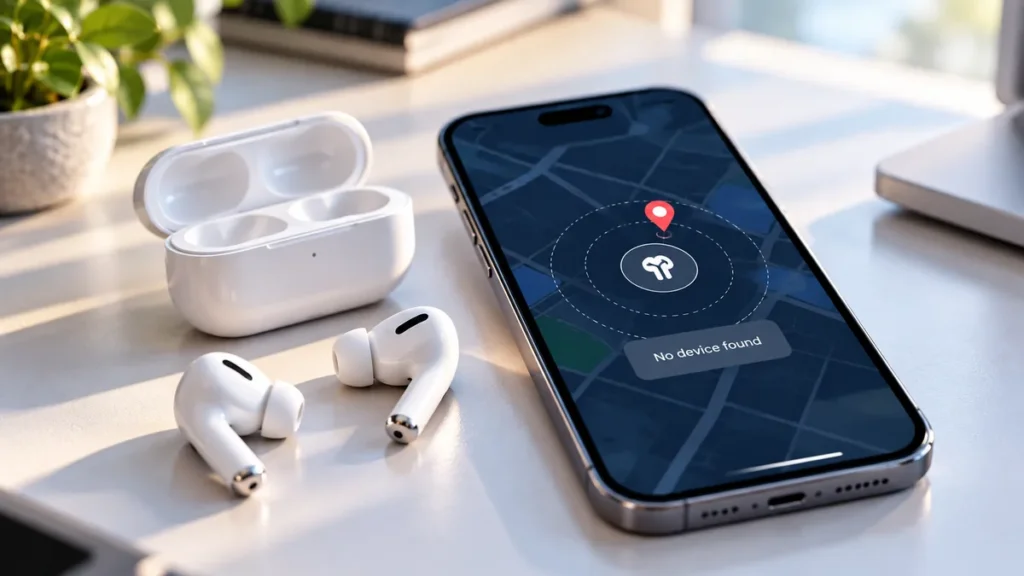
AirPods not showing in Find My on your iPhone? Maybe your AirPods are connected through Bluetooth but missing from the Devices list, your charging case isn’t appearing, or Find My keeps displaying “No Location Found.”
Sometimes AirPods appear normally in Bluetooth settings but never show up in Apple’s Find My app. You might also see a message saying the AirPods setup is incomplete.
These problems are especially frustrating when you’re trying to locate a missing earbud or charging case.
Fortunately, AirPods missing from Find My doesn’t automatically mean your earbuds are damaged or permanently lost.
The problem could involve your Apple Account, Find My settings, Bluetooth connection, incomplete pairing, or the location features supported by your particular AirPods model.
In this guide, we’ll explain 12 practical fixes for AirPods not showing in Find My, starting with the simplest checks.
We’ll also cover what to do when AirPods show as Offline, why some charging cases cannot be tracked separately, and when resetting your AirPods is appropriate.
Important: If your AirPods are physically missing, don’t remove them from your Apple Account or reset their Find My association. Some setup fixes below require you to have the AirPods with you.
Table of Contents
Quick Answer: How to Fix AirPods Not Showing in Find My
If your AirPods are missing from the Find My app, try these checks:
- Open Find My and look under Devices, not Items.
- Make sure your AirPods are paired with your iPhone.
- Confirm you’re using the correct Apple Account.
- Turn on Find My iPhone and Find My network.
- Enable Find My network for supported AirPods.
- Review Location Services and Bluetooth.
- Check whether your AirPods are charged and nearby.
- Allow incomplete AirPods setup to finish.
- Check Apple Account security and iCloud Keychain.
- Update your iPhone and AirPods firmware.
- Restart your iPhone and reconnect your AirPods.
- Re-pair or reset your AirPods only if you physically have them and simpler fixes fail.
The correct solution depends on whether your AirPods are completely missing from the device list or appear there without a current location.
Why Are My AirPods Not Showing in Find My?
Apple’s Find My system works with different AirPods models, but tracking features vary.
To make your AirPods appear in Find My, they generally need to be paired with an iPhone or iPad associated with your Apple Account while Find My is enabled.
Some models also support the Find My network, which helps locate AirPods beyond a direct Bluetooth connection.
Common causes of missing AirPods include:
- Find My isn’t enabled on the paired device.
- Your AirPods haven’t completed pairing.
- You’re signed in to a different Apple Account.
- Find My network is disabled.
- The AirPods have no battery power.
- Your earbuds are outside Bluetooth range.
- Your model doesn’t support advanced offline finding.
- Apple Account security setup is incomplete.
- The AirPods are associated with another person’s Apple Account.
- A temporary connection or software problem is preventing the list from updating.
Before troubleshooting, identify the message shown in Find My.
| What you see | What it may mean |
|---|---|
| AirPods missing from Devices | Pairing, account, or Find My setup issue |
| Offline | AirPods currently cannot report their location |
| No Location Found | Find My cannot display an available location |
| AirPods Setup Incomplete | Pairing or account requirements aren’t complete |
| AirPods Mismatch | Earbuds or parts may not belong to the expected set |
| Paired to Another Apple Account | Previous account association must be resolved |
These situations are different, so they don’t all require the same fix.
1. Check the Devices Tab
The first fix is also the easiest.
AirPods normally appear under the Devices tab in Find My, not the Items tab.
The Items section is generally used for AirTags and compatible Find My network accessories.
What to do:
- Open Find My on your iPhone.
- Tap Devices at the bottom.
- Scroll through the device list.
- Look for the name of your AirPods.
- Tap the AirPods if they appear.
- Review the available location and finding options.
Depending on your model, Find My may show your left earbud, right earbud, or charging case separately.
If you see the AirPods but the map says Offline, they aren’t completely missing from Find My.
Skip ahead to the location troubleshooting section.
If your AirPods don’t appear anywhere in Devices, continue with the next fix.
2. Check Whether Your AirPods Are Paired
Apple says AirPods should be paired with an iPhone or iPad signed in to your Apple Account to appear in Find My.
A connection to another person’s device doesn’t automatically add the AirPods to your account.
If you physically have your AirPods, check their pairing status.
Follow these steps:
- Put your AirPods near your iPhone.
- Open Settings.
- Tap Bluetooth.
- Look for your AirPods under My Devices.
- Connect them if they’re already listed.
- Try playing a short audio clip.
If the AirPods connect and play audio normally, Bluetooth pairing is probably working.
Now open Find My and check Devices again.
If the AirPods aren’t listed in Bluetooth either, you may need to reconnect them using Apple’s official pairing instructions.
For general device-discovery problems, see our iPhone Bluetooth Not Finding Devices guide.
Don’t remove your AirPods from your account merely to investigate a missing location.
3. Verify Your Apple Account
Your Apple Account is an important part of Find My.
AirPods associated with one account might not appear in the Find My device list when you’re signed in to another.
This can happen when people use separate personal and work accounts or switch devices.
Check Your Account
- Open Settings on your iPhone.
- Tap your name at the top.
- Review the Apple Account email or phone number.
- Confirm it’s the account used when you originally paired your AirPods.
- Open Find My again.
If you’re checking Find My on an iPad or Mac, confirm that device is signed in to the appropriate Apple Account too.
A friend’s AirPods don’t automatically appear in your Find My just because you’ve used them for audio.
Important: Don’t sign out of your Apple Account as an initial troubleshooting step.
Signing out can affect synced information and other Apple services.
Start by checking which account is currently being used.
4. Enable Find My on Your iPhone
Your iPhone’s Find My settings need to be configured correctly.
Apple recommends enabling Find My before an AirPods device is lost.
Turn On Find My
- Open Settings.
- Tap your Apple Account name.
- Select Find My.
- Tap Find My iPhone.
- Make sure Find My iPhone is enabled.
- Turn on Find My network where available.
- Consider enabling Send Last Location.
After checking those settings, reconnect your AirPods if you physically have them.
Then reopen the Find My app.
If Find My was disabled when your AirPods went missing, turning it on afterward cannot recreate location information that was never recorded.
This is why it’s worth confirming your tracking settings while your AirPods are safely with you.
Read Apple’s official Find My setup instructions for additional information.
5. Enable Find My Network for AirPods
Some AirPods support Apple’s wider Find My network.
This can help you locate eligible models even when they aren’t directly connected to your iPhone.
However, the feature must be supported by your specific model.
Check the AirPods Setting
- Connect your AirPods to your iPhone.
- Open Settings.
- Tap your AirPods name near the top, if displayed.
- Find the Find My or Find My Network section.
- Turn on Find My Network when that option is available.
Alternatively, open Settings > Bluetooth, tap the information button beside your AirPods, and look for the corresponding Find My settings.
The menu layout can differ by model and software version.
Which AirPods Support Find My Network?
Apple lists Find My network support for selected models, including:
- AirPods 3.
- AirPods 4 with Active Noise Cancellation.
- AirPods 5 with Wireless Charging Case.
- AirPods Pro models.
- AirPods Max models.
Older AirPods and certain standard models have more limited finding capabilities.
If the Find My network option isn’t present on an older model, that doesn’t necessarily indicate a fault.
Don’t expect offline tracking or separate charging-case locating features on models that don’t support them.
For model-specific information, consult Apple’s AirPods Find My guide.
6. Check Bluetooth and Location Services
Bluetooth helps your iPhone communicate directly with nearby AirPods.
Location Services also supports Find My location features.
If the necessary settings are unavailable or disabled, you may not receive the expected location experience.
Check Bluetooth
- Open Settings.
- Tap Bluetooth.
- Confirm Bluetooth is enabled.
- Bring your AirPods near your iPhone.
- Open their case or connect them as appropriate.
If Bluetooth can’t discover the AirPods, investigate pairing before assuming Find My is defective.
Check Location Services
- Open Settings.
- Go to Privacy & Security.
- Tap Location Services.
- Make sure Location Services is enabled.
- Review the Find My app’s location permissions where available.
Allowing Precise Location may be necessary for certain nearby finding experiences.
However, Bluetooth and Location Services settings aren’t substitutes for having the AirPods properly paired and associated with your Apple Account.
Location sharing from your iPhone and the location-reporting capability of your AirPods are related but different functions.
7. Charge Your AirPods and Check Their Range
If your AirPods have run out of battery power, Find My may be unable to obtain a current location.
The same problem can occur when AirPods are outside a usable connection range.
If you physically have them, try this:
- Put both AirPods in their charging case.
- Connect the charging case to power if necessary.
- Allow the AirPods to charge.
- Bring the case near your iPhone.
- Open the case.
- Check Bluetooth and Find My again.
The watchful step here is making sure the AirPods actually charge and reconnect.
If Find My previously showed an old location, it may update after the AirPods become available.
What if Your AirPods Are Lost?
If your AirPods aren’t with you, you cannot charge or reset them.
Instead, review their last available location in Find My.
On supported models, you may be able to enable Notify When Found or another available missing-device feature.
An AirPods location won’t necessarily update continuously when its battery is exhausted.
8. Resolve AirPods Setup Incomplete
Apple provides specific troubleshooting instructions for the message AirPods Setup Incomplete.
This warning can occur when pairing hasn’t finished properly.
For example, the two earbuds may not both have completed the expected pairing process.
What to Do
- Keep your AirPods near your iPhone.
- Allow several minutes for pairing to finish.
- Confirm Bluetooth is enabled.
- Check that Find My is enabled.
- Put the AirPods in their case.
- Close the lid briefly.
- Open it again.
- Check Find My for updated status.
Apple recommends allowing pairing time to finish before taking more disruptive steps.
If the warning persists, review your account settings and software version.
Don’t immediately remove the AirPods from your account when they’re physically lost.
For the official procedure, see Apple’s AirPods Setup Incomplete troubleshooting guide.
9. Review Apple Account Security
Find My setup can depend on account security and synchronization settings.
Apple specifically recommends reviewing several requirements when AirPods setup is incomplete.
These include:
- Having a device passcode.
- Enabling two-factor authentication.
- Completing Apple Account setting updates.
- Enabling iCloud Keychain.
- Confirming Find My is enabled.
Check for Account Alerts
- Open Settings.
- Tap your name.
- Review any Apple Account warnings.
- Complete legitimate account-verification prompts.
- Confirm your iPhone has a passcode.
- Review iCloud Keychain settings if necessary.
Follow Apple’s official prompts for two-factor authentication and account security.
Never share verification codes or passwords with anyone offering to fix Find My remotely.
What About AirPods Mismatch?
If Find My reports AirPods Mismatch or says the accessory belongs to another Apple Account, this may be an ownership-association problem rather than a normal connection error.
If you bought used AirPods, the previous owner may need to remove the device from their Apple Account.
Resetting the hardware doesn’t automatically remove someone else’s Find My Lock.
Apple explains this in its device association support guide.
10. Update iOS and AirPods Firmware
Keeping your paired device and AirPods updated can help with compatibility and software-related problems.
Apple recommends using the latest compatible iOS or iPadOS version when troubleshooting incomplete AirPods setup.
Update Your iPhone
- Open Settings.
- Tap General.
- Select Software Update.
- Review any available compatible update.
- Back up important information.
- Install the update when convenient.
If your iPhone is eligible for iOS 27.2, review that update through Software Update.
An update can contain fixes, but it won’t guarantee the return of physically missing AirPods.
Update AirPods Firmware
AirPods firmware generally updates automatically under the appropriate conditions.
Apple recommends:
- Connect your AirPods to a compatible iPhone, iPad, or Mac.
- Ensure the paired device has Wi-Fi access.
- Keep Bluetooth enabled.
- Put your AirPods in their charging case.
- Connect the case to power.
- Keep the case near the paired device for at least 30 minutes.
- Reconnect and check the firmware version.
AirPods Max follow a different charging procedure.
You can read the details in Apple’s AirPods firmware update guide.
Don’t download unofficial AirPods firmware files or install third-party programs claiming to repair Find My.
11. Restart Your iPhone and AirPods
Temporary software or Bluetooth communication problems may interfere with AirPods appearing correctly.
A normal restart can be worth trying if the earbuds are physically available.
Restart Your iPhone
- Use the normal shutdown procedure for your iPhone model.
- Power off the device.
- Turn it back on.
- Unlock it with your passcode.
- Enable Bluetooth if necessary.
Restart Your AirPods
For AirPods and AirPods Pro with a charging case, Apple recommends placing the earbuds in the case and closing its lid for at least 10 seconds.
Then open the case and reconnect your AirPods.
AirPods Max have a different restart procedure involving their physical controls.
After restarting, open Find My and look under Devices.
If the AirPods appear, check whether they now show their expected location information.
A restart is not the same as removing an accessory from your account.
It’s also not guaranteed to fix a device associated with another Apple Account.
12. Re-Pair or Reset AirPods as a Last Resort
If your AirPods are still missing from Find My, resetting may be an option, but only when you physically have the earbuds and have already tried the simpler checks.
Do not perform this step if you’re trying to recover AirPods that are actually lost.
Unpairing or removing AirPods from Find My can affect their account association and ability to be located.
Before Resetting
Check that:
- Both earbuds are physically with you.
- You have the charging case.
- The AirPods belong to your Apple Account.
- Find My and Bluetooth settings are correct.
- You have ruled out an incomplete account setup.
Apple’s reset procedure depends on the model.
For AirPods 1, 2, 3, and AirPods Pro 1 or 2, resetting normally involves pressing and holding the setup button on the case until the status light flashes amber and then white.
Newer AirPods 4, AirPods 5, and AirPods Pro 3 models use a different procedure involving repeated double-taps on the front of the charging case.
AirPods Max have a separate reset process.
Follow the exact instructions for your model in Apple’s official AirPods reset guide.
After completing the supported setup process, reconnect the AirPods to your own iPhone and check Find My.
If Find My still doesn’t recognize them, contact Apple Support.
AirPods Not Showing Location in Find My
Sometimes your AirPods appear in the Devices list but have no current location.
That’s different from an accessory missing from the list entirely.
Find My may display:
- Offline.
- No Location Found.
- A last-known location.
- A notification option for when the device becomes available.
If your AirPods are out of range or have no battery power, Find My may be unable to establish a live connection.
On supported models, the Find My network may provide additional location information.
However, this depends on the AirPods model, settings, battery status, and network activity.
If the AirPods return online, Find My may update their location.
You can’t force a fully discharged or unreachable pair of AirPods to report a live location.
AirPods Case Not Showing in Find My
Not every AirPods charging case supports separate tracking.
This is important because users often expect the case to appear independently from the earbuds.
Certain newer models offer additional case-finding features.
For example, supported AirPods Pro 2 and later models and selected other AirPods configurations can provide more detailed tracking of their separate components.
Older AirPods cases generally don’t offer the same capabilities.
If your charging case isn’t listed separately, check the capabilities of your exact AirPods model before assuming Find My is malfunctioning.
Also remember that a normal Bluetooth connection between your earbuds and iPhone doesn’t necessarily mean the charging case can be located independently.
AirPods Missing After a Reset
If your AirPods disappeared from Find My after being reset, the account association or pairing process may need attention.
First, confirm that you still physically have the AirPods.
Then check whether they connect normally through Bluetooth.
If the setup process was incomplete, allow it to finish.
Make sure you’re using the correct Apple Account and that Find My is enabled.
For supported models, confirm that Find My network is enabled in the AirPods settings.
If the AirPods were previously associated with a different account, the previous owner may have to remove that association.
Don’t repeatedly reset the earbuds when Find My reports an account ownership problem.
AirPods Not Showing on iCloud.com/find
Apple also allows supported AirPods location information to be accessed through iCloud Find Devices.
However, the browser experience may offer fewer features than the Find My app.
What to Check
- Open iCloud.com/find.
- Sign in with the Apple Account associated with your AirPods.
- Review the available devices.
- Select your AirPods if they appear.
- Check the available location information.
If the AirPods are offline or were never correctly associated with that account, the website can’t simply create a new location for them.
For the fullest set of supported finding features, use the Find My app on an eligible Apple device.
Should You Remove AirPods From Find My?
Usually, no.
If you’re troubleshooting missing or offline AirPods, removing them from your Apple Account isn’t an appropriate first step.
Removing a device from Find My can remove its account association and Find My Lock.
This is useful when intentionally transferring ownership, but it can be harmful when you’re still trying to find a missing accessory.
Only follow a removal and re-pairing procedure when your AirPods are physically available and Apple’s troubleshooting instructions specifically call for it.
If you plan to sell or give away your AirPods, Apple provides separate instructions for removing them from your Apple Account.
Frequently Asked Questions
Why Are My AirPods Not Showing in Find My?
They may not be fully paired with your Apple Account, Find My might be disabled, or pairing may be incomplete. Check the Devices tab, Bluetooth connection, Find My settings, and Apple Account first.
Can I Add AirPods to Find My Manually?
AirPods are generally added through pairing with an eligible iPhone or iPad associated with your Apple Account. They aren’t added in the same way as an ordinary AirTag.
Why Are AirPods Connected but Not in Find My?
A Bluetooth audio connection doesn’t always mean Find My setup has completed. Check which Apple Account is being used and review the device’s Find My settings.
Why Does Find My Say No Location Found?
Your AirPods may be outside range, discharged, offline, or unable to report a current location. Some models have more limited tracking capabilities.
Does Find My Work With All AirPods?
All AirPods models have some Find My support, but features vary. Advanced offline finding, separate component locations, and nearby finding aren’t available on every model.
Can I Find AirPods When the Battery Is Dead?
You may be able to view a previously reported location, but discharged AirPods cannot actively report a new location until they become available again.
Can I Find an AirPods Charging Case?
Separate charging-case tracking is available only with supported models and configurations. An older case may not have independent finding capabilities.
Why Does Find My Say AirPods Setup Incomplete?
The AirPods may have failed to pair fully, or certain Apple Account requirements may be incomplete. Apple recommends checking pairing, software updates, account security, iCloud Keychain, and Find My settings.
Will Resetting AirPods Fix Find My?
It may help with some pairing problems when the AirPods are physically with you. However, a reset doesn’t automatically remove another person’s Apple Account association, and it should not be used when trying to recover lost AirPods.
What if AirPods Are Linked to Someone Else’s Account?
The previous owner must remove the accessory from their Apple Account. Apple says Find My Lock cannot simply be removed by Apple on your behalf.
Can I Track AirPods Using Android?
Apple’s full Find My experience requires supported Apple services and devices. Pairing AirPods with an Android phone for audio doesn’t provide the same native Find My features.
Should I Contact Apple Support?
Yes, if your AirPods are physically with you but remain missing from Find My after completing the supported checks, Apple Support can help investigate pairing, hardware, or account issues.
Final Thoughts
If your AirPods are not showing in Find My, first check the Devices tab and confirm that the earbuds are paired with the correct Apple Account.
Next, verify that Find My is enabled on your iPhone and that your AirPods model supports the location features you’re expecting.
Bluetooth problems, incomplete setup, outdated software, and account-security requirements can all affect the experience.
If Find My says Offline or No Location Found, understand that a live location may not be available when the AirPods are discharged or out of range.
Most importantly, don’t remove lost AirPods from your Apple Account just to troubleshoot them.
If your earbuds are safely with you, restarting, reconnecting, or following the appropriate Apple setup instructions may resolve the problem.
For other Apple connectivity issues, explore our iPhone Bluetooth Not Finding Devices and iPhone AirDrop Not Working guides, or browse more articles in The Synced Desk’s Apple section.
Last updated: October 27, 2026.