Is your MacBook bluetooth not working when you try connecting wireless headphones, a keyboard, a mouse, or another Bluetooth accessory? Maybe your MacBook Air cannot find nearby devices, your MacBook Pro keeps displaying “Not Connected,” or Bluetooth suddenly stops working after waking your laptop from sleep.
This can be frustrating, especially when you rely on wireless accessories for work, studying, online meetings, or everyday tasks.
Fortunately, Bluetooth problems don’t always mean your MacBook has damaged hardware.
Incorrect pairing settings, low accessory batteries, wireless interference, outdated software, and temporary macOS issues can all prevent Bluetooth devices from working properly.
Sometimes Bluetooth is working perfectly, but your headphones or keyboard are connected to another device instead of your MacBook.
In this guide, we’ll explain 12 practical fixes for MacBook bluetooth not working, including solutions for MacBook Air, MacBook Pro, Apple silicon Macs, and Intel-based models.
We’ll also cover Bluetooth devices not appearing, greyed-out Bluetooth settings, connection failures after macOS updates, and accessories that keep disconnecting.
Table of Contents
Quick Answer
If your MacBook Bluetooth isn’t working, try these fixes in order:
- Check whether Bluetooth is enabled.
- Identify the connection problem.
- Charge and restart your accessory.
- Enable Bluetooth pairing mode.
- Disconnect the accessory from other devices.
- Move closer and reduce wireless interference.
- Check audio and input settings.
- Forget and reconnect the Bluetooth device.
- Reconnect Apple accessories using a cable.
- Restart your MacBook.
- Update macOS and accessory firmware.
- Test another Bluetooth device and contact support.
Start with the first few solutions before attempting more advanced troubleshooting.
Why MacBook Bluetooth Not Working Happens
Your MacBook uses Bluetooth to connect wirelessly with compatible accessories such as keyboards, mice, speakers, headphones, trackpads, and game controllers.
However, establishing a successful connection requires both your MacBook and the accessory to communicate correctly.
Common causes include:
- Bluetooth disabled: The Bluetooth function may be switched off in System Settings.
- Incorrect pairing mode: An accessory might be powered on but not discoverable.
- Low battery: Wireless accessories may fail to connect when their batteries are depleted.
- Existing connections: Headphones or keyboards may already be connected to another device.
- Wireless interference: Nearby electronic equipment can interfere with Bluetooth signals.
- Software problems: Temporary macOS errors can interrupt Bluetooth functionality.
- Outdated firmware: Certain accessories may require manufacturer-provided updates.
- Incorrect audio output: Headphones may connect successfully while the MacBook continues using its speakers.
- Saved pairing errors: An existing Bluetooth pairing may stop working correctly.
- Hardware issues: Less commonly, damaged Bluetooth components may require professional inspection.
Before troubleshooting, identify the exact symptom.
| Bluetooth problem | Possible cause |
|---|---|
| Bluetooth won’t turn on | macOS, configuration, or hardware |
| Device not appearing | Pairing mode, battery, or range |
| Connection Failed | Compatibility or pairing problem |
| Connected but no sound | Incorrect audio output |
| Mouse keeps disconnecting | Battery, interference, or connection instability |
| Bluetooth fails after sleep | Reconnection or software issue |
The following solutions will help you narrow down the cause.
1. Check Bluetooth Settings
The first step when your MacBook bluetooth not working problem appears is checking whether Bluetooth is enabled.
Bluetooth must be turned on before your MacBook can connect to wireless accessories.
Enable Bluetooth on Mac
- Click the Apple menu.
- Open System Settings.
- Select Bluetooth in the sidebar.
- Check whether Bluetooth is enabled.
- If it’s disabled, turn it on.
- Wait for available devices to appear.
If Bluetooth is already enabled, try turning it off and back on.
Wait a few seconds between switching it off and enabling it again.
Use Control Center
You can also check Bluetooth through macOS Control Center.
- Click the Control Center icon in the menu bar.
- Select Bluetooth.
- Review its status.
- Choose your accessory if it appears.
Important Precaution
Turning off Bluetooth disconnects wireless accessories using that connection.
If you use a Bluetooth keyboard or mouse, make sure you have another way to control your Mac.
MacBook users can normally use their built-in keyboard and trackpad.
If Bluetooth cannot be enabled or the setting is unavailable, restart your MacBook and continue with the later troubleshooting steps.
2. Identify the Connection Problem
Not every Bluetooth problem is the same.
Your MacBook may fail to discover devices, refuse to pair, or disconnect accessories after establishing a connection.
Understanding the difference can help you avoid unnecessary changes.
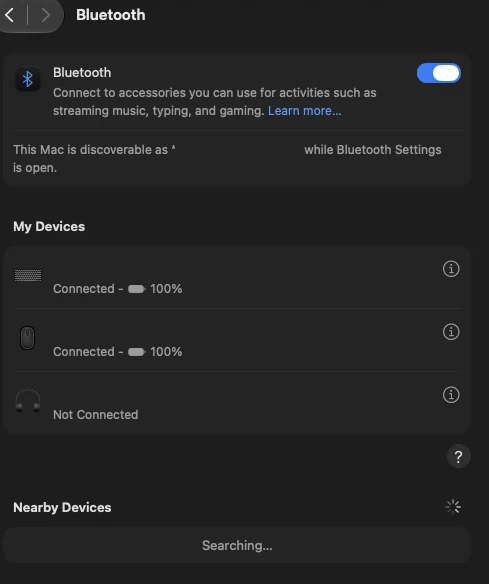
Check the Device Status
- Open System Settings.
- Select Bluetooth.
- Find the accessory you want to use.
- Check whether its status indicates Connected or Not Connected.
- Attempt to connect if available.
- Observe any error message.
Device Not Listed
If the accessory doesn’t appear in Bluetooth settings, it may not be discoverable.
Check its battery and activate pairing mode.
Device Listed but Not Connecting
If the accessory appears but refuses to connect, an existing pairing or connection to another device may be responsible.
Connected but Not Working
If your Bluetooth headphones show Connected but produce no sound, the issue may involve audio routing.
Similarly, a connected keyboard may require checking its power, input settings, or device-specific controls.
The next solutions address these situations separately.
3. Charge Your Bluetooth Accessory
A low battery is one of the simplest explanations for Bluetooth connection failures.
Many accessories use rechargeable batteries, while others require replaceable batteries.
An accessory can sometimes turn on but lack enough power to operate reliably.
Check the Battery
- Turn off the Bluetooth accessory.
- Connect it to the appropriate charger.
- Allow it to charge.
- If it uses replaceable batteries, check their condition.
- Turn the accessory back on.
- Try connecting it to your MacBook.
Check Battery Information on Mac
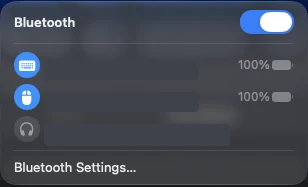
For compatible connected accessories, macOS may display battery information in Bluetooth settings or Control Center.
Open Control Center and select Bluetooth to review available battery information.
Not every third-party accessory reports its battery level to macOS.
If no battery percentage appears, check the manufacturer’s app or device indicators.
Restart the Accessory
After charging:
- Turn the accessory off.
- Wait approximately 15 seconds.
- Turn it back on.
- Enable pairing mode if necessary.
- Reconnect it to your MacBook.
If charging resolves the problem, the accessory’s battery may have been responsible.
If it repeatedly disconnects despite a full charge, continue troubleshooting.
4. Enable Pairing Mode
One of the most common causes of MacBook bluetooth not working is an accessory that isn’t in pairing mode.
Simply switching on headphones, speakers, or a keyboard doesn’t necessarily make them discoverable.
Many Bluetooth devices require a separate action to become available for pairing.
Pair a Bluetooth Accessory
- Turn on your accessory.
- Follow its instructions to activate pairing mode.
- Keep the accessory near your MacBook.
- Open System Settings → Bluetooth.
- Wait for the device to appear.
- Move your pointer over the device name.
- Click Connect.
- Confirm a pairing request or enter a code if prompted.
How Do You Activate Pairing Mode?
The procedure depends on the manufacturer.
Some headphones require holding the power button for several seconds.
Other devices use a dedicated Bluetooth button.
Certain keyboards have separate controls for switching between saved devices.
If the accessory isn’t appearing, consult its official pairing instructions.
Pairing Code Problems
Some keyboards and other devices require a numerical code during pairing.
Follow the onscreen instructions carefully.
If the code expires, restart pairing mode and try again.
Avoid entering random PINs repeatedly when the accessory has specific manufacturer instructions.
5. Disconnect Other Devices
Some Bluetooth accessories automatically reconnect to previously paired phones, tablets, or computers.
For example, your headphones may still be connected to your iPhone while you’re trying to pair them with your MacBook.
This can make the accessory unavailable for a new connection.
Check Other Connected Devices
- Identify other devices previously paired with the accessory.
- Open their Bluetooth settings.
- Disconnect the accessory if appropriate.
- Turn the accessory off and back on.
- Activate pairing mode again.
- Return to your MacBook’s Bluetooth settings.
- Attempt to connect.
What About Multipoint Bluetooth?
Some modern accessories support multipoint connections.
This allows them to maintain connections with more than one device.
However, the number of supported devices and switching behavior depend on the product.
Check the manufacturer’s instructions if your headphones or keyboard supports multipoint.
AirPods Keep Switching?
Apple AirPods have additional automatic switching features.
If only your AirPods refuse to connect to your MacBook, read our AirPods Not Connecting to Mac guide for model-specific pairing instructions.
This article focuses on broader MacBook Bluetooth functionality.
6. Reduce Wireless Interference
Bluetooth uses wireless signals that can be affected by nearby electronic equipment.
Apple confirms that wireless interference may cause Bluetooth devices to disconnect, respond slowly, or experience interrupted audio.
The problem may appear only in certain rooms or when particular devices are nearby.
Test Another Location
- Place your MacBook on a desk.
- Bring the Bluetooth accessory close to the computer.
- Move away from unnecessary electronic equipment.
- Remove large metal objects between the devices.
- Connect the accessory.
- Test the connection for several minutes.
If the accessory works consistently in the new location, interference may be contributing.
Common Interference Sources
Potential sources include:
- Microwave ovens.
- Certain cordless phones.
- Nearby wireless equipment.
- Power cables.
- Poorly shielded USB cables.
- Some USB hubs and external drives.
- Large metal surfaces.
Apple specifically notes that certain USB 3 and Thunderbolt equipment can contribute to wireless interference.
Try Disconnecting USB Accessories
If Bluetooth becomes unreliable when a USB hub or external drive is connected:
- Disconnect the unnecessary USB accessory.
- Move its cables away from the Bluetooth device.
- Test the Bluetooth connection again.
- Reconnect accessories individually.
Use properly shielded cables when possible.
You don’t need to disable your entire Wi-Fi network to troubleshoot Bluetooth.
For related wireless instability on iPhone, see our iPhone Bluetooth Keeps Disconnecting guide.
7. Check Audio and Input Settings
Sometimes a Bluetooth accessory connects correctly but doesn’t work because macOS is using another device.
This is especially common with wireless headphones and speakers.
If your Bluetooth headphones connect but your MacBook’s built-in speakers remain silent after you disconnect them, check the selected audio output device. Our MacBook Speakers Not Working guide explains how to diagnose sound output problems.
Check Bluetooth Audio Output
- Connect your headphones or speaker.
- Open System Settings.
- Select Sound.
- Find Output.
- Choose your Bluetooth accessory.
- Adjust the output volume.
- Play music or another audio file.
If sound starts playing normally, the problem may have involved the selected output device.
Check Microphone Input
If you’re using a Bluetooth headset during calls:
- Open System Settings.
- Select Sound.
- Find Input.
- Choose the appropriate microphone.
- Test audio input.
Video applications may also have their own microphone and speaker settings.
Bluetooth Audio Sounds Bad?
Some Bluetooth headphones switch to a different audio mode when their microphone is being used.
Apple explains that this can reduce audio quality during calls or when an application actively uses the headphone microphone.
If audio sounds muffled but Bluetooth stays connected, this isn’t necessarily a disconnection.
Close unnecessary applications using the headset microphone, then test playback again.
8. Forget and Reconnect the Device
If your MacBook bluetooth not working problem affects an accessory that previously paired successfully, removing its saved connection may help.
This allows macOS to establish a fresh pairing.
Forget the Accessory
- Open System Settings.
- Select Bluetooth.
- Find the affected device.
- Open its information or context menu.
- Select Forget This Device, if available.
- Confirm the action.
The exact menu layout depends on your macOS version.
Pair Again
- Restart the Bluetooth accessory.
- Activate pairing mode.
- Keep it near your MacBook.
- Return to System Settings → Bluetooth.
- Wait for its name to appear.
- Click Connect.
- Complete any confirmation steps.
Important Considerations
Forgetting a device removes its saved Bluetooth pairing.
You may need to enter a pairing code again.
If the accessory is shared between multiple devices, check whether the pairing change affects those connections.
Forgetting a Bluetooth accessory doesn’t erase your documents, photos, or normal applications.
Avoid deleting macOS Bluetooth configuration files manually when ordinary re-pairing is available.
9. Reconnect Apple Accessories
Apple’s Magic Keyboard, Magic Mouse, and Magic Trackpad have convenient pairing procedures that differ from some third-party accessories.
Many rechargeable models can pair with a Mac using a compatible cable.
This can be useful when your wireless Apple accessory doesn’t appear in Bluetooth settings.
Pair Using a Cable
- Turn on your Magic Keyboard, Magic Mouse, or Magic Trackpad.
- Connect the accessory to your MacBook using its compatible cable.
- Wait approximately one minute.
- Allow the accessory to pair with your Mac.
- Disconnect the cable when appropriate.
- Test its Bluetooth connection.
For a Magic Mouse, Apple notes that the cable must be disconnected before using it normally.
The procedure may differ for older models using replaceable batteries.
Check the Power Switch
Apple wireless accessories have a power switch.
When enabled, the switch normally shows green.
If the device doesn’t respond, check its battery and cable.
What If Your Magic Mouse Still Doesn’t Connect?
Restart your MacBook, verify Bluetooth is enabled, and try pairing again.
Use Apple’s model-specific instructions before attempting a factory reset or replacing the accessory.
A wireless mouse problem doesn’t automatically mean that the MacBook Bluetooth hardware is defective.
10. Restart Your MacBook
A normal restart can resolve temporary macOS problems affecting Bluetooth.
This is a useful troubleshooting step when several wireless accessories suddenly stop responding.
Restart macOS
- Save open documents.
- Close unnecessary applications.
- Click the Apple menu.
- Select Restart.
- Allow your MacBook to restart completely.
- Sign in to your account.
- Open Bluetooth settings.
- Reconnect the accessory if necessary.
Apple Silicon vs. Intel
The basic restart procedure is the same for MacBooks with Apple silicon and Intel processors.
You don’t need to follow outdated Bluetooth module reset instructions intended for older macOS versions.
Some online guides recommend deleting hidden Bluetooth preference files or using Terminal commands without diagnosing the problem.
These are not appropriate first-line troubleshooting steps.
What If Bluetooth Stops Working After Sleep?
If Bluetooth works after restarting but fails again whenever you wake the MacBook, pay attention to the pattern.
Check whether the accessory is charged, remains within range, and automatically reconnects to another device.
You should also check for compatible macOS updates.
11. Update macOS and Firmware
An outdated operating system or accessory firmware can sometimes contribute to Bluetooth compatibility problems.
Apple regularly provides macOS updates that may improve system reliability and compatibility.
Accessory manufacturers may also release firmware updates.
Update Your MacBook
- Open System Settings.
- Select General.
- Click Software Update.
- Wait for available updates.
- Review any compatible macOS release.
- Back up important data.
- Install the update if appropriate.
After updating, test your Bluetooth accessories again.
Check Accessory Firmware
For compatible accessories, check the manufacturer’s official application or support website.
Some devices require firmware updates through a USB connection or dedicated utility.
Follow the manufacturer’s instructions.
Avoid Unofficial Bluetooth Drivers
macOS includes built-in support for standard Bluetooth functionality.
You generally don’t need to download a random Bluetooth driver package to make a normal headset, keyboard, or mouse work.
Unofficial driver utilities or system modifications may create additional problems.
If the accessory requires special software, obtain it from the manufacturer’s official website.
12. Test Another Bluetooth Device
If none of the earlier fixes resolves your MacBook bluetooth not working issue, test another compatible accessory.
This is one of the most useful ways to determine whether the problem involves your MacBook or a particular device.
Test Two Accessories
- Find another known-working Bluetooth accessory.
- Charge it if necessary.
- Activate pairing mode.
- Attempt to connect it to your MacBook.
- Compare the results.
- Try the original accessory with another compatible computer or phone.
Interpret the Results
If the second accessory works normally: The original accessory’s battery, compatibility, pairing, or firmware may be responsible.
If neither accessory works: Your MacBook’s Bluetooth settings, software, or hardware may require further investigation.
If the original accessory fails on multiple computers: The accessory itself becomes a stronger suspect.
These comparisons are useful but don’t establish a definitive hardware diagnosis.
When to Contact Apple
Consider Apple Support if Bluetooth remains unavailable, several known-working accessories cannot connect, or the problem persists after appropriate software checks.
You can also contact the accessory manufacturer when the issue affects only one product.
Avoid completely erasing your MacBook before attempting these less disruptive steps.
MacBook Bluetooth Not Working After Update
If Bluetooth problems begin immediately after a macOS update, start by checking whether the issue affects one accessory or several.
Restart your MacBook and test Bluetooth again.
If only one accessory fails, forget its previous pairing and reconnect using the manufacturer’s instructions.
If several accessories fail, check whether macOS offers another compatible update.
Also review any third-party utilities associated with keyboards, mice, audio devices, or USB accessories.
An application that hasn’t been updated for your macOS version may contribute to compatibility problems.
However, a Bluetooth problem appearing after an update doesn’t automatically prove the update damaged your hardware.
If the issue continues across multiple known-working accessories, contact Apple Support.
MacBook Bluetooth Not Finding Devices
If your MacBook cannot discover nearby Bluetooth accessories, the problem may involve pairing mode or device availability.
First, check whether Bluetooth is enabled.
Then confirm the accessory has enough power.
Place the accessory in discovery mode and keep it close to your MacBook.
If it was previously connected to a phone or another computer, disconnect it there and retry.
What If No Devices Appear?
Try pairing another compatible Bluetooth accessory.
If your MacBook detects other accessories but not the original one, focus on that accessory’s compatibility and pairing instructions.
If no known-working accessories appear and Bluetooth settings remain unavailable, restart macOS and consider Apple Support.
Avoid assuming that an empty nearby-device list always indicates a hardware fault.
MacBook Bluetooth Not Working After Sleep
Some MacBook users experience Bluetooth problems after closing and reopening the laptop lid.
A wireless keyboard or mouse may work normally before sleep but fail to reconnect afterward.
Start by waking and unlocking your MacBook completely.
Then check whether the accessory is switched on and sufficiently charged.
Open Bluetooth settings and attempt to reconnect.
If the accessory is connected to another nearby device, disconnect it there.
You should also check whether the issue occurs with multiple accessories or only one.
If restarting temporarily fixes the problem but it returns after every sleep cycle, document the behavior and check for macOS updates.
MacBook Bluetooth Mouse Not Working
If your Bluetooth mouse isn’t working, first determine whether the MacBook recognizes it.
Open System Settings → Bluetooth.
If the mouse appears as connected, check whether it is switched on and charged.
Move it closer to the computer and test on a suitable surface.
If the pointer moves inconsistently, wireless interference may be involved.
Magic Mouse Troubleshooting
For a rechargeable Apple Magic Mouse:
- Turn the mouse on.
- Connect it to your Mac with the appropriate cable.
- Allow pairing to complete.
- Disconnect the cable.
- Test pointer movement.
If your mouse works when another device is disconnected, investigate Bluetooth interference or conflicts.
For a specific problem with the MacBook’s built-in trackpad rather than an external mouse, see the appropriate trackpad troubleshooting guide instead.
MacBook Bluetooth Keyboard Not Working
A Bluetooth keyboard may connect but fail to type because of battery problems, connection switching, or incorrect input settings.
Start by checking the keyboard’s power.
If it supports multiple devices, make sure the correct device channel is selected.
Then open Bluetooth settings and confirm the connection.
If the keyboard appears connected but produces unexpected characters, check the selected keyboard layout under System Settings.
Apple Magic Keyboard
Rechargeable Magic Keyboard models can often be paired using a compatible cable.
Connect the keyboard to your MacBook, wait for pairing, and test it again.
If only certain keys fail while Bluetooth remains connected, the problem may involve the keyboard itself rather than Bluetooth.
MacBook Bluetooth Connected but No Sound
If your headphones or speaker connects successfully but produces no audio, don’t immediately reset Bluetooth.
The problem may involve the selected audio output.
Open System Settings → Sound → Output and choose your Bluetooth accessory.
Check volume settings on both the MacBook and accessory.
Try playing audio in another application.
If the headphones work in Music but not Zoom, review Zoom’s speaker and microphone settings.
If the audio becomes distorted during a video call, the headset may be switching to a mode that uses its microphone.
That’s different from the Bluetooth connection failing completely.
MacBook Air and MacBook Pro Bluetooth
MacBook Air and MacBook Pro models use the same basic macOS Bluetooth settings.
The troubleshooting process is therefore similar.
Both can connect to compatible Bluetooth keyboards, headphones, mice, and other accessories.
However, Bluetooth capabilities vary between MacBook generations.
An older model may support different Bluetooth versions and accessory features from a newer MacBook.
If an accessory requires a particular Bluetooth feature or macOS version, check the manufacturer’s compatibility documentation.
For ordinary pairing failures, start with Bluetooth settings, accessory power, discovery mode, and connection testing.
Bluetooth Interference vs. Hardware Problems
If your MacBook bluetooth not working issue occurs only in one room or near particular electronics, interference may be contributing.
For example, a Bluetooth mouse may behave unpredictably beside certain USB devices or poorly shielded cables.
If the same mouse works normally in another environment, a hardware fault in the MacBook becomes less certain.
However, if Bluetooth cannot be enabled or several accessories fail regardless of location, investigate the MacBook itself.
You can also check whether other Apple wireless features are experiencing problems.
For separate device-discovery issues, our AirDrop Not Working on iPhone or Mac guide covers Bluetooth and Wi-Fi requirements for AirDrop.
Remember that a failure of one Continuity feature doesn’t automatically mean the Mac’s Bluetooth hardware has failed.
Frequently Asked Questions
Why is my MacBook bluetooth not working?
Common causes include disabled Bluetooth, incorrect accessory pairing mode, low battery, interference, an existing connection to another device, outdated software, or a saved pairing error. Start by checking Bluetooth settings and your accessory’s power.
Why is my MacBook Bluetooth not finding devices?
The accessory may not be discoverable, could be connected elsewhere, or might be out of range. Activate pairing mode and keep the accessory near your MacBook.
Why does my MacBook say Bluetooth not available?
This can indicate a temporary macOS issue, an external Bluetooth adapter problem, or a possible hardware fault. Restart your Mac and check whether the setting returns.
Why is my MacBook Bluetooth connected but not working?
The accessory may be connected but not selected as the active audio or input device. Check System Settings and the affected application’s device settings.
Why does my Bluetooth mouse keep disconnecting?
Low battery, interference, device switching, and saved pairing issues can cause connection problems. Test the mouse near your MacBook and compare another accessory.
Can I use Bluetooth without Wi-Fi on MacBook?
Yes. Standard Bluetooth pairing doesn’t require an active Wi-Fi internet connection. However, some Apple Continuity features use both Bluetooth and Wi-Fi.
How do I reset Bluetooth on my MacBook?
Start by restarting the Mac and forgetting and reconnecting the affected accessory. Modern macOS versions don’t require a universal Bluetooth module reset for ordinary troubleshooting.
Will forgetting a Bluetooth device delete my files?
No. Forgetting the accessory removes its saved pairing. It doesn’t erase your MacBook’s personal documents or normal applications.
Why did Bluetooth stop working after a macOS update?
A software compatibility issue, saved pairing problem, or accessory utility may be involved. Restart the Mac, check for updates, and compare multiple accessories before assuming hardware damage.
Why does my Bluetooth keyboard connect but not type?
The keyboard may be connected to another device channel, have insufficient power, or use an unexpected keyboard layout. Check its settings and pairing instructions.
Do MacBook Air and MacBook Pro use the same Bluetooth settings?
Yes. Both generally use System Settings → Bluetooth for standard Bluetooth connections. Available features and compatibility can vary by model and macOS version.
When should I contact Apple Support?
Contact Apple Support if Bluetooth cannot be enabled, several known-working accessories repeatedly fail, or the problem continues after reasonable software and connection checks.
Final Thoughts
If your MacBook bluetooth not working problem prevents you from connecting accessories, don’t immediately assume that your MacBook Air or MacBook Pro needs hardware repair.
Start by checking whether Bluetooth is enabled and your accessory is charged.
Make sure the device is discoverable and not connected to another phone or computer.
If it appears in Bluetooth settings but refuses to connect, forget its saved pairing and try again.
Reducing wireless interference, restarting macOS, and installing compatible software updates may also help.
For Apple Magic accessories, a compatible cable can simplify pairing.
Most importantly, test another known-working Bluetooth accessory before deciding whether the MacBook or the original device is responsible.
If Bluetooth remains unavailable or multiple accessories fail after these checks, contact Apple Support for further diagnosis.
Official Apple Support Resources
For additional technical guidance, refer to Apple’s official documentation:
- Connect a Bluetooth Device With Your Mac
- Turn Bluetooth On or Off on Mac
- Resolve Wi-Fi and Bluetooth Interference
- If Your Magic Keyboard, Magic Mouse, or Magic Trackpad Won’t Connect
- Bluetooth Headphone Sound Quality on Mac
The Synced Desk | Practical solutions for everyday technology problems.