Are your iPhone Contacts Not Syncing with iCloud, MacBook, iPad, Gmail, or Outlook? Maybe you saved a new phone number on your iPhone, but it never appeared on your Mac. Perhaps contacts are missing after switching to a new iPhone, or changes made on one device aren’t showing up on another.
Contact synchronization should happen automatically when your devices and accounts are configured correctly.
However, the Contacts app can display information from multiple services, including iCloud, Google, Microsoft Exchange, and Outlook. These accounts don’t automatically merge their contacts into one online address book.
That distinction explains many synchronization problems.
Fortunately, missing contacts don’t always mean your information has been deleted. The problem could involve disabled iCloud settings, the wrong default account, hidden contact lists, or a temporary connection issue.
In this guide, we’ll explain 12 practical fixes for iPhone Contacts Not Syncing, including problems with iCloud, Mac, Gmail, Outlook, and new iPhone setups.
Table of Contents
Quick Answer
If your iPhone Contacts are not syncing, open Settings > Your Name > iCloud > See All and make sure Contacts is enabled.
Then open the Contacts app, tap Lists, and check whether your contacts are stored under iCloud, Gmail, Outlook, or another account.
If you want contacts to sync with your Mac, enable Contacts under System Settings > Your Name > iCloud > See Allon the Mac as well.
Make sure both devices use the same Apple Account, connect to the internet, refresh Contacts, and restart your devices if needed.
Important: Don’t delete contacts, remove accounts, or reset iCloud until you’ve confirmed where your contact information is stored.
Why iPhone Contacts Stop Syncing
Your iPhone can show contacts from several different accounts in one application.
For example, you might have:
- Personal contacts stored in iCloud.
- Work contacts stored in Microsoft Exchange.
- Email contacts stored in Google.
- Contacts imported from another phone.
- Shared contacts or directory information from a managed account.
Although these entries can appear together, each account uses its own synchronization system.
That means a contact saved to Google doesn’t automatically become an iCloud contact.
Common causes of iPhone Contacts Not Syncing include:
- iCloud Contacts is disabled.
- Devices use different Apple Accounts.
- Contacts are stored in Gmail or Outlook instead of iCloud.
- The wrong contact list is selected.
- The default Contacts account is incorrect.
- A Google or Microsoft account has stopped authenticating.
- Your iPhone or Mac has lost internet access.
- Apple is experiencing a temporary iCloud service issue.
- Contact changes haven’t refreshed yet.
- The operating system needs an update.
- Contacts were deleted or removed from an account.
The first step is determining where your contacts actually exist.
1. Find Where Your Contacts Are Stored
Before changing synchronization settings, identify which account contains the missing contacts.
This is especially important if you use iCloud, Google, and Microsoft Outlook together.
Check Contacts Lists
- Open the Contacts app on your iPhone.
- Tap Lists in the upper-left corner.
- Review the available accounts.
- Look for All iCloud, All Gmail, All Exchange, or similar lists.
- Select each list individually.
- Search for one of the missing contacts.
For example, suppose you saved a phone number while your default account was Gmail.
That contact may appear under All Gmail but not under All iCloud.
In that situation, iCloud synchronization may be working perfectly. The contact simply belongs to another provider.
Compare With the Online Account
If the contact belongs to iCloud, check it through iCloud Contacts using a computer or tablet.
For Google, visit Google Contacts.
For an Outlook or Exchange account, use the relevant Microsoft service or organization-approved address book.
If the contact exists online but not on your iPhone, investigate the iPhone’s account settings.
If it exists only on the iPhone, protect that copy before changing accounts.
2. Show Hidden Contact Lists
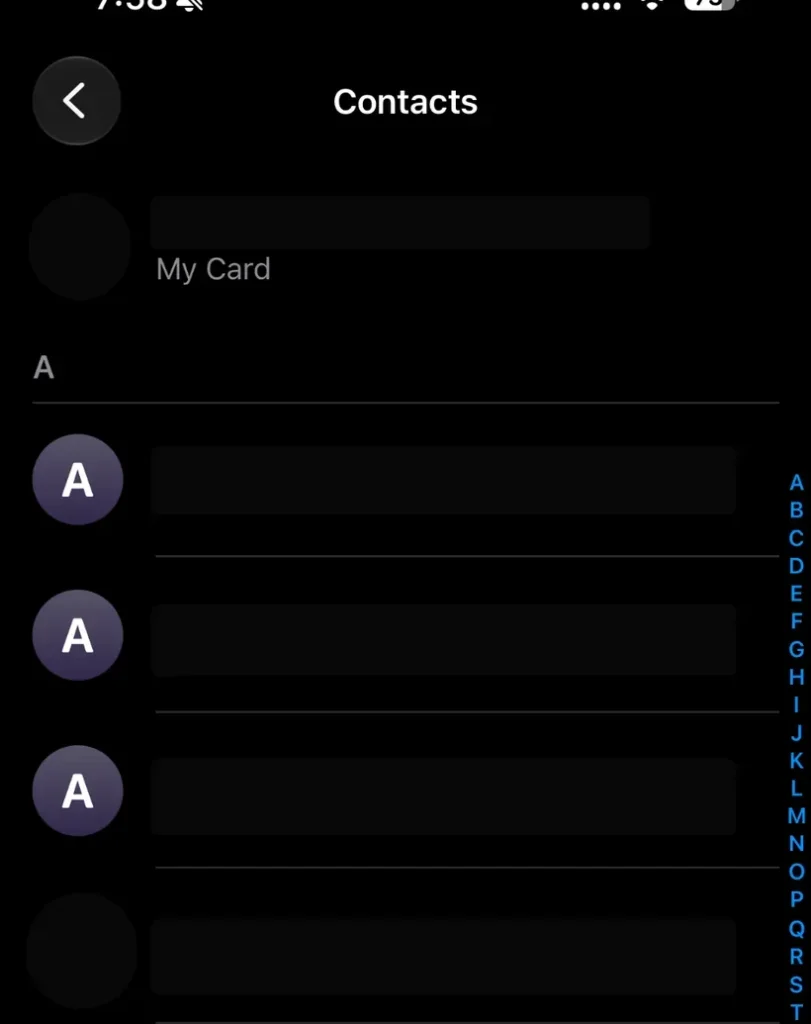
Sometimes iPhone Contacts Not Syncing is actually a contact visibility problem.
The Contacts app allows you to view individual account lists instead of displaying every saved contact together.
If you’re viewing only iCloud contacts, entries from Gmail or Exchange may seem missing.
Show All Contacts
- Open Contacts.
- Tap Lists.
- Review the accounts displayed.
- Select All Contacts, if available.
- Search for the missing name or phone number.
You can also select individual account lists to see which provider owns a particular contact.
Why This Matters
A hidden list doesn’t mean its contacts have been deleted.
For example, your iPhone might contain 500 iCloud contacts and 200 Google contacts.
Selecting only the iCloud list would hide the Google entries from that view.
Before deleting accounts or restoring backups, confirm that you’re displaying the correct lists.
If your missing contacts become visible after changing the list, no further synchronization repair may be necessary.
3. Enable iCloud Contacts on iPhone
If iPhone Contacts are not syncing to iCloud, check whether the Contacts synchronization option is enabled.
Apple allows you to control which services synchronize through your Apple Account.
You can have iCloud Photos working while Contacts is turned off.
Turn On iCloud Contacts
- Open Settings.
- Tap your name at the top.
- Select iCloud.
- Find Saved to iCloud.
- Tap See All if Contacts isn’t immediately visible.
- Find Contacts.
- Turn it on if disabled.
- Follow any onscreen instructions.
On older iOS versions, the arrangement of the iCloud settings may differ.
What Happens After Enabling Contacts?
Your iPhone can begin synchronizing iCloud Contacts associated with the signed-in Apple Account.
Allow the process some time, especially if you have many contacts.
A stable internet connection is important.
What If Contacts Is Already Enabled?
Leave it on for now.
Repeatedly turning iCloud Contacts off and on isn’t necessary when troubleshooting.
Before disabling synchronization, understand how your iPhone will handle existing contacts and whether you’re being asked to keep or remove local copies.
Continue to the next fix instead.
4. Check Your Apple Account
If your iPhone Contacts are not syncing between devices, confirm that the devices are signed in to the same Apple Account.
Apple uses the term Apple Account for what was previously called Apple ID.
Contacts stored in one iCloud account won’t automatically appear in a different iCloud account.
Check Your iPhone
- Open Settings.
- Tap your name.
- Review the account details.
- Confirm that you’re signed in to the intended account.
Check Your Mac
- Open the Apple menu.
- Select System Settings.
- Click your name.
- Review the Apple Account.
- Compare it with your iPhone.
Check Your iPad
Open Settings, tap your name, and compare the account details.
If the devices use different Apple Accounts, that may explain why iCloud contacts aren’t synchronized.
What If Apple Account Settings Are Disabled?
If your name is greyed out and you cannot access the account settings, read our Apple ID Greyed Out in Settings guide.
It covers account restrictions and related troubleshooting.
Avoid signing out of iCloud as an initial fix. Signing out can affect other synchronized services and information stored on the device.
5. Enable Contacts on Your Mac
If iPhone Contacts Not Syncing to Mac is your main issue, check the Mac’s iCloud settings.
Your iPhone may have iCloud Contacts enabled while your Mac doesn’t.
Enable Contacts on Mac
- Click the Apple menu.
- Open System Settings.
- Select your Apple Account.
- Click iCloud.
- Select See All beside Saved to iCloud.
- Find Contacts.
- Turn Contacts on if disabled.
- Open the Contacts app on your Mac.
On older macOS versions, the Contacts option may appear under Apps Using iCloud.
Check Contacts on Mac
- Open the Contacts app.
- Show the sidebar if it’s hidden.
- Locate the iCloud section.
- Select All Contacts under iCloud.
- Search for the missing contact.
If the contact is visible on iCloud.com but not your Mac, the Mac’s settings or connection deserve attention.
Check Other Accounts
If the missing contact belongs to Gmail or Exchange, it won’t necessarily appear under the Mac’s iCloud list.
Open Contacts > Accounts on the Mac and check whether the relevant provider is enabled for Contacts.
The correct account depends on where the information was originally saved.
6. Refresh the Contacts App
Sometimes iPhone Contacts are not syncing because recent changes haven’t appeared in the app yet.
Apple recommends manually refreshing Contacts when iCloud information isn’t updating.
Refresh Contacts
- Open the Contacts app.
- Display the contact list.
- Swipe down on the list.
- Release to refresh.
- Wait for the update to finish.
- Search for the missing entry again.
Refresh Contact Lists
You can also:
- Tap Lists.
- Select the account you want to check.
- Swipe down on that account’s contact list.
- Wait for the refresh.
Restart the App
If refreshing doesn’t work:
- Open the iPhone App Switcher.
- Find Contacts.
- Swipe the app preview upward to close it.
- Return to the Home Screen.
- Wait about one minute.
- Open Contacts again.
If the contact appears after refreshing, the issue may have been a temporary delay.
If it remains missing, verify whether the source account actually contains it.
7. Set the Correct Default Account
One of the most overlooked causes of iPhone Contacts Not Syncing to Mac is the default Contacts account.
Your iPhone can save new contacts to different services.
If Gmail is selected as the default account, newly created contacts may be saved to Google rather than iCloud.
They won’t automatically appear in your Mac’s iCloud contact list.
Change the Default Account
- Open Settings.
- Select Apps.
- Tap Contacts.
- Find Default Account.
- Review the available options.
- Select iCloud if you want new contacts saved to iCloud.
On iOS 17 or earlier, Contacts settings may be located directly under Settings > Contacts.
Important: Changing your default Contacts account determines where new contacts are saved. It does not automatically move existing contacts from Gmail, Outlook, or another account into iCloud.
If your contacts are missing from iCloud, first identify which account currently stores them. Avoid deleting accounts or disabling synchronization before checking that your contacts are safely available.
Important Distinction
Changing the default account affects where new contacts are saved.
It does not automatically transfer existing Gmail or Outlook contacts into iCloud.
For example, if you already have 300 Google contacts, choosing iCloud as the default won’t move those 300 contacts.
You would need to use an appropriate export and import process if you specifically want to migrate them.
For now, leave existing contacts where they are until you’ve confirmed that all information is backed up.
8. Fix Gmail Contacts Syncing
If iPhone Contacts Not Syncing with Gmail is your problem, check the Google account configured on your iPhone.
Apple’s Contacts app can display contacts from Google when the account is properly connected.
Check Your Google Account
- Open Settings.
- Select Apps > Contacts.
- Tap Contacts Accounts.
- Select your Google account.
- Make sure Contacts is enabled.
- Open the Contacts app.
- Tap Lists.
- Select the Gmail contact list.
If the Google account is missing:
- Return to Contacts Accounts.
- Select Add Account.
- Choose Google.
- Sign in using the correct Google account.
- Enable Contacts synchronization.
Compare With Google Contacts
Open contacts.google.com in a browser.
Sign in to the same Google account.
Search for the missing contact.
If it appears online but not on your iPhone, check the account connection and Contacts visibility settings.
Check Authentication
If Google requests you to sign in again, complete the legitimate authentication process.
Don’t delete and re-add the account before confirming that important contacts are safely stored online.
9. Fix Outlook and Exchange Contacts
If your iPhone Contacts are not syncing with Outlook, the issue may involve your Microsoft account settings.
Apple Contacts supports compatible Microsoft Exchange and Outlook contact accounts.
However, different Microsoft account configurations don’t always behave identically.
Check Your Microsoft Account
- Open Settings.
- Select Apps > Contacts.
- Tap Contacts Accounts.
- Choose your Outlook or Exchange account.
- Confirm Contacts is enabled if the option is available.
- Open Contacts.
- Tap Lists.
- Select the relevant Microsoft account.
Check Outlook Contacts Online
Sign in to your appropriate Outlook or Microsoft 365 account.
Review its People or Contacts section.
Check whether the missing contact exists in the online address book.
If it appears online but not in Apple’s Contacts app, investigate account synchronization.
What About the Outlook App?
Microsoft’s Outlook app may also provide contact-saving or contact-syncing features.
These settings are separate from adding an Exchange or Outlook account directly to Apple Contacts.
Review the relevant account settings in Outlook before enabling additional contact export or saving options.
Using more than one synchronization method can sometimes create duplicates.
For work or school accounts, contact your IT administrator before changing managed account settings.
10. Check Internet and iCloud Status
iCloud Contacts requires internet connectivity to synchronize changes.
If your iPhone is offline, recent contact edits may not appear on your other devices immediately.
Test Your Connection
- Open Safari.
- Visit a reliable website.
- Confirm that it loads normally.
- Check whether other online applications work.
- Try a different trusted network if necessary.
If your iPhone is connected to Wi-Fi but cannot access the internet, follow our iPhone Connected to Wi-Fi but No Internet guide.
Check Apple’s System Status
Visit Apple System Status.
Look for relevant iCloud Contacts service interruptions.
If Apple reports an outage affecting Contacts, changing local settings may not resolve the issue until the service recovers.
Check Date and Time
Apple also recommends checking date and time settings when iCloud synchronization isn’t working.
Open Settings > General > Date & Time.
Review the current time zone and the Set Automatically option.
Incorrect device time can interfere with account and network services.
11. Restart and Update Your Devices
Temporary software problems can sometimes interrupt synchronization.
If iPhone Contacts Not Syncing continues after reviewing account settings, restart your devices.
Restart Your iPhone
For an iPhone with Face ID:
- Press and hold the side button and either volume button.
- Wait for the power-off slider.
- Drag the slider.
- Wait approximately 30 seconds.
- Press and hold the side button until the Apple logo appears.
- Unlock the iPhone.
For older iPhone models, use the applicable restart procedure.
Restart Your Mac
- Save open documents.
- Click the Apple menu.
- Select Restart.
- Sign in normally.
- Open Contacts after macOS starts.
Update iOS
On iPhone:
- Open Settings.
- Select General.
- Tap Software Update.
- Check for a compatible update.
- Back up important information before installing a major upgrade.
- Install the update if appropriate.
On Mac, use System Settings > General > Software Update.
After updating, verify that Contacts remains enabled in iCloud settings.
Then refresh the contact list.
12. Recover Contacts Safely
If your contacts are still missing, don’t immediately remove accounts, delete contact lists, or reset your iPhone.
The next step is to determine whether information was actually deleted or merely isn’t appearing on one device.
Check the Source Account
If you use iCloud, open iCloud Contacts on a computer or tablet.
If you use Gmail, check Google Contacts online.
If you use Outlook, check your Microsoft account’s contact directory.
Compare the missing entries with the contacts still stored on your iPhone.
Check Recovery Options
Apple provides a way to restore archived iCloud contacts through iCloud.com.
This may help when contacts have actually been deleted.
However, restoring an archived contact collection can replace the current iCloud contacts across devices.
Review Apple’s instructions carefully before proceeding.
Other providers may offer their own recovery features.
Avoid Destructive Changes
Don’t remove an account unless you understand whether the device holds contacts that haven’t been synchronized elsewhere.
Also avoid resetting all settings or erasing your iPhone simply because a contact hasn’t appeared.
Contact Apple Support
If iCloud Contacts is enabled on every device and the contacts still won’t synchronize, contact Apple Support.
Explain:
- Which devices are affected.
- Which Apple Account is being used.
- Whether the contacts appear on iCloud.com.
- Whether the problem affects all contacts or only recent additions.
- Whether the issue started after an update or account change.
This information can help identify the problem without risking your saved contacts.
iPhone Contacts Not Syncing to Mac
If your iPhone Contacts are not syncing to Mac, focus on the following three settings.
First, make sure iCloud Contacts is enabled on your iPhone.
Second, confirm Contacts is enabled under the same Apple Account on your Mac.
Third, check where the missing contact is stored.
For example, if you saved a contact under Gmail, it won’t automatically appear in your Mac’s iCloud contact list.
You can either connect the same Google account to Contacts on your Mac or choose an appropriate method to migrate the contact.
Before moving anything, compare the information on both devices.
If your iCloud contacts appear correctly on iCloud.com but not the Mac, investigate the Mac’s synchronization and account settings.
Avoid deleting contact entries to force a refresh.
iPhone Contacts Not Syncing to iCloud
If iPhone Contacts Not Syncing to iCloud is the problem, first check the iCloud Contacts switch.
Open:
Settings > Your Name > iCloud > See All > Contacts
Enable Contacts if it’s off.
Then open the Contacts app and select All iCloud from Lists.
Check whether the missing contacts appear.
If a contact exists under Gmail but not iCloud, turning on iCloud Contacts won’t automatically move that Google contact.
If the contact belongs to iCloud but hasn’t uploaded, check the internet connection, Apple Account, and system status.
Use iCloud.com on a computer or tablet to determine whether the entry reached the server.
Contacts Missing on New iPhone
If you recently switched to a new iPhone and some contacts are missing, don’t assume the data transfer failed completely.
Contacts can come from several different sources.
Your previous iPhone might have used iCloud, Gmail, Exchange, or another service.
What to Check
- Sign in using the intended Apple Account.
- Enable iCloud Contacts.
- Add any Google or Microsoft account that holds missing contacts.
- Open Contacts and inspect Lists.
- Compare the results with your previous iPhone if it’s available.
- Check the appropriate online account.
If your old iPhone still contains contacts that aren’t visible online, preserve that information before resetting or trading in the device.
Don’t erase your previous iPhone until you’re confident that important contacts have been transferred or backed up.
iPhone Contacts Syncing Slowly
If your contacts eventually appear but updates take longer than expected, check the account provider and connection.
iCloud Contacts is designed to update automatically.
Some third-party accounts may use different synchronization or fetch methods.
For supported third-party accounts, you can review account refresh settings under:
Settings > Apps > Contacts > Contacts Accounts > Fetch New Data
Available options vary by account.
Also check whether your iPhone has a stable internet connection.
If newly saved contacts appear in the provider’s online address book, that helps confirm the information was uploaded.
Avoid changing multiple account settings simultaneously, because that makes it harder to identify the source of the delay.
iCloud Contacts vs. Gmail Contacts
Understanding where your contacts are saved can prevent recurring synchronization problems.
| Feature | iCloud Contacts | Google Contacts |
|---|---|---|
| Account | Apple Account | Google Account |
| iPhone support | Yes | Yes |
| Mac support | Yes | Yes |
| Web access | iCloud.com | contacts.google.com |
| Automatic syncing | Yes, when configured | Yes, when configured |
| Default account selectable | Yes | Yes |
Both services can be used with Apple’s Contacts app.
The important point is that they are separate address books.
Changing the default account doesn’t merge their existing information.
If you use several services, choose one primary place for new personal contacts and keep the other accounts connected only as needed.
Frequently Asked Questions
Why are my iPhone Contacts not syncing?
The most common causes include disabled iCloud Contacts, different Apple Accounts, hidden contact lists, incorrect default account settings, or synchronization problems with Gmail or Outlook.
Start by checking which account owns the missing contact.
How do I force iPhone Contacts to sync?
Open Contacts and swipe down on the contact list to refresh it.
Confirm iCloud Contacts or the relevant account’s Contacts option is enabled.
There isn’t a universal button that guarantees immediate synchronization across every account provider.
Why are my iPhone Contacts not syncing to Mac?
Your iPhone and Mac may use different Apple Accounts, Contacts may be disabled on one device, or the missing contacts may belong to Google or Exchange rather than iCloud.
Why are new contacts not appearing in iCloud?
Check your iPhone’s default Contacts account.
If new entries are being saved to Gmail or Outlook, they won’t automatically become iCloud contacts.
Does changing the default Contacts account move existing contacts?
No. Changing the default determines where newly created contacts are stored.
Existing contacts remain with their original provider unless you move or import them separately.
Why did my contacts disappear after changing Apple Account?
The contacts may belong to the previous account or another connected provider.
Check the appropriate online address book before assuming they were permanently deleted.
Can iCloud and Gmail Contacts sync together?
Both accounts can appear together in Apple’s Contacts app.
However, they don’t automatically merge into a single online contact database.
Does iPhone need Wi-Fi to sync contacts?
Not necessarily. Contacts can synchronize through an available internet connection, including cellular data when permitted by the relevant device and account settings.
Will restarting iPhone delete contacts?
A normal restart doesn’t intentionally delete your saved contacts.
However, changing or removing accounts can affect which contacts remain visible on the device.
Can I recover deleted iCloud contacts?
Apple provides archived contact restoration through iCloud.com.
Review the recovery instructions before restoring because an archived collection can replace the current iCloud contacts.
Should I reset my iPhone to fix contact syncing?
No. A factory reset is not an appropriate first troubleshooting step.
Check contact lists, account settings, connectivity, and online copies of your information first.
Final Thoughts
If your iPhone Contacts are not syncing, the most important first step is determining where your contacts are stored.
Your iPhone can display iCloud, Gmail, Outlook, and Exchange contacts together, but those accounts don’t automatically merge their data.
Check iCloud Contacts settings, confirm the correct Apple Account, review your contact lists, and verify your default account.
If you’re having problems between iPhone and Mac, make sure Contacts is enabled on both devices.
Refresh the Contacts app, check your internet connection, and install compatible software updates if necessary.
Most importantly, protect your existing information. Don’t delete contacts, remove accounts, or reset devices until you’ve confirmed that your important numbers are safely stored.
If synchronization still fails, Apple Support or your contact provider can help investigate the issue.