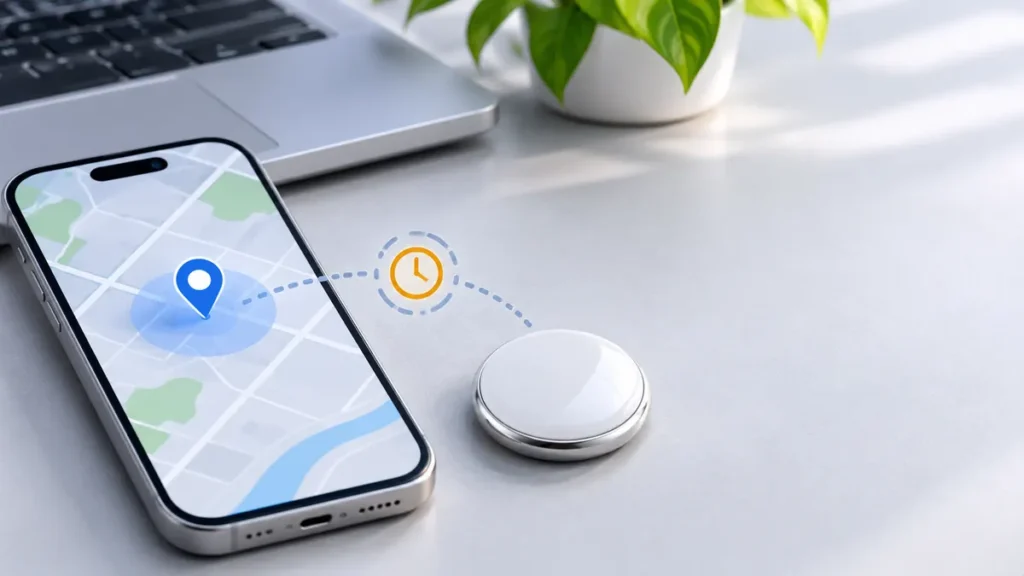
Is your AirTag location not updating in Apple’s Find My app? You might see an old location, a timestamp from several hours ago, or a message saying “No Location Found,” even though you expected the tracker to show where your belongings are.
This can be frustrating when you’re trying to locate keys, luggage, a backpack, or another valuable item.
However, a delayed AirTag location does not automatically mean the tracker is defective. Unlike an iPhone, an AirTag doesn’t have its own GPS receiver or cellular connection. It uses Bluetooth signals and Apple’s Find My network to report its approximate location.
That means updates depend partly on nearby Apple devices, battery condition, and the availability of the Find My network.
This guide explains 10 practical ways to troubleshoot an AirTag that won’t update its location, how to distinguish normal tracking delays from actual problems, and what to do if your AirTag is missing.
Table of Contents
Quick Answer: How to Fix an AirTag Location Not Updating
If your AirTag is showing an old location, try these checks:
- Open Find My and check when the AirTag was last detected.
- Understand whether the AirTag is outside the reach of nearby Find My network devices.
- Make sure your iPhone has a working internet connection.
- Check that Bluetooth is enabled.
- Verify Location Services and Find My permissions.
- Review Find My network and Apple Account settings.
- Restart your iPhone and install available software updates.
- Check for a low AirTag battery and replace it if necessary.
- Enable Notify When Found if the AirTag is missing.
- If the AirTag is physically available but won’t connect properly, consider resetting and pairing it again.
Important: If your AirTag is lost, do not remove it from your Apple Account or attempt to reset it remotely. Those actions will not force an immediate location update.
Why Is My AirTag Location Not Updating?
The most important thing to understand is how AirTag tracking actually works.
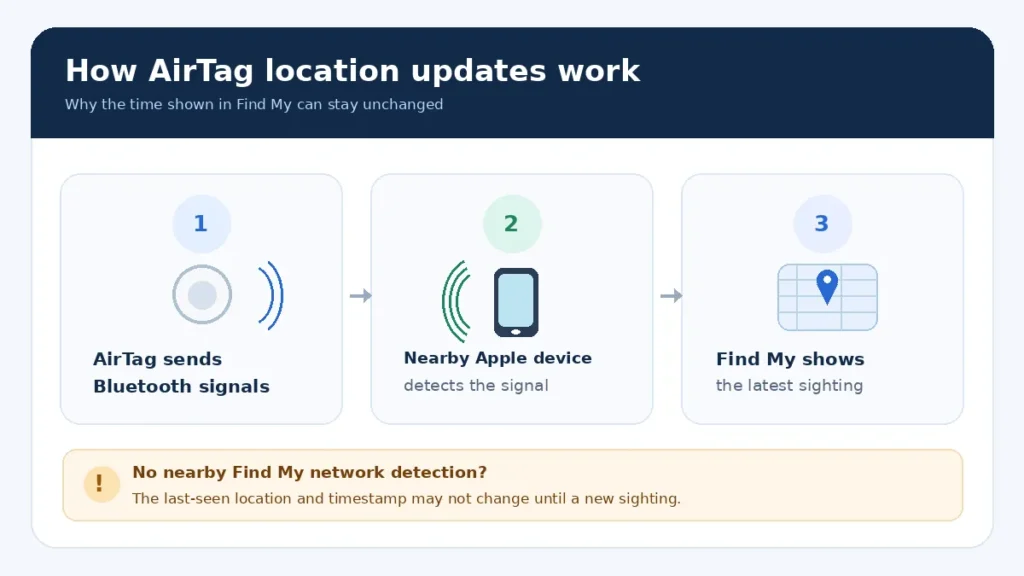
An AirTag periodically broadcasts a secure Bluetooth signal. Nearby devices participating in Apple’s Find My network can detect that signal and securely report an approximate location.
You then see the reported location through the Find My app on your iPhone, iPad, or Mac.
The location is not necessarily updated continuously. If the AirTag is somewhere without nearby participating Apple devices, the last reported location can remain unchanged.
For example, imagine leaving an AirTag inside a bag in a remote storage room. Even if the AirTag itself works perfectly, it might not be detected until a compatible Apple device comes within range.
This is why an AirTag can appear stuck at the same location for hours or longer without having a hardware failure.
Fix 1: Check the AirTag’s Last Known Location
Before changing settings, verify what Find My actually reports.
- Open the Find My app on your iPhone.
- Select the Items tab.
- Tap the AirTag you’re trying to locate.
- Check the location displayed on the map.
- Look at the timestamp or last-seen information beneath the item’s name.
If Find My shows a location from several hours ago, that is the last reported detection, not proof that the AirTag is still physically there.
Apple explains that the Find My app can display an item’s last known location for up to seven days. After a longer period without location reporting, the app may show No Location Found.
If the AirTag is nearby, try locating it using the available Play Sound or Find Nearby feature.
If it is far away, move to the next checks.
Fix 2: Understand Find My Network Coverage
One of the most common reasons for delayed AirTag location updates is limited Find My network coverage.
Unlike a GPS tracker with a cellular connection, an AirTag relies on nearby Apple devices participating in the Find My network.
Location updates are therefore influenced by:
- Whether compatible Apple devices pass near the AirTag.
- Whether the AirTag battery is working.
- Whether the nearby device can report a detection.
- The AirTag’s physical surroundings.
An AirTag inside a busy airport or shopping center may receive more frequent detections than one left in a remote location.
However, updates are not guaranteed at any specific interval, even in crowded areas.
What should you do?
If the AirTag is far away, you generally cannot force it to refresh by repeatedly reopening Find My. Keep the item registered in Find My and enable Notify When Found.
If the AirTag is physically nearby, continue with Bluetooth, location permissions, and battery checks.
Fix 3: Check Your iPhone’s Internet Connection
Your iPhone needs a working internet connection to retrieve updated Find My information.
If your phone has Wi-Fi or cellular connectivity problems, Find My may be unable to display the latest available data.
To check:
- Open Safari.
- Visit a reliable website.
- Confirm that the page loads normally.
- If Wi-Fi is not working, try cellular data.
- Return to the Find My app and check the item again.
You can also temporarily turn Airplane Mode on and off if your iPhone’s connectivity appears stuck.
Remember that this only fixes a connection problem on your iPhone. It cannot force a distant AirTag to broadcast a new location.
Fix 4: Make Sure Bluetooth Is Enabled
Bluetooth is essential when communicating directly with a nearby AirTag.
Open Settings → Bluetooth and confirm that Bluetooth is turned on.
If the AirTag is physically close to you but doesn’t respond, try restarting your iPhone and checking again.
Avoid repeatedly switching Bluetooth on and off if the AirTag is located far away. Your own iPhone’s Bluetooth connection cannot reach a remote tracker.
If your iPhone is having broader problems detecting Bluetooth accessories, see our related guide:
iPhone Bluetooth Not Finding Devices? 11 Fixes
Fix 5: Enable Location Services and Precise Location
Incorrect location permissions can interfere with Find My functionality and nearby finding features.
Check these settings:
- Open Settings on your iPhone.
- Select Privacy & Security.
- Tap Location Services.
- Make sure Location Services is enabled.
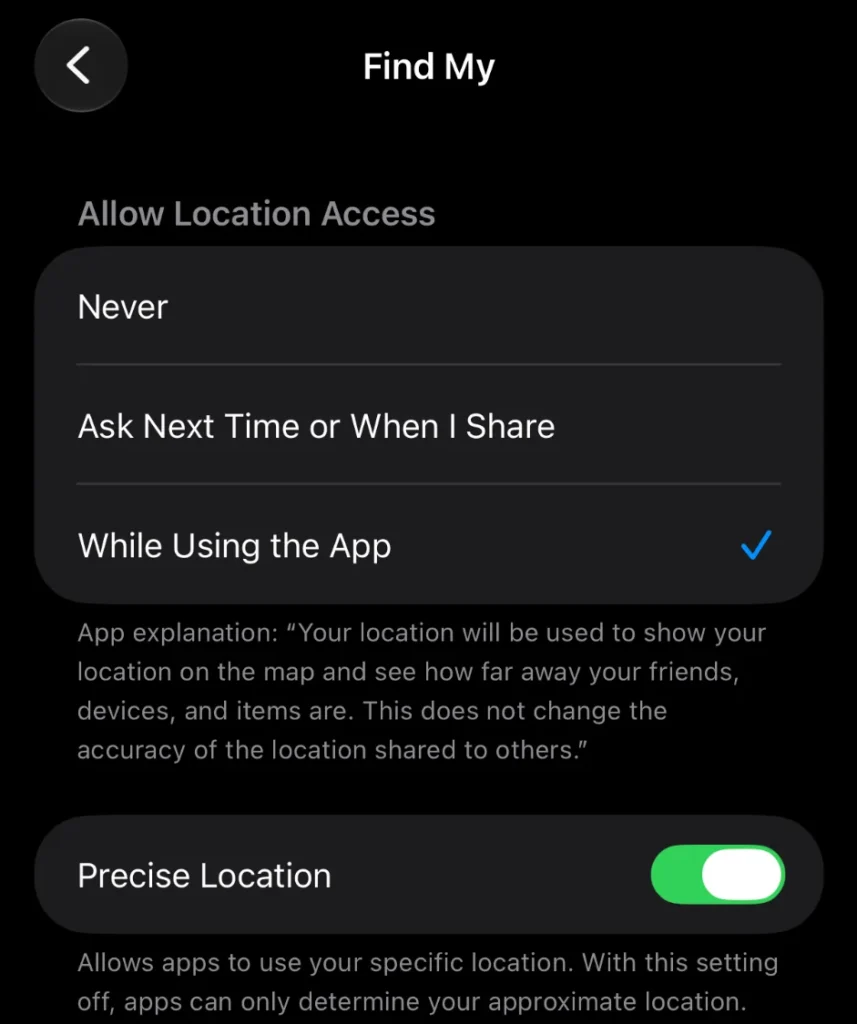
- Scroll down to Find My.
- Select the appropriate location access permission.
- Enable Precise Location for the most accurate nearby location features.
These settings are especially important for locating an AirTag nearby using compatible iPhone hardware.
However, turning on Precise Location does not guarantee that a distant AirTag will immediately update.
If you have already confirmed that Location Services works, continue to the Find My network settings.
Fix 6: Check Find My Network and Apple Account Settings
Find My relies on your Apple Account and supported device settings.
On your iPhone:
- Open Settings.
- Tap your name at the top.
- Select Find My.
- Tap Find My iPhone.
- Confirm that Find My iPhone is enabled.
- Check that Find My network is enabled.
These settings help ensure your iPhone participates properly in Apple’s Find My ecosystem.
Also check for any Apple Account alerts in Settings, particularly requests to finish account setup or resume syncing.
Make sure you are signed in to the Apple Account that owns the AirTag. A personal AirTag normally appears under Items in the Find My app associated with its owner, unless it has been shared with another person.
If Find My itself is not working properly on your iPhone, our Find My iPhone Not Working guide covers broader device and account troubleshooting.
Do not remove a missing AirTag from your account as a routine troubleshooting step.
Fix 7: Restart Your iPhone and Update iOS
A temporary issue with the Find My app, iPhone connectivity, or system software can sometimes affect how location information appears.
Start by closing and reopening Find My.
If that doesn’t help, restart your iPhone normally.
Then check for software updates:
- Open Settings → General → Software Update.
- Check whether an update is available.
- Back up your iPhone before installing an update.
- Install the update when your device has sufficient battery and a reliable connection.
- Reopen Find My afterward.
Software compatibility is also important. Apple states that AirTag (2nd generation) requires iOS or iPadOS 26.2.1 or later for supported setup and functionality.
Updating the iPhone can resolve local software issues, but it cannot create a new location detection for a distant AirTag.
Fix 8: Check the AirTag Battery
An AirTag uses a replaceable CR2032 lithium coin-cell battery.
When the battery becomes low, your iPhone can display a notification, and Find My may show a Low Battery message under the AirTag’s name.
To check:
- Open Find My.
- Select Items.
- Tap your AirTag.
- Look for a Low Battery warning.
AirTag does not normally provide a continuously updated battery-percentage reading like an iPhone.
If the battery is low and the AirTag is physically accessible, replace it.
How to Replace an AirTag Battery
- Press down on the stainless-steel battery cover.
- Rotate the cover counterclockwise until it releases.
- Remove the old battery.
- Insert a compatible CR2032 3V battery with the positive side facing upward.
- Listen for the confirmation sound.
- Reinstall the cover and rotate it clockwise until secure.
Some CR2032 batteries with certain bitterant coatings may not make proper contact. Choose batteries labeled as compatible with AirTag.
Safety warning: Coin-cell batteries are dangerous if swallowed and can cause severe internal injuries. Keep new and used batteries and the open AirTag away from children. If ingestion is suspected, seek emergency medical attention immediately.
See Apple’s official AirTag battery replacement instructions.
If the AirTag is missing and cannot be reached, battery replacement must wait until the item has been recovered.
Fix 9: Enable Notify When Found
If the AirTag is missing and its last location isn’t updating, Notify When Found is one of the most useful features available.
- Open the Find My app.
- Go to Items.
- Select the missing AirTag.
- Find the Notifications section.
- Enable Notify When Found, if available.
When a new location becomes available through the Find My network, your iPhone can notify you.
If you believe the AirTag is lost, also review the available lost-item options in Find My. Depending on your device and software, you may see options such as Lost Mode or Show Contact Info, allowing a finder to contact you.
If the item is missing, keep it associated with your Apple Account.
You can also open Find My on your Mac and select Items to review the last reported location. This offers another way to check the information but does not independently force an update.
Fix 10: Reset the AirTag Only When Necessary
Resetting is a last-resort step for an AirTag you physically possess that will not connect or complete setup properly.
It is not an appropriate way to locate a missing AirTag.
Apple’s physical reset procedure involves removing and reinserting the battery multiple times until the required confirmation sounds occur. Because the process is model-specific and must be performed correctly, follow the official instructions:
Apple: How to Reset Your AirTag
Before resetting, check that the issue is not simply a delayed Find My network detection.
If the AirTag belongs to another Apple Account, the previous owner must remove it from that account before it can be associated with yours. Resetting alone does not remove the account association.
If the AirTag continues to fail after appropriate battery, setup, and reset checks, contact Apple Support.
AirTag Location Not Updating: What Different Messages Mean
| Find My behavior | Likely explanation | What to do |
|---|---|---|
| Old location and timestamp | No newer location has been reported | Wait for a new Find My network detection |
| No Location Found | No usable recent location is available | Enable Notify When Found |
| AirTag nearby but Find Nearby unavailable | Compatibility, Bluetooth, location permissions, or range issue | Check iPhone settings and device support |
| Low Battery warning | Battery replacement needed | Replace battery when you have the AirTag |
| AirTag missing from Items | Account, sharing, or setup issue | Check Apple Account and Find My setup |
| AirTag physically present but not pairing | Battery or setup problem | Check battery and follow Apple’s setup guidance |
These are common explanations, not guaranteed diagnoses.
Can You Force an AirTag to Update Its Location?
Not in the way you can refresh a webpage.
Opening Find My repeatedly does not make a distant AirTag establish a direct internet connection. It must be detected through the Find My network before a new remote location can be reported.
If the AirTag is nearby, compatible iPhone features such as Play Sound or Find Nearby can help locate it directly.
If it is far away, you generally need to wait for another detection.
This is one of the most important differences between an AirTag and a cellular GPS tracker.
How Often Does AirTag Location Update?
Apple does not guarantee a fixed location-update interval for AirTag.
Updates depend on nearby Find My network devices and other environmental conditions.
A tracker in a busy public place may be detected relatively frequently. A tracker in an isolated location might not be detected for a long time.
Therefore, an AirTag showing the same location for several hours does not automatically mean it is malfunctioning.
Frequently Asked Questions
Why Is My AirTag Showing Yesterday’s Location?
The location shown may be the most recent successful detection. If no nearby participating Apple device has reported a new sighting, Find My can continue displaying the earlier location and timestamp.
Does an AirTag Have GPS?
No. An AirTag does not use its own GPS or cellular service to communicate its location. It relies on Bluetooth and Apple’s Find My network.
Can I Update an AirTag Location From Android?
An Android phone cannot normally pair with an AirTag as its owner or manage its location in Apple’s Find My app. Android has features for detecting unwanted Bluetooth trackers, but these are different from AirTag owner tracking.
Can I Track My AirTag From My Mac?
Yes. Open the Find My app on your Mac, select Items, and choose your registered or shared AirTag. You can view its reported location and available item options.
Does Replacing the Battery Fix Location Updating?
It can help if a depleted battery is preventing the AirTag from transmitting. However, it will not guarantee a new location report if no nearby Find My network device detects the AirTag.
Should I Remove and Re-add a Lost AirTag?
No. Removing a missing AirTag from your account can interfere with your ability to manage it through Find My. Reserve account-removal and re-pairing steps for appropriate situations when you physically possess the device.
Final Takeaway
If your AirTag location is not updating, the first thing to check is the last-seen timestamp.
An old location often means the AirTag hasn’t been detected recently, rather than that the device is broken.
Check your iPhone’s internet connection, Bluetooth, Find My permissions, and Apple Account settings. If the AirTag is physically accessible, also check its battery.
When the AirTag is missing, enable Notify When Found and use Find My’s lost-item features. Avoid removing or resetting the tracker while you’re trying to recover it.
Understanding how the Find My network works will help you distinguish normal location delays from genuine setup or hardware problems.
Official Apple References
- Use Find My to Locate an AirTag
- How to Add an AirTag to Find My
- Replace Your AirTag Battery
- How to Reset Your AirTag
The Synced Desk | Practical solutions for everyday technology problems.