Want to send a quick voice recording instead of typing a long text? Maybe you’re walking, your hands are busy, or you simply want someone to hear your voice rather than read a message.
If you’re wondering how to send an audio message on iPhone, Apple’s Messages app makes the process straightforward.
You can record your voice directly inside an iMessage conversation, listen to the recording before sending it, and save important audio messages for later.
You don’t need to open Voice Memos or install a separate recording app.
However, there are a few things worth knowing. Audio messages can disappear from your local conversation after a short period, the recording controls differ between iOS versions, and not every messaging service supports the same features.
In this guide, we’ll walk through the complete process, explain how to keep audio messages, and show you what to do if the Audio option is missing or your recordings won’t send.
Quick Answer: How to Send an Audio Message on iPhone
Follow these five steps:
- Open the Messages app on your iPhone.
- Select an iMessage conversation and tap the + button beside the message field.
- Tap Audio and start speaking.
- Tap Stop, then use Play to review the recording if you want.
- Tap the Send button to deliver your audio message.
The recipient can play the recording directly in the Messages conversation.
Important: Apple says audio messages are normally removed from your copy of the conversation two minutes after you send or listen to them, unless you save them or change the expiration setting.
To keep audio messages automatically, open Settings → Apps → Messages → Expire → Never under Audio Messages.
For Apple’s official instructions, see Send and receive audio messages in Messages on iPhone.
Table of Contents
What Is an Audio Message on iPhone?
An audio message is a short voice recording that you send directly through a supported Messages conversation.
Instead of typing a sentence, you speak into your iPhone’s microphone.
Messages records your speech and lets you send the audio to another person.
For example, rather than typing a detailed explanation of your plans, you can record a short message and send it to a friend.
The recipient can listen to your voice within the conversation.
Audio Messages vs Voice Memos
These are two different features.
Audio Messages: Created directly inside Messages. They’re intended for quick voice conversations and can have automatic expiration settings.
Voice Memos: Created in Apple’s separate Voice Memos app. They’re intended for saving and managing recordings that you may want to edit, keep, or share as audio files.
If your goal is to preserve a meeting, interview, lecture, or long recording, Voice Memos is usually more appropriate.
If you’re sending a quick voice reply to another iPhone user, Messages is often more convenient.
How to Send an Audio Message on iPhone
The following steps apply to recent iPhones using current versions of iOS, including the iPhone 17 Pro.
The exact appearance of the controls can vary slightly by software version.
Step 1: Open the Messages App
Find Messages on your iPhone.
Open the app and select the person you want to contact.
For the standard built-in audio-message workflow, use an eligible iMessage conversation.
You’ll generally recognize iMessage by its blue message bubbles.
If you’re starting a new conversation, tap Compose and select the recipient.
Step 2: Tap the Plus Button
Look beside the message-entry field.
Tap the + button to open the available Messages features.
You should see a menu containing different options.
These may include Photos, Audio, Location, and other supported features.
Tap Audio.
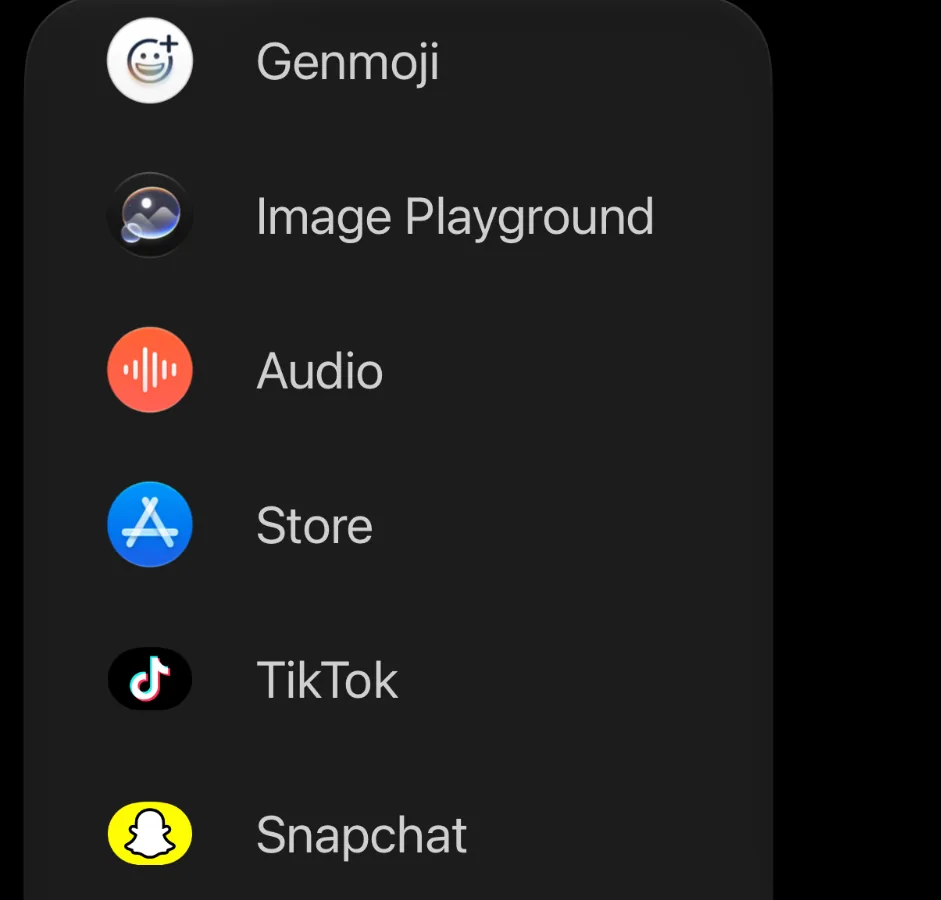
If Audio is missing, first confirm that the conversation uses iMessage and that your device is running a compatible iOS version.
We’ll cover additional troubleshooting later.
Step 3: Record Your Voice
After selecting Audio, begin speaking.
Your iPhone uses the active microphone to capture your voice.
For the best results:
- Speak clearly.
- Keep the microphone unobstructed.
- Avoid rubbing your fingers against the microphone openings.
- Move away from excessive background noise when possible.
- Check whether an attached headset is being used as the microphone.
You don’t need to shout or place the phone directly against your mouth.
Once you’ve finished speaking, tap Stop.
The recording is now ready for review.
Step 4: Preview the Recording Before Sending
One useful feature of Apple’s audio messages is the ability to listen before sending.
After stopping the recording, tap Play.
Listen to the message and make sure:
- Your voice is understandable.
- The recording contains the intended information.
- You haven’t accidentally included private speech.
- The recording isn’t silent or distorted.
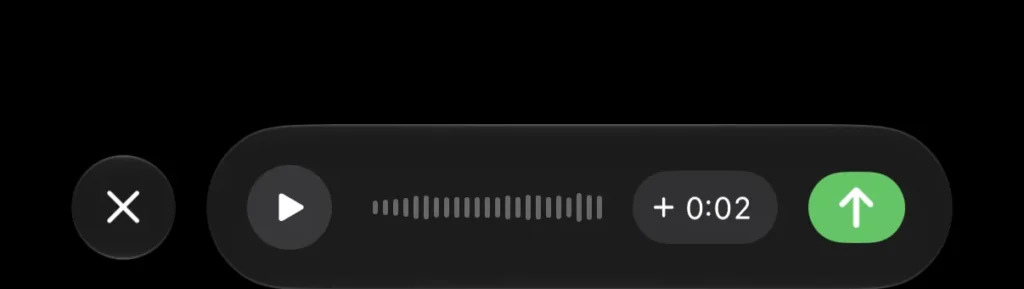
Apple also provides an option to continue recording after stopping, allowing you to add more audio before sending.
If you don’t want to send the recording, use the available Cancel or Close control.
Reviewing an audio message is especially useful when recording in a noisy environment.
Step 5: Send Your Audio Message
Once you’re satisfied with the recording, tap Send.
Messages should send the audio to the selected recipient using the available messaging connection.
The recording will appear in your conversation.
The recipient can tap its playback control to listen.
You don’t need to convert the recording to another format or attach a separate file.
Tip: Apple’s current Messages guide also documents a shortcut for recording follow-up audio messages by touching and holding the available Record Audio button in the message field.
The control appears when the applicable recording interface is available.
How to Listen to an Audio Message on iPhone
Receiving an audio message is just as straightforward.
Steps
- Open Messages.
- Select the conversation containing the audio recording.
- Find the audio message.
- Tap Play.
- Listen through your iPhone speaker or connected audio device.
You can pause and resume playback using the available controls.
Can You Fast-Forward an Audio Message?
Yes.
Apple supports moving forward and backward through an audio message using its playback controls.
On supported versions, you can slide along the message’s audio display to move through the recording.
You can also touch and hold the playback control to adjust playback speed.
These options are particularly helpful for longer voice messages.
If recordings play without sound across several applications, see our iPhone Speaker Not Working troubleshooting guide.
Why Do Audio Messages Disappear on iPhone?
One of the most confusing things about iPhone audio messages is that recordings can disappear from the conversation.
This doesn’t necessarily mean the other person deleted the message.
Apple designed audio-message expiration to help reduce local storage consumption.
How the Two-Minute Rule Works
By default, an audio message is removed from your copy of the conversation approximately two minutes after you send it or listen to it.
However, this behavior concerns your device’s copy.
Apple explains that recipients can play a received audio message later, but must choose Keep within two minutes after listening if they want to preserve it locally.
Therefore, the message disappearing from your conversation doesn’t automatically mean the recipient can no longer access their copy.
Does Deleting an Audio Message Delete It for Everyone?
Not necessarily.
Automatic expiration affects the local copy on the relevant device.
It doesn’t work the same way as an Unsend action.
Likewise, changing your audio-message expiration setting doesn’t automatically modify the recipient’s preferences.
If a recording is important, save it before it expires.
How to Keep Audio Messages from Disappearing
You can change the automatic expiration setting.
This is useful if you regularly exchange important voice messages and want them retained in your Messages conversations.
Turn Off Automatic Audio Message Expiration
- Open Settings.
- Tap Apps.
- Select Messages.
- Scroll to Audio Messages.
- Tap Expire.
- Select Never.
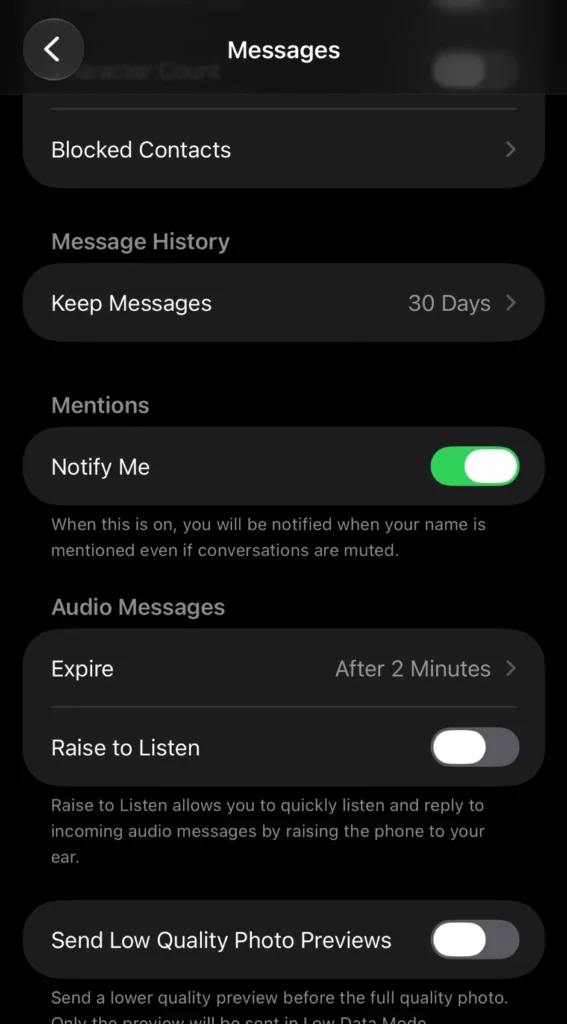
Your iPhone should now retain applicable audio messages rather than deleting them under the default two-minute expiration rule.
What Does Never Mean?
Never disables the normal automatic expiration behavior for audio messages on your iPhone.
It doesn’t mean recordings are permanently protected from every form of deletion or data loss.
For example, deleting a conversation or changing broader message-retention settings may still affect stored messages.
You should maintain a suitable backup or separately save any recording that is genuinely important.
Can You Save Just One Audio Message?
Yes.
You don’t have to change the global expiration setting.
When an audio message is available, tap Keep to save that particular recording in the conversation.
This is useful when you want most temporary voice messages to expire but need to preserve one important recording.
How to Save an Audio Message to Voice Memos
Apple also supports saving an audio message into the separate Voice Memos app.
This can be useful when you want to manage the recording outside the original Messages conversation.
Steps
- Open Messages.
- Select the conversation containing the audio message.
- Find the recording you want to save.
- Touch and hold the audio message.
- Select Save to Voice Memos when available.
- Open Voice Memos to locate the saved recording.
Insert genuine Screenshot 4 here, if available: Save to Voice Memos in the audio-message menu.
This approach gives you a separately saved recording that you can manage through Voice Memos.
For recordings you want to share later as files, Apple’s Voice Memos sharing features are generally more suitable.
See Apple’s Voice Memos sharing guide.
How to Reply to an Audio Message with Your Voice
You can send another audio message in response to one you’ve received.
The process is the same as creating an original recording.
- Open the conversation.
- Tap +.
- Select Audio.
- Record your reply.
- Stop and review it.
- Tap Send.
This makes it possible to exchange spoken messages without making a live phone call.
Use Raise to Listen
On supported iPhones, Apple also offers Raise to Listen.
This feature lets you raise your phone to your ear to listen to an incoming audio message.
You may also be able to record a spoken reply by lowering the iPhone and raising it again, following the on-screen or audible prompts.
If you don’t want the feature enabled, open:
Settings → Apps → Messages → Raise to Listen
Turn it off if the control is available.
Availability can depend on the iPhone model and software version.
Can You Send an Audio Message from iPhone to Android?
This depends on the messaging service.
Apple’s built-in Audio recording workflow is primarily associated with iMessage conversations between compatible Apple devices.
You shouldn’t assume that every SMS, MMS, or RCS conversation with an Android user supports the identical Audio option.
The available features can differ according to your carrier, device, and messaging service.
Alternatives for Android Recipients
If the built-in Audio option isn’t available in a green-bubble conversation, you can:
- Record audio using Voice Memos and share it through a compatible service.
- Use a messaging application that supports voice notes on both platforms.
- Send a compatible audio file through email.
- Use another supported file-sharing method.
For example, WhatsApp and Telegram have their own audio-message features.
These are separate from the native iMessage audio-message system.
Important: Don’t change your iMessage settings or disable cellular services merely to force the Audio option to appear in an unsupported conversation.
Audio Message vs Dictation: What’s the Difference?
Some people confuse audio messaging with the microphone button on the iPhone keyboard.
The two features serve different purposes.
Audio Messages
Record your actual voice.
The recipient hears the recording when they play it.
This is useful when tone, emotion, pronunciation, or a spoken explanation matters.
Dictation
Converts speech into written text.
Instead of sending an audio recording, your iPhone enters recognized words into the message field.
The recipient receives ordinary text after you send it.
Dictation can be useful when you want to speak rather than type but still need the message in text form.
Which Should You Use?
Use an audio message when you want someone to hear your voice.
Use Dictation when you want your spoken words converted into a text message.
If Dictation isn’t working, see our iPhone Microphone Not Working on Calls guide for microphone testing techniques. Keep in mind that microphone hardware, language recognition, and keyboard settings can affect these features differently.
Can iPhone Audio Messages Be Transcribed?
Yes, on supported iOS versions and in supported languages.
Apple’s current Messages guide documents audio-message transcription.
This means the iPhone may display a text version of the spoken recording alongside the audio.
Why Isn’t My Audio Message Showing a Transcript?
Availability depends on factors including language support.
A missing transcript doesn’t necessarily mean the audio recording itself is damaged.
Check that your iPhone is using compatible software and a supported language.
Apple provides additional compatibility details through its iOS feature availability information.
Audio transcription is a convenience feature, not a guaranteed perfect record.
For important information, listen to the original recording rather than relying solely on automatically recognized text.
Audio Message Not Working on iPhone? Try These Fixes
If you can’t record, send, or play audio messages, identify exactly which part of the process is failing.
1. Check Whether the Conversation Uses iMessage
Open the affected conversation.
If it uses green message bubbles, it may be operating through SMS, MMS, or RCS rather than iMessage.
Not every feature available in a blue-bubble iMessage conversation is supported in other messaging services.
Try a test conversation with another person who has iMessage enabled.
2. Check Your Network Connection
iMessage uses Wi-Fi or cellular data.
If your phone isn’t connected to the internet, outgoing audio messages may fail.
Try loading a website in Safari.
If that also fails, resolve your connection issue before repeatedly attempting to send the recording.
If you see Not Delivered in Messages, our iMessage Not Delivered guide explains how to check activation, connectivity, and sending settings.
3. Test Your iPhone Microphone
If your recording is silent or distorted, open Voice Memos.
Record a short sample of your voice and play it back.
If the recording sounds normal, the microphone path used by Voice Memos is functioning.
If it doesn’t, investigate microphone obstructions, accessories, and possible hardware problems.
Remember that a successful Voice Memos test doesn’t prove every microphone or every app configuration works correctly.
4. Disconnect Bluetooth Audio Devices
Your iPhone may be using the microphone or speakers of connected headphones.
For example, a Bluetooth headset could be selected as the active audio input.
Temporarily disconnect the accessory and repeat the test using the iPhone itself.
If the recording works without the accessory, investigate the headset or its connection.
5. Check Whether You’re Muted or Using the Wrong Audio Control
Make sure you’ve selected Audio from the Messages features menu.
Don’t confuse the keyboard’s Dictation microphone with the audio-message recorder.
If you’re using a third-party application, its microphone permissions and controls may be different.
6. Restart the Messages App or Your iPhone
If the Audio interface becomes unresponsive, close and reopen Messages.
If the problem persists, restart your iPhone normally.
A restart can resolve some temporary software problems without erasing your data.
7. Check for iOS Updates
Open:
Settings → General → Software Update
Install a compatible update if appropriate.
Software updates may address bugs or compatibility issues, but they cannot repair damaged microphone hardware.
8. Check Whether Messages Are Arriving at All
If audio messages and ordinary texts are both missing, the underlying issue may involve your messaging account or network rather than the recording feature.
For a broader diagnosis, see our iPhone Not Receiving Text Messages guide.
Apple also provides an official guide for Messages sending and receiving problems.
Why Can’t I Hear an Audio Message on iPhone?
If someone sends you a recording but you hear nothing, check playback before assuming the recording is empty.
Raise the Media Volume
While playing the audio, press Volume Up.
Make sure the volume isn’t set too low.
Check the Audio Output
If AirPods, Bluetooth headphones, or another device is connected, the recording may play through that accessory.
Review the selected audio output.
Play Another Audio File
Try a different audio message, video, or Voice Memo.
If every audio source is silent, investigate the speaker and audio routing.
If only one recording fails, the issue may be specific to that recording.
Avoid Deleting Important Recordings
Don’t erase Messages, reinstall applications, or reset your iPhone as an early troubleshooting step.
Those actions are unlikely to be necessary for a simple playback problem and could affect important local content.
Is It Safe to Send Private Information in Audio Messages?
Voice messages can contain sensitive information, just like text messages.
Before sending a recording, confirm the recipient.
Avoid including passwords, one-time verification codes, banking credentials, or confidential information unnecessarily.
Apple documents end-to-end encryption for iMessage, but that doesn’t guarantee the recipient will keep the recording private.
Someone who receives an audio message may be able to save, share, or otherwise preserve its contents.
The expiration setting on your iPhone doesn’t control every copy held by another person.
If privacy is important, treat audio messages as communications that the recipient may retain.
Frequently Asked Questions
How do I send an audio message on iPhone 17 Pro?
Open Messages, select an iMessage conversation, tap +, choose Audio, record your voice, tap Stop, and send the recording.
Why is the Audio option missing in Messages?
You may be in a conversation that doesn’t support the native iMessage audio-message feature, or the interface may differ according to your iOS version. Check the conversation type and available Messages controls.
Can I listen to an audio message before sending it?
Yes. After recording, tap Stop and use Play to review the message before tapping Send.
How do I cancel an audio message before sending it?
Use the available Close or Cancel control in the recording interface. You don’t need to send an unwanted recording.
Why do audio messages disappear after two minutes?
Apple automatically removes unsaved audio messages from the relevant local conversation after the expiration interval. Tap Keep or change Settings → Apps → Messages → Expire to Never to preserve them.
How do I save an audio message permanently?
Tap Keep to retain it in the conversation, choose Never for automatic expiration, or save a supported recording separately in Voice Memos.
Can I send an audio message to Android?
The native iMessage audio feature isn’t guaranteed to work in an Android conversation. Use a compatible cross-platform messaging app or share an audio file when necessary.
Do audio messages use mobile data?
iMessages use an internet connection, which may be Wi-Fi or cellular data. Sending or receiving recordings can therefore consume cellular data when Wi-Fi isn’t being used.
Can I send an audio message without Voice Memos?
Yes. Apple’s Messages app has its own audio-recording feature, so Voice Memos isn’t necessary for ordinary iMessage audio messages.
Can someone save an audio message I sent?
Yes. Recipients may be able to keep or separately save audio messages. Don’t assume an audio message disappears from every device when your copy expires.
Does iPhone automatically turn voice messages into text?
Transcription is available on supported software and in select languages. The accuracy and availability depend on the recording and language.
Can I use audio messages in a group chat?
Supported iMessage group conversations can offer audio messaging. Available features may differ in SMS, MMS, or RCS groups.
Final Thoughts
Knowing how to send an audio message on iPhone makes everyday conversations easier when speaking is more convenient than typing.
For a quick recording, open Messages, tap +, select Audio, record your voice, and send it.
You can preview the recording before sending, listen to incoming voice messages, and save recordings you want to keep.
Remember that Apple’s default audio-message expiration can remove unsaved recordings from your local conversation after two minutes.
If you want to keep your messages, use Keep or change the Expire setting to Never.
And if you need a reusable recording to send across different platforms, Voice Memos may be a better choice.
For quick voice conversations between compatible Apple devices, the built-in Messages audio feature is a simple and convenient solution.