Can an iPhone share location with an Android? Yes. You can share your real-time location between an iPhone and an Android phone using Google Maps, WhatsApp, or other compatible cross-platform services.
You don’t need to switch phones, disable Apple’s privacy settings, or use the same type of device.
However, Apple’s Find My app doesn’t offer native live-location sharing with Android users in the same way it works between compatible iPhones.
If you want to share your location with someone who uses a Samsung Galaxy, Google Pixel, or another Android phone, Google Maps is usually the most flexible option.
WhatsApp is another convenient choice, particularly when you already communicate through the same app.
You can also send a fixed map location if you only need to show someone where you are right now.
This guide explains how to share location between iPhone and Android, how to choose the right method, and how to stop sharing whenever you want.
Quick Answer: How to Share Location Between iPhone and Android
The easiest method is Google Maps.
- Open Google Maps on your iPhone.
- Tap your profile picture.
- Select Location sharing.
- Tap New share.
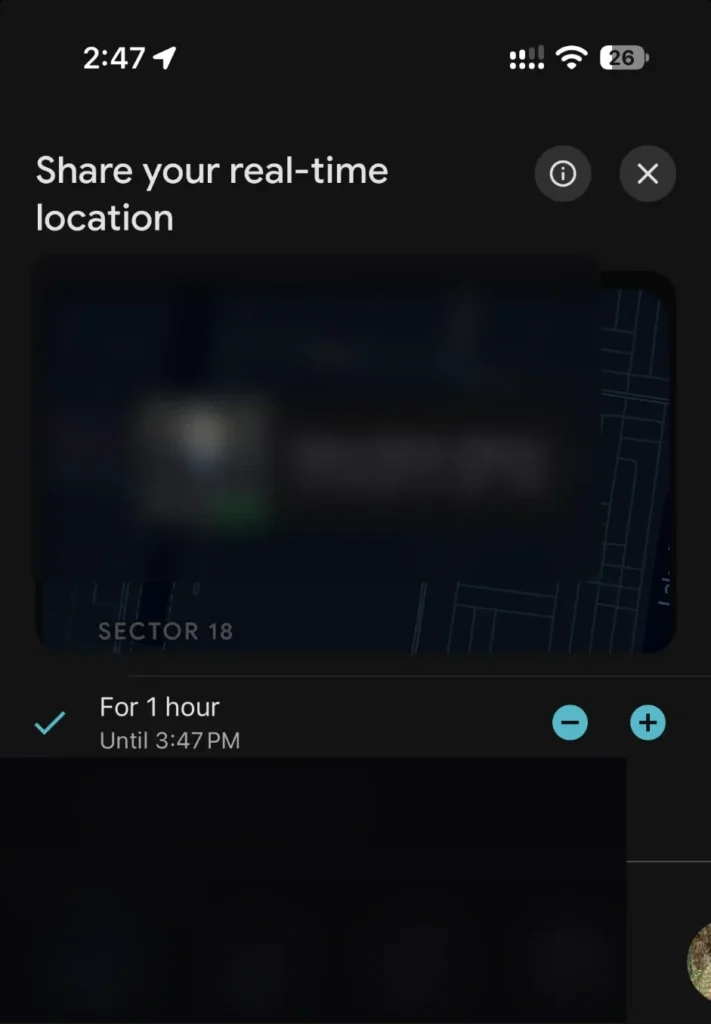
- Choose how long you want to share your location.
- Select the Android user’s Google Account or choose an available link-sharing method.
- Tap Share or send the location-sharing link.
The Android user can then view the location through Google Maps or the shared link.
Alternatively, open WhatsApp, select a conversation, and choose + → Location → Share live location.
Both methods let you stop sharing later.
Important: Only share your location with people you trust. Real-time location sharing can reveal your movements, approximate battery status, and other information depending on the service.
Table of Contents
Can an iPhone Share Location with an Android?
Yes. The two operating systems don’t need to be identical for cross-platform location sharing.
Google Maps is available on both iOS and Android, and its Location Sharing feature allows compatible accounts and devices to exchange live location information.
WhatsApp also supports location sharing between people using different phone platforms.
However, each service works differently.
Real-Time Location Sharing
Real-time sharing provides periodically updated location information as you move.
It’s useful when:
- Meeting friends or family.
- Coordinating travel.
- Sharing progress during a journey.
- Letting someone know where you are for a limited period.
The location updates depend on internet connectivity, location permissions, device availability, and the application.
One-Time Location Sharing
A one-time location is a fixed map point.
For example, you might send a restaurant’s location or a pin near your current position.
The recipient can open it and obtain directions, but the pin doesn’t continuously follow you as you move.
Choose this method when you only want to show someone a place rather than share your ongoing movements.
Method 1: Share Live Location from iPhone to Android Using Google Maps
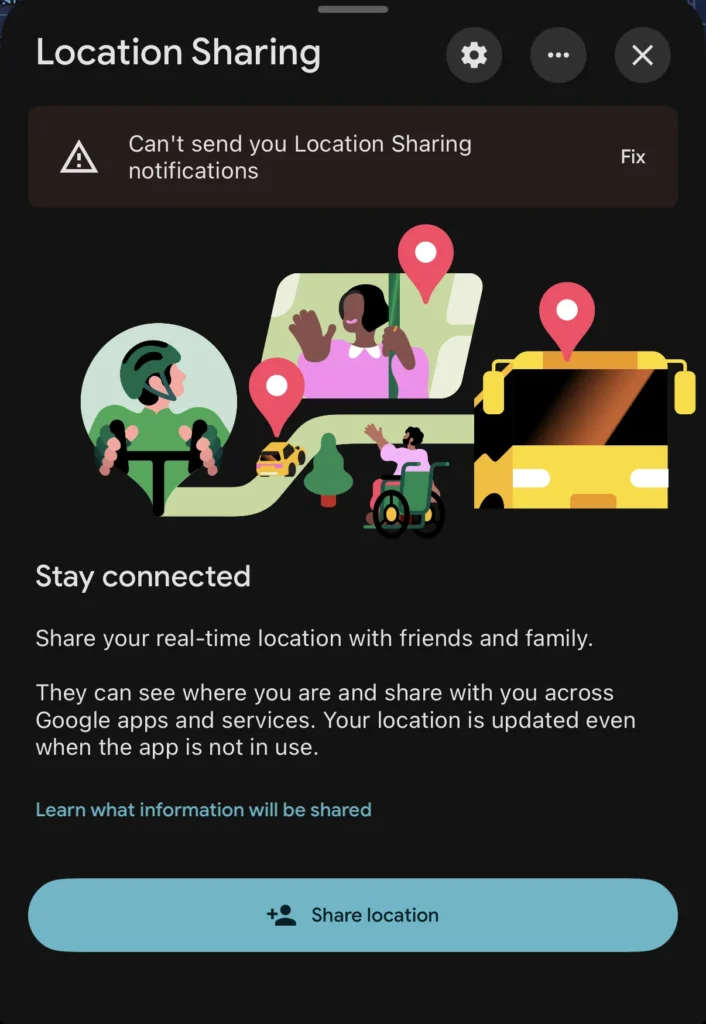
Google Maps is one of the most convenient ways to share your live location across different smartphones.
It works with compatible iPhones and Android devices and lets you control who can see your location.
Before starting, install Google Maps from the App Store if you haven’t already.
Step 1: Open Google Maps
Launch Google Maps on your iPhone.
Sign in to your Google Account.
If the application asks for location permission, review the request and allow the access needed for the feature you’re using.
Step 2: Open Location Sharing
Tap your profile picture or account icon in the top-right corner.
Select Location sharing.
Google Maps should open the location-sharing screen.
If you’ve previously shared your location with someone, you may see that information here.
Otherwise, you’ll find an option to begin sharing.
Step 3: Tap New Share
Tap New share.
Google Maps will display available sharing controls.
Depending on the app version and account configuration, you may see suggested contacts, a duration selector, and options for sharing a location link.
Step 4: Select an Android Recipient
If the Android user has a Google Account, you can select an eligible Google contact.
Google recommends adding the recipient’s Gmail address to your Google Contacts when using direct account-based sharing.
Choose the intended person carefully.
If the recipient doesn’t have a Google Account, use the available link-sharing option instead.
You can send the location-sharing link through a compatible messaging application.
Step 5: Start Sharing
Review the recipient and selected duration.
Tap Share.
The recipient can now access your shared location through the supported Google Maps experience.
Google may also provide information such as your device’s recent location and battery status.
You remain in control of whether you continue sharing.
For more information, see Google’s official real-time location-sharing instructions.
Choose How Long to Share Your Location
One of the advantages of Google Maps is that you can set a sharing duration.
You don’t necessarily need to leave location sharing active indefinitely.
Depending on the sharing method and your account, Google Maps may allow a time-limited session or an Until you turn this off option.
Sharing With a Google Account
Direct sharing with an eligible Google Account can offer longer-duration sharing options.
If the recipient needs to see your location for an extended period, review the available choices before starting.
Sharing Through a Link
Google says a real-time location-sharing link can provide access for up to 24 hours.
This is useful when the recipient doesn’t have a Google Account or when sharing through another app.
However, anyone who obtains the active link may be able to view the location it exposes.
Avoid posting these links publicly or forwarding them unnecessarily.
How to View an iPhone’s Shared Location on Android
If you’re the person receiving a shared location, the steps depend on how it was sent.
When Shared Directly Through Google Maps
- Open Google Maps on the Android phone.
- Sign in to the Google Account that received access.
- Tap your profile picture.
- Open Location sharing.
- Select the person sharing their location.
Google Maps should show the available location information.
If the position hasn’t updated recently, check its timestamp and refresh it using the available controls.
When Shared Through a Link
- Open the message containing the location-sharing link.
- Tap the link.
- Open it in Google Maps or a compatible browser.
- Review the shared location.
A link that has expired or been disabled will no longer provide the same active location-sharing access.
If the link doesn’t open, ask the sender to check whether sharing is still enabled.
Method 2: Share Live Location Using WhatsApp
WhatsApp is another practical option for sharing location between iPhone and Android.
Both participants need a compatible WhatsApp setup.
You can share your location in an individual conversation or an eligible group chat.
WhatsApp states that its live-location feature uses end-to-end encryption, and you can stop sharing whenever you want.
Step 1: Open a WhatsApp Conversation
Launch WhatsApp on your iPhone.
Open the conversation with the Android user.
Before sharing, confirm that you’re in the correct conversation.
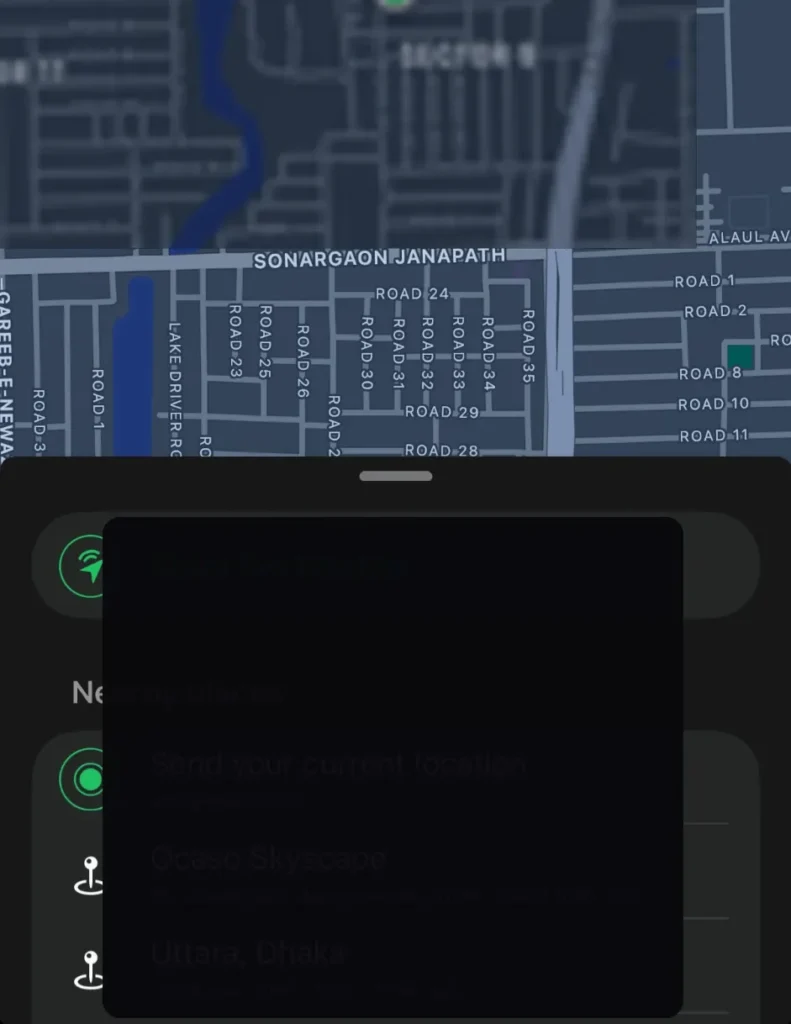
Step 2: Open the Location Menu
Tap the + button beside the message field.
Select Location.
You should see the available location-sharing choices.
Step 3: Choose Share Live Location
Tap Share live location.
If WhatsApp requests location permission, review and grant the permission appropriate for the intended sharing session.
Under iPhone Settings → Privacy & Security → Location Services → WhatsApp, the available permissions may include While Using the App and Always.
For reliable ongoing sharing, follow the app’s permission guidance and review whether background location access is needed.
Step 4: Select the Duration
WhatsApp lets you choose how long the live-location session lasts.
Select a duration appropriate for your situation.
You may also be able to include a message.
Step 5: Send Your Location
Tap Send.
The recipient can open the shared location from the conversation.
As long as the session remains active and updates are available, the recipient can see your location information.
For official instructions, see WhatsApp’s guide to Live Location.
How to Stop Sharing on WhatsApp
To end an active sharing session:
- Open the WhatsApp conversation.
- Find the live-location message.
- Tap Stop sharing.
- Confirm.
WhatsApp also provides a location-sharing privacy section where you can review and stop active sessions.
Stopping live sharing prevents further live updates through that session. The conversation may retain a static thumbnail of the last shared location.
Method 3: Send a One-Time Location Pin Using Google Maps
Sometimes you don’t need live tracking.
For example, you may simply want to show someone where a café, meeting point, or building is located.
A shared Google Maps pin is often sufficient.
How to Share a Location Pin
- Open Google Maps on your iPhone.
- Search for the place you want to share.
- Alternatively, touch and hold the map to drop a pin.
- Tap the location name or address at the bottom.
- Select Share.
- Choose Messages, WhatsApp, or another available application.
- Send the location link to the Android user.
The recipient can open the map and get directions.
Unlike live sharing, this method doesn’t continue updating your location as you travel.
Can You Send Your Current Location This Way?
Yes, you can share a fixed pin at or near your current position.
However, it’s best to check the pin carefully before sending it, especially if you’re indoors or GPS accuracy is limited.
A fixed pin doesn’t automatically change as you move.
Google explains the process in its official map and location-sharing guide.
Bonus: Share Your Trip Progress Instead of Continuous Location
Google Maps also supports sharing trip progress while navigating.
This can be useful when someone wants to know when you’re expected to arrive.
How to Share Trip Progress
- Open Google Maps.
- Enter your destination.
- Start navigation.
- Swipe up on the navigation information card.
- Tap Share trip progress.
- Select the intended recipient.
- Confirm the sharing action.
Google Maps can share relevant trip information, including your estimated arrival time and current location.
Sharing normally ends when you arrive or stop navigation.
This can be more appropriate than continuous location sharing when someone only needs to follow one journey.
Can You Use Apple Find My to Share Location With Android?
Not through Apple’s native Find My People live-location experience.
Apple’s Find My system is primarily designed around compatible Apple devices and supported Apple location-sharing features.
Apple says its ongoing Live Location sharing requires both participants to have compatible iPhones running supported iOS versions.
That means an Android phone can’t simply join Apple’s Find My People sharing system as though it were another iPhone.
What About iCloud.com?
Apple’s iCloud Find Devices website is intended for locating devices associated with an Apple Account.
It isn’t a replacement for a cross-platform friend-location-sharing service.
Don’t confuse locating your own missing Apple device with continuously sharing your personal location with an Android user.
If Apple Find My itself isn’t working, our Find My iPhone Not Working troubleshooting guide explains how to check Location Services, device settings, and sharing permissions.
For iPhone-to-Android sharing, use Google Maps or another service built to support both platforms.
Can Android Share Its Location With an iPhone?
Yes. The process also works in the opposite direction.
An Android user can use Google Maps to share an available real-time location with someone on an iPhone.
On the Android Phone
- Open Google Maps.
- Sign in to a Google Account.
- Tap the account profile icon.
- Select Location sharing.
- Tap New share.
- Choose a duration.
- Select an eligible Google contact or send a location-sharing link.
On the iPhone
The iPhone user can open the received link or view the sharing relationship through Google Maps.
This makes Google Maps particularly convenient for families or friends who use different smartphone brands.
Google provides separate Android sharing instructions.
How to Stop Sharing Your Location in Google Maps
You should always know how to turn off location sharing.
On your iPhone:
- Open Google Maps.
- Tap your profile picture.
- Select Location sharing.
- Find the person or active sharing arrangement.
- Open its details.
- Tap Stop.
You can also review any active link-sharing sessions in the location-sharing section.
Stopping a session ends ongoing location access through that sharing arrangement.
For additional privacy, review your Google Account and app permissions.
However, disabling all Location Services isn’t necessary just to end a particular sharing session.
iPhone Location Sharing Not Working With Android? Try These Fixes
If someone can’t view your shared location, the problem may involve permissions, connectivity, sharing duration, or account settings.
Start with the simplest checks.
1. Make Sure Location Services Is Enabled
Open Settings → Privacy & Security → Location Services.
Confirm Location Services is enabled.
Then select Google Maps or WhatsApp and review its location permissions.
If you need accurate sharing, check whether Precise Location is enabled.
Only grant the access appropriate for the service and sharing duration you intend to use.
2. Check Internet Connectivity
Google Maps and WhatsApp generally require connectivity to communicate updated location information.
If your iPhone has a poor mobile connection, shared-location updates may be delayed.
Test Safari or another internet-based application.
If mobile internet is failing, see our iPhone Cellular Data Not Working guide.
If you’re connected to Wi-Fi but can’t access the internet, our iPhone Connected to Wi-Fi but No Internet guide explains how to identify the cause.
3. Verify the Correct Google Account
If you share directly with a Google contact, make sure the intended recipient is using the correct Google Account.
An Android user signed in with a different account may not see the expected sharing relationship.
Alternatively, use a location-sharing link where appropriate.
4. Check Whether the Link Has Expired
Time-limited sharing sessions automatically end.
A previously working link may no longer be active after the selected duration expires.
Open Google Maps and review whether the sharing session is still enabled.
5. Check Battery and Background Restrictions
Power-saving settings, background restrictions, and poor device connectivity can affect how frequently location updates are available.
Make sure the application has the permissions it requires.
Avoid disabling all battery-saving features unnecessarily.
Only adjust settings that are actually preventing the intended location-sharing session.
6. Update the Apps
Open the App Store and check for available updates to Google Maps or WhatsApp.
If the problem affects the Android phone, the recipient should also review the relevant application version.
An app update can sometimes resolve bugs affecting sharing or map loading.
7. Test With a Short Sharing Session
Start a short location-sharing session with a trusted, consenting recipient.
Ask the recipient to confirm whether the location updates.
If direct Google Account sharing fails, you can test an available link-sharing method.
Don’t publish or forward the test link to anyone else.
Is Sharing Location Between iPhone and Android Safe?
Location sharing can be useful, but it deserves careful privacy consideration.
A live location may reveal where you are, where you travel, and patterns in your routine.
Choose Recipients Carefully
Share only with people you trust.
Always review the selected account or conversation before sending.
Use Time Limits
For temporary plans, choose a short sharing duration.
For example, you may only need location sharing while meeting someone or traveling to a destination.
Protect Location Links
Treat active real-time location-sharing links as sensitive information.
Anyone with access to a usable link may be able to see the location it exposes.
Don’t post them publicly or include them in screenshots.
Review Active Sessions
Check Google Maps and WhatsApp periodically for sessions you no longer need.
Stop sharing when the intended purpose ends.
Respect Consent
You should not access or share another person’s location without their knowledge and permission.
Cross-platform location features are designed for voluntary sharing, not covert tracking.
Google Maps vs WhatsApp: Which Is Better?
Both services work across iPhone and Android, but they serve slightly different needs.
Choose Google Maps when:
- You need flexible location-sharing options.
- You want to share with someone who uses a different messaging app.
- You want to share trip progress or an ETA.
- You prefer managing location access through a map service.
Choose WhatsApp when:
- You’re already chatting with the recipient.
- You need a temporary live-location session.
- You want to share location in an individual or group chat.
- You want to stop sharing directly from that conversation.
For a single meeting point, use a static Google Maps pin instead.
There’s no need to activate live sharing when a fixed location will do.
Frequently Asked Questions
Can an iPhone share location with an Android phone?
Yes. Use Google Maps, WhatsApp, or another compatible cross-platform application. Apple’s native Find My People live sharing isn’t the standard solution for Android recipients.
Can an iPhone share location with a Samsung?
Yes. Samsung Galaxy phones use Android, so compatible Google Maps and WhatsApp location-sharing features can work between the two devices.
Can I share my iPhone location with Android indefinitely?
Google Maps may offer an Until you turn this off option when sharing directly with an eligible Google Account. Availability depends on the account and sharing method. Location-sharing links have a more limited duration.
Can Android users see my location through Find My?
Not through Apple’s native Find My People live-location sharing in the same way compatible iPhone users can. Use a cross-platform location-sharing service instead.
Do both phones need Google Maps installed?
For direct Google Maps account-based sharing, using Google Maps is the straightforward option. A recipient may also be able to open a compatible shared-location link in a browser, depending on the link and device.
Can I share location from iPhone to Android through WhatsApp?
Yes. Open a conversation, tap +, choose Location, select Share live location, choose a duration, and send it.
Can I stop sharing without notifying the other person?
You can end an active sharing session through the relevant app. The recipient may notice that updates have stopped, and the application may display a status indicating that sharing has ended. Don’t assume stopping is invisible.
Is a Google Maps location pin the same as live sharing?
No. A map pin represents a fixed location. Live sharing provides updates while the sharing session is active and functioning.
Why isn’t my shared location updating?
Possible causes include poor connectivity, disabled location permissions, background restrictions, expired sharing sessions, or device availability. Check both phones and the selected sharing method.
Does location sharing use mobile data?
It can use mobile data when Wi-Fi isn’t available. Actual consumption depends on the application, the frequency of updates, and network conditions.
Final Thoughts
So, can an iPhone share location with an Android? Absolutely.
For real-time sharing, Google Maps is usually the most flexible choice because it supports compatible devices across both platforms.
WhatsApp provides another convenient solution when you’re already communicating through the same app.
For a fixed meeting point, send a Google Maps pin instead of enabling continuous sharing.
Remember that Apple’s Find My live-location feature isn’t the same as a cross-platform Google Maps or WhatsApp session.
Whichever method you choose, share your location only with trusted people, use an appropriate time limit, and stop sharing when you no longer need it.
With the right app, sharing a location between iPhone and Android is straightforward, even when both people use completely different smartphones.