Trying to make a phone call in a noisy café, busy street, or crowded room? If the person you’re speaking with keeps hearing traffic, conversations, or other background sounds, your iPhone may already have a feature that can help.
Apple’s Voice Isolation microphone mode is designed to prioritize your voice while reducing unwanted surrounding noise during supported calls.
If you’re wondering how to turn on Voice Isolation on iPhone, the process takes just a few taps.
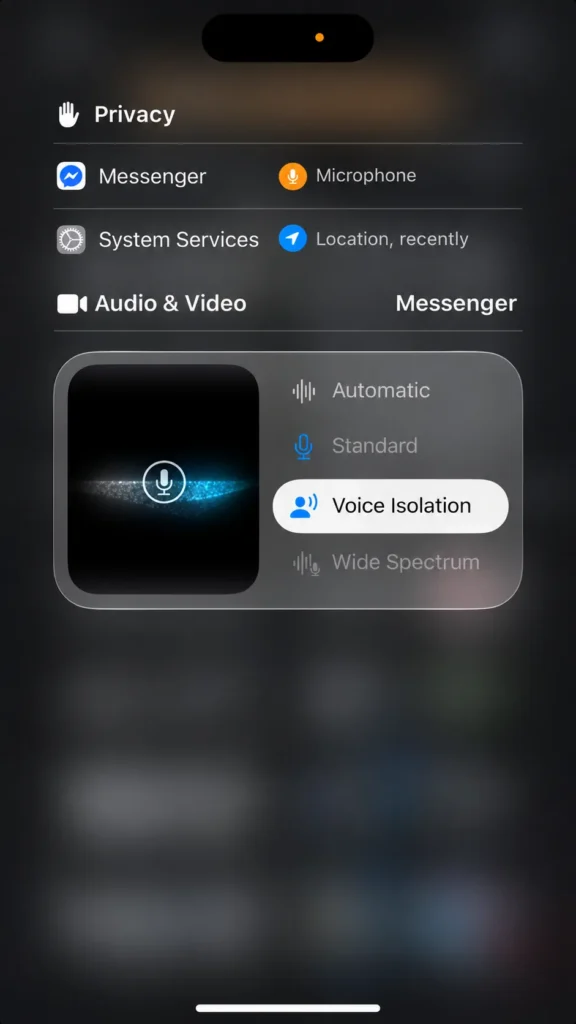
Start a phone call, open Control Center, tap Phone Controls, and select Voice Isolation under Audio & Video.
The feature is available on compatible iPhones, including the iPhone 17 Pro. It also works with FaceTime and certain third-party calling applications.
However, the setting isn’t located in the ordinary microphone permissions menu, and its availability depends on your device, iOS version, and application.
This guide explains how to enable Voice Isolation, compare microphone modes, and fix common problems when the option is missing or isn’t improving your calls.
Quick Answer: How to Turn On Voice Isolation on iPhone
Follow these five steps:
- Start or answer a regular phone call.
- Swipe down from the top-right corner to open Control Center.
- Tap Phone Controls near the top of the screen.
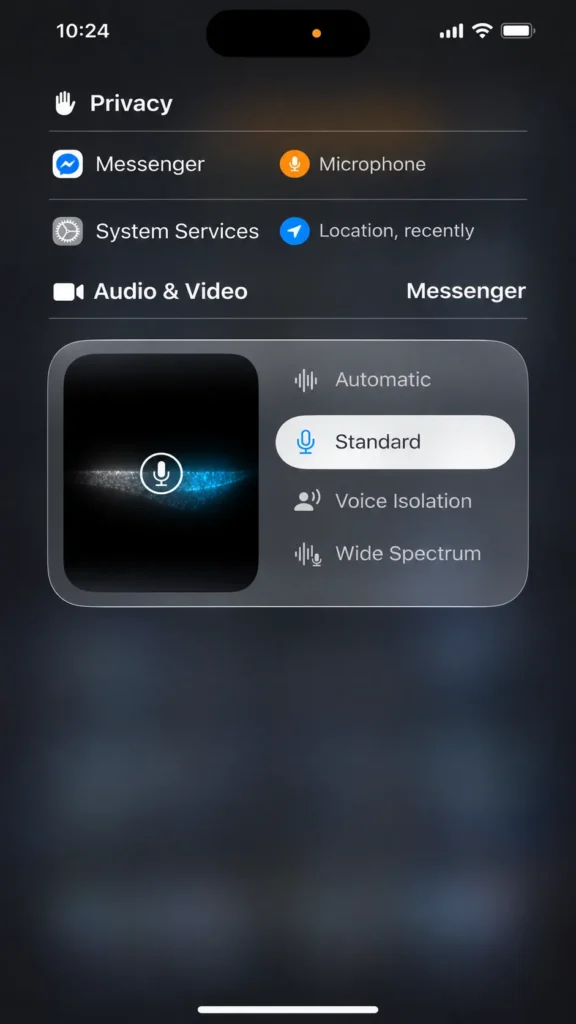
- Under Audio & Video, find the microphone mode settings.
- Select Voice Isolation.
Your iPhone should now prioritize your voice and reduce surrounding sounds during the call.
On older supported iOS versions, you may see Mic Mode directly in Control Center instead of the newer app-controls layout.
Important: Voice Isolation primarily improves the audio transmitted from your microphone. It doesn’t automatically remove noise from the other person’s surroundings or repair a damaged microphone.
For Apple’s official instructions, see Use Voice Isolation, Wide Spectrum, or Automatic Mic Mode on iPhone.
Table of Contents
What Is Voice Isolation on iPhone?
Voice Isolation is an audio-processing feature that helps reduce unwanted background noise captured by your microphone.
During an ordinary call, your microphone may pick up both your voice and sounds around you.
For example, the person you’re speaking with might hear:
- Traffic passing nearby
- People talking in the background
- Wind or environmental noise
- Fans or air conditioning
- Other sounds in the room
Voice Isolation attempts to reduce those surrounding sounds while keeping your speech prominent.
This can make conversations easier to understand in noisy environments.
Does Voice Isolation Completely Remove Background Noise?
No.
The feature reduces surrounding sounds but cannot guarantee complete noise removal.
Very loud noise, overlapping voices, or certain audio conditions may still affect call quality.
Voice Isolation can also make some audio sound processed because it prioritizes speech over other sounds.
If the other person says your voice sounds unnatural, try switching back to Standard or Automatic and compare the results.
How to Turn On Voice Isolation on iPhone Calls
This is the primary method for regular cellular phone calls on supported iPhones.
You don’t need to install a separate noise-cancellation application.
Step 1: Start a Phone Call
Open the Phone app and call someone who agrees to help you test the feature.
You can also answer an incoming call.
Keep the call active while completing the next steps.
Step 2: Open Control Center
During the call, swipe down from the top-right corner of your iPhone screen.
On an iPhone 17 Pro or another Face ID model, this opens Control Center.
Your active call continues while you access the controls.
Step 3: Tap Phone Controls
Look near the top of Control Center for Phone Controls.
Tap it to open the available controls for the current Phone call.
Depending on your iOS version, this area may be labeled differently.
On some older versions, microphone controls appear under a Mic Mode button.
Step 4: Open the Audio & Video Controls
Within the Phone Controls interface, find the Audio & Video section.
You should see the available microphone processing modes.
These may include:
- Automatic
- Standard
- Voice Isolation
Not every mode is available for every calling application.
Step 5: Select Voice Isolation
Tap Voice Isolation.
Your iPhone should apply the selected microphone mode to the current Phone app.
You can return to the call and continue speaking.
Ask the other person whether your voice is easier to understand.
Insert genuine Screenshot 1 here: Phone Controls in Control Center.
Insert genuine Screenshot 2 here: Voice Isolation selected under Audio & Video.
Voice Isolation may produce a more noticeable improvement when the microphone is picking up substantial background noise.
In a quiet room, the difference may be small.
How to Turn On Voice Isolation for FaceTime
Voice Isolation also works during supported FaceTime audio and video calls.
The method is similar to regular phone calls.
Steps
- Open FaceTime.
- Start or answer a FaceTime audio or video call.
- Swipe down from the top-right corner to open Control Center.
- Tap FaceTime Controls near the top.
- Select Voice Isolation from the available audio options.
- Return to your call.
The microphone should now prioritize your speech over surrounding noise.
Insert genuine Screenshot 3 here if available: FaceTime Voice Isolation controls.
When Is Voice Isolation Useful for FaceTime?
It may help when you’re:
- Working remotely in a noisy environment
- Talking from a café
- Participating in a video meeting
- Calling while other people are speaking nearby
- Using FaceTime outdoors
However, there are situations where you may want the other person to hear the environment.
For example, if you’re demonstrating a musical instrument or sharing sounds from a room, Standard or Wide Spectrum may be more appropriate.
Apple provides separate instructions in its FaceTime audio settings guide.
Can You Use Voice Isolation on WhatsApp, Zoom, or Other Apps?
Voice Isolation is available in certain compatible third-party applications.
However, support depends on the application, calling feature, device, and iOS version.
How to Check
- Open the supported calling application.
- Start a test audio or video call.
- Open Control Center.
- Tap the application’s controls near the top.
- Look for the microphone mode settings.
- Select Voice Isolation if available.
For example, during a compatible WhatsApp or video-conferencing call, the controls may identify the calling application rather than the Phone app.
Not every application exposes the same options.
If you don’t see Voice Isolation, check whether the application supports Apple’s microphone modes.
What If the Microphone Isn’t Working in One App?
Voice Isolation isn’t a substitute for microphone permission.
If an application cannot access your microphone, check:
Settings → Privacy & Security → Microphone
Find the application and review its permission.
If the app’s microphone input remains silent, see our iPhone Microphone Not Working on Calls guide.
That guide explains how to test microphones, investigate Bluetooth audio routing, and distinguish software problems from possible hardware faults.
Voice Isolation vs Standard vs Automatic vs Wide Spectrum
Apple offers several microphone processing modes.
Understanding their differences helps you choose the appropriate setting rather than enabling Voice Isolation for every situation.
Voice Isolation
Best for: Calls in noisy surroundings.
Voice Isolation prioritizes your voice and reduces other sounds.
It is useful when the person listening mainly needs to understand your speech.
However, the processing may suppress other sounds that you actually want to share.
Standard
Best for: Ordinary calls where you prefer standard microphone processing.
Standard uses conventional audio processing rather than deliberately emphasizing speech isolation to the same extent.
If your voice sounds unnaturally filtered, try Standard for comparison.
Automatic
Best for: Everyday calling when you don’t want to select a mode manually.
Automatic Mic Mode is available on supported iPhones running iOS 18 or later.
Apple explains that Automatic chooses an appropriate mode based on the call or recording environment.
For example, it may use Voice Isolation when you’re speaking through the receiver and Standard when using speakerphone.
This makes Automatic convenient for most users.
Wide Spectrum
Best for: Supported FaceTime or app calls when you want surrounding sounds to remain audible.
Wide Spectrum allows more environmental audio through.
It’s useful when sharing music, room sounds, or a group conversation.
Important: Apple states that Wide Spectrum isn’t available for regular phone calls.
If you don’t see it in Phone Controls, that may be expected behavior rather than a malfunction.
Which iPhones Support Voice Isolation?
Apple’s compatibility requirements depend on the calling feature and software version.
For the main microphone modes, Apple lists the following iPhone families:
- iPhone XR
- iPhone XS and XS Max
- Later supported iPhone models, including the iPhone 17 Pro
The original iPhone SE, iPhone 7, iPhone 8, and iPhone X aren’t included in that supported-device list.
iOS Requirements
Apple specifies different minimum software requirements:
FaceTime and certain third-party calls: iOS 15 or later.
Regular phone calls: iOS 16.4 or later.
Automatic Mic Mode: iOS 18 or later.
Voice Isolation in compatible recording apps: iOS 26 or later.
These are minimum feature requirements, not guarantees that every application supports every mode.
How to Check Your iOS Version
- Open Settings.
- Tap General.
- Select About.
- Find iOS Version.
If your iPhone supports a compatible newer version, you can check for updates under:
Settings → General → Software Update
Only install official, compatible updates.
Why Can’t I Find Voice Isolation on My iPhone?
If Voice Isolation is missing, start by checking the circumstances under which you’re looking for it.
The setting doesn’t normally appear as a permanent switch inside ordinary Settings menus.
1. You’re Not in an Active Call or Supported Recording Session
Voice Isolation is accessed through the relevant application’s microphone controls.
If you open Control Center while you’re simply browsing the Home Screen, the option may not appear.
Start a compatible call and check again.
Apple notes that some supported applications allow microphone mode changes before recording or calling, but availability depends on the application.
2. You’re Looking in the Wrong Control Center Area
On current iOS versions, tap the application’s controls near the top of Control Center.
For example, look for Phone Controls during a regular Phone call.
Don’t confuse microphone mode settings with:
- Silent Mode
- Microphone permissions
- Call Mute
- Audio volume
- Speakerphone
These features perform different functions.
3. Your iPhone or iOS Version Isn’t Supported
A compatible device and software version are required.
If your iPhone is older than the supported models, installing an unrelated application won’t necessarily enable Apple’s system Voice Isolation mode.
Similarly, an iPhone running an older compatible iOS release may support FaceTime isolation but not regular cellular-call isolation.
4. The App Doesn’t Support the Feature
Not all applications expose Apple’s microphone processing options.
Check whether the setting appears during a regular Phone or FaceTime call.
If it works there but not in one third-party application, app compatibility may explain the difference.
5. A Connected Audio Accessory Changes the Available Controls
When headphones or another audio input device is connected, the active microphone source and available controls can vary.
Try a short call using the built-in iPhone microphone.
Then compare the experience with the connected accessory.
If the problem occurs only with AirPods, our AirPods Microphone Not Working guide covers microphone selection and accessory troubleshooting.
How to Turn Off Voice Isolation on iPhone
You can change the setting whenever you want.
Steps
- Start or return to a compatible call.
- Open Control Center.
- Tap the active app’s controls.
- Find the microphone modes.
- Select Standard or Automatic, if available.
Your iPhone should apply the newly selected processing mode.
You don’t need to restart your device.
Apple explains that microphone mode selections are app-specific and can persist until you select another mode.
That means changing the Phone app’s mode doesn’t necessarily change FaceTime’s mode.
Does Voice Isolation Stay On After a Call?
Yes, Apple says microphone modes persist for the selected application until you choose a different mode.
For example, if you select Voice Isolation in the Phone app, it may remain the selected mode for future Phone calls.
However, another application may use a different microphone mode.
This is why you should check the current app’s controls when comparing audio quality.
You don’t need to enable Voice Isolation repeatedly during every call if the selected mode remains active.
Does Voice Isolation Work With AirPods?
Voice Isolation is also supported with certain AirPods models during compatible calls.
Apple specifically documents Voice Isolation for supported recent AirPods generations.
The exact available features can depend on the AirPods model and the connected device.
How to Test It
- Connect your supported AirPods to your iPhone.
- Start a test call with someone who agrees to help.
- Open Control Center.
- Tap the active calling application’s controls.
- Choose Voice Isolation if offered.
- Ask the recipient to compare the audio with Standard.
Voice Isolation is different from the noise-cancellation feature used to reduce what you hear through compatible AirPods.
Active Noise Cancellation primarily affects your listening experience.
Voice Isolation prioritizes your outgoing microphone audio.
If the other person’s voice is too quiet or distorted, changing Voice Isolation may not solve the problem. See our iPhone Speaker Not Working guide for related playback troubleshooting.
Voice Isolation Not Working? Try These Fixes
If the feature is enabled but doesn’t seem to improve your voice, try the following checks.
1. Compare With Standard Mode
During a test call, switch between Standard and Voice Isolation.
Ask the other person to describe the difference.
Test in a moderately noisy environment, without deliberately exposing yourself or your device to unsafe conditions.
If both modes sound nearly identical in a quiet room, that doesn’t automatically indicate a fault.
2. Confirm the Correct Microphone Is Being Used
If your iPhone is connected to Bluetooth headphones or another microphone, the call may be using an input different from the one you expect.
On supported iOS versions, the application’s Control Center interface can provide audio input choices.
Review the selected microphone and compare it with the built-in iPhone input.
3. Check Whether You’re Muted
Voice Isolation doesn’t override the call’s Mute button.
If your microphone is muted, the other person still won’t hear you.
Return to the call interface and check the mute state.
4. Restart the Application or iPhone
If the controls are behaving unexpectedly, end the test call and reopen the calling application.
If necessary, restart your iPhone normally.
A restart can help with temporary software issues, but it won’t repair damaged microphone hardware.
5. Install Available Updates
Check Settings → General → Software Update.
You can also check the App Store for updates to affected third-party calling applications.
The presence of an update doesn’t guarantee it will improve microphone processing, but it may resolve compatibility issues.
6. Test the Microphone Independently
If callers consistently report that they cannot hear you, record a short Voice Memo and play it back.
A clear recording helps establish that at least one microphone path is working.
On compatible iOS versions, Voice Memos may also have its own microphone processing controls.
If you’re troubleshooting missing audio in screen recordings, see our iPhone Screen Recording Not Working guide.
Screen recording microphone controls are separate from the Voice Isolation setting used during Phone calls.
Does Voice Isolation Improve Call Quality?
It can improve the clarity of your outgoing voice when background noise is interfering with the conversation.
However, call quality depends on several factors.
These include:
- Microphone condition
- Selected audio input
- Environmental noise
- Cellular or internet connection quality
- Application compatibility
- Audio-processing settings
Voice Isolation cannot guarantee that every call will sound clearer.
For some voices and environments, the Standard or Automatic setting may sound more natural.
The best way to assess the feature is to compare modes during a call with someone who can describe what they hear.
Frequently Asked Questions
How do I turn on Voice Isolation on iPhone 17 Pro?
During a supported call, open Control Center, tap Phone Controls or the active application’s controls, and select Voice Isolation under Audio & Video.
Can I use Voice Isolation during regular phone calls?
Yes. Apple supports Voice Isolation during ordinary phone calls on compatible iPhones running iOS 16.4 or later.
Why is Voice Isolation missing from Control Center?
You may not be in an active compatible call, your device or software may not support the mode, or the application may not expose it. Check the current app’s controls near the top of Control Center.
Does Voice Isolation work on WhatsApp calls?
It can work in compatible third-party calling apps. Availability depends on the application, iOS version, and current calling feature.
Is Voice Isolation better than Automatic?
Not always. Voice Isolation deliberately prioritizes your voice, while Automatic chooses a mode based on the call conditions. Automatic is convenient for everyday use.
Can I use Wide Spectrum during an ordinary iPhone call?
No. Apple states that Wide Spectrum isn’t available during regular phone calls. It is supported in certain FaceTime and other compatible application experiences.
Does Voice Isolation use the internet?
Voice Isolation is a microphone-processing feature. It doesn’t itself require a separate subscription or internet service, although internet calling apps require appropriate connectivity to place calls.
Does Voice Isolation work when using speakerphone?
On supported calls, you can select available microphone modes while using different audio routes. The resulting processing and sound quality may vary. Automatic Mode can select Standard during speakerphone calls.
Does Voice Isolation stop all background noise?
No. It reduces background sound but cannot guarantee complete removal. Loud or overlapping sounds may still be heard.
Do I need to turn on Voice Isolation before every call?
Not necessarily. Apple says microphone mode selections persist for the relevant application until you choose another mode.
Final Thoughts
If you want to know how to turn on Voice Isolation on iPhone, the process is straightforward.
Start a compatible call, open Control Center, tap the current application’s controls, and choose Voice Isolation.
The feature can make your speech clearer by reducing surrounding noise, especially in busy environments.
For ordinary calls, compare Voice Isolation with Automatic and Standard to determine which sounds best.
Remember that microphone modes are application-specific, Wide Spectrum isn’t available for regular phone calls, and Voice Isolation cannot repair a damaged microphone.
For most users, Automatic is a convenient everyday setting, while Voice Isolation is especially useful when background noise makes conversations difficult.