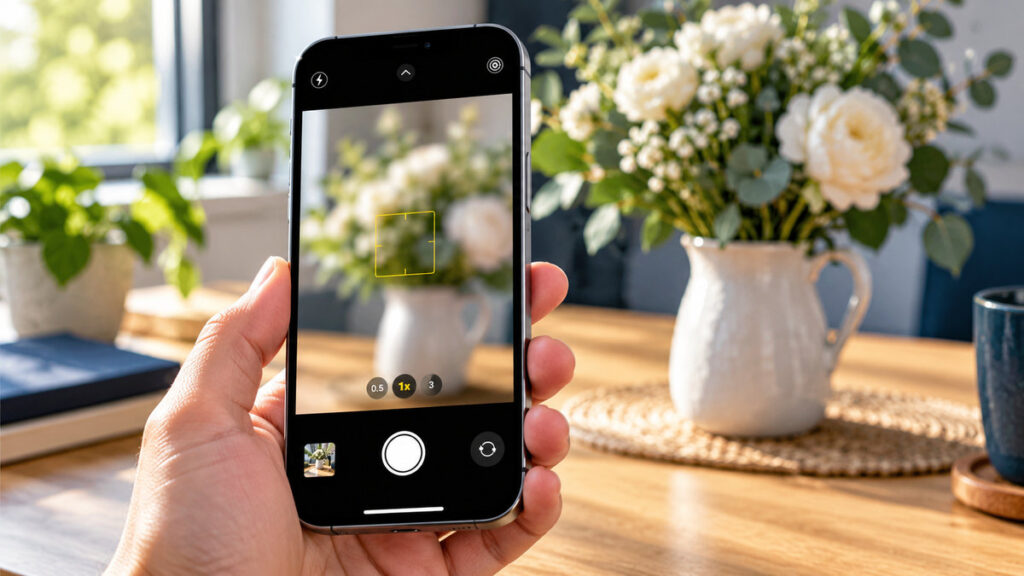
iPhone camera not focusing? Your photos might look blurry, the camera may repeatedly switch focus, or close-up subjects may remain unclear even when you tap the screen.
The first step is to identify which camera is affected and under what conditions the problem occurs.
For example, blurry close-up photos may be caused by focusing distance or automatic Macro switching. If only one camera consistently produces blurry pictures, the problem may involve that particular camera or an accessory interfering with it.
Before resetting any settings, we’ll check the camera lenses, test autofocus, review Macro mode, and compare the available cameras.
Here are 10 practical ways to troubleshoot iPhone camera focusing problems, including the situations in which Apple recommends professional service.
Table of Contents
Quick Answer: How to Fix iPhone Camera Not Focusing
If your iPhone camera cannot focus properly, start with these checks:
- Clean the camera lenses using a microfiber cloth.
- Remove any case, camera protector, or magnetic accessory that could interfere with the camera.
- Open the Camera app and tap the subject you want to focus on.
- Move your iPhone farther away if you’re photographing something very close.
- Check Macro mode on supported iPhone models.
- Try taking a photo in brighter lighting.
- Switch between the front and rear cameras to identify which one has a problem.
- Restart your iPhone and check for available iOS updates.
If the camera continues producing blurry images, follow the detailed troubleshooting steps below.
Important: Don’t attempt to open, shake aggressively, or repair your iPhone’s camera module yourself. A physically damaged autofocus mechanism may require professional service.
Identify Your iPhone Camera Focusing Problem
Before trying multiple fixes, check which situation matches your symptoms.
Camera Blurry Only When Taking Close-Up Photos
Move your iPhone farther away from the subject.
On supported models, the camera may automatically switch to Macro mode when photographing nearby objects.
If moving backward produces a sharper image, focusing distance or Macro behavior may be responsible.
Camera Keeps Switching Between Blurry and Sharp
Place a stationary object in good lighting.
Tap the object on the screen and observe whether the focus settles.
If the camera repeatedly changes focus even when the subject and phone remain still, check automatic Macro switching and remove magnetic camera accessories.
One Camera Is Blurry but Others Work
Test the available camera views using the same stationary subject and similar lighting.
Compare the front camera and rear cameras.
Remember that some zoom settings use digital cropping rather than a completely separate physical camera.
If one camera remains consistently blurry in several conditions, further diagnosis may be appropriate.
Photos Are Blurry but the Preview Looks Sharp
Try photographing a stationary subject in brighter lighting.
Movement during exposure can create blurry photos even when the camera focuses correctly.
Compare the results before assuming the autofocus system is defective.
Camera Cannot Focus After Removing Accessories
Clean the camera lenses gently with a microfiber cloth, restart the iPhone, and check for software updates.
If the problem persists, particularly with one camera, contact Apple Support for further investigation.
Why Is My iPhone Camera Not Focusing?
Your iPhone normally adjusts focus automatically based on the subject and distance.
However, several factors can prevent it from capturing a sharp image.
Dirty camera lens: Fingerprints, oil, dust, or smudges can make photos appear hazy or blurry.
Subject too close: The camera may be unable to focus when the subject is closer than its supported focusing distance.
Macro switching: On supported models, the camera can automatically switch lenses for close-up photos, sometimes creating a noticeable change in framing.
Low lighting: The camera may use longer exposures, making movement blur more noticeable.
Magnetic accessories: Certain strong magnets near the rear cameras can interfere with optical image stabilization or autofocus systems.
Software issues: Temporary camera app or iOS problems may affect camera behavior.
Hardware damage: A drop, impact, or internal component problem can affect the camera’s focusing mechanism.
Before trying advanced solutions, determine whether the issue affects all photos or only certain situations.
For example, if your camera focuses normally outdoors but struggles indoors, lighting or subject movement may be involved.
If every picture is blurry, even in bright light, a lens obstruction or hardware issue becomes more likely.
Related troubleshooting: If your iPhone Camera app displays a completely black preview instead of a blurry image, follow our iPhone Camera Black Screen troubleshooting guide to test both cameras and identify possible causes.
1. Clean Your iPhone Camera Lenses
One of the simplest ways to fix blurry iPhone photos is to clean the camera lenses.
Your iPhone frequently comes into contact with your fingers, pockets, bags, and other surfaces.
Over time, fingerprints and oil can accumulate on the camera lens covers.
Even a small smudge can reduce image clarity.
Apple recommends cleaning the front and rear camera lenses with a microfiber cloth when photos appear blurry.
Follow these steps:
- Close the Camera app.
- Inspect the camera lenses for fingerprints or smudges.
- Use a clean, soft microfiber cloth.
- Gently wipe the exterior lens covers.
- Avoid applying excessive pressure.
- Open Camera and take another picture.
If you use a separate camera lens protector, check whether the protector itself is scratched, dirty, or fogged.
A damaged protector can affect image quality even when the actual camera is working normally.
Avoid abrasive cleaning materials or placing cleaning tools inside openings.
Important: If you notice moisture or condensation that appears to be inside the camera module, wiping the outside won’t resolve it. Contact Apple Support if internal moisture or persistent fogging is suspected.
2. Remove Camera Protectors, Cases, and Magnetic Accessories
Some phone accessories can interfere with camera performance.
Apple specifically recommends removing cases, films, and accessories that may obstruct the camera or place magnets near it.
Certain strong magnets can affect optical image stabilization and closed-loop autofocus systems on compatible iPhone models.
To test:
- Remove the iPhone’s protective case.
- Remove detachable camera accessories.
- Check whether an external camera lens protector is obstructing the view.
- Move magnetic mounts or other accessories away from the rear cameras.
- Open the Camera app.
- Take a photo of a stationary object.
Compare the result with a photo taken before removing the accessories.
If the camera focuses correctly without the accessory, the case, protector, or mount may have contributed to the issue.
This can happen with some third-party magnetic mounts or lens attachments.
Ordinary compatible accessories don’t automatically cause autofocus problems. The important factor is whether an accessory obstructs the camera or creates problematic magnetic interference near it.
If you suspect a particular accessory, stop using it during camera testing.
3. Tap the Screen to Set the Focus Manually
Your iPhone automatically chooses a subject to focus on, but it doesn’t always select the subject you intended.
For example, when photographing an object in front of a busy background, the camera may focus on the background instead.
You can tell the Camera app where to focus.
To do this:
- Open the Camera app.
- Select Photo mode.
- Point your iPhone toward the subject.
- Tap the subject on the screen.
- Wait for the focus to settle.
- Take the photo.
A focus indicator should appear near the selected area.
You can also adjust brightness using the exposure control next to the focus area.
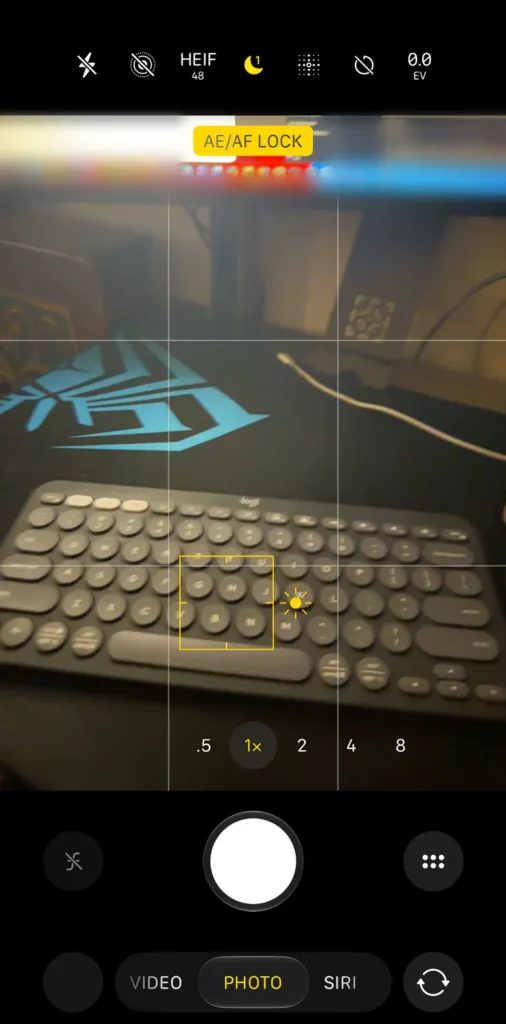
If you want to keep the focus and exposure locked, touch and hold the focus area until AE/AF Lock appears.
To unlock it, tap another part of the screen.
Important: If AE/AF Lock is active, the camera may not automatically refocus when you move toward or away from the subject.
This can make it appear that autofocus has stopped working.
Try releasing the lock and tapping the subject again.
4. Move Back and Check Macro Mode
Trying to photograph something too close is a common reason an iPhone camera cannot focus.
Every camera lens has focusing limitations.
If your phone is too close to an object, moving it slightly farther away may immediately improve clarity.
Try this:
- Open Camera.
- Point the camera toward a nearby object.
- Slowly move the iPhone backward.
- Tap the object to focus.
- Stop moving when the image becomes sharp.
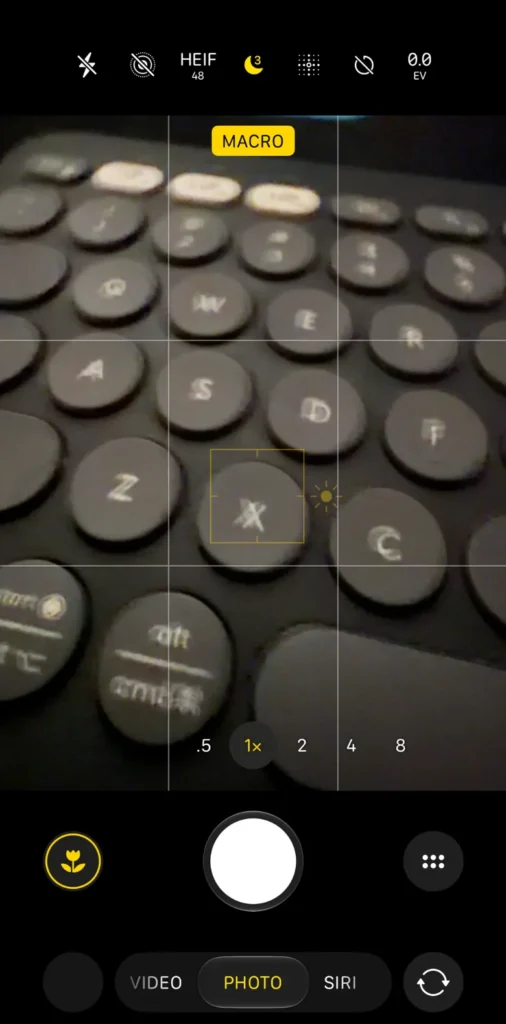
On supported iPhone models, Macro photography allows the camera to capture close-up subjects using the Ultra Wide camera.
When you move close enough, the iPhone may switch automatically to Macro mode.
Depending on the model and camera settings, this switch may change the preview’s appearance or framing.
If Macro mode causes an unexpected change:
- Open Settings → Camera.
- Find Macro Control, if available.
- Turn it on to display the Macro control in Camera.
- Open Camera and approach a close subject.
- Use the flower-shaped Macro control to switch automatic Macro behavior on or off.
You can also move back or select the Ultra Wide camera on supported models when a close-up image becomes blurry.
Note: Macro photography isn’t available on every iPhone model. If your iPhone doesn’t support it, use an appropriate focusing distance instead.
5. Improve Lighting and Keep the iPhone Steady
Not every blurry photo is caused by autofocus.
Sometimes your camera focuses correctly, but the final image looks blurred because the phone or subject moved during the exposure.
This is especially common in low-light conditions.
When there isn’t much available light, the camera may require a longer exposure.
Even slight movement can then affect sharpness.
To improve the result:
- Move to a brighter location.
- Use daylight where possible.
- Hold your iPhone steadily with both hands.
- Avoid moving while taking the photo.
- Ask moving subjects to remain still briefly.
- Take another picture and compare the results.
If your iPhone supports Night mode, pay attention to the exposure duration.
Keep the phone steady until the exposure finishes.
A stable surface or compatible tripod may also help.
If the preview looks sharp but the saved image contains motion blur, camera shake may be more relevant than autofocus failure.
In contrast, if the preview itself never becomes sharp, investigate focus settings, lenses, and possible camera problems.
6. Test Different Camera Lenses and Modes
If your iPhone has multiple rear cameras, test them separately where possible.
This can help determine whether the problem is specific to one camera or affects the entire camera system.
To test:
- Open Camera.
- Select Photo mode.
- Take a photo using the standard 1x view.
- Select 0.5x, if available.
- Test another supported zoom option.
- Switch to the front-facing camera.
- Compare the photos.
Use the same stationary subject and similar lighting.
If the issue appears only with one camera, record which view produces the problem.
For example, a blurry 1x view with a clear Ultra Wide view may suggest a problem involving the main camera or its associated conditions.
However, not every zoom setting corresponds to a completely separate physical camera.
Depending on the iPhone model, lighting, and selected zoom, the device may crop an image or automatically choose a different camera.
For more reliable testing, repeat each photo in bright light.
Also try recording a short video.
If your videos look clear but the recorded audio sounds muffled, see our related guide: iPhone Microphone Not Working on Calls? 10 Fixes to Try (2026).
7. Close the Camera App and Restart Your iPhone
Temporary software problems can occasionally interfere with camera behavior.
If the Camera app becomes unresponsive or struggles to focus unexpectedly, try closing and reopening it.
To close Camera on a Face ID iPhone:
- Swipe up from the bottom of the screen and pause.
- Find the Camera app in the App Switcher.
- Swipe its preview upward to close it.
- Return to the Home Screen.
- Open Camera again.
Test the focus using a stationary object.
If the problem continues, restart your iPhone.
For an iPhone with Face ID:
- Press and hold the Side button and either Volume button.
- Wait for the power-off slider.
- Slide to turn off the iPhone.
- Wait approximately 30 seconds.
- Turn the device back on.
After restarting, open Camera and try focusing again.
A restart may resolve a temporary software issue, but it won’t repair a damaged lens or autofocus component.
If the problem returns frequently, note when it occurs and continue investigating.
8. Compare the Camera App With Other Applications
Sometimes photos appear blurry only in a particular app.
For example, you may notice poor focus when taking a picture through a messaging app, document scanner, or social media camera.
That doesn’t necessarily mean the iPhone’s camera hardware is defective.
Different apps can use different camera settings, resolutions, processing, and autofocus behavior.
To compare:
- Open Apple’s built-in Camera app.
- Take a picture of a stationary subject.
- Open the affected third-party application.
- Photograph the same subject.
- Compare the results.
If Apple’s Camera app produces sharp images but the third-party app doesn’t, investigate that application’s settings.
You can try updating the app or restarting it.
If the issue continues, contact its developer.
If an app cannot access the camera at all, review Settings → Privacy & Security → Camera and confirm that the application has permission.
However, camera permission settings generally control access. They don’t directly adjust autofocus performance.
If blurry photos occur in every application, continue with device-level troubleshooting.
9. Update iOS and Review Camera Focus Settings
Apple recommends checking for iOS updates when camera problems continue.
An update may contain improvements or fixes relevant to camera behavior.
To check:
- Open Settings.
- Tap General.
- Select Software Update.
- Review any available update.
- Back up important data before installing.
- Follow the installation instructions.
After updating, open Camera and test the issue again.
You should also review any camera settings that preserve previous adjustments.
On supported models, Settings → Camera → Preserve Settings allows certain camera preferences to remain active between sessions.
If you previously changed Macro Control or other camera options, check whether those settings are affecting your current shooting conditions.
Some newer iPhone Pro models also offer additional manual focus controls.
If you’ve selected manual focus, return to automatic focus before diagnosing an autofocus problem.
Important: Not every iPhone supports the same camera settings. Available controls depend on the device model and iOS version.
If your camera started behaving differently after an iOS update, record the software version and the exact symptoms. Don’t assume the update caused hardware damage.
10. Contact Apple Support if the Camera Still Cannot Focus
If your iPhone camera remains blurry after cleaning the lenses, removing accessories, testing different cameras, restarting, and checking for updates, professional diagnosis may be appropriate.
Apple recommends service when camera problems continue after the usual troubleshooting steps.
Before contacting support, gather useful information:
- Your iPhone model.
- Current iOS version.
- Whether the front camera works.
- Whether one rear camera is affected.
- Whether the problem occurs in bright light.
- Whether the issue affects photos and videos.
- Whether the phone has been dropped or exposed to liquid.
- Whether removing magnetic accessories changes the result.
You can also save a few example images that demonstrate the problem.
These details may help identify whether the problem involves software, autofocus behavior, or camera hardware.
If you suspect physical damage, avoid attempting to open or repair the camera module yourself.
Contact Apple Support or an Apple Authorized Service Provider for diagnosis.
Why Does My iPhone Camera Keep Refocusing?
If the camera repeatedly switches between a sharp and blurry image, several factors may be involved.
The phone may be trying to choose between objects at different distances.
Automatic Macro switching may also change the selected camera when you move close to a subject.
To investigate:
- Place a stationary object in bright light.
- Hold your iPhone still.
- Tap the object to select focus.
- Avoid moving the phone closer or farther away.
- Check whether Macro mode is switching.
If the camera continues hunting for focus even when the subject and phone remain stationary, remove accessories, restart the phone, and test different cameras.
A persistent problem affecting one camera may require professional evaluation.
iPhone Camera Blurry After an iOS Update?
If your photos started looking blurry after an iOS update, don’t assume that the update permanently damaged the camera.
Start with a controlled test.
Clean the lens, remove accessories, and photograph a stationary subject in bright daylight.
Try the main and front cameras separately.
Review AE/AF Lock and Macro settings if applicable.
Restart the phone and check whether a newer compatible iOS update is available.
If photos remain consistently blurry, document the problem and contact Apple Support.
The timing of the issue can be useful information, but it doesn’t establish the underlying cause by itself.
iPhone Front Camera Blurry but Back Camera Works?
If your front-facing camera produces blurry images while the rear camera works normally, start by inspecting the front camera area.
Check for fingerprints, smudges, or a screen protector that may interfere with the camera.
Gently clean the exterior using an appropriate microfiber cloth.
Next, open Camera and switch to the front-facing view.
Test a stationary subject in good lighting.
If the problem persists only with the front camera, contact Apple Support.
If you’re also experiencing facial recognition problems, see our related guide:
Related Reading: Face ID Not Working After iOS 27? 8 Fixes (2026).
Remember that the front-facing photography camera and the TrueDepth system used for Face ID have different functions. A blurry selfie doesn’t automatically mean that Face ID is defective.
Frequently Asked Questions
Why is my iPhone camera not focusing?
Common causes include dirty lenses, subjects positioned too close, camera accessories, poor lighting, autofocus settings, software problems, or hardware faults.
How do I make my iPhone camera focus?
Open Camera and tap the subject on the screen. The iPhone will attempt to focus on the selected area. You can also touch and hold to activate AE/AF Lock.
Why does my iPhone camera look blurry even after cleaning?
The issue may involve movement, poor lighting, focus distance, magnetic accessories, software settings, or camera hardware.
Can a camera lens protector cause blurry photos?
Yes. A dirty, scratched, poorly fitted, or obstructive protector can reduce image quality. Test the camera without the protector if necessary.
Why Is My iPhone Camera Not Autofocusing?
Your iPhone camera may struggle to autofocus because of a dirty lens, insufficient lighting, an obstructing accessory, or a temporary software issue.
First, clean the camera lens with a microfiber cloth. Open the Camera app, aim at a well-lit subject, and tap the screen to adjust focus. If autofocus still fails, remove any camera accessories, restart your iPhone, and check for software updates.
If the problem persists with only one camera lens, consider contacting Apple Support for further diagnosis.
Can magnetic accessories affect iPhone autofocus?
Yes. Apple explains that certain strong magnets near the rear cameras can interfere with optical image stabilization and closed-loop autofocus systems on supported models.
Does restarting an iPhone fix autofocus problems?
Restarting may help with temporary software problems. It won’t repair physical damage to the camera.
Is a blurry iPhone camera always a hardware problem?
No. Dirty lenses, poor lighting, camera movement, focus settings, and accessories can all affect clarity without a hardware fault.
Should I reset my iPhone if the camera won’t focus?
A complete reset isn’t a good first troubleshooting step. Start with lens cleaning, camera tests, accessory removal, restarting, and software updates.
Why does one iPhone camera work while another is blurry?
Different cameras have different lenses, focusing behavior, and capabilities. Persistent blur on one camera may indicate a problem specific to that camera or its shooting conditions.
When should I contact Apple Support?
Contact Apple Support if the camera remains blurry in bright light after basic troubleshooting, especially if one camera consistently fails or the problem began after physical damage.
Final Thoughts
If your iPhone camera is not focusing, begin with the simplest fixes before considering a repair.
Clean the camera lenses, remove obstructive accessories, and tap the subject to adjust focus.
If you’re photographing something very close, move farther away or check Macro mode on supported models.
For blurry photos in low light, improve lighting and hold the phone steady.
If the camera continues to struggle, compare different lenses, restart the iPhone, and review available software updates.
Most importantly, avoid unnecessary factory resets or attempting to repair the camera module yourself.
If the issue persists across different shooting conditions, contact Apple Support for professional diagnosis.
For official guidance, see:
- Apple: If the camera or flash on your iPhone isn’t working
- Apple: Use iPhone camera tools to set up your shot
- Apple: Magnetic accessories may interfere with iPhone cameras
- Apple: Take macro photos and videos
The Synced Desk | Practical solutions for everyday technology problems.