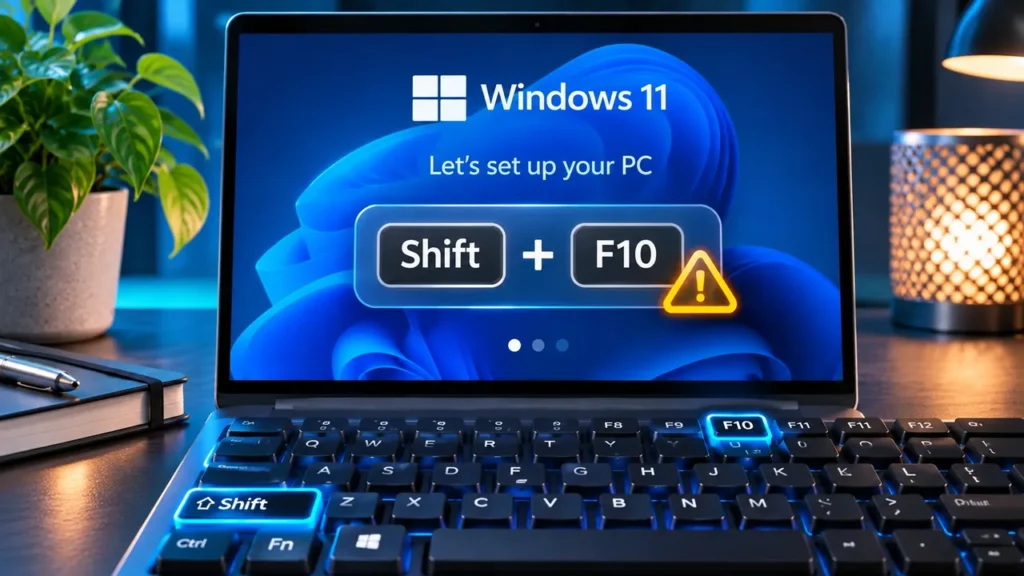
Is Shift F10 not working Windows 11 when you’re trying to open Command Prompt during setup? Maybe you’re installing Windows 11 on a new laptop, stuck at the internet connection screen, or trying to access a troubleshooting command before reaching the desktop.
Normally, pressing Shift + F10 during a supported Windows Setup session can open Command Prompt. However, the shortcut doesn’t work in every setup configuration.
The problem might involve your laptop’s Fn key, a keyboard connection, a setup window that isn’t responding, or a Windows installation that restricts access to the diagnostic prompt.
Fortunately, there are several safe ways to identify what’s causing the problem.
In this guide, we’ll explain 8 practical fixes for Shift F10 not working in Windows 11, including keyboard shortcuts, Windows setup limitations, and supported ways to access Command Prompt when necessary.
Quick Fix: Shift F10 Not Working Windows 11
If Shift + F10 doesn’t respond during Windows 11 setup, try these checks first:
- Press Shift + Fn + F10 instead of Shift + F10.
- Check whether your laptop uses an Fn Lock feature.
- Try both left and right Shift keys.
- Connect a wired USB keyboard directly to the computer.
- Make sure Windows Setup is on an active, responsive screen.
- Restart setup normally if it appears frozen.
- Check whether the setup environment permits diagnostic Command Prompt access.
- Use an official Windows recovery option if your goal is troubleshooting rather than completing initial setup.
Important: Shift + F10 has different functions depending on where you’re using it. In a normal Windows desktop session, it usually opens the context menu for the selected item, not Command Prompt.
Table of Contents
Why Is Shift F10 Not Working in Windows 11?
The Shift + F10 shortcut can behave differently depending on your keyboard and the environment in which Windows is running.
During Windows Setup, Microsoft documents its use for opening Command Prompt when diagnostic prompt access is enabled.
However, Microsoft also provides a Windows Setup configuration option called /DiagnosticPrompt, which can enable or disable Command Prompt access during installation.
Other reasons the shortcut may not work include:
- The F10 key is configured as a media or hardware-function key.
- The Fn key must be pressed to send the standard F10 command.
- The keyboard hasn’t initialized correctly.
- A USB hub or wireless keyboard is unavailable during setup.
- The active window isn’t responding to keyboard input.
- An organization has restricted diagnostic access.
- A custom installation image uses different settings.
- The user is trying the shortcut on the normal Windows desktop rather than during setup.
These possibilities require different fixes.
Start with the keyboard before attempting any changes to Windows installation settings.
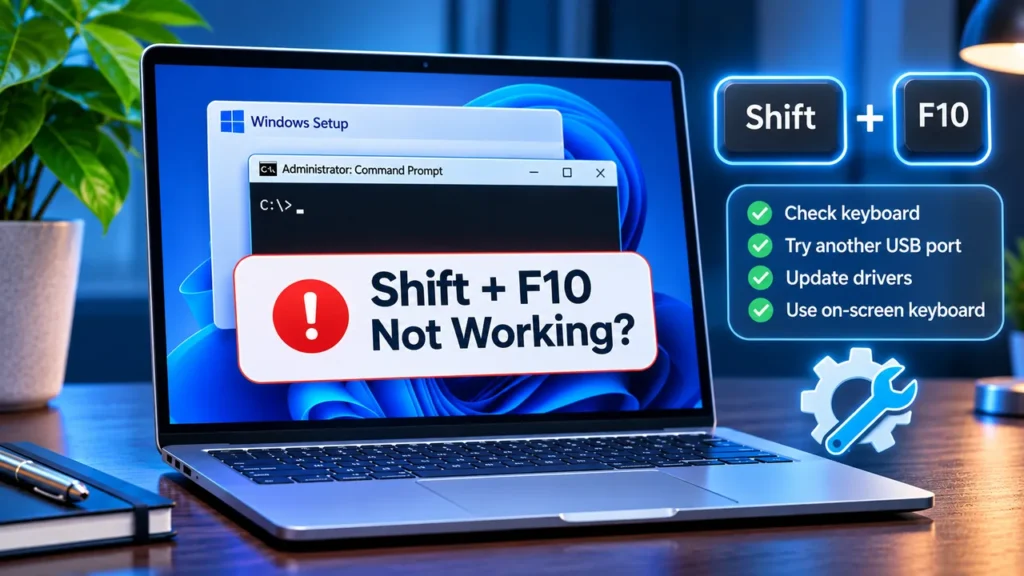
Fix 1: Try Shift + Fn + F10
One of the simplest reasons Shift + F10 doesn’t work is that the F10 key has another function.
Many modern laptops combine the traditional F1–F12 keys with brightness, volume, microphone, or other hardware controls.
Depending on the manufacturer, pressing F10 may activate a hardware feature instead of sending the F10 key command.
Steps
- Locate the Shift, Fn, and F10 keys.
- Return to the active Windows Setup screen.
- Press and hold Shift.
- While holding Shift, press and hold Fn.
- Press F10 once.
- Release the keys.
- Check whether Command Prompt opens.
The key combination is:
Shift + Fn + F10
Some keyboards also recognize the combination in another pressing order, such as holding Fn first.
The result should be the same when all required keys are held together.
Why This Works
The Fn key changes how the function row behaves on certain laptops.
For example, F10 might be assigned a microphone mute or another device-specific function.
Holding Fn can make the keyboard send the actual F10 input.
This is especially worth testing on laptops from manufacturers such as HP, Dell, Lenovo, ASUS, Acer, and Microsoft Surface, although behavior varies by model.
If the keyboard still doesn’t respond, continue with the next fix.
Fix 2: Check Fn Lock and Function Key Settings
Some computers provide an Fn Lock option that changes whether function keys operate as standard F1–F12 keys.
If Fn Lock is enabled or disabled in an unexpected way, your keyboard shortcut may not behave as intended.
Check for an Fn Lock Shortcut
Look for a small lock symbol on the function row or Esc key.
On some laptops, pressing:
Fn + Esc
toggles Fn Lock.
However, this shortcut is manufacturer-dependent and doesn’t work on every keyboard.
Steps
- Check your laptop’s keyboard documentation.
- Find out whether the device supports Fn Lock.
- Use the manufacturer’s documented shortcut if available.
- Return to Windows Setup.
- Try Shift + F10 again.
- If necessary, try Shift + Fn + F10.
If your computer doesn’t support Fn Lock, skip this method.
Should You Change BIOS Settings?
Some manufacturers allow function-key behavior to be configured through UEFI or BIOS settings.
However, entering firmware setup isn’t necessary for most people experiencing a Shift + F10 problem.
Only consider it if the manufacturer specifically documents that option.
Avoid changing unrelated boot, security, or storage settings.
Fix 3: Try a Different Keyboard or USB Port
If the keyboard isn’t properly detected during Windows Setup, pressing Shift + F10 may do nothing.
This is more likely when using certain wireless keyboards, docking stations, USB hubs, or external adapters.
Windows Setup can have a different driver environment from your normal desktop.
Test a Wired USB Keyboard
- Disconnect unnecessary USB devices.
- Connect a working wired keyboard directly to the PC.
- Avoid using a docking station or USB hub for the test.
- Wait for the keyboard to become available.
- Try Shift + F10.
- Check whether Command Prompt appears.
If possible, try another USB port.
On a laptop, test the built-in keyboard first, then an external wired keyboard.
Check Whether the Keyboard Works at All
Try using Tab or the arrow keys to move between setup controls.
If these keys also fail, the problem may involve keyboard input rather than the Shift + F10 shortcut specifically.
If ordinary keyboard navigation works but Shift + F10 doesn’t, investigate function-key behavior or setup restrictions.
Tip: A Bluetooth keyboard may not be fully available before Windows finishes setup. A directly connected wired keyboard is often a better diagnostic choice.
Fix 4: Make Sure You’re Using the Shortcut on the Correct Screen
Another common source of confusion is trying Shift + F10 in an environment where it has a different function.
During supported Windows Setup stages, Shift + F10 may open Command Prompt.
However, the shortcut isn’t a universal way to launch Command Prompt everywhere in Windows.
During Windows Setup
If you’re at the initial region-selection, keyboard-selection, or other setup screen:
- Allow the screen to finish loading.
- Make sure keyboard navigation responds.
- Try Shift + F10.
- If necessary, try Shift + Fn + F10.
- Check whether a Command Prompt window appears.
Availability depends on the actual setup configuration.
On the Windows Desktop
If you’ve already completed setup, Shift + F10 normally opens the shortcut menu associated with a selected file or interface element.
For example:
- Open File Explorer.
- Select a file.
- Press Shift + F10.
- The selected file’s context menu should appear.
This is expected behavior.
If your goal is to open Command Prompt after Windows has been installed, use Windows + R, type cmd, and press Enter.
For administrative tasks, use the appropriate administrator launch method and approve the User Account Control prompt.
Microsoft confirms the context-menu behavior in its official Windows keyboard shortcuts guide.
Fix 5: Restart Windows Setup if It Is Unresponsive
Sometimes the keyboard is working, but Windows Setup itself has stopped responding.
You may notice that buttons don’t react, the mouse cursor freezes, or setup remains on the same screen without accepting input.
If the installation is genuinely unresponsive, a normal restart may help.
What to Do
- Check whether the setup screen is still responding.
- Avoid interrupting an active installation or update.
- Use an available onscreen restart or power option if Windows provides one.
- Restart the computer normally.
- Allow Windows Setup to resume.
- Try the shortcut again after the relevant screen loads.
If the computer is installing Windows files, do not repeatedly force it to shut down.
An interrupted installation can create additional problems.
What if Setup Keeps Freezing?
If the computer repeatedly becomes unresponsive, the problem may extend beyond the keyboard shortcut.
Possible causes include installation-media problems, storage issues, or hardware instability.
If you’re installing Windows from a USB drive, verify that the installation media came from Microsoft’s official tools.
Visit the official Windows 11 download page for supported installation resources.
Don’t format or erase storage just to fix an unresponsive keyboard shortcut.
Fix 6: Check Whether Windows Setup Restricts Command Prompt
This is an important distinction that many troubleshooting articles overlook.
Microsoft documents a Windows Setup command-line setting called /DiagnosticPrompt.
It controls whether diagnostic Command Prompt access is available during certain installation stages.
When diagnostic prompt access is enabled, the Shift + F10 shortcut can open Command Prompt.
When it’s disabled, the shortcut may not work, even with a functioning keyboard.
What This Means
If you’ve tested the correct keyboard combination and confirmed that input works, the installation environment may be restricting access.
This can happen with particular deployment configurations.
What Should You Do?
For a personal computer:
- Use the normal, supported Windows installation workflow.
- Avoid modifying system files or using unofficial scripts to force access.
- Check your device manufacturer’s recovery guidance.
- Use supported Windows Recovery tools if your goal is repair.
For an organization-managed computer, contact your IT administrator.
System administrators who prepare Windows deployment images can review Microsoft’s documented diagnostic-prompt configuration before deployment.
See the official Windows Setup command-line options documentation.
Important: This isn’t a setting that someone stuck at the setup screen can always change. If Command Prompt is restricted by the installation configuration, repeatedly pressing the shortcut won’t necessarily solve the problem.
Fix 7: Use Windows Recovery Environment if You Need Command Prompt
Sometimes people use Shift + F10 because they need Command Prompt to diagnose a Windows installation problem.
If that is your goal, Windows provides another supported route.
The Windows Recovery Environment (WinRE) contains tools for troubleshooting certain startup and system problems.
Access Recovery From an Installed Windows System
If Windows still opens normally:
- Open Settings.
- Select System → Recovery.
- Find Advanced startup.
- Choose Restart now.
- Allow Windows to restart into Recovery.
- Select Troubleshoot.
- Open Advanced options.
- Choose Command Prompt, if available.
You may need additional authentication or your BitLocker recovery key.
Access Recovery From Windows Installation Media
If Windows doesn’t start:
- Use legitimate Windows installation media created through Microsoft’s official tools.
- Start the computer using the installation media.
- Continue to the initial Windows Setup screen.
- Select the Repair your PC option rather than beginning a new installation.
- Open the Windows Recovery Environment.
- Select Troubleshoot → Advanced options.
- Choose Command Prompt, when available.
The exact screen labels may differ depending on the Windows build.
When Should You Use Recovery?
Windows Recovery is appropriate for tasks such as diagnosing startup problems or accessing authorized system recovery utilities.
It isn’t necessarily the correct solution for someone who simply wants to complete the first-time Windows account setup.
Warning: Recovery Command Prompt can provide access to powerful disk and system commands. Don’t run commands that erase partitions, alter encryption, or modify boot configuration without understanding their consequences.
Microsoft documents these options in its Windows Recovery Environment guide.
Fix 8: Use Supported Windows 11 Setup Options if You’re Stuck at the Internet Screen
A major reason users search for Shift F10 not working Windows 11 is that they’re stuck at a network connection or Microsoft account screen.
Some older online tutorials suggest using Shift + F10 to run setup-bypass commands.
However, those workarounds aren’t guaranteed to function in current Windows 11 releases.
Some Windows builds and deployment environments have restricted or removed older bypass methods.
If You Cannot Connect to Wi-Fi During Setup
Try these checks:
- Confirm that your router has internet access.
- Restart your router if you have permission.
- Move the computer closer to the Wi-Fi access point.
- Check whether another trusted Wi-Fi network is available.
- Try a supported wired Ethernet connection if your computer has one.
- Follow the device manufacturer’s network-driver installation instructions if necessary.
- Continue setup using Microsoft’s supported process.
Microsoft states that an internet connection is required to finish initial setup for Windows 11 Home and Pro.
If you’re using a managed business or school computer, your organization’s deployment process may differ.
What if the Wi-Fi Option Is Missing?
If Windows cannot detect a wireless adapter, the problem may involve network drivers or hardware recognition.
Our guide to Windows 11 Wi-Fi Option Missing explains related adapter troubleshooting.
For specific setup problems, see Microsoft’s official guide to getting connected during Windows setup.
Avoid relying on unverified setup scripts from random websites.
Shift Fn F10 Not Working on an HP Laptop
If your HP laptop doesn’t respond to Shift + F10, first check the function-key behavior.
Some HP keyboards assign secondary hardware controls to the function row.
Try holding Shift, Fn, and F10 together.
If that doesn’t work, use the laptop’s model-specific support documentation to check whether an Action Keys Mode setting is available.
Avoid changing unrelated firmware settings.
If keyboard input works but diagnostic Command Prompt remains unavailable, the setup environment may be restricting access.
Shift F10 Not Working on Dell or Lenovo
Dell and Lenovo laptops also offer different function-key configurations depending on the model.
Some devices use a keyboard shortcut to toggle function-key behavior.
Others provide a firmware setting.
Start by testing:
Shift + Fn + F10
Then check whether the keyboard works normally elsewhere in setup.
A wired external keyboard can help distinguish a built-in function-row problem from a Windows Setup restriction.
Don’t assume that every Dell or Lenovo model uses identical keyboard shortcuts.
Shift F10 Not Working on Microsoft Surface
Microsoft Surface devices may use function-key controls that differ from a standard desktop keyboard.
On supported models, the Fn key can change whether the top row operates as function keys or special hardware controls.
Try the appropriate function-key combination documented for your Surface keyboard.
If you’re using a detachable keyboard, verify that it is correctly connected.
For a Surface device using an external keyboard, test a compatible wired USB keyboard where possible.
If the shortcut remains unavailable despite normal keyboard input, investigate the setup configuration rather than repeatedly pressing the keys.
Shift F10 Not Working in Windows 11 OOBE
OOBE means Out-of-Box Experience.
This is the first-time setup process Windows displays after installation or when preparing a new device.
It includes steps such as region selection, keyboard configuration, network connection, and account setup.
Shift + F10 may be available in some OOBE configurations, but it isn’t guaranteed in every build.
If the shortcut fails:
- Check whether your keyboard is responsive.
- Try Shift + Fn + F10.
- Test another keyboard.
- Review whether the device is organization-managed.
- Continue through the supported setup process if diagnostic access is unavailable.
Don’t assume that a failed shortcut means the operating system is corrupted.
Shift F10 Doesn’t Open the Right-Click Menu in Windows 11
If you’ve already reached the Windows desktop, the problem may have nothing to do with Windows installation.
On the desktop and in File Explorer, Shift + F10 is a context-menu shortcut.
To test it:
- Open File Explorer.
- Select a file using the keyboard or mouse.
- Press Shift + F10.
- If nothing happens, try Shift + Fn + F10.
- Test another file or folder.
The selected item must have appropriate keyboard focus for the shortcut to work as expected.
You can also right-click the item normally.
If several Windows interface components are malfunctioning, our Start Menu Not Working Windows 11 guide covers broader desktop-shell troubleshooting.
Frequently Asked Questions
Why is Shift F10 not working in Windows 11 setup?
Common causes include a function-key configuration, keyboard input problem, unresponsive setup screen, or Windows Setup configuration that restricts diagnostic Command Prompt access.
How do I use Shift F10 on a laptop?
Press Shift + F10. On laptops where F10 controls a hardware feature, try Shift + Fn + F10 instead.
Does Shift F10 open Command Prompt in Windows 11?
It can open Command Prompt during supported Windows Setup configurations. In the normal Windows desktop, the same shortcut usually opens a context menu for the selected item.
Can Windows 11 disable Shift F10 during setup?
Yes. Microsoft documents a DiagnosticPrompt setting that controls access to Command Prompt during Windows installation.
How do I open Command Prompt without Shift F10?
If Windows is running, press Windows + R, type cmd, and press Enter. If Windows cannot start and you need recovery tools, use Windows Recovery Environment through a supported method.
Does Fn + Esc fix Shift F10?
On some laptop models, Fn + Esc toggles Fn Lock. It can help when the function row isn’t behaving as expected. However, the shortcut isn’t universal.
Why is Shift Fn F10 not working during OOBE?
The keyboard may not be fully recognized, the setup environment may be unresponsive, or diagnostic Command Prompt access may be restricted. Check keyboard input and setup configuration.
Is Shift F10 required to install Windows 11?
No. The standard Windows installation process doesn’t require users to open Command Prompt with Shift + F10.
Can I bypass Windows 11 setup using Shift F10?
Older setup workarounds may depend on the Windows build and aren’t guaranteed. Follow supported setup instructions rather than relying on unofficial bypass scripts.
What should I do if Windows 11 setup cannot connect to the internet?
Check the Wi-Fi connection, try a compatible wired network, and review network-driver support. Microsoft provides official instructions for resolving connectivity problems during setup.
Final Thoughts
If Shift F10 is not working Windows 11, start by checking the keyboard combination.
On many laptops, Shift + Fn + F10 is worth trying because the function keys also control hardware features.
If that doesn’t help, test another keyboard and confirm that Windows Setup is responding to ordinary keyboard input.
Remember that Command Prompt access during setup can be restricted by the installation configuration.
If you’re troubleshooting a startup problem, Windows Recovery Environment provides supported recovery options.
If you’re trying to finish initial Windows setup, follow Microsoft’s current setup and connectivity instructions rather than relying on old bypass methods.
Last reviewed: November 13, 2026.