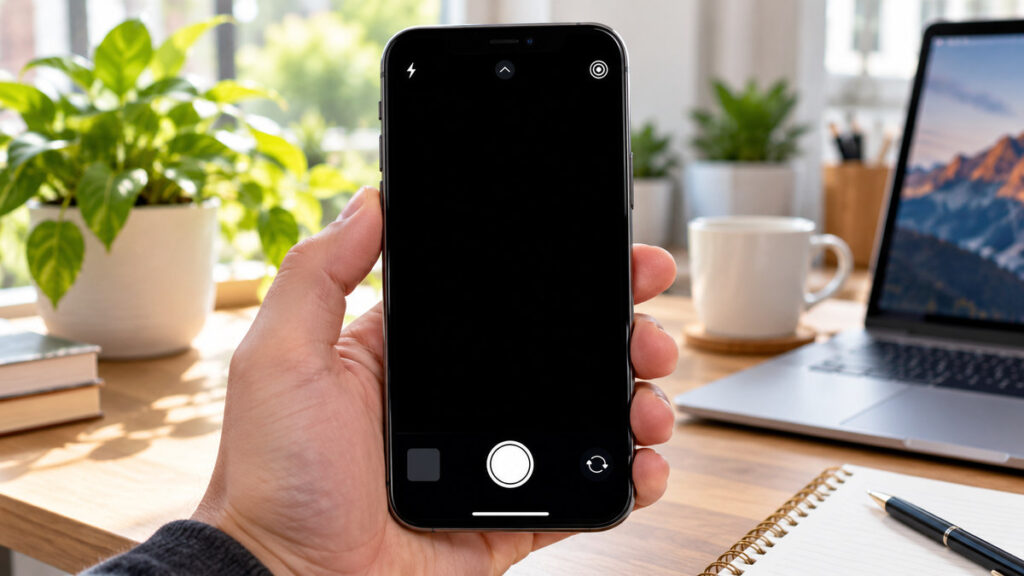
iPhone camera black screen? If your Camera app opens but the preview remains completely black, the problem could involve a temporary software issue, camera accessory interference, or a problem affecting a particular camera.
Before restarting or resetting your iPhone, determine whether the problem affects the front camera, rear camera, or only a third-party application.
For example, a black camera preview in WhatsApp while Apple’s Camera app works normally requires different troubleshooting from a rear camera that fails in every application.
This guide walks you through 10 practical checks, explains what each result means, and shows when Apple’s built-in diagnostics or professional service may be appropriate.
Important: This guide addresses a black camera preview while the iPhone display itself is working. It does not cover an entirely black or unresponsive iPhone screen.
Table of Contents
Quick Answer: How to Fix iPhone Camera Black Screen
If your iPhone camera is not working and shows a black screen instead of a live preview, try these checks first:
- Close and reopen the Camera app.
- Remove any case, lens cover, or accessory blocking the camera.
- Switch between the front and rear cameras.
- Restart your iPhone.
- Test different camera modes in a well-lit location.
- Check whether the flashlight works.
- Update your iPhone to the latest compatible iOS version.
- Check camera permissions if the problem occurs in a third-party app.
If these steps don’t help, continue with the detailed troubleshooting methods below.
Important: These instructions are for a black Camera preview while your iPhone’s screen otherwise works. If the entire iPhone display is black and you cannot use the phone, follow Apple’s separate instructions for an iPhone that won’t turn on or has a black screen.
Identify Which iPhone Camera Problem You Have
Before trying multiple fixes, perform these basic checks.
Quick diagnosis: Before trying all 10 fixes, identify where the black screen appears.
- Rear camera black, front camera works: Remove camera accessories and test different camera modes.
- Both cameras show black: Reopen the Camera app, restart your iPhone, and check for iOS updates.
- Black camera only in WhatsApp or Instagram: Check the app’s camera permissions and updates.
- Camera and flashlight both fail: Restart the iPhone, remove accessories, and consider Apple diagnostics if the issue continues.
- Camera controls appear but the preview is black: Switch cameras and test different shooting modes to narrow down the problem.
These checks help identify possible causes. They do not confirm a hardware failure.
Related reading: If your camera and flashlight both stop working, see our iPhone flashlight troubleshooting guide to check the LED flash, camera controls, and other possible causes.
The Rear Camera Is Black but the Front Camera Works
Open the Camera app and use the camera-switch button.
If the front camera displays an image but the rear camera remains black, try the available rear-camera modes and remove any protective case or magnetic camera accessories.
Expected result: If removing an accessory restores the image, the accessory may have contributed to the problem.
If the rear camera remains black in every supported camera mode, professional diagnosis may be necessary.
Both Front and Rear Cameras Show Black
Close and reopen the Camera app.
Restart your iPhone and check for a compatible software update.
If both cameras remain unavailable, consider Apple’s official camera diagnostics.
Expected result: A temporary software problem may resolve after restarting, but persistent camera failure requires further investigation.
Camera Works in Apple Camera but Not WhatsApp or Instagram
Open Settings > Privacy & Security > Camera.
Check whether the affected application has requested camera access and whether permission is enabled.
If permission is already granted, update the application and test again.
Expected result: A correctly functioning application with camera access should be able to display the camera feed.
The Camera Is Black and the Flashlight Doesn’t Work
Open Control Center and test the flashlight separately.
Remove magnetic accessories and restart the iPhone.
If the camera and flashlight both continue failing, contact Apple Support. The combination may warrant further diagnosis but does not establish a hardware failure by itself.
Camera Controls Appear but the Preview Remains Black
If the shutter button and other controls are visible, the display is functioning, but the camera image isn’t appearing correctly.
Switch between cameras, test different modes, and check whether the issue occurs in another application.
Record which cameras and modes fail. This information will be useful if Apple Support needs to investigate.
Don’t erase your iPhone or reset all settings simply because the preview is black. Complete the basic checks first.
Why Is My iPhone Camera Showing a Black Screen?
A black Camera preview can have several possible causes.
Temporary Camera app issue: An application may stop responding correctly and fail to display the camera feed.
Camera obstruction: A case, protective film, or accessory could be covering the camera.
Software problem: An iOS issue or a problem in a third-party application may interfere with camera operation.
Camera permissions: An application without permission to use the camera may be unable to access the video feed.
Accessory interference: Certain magnetic or incompatible camera accessories can interfere with camera operation.
Hardware damage: A camera component can malfunction after an impact, liquid exposure, or another hardware problem.
The first goal is to identify whether the problem affects one camera, both cameras, or only a particular application.
That information helps determine which troubleshooting steps are most appropriate.
1. Close and Reopen the Camera App
The first thing to try is closing and reopening the Camera app.
Sometimes an app can become unresponsive even though the rest of the iPhone continues working normally.
Apple recommends quitting and reopening an app if it isn’t responding as expected.
For iPhones with Face ID:
- Swipe up from the bottom of the screen and pause in the middle.
- Find the Camera app in the App Switcher.
- Swipe upward on its preview to close it.
- Return to the Home Screen.
- Open the Camera app again.
For iPhones with a Home button, double-click the Home button to open the App Switcher, then close Camera.
Point the phone toward a well-lit object and check whether the preview returns.
If the camera works again, the issue may have been temporary.
If the preview remains black, continue with the next step.
Note: You don’t need to routinely force-close every application. This is a troubleshooting step for an app that isn’t working correctly.
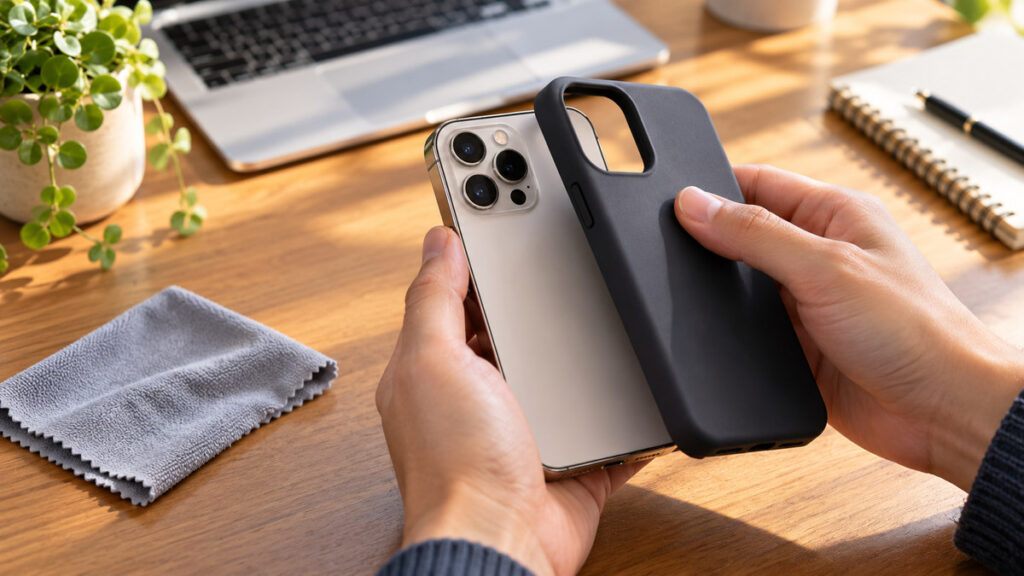
2. Remove the Case and Camera Accessories
Before changing software settings, inspect the outside of your iPhone.
A phone case, protective film, external lens, or another accessory may obstruct the camera.
Apple recommends removing accessories that block the camera or place magnets near the camera area when troubleshooting camera problems.
Follow these steps:
- Remove your iPhone case.
- Check the rear camera lenses.
- Remove detachable lens attachments.
- Inspect any external camera lens protector.
- Move magnetic accessories away from the camera area.
- Open Camera and test again.
If you’re using a third-party camera attachment, test your iPhone without it.
Some magnetic accessories may interfere with camera stabilization or autofocus systems, although this doesn’t mean every magnetic accessory causes a black preview.
Also check whether any film or cover is obstructing the front-facing camera.
If the preview becomes normal after removing an accessory, that accessory may have contributed to the issue.
3. Switch Between the Front and Rear Cameras
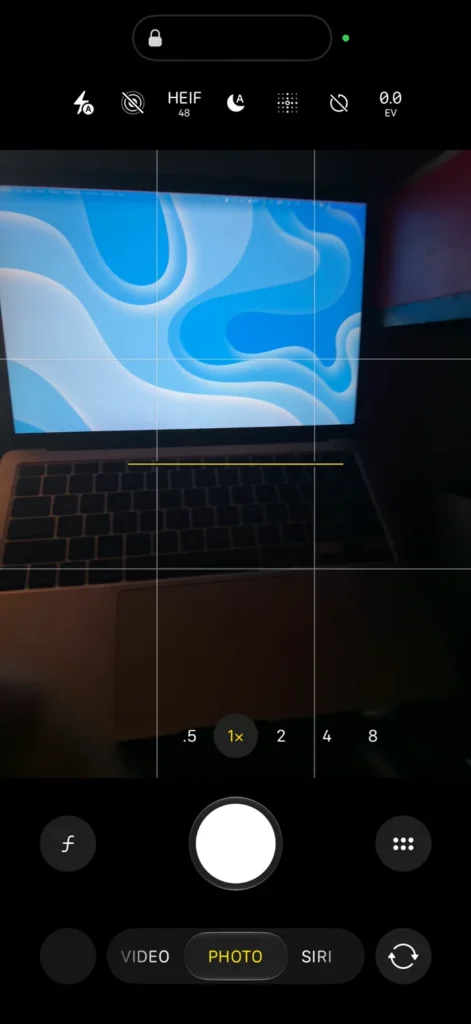
An important troubleshooting step is checking whether both cameras are affected.
Your iPhone may have multiple rear cameras and a separate front-facing camera.
If one camera works while another shows a black preview, the result can help narrow down the issue.
To test:
- Open Camera.
- Find the camera-switch button.
- Switch from the rear camera to the front camera.
- Check whether the image appears.
- Switch back to the rear camera.
- Compare the results.
If the rear camera remains black but the front camera works, the issue may be associated with the rear camera system.
If the front camera is black but the rear camera works, investigate the front camera area.
If both remain black, the problem may involve shared software or another device-level issue.
These comparisons don’t provide a complete hardware diagnosis, but they can be useful when contacting Apple Support.
Tip: If one camera occasionally works, try capturing a photo and note exactly which camera mode was active.
4. Restart Your iPhone
Restarting your iPhone can resolve temporary software problems.
If closing Camera doesn’t restore the preview, restart the device normally.
For an iPhone with Face ID:
- Press and hold the Side button and either Volume button.
- Wait for the power-off slider.
- Drag the slider to turn off the iPhone.
- Wait approximately 30 seconds.
- Press and hold the Side button to turn the iPhone back on.
Once the device starts, unlock it and reopen the Camera app.
Test both cameras again.
If the preview works normally, no further troubleshooting may be necessary.
If the problem returns, note whether it occurs after opening a particular application or using a certain camera mode.
Important: Restarting the iPhone normally does not erase your photos, apps, or personal information.
A restart can help with a temporary software problem, but it won’t repair physical damage to a camera component.
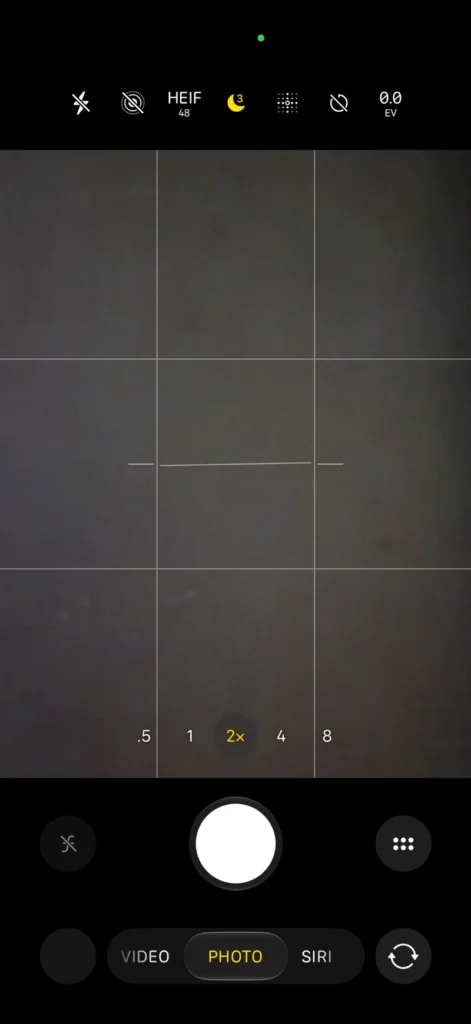
5. Test Different Camera Modes and Lighting
Sometimes the Camera app behaves differently depending on which camera or shooting mode is selected.
On models with multiple rear cameras, you may be able to compare different zoom views.
Try this test:
- Open the Camera app.
- Select Photo mode.
- Point the iPhone toward a well-lit scene.
- Switch between available zoom options, such as 0.5x and 1x.
- Switch to Video mode.
- Check whether the preview works in either mode.
- Repeat the test with the front-facing camera.
Not every zoom option represents a separate physical camera. The iPhone may automatically select a different camera or digitally crop the image.
Still, recording which modes work can help identify the circumstances of the problem.
If the preview isn’t completely black but photos remain blurry, the issue may involve focus rather than a failed camera feed.
Related Reading: iPhone Camera Not Focusing? 10 Fixes to Try (2026).
That guide explains lens cleaning, autofocus, Macro mode, and other causes of blurry photos.
If every camera mode remains black, continue with the checks below.
6. Test the Flashlight
Apple recommends testing the flashlight when troubleshooting camera or flash problems.
This is especially useful if you’re also having trouble with the rear flash.
To test:
- Open Control Center.
- Find the Flashlight icon.
- Tap it to turn on the flashlight.
- Check whether the light works.
- Turn it off again.
On iPhones with Face ID, swipe down from the top-right corner to open Control Center.
If the flashlight works, this suggests that the LED light itself can operate.
However, a working flashlight doesn’t prove that the camera sensors are functioning correctly.
If the flashlight also fails, record that result.
The flashlight and camera are different components, so their behavior must be considered alongside the other tests.
If both the camera and flashlight continue malfunctioning, Apple Support may need to investigate further.
7. Update Your iPhone to the Latest Compatible iOS Version
An iOS update may resolve certain camera-related software problems.
Apple recommends checking for updates when an iPhone camera isn’t working properly.
To check:
- Open Settings.
- Tap General.
- Select Software Update.
- Wait for the device to check for updates.
- Review any available update.
- Follow the installation instructions if appropriate.
Back up your important information before installing a major update.
After the update, reopen Camera and check both the front and rear cameras.
If your camera started showing a black preview immediately after an iOS update, record the installed iOS version and the symptoms.
The timing may help with troubleshooting, but it doesn’t establish that the update permanently damaged the camera.
Avoid installing unofficial software or attempting unsupported downgrades as a troubleshooting shortcut.
Important: An iOS update cannot reliably repair a physically damaged camera.
If one camera continues failing consistently, professional diagnosis may still be necessary.
8. Check Camera Permissions for Third-Party Apps
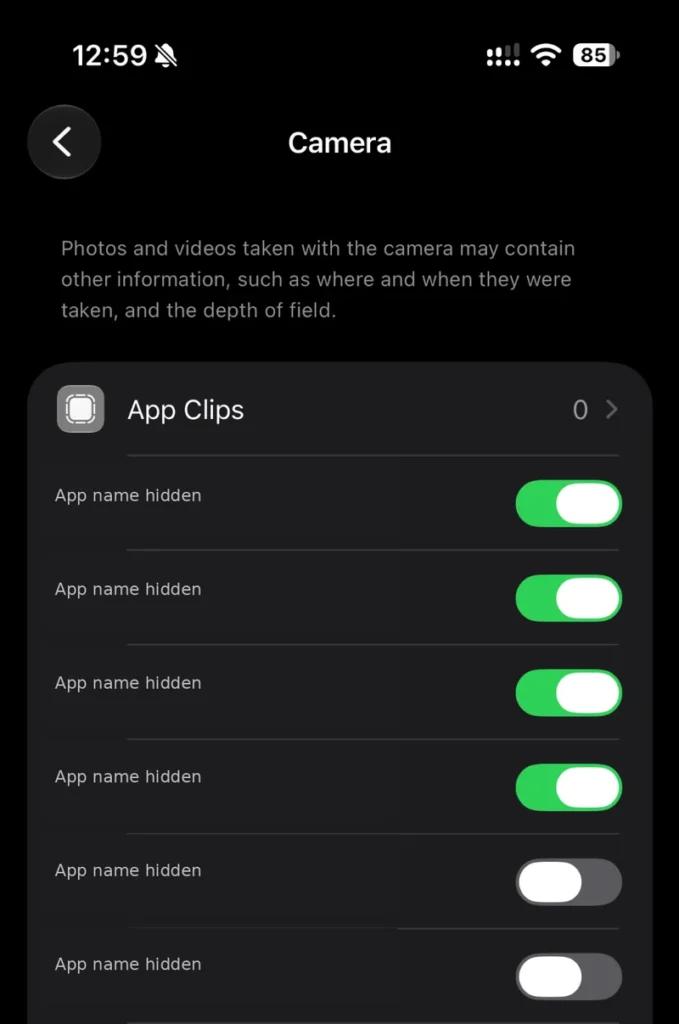
Important: Apple’s built-in Camera app does not have a separate camera permission toggle under Settings > Privacy & Security > Camera. These permission controls are for apps that request camera access, such as WhatsApp, Instagram, and Snapchat.
If Apple’s Camera app works but another app shows a black preview, open Settings > Privacy & Security > Camera and check whether that app has permission.
If Apple’s built-in Camera app itself displays a black screen, changing third-party permissions will not fix it. Instead, test both cameras, restart the iPhone, install available iOS updates, and consider Apple’s diagnostics if the problem continues.
iOS requires third-party apps to request permission before accessing the camera.
To review permissions:
- Open Settings.
- Tap Privacy & Security.
- Select Camera.
- Look for the affected application.
- Enable camera access if you trust the app and want it to use the camera.
If the app isn’t listed, it may not have requested access yet.
Open the application and try using its camera feature again.
If access is already allowed, close and reopen that application.
You can also check the App Store for an available update.
If the problem continues only in one third-party app, contact its developer.
9. Force Restart Only if Your iPhone Becomes Unresponsive
If the Camera app freezes and your iPhone stops responding, a force restart may be appropriate.
Apple provides this method for iPhones that aren’t responding and cannot be restarted normally.
For supported iPhones with Face ID:
- Press and quickly release the Volume Up button.
- Press and quickly release the Volume Down button.
- Press and hold the Side button.
- Keep holding until the Apple logo appears.
- Release the Side button.
Wait for the iPhone to restart.
Then unlock it and test Camera again.
A force restart doesn’t normally erase your data.
However, it should not be confused with factory resetting the iPhone.
If your iPhone remains fully responsive, a normal restart is usually sufficient. There’s no need to repeatedly force restart it.
Button combinations can differ on older iPhone models with Home buttons. Follow Apple’s model-specific instructions.
If the camera still shows a black screen after restarting, continue with the final step.
10. Contact Apple Support if the Camera Still Shows Black
If the Camera app continues displaying a black screen after these checks, professional service may be necessary.
Apple recommends getting service if camera or flash problems remain unresolved.
Before contacting Apple Support, collect useful details:
- Your iPhone model.
- The installed iOS version.
- Whether the rear camera works.
- Whether the front-facing camera works.
- Whether the flashlight functions.
- Whether the problem occurs in every camera mode.
- Whether other applications can access the camera.
- Whether the phone has experienced a drop or liquid exposure.
- Whether removing accessories changes the result.
These details can help explain the symptoms.
For example, a consistently black rear camera with a working front camera may suggest a different problem from a Camera app that freezes regardless of the selected camera.
Save important personal data before arranging a repair when possible.
Avoid opening the camera module or attempting an internal hardware repair yourself.
Contact Apple Support or an Apple Authorized Service Provider for suitable diagnostic and service options.
Use Apple’s Built-In Camera Diagnostics
Apple provides an iOS diagnostic procedure that can help identify certain camera-related hardware problems.
On a supported device:
- Follow Apple’s instructions for opening Recovery Assistant.
- Select Diagnostics Mode.
- Follow the on-screen instructions.
- Choose Mobile Resource Inspector when prompted.
- Start the diagnostic test.
If the diagnostic reports an issue, contact Apple Support for appropriate service.
Important: Diagnostics cannot identify every possible camera problem. A successful test does not necessarily rule out an intermittent fault.
Use Apple’s official instructions rather than attempting an unsupported repair or device reset.
Apple Support: Camera and Flash Troubleshooting
iPhone Camera Black Screen and Flashlight Not Working?
If your iPhone camera shows a black screen and the flashlight also stops working, the issue may involve a software problem or the camera hardware.
Try these checks before assuming the camera needs replacement:
- Remove any magnetic case, camera attachment, or lens protector that could interfere with the camera or flash.
- Restart your iPhone and open the Camera app again.
- Switch between the front and rear cameras to see whether both are affected.
- Open Control Center and test the flashlight separately.
- Go to Settings > General > Software Update and install any available compatible update.
If the rear camera remains black and the flashlight still fails after these checks, contact Apple Support or an authorized service provider for diagnosis. Persistent problems with both features can require professional inspection.
For additional troubleshooting, see Apple’s official camera and flash support guide.
Frequently Asked Questions
How do I fix a black screen in the iPhone Camera app?
Close and reopen Camera, remove cases or accessories, test the front and rear cameras, restart the iPhone, and check for software updates.
Why Is My iPhone Camera Showing a Black Screen?
Your iPhone camera may show a black screen because of a temporary software issue, interference from an accessory, or a camera hardware problem. Restart your iPhone, remove camera accessories, and test both the front and rear cameras. If only one camera remains black after troubleshooting, the device may need professional inspection.
Why does my front camera work but my back camera is black?
The problem may be associated with the rear camera system, its selected settings, or a temporary software issue. Test different rear camera modes and remove accessories before seeking service.
Does restarting an iPhone fix camera black screen problems?
Restarting may resolve temporary software issues. It will not repair a physically damaged camera.
Can a phone case cause the camera to show black?
Yes, if it physically covers a camera. Some camera accessories may also interfere with operation. Remove accessories and test again.
Why is my iPhone camera black only in WhatsApp or Instagram?
A third-party app may have a permission, configuration, or software problem. Check Settings → Privacy & Security → Camera and update the affected app.
Will resetting my iPhone fix a black Camera preview?
Not necessarily. A factory reset is not a suitable first step. Test the cameras, restart the device, and check software updates before considering major changes.
How do I know if my iPhone camera is broken?
Persistent failure in one or more cameras after basic troubleshooting can indicate a hardware issue, but it does not prove one. Apple Support can help with diagnosis.
Can a black camera screen be caused by an iOS update?
Some camera problems can be software-related, but an issue appearing after an update doesn’t establish causation. Check for newer updates and test the cameras systematically.
Why does my flashlight work but my camera stay black?
The flashlight and camera sensors are separate components. A working flashlight doesn’t guarantee that the camera is working.
Should I force restart my iPhone when the camera is black?
Use a normal restart first if your iPhone is responsive. A force restart is more appropriate when the device itself becomes unresponsive.
When should I contact Apple Support?
Contact Apple Support if the Camera preview remains black after basic troubleshooting, especially if one camera repeatedly fails or the problem began after physical damage.
About This Troubleshooting Guide
This guide organizes iPhone camera troubleshooting by symptoms, including whether the black preview affects the front camera, rear camera, or third-party apps.
The original iPhone Camera screenshot demonstrates how to locate the camera-switch control. It does not represent a confirmed hardware failure or a successful repair.
Official reference: For Apple’s recommended troubleshooting procedures, including camera testing and iOS Diagnostics, see Apple’s official camera and flash troubleshooting guide.
Troubleshooting options can vary by iPhone model and iOS version. If the camera continues showing a black screen after the recommended checks, contact Apple Support or an authorized service provider for further diagnosis.
Final Thoughts
If your iPhone camera is showing a black screen, don’t assume the camera is permanently damaged.
Begin with the simplest checks.
Close and reopen Camera, remove obstructive accessories, and test both the front and rear cameras.
If the problem continues, restart the iPhone, compare camera modes, and check for compatible software updates.
When the black preview appears only in a third-party application, investigate camera permissions and that application’s settings.
Avoid unnecessary factory resets or risky hardware repair attempts.
If the issue continues across different camera modes after basic troubleshooting, contact Apple Support for professional diagnosis.
For official guidance, see:
- Apple: If the camera or flash on your iPhone isn’t working
- Apple: If an app stops responding or won’t open
- Apple: Control access to camera and microphone
- Apple: Force restart iPhone
The Synced Desk | Practical solutions for everyday technology problems.