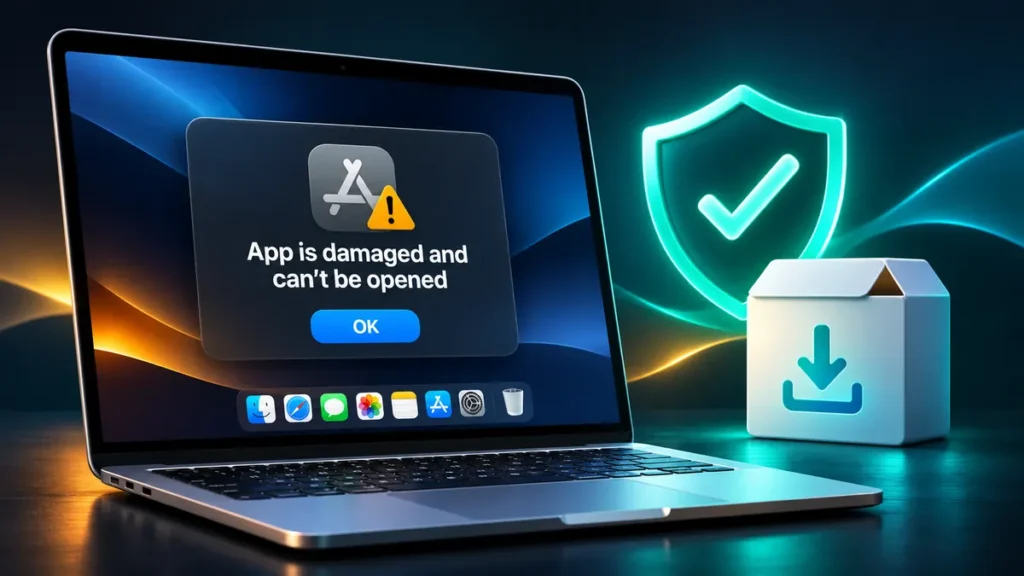
Seeing “App is damaged and can’t be opened” on your Mac can be confusing, especially when you just downloaded the app or it worked perfectly before a macOS update.
Sometimes the message also includes “You should move it to the Trash.”
Although the alert sounds like a routine software problem, it’s important not to ignore it. macOS may show this warning when an application’s code has been modified, the download is corrupted, or the software fails an important security check.
Quick answer: If an app is damaged and can’t be opened on Mac, the safest fix is to remove the suspicious or damaged copy and download the latest compatible version from the Mac App Store or the developer’s official website. Avoid disabling Gatekeeper or removing security attributes just to force the application to launch.
This guide explains what the warning means, nine safe troubleshooting steps, and when you should contact the developer instead of changing your Mac’s security settings.
Table of Contents
What Does “App Is Damaged and Can’t Be Opened” Mean on Mac?
The warning generally means macOS detected a problem with an application’s integrity or ability to run safely.
Apple’s built-in security system, known as Gatekeeper, checks downloaded applications before they’re opened.
For applications distributed outside the Mac App Store, macOS can verify the developer’s digital signature, assess notarization information, and check whether the software has been altered.
When an app’s signed code does not match what macOS expects, the operating system may block it.
According to Apple’s official Mac app security documentation, a modified or damaged application may be corrupted, broken, or tampered with.
This doesn’t automatically mean the app contains malware.
However, it also doesn’t mean the warning is harmless.
There are several possible explanations, and the right fix depends on the exact alert and where you obtained the app.
Why Does macOS Say an App Is Damaged?
Several situations can lead to the damaged-app warning.
Incomplete or Corrupted Download
An installer may not have downloaded correctly.
If important application files are missing or corrupted, macOS may be unable to verify or open the software.
Modified Application Files
Some applications include code signatures that allow macOS to detect changes to their executable files.
If the application has been altered after signing, its signature may no longer match.
These changes could result from damaged files, outdated packaging, third-party modifications, or tampering.
Incompatible App Version
An application designed for an older macOS release may not work correctly on a newer system.
Likewise, an app may require a newer version of macOS than your Mac currently uses.
However, compatibility problems can also produce other error messages, so don’t assume every damaged-app warning is caused by an outdated app.
Untrusted Download Source
Third-party download websites sometimes distribute outdated, repackaged, or modified applications.
Even when the app name looks legitimate, the download may not be identical to the developer’s original release.
Security or Signing Problems
A developer’s signing certificate, notarization status, or another security-related condition may prevent macOS from accepting an application.
Some legacy applications that change their own code after signing may also trigger verification problems.
These situations should be investigated rather than bypassed automatically.
App Is Damaged and Can’t Be Opened: 9 Safe Fixes
Follow the steps below in order. The early fixes are appropriate for most users and don’t require Terminal commands or security workarounds.
Fix 1: Read the Exact macOS Warning
Before deleting or reinstalling anything, identify the wording of the alert.
macOS can show several different security warnings.
These include:
- “App is damaged and can’t be opened.”
- “App can’t be opened because Apple cannot check it for malicious software.”
- “App can’t be opened because the developer cannot be verified.”
- “App will damage your computer.”
These messages are not interchangeable.
The first may indicate a modified or damaged app.
A developer-verification warning concerns a different security check.
An alert stating that software will damage your computer is more serious and should not be bypassed.
If macOS identifies an application as malicious, don’t attempt to force it open.
Apple explains these warning categories in its guide to safely opening Mac apps.
Best first step: Write down or capture the exact warning before attempting troubleshooting.
Fix 2: Download a Fresh Copy From an Official Source
A new download is often the most practical solution when an installer or application is corrupted.
First, identify the application’s legitimate developer.
Then:
- Close the warning dialog.
- Open Safari or another trusted browser.
- Visit the developer’s official website or the Mac App Store.
- Locate the latest compatible version.
- Download the application again.
- Follow the developer’s installation instructions.
Avoid using an old installer copied from an unknown website or file-sharing service.
If the developer provides a published SHA-256 checksum, experienced users can compare it with the downloaded file to help confirm the download’s integrity.
However, matching a checksum only helps when the expected checksum itself comes from a trusted source.
Important: If the new official download produces the same damaged-app warning, don’t keep downloading random versions from third-party websites.
Contact the developer and ask whether the release is properly signed and compatible with your Mac.
Fix 3: Install the Application Correctly From Its DMG or PKG File
Some Mac users try to launch an application directly from an installation image without following the installation process.
Mac software commonly arrives as one of these formats:
- DMG: A disk image containing an application or installer.
- PKG: An installation package that runs through macOS Installer.
- ZIP: A compressed archive containing application files.
- APP: A macOS application bundle.
The correct procedure depends on the file type.
For a typical DMG containing an application:
- Open the downloaded DMG.
- Wait for the disk image to mount.
- Follow the included instructions.
- If prompted, drag the application into the Applications folder.
- Eject the mounted disk image after installation.
- Open the installed copy from Applications.
For a PKG file, use the provided installer and follow its instructions.
Not every app should be dragged manually into Applications. Some applications have dedicated installation tools or additional components.
Installing an already-corrupted app won’t fix its damaged signature, but following the correct process can eliminate confusion between an installer, mounted disk image, and installed application.
Apple explains the supported methods in its installing apps on Mac guide.
Fix 4: Remove the Damaged Copy and Reinstall the App
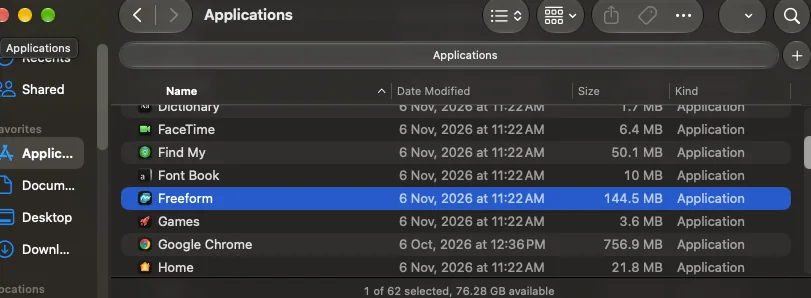
If a fresh official installer is available, replacing the damaged application may help.
Before uninstalling, consider whether the app stores important information locally.
For example, some programs maintain projects, custom settings, licensed components, plug-ins, or databases.
Back up important documents and follow any developer-specific uninstall instructions.
For a standard application installed in Applications:
- Open Finder.
- Select Applications.
- Find the affected application.
- Quit it if it is running.
- If the app includes an official uninstaller, use that.
- Otherwise, move the damaged application to the Trash.
- Install the fresh copy downloaded from the official source.
- Restart the Mac if the developer recommends it.
You don’t need to delete every file in your Library folder to reinstall an app.
Avoid removing unknown files from ~/Library or /Library, because those folders can contain important settings, plug-ins, and user data.
If the application is part of macOS, such as Safari or Mail, don’t attempt to uninstall it like an ordinary third-party app.
Apple provides separate guidance for built-in system applications.
Fix 5: Check macOS and Apple Silicon Compatibility
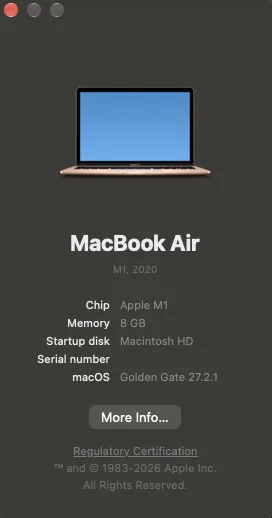
An application may fail to run correctly when its operating-system or processor requirements are not met.
For example, older Mac software may have been designed for Intel processors, while newer Macs use Apple silicon.
To check your Mac:
- Click the Apple menu.
- Choose About This Mac.
- Check the macOS version.
- Review the processor or chip information.
- Compare these details with the developer’s stated requirements.
If you have a MacBook Air with an M1 chip, look for an Apple silicon-compatible or Universal application.
Some Intel applications can work through Apple’s Rosetta translation technology, but compatibility is not guaranteed for every program.
If a trusted Intel app requires Rosetta, macOS may offer to install it.
You should follow the developer’s supported installation process rather than downloading unofficial compatibility utilities.
Also check whether the software requires a newer version of macOS.
Note: App compatibility problems don’t always produce the exact damaged-app alert. This check is most useful when the problem began after changing Mac hardware or updating macOS.
Fix 6: Update the App Through the Mac App Store
If the affected app came from the Mac App Store, check for an available update.
Open the App Store on your Mac.
Then:
- Click Updates in the sidebar.
- Review available updates.
- Find the affected application, if listed.
- Install the available update.
- Try opening the app again.
If the app was removed, you may be able to download it again through your App Store account’s purchased-app history.
When reinstalling paid software, use the Apple Account associated with the original purchase.
Don’t download a replacement installer from an unrelated site merely because the app is no longer visible in Updates.
Apple documents how to reinstall App Store purchases on Mac.
Fix 7: Check for a macOS Update
Sometimes an application requires changes provided by newer macOS software.
Check whether a compatible macOS update is available:
- Click the Apple menu.
- Open System Settings.
- Select General.
- Click Software Update.
- Review available updates.
- Back up important data before installing an update.
- Follow the onscreen instructions if you choose to update.
After the update, restart your Mac if necessary and test the application again.
Keep in mind that updating macOS won’t repair a modified digital signature or make malicious software safe.
Also, an app developed for an older system may need an updated version from its developer.
If your Mac also feels unusually slow after updating, our macOS 27.2.1 Running Slow troubleshooting guide addresses system performance issues separately.
Fix 8: Check Privacy & Security Without Disabling Gatekeeper
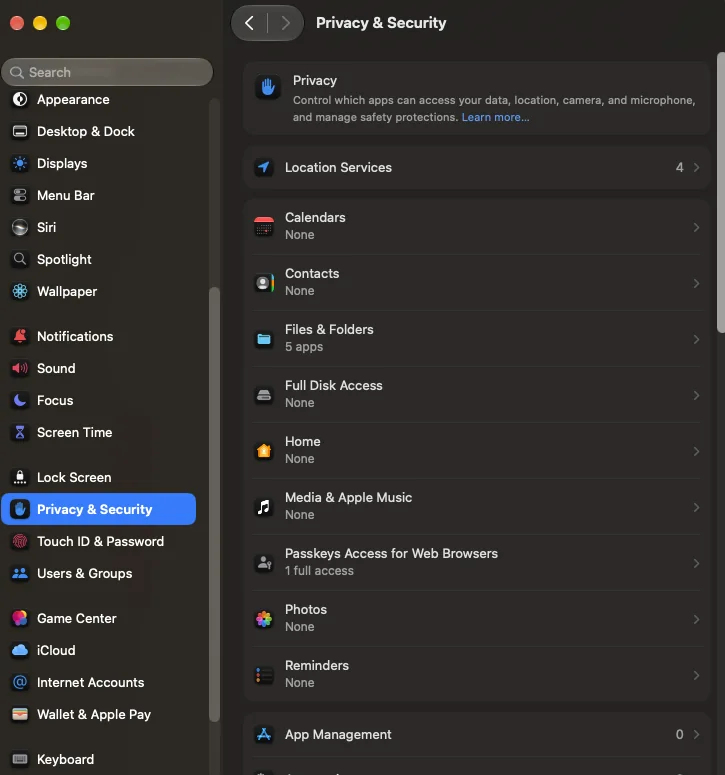
This step requires particular care.
Open:
Apple menu → System Settings → Privacy & Security
Scroll to the Security section.
Here, macOS provides controls governing which applications can run.
For normal use, Apple’s supported choices include apps from the App Store and identified developers.
You may also see an Open Anyway option after attempting to open certain blocked applications.
However, that option is intended for specific situations involving software that macOS cannot verify in the normal way.
Do not assume Open Anyway is an appropriate fix for a damaged-app warning.
An application that has failed an integrity check should be replaced or investigated before you consider any security exception.
Apple explicitly warns that bypassing app security checks can expose a Mac to malware.
If the alert concerns an unidentified developer, and you have independently established that the application is authentic and safe, consult Apple’s official security-exception instructions.
For an app described as damaged, the safer route is a clean official download or help from the developer.
Do not disable Gatekeeper globally to resolve this problem.
Fix 9: Contact the Developer or Apple Support
If the application still cannot be opened after reinstalling a fresh, officially distributed, compatible version, the developer may need to investigate it.
Before contacting support, gather:
- The application’s exact name and version.
- Your Mac model and chip type.
- Your installed macOS version.
- The complete warning message.
- Where you downloaded the application.
- Whether the error occurs with the newest official release.
- Whether the problem started after a macOS update.
Ask the developer whether the app’s current release is correctly signed, notarized, and supported on your version of macOS.
If the developer confirms that the release is valid but your Mac continues to reject it, contact Apple Support.
If the problem involves a company-managed Mac, consult your IT administrator before making changes.
Managed Macs can enforce additional software security policies.
Damaged App vs. Unidentified Developer Warning
A damaged-app warning isn’t the same as an unidentified-developer warning.
Understanding the difference helps you avoid unnecessary security risks.
| Warning | What it generally means |
|---|---|
| App is damaged and can’t be opened | The app may have been altered, corrupted, or tampered with |
| Developer cannot be verified | macOS cannot establish the developer’s identity or required verification |
| Apple cannot check it for malicious software | The application has not passed the relevant notarization checks |
| App will damage your computer | macOS identified a serious security concern involving the software |
For a damaged application, replacing it with a fresh, authentic copy is usually preferable to bypassing the warning.
For a developer-verification warning, the correct approach depends on the application’s source and whether you can establish its authenticity.
If macOS identifies known malware or indicates that the app will harm your computer, do not attempt to override the warning.
Should You Use Terminal to Fix a Damaged App on Mac?
You may find online tutorials recommending commands that remove quarantine attributes or disable macOS security checks.
Examples include advice to remove application quarantine metadata or globally disable Gatekeeper.
These approaches can weaken the protections designed to detect untrusted or modified software.
Removing a security warning is not the same as repairing an application.
If the application’s digital signature no longer matches its code, removing a warning does not restore the original code or guarantee that the software is safe.
For typical users, there is no need to run Terminal commands to troubleshoot this error.
The safer approach is to obtain an authentic, current copy of the application and check compatibility.
If you’re an advanced user, you may perform non-destructive integrity checks, but do not interpret a single successful check as proof that an application is harmless.
If the developer provides instructions for repairing a known signing problem, review them carefully and confirm their source before proceeding.
What if the App Opens but Freezes Immediately?
An application that opens successfully and then freezes is a different troubleshooting situation.
For example, the app may display a window but stop responding to clicks or keyboard input.
That suggests an application performance or stability issue rather than the initial damaged-app security warning.
Possible causes include incompatible plug-ins, application bugs, memory pressure, or corrupted application data.
In that situation, start with the developer’s troubleshooting guidance.
If the app cannot be quit normally, our How to Close an App That Won’t Close on Mac guide explains safe ways to quit unresponsive applications.
Avoid using force-quit tools as a workaround for an app that macOS has refused to open for security reasons.
How to Prevent Damaged-App Errors on Mac
You can reduce the likelihood of encountering damaged or untrusted applications by following a few practical habits.
Download from official sources. Prefer the Mac App Store or the developer’s verified website.
Avoid modified installers. Repacked or unofficial copies may contain changes that invalidate code signatures or introduce security risks.
Check compatibility. Confirm that software supports your Mac’s chip and macOS version.
Keep applications updated. Developers may release fixes for compatibility, installation, and code-signing problems.
Use the provided installer. Follow the official process for DMG, PKG, and application bundles.
Maintain backups. Back up important application files and projects so a clean reinstall doesn’t threaten your work.
Respect macOS warnings. Don’t automatically disable security protections just to open a blocked download.
These precautions won’t prevent every application problem, but they help maintain a safer and more reliable Mac setup.
Frequently Asked Questions
Why does my Mac say an app is damaged and can’t be opened?
macOS may display this warning when the application’s code has been modified, corrupted, or otherwise fails an integrity check. It can also indicate possible tampering.
How do I fix “App is damaged and can’t be opened” on Mac?
Start by downloading a fresh compatible version from the Mac App Store or the developer’s official website. Replace the damaged copy using the recommended installation procedure.
Is a damaged Mac app always a virus?
No. A damaged-app warning doesn’t automatically prove that the software contains malware. The app may be corrupted or improperly packaged. However, you should not assume the warning is harmless.
Should I click Open Anyway?
Not automatically. Open Anyway is intended for particular security-verification warnings. A damaged-app warning may indicate a modified application, so investigate or replace it rather than bypassing the check.
Can I remove quarantine attributes to open the app?
Removing quarantine-related protections may suppress certain warnings, but it doesn’t repair damaged code or guarantee safety. It’s not a recommended first-line fix.
Does the error happen on Apple silicon Macs?
Yes. Apple silicon Macs can encounter application integrity and security warnings. The issue isn’t exclusive to Intel Macs.
Can an outdated application cause this problem?
An outdated application can fail to work on a newer version of macOS, although it may display a different error. Check the developer’s compatibility information.
Will reinstalling the app delete my files?
It depends on the application. Many apps store documents separately, but some keep important data or settings in application-specific locations. Back up important files before uninstalling.
Why does the error appear after a macOS update?
The update may reveal an existing compatibility problem or cause macOS to perform different checks. However, timing alone doesn’t establish the cause. Check for an updated version from the developer.
Does disabling Gatekeeper fix damaged apps?
Disabling security checks may change how macOS responds to blocked software, but it doesn’t repair corrupted or altered files. Disabling Gatekeeper is not a safe general solution.
Can I reinstall a damaged app from the Mac App Store?
If the app is still available and associated with your Apple Account, you may be able to download it again through the App Store.
What if an official app still says it is damaged?
Contact the developer with the exact warning, app version, macOS version, and installation source. The developer may need to release a corrected or compatible build.
Final Thoughts
If you encounter “App is damaged and can’t be opened” on your Mac, don’t immediately disable security settings or follow an unknown Terminal command.
Start by identifying the exact warning and confirming where the application came from.
Then download a fresh copy from the Mac App Store or the developer’s official website, install it correctly, and check macOS compatibility.
If the problem persists with an authentic, supported version, contact the developer or Apple Support.
The goal is to restore a trustworthy, working application, not merely make the warning disappear.
Following these steps can help resolve damaged-app problems while keeping the Mac’s built-in security protections intact.