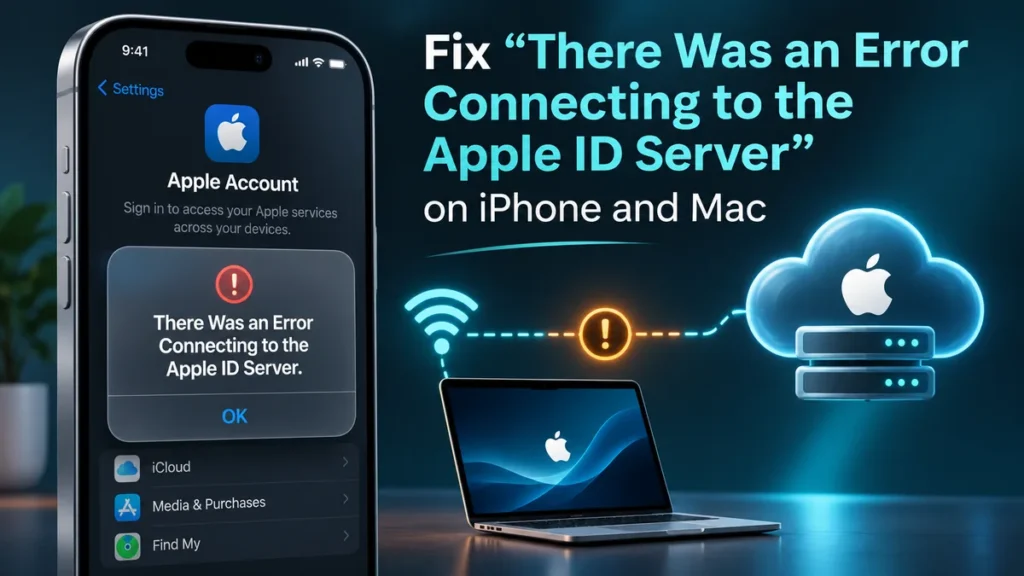
Seeing “There Was an Error Connecting to the Apple ID Server” on your iPhone or Mac can prevent you from signing in to your Apple Account, accessing iCloud, or using services that require account verification.
The message can appear even when your password is correct and your device seems connected to the internet.
Fortunately, it does not automatically mean your Apple Account has been hacked, disabled, or permanently locked.
Quick answer: If you see there was an error connecting to the Apple ID server, first check Apple’s System Status page. Then test your internet connection, try a different network, review VPN settings, and make sure your device has the correct date and time.
You can usually investigate the issue without signing out of iCloud, resetting your Apple Account password, or erasing your device.
This guide explains nine safe troubleshooting methods for iPhone and Mac, including recent iOS and macOS versions.
Table of Contents
What Does “There Was an Error Connecting to the Apple ID Server” Mean?
This error indicates that your device could not complete a communication or verification request involving Apple’s account services.
Apple ID is now called Apple Account, although many devices, older alerts, and online guides still use the Apple ID terminology.
Your Apple Account provides access to services including:
- iCloud
- App Store
- Apple Music
- iMessage and FaceTime
- Find My
- Apple Account and device settings
When these services require authentication, your device needs to communicate with Apple’s systems.
If that communication fails, you may see an error about connecting to the Apple ID server.
This can happen because Apple’s service is temporarily unavailable, your network cannot reach the required server, or something on your device interferes with the connection.
The message alone does not identify the exact cause.
According to Apple’s official account sign-in guidance, a device that cannot connect to an account server should be checked for service outages and internet connection problems.
Why Can’t Your iPhone or Mac Connect to the Apple ID Server?
Several conditions can cause the problem.
Apple Server Outage
Occasionally, an Apple service becomes temporarily unavailable because of an outage or scheduled maintenance.
If the issue originates with Apple’s systems, changing settings on your device is unlikely to resolve it.
Unstable Internet Connection
Your iPhone may display a Wi-Fi symbol without having reliable internet access.
Similarly, a Mac may connect to a local network while the router or internet provider is experiencing problems.
VPN or Security Software Interference
VPNs, network filters, firewalls, and certain security applications can interfere with connections to Apple services.
This is especially relevant on networks with custom restrictions.
Incorrect Date and Time
If your device clock is significantly incorrect, secure online connections may fail.
Apple specifically recommends checking date and time when troubleshooting connectivity to certain Apple services.
Outdated Device Software
An old or incompatible software version can sometimes cause service compatibility or authentication problems.
Apple recommends keeping supported devices updated.
Apple Account Authentication Problems
An expired sign-in session, forgotten password, or two-factor authentication issue can interrupt access to an Apple Account.
However, these situations may produce their own specific error messages.
A server-connection error should not automatically be treated as a password problem.
There Was an Error Connecting to the Apple ID Server: 9 Safe Fixes
Start with the simplest and least disruptive checks.
Fix 1: Check Apple’s System Status Page
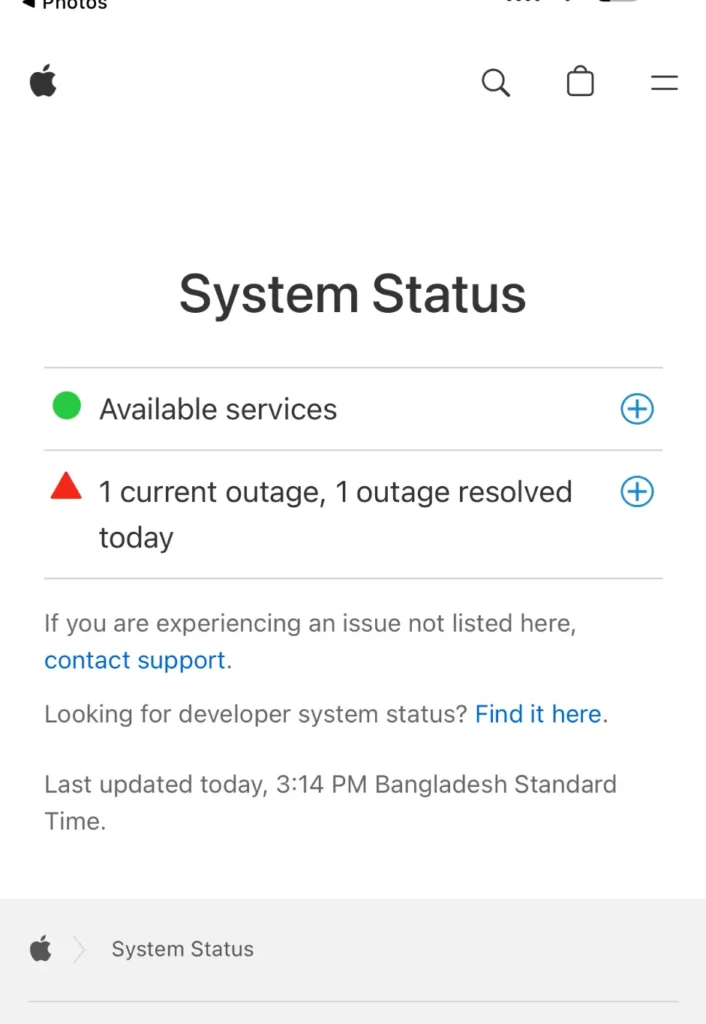
Before changing your iPhone or Mac settings, check whether Apple is experiencing a service interruption.
Steps:
- Open Safari or another browser.
- Visit Apple System Status.
- Look for any reported issues affecting Apple Account, iCloud, or the particular Apple service you’re using.
- Review any available incident details.
- If a relevant outage is reported, check again after Apple restores the service.
A server-side outage can affect many people at once.
For example, if iCloud Account & Sign In is experiencing a disruption, you might have difficulty authenticating even when other websites work.
Important: Don’t assume that Apple is experiencing an outage just because you see this error.
Check the actual service status before drawing that conclusion.
Also, an apparently normal status page does not completely rule out a newly developing or regional issue.
Apple recommends checking System Status when iCloud sign-in fails.
Fix 2: Verify That Your Internet Connection Actually Works
The next step is to confirm that your device has usable internet access.
A Wi-Fi connection alone does not guarantee connectivity to online services.
On iPhone:
- Open Safari.
- Visit a reliable website.
- Check whether the page loads.
- Try another website if necessary.
- Return to the Apple Account sign-in screen and test again.
On Mac:
- Open Safari.
- Visit a trusted website.
- Check whether it loads normally.
- Test another site.
- If the browser cannot connect, investigate the network first.
If ordinary websites fail to load, the Apple ID server warning may be a symptom of a broader internet connection problem.
For detailed iPhone network troubleshooting, see our iPhone Connected to Wi-Fi but No Internet guide.
Useful tip: If other devices on the same network also cannot access the internet, your router or internet provider may be responsible.
Fix 3: Switch Between Wi-Fi and Cellular Data
Sometimes Apple services fail on one network but work on another.
Testing a different connection can reveal whether the problem is related to your Wi-Fi network, internet provider, or device.
On iPhone:
- Open Settings.
- Tap Wi-Fi.
- Turn Wi-Fi off temporarily.
- Confirm that Cellular Data is enabled.
- Open Safari to check internet access.
- Try the Apple Account sign-in again.
If the connection works over cellular data but fails over Wi-Fi, investigate the Wi-Fi network.
If cellular data does not work either, check that your line is active and has a working data connection.
On Mac:
Connect to another trusted Wi-Fi network if one is available.
You can also test a personal hotspot from your phone, provided your plan supports it and you have adequate data.
If the Apple Account connection succeeds on the alternative network, the original network may be interfering.
Do not repeatedly change your Apple Account password when the real problem is network-specific.
Fix 4: Temporarily Disconnect VPNs and Network Filters
VPNs and filtering tools can alter how your device connects to online services.
They can also cause certain connections to fail when a VPN server is unavailable or the network configuration is incompatible.
Apple specifically recommends checking VPN and third-party security software when Apple services cannot connect.
On iPhone:
- Open Settings.
- Find the VPN setting, if a VPN is configured.
- Disconnect the VPN temporarily.
- Check whether any security or network-filtering application is active.
- Test your Apple Account connection again.
On Mac:
- Open System Settings.
- Review VPN or network-related settings.
- Disconnect a personal VPN temporarily, if appropriate.
- Test the Apple Account connection again.
If the issue disappears, review the VPN configuration, server selection, or application updates.
Do not permanently remove a workplace or school VPN without consulting your administrator.
Also, avoid disabling essential security protections unnecessarily.
A successful test without a VPN identifies a possible conflict. It does not mean you should leave your device unprotected.
For related iPhone VPN troubleshooting, consult the VPN settings and your provider’s official documentation.
Fix 5: Check Date and Time Settings
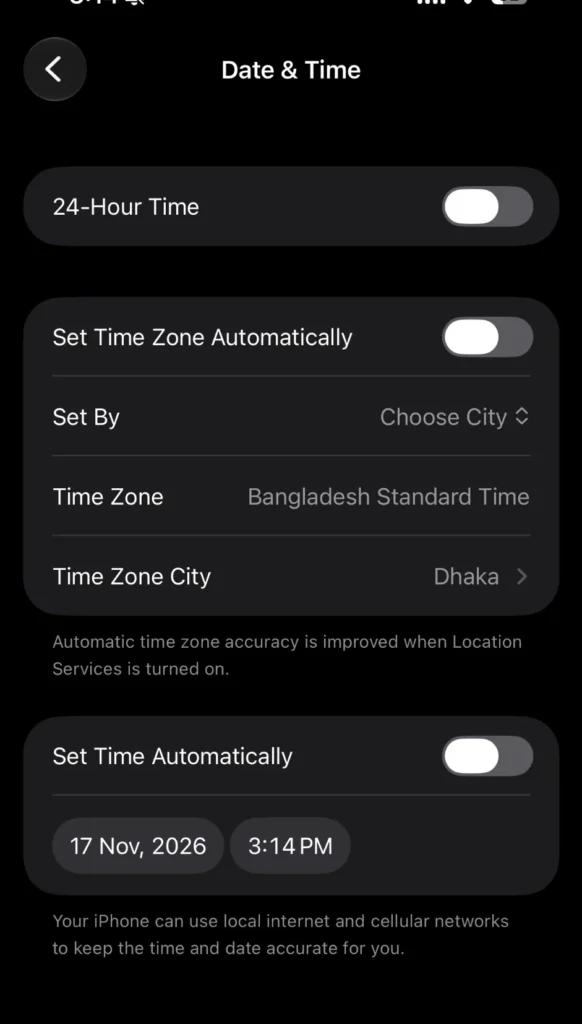
An incorrect clock can interfere with secure server connections.
This is particularly important when the date, time, or time zone has been manually changed.
On iPhone:
- Open Settings.
- Tap General.
- Select Date & Time.
- Enable the automatic time setting, where available.
- Confirm that the displayed time and time zone are correct.
- Try connecting to your Apple Account again.
Depending on your iOS version, the setting may be labeled Set Automatically or Set Time Automatically.
On Mac:
- Open the Apple menu.
- Select System Settings.
- Click General.
- Open Date & Time.
- Review the automatic date, time, and time zone controls.
- Correct any inaccurate settings.
If your device is managed by an organization, certain options may be restricted.
Do not attempt to bypass management restrictions.
Apple documents these steps in its date and time troubleshooting guide.
Fix 6: Restart Your Device and Check Your Router
A temporary software or networking issue may interfere with the connection to Apple services.
Restarting the device is a reasonable next step after checking the network and service status.
Restart an iPhone with Face ID:
- Press and hold the Side button and either Volume button.
- Drag the power-off slider.
- Wait until the iPhone shuts down.
- Turn it back on.
- Reconnect to the internet.
- Try signing in again.
Restart a Mac:
- Save your work.
- Open the Apple menu.
- Select Restart.
- Allow macOS to restart normally.
- Reconnect to the network and test the service.
If multiple devices have internet problems on the same home network, restarting your router may also help.
Follow the router manufacturer’s recommended procedure.
Avoid pressing a factory reset button unless you intentionally want to erase the router configuration.
Restarting your devices cannot fix a confirmed Apple server outage, but it can resolve some temporary local issues.
Fix 7: Update iOS or macOS
Apple recommends using a current, compatible software version when troubleshooting Apple Account and iCloud connectivity.
Software updates may contain security, compatibility, and reliability improvements.
On iPhone:
- Open Settings.
- Tap General.
- Select Software Update.
- Review available compatible updates.
- Back up important data when appropriate.
- Follow Apple’s installation instructions.
On Mac:
- Open the Apple menu.
- Select System Settings.
- Open General.
- Select Software Update.
- Review available updates.
- Install a suitable update after making a backup.
If you’re already running the latest available compatible version, you don’t need to reinstall the same operating system simply because the server connection failed.
Also, updating your device is not guaranteed to resolve a genuine Apple service outage.
Fix 8: Verify Your Apple Account and Sign-In Method
If Apple services are available and your internet connection works, check whether the problem involves your account or a particular device.
A useful diagnostic is to test the account through Apple’s official website.
Steps:
- Open Safari.
- Visit account.apple.com.
- Sign in using your Apple Account email address or phone number.
- Enter your password when requested.
- Complete two-factor authentication if prompted.
- Observe whether the website signs in successfully or displays a different account-related warning.
If you can sign in through the website but not through your iPhone or Mac settings, that suggests the issue may be specific to your device, network, or sign-in session.
It does not absolutely rule out every service-side problem.
If the website indicates that your password is incorrect, use Apple’s official password recovery process.
If the account is locked or disabled, follow the instructions associated with that specific message.
Do not reset your Apple Account password merely because a connection attempt failed.
Also, never enter your Apple Account password or verification codes into unofficial troubleshooting websites.
Apple explains these distinctions in its Apple Account sign-in guide.
Fix 9: Consider a Network Settings Reset Only as a Last Resort
If you use an iPhone, Apple reports no relevant outage, and the device continues experiencing connection problems across networks, you can consider resetting network settings.
This is more disruptive than the previous steps, so don’t do it automatically.
On iPhone:
- Open Settings.
- Tap General.
- Select Transfer or Reset iPhone.
- Tap Reset.
- Choose Reset Network Settings.
- Confirm the action.
This removes saved Wi-Fi networks and passwords, resets cellular network settings, and affects certain VPN and APN configurations.
It does not perform a full factory erase of your photos and applications.
However, you’ll need to reconfigure some network connections afterward.
Important: Reset Network Settings does not fix a disabled Apple Account, incorrect password, or Apple service outage.
If the device belongs to your employer or school, consult your administrator before resetting managed network settings.
Apple recommends this measure only after less disruptive connectivity troubleshooting has failed.
How to Fix the Apple ID Server Error on iPhone
For iPhone users, the most efficient troubleshooting sequence is:
- Check Apple’s System Status page.
- Verify internet access in Safari.
- Test a different Wi-Fi or cellular connection.
- Review VPN and filtering settings.
- Check Settings → General → Date & Time.
- Restart the iPhone.
- Check for iOS updates.
- Test your account through Apple’s official website.
- Consider network reset only when evidence points to a persistent device networking problem.
If the error occurs only when using cellular data, make sure Cellular Data is enabled and your plan has internet access.
If the problem occurs only on Wi-Fi, focus on that particular network.
Avoid signing out of iCloud as an early troubleshooting step.
Signing out can affect locally available iCloud data, synchronization, and Find My settings, depending on your device configuration.
How to Fix the Apple ID Server Error on Mac
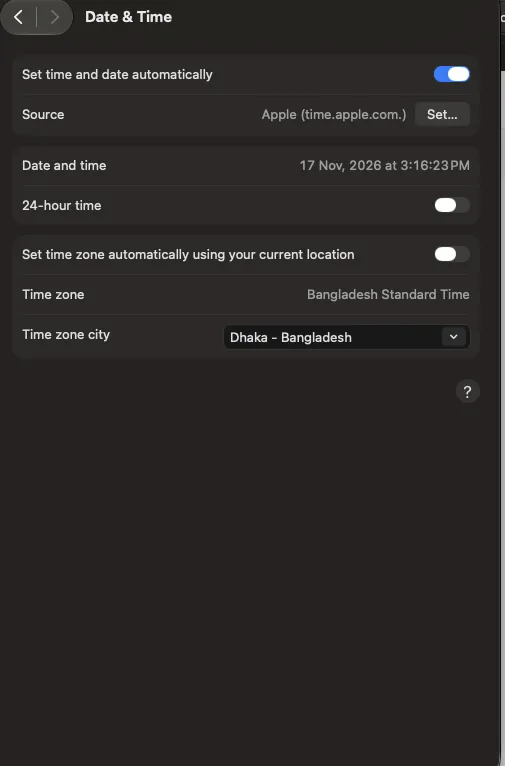
The same fundamental checks apply to a MacBook or desktop Mac, but the settings paths differ.
Start with Apple System Status.
Then test internet access in Safari, try a different network, and review any active VPN or security software.
Check:
System Settings → General → Date & Time
Then:
System Settings → General → Software Update
If your Mac can access normal websites but cannot connect to Apple Account services, test the official Apple Account website.
If web sign-in works and the Mac still cannot authenticate, contact Apple Support with the exact error message and macOS version.
Avoid deleting Keychain files, removing system certificates, changing security settings through Terminal, or erasing macOS as an initial fix.
These actions can create additional problems without addressing the actual connection failure.
Apple ID Server Error vs. Verification Failed
Apple Account problems can display similar-looking messages with different causes.
| Error or symptom | What to investigate first |
|---|---|
| Error connecting to Apple ID server | Apple service status, network, VPN, date and time |
| Verification Failed | Network, authentication, and the exact verification message |
| Incorrect Apple Account password | Account credentials and official password recovery |
| Apple Account locked or disabled | Apple’s specific account recovery instructions |
| Account settings greyed out | Device restrictions, management settings, or Screen Time |
| iCloud data not syncing | Sync settings and the relevant iCloud service |
Don’t treat all of these as the same problem.
For example, greyed-out account controls can involve Screen Time restrictions, while a server-connection error usually requires investigating connectivity and service availability first.
If your account is locked or disabled, follow Apple’s specific account access instructions.
What Not to Do When You Can’t Connect to the Apple ID Server
Some troubleshooting recommendations can create more problems than they solve.
Don’t repeatedly change your password. A network outage doesn’t mean your password is wrong.
Don’t immediately sign out of iCloud. Signing out affects services and data availability, and it may make a connection issue more inconvenient.
Don’t erase your iPhone or Mac. Factory resetting is not an appropriate first response to a temporary server error.
Don’t remove security software blindly. Review VPN or filtering conflicts carefully and seek administrator guidance for managed devices.
Don’t install unofficial Apple ID repair utilities. Apple Account authentication should be handled through Apple’s own services.
Don’t share verification codes. Never provide Apple Account passwords, recovery keys, or two-factor authentication codes to untrusted parties.
The safest troubleshooting process begins with determining whether the cause is Apple’s service, your network, or your account.
What If the Error Still Appears?
If the issue persists after these checks, gather information before contacting Apple Support.
Useful details include:
- The exact error wording.
- Whether it happens on iPhone, Mac, or both.
- Your installed iOS or macOS version.
- Whether other websites load normally.
- Whether the error occurs on Wi-Fi, cellular data, or both.
- Whether Apple reports a relevant service outage.
- Whether you can sign in at account.apple.com.
- Whether a VPN, firewall, or managed network is involved.
You can contact Apple Support for further assistance.
If you use a workplace-managed device, your IT team may need to investigate network filtering or account restrictions.
If only one internet connection produces the issue, contact the network administrator or internet provider.
This information can help support teams identify the problem without unnecessary resets.
Frequently Asked Questions
What does “There Was an Error Connecting to the Apple ID Server” mean?
It means your device could not complete a connection or authentication request involving Apple’s account services. The reason may involve Apple’s systems, your network, or device settings.
Is the Apple ID server down?
Not necessarily. Check Apple System Status for current service information. The error can appear even when Apple’s services are working normally.
How do I fix the Apple ID server error on iPhone?
Start by checking Apple System Status, testing your internet connection, switching networks, reviewing VPN settings, correcting date and time, and restarting your iPhone.
Why does my Apple ID say verification failed?
Verification can fail because of a network problem, an authentication issue, or another account-related condition. The exact warning determines the appropriate troubleshooting steps.
Can incorrect date and time cause Apple ID server problems?
Yes, incorrect device time can interfere with secure connections to online services. Apple recommends checking date and time when troubleshooting connection problems with its services.
Will changing my Apple ID password fix the server error?
Not necessarily. A password change won’t resolve an Apple service outage or broken network connection. Reset the password only when there is a genuine account authentication reason.
Why does my Apple ID work on Wi-Fi but not cellular data?
The cellular connection may be unavailable, restricted, or incorrectly configured. Check cellular data access, signal, carrier service, and network availability.
Does a VPN cause Apple ID connection errors?
A VPN or third-party security tool can sometimes interfere with connections to Apple services. Temporarily disconnecting a personal VPN can help determine whether it contributes to the problem.
Can I fix the Apple ID server error on my Mac?
Yes. Start with Apple System Status, a working internet connection, VPN settings, correct date and time, macOS updates, and account sign-in verification.
Do I need to sign out of iCloud?
Usually not as a first step. Try the safer connectivity and service checks before considering account sign-out procedures.
Will resetting network settings delete my photos?
Reset Network Settings on iPhone does not erase your photos or ordinary personal files, but it removes saved Wi-Fi connections and changes certain network configurations.
Is my Apple Account hacked if this error appears?
The error by itself is not evidence of a compromised account. If you also notice unfamiliar devices, unexpected verification requests, or other suspicious account activity, review your Apple Account security through official Apple services.
Final Thoughts
If you see “There Was an Error Connecting to the Apple ID Server,” don’t immediately assume your Apple Account is damaged or your password is incorrect.
Start by checking Apple System Status and confirming that your internet connection works.
Then test another network, review VPN settings, verify the date and time, and check for software updates.
If the issue continues, use Apple’s official website to help distinguish a device-specific connection problem from an account authentication issue.
The best approach is to identify whether the problem comes from Apple’s servers, your internet connection, or your Apple Account before making disruptive changes.
Most importantly, avoid unnecessary password resets, iCloud sign-outs, or factory resets when simpler diagnostics can reveal the real cause.