Is the mail app responding slowly on Mac Tahoe, taking several seconds to open messages, freezing when you search, or making your entire Mac feel sluggish?
Apple Mail normally opens messages and responds to clicks quickly, but that experience can change after a major macOS update, while mailboxes are being indexed, or when an account or extension is causing problems.
The frustrating part is that Mail can appear frozen even when your internet connection is working and emails are still arriving.
Quick answer: If Apple Mail is responding slowly on macOS Tahoe, start by quitting and reopening the app, checking Activity Monitor for high CPU or memory usage, and allowing background indexing to finish after a system update. If the problem affects one mailbox, a carefully performed mailbox rebuild may also help.
You don’t need to delete your email accounts, erase Mail’s database files, or reinstall macOS to begin troubleshooting.
This guide covers nine practical fixes for macOS Tahoe 26 and explains how to identify whether the delay comes from Mail itself, your email provider, or your Mac’s system resources.
Table of Contents
Why Is the Mail App Responding Slowly on Mac Tahoe?
Apple Mail can become sluggish for several reasons. The most useful clue is when and where the delay happens.
For example, Mail might open normally but respond slowly when you click individual messages. In another situation, the app may freeze while searching thousands of emails.
Common possibilities include:
- Spotlight indexing after a macOS update.
- Mail downloading or processing a large amount of email.
- High CPU or memory usage.
- A mailbox that needs rebuilding.
- Problems with an email account or server connection.
- A third-party Mail extension.
- Very little available Mac storage.
- Temporary app or operating-system bugs.
- Other background processes competing for resources.
A delay immediately after installing macOS Tahoe does not necessarily indicate a permanent software defect.
Apple explains that Spotlight indexing can run after installing system updates and that indexing large amounts of content, including email, can take hours or even days.
The first step is to determine whether Mail is genuinely frozen or simply completing background work.
Mail App Responding Slowly on Mac Tahoe? Try These 9 Fixes
Fix 1: Quit and Reopen Mail, Then Restart Your Mac
Start with the simplest troubleshooting step.
A temporary software issue can sometimes cause Mail to stop responding properly.
Steps:
- Save any important email drafts.
- Click Mail in the menu bar.
- Choose Quit Mail, or press Command-Q.
- Wait until Mail closes.
- Reopen Mail from the Dock, Applications folder, or Spotlight.
- Check whether it responds normally.
If Mail remains unresponsive, try force quitting it.
Press Option-Command-Escape, select Mail, and choose Force Quit.
Use Force Quit only when the normal Quit command doesn’t work, because unsaved work may be lost.
Next, restart your Mac:
- Open the Apple menu.
- Select Restart.
- Wait for macOS to restart completely.
- Open Mail again.
- Compare its performance with before the restart.
If the problem returns shortly after reopening Mail, the issue may involve persistent background activity, a mailbox, or another application.
Continue with the next checks.
Fix 2: Check Mail’s CPU and Memory Usage in Activity Monitor
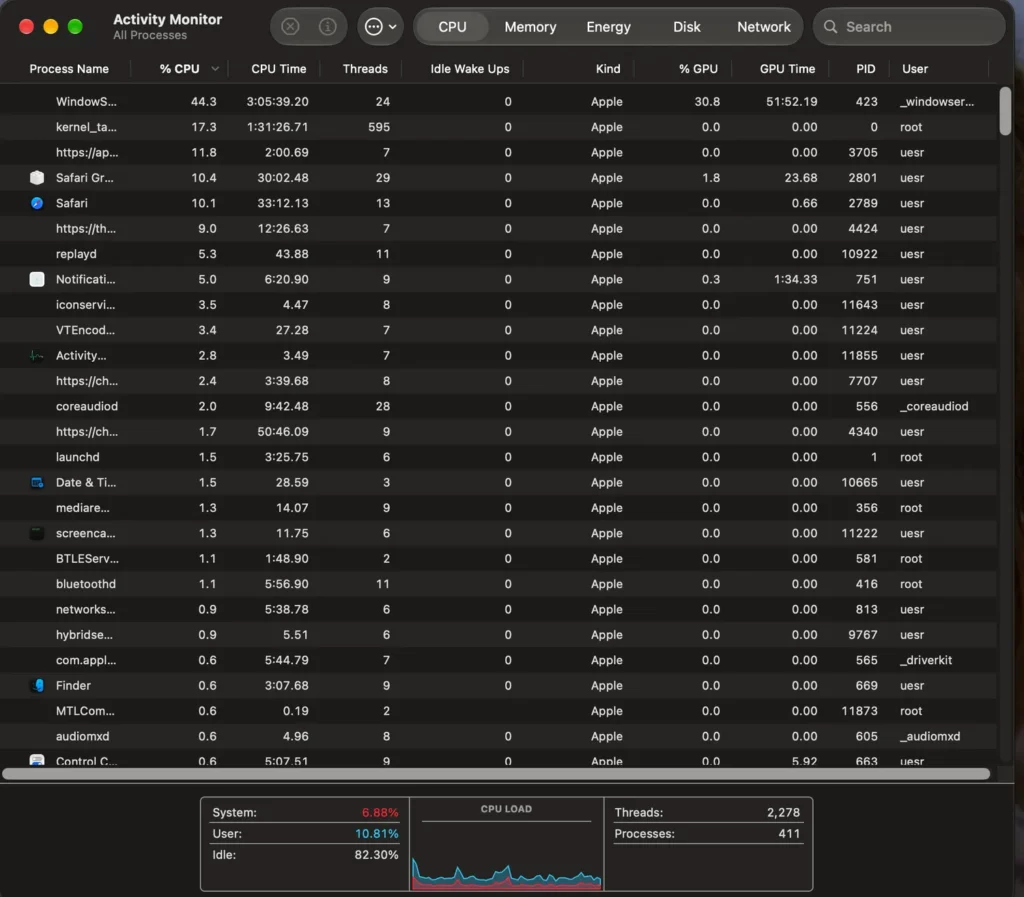
When Mail feels slow, Activity Monitor can help identify whether the app is using excessive system resources.
Activity Monitor is built into macOS and displays processor, memory, disk, and network activity.
Steps:
- Open Finder → Applications → Utilities.
- Launch Activity Monitor.
- Select the CPU tab.
- Use the search field to find Mail.
- Review Mail’s CPU usage.
- Switch to the Memory tab.
- Check memory usage and the overall memory pressure graph.
If Mail uses significant CPU for a short period after opening, it may be processing messages or performing another background task.
However, consistently high CPU usage while Mail is idle can indicate a problem worth investigating.
Also, look at the overall memory pressure graph.
If memory pressure is consistently high, other applications may be consuming enough memory to make Mail respond slowly.
Try closing unnecessary applications and testing Mail again.
Important: Don’t automatically force quit processes simply because their names are unfamiliar.
Some processes are essential to macOS, and others support background indexing or email-related work.
Apple provides detailed guidance in its Activity Monitor User Guide.
Fix 3: Allow Spotlight and Mail Indexing to Finish
This fix is especially relevant if Mail became slow immediately after upgrading to macOS Tahoe.
Spotlight creates an index that helps macOS find information across files, applications, and email messages.
After a major software update, Spotlight may need to update that index.
Apple confirms that indexing can take hours or even days depending on the amount of content on the device.
How to check:
- Press Command-Space to open Spotlight.
- Look for an indexing progress indicator.
- Open Mail and observe whether its performance is improving.
- Keep your Mac connected to power when practical.
- Allow the Mac time to complete background tasks.
On a MacBook, indexing can be more convenient when the computer is plugged in, connected to a stable network, and not performing other demanding work.
If Mail displays an indexing-related notice, let the process complete before attempting more disruptive fixes.
Should you manually delete Spotlight indexes?
No. Deleting index files or using unfamiliar Terminal commands is not a sensible first step.
Apple provides supported procedures for rebuilding Spotlight’s index when search results remain incorrect.
Use those procedures only when the symptoms suggest a persistent indexing problem.
See Apple’s Spotlight indexing documentation.
Fix 4: Check Mail Activity and Your Email Account Connection
Sometimes Mail appears to be responding slowly because it is waiting for an email server or processing queued activity.
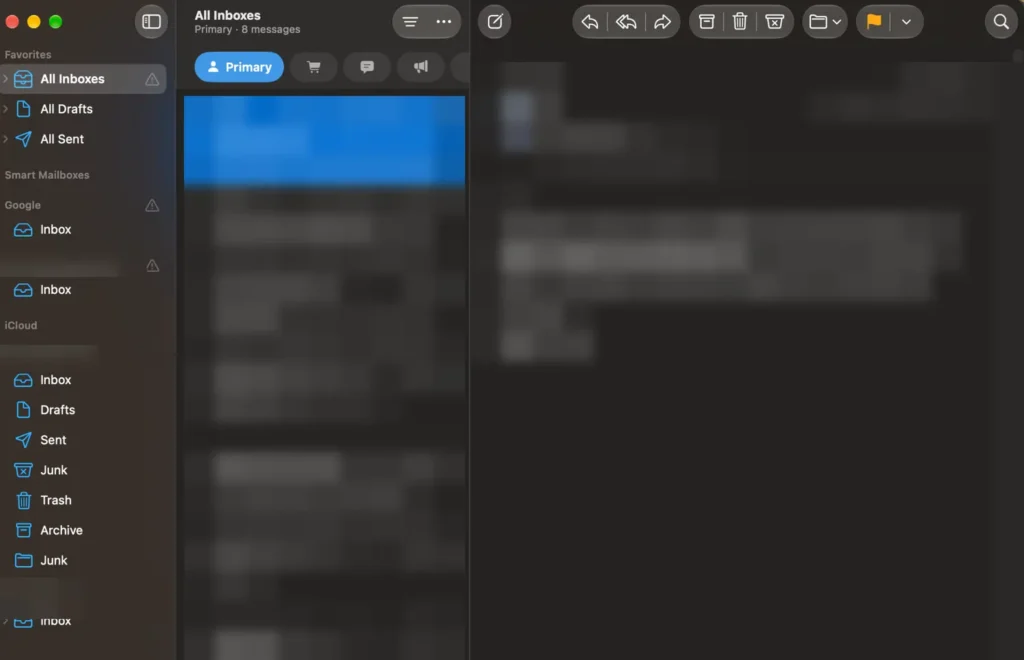
For example, clicking a message may produce a delay while Mail downloads its contents or attachments.
You can inspect Mail’s activity directly.
Steps:
- Open the Mail app.
- Choose Window → Activity from the menu bar.
- Review any available progress indicators.
- Check whether Mail is downloading, sending, or processing messages.
- Observe whether the activity completes or remains stalled.
You can also open the Mail Activity window with Control-Command-0.
If the activity repeatedly stalls on downloading messages, the problem may be different from general interface lag.
Test your email account through the provider’s official webmail website.
For example, if you use Gmail, check whether your messages load normally through Gmail in a browser.
If webmail works but Mail struggles to download messages, investigate the Mail account connection.
If both webmail and Mail are slow, the provider or network may be contributing to the problem.
Also check for warning symbols beside accounts in the Mail sidebar.
If the app reports an account connection error, review your internet connection, VPN, and account status.
For a detailed guide to that specific issue, see Mac Mail Stuck Downloading Messages? 10 Fixes.
Apple’s Mail sending and receiving troubleshooting guide also explains how to distinguish account problems from general app issues.
Fix 5: Rebuild the Affected Mailbox
If Mail becomes slow when opening or searching one particular mailbox, rebuilding that mailbox may help.
Apple provides a built-in Rebuild command to refresh the message list and address certain problems involving missing or incorrectly displayed messages.
Before proceeding: Back up important data and confirm that your mail account is properly synchronized with its provider.
For accounts containing local-only email, make sure you have a reliable backup before changing mailbox data.
Steps:
- Open Mail.
- Show the mailbox sidebar if it is hidden.
- Select the affected mailbox.
- Click Mailbox in the menu bar.
- Choose Rebuild.
- Allow Mail to complete the process.
- Check whether the mailbox responds more normally.
When rebuilding an IMAP or Exchange mailbox, Mail may discard downloaded copies of messages and attachments from its local cache and download them again from the server.
During that process, the mailbox may temporarily appear empty or incomplete.
Do not interrupt the operation merely because messages disappear while rebuilding is in progress.
Rebuilding a very large mailbox may require additional time and network data.
Also, don’t rebuild every mailbox automatically.
Start with a specific mailbox that consistently behaves incorrectly.
Apple explains the command in its Mail mailbox management guide.
Fix 6: Temporarily Disable Mail Extensions
Third-party Mail extensions add features such as content blocking, message actions, email composition tools, and security functions.
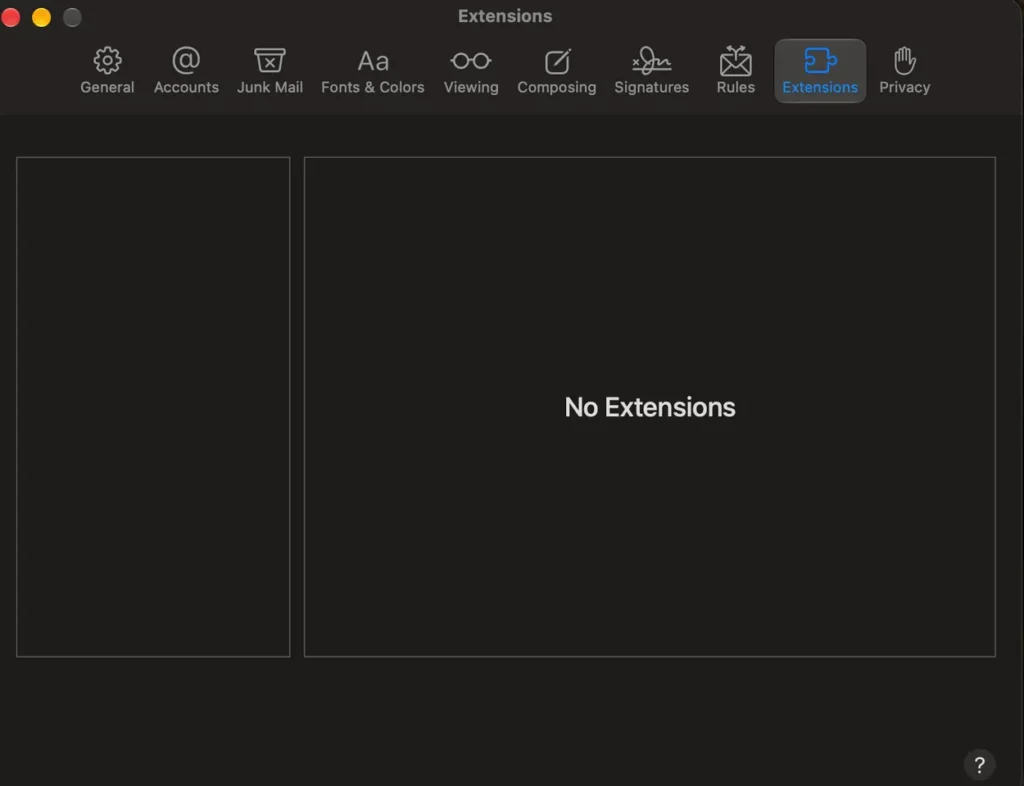
Most work normally, but an outdated or incompatible extension could contribute to problems after a macOS upgrade.
If Mail became sluggish after installing an extension or updating macOS, test whether the extension is involved.
Steps:
- Open Mail.
- Choose Mail → Settings.
- Select Extensions.
- Review the installed extensions.
- Temporarily deselect one extension.
- Test Mail again.
- Repeat with other extensions if necessary.
If disabling an extension improves performance, check whether an updated version is available from its developer.
You can then decide whether to keep it disabled, update it, or remove it through the supported method.
Don’t remove unfamiliar system files from Finder to disable an extension.
Apple documents these controls in its Mail extensions guide.
What about Mail rules?
Mail rules are different from extensions.
Rules can automatically organize and move messages. If messages appear to be missing or in unexpected mailboxes, review Mail → Settings → Rules.
Rules aren’t necessarily the cause of performance issues, so only change them when there’s a reasonable connection to the symptom.
Fix 7: Check Your Mac’s Available Storage
Low available storage can interfere with normal system operation.
Mail uses local storage for downloaded messages, attachments, and other application data.
macOS also requires working space for updates, temporary files, and system operations.
To check:
- Open the Apple menu.
- Select System Settings.
- Click General.
- Open Storage.
- Review the amount of available space.
If your startup disk is nearly full, consider removing unnecessary downloads or other files you no longer need.
You can review large files and storage recommendations through the built-in interface.
Avoid deleting Mail’s internal database folders, envelope-index files, or other unfamiliar data simply to free storage.
Those files may contain important application information.
Also, be careful when deleting email attachments or messages, because changes can synchronize with your email account.
If Mail is slow only when opening large messages with attachments, insufficient storage is one factor worth checking.
You can find official guidance in Apple’s Mac storage settings documentation.
Fix 8: Install Available macOS Updates
Software updates may contain fixes for application reliability, system performance, and compatibility.
If Mail became slow after a macOS Tahoe update, check whether Apple has released a newer compatible update.
Steps:
- Open the Apple menu.
- Select System Settings.
- Click General.
- Choose Software Update.
- Review any available updates.
- Back up your important data.
- Install an appropriate update if available.
If you’re running macOS Tahoe 26, make sure you are reviewing updates compatible with your Mac.
The exact version and features shown can differ depending on your hardware and software.
For Mac performance problems that affect more than Mail, use our macOS 27.2.1 Running Slow troubleshooting guide.
That article focuses on broader system performance, whereas this guide concentrates on Apple Mail.
Note: Updating macOS is not a guarantee that a slow Mail interface will immediately become faster.
After an update, background indexing and synchronization may temporarily increase activity again.
Fix 9: Test Mail in Safe Mode
If Mail remains unusually slow after the previous checks, Safe Mode can help determine whether startup software is contributing to the problem.
Safe Mode starts macOS with a more limited set of software components.
This can be helpful when background tools, login items, or third-party software interfere with normal operation.
The steps differ for Apple silicon and Intel Macs.
On Apple silicon Macs:
- Shut down the Mac completely.
- Press and hold the power button until startup options appear.
- Select the startup disk.
- Hold the Shift key.
- Click Continue in Safe Mode.
- Sign in and test Mail.
On Intel-based Macs:
- Restart or power on the Mac.
- Immediately hold the Shift key.
- Release it when the login window appears.
- Sign in and test Mail.
If Mail works substantially better in Safe Mode, software that loads during normal startup may be contributing to the slowdown.
However, Safe Mode can change or limit some functionality, so it isn’t a perfect performance benchmark.
Restart normally afterward.
If the problem continues, consider asking Apple Support for device-specific assistance.
See Apple’s official Safe Mode instructions.
Apple Mail Slow After Updating to macOS Tahoe: Is It Normal?
Some temporary delays can occur after a major macOS upgrade.
The operating system may need to index files, update search databases, and process application data.
Mail may also need to synchronize messages or update local information after the upgrade.
Apple notes that Spotlight indexing can run after installing new system software.
Therefore, a slower-than-usual Mail search immediately after an upgrade isn’t automatically evidence of a permanent bug.
However, a persistent spinning cursor, repeated application crashes, or Mail remaining unresponsive long after background tasks finish deserves further investigation.
Use Activity Monitor to distinguish high background activity from a specific app that has stopped responding.
Avoid repeatedly force quitting the app if it is making steady progress through a large synchronization or indexing task.
Why Is Apple Mail Search So Slow on Mac Tahoe?
Slow search can have different causes from a slow message list or a frozen compose window.
Mail search relies on information about the messages available to the application.
If macOS is still indexing data, search results may be incomplete or slower than expected.
Start by checking whether Spotlight indexing is in progress.
Then confirm that you are searching the correct mailbox or account.
If searching one mailbox consistently produces missing or incorrect results, Apple’s supported Rebuild command may be appropriate.
You should also check whether any Mail filters or categories are hiding messages.
A missing search result is not necessarily a performance problem.
For example, the selected category might exclude an email even though the message is stored correctly.
If Mail displays categories such as Primary, Transactions, Updates, and Promotions, review the available view options to show all messages.
Apple documents these features in its Mail message visibility guide.
Mail App Responding Slowly vs. Mail Stuck Downloading Messages
These symptoms may overlap, but they’re not identical.
| Symptom | What to investigate |
|---|---|
| Mail takes several seconds to respond to clicks | CPU, memory, extensions, and app behavior |
| Mail search is very slow | Spotlight indexing and mailbox condition |
| Mail freezes while opening one inbox | That mailbox’s data and activity |
| Messages remain stuck downloading | Provider connection, authentication, and network |
| Mail is slow immediately after an update | Background indexing and software compatibility |
| Entire Mac is sluggish | System resources, storage, and other processes |
If messages are stuck downloading, focus on the account’s server connection and synchronization behavior.
If Mail is slow even when displaying already downloaded messages, focus more closely on the local app and system resources.
Identifying the symptom first can prevent unnecessary account changes.
Should You Delete Mail Cache Files to Fix Slow Performance?
You may find online advice recommending that you manually delete Mail database files, rebuild envelope indexes through Terminal, or remove entire folders inside your user Library.
These procedures can be risky.
Mail’s internal files may contain locally stored messages, mailbox information, or application settings.
Deleting the wrong data can lead to missing local mail or extensive re-downloading.
For most users, it’s safer to use Apple’s supported interface.
Start with Activity Monitor, indexing checks, Mail settings, and the built-in Mailbox → Rebuild command when appropriate.
If more advanced repairs are required, make a verified backup and seek instructions tailored to your specific macOS version and email account type.
Do not erase ~/Library/Mail as a routine performance fix.
What If Only One Email Account Makes Mail Slow?
If you have multiple email accounts configured, compare how Mail behaves when viewing each account.
For example, your iCloud inbox may respond quickly while a large Gmail or Exchange mailbox loads slowly.
If the issue is limited to one account:
- Check that account through its official webmail interface.
- Review any account error icons in Mail.
- Check whether the mailbox is downloading or processing data.
- Review relevant Mail extensions.
- Consider rebuilding the affected mailbox after backing up important information.
For testing, Mail also offers account controls in Mail → Settings → Accounts.
An account can sometimes be temporarily disabled without permanently removing it, depending on the account type.
If you choose to test this, remember that disabling an account pauses its Mail activity.
Re-enable it afterward.
Avoid deleting and re-adding the account until you’re certain that important locally stored messages are backed up or remain on the server.
The safest next step may be to contact your email provider if the account continually reports errors.
Frequently Asked Questions
Why is my Mail app responding slowly on Mac Tahoe?
Possible causes include Spotlight indexing, large mailboxes, account connection problems, high CPU or memory usage, third-party Mail extensions, and temporary software issues.
How do I speed up Apple Mail on macOS Tahoe?
Start by restarting Mail, checking Activity Monitor, and allowing indexing to finish. If a particular mailbox behaves incorrectly, consider rebuilding it after backing up important data.
Is Apple Mail slow after a macOS Tahoe update?
Mail may temporarily respond more slowly while indexing or processing data after a major update. Persistent problems should be investigated rather than automatically attributed to the update.
Will rebuilding a mailbox delete my emails?
Rebuilding an IMAP or Exchange mailbox can remove locally downloaded copies while Mail downloads messages again from the server. Back up important data first, particularly if you have local-only messages.
Why does Apple Mail freeze when I search?
Spotlight indexing, incomplete search data, or a problem affecting a particular mailbox can contribute. Check indexing progress and use Mail’s supported rebuild feature when appropriate.
Can a Mail extension make Apple Mail slow?
An incompatible extension may contribute to performance issues. Temporarily disabling extensions in Mail settings can help identify a possible conflict.
Should I clear the Mail cache on Mac?
Manually deleting Mail database or cache files isn’t a recommended first step. Use supported troubleshooting tools and preserve a reliable backup before attempting advanced repairs.
Does low Mac storage affect Mail performance?
Very little available disk space can interfere with normal system and application operations. Check System Settings → General → Storage and remove unnecessary files safely.
Will Safe Mode fix a slow Mail app?
Safe Mode can help diagnose whether additional startup software contributes to the problem. It doesn’t guarantee that the underlying issue will be permanently resolved.
Why is Mail slow but Gmail works in Safari?
If webmail works normally, that suggests your account can be accessed through the provider, while the Mail app or its local configuration may require investigation. It doesn’t establish one specific cause.
Should I remove and re-add my email account?
Not as an initial troubleshooting step. Removing an account can affect locally stored messages and require resynchronization. Check provider connectivity, indexing, and mailbox behavior first.
Does this guide work on newer macOS versions?
The main troubleshooting principles and many of the built-in tools also apply to newer macOS releases. However, some menus and behaviors may differ from macOS Tahoe 26.
Final Thoughts
If the mail app is responding slowly on Mac Tahoe, begin with the simplest and safest checks.
Restart Mail, inspect CPU and memory usage, and determine whether Spotlight or Mail is still performing background work.
If the slowdown affects a specific mailbox, a carefully performed rebuild may help. If it affects every application, investigate broader Mac performance issues.
Extensions, storage shortages, email account problems, and outdated software are also worth checking.
Avoid deleting Mail database files or removing email accounts before establishing the cause and protecting important data.
The key is to identify whether Mail is slow because of indexing, system resources, mailbox data, or an email server connection. Once you know which category fits your symptoms, troubleshooting becomes more focused and less disruptive.