Are your old text messages missing from search, or does your iPhone say that more results will appear once Messages finishes indexing?
A messages indexing iPhone problem can happen after an iOS update, restoring an iPhone, transferring data to a new device, or syncing a large message history through iCloud. You may still see your conversations, but searching for older texts, photos, or links returns incomplete results.
The good news is that an incomplete Messages search index does not automatically mean your conversations have been deleted.
This guide explains what iPhone Messages indexing means, how to check whether it is still working, and nine safe troubleshooting steps to try before considering more serious measures.
Quick Answer: How to Fix Messages Indexing on iPhone
If iPhone Messages indexing seems stuck, start with these steps:
- Confirm that your messages are still visible inside their conversations.
- Connect your iPhone to reliable Wi-Fi and power, then allow time for indexing.
- Check that Messages in iCloud is syncing correctly, if you use it.
- Make sure your iPhone has enough available storage.
- Restart your iPhone.
- Review the Messages app’s search permissions.
- Install the latest compatible iOS update.
- Check whether the missing content is deleted, hidden in a conversation, or simply absent from search.
- Back up important information and contact Apple Support if the issue continues.
Important: Do not erase your iPhone, delete conversations, or turn off Messages in iCloud just to force indexing to restart. Those steps can create unnecessary data-loss risks.
Table of Contents
What Does Messages Indexing Mean on iPhone?
Messages indexing is the process that helps your iPhone organize searchable information from conversations.
When you enter a keyword in the Messages search field, your iPhone needs to identify matching messages and relevant attachments.
This may involve information such as:
- Text from conversations
- Names and phone numbers
- Shared photos and videos
- Links and documents
- Older message history
If that information has not finished being processed, some results may not appear even though the original conversations remain available.
You might see the following message:
“More results will be shown once Messages finishes indexing.”
This warning generally indicates incomplete search results. It does not, by itself, prove that Messages in iCloud is malfunctioning or that your data is gone.
Why Does iPhone Messages Indexing Get Stuck?
Several circumstances can contribute to incomplete search results.
Recent software updates: Search information may need additional processing after an iOS update.
Restoring or transferring an iPhone: A large history of conversations and attachments can take time to become available and searchable.
iCloud synchronization: When an iPhone is still receiving message history from iCloud, some content may not yet be available locally.
Limited storage: Very low available storage can interfere with normal device performance.
Software problems: Occasionally, search results may remain incomplete even when the device appears to have finished syncing.
The best solution depends on whether your messages are missing entirely or simply cannot be found through search.
1. Check Whether Messages Are Actually Missing
Before changing any settings, determine what is happening.
Open the Messages app and find a conversation containing an older message you remember.
Scroll through that conversation and check whether the message is still present.
If it appears inside the conversation but not in search, the problem is likely related to search availability or indexing rather than the conversation itself being deleted.
Next, test the Messages search feature:
- Open Messages.
- Return to the conversation list.
- Tap the search field. On recent iOS versions, it appears toward the bottom of the conversation list.
- Enter a distinctive word or phrase from a message you know exists.
- Review the results.
Try searching for a recent message and an older message separately.
If recent messages appear but older ones do not, it may indicate incomplete indexing or that older message history has not finished downloading.
If the original conversations are missing too, investigate iCloud synchronization or deleted messages instead.
Apple explains how Messages searches work in its official Messages search guide.
2. Connect Your iPhone to Wi-Fi and Power
If you recently updated iOS or transferred your data, give your iPhone a suitable opportunity to finish background processing.
Try the following:
- Connect to a stable Wi-Fi network.
- Plug your iPhone into a reliable charger.
- Lock the screen when you are not using the device.
- Leave it connected for an extended period, such as overnight.
- Check Messages search again afterward.
Large message histories can take longer to become searchable, particularly when they include many photos, videos, or attachments.
There is no universal completion time. Waiting overnight may help in some cases, but it does not guarantee the indexing process will finish.
If you have already allowed several days and the same content remains missing, continue with the next checks.
Avoid repeatedly restarting your iPhone every few minutes while waiting.
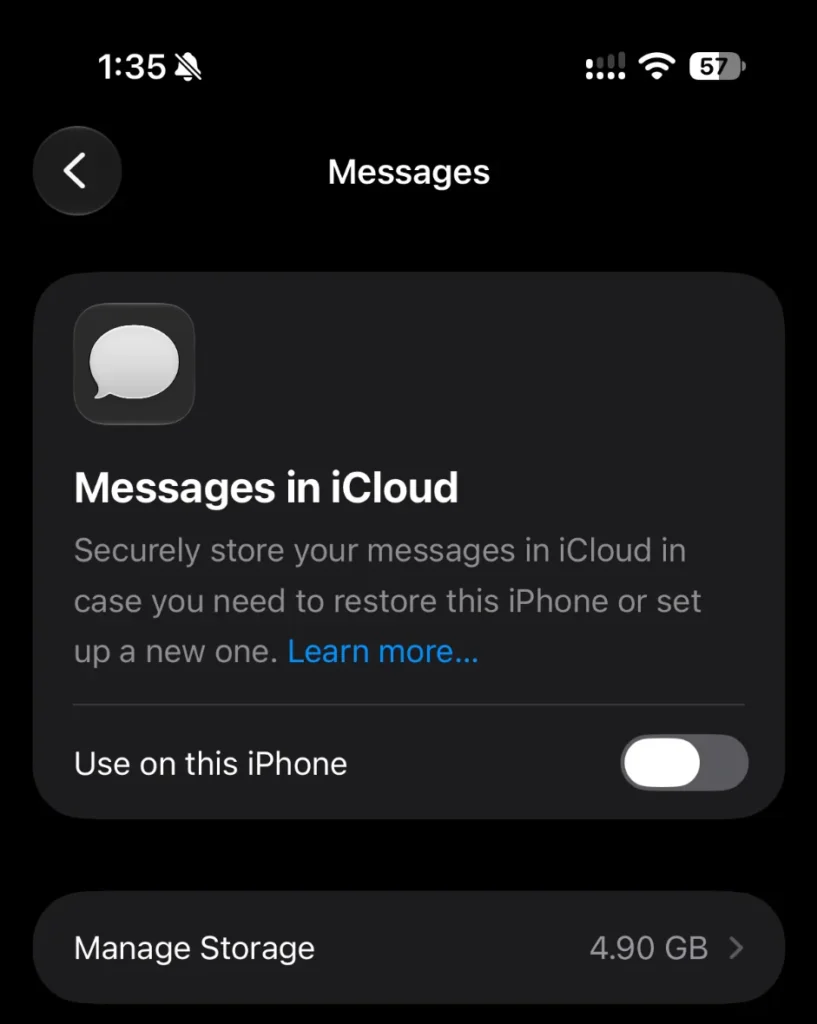
3. Check Messages in iCloud Synchronization
Messages in iCloud can keep your conversations synchronized across devices signed in to the same Apple Account.
If you use this feature, check whether it is enabled and whether your device is having synchronization problems.
How to Check Messages in iCloud
- Open Settings.
- Tap your name at the top.
- Select iCloud.
- Find Messages. You may need to tap See All.
- Open Messages in iCloud.
- Check whether Use on this iPhone is enabled.
If Messages in iCloud is already enabled, keep it enabled while you investigate.
Also review whether your iCloud storage is full and whether any synchronization status or error appears.
If available, follow the onscreen synchronization instructions.
Do not repeatedly turn Messages in iCloud off and on to force a reset. Changes to message synchronization settings can complicate troubleshooting, especially when some conversations have not finished downloading.
Apple’s Messages in iCloud setup guide explains how the feature operates.
If conversations are available on your iPhone but not on your Mac, read our related guide: iPhone Messages Not Syncing with Mac.
4. Make Sure Your iPhone Has Enough Free Storage
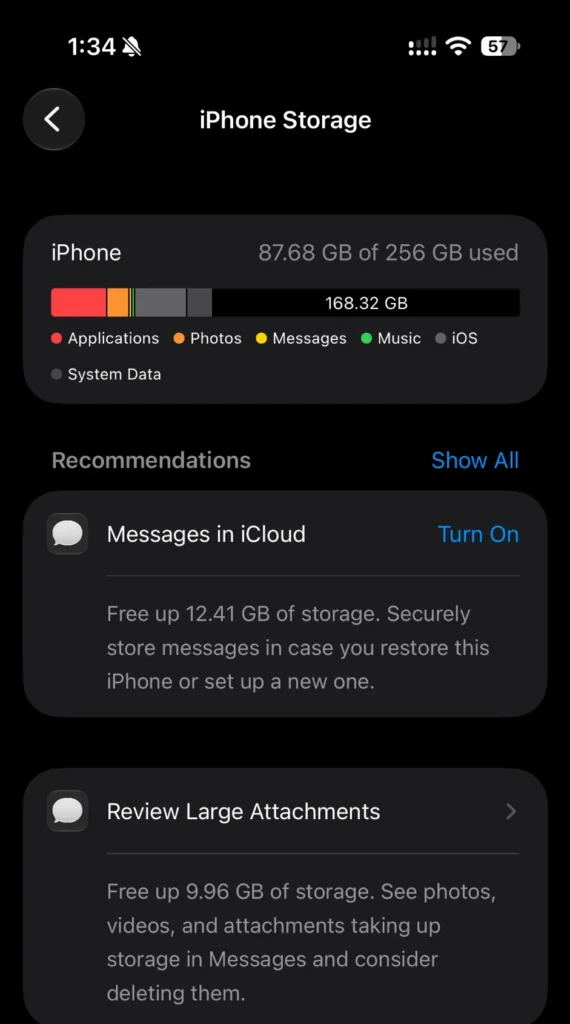
Low storage can affect how smoothly an iPhone performs everyday tasks.
Apple recommends maintaining at least 1 GB of free space to avoid slowdowns. Having additional free space may be useful when your device is processing substantial amounts of data.
Check iPhone Storage
- Open Settings.
- Tap General.
- Select iPhone Storage.
- Wait for the storage information to load.
- Check your available space.
If your device is nearly full, consider removing unnecessary downloads, unused apps, or files you no longer need.
Use caution with message attachments because deleting them may permanently remove information you wanted to keep, including from other devices using Messages in iCloud.
Where possible, start with files and apps unrelated to your conversations.
For Apple’s guidance, see If Your iPhone or iPad Is Running Slow.
After freeing up space, reconnect to Wi-Fi and power and check whether Messages search improves.
5. Restart Your iPhone
A normal restart is a reasonable troubleshooting step if the indexing warning remains after your iPhone has had time to process messages.
On most modern iPhones with Face ID:
- Press and hold the Side button and either Volume button.
- Wait for the power-off slider.
- Drag the slider to switch off your iPhone.
- Allow the device to shut down completely.
- Press and hold the Side button until the Apple logo appears.
Once your iPhone starts, unlock it and open Messages.
Search for a word from an older conversation.
A restart may resolve a temporary software problem, but it does not necessarily rebuild the Messages index or recover missing content.
If search results remain incomplete, continue with the next step.
6. Review Messages Search Settings
Your iPhone includes search settings that control whether apps and their content appear in system search results.
These settings are particularly relevant if your conversations appear within Messages but cannot be found through Spotlight Search.
Check Search Permissions
- Open Settings.
- Tap Search.
- Find Messages in the app list.
- Open its search settings.
- Check that Show App in Search is enabled.
- Check Show Content in Search if that option appears.
Menu wording and placement can vary by iOS version.
These settings govern system search visibility. They do not necessarily control every aspect of the search field inside Messages.
If both options are already enabled, leave them on and continue troubleshooting rather than repeatedly toggling them.
For more information, consult Apple’s Spotlight Search guide.
7. Install the Latest Compatible iOS Update
An outdated iOS version may contain software problems that have since been corrected.
Checking for updates is worthwhile when Messages search remains incomplete after the basic troubleshooting steps.
Update Your iPhone
- Connect to Wi-Fi.
- Back up important information.
- Open Settings.
- Tap General.
- Select Software Update.
- Install the latest compatible stable update offered for your device.
Keep your iPhone connected to power during the installation when appropriate.
After updating, allow time for normal background processing before deciding whether indexing is still stuck.
Note: An iOS update is not a guaranteed fix for every Messages indexing problem. The outcome depends on the underlying cause.
See Apple’s official iPhone software update instructions.
8. Check Older Conversations, Attachments, and Recently Deleted
Sometimes the problem looks like indexing even though the content is not available for another reason.
For example, you might be searching for a photo that was removed from a conversation, a message that was deleted, or a text that has not yet synchronized from another device.
Find Attachments Without Search
- Open the relevant conversation in Messages.
- Tap the contact or group name at the top.
- Browse the available shared content categories.
- Check Photos, Links, or Documents for the missing attachment.
If the attachment appears there but is absent from search, this helps narrow the problem to search functionality.
Check Recently Deleted
If an entire conversation is missing, open the Messages conversation list and look for Recently Deleted through the available Edit or Filters controls.
Content that has been deleted may not appear in search results.
Do not recover or delete anything unless you recognize it and understand the effect.
If Messages in iCloud is enabled, deleting messages on one device can also delete them from other synchronized devices.
If messages appear normally but sending or receiving is the actual problem, use the appropriate guide instead:
Those are different problems from incomplete Messages indexing.
9. Back Up Your Data and Contact Apple Support
If iPhone Messages indexing remains incomplete after checking synchronization, storage, search settings, and software updates, it may require further investigation.
Before attempting any advanced troubleshooting, make sure your important information is protected.
Back Up Your iPhone
To create an iCloud backup:
- Open Settings.
- Tap your name.
- Select iCloud.
- Tap iCloud Backup.
- Choose Back Up Now.
- Wait for the process to finish.
You can also back up your iPhone using a Mac or PC.
Remember that content already synchronized separately through iCloud may not be included in an ordinary device backup in the same way as locally stored data. Check that your important conversations are available before making major changes.
Apple provides instructions in its iCloud Backup guide.
If the issue continues, contact Apple Support and explain:
- Your iPhone model
- Your installed iOS version
- Whether the problem began after an update or transfer
- Whether older conversations are still visible
- Whether Messages in iCloud has finished syncing
- The exact indexing warning displayed
Avoid using unverified tools that promise to force-rebuild the Messages database or repair it by deleting message data.
How Long Does Messages Indexing Take on iPhone?
There is no single reliable timeframe for all iPhones.
The duration can depend on the amount of message history, attachments, device activity, available storage, and synchronization status.
A recently restored iPhone with years of conversations may need more time than a device with only a few hundred messages.
If the same indexing warning persists for several days despite stable connectivity, sufficient storage, and updated software, further troubleshooting is reasonable.
Do not assume that a long indexing period automatically means the messages are permanently lost.
Messages Indexing vs. iCloud Messages Syncing
Although these terms are related, they describe different functions.
Messages indexing helps make conversation content searchable.
Messages in iCloud syncing keeps your message history updated across devices using the same Apple Account.
It is possible for conversations to be present but not yet fully searchable.
It is also possible for messages not to have arrived on the device at all.
Identifying which situation applies is essential because enabling search permissions will not resolve a separate iCloud download problem.
Frequently Asked Questions
Why is my iPhone still indexing Messages?
Your iPhone may still be processing search information after an update, data transfer, or message synchronization. Limited storage and software problems can also contribute. Check whether the conversations themselves are visible before attempting repairs.
Does Messages indexing delete text messages?
No. Indexing is a search-related process and does not ordinarily delete conversations. However, separately deleting messages or modifying iCloud synchronization can affect your stored data.
Can I force my iPhone to finish indexing Messages?
Apple does not provide a universal button that guarantees immediate completion of Messages indexing. Stable connectivity, sufficient storage, updated software, and allowing time for background processing are safer first steps.
Why does iPhone Messages search only show recent texts?
Older conversations may not yet be fully available in the search index, or they may not have finished syncing to your iPhone. Check whether you can locate those messages manually inside their conversations.
Will restarting my iPhone fix Messages indexing?
Restarting can resolve some temporary software issues, but it may not fix a persistent indexing or iCloud synchronization problem.
Is Messages indexing different from iMessage activation?
Yes. Messages indexing concerns finding existing conversation content. iMessage activation concerns enabling Apple’s messaging service for your phone number or Apple Account.
Final Thoughts
A messages indexing iPhone problem is frustrating, especially when you need to find an important older text or shared photo.
Start by checking whether the content still exists in Messages. Then allow time for background processing, verify iCloud synchronization, inspect available storage, and check your search settings.
If necessary, restart your iPhone and install the latest compatible software update.
Most importantly, avoid deleting conversations or resetting your device simply because search results are incomplete.
If the issue persists, protect your important data and seek help from Apple Support.
Last reviewed: November 18, 2026.