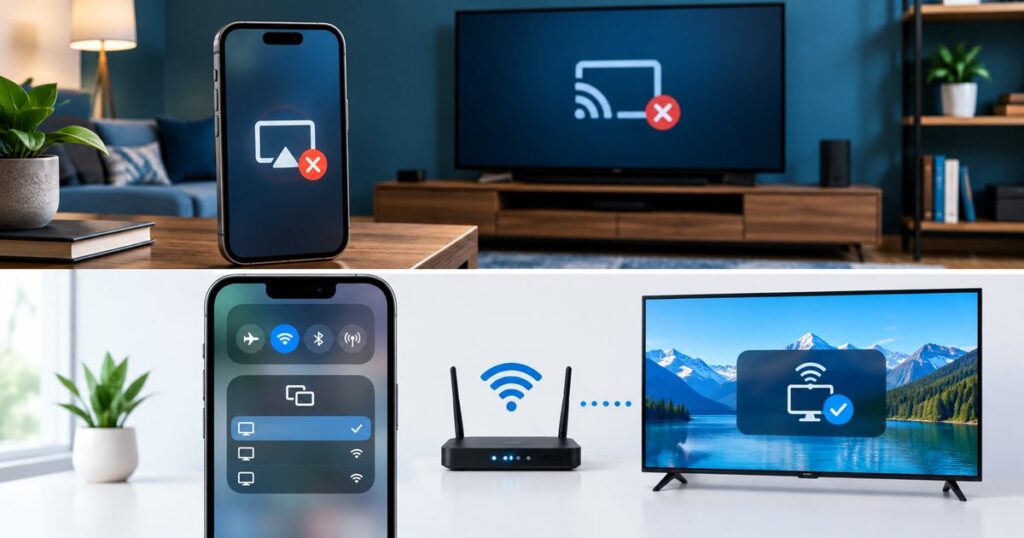
Is AirPlay not working when you try to connect your iPhone to a smart TV, Apple TV, or Mac? Maybe your television isn’t showing up in Screen Mirroring, AirPlay keeps disconnecting, or your TV displays a black screen instead of your video.
Sometimes AirPlay connects successfully but plays no sound. Other times, your iPhone detects the television but fails to establish a connection.
The good news is that these problems don’t necessarily mean your iPhone or TV is broken.
AirPlay issues can happen because of incompatible devices, different Wi-Fi networks, disabled receiving settings, outdated software, or restrictions within particular streaming applications.
In this guide, we’ll explain 12 safe fixes for AirPlay not working on iPhone, including missing AirPlay devices, screen mirroring failures, connection problems, black screens, and audio issues.
We’ll start with simple checks and move toward more advanced troubleshooting only when necessary.
Table of Contents
Quick Answer
If AirPlay isn’t working on your iPhone, follow these steps:
- Confirm that your TV or receiving device supports AirPlay.
- Connect both devices to the same Wi-Fi network.
- Check whether Wi-Fi is working normally.
- Use the correct AirPlay or Screen Mirroring controls.
- Enable AirPlay on your TV, Apple TV, or Mac.
- Restart your iPhone and receiving device.
- Update iOS and the receiving device’s software.
- Check AirPlay passcodes and access permissions.
- Test another application if video won’t play.
- Check the audio output and volume settings.
- Review router restrictions and VPN settings.
- Test another device and contact support if needed.
Important: Don’t factory reset your iPhone or disable important network security settings just to troubleshoot AirPlay. Identify the problem first.
Why Is AirPlay Not Working?
AirPlay is Apple’s wireless technology for streaming audio, video, photographs, and compatible screen content to supported receiving devices.
For example, you can use AirPlay to display your iPhone screen on an Apple TV, stream music to a compatible speaker, or show photographs on an AirPlay-enabled smart television.
However, your iPhone and the receiving device must communicate successfully.
Several issues can prevent that.
Different Wi-Fi Networks
Your iPhone may be connected to one Wi-Fi network while your television uses another.
In ordinary home setups, AirPlay devices should be on the same network.
Unsupported Devices
Not every smart TV supports AirPlay.
A television can have Bluetooth, Wi-Fi, and streaming applications without supporting Apple’s AirPlay technology.
Disabled AirPlay Settings
Some televisions and Apple devices allow AirPlay receiving to be disabled or restricted.
Temporary Software Problems
Software bugs, connection interruptions, or outdated firmware may affect device discovery and playback.
Streaming App Restrictions
Some video applications do not support AirPlay for particular content.
You might be able to mirror your iPhone’s Home Screen while a streaming application refuses to play a protected video.
The correct solution depends on which problem you’re experiencing.
1. Check Device Compatibility
The first step when AirPlay is not working is confirming that your receiving device actually supports it.
Apple TV supports AirPlay, and many participating smart TV manufacturers offer compatible models.
Supported Macs can also receive AirPlay streams.
However, compatibility depends on the exact device.
Check Your TV
- Find the television’s manufacturer.
- Identify its model number and year.
- Open the manufacturer’s official specifications.
- Check for AirPlay or AirPlay 2 support.
- Review any required software versions.
Do not assume that every television from the same brand supports AirPlay.
Some older models may lack the feature even when newer versions support it.
Check Your Mac
If you’re trying to stream to a Mac, verify that its model and macOS version support AirPlay Receiver.
Apple publishes compatibility requirements for this feature.
AirPlay vs Bluetooth
AirPlay is not the same as ordinary Bluetooth audio.
A television or speaker may accept Bluetooth audio without supporting video streaming or screen mirroring through AirPlay.
If the receiving device doesn’t support AirPlay, changing the iPhone’s Wi-Fi settings won’t add the missing feature.
2. Connect to the Same Wi-Fi
One of the most useful fixes for AirPlay not working is checking whether the devices are connected to the same Wi-Fi network.
Apple recommends this as an initial troubleshooting step.
Check Your iPhone
- Open Settings.
- Tap Wi-Fi.
- Confirm that Wi-Fi is enabled.
- Check the name of the connected network.
- Make sure the connection is stable.
Check the Receiving Device
Open the network settings on your smart TV, Apple TV, or Mac.
Compare its connected network with the one shown on your iPhone.
For ordinary home AirPlay, connect both devices to the same trusted local network.
What About Guest Wi-Fi?
Some routers create a separate guest network.
Guest networks may restrict communication between connected devices.
For example, your iPhone might be connected to Guest Wi-Fi while your Apple TV is connected to the main household network.
Both devices could access the internet but still fail to discover each other.
Move them to the appropriate trusted network when permitted.
What About 2.4 GHz and 5 GHz?
Different Wi-Fi bands aren’t necessarily a problem.
Devices on different bands can often communicate when those bands belong to the same properly configured local network.
The important factor is whether the network allows communication between the devices.
After checking, open Control Center and try Screen Mirroring again.
3. Check Wi-Fi Stability
AirPlay requires a dependable connection between your devices.
A weak or unstable wireless network can cause videos to freeze, audio to stutter, or screen mirroring to disconnect.
Test Your Wi-Fi
- Open Safari on your iPhone.
- Try opening a familiar website.
- Check whether the connection remains stable.
- Move closer to your router if necessary.
- Try AirPlay again.
You can also test the network with another device.
If several devices experience frequent wireless disconnections, the problem may involve the router or local network.
Restart the Router
If you own the router and can safely interrupt the connection, follow the manufacturer’s normal restart instructions.
Allow the equipment to restart completely before trying AirPlay again.
Don’t press the factory-reset button.
A factory reset is different from a normal restart and may remove your network configuration.
If Wi-Fi Has No Internet
AirPlay discovery and local streaming are not identical to ordinary internet browsing.
However, online video apps may still need a working internet connection to load their content.
If your iPhone is connected to Wi-Fi but websites won’t load, read our iPhone Connected to Wi-Fi but No Internet guide.
If Wi-Fi works normally but AirPlay doesn’t, continue with the next steps.
4. Use the Correct AirPlay Controls
Sometimes AirPlay appears broken because users are selecting the wrong streaming option.
Apple offers separate controls for screen mirroring and sending supported content to another device.
Mirror Your iPhone
If you want to display your entire iPhone screen on a television:
- Connect the devices to the same Wi-Fi network.
- Open Control Center.
- Tap Screen Mirroring.
- Wait for the available devices.
- Select your TV, Apple TV, or supported Mac.
- Enter the AirPlay code if prompted.
On most modern iPhones, open Control Center by swiping down from the upper-right corner.
On older iPhones with a Home button, the gesture may differ.
Stream a Video
If you only want to send a video:
- Open an application that supports AirPlay.
- Start playing a video.
- Look for the AirPlay icon.
- Tap the icon.
- Select the receiving device.
Some apps place AirPlay inside the playback menu or sharing controls.
Stream Photos
Open the Photos app and select an image.
Use the sharing controls to select AirPlay, then choose the receiving device.
Stop Screen Mirroring
Open Control Center, select Screen Mirroring, and tap Stop Mirroring.
If one video application fails but photos and screen mirroring work, the problem may be specific to that app.
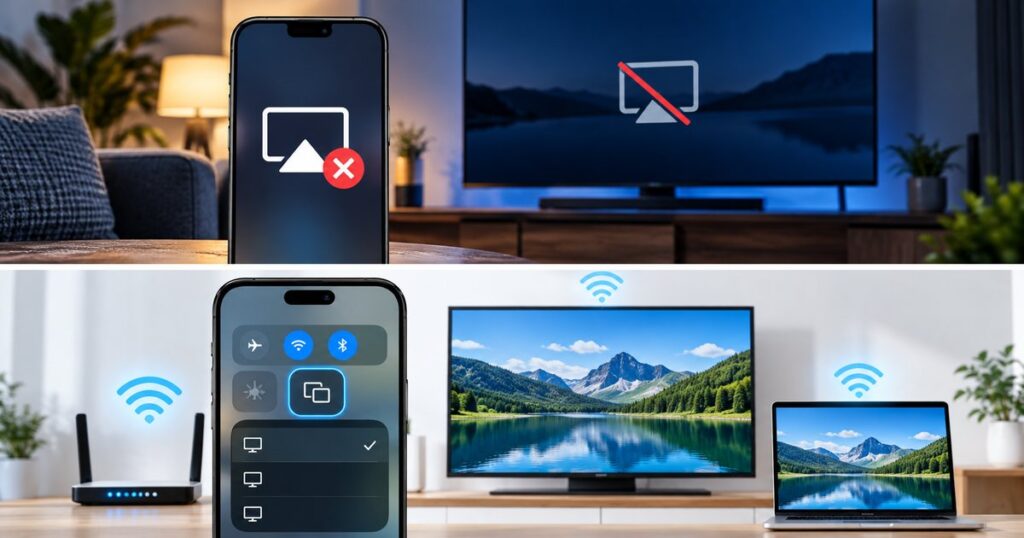
5. Enable AirPlay on the Receiver
Your iPhone might be working correctly while the receiving device has AirPlay turned off.
This can explain why the television or Mac doesn’t appear in the device list.
On Apple TV
Open the Settings application on your Apple TV.
Find the AirPlay options, which may be under AirPlay and HomeKit or AirPlay and Apple Home, depending on the software version.
Confirm that AirPlay is enabled.
Review the settings controlling who can connect.
On a Smart TV
The exact instructions vary between manufacturers.
Look for settings such as:
- Apple AirPlay
- AirPlay and HomeKit
- Device Connections
- Connection Settings
- Smart Features
If necessary, consult the manufacturer’s official user manual.
On a Mac
For a compatible Mac:
- Open System Settings.
- Select General.
- Open AirDrop & Handoff.
- Enable AirPlay Receiver.
- Review the Allow AirPlay for setting.
The section may use different wording on certain macOS versions.
Choose an access setting appropriate for your household or workplace.
If your Mac is managed by an organization, ask its administrator before changing restrictions.
Test Again
After enabling AirPlay on the receiver, return to your iPhone.
Open Control Center → Screen Mirroring and check whether the device appears.
6. Restart Both Devices
Restarting your iPhone and receiving device can help resolve temporary software and connection problems.
Apple includes restarting devices among its recommended AirPlay troubleshooting steps.
Restart Your iPhone
For most modern Face ID models:
- Press and hold the Side button and either Volume button.
- Wait for the power-off slider.
- Slide to turn the iPhone off.
- Wait approximately 30 seconds.
- Hold the Side button to restart.
- Unlock your iPhone.
For older models, follow the appropriate restart procedure.
Restart Your TV or Mac
Use the manufacturer’s ordinary restart option.
For Apple TV, restart it from its system settings.
For a Mac, save your work and select Apple menu → Restart.
For a third-party television, follow its official instructions.
Reconnect
Once both devices have restarted:
- Confirm the Wi-Fi connection.
- Open Control Center.
- Tap Screen Mirroring.
- Select the receiving device.
If AirPlay works, continue using it normally.
If it repeatedly fails, investigate the remaining settings rather than restarting indefinitely.
7. Check for Software Updates
Software updates can improve compatibility, fix bugs, and address security problems.
Apple recommends keeping AirPlay-compatible devices updated.
Update Your iPhone
- Open Settings.
- Tap General.
- Select Software Update.
- Check for an available update.
- Back up important data before a major update.
- Install an appropriate compatible release.
Update Apple TV
Open Apple TV’s system settings and check the Software Updates section.
Install official updates when appropriate.
Update a Smart TV
Most modern smart TVs offer a software update option.
Check the official support page for your exact model if you cannot locate it.
Use manufacturer-approved firmware only.
Update Your Mac
On Mac, open System Settings → General → Software Update.
Check for a compatible update.
AirPlay Stopped After an Update?
If the problem began after updating iOS, tvOS, or your television’s firmware, record the software versions and exact symptoms.
The timing may suggest a compatibility issue, but it does not prove that the update caused the problem.
Restart both devices, check for newer updates, and test another supported application.
Don’t install unofficial downgrade tools just to restore AirPlay.
8. Check Passwords and Permissions
Some AirPlay receivers require a passcode or restrict access to authorized users.
If your iPhone detects the device but refuses to connect, check those settings.
Enter the AirPlay Code
When a receiving device displays a code:
- Keep the receiver’s screen visible.
- Read the displayed AirPlay code.
- Enter the code on your iPhone.
- Complete the connection.
Only use the code displayed by the receiving device.
Check Apple TV Permissions
On Apple TV, review its AirPlay access settings.
Depending on the configuration, connections may be limited to devices on the same network, authorized home members, or users who know a password.
For security, avoid broadening access unnecessarily.
Review Home Settings
If your Apple TV or compatible speaker belongs to an Apple Home setup:
- Open the Home app.
- Open the Home settings.
- Find Speakers & TV, if available.
- Review the access permissions.
Only modify settings you are authorized to manage.
If someone else manages the home or receiving device, ask them for help.
9. Test Another Application
Sometimes AirPlay is not working only inside a particular streaming application.
This doesn’t necessarily mean your Wi-Fi or television is malfunctioning.
Apple notes that some video apps may not support AirPlay.
Compare Different Apps
Try sending a photo from Apple’s Photos app to your TV.
Then test screen mirroring with an ordinary, nonprotected screen.
If these work, try another supported video application.
Compare the results.
AirPlay Black Screen
Some protected content may not be available through certain screen-mirroring or AirPlay playback methods.
For example, an application might play normally on your iPhone but show a black screen when mirrored.
Before resetting devices, check the app developer’s supported playback options.
Update the App
Open the App Store and check whether the affected application has an update.
You can also check its official support documentation.
Avoid Unofficial Workarounds
Don’t install unknown applications claiming to bypass streaming restrictions or protected video.
Use the service’s official TV app when available.
If multiple supported apps fail, continue with audio and network troubleshooting.
10. Check Audio Output
AirPlay can connect successfully while producing no sound.
In that situation, your devices may already be communicating correctly.
The remaining problem may involve volume, mute settings, or audio routing.
Check Your iPhone
- Start playing supported audio.
- Confirm the selected AirPlay destination.
- Check the playback volume.
- Make sure audio isn’t routed to another speaker.
Check the Television
Inspect the television’s volume settings.
Make sure it isn’t muted.
If your TV uses an external soundbar, AV receiver, or speaker system, check the selected audio output.
Test Another App
Play audio from another supported application.
If the sound works in one app but not another, focus on the affected app’s settings.
Audio Stops Unexpectedly
Apple notes that playback can occasionally stop when another device or user takes control of a shared playback destination.
Restart playback and check which device is currently controlling the speaker or TV.
Don’t reset the entire iPhone because one app is silent.
11. Review Network Restrictions
Some routers and managed networks prevent devices from communicating with one another.
This may cause AirPlay discovery problems even when both devices have internet access.
Check Guest Networks
Guest Wi-Fi commonly separates connected devices from the main home network.
If your iPhone is on Guest Wi-Fi while the TV uses the main network, ordinary AirPlay discovery may fail.
Use the appropriate trusted network.
Check Device Isolation
Some routers include settings such as:
- Client Isolation
- AP Isolation
- Wireless Isolation
- Guest Isolation
These features can block local communication.
If you manage the router, review whether such a setting applies to the affected network.
Don’t disable security controls on public or organizational networks without authorization.
Review VPN Settings
Some VPN configurations prevent local network communication.
If you use a personal VPN, check whether it provides an option to allow local network access.
You may perform a temporary test without the VPN when safe and permitted.
Restore the required security settings afterward.
If your VPN is managed by an employer or school, ask the administrator for help.
Check Router Firmware
Review your router manufacturer’s official update instructions.
If several devices have wireless discovery problems, updating router firmware may be appropriate.
Avoid changing multiple router settings simultaneously.
Make one controlled change, test the result, and record what happened.
12. Test Another Device
If none of the earlier steps resolves the issue, compare other devices to identify the likely cause.
This helps determine whether the problem involves your iPhone, television, or local network.
Test Another iPhone or iPad
Ask someone with a compatible Apple device to try AirPlay on the same network.
If the second device connects normally, the problem may be specific to your iPhone or its settings.
If neither device connects, focus on the receiver or network.
Test Another Receiver
If available, try connecting your iPhone to another compatible AirPlay TV, Apple TV, or Mac.
If AirPlay works on that device, investigate the original receiver.
Contact Support
Contact Apple Support if your iPhone repeatedly fails with several compatible receivers.
Contact the television manufacturer if the failure occurs only with its TV.
Provide:
- Your iPhone model.
- Your iOS version.
- The receiving device’s model.
- Its software version.
- Whether you are streaming audio, video, or mirroring the screen.
- Any exact error messages.
- The troubleshooting steps you’ve completed.
Avoid factory resets and unnecessary hardware replacement before identifying the fault.
AirPlay Not Showing TV?
If your TV doesn’t appear in Screen Mirroring, first confirm that it supports AirPlay.
Then check whether AirPlay is enabled on the receiving device.
Make sure the television and iPhone are connected to the same Wi-Fi network.
Restart both devices if necessary.
If the TV still doesn’t appear, investigate its access permissions and your router’s local network restrictions.
Some smart TVs have internet connectivity but no native AirPlay support.
AirPlay Connected but Black Screen?
A black screen doesn’t always mean the AirPlay connection is broken.
Start by testing screen mirroring with the iPhone Home Screen or sharing a photograph.
If those work but a particular streaming service displays a black screen, the app may restrict external playback.
If everything displays a black screen, investigate receiver software, connection stability, and compatibility.
Avoid installing unofficial screen-capture or playback-bypass software.
AirPlay Keeps Disconnecting?
If AirPlay connects and then stops, check the reliability of the Wi-Fi network.
Move closer to the router when practical.
Review whether the receiver is connected to a stable network.
Restart the devices and install official software updates where appropriate.
If the same iPhone repeatedly disconnects from ordinary Wi-Fi networks, resolve that broader wireless problem first.
If Wi-Fi is stable but AirPlay alone disconnects, focus on the receiving device and its firmware.
AirPlay Not Working on Samsung or Roku TV?
Certain Samsung and Roku devices support AirPlay, but compatibility depends on their model and software version.
First, check the official product specifications.
If the device supports AirPlay:
- Open its AirPlay settings.
- Make sure AirPlay is enabled.
- Connect it to the same network as the iPhone.
- Restart the television.
- Check for firmware updates.
- Try Screen Mirroring again.
Do not assume the settings menu is identical across all Samsung or Roku devices.
Follow the instructions for your particular model.
AirPlay vs AirDrop
AirPlay and AirDrop are different Apple features.
AirPlay streams video, audio, photos, or screen content to compatible receiving devices.
AirDrop transfers photos, files, and other supported content between nearby Apple devices.
If you’re trying to send a document or photograph to another person’s iPhone, AirDrop may be more appropriate.
Read our iPhone AirDrop Not Working guide for file-transfer troubleshooting.
Can You Record Your Screen While Using AirPlay?
Apple’s built-in screen recording and active screen mirroring have limitations.
If screen recording fails while your iPhone is mirroring to a television, disconnect the mirroring session and test recording again.
This is different from a failure to connect to AirPlay.
For detailed screen-recording troubleshooting, see our iPhone Screen Recording Not Working guide.
Frequently Asked Questions
Why is AirPlay not working on my iPhone?
Common causes include incompatible receiving devices, different Wi-Fi networks, disabled AirPlay settings, software problems, restricted connections, or unsupported streaming content.
How do I fix AirPlay not working?
Check device compatibility, confirm that both devices are on the same Wi-Fi network, enable AirPlay on the receiver, restart the devices, and update their software when appropriate.
Why is my TV not showing up on AirPlay?
The TV may not support AirPlay, AirPlay may be disabled, or the devices may be connected to different networks. Guest-network restrictions can also interfere.
Does AirPlay need Wi-Fi?
Ordinary AirPlay streaming and screen mirroring usually use Wi-Fi or a compatible local network. Certain Apple devices support additional connection methods, but same-network Wi-Fi is the best starting point.
Why does AirPlay connect but show a black screen?
Some apps restrict external playback or protected video content. Test a photo or another supported app to determine whether the problem is app-specific.
How do I turn on AirPlay on my television?
Open the TV’s connection or AirPlay settings and enable the feature. Exact instructions vary by manufacturer and model.
Why does AirPlay keep disconnecting?
Possible causes include unstable Wi-Fi, router configuration, outdated software, or receiving-device problems. Check connection stability and update compatible devices.
Can AirPlay work without Bluetooth?
AirPlay typically streams over Wi-Fi or compatible network connections rather than an ordinary Bluetooth audio connection. Bluetooth support alone doesn’t guarantee AirPlay compatibility.
Why is AirPlay not working after an iOS update?
A software compatibility problem may be involved. Restart both devices, verify network settings, and check for appropriate updates. The timing doesn’t necessarily prove the update caused the failure.
How do I reset an AirPlay connection?
Stop the current AirPlay session, restart both devices, review receiving permissions, and reconnect. There is no single universal AirPlay reset button.
Why is there no sound when using AirPlay?
Check the selected audio output, volume, mute settings, and any connected soundbar or receiver. Test another supported application to isolate the issue.
Does every smart TV support AirPlay?
No. Only compatible televisions provide native AirPlay functionality. Verify the exact model before troubleshooting.
Final Thoughts
If AirPlay is not working, the best first step is identifying whether the problem involves device discovery, connection failure, video playback, or audio output.
Check that both devices support AirPlay and are connected to the same network.
Review AirPlay receiving permissions, restart the devices, and keep their software updated.
If only one streaming application fails, investigate that app before resetting network settings.
If several compatible devices fail, compare the connections and contact the appropriate support provider.
Most importantly, avoid unnecessary factory resets or weakening network security simply to make AirPlay connect.
A systematic approach can help restore wireless streaming while protecting your device and personal information.
Official Apple References
- Apple Support: If Screen Mirroring or Streaming Isn’t Working
- Apple Support: Use AirPlay to Stream Video or Mirror iPhone
- Apple Support: Stream Video and Audio from iPhone with AirPlay
- Apple Support: AirPlay to Mac
Last reviewed: October 22, 2026. Features and menu labels may vary depending on the iPhone, iOS version, receiving device, and region.