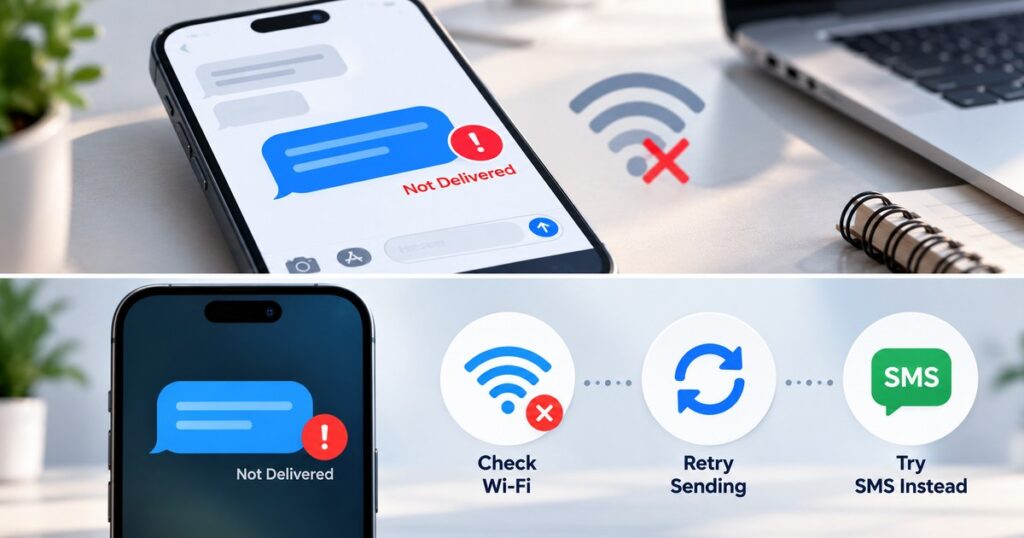
Seeing iMessage Not Delivered on your iPhone when you’re trying to contact someone? Maybe your blue message bubble has a red exclamation mark, the message keeps failing, or your texts suddenly refuse to send after an iOS update.
Sometimes the problem affects every conversation. Other times, one contact seems to be the only person who isn’t receiving your messages.
A failed message doesn’t necessarily mean your iPhone is damaged or that someone has blocked your number.
iMessage delivery depends on a working internet connection, an active iMessage configuration, Apple’s messaging services, and the recipient’s ability to receive the message.
Fortunately, Apple provides several troubleshooting steps that don’t require erasing your iPhone.
In this guide, we’ll explain 12 practical fixes for iMessage not delivered, including red warning icons, missing delivery confirmations, failed blue messages, problems after an update, and SMS fallback options.
We’ll begin with simple checks before moving to settings that may affect your messaging configuration.
Table of Contents
Quick Answer
If your iPhone says Not Delivered, try these steps:
- Identify whether the message actually failed or simply lacks a delivery confirmation.
- Check your Wi-Fi and cellular data connection.
- Check Apple’s System Status page for iMessage problems.
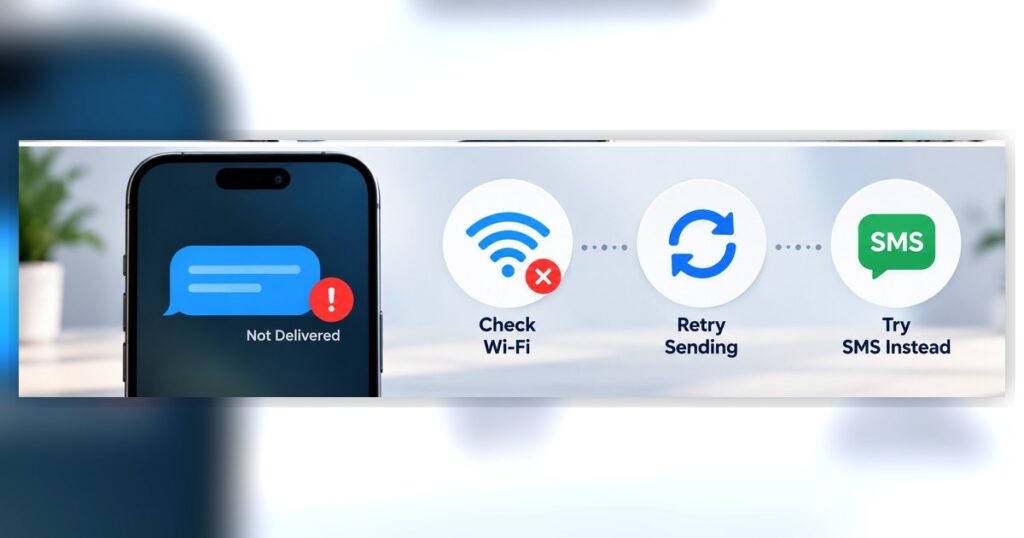
- Tap the red exclamation mark and select Try Again.
- Use Send as Text Message if you need an alternative.
- Confirm that iMessage is enabled.
- Check your phone number and email under Send & Receive.
- Verify the recipient’s contact details.
- Restart your iPhone.
- Update iOS and review your SIM or eSIM settings.
- Test whether the failure involves only groups or attachments.
- Contact Apple Support or your carrier if the problem continues.
Important: A blue message without a Read label doesn’t automatically mean delivery failed. A red Not Delivered warning is a much clearer sign that sending was unsuccessful.
Why Does iMessage Say Not Delivered?
iMessage is Apple’s messaging service for communication between compatible Apple devices.
Unlike traditional SMS, iMessage uses an internet connection.
Your iPhone can send iMessages through Wi-Fi or cellular data when the service is available.
However, the process can fail for several reasons.
Unstable Internet Connection
A weak or interrupted internet connection can stop a message from reaching Apple’s messaging service or the recipient.
Temporary Service Problems
Apple’s messaging systems occasionally experience service disruptions.
When an outage is responsible, changing settings on your phone may not solve the problem.
Incorrect iMessage Settings
Your iPhone might be trying to use a phone number or email address that isn’t properly configured for iMessage.
Recipient Problems
The recipient may be offline, may have disabled iMessage, or may no longer use an Apple device with that number.
Problems After Changing Phones
Switching to a new iPhone, activating an eSIM, or changing a cellular plan can sometimes affect iMessage registration.
Attachment or Group Issues
Sometimes ordinary text messages work while larger attachments or specific conversations fail.
The key is determining whether the problem affects one message, one person, or everyone.
When iMessage not delivered appears repeatedly, testing both Wi-Fi and cellular data can help identify whether the problem involves your internet connection.
1. Understand the Message Status
Before changing any settings, identify what you’re actually seeing in the Messages app.
This is important because iMessage not delivered and iMessage not showing Delivered are not always the same issue.
Red Not Delivered Warning
A red exclamation mark beside a message indicates that sending failed.
You may also see the words Not Delivered underneath the bubble.
Apple recommends checking your network connection and then retrying the message.
Blue Bubble Without Delivered
A blue bubble indicates that the message is using iMessage.
If the Delivered label hasn’t appeared, the delivery status may still be pending or unavailable.
This alone doesn’t reveal the reason.
Delivered
A Delivered status indicates that the messaging service has reported delivery.
It doesn’t necessarily mean that the recipient has opened the conversation.
Read
When the recipient has read receipts enabled and opens the message, your iPhone may display Read.
If read receipts are disabled, you might only see Delivered.
Green Bubble
A green bubble means the message uses RCS, SMS, or MMS rather than iMessage.
These services have different requirements and delivery behaviors.
What to do: If you see a red exclamation mark, continue with the next fixes. If there’s no red alert, check the status carefully before assuming the message failed.
2. Check Your Internet Connection
One of the most common things to investigate when iMessage is not delivered is the internet connection.
iMessage needs a working Wi-Fi or cellular data connection.
Simply seeing a Wi-Fi icon or cellular signal bars doesn’t guarantee that internet access is available.
Test Wi-Fi
- Open Settings.
- Tap Wi-Fi.
- Confirm that Wi-Fi is enabled.
- Check the connected network.
- Open Safari.
- Try loading a familiar website.
- Return to Messages after confirming that the connection works.
If websites don’t load, troubleshoot Wi-Fi before changing iMessage settings.
For a detailed guide, read iPhone Connected to Wi-Fi but No Internet.
Test Cellular Data
If Wi-Fi appears unreliable:
- Open Settings.
- Tap Cellular or Mobile Data.
- Confirm that Cellular Data is enabled.
- Temporarily disconnect from Wi-Fi.
- Open Safari and check whether mobile internet works.
- Return to Messages.
If cellular data doesn’t work either, you may have a separate network issue.
See our iPhone Cellular Data Not Working guide.
What About Airplane Mode?
If your iPhone is struggling to reconnect to the mobile network, you can briefly enable Airplane Mode and then turn it off.
This may help with some temporary network registration problems.
However, it cannot fix an inactive cellular account or an Apple service outage.
Test the connection again before retrying an important message.
3. Check Apple’s System Status
Sometimes iMessage Not Delivered appears because Apple’s messaging service is experiencing a temporary problem.
If your internet works normally but several iMessages suddenly fail, checking the service status is a reasonable next step.
How to Check
- Open Safari.
- Visit Apple System Status.
- Look for iMessage.
- Review any service interruption or maintenance information.
- If an issue is reported, check again after the service recovers.
A status page can help identify broader service disruptions.
However, the absence of a listed outage doesn’t prove that your particular connection or account is working properly.
Should You Reset Your iPhone During an Outage?
No.
Resetting your network settings or signing out of your Apple Account won’t normally resolve an outage affecting Apple’s service.
If an outage is reported, avoid unnecessary changes and test again when the service is restored.
If Apple’s services appear operational, continue with the next step.
4. Retry the Message
Apple provides a direct troubleshooting option for an iMessage displaying a red exclamation mark.
This should usually be one of your first actions after confirming that the network is working.
How to Retry
- Open the Messages app.
- Open the affected conversation.
- Find the message marked Not Delivered.
- Tap the red exclamation mark.
- Select Try Again.
- Allow time for the message to send.
- Check whether the red warning disappears.
If the message is important, confirm its status before sending additional copies.
Why Retry Can Work
A temporary loss of Wi-Fi, cellular data, or service connectivity might have interrupted the first attempt.
Once connectivity returns, another sending attempt may succeed.
What If It Fails Again?
Don’t repeatedly tap Try Again without checking the underlying problem.
The next practical option may be sending the message as an ordinary text message.
This depends on your carrier, cellular service, and the type of message you’re sending.
5. Send as Text Message
If iMessage repeatedly fails, Apple allows you to try sending through traditional text messaging.
This can be useful when the recipient has a reachable phone number and your cellular plan supports SMS.
Send the Failed Message as SMS
- Open Messages.
- Locate the failed iMessage.
- Tap the red exclamation mark.
- Select Send as Text Message, if available.
- Allow the phone to attempt SMS delivery.
The message may appear in a green bubble instead of a blue one.
Enable SMS Fallback
On supported iOS versions:
- Open Settings.
- Tap Apps.
- Select Messages.
- Find Send as Text Message.
- Enable the setting if you want automatic SMS fallback when available.
On older iOS versions, Messages may appear directly in the main Settings list.
Important Limitations
SMS generally requires cellular text-message service.
There are some supported Wi-Fi Calling configurations that permit SMS over Wi-Fi, but this depends on carrier features.
Carrier charges may apply.
If you’re messaging an email address rather than a telephone number, SMS fallback may not be possible.
Also remember that SMS doesn’t provide all the same features and protections as iMessage.
Only use the alternative when appropriate.
6. Make Sure iMessage Is Enabled
If iMessage is not delivered across multiple conversations, check whether the feature is actually enabled.
After switching devices or changing mobile plans, some users need to review their messaging settings.
Check the iMessage Switch
- Open Settings.
- Tap Apps.
- Select Messages.
- Look for iMessage.
- Make sure it is enabled.
- Allow the service to connect.
If you use an older version of iOS, the menu may appear directly under Settings → Messages.
Should You Turn iMessage Off and On?
Apple includes restarting iMessage in some troubleshooting procedures, particularly after setting up a new iPhone or when activation has failed.
However, you shouldn’t repeatedly turn the feature off and on.
If your phone number displays a spinning activation indicator, Apple says verification may continue automatically and can take up to 24 hours.
Unnecessary repeated changes can make the troubleshooting process confusing.
For persistent number activation problems, read our separate guide: iMessage Phone Number Spinning.
If iMessage is enabled and active, move on to the Send & Receive settings.
7. Check Send & Receive
An incorrect sender identity can create problems after changing phones, mobile plans, or Apple Account settings.
Apple recommends checking which telephone number or email address is selected for iMessage.
Review Your Settings
- Open Settings.
- Select Apps → Messages.
- Tap Send & Receive.
- Review the listed phone numbers and email addresses.
- Confirm that your preferred number or address is enabled.
- Check which identity is selected for starting new conversations.
If you have multiple SIMs or eSIMs, confirm that the intended line is active.
Messages Coming From Email Instead of Phone Number?
Your iPhone may be configured to start iMessage conversations from an Apple Account email address.
That isn’t automatically an error.
However, it can cause confusion if contacts expect messages from your telephone number.
Review the selected identity and change it if necessary.
Phone Number Still Activating?
If your phone number isn’t ready or displays a spinning indicator, treat this as an activation problem.
It is different from a normal temporary delivery failure.
Check your carrier’s SMS capabilities and Apple’s activation instructions.
Don’t delete a working eSIM or sign out of your Apple Account simply to experiment.
8. Check the Recipient
If every other conversation works but one person isn’t receiving your iMessages, investigate that specific conversation.
This doesn’t mean the person has blocked you.
Several less personal explanations are possible.
Check the Contact Details
- Open Messages.
- Open the conversation.
- Tap the recipient’s name or contact information.
- Review the phone number or email address.
- Compare it with the recipient’s current contact details.
- Correct any outdated information.
If the recipient recently changed numbers, your conversation might still be associated with an old address. If iMessage not delivered only appears when contacting one person, check their current phone number or email address before changing your own settings.
Did the Recipient Switch to Android?
iMessage is designed for compatible Apple devices.
If someone switches from iPhone to Android, they may need to deregister iMessage for their telephone number.
You may need to communicate through RCS or SMS instead.
Is the Recipient Offline?
If the receiving device is offline or unavailable, the delivery status may be delayed.
This does not necessarily indicate a problem with your phone.
Can You Tell Whether You’re Blocked?
Not reliably from a single iMessage delivery status.
A missing Delivered label or failed message is not proof that someone blocked your number.
Avoid drawing conclusions about the recipient’s intentions from technical symptoms.
9. Restart Your iPhone
A regular restart may help with temporary app, network, or device software issues.
It is less disruptive than resetting network settings or erasing the device.
Restart an iPhone With Face ID
- Press and hold the Side button and either Volume button.
- Wait for the power-off slider.
- Drag the slider to turn the iPhone off.
- Wait approximately 30 seconds.
- Press and hold the Side button to turn it back on.
- Unlock the iPhone.
- Reconnect to Wi-Fi or cellular data.
- Test Messages again.
For older iPhones with a Home button, follow the model-specific restart instructions.
After Restarting
Open the affected conversation.
Check whether the failed message remains marked Not Delivered.
If appropriate, use Try Again.
Do not assume that restarting automatically resends every previously failed message.
Should You Force Restart?
A force restart is generally useful when the iPhone is unresponsive.
If your phone works normally, use the standard shutdown and restart process first.
There is no need to erase messages or reinstall the Messages app.
10. Update iOS and Check Your SIM
Software and cellular configurations can affect iMessage activation and delivery.
Apple recommends using the latest compatible iOS version.
Check for iOS Updates
- Open Settings.
- Tap General.
- Select Software Update.
- Review available updates.
- Back up important data before major updates.
- Install an appropriate official release.
After updating, check iMessage again.
Check Your Cellular Line
If you recently transferred your number or added an eSIM:
- Open Settings.
- Tap Cellular.
- Review your SIM and eSIM lines.
- Confirm the correct telephone line is enabled.
- Verify that the line has working cellular service.
A Specific iOS 26 Issue
Apple documented an issue in iOS 26 involving an inactive duplicate SIM that shares the same telephone number as an active SIM.
In that situation, iMessage may fail with a Not Delivered alert.
Apple recommends updating to iOS 26.1 or later.
If you suspect that issue, review the official instructions carefully.
Do not delete an eSIM without confirming which plan is inactive and whether you can restore it.
For other cellular setup problems, read our iPhone eSIM Not Activating guide.
11. Test Groups and Attachments
Sometimes ordinary one-to-one iMessages work, but group conversations, photographs, or videos fail.
This may indicate a different type of messaging problem.
Test a Short Message
Send a short, ordinary text to a trusted contact when appropriate.
If it succeeds, compare the result with the failed attachment or group message.
Check Group Conversations
A group containing both Apple and non-Apple users may use RCS, SMS, or MMS rather than iMessage.
Carrier capabilities and messaging settings can affect these conversations.
A green group message doesn’t necessarily indicate a broken iMessage service.
Try a Smaller Attachment
If a large image or video doesn’t send:
- Confirm that the internet works.
- Test a smaller attachment.
- Check whether the problem affects only one application.
- Review available iPhone storage.
- Try again after the connection stabilizes.
Some messaging services and carriers have limits on attachment sizes.
Is the Problem Limited to One Conversation?
Compare results without sending repeated test messages to people who haven’t agreed to help.
If only one conversation fails, revisit its contact details and messaging type.
If every iMessage fails, investigate your device, account, and Apple service connectivity.
12. Contact the Right Support Provider
If the previous fixes don’t resolve iMessage not delivered, identify whether the problem concerns iMessage itself or carrier-provided messaging.
Contact Apple Support When
- iMessage repeatedly fails across different Apple contacts.
- Your Apple Account cannot access iMessage.
- Messages show repeated activation errors.
- The service doesn’t work despite confirmed internet connectivity.
- Your phone number remains unverified after the expected activation period.
Contact Your Cellular Carrier When
- Ordinary SMS messages also fail.
- Your SIM or eSIM has no service.
- Your plan doesn’t support the necessary messaging features.
- Activation SMS may be restricted.
- Your number transfer or mobile plan is incomplete.
Gather Useful Details
Before contacting support, record:
- Your iPhone model.
- Your iOS version.
- Whether Wi-Fi and cellular internet work.
- The exact error message.
- Whether the issue affects every recipient.
- Whether SMS works.
- Any recent SIM, eSIM, or Apple Account changes.
Don’t share passwords, verification codes, or other confidential account information.
A clear explanation of the symptoms can help support identify the actual issue.
Blue iMessage Not Showing Delivered?
Sometimes your message remains blue but doesn’t display Delivered.
This situation is different from an explicit red sending-failure alert.
The recipient’s device may be unavailable, the status may not have updated, or there may be another issue with delivery.
Check your internet connection and observe whether the status changes.
If all conversations show the same problem, check Apple’s System Status and your iMessage settings.
If only one recipient is affected, verify their current contact details.
A missing Delivered label does not reliably indicate that you have been blocked.
iMessage Not Delivered but You’re Not Blocked?
There are several possible reasons a message can fail without anyone blocking you.
These include:
- Temporary network loss.
- iMessage service interruption.
- An incorrect recipient address.
- The recipient switching devices.
- An inactive or unverified iMessage account.
- A problem with the sender’s configuration.
A failed delivery notice should be treated as a technical symptom.
If a message is urgent, consider another appropriate communication method rather than repeatedly resending the same iMessage.
iMessage Not Delivered After iOS Update?
If the issue began after an iOS update, start with the connection and account settings.
Restart the iPhone and confirm that iMessage is active.
Review Send & Receive and check the selected telephone number.
If the update coincided with a new SIM or eSIM, verify that the correct line is active.
Check for a subsequent compatible iOS release.
If the iPhone still cannot activate the correct number, refer to Apple’s official activation documentation.
Don’t assume every delivery problem after an update is caused by the update itself.
iMessage Not Delivered to One Person?
If messages to other contacts work normally, focus on the affected recipient.
Check the saved phone number or email address.
Ask through another suitable method whether the person still uses iMessage at that address, if appropriate.
If they recently switched to Android, use the available carrier messaging service instead.
If the message is blue but lacks a delivery confirmation, that alone does not establish whether the recipient saw it.
Avoid treating missing delivery indicators as evidence about someone’s intentions.
iMessage vs SMS vs RCS
These messaging services can behave differently.
iMessage: Apple’s internet-based messaging service for compatible Apple devices. Messages normally appear in blue bubbles.
SMS: Traditional carrier text messaging. It typically uses cellular text service and appears in green bubbles.
RCS: An enhanced messaging service supported by participating carriers. It can provide typing indicators, delivery information and richer media messaging. RCS messages also appear green in Apple’s Messages app.
A message changing from blue to green doesn’t necessarily mean it failed.
It may simply be using a different supported messaging service.
Frequently Asked Questions
Why does my iMessage say Not Delivered?
Your message may have failed because of a network interruption, an iMessage service issue, an incorrect recipient address, or a problem with messaging configuration. Check your connection and use the red warning icon to retry.
How do I fix iMessage Not Delivered?
Check Wi-Fi or cellular data, review Apple’s System Status, tap the red exclamation mark, and choose Try Again. If needed, review Messages settings or use SMS fallback when available.
Does Not Delivered mean I’m blocked?
No. A failed message does not prove that you’ve been blocked. Delivery can fail for many technical reasons, and iMessage status alone cannot reliably confirm blocking.
Why is my iMessage blue but not Delivered?
The delivery confirmation may not have updated, or the recipient may be unavailable. Check the connection and recipient details. A missing Delivered label is not the same as an explicit sending-failure alert.
What’s the difference between Delivered and Read?
Delivered indicates that the system has reported delivery. Read indicates that the recipient opened the message with read receipts enabled. Read receipts can be disabled.
Can iMessage work without cellular service?
Yes. iMessage can work over Wi-Fi when the Apple Account or messaging identity is active and correctly configured. SMS fallback has different carrier requirements.
Why are my messages turning green?
Green bubbles indicate RCS, SMS, or MMS rather than iMessage. This can happen when the recipient uses a non-Apple device or iMessage is unavailable.
Can I resend a failed iMessage?
Yes. Tap the red exclamation mark next to the failed message and choose Try Again. Check the connection first to avoid repeated failures.
Why is iMessage Not Delivered after an update?
The problem may involve connectivity, software compatibility, account activation, or cellular settings. Restart the device, check Send & Receive, and review available compatible updates.
Does Focus mode cause iMessage Not Delivered?
Focus can silence or manage notifications, but a recipient using Focus doesn’t by itself establish that your iMessage failed to deliver. Avoid confusing notification settings with delivery status.
Will resetting network settings delete my messages?
Reset Network Settings normally doesn’t erase existing Messages conversations, but it removes saved network configurations such as Wi-Fi passwords. It shouldn’t be your first step for an isolated iMessage failure.
Should I contact Apple or my carrier?
Contact Apple for persistent iMessage service or activation issues. Contact your carrier when cellular service, SMS, MMS, or RCS messaging is failing.
Final Thoughts
If you’re seeing iMessage Not Delivered, the best approach is to identify the exact error before changing settings.
Start by confirming that the message genuinely failed, rather than simply lacking a Read or Delivered confirmation.
Check your internet connection and Apple’s service status.
Then use the red exclamation mark to retry the message.
If necessary, review iMessage activation, Send & Receive, the recipient’s information, and your iOS version.
SMS fallback can help in certain situations, but it depends on your cellular plan and messaging requirements.
Most importantly, don’t interpret a failed iMessage as automatic proof that another person blocked you.
Work through the checks individually, avoid unnecessary resets, and contact the appropriate support provider if the problem continues.
Official Apple References
- Apple Support: If You Can’t Send or Receive Messages
- Apple System Status
- Apple Support: Turn Read Receipts On or Off
- Apple Support: If You Can’t Activate iMessage
- Apple Support: Why Your iPhone Messages Are Green
- Apple Support: Turn On RCS Messaging
- Apple Support: iMessage Activation Issue in iOS 26
Last reviewed: October 23, 2026. Settings may differ by iOS version, mobile carrier, Apple Account configuration, and region.