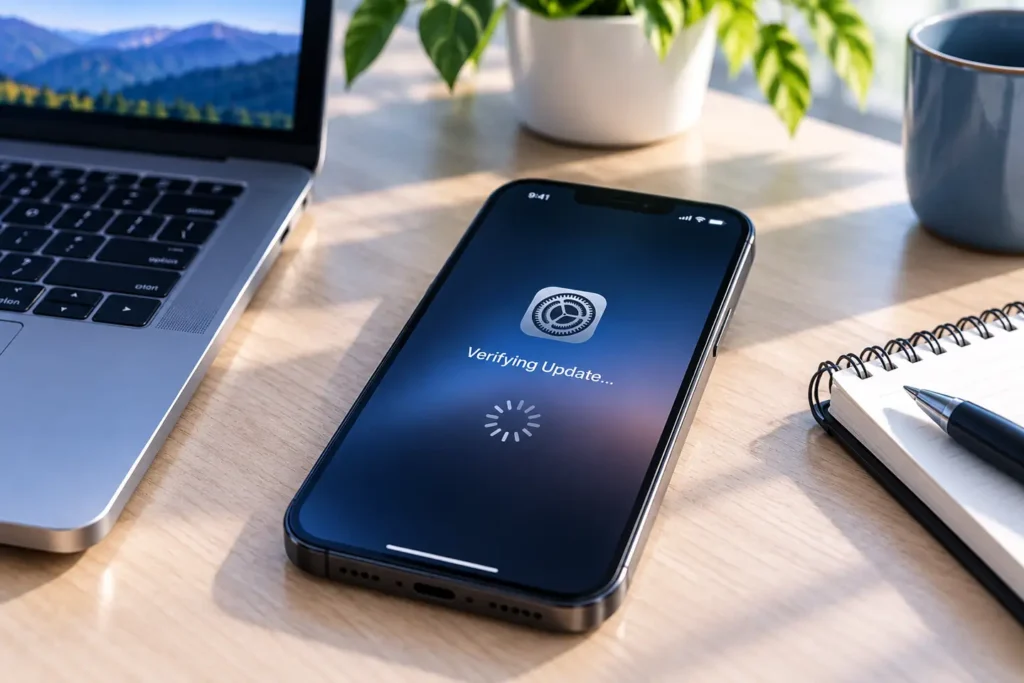
Is your iPhone stuck on Verifying Update while trying to install a new iOS version? Maybe you tapped Install Now, but your screen keeps displaying “Verifying Update” with a spinning indicator. The process doesn’t finish, and you’re unsure whether it’s safe to restart your phone.
This problem can be frustrating, especially when you’re trying to install an important security update or fix an existing iPhone issue.
Fortunately, a verification problem doesn’t necessarily mean your iPhone is damaged. An unreliable internet connection, an incomplete update download, insufficient storage, or a temporary software issue may prevent the update from continuing.
In this guide, we’ll explain 10 practical fixes for an iPhone stuck on Verifying Update, including how to safely restart your device, remove a failed update download, and install iOS using a computer when necessary.
We’ll also explain when you should avoid interrupting the installation and how to protect your personal data.
Table of Contents
Quick Answer: How to Fix iPhone Stuck on Verifying Update
If your iPhone won’t move past Verifying Update, try these steps:
- Give the verification process time to complete.
- Keep the iPhone connected to a reliable power source.
- Check whether your Wi-Fi connection is working.
- If possible, try another trusted Wi-Fi network.
- Check for a VPN or network security filter that could interfere with Apple’s update servers.
- Make sure sufficient storage is available.
- If verification has frozen and installation has not begun, restart your iPhone.
- Delete the downloaded iOS update and download it again if the problem persists.
- If wireless updating repeatedly fails, update through Finder on a Mac or the Apple Devices app on Windows.
Important: If your iPhone has already switched to the Apple logo with an installation progress bar, don’t immediately restart it. The update may still be installing.
Apple recommends checking your internet connection, storage, device compatibility, and access to update servers when an iOS update cannot be verified.
Why Is My iPhone Stuck on Verifying Update?
Before an iOS update installs, your iPhone needs to check that the downloaded software is valid and appropriate for the device.
This verification stage helps ensure that the update can be installed properly.
However, several issues can prevent the process from finishing.
Common possible causes include:
- An unstable Wi-Fi or internet connection.
- Temporary problems reaching Apple’s update servers.
- An incomplete or corrupted update download.
- Insufficient available iPhone storage.
- VPN or security software interfering with network access.
- A temporary iOS software problem.
- Incorrect device date and time settings.
- A device that does not support the selected software.
- Device management restrictions on a work or school iPhone.
The symptoms can help identify the problem.
Stuck on Verifying Update: Focus on network access, downloaded update files, and device responsiveness.
Unable to Verify Update: This may indicate a network or verification problem.
Stuck on Preparing Update: Investigate storage, the downloaded update, and software preparation.
Apple logo with a progress bar: The installation may already be underway. Avoid interrupting it unnecessarily.
The first step is identifying which stage your iPhone has reached.
1. Check Whether the Update Is Actually Frozen
When your iPhone is stuck on Verifying Update, the first question is whether the process has genuinely stopped.
Update verification and installation don’t always finish immediately.
The time required can vary depending on the update, device conditions, and network availability.
What to do
- Look at the current screen.
- Check whether it still says Verifying Update.
- Note whether your iPhone remains responsive.
- Keep the device connected to power.
- Allow the current operation a reasonable opportunity to finish.
- Avoid repeatedly pressing buttons while it appears to be processing.
There is no universal number of minutes after which every verification process can be declared frozen.
Verifying Update vs. installing iOS
This distinction is especially important.
If the display shows a verification message over the normal iOS interface, the update may not yet have entered its installation stage.
If the iPhone displays the Apple logo with a progress bar, the installation is in a different stage.
Apple explains that an installation progress bar can move slowly or even appear stationary for a period of time.
If the bar is still moving, keep the device connected to power and allow it to finish.
Do not use repeated force restarts as your first response to an installation progress bar.
2. Keep Your iPhone Connected to Power
An iOS update requires sufficient power to complete.
If the battery runs low during the process, the update may be interrupted.
Apple recommends keeping your iPhone connected to a power source when performing a wireless update.
Check your power connection
- Use a compatible charging cable and adapter.
- Plug the adapter into a working outlet.
- Confirm that the iPhone is receiving power.
- Avoid moving or disconnecting the cable unnecessarily.
- Keep the device connected while the update is running.
If your iPhone isn’t charging properly, inspect the charging equipment before continuing.
A low battery doesn’t automatically explain every verification failure, but a reliable power connection eliminates one avoidable problem.
Avoid excessive heat
An iPhone may become warm during demanding operations.
If the device becomes unusually hot, follow Apple’s temperature and charging safety guidance.
Do not place it in a refrigerator or use extreme cooling methods.
If charging itself fails, investigate that separately before making further update attempts.
3. Check Your Wi-Fi and Internet Connection
A network problem is one of the most important possibilities when an iPhone gets stuck on Verifying Update.
Apple explains that an iPhone needs an internet connection and must be able to reach its update servers.
A Wi-Fi symbol doesn’t guarantee that your phone can access the internet.
Test your connection
If you can still use the iPhone:
- Open Safari.
- Visit a trusted website such as apple.com.
- Check whether the page loads normally.
- Open Settings → Wi-Fi.
- Confirm that you’re connected to the intended network.
- If the connection is unreliable, reconnect to the network.
- Try the update again when the connection is stable.
If Safari cannot load websites either, the problem may be the router, internet provider, or iPhone network configuration.
Try another network
Apple recommends trying another network if you continue receiving an update verification or connection error.
For example, if the update fails on your home Wi-Fi, try another trusted network.
Avoid relying on a public Wi-Fi hotspot that requires repeated sign-in or has unstable connectivity.
For a separate problem involving Wi-Fi without internet access, read our guide:
iPhone Connected to Wi-Fi but No Internet? 10 Fixes to Try
4. Check VPN and Network Security Settings
Some VPN services, network filters, or security configurations can interfere with connections to particular servers.
If your iPhone cannot reach Apple’s software update service, these settings deserve attention.
However, a VPN isn’t automatically responsible for every failed update.
Test a personally managed VPN
- Open your VPN application.
- Check whether the VPN is connected.
- If you control the connection and it is safe to do so, disconnect it temporarily.
- Return to Settings → General → Software Update.
- Try the update again.
- Restore your preferred VPN connection afterward.
If the update works only when the VPN is disconnected, investigate your VPN service or its network configuration.
Check device management
Open Settings → General → VPN & Device Management.
Look for unfamiliar or organization-managed configurations.
If your iPhone belongs to your employer or school, a management policy may control updates or network access.
Do not delete workplace security profiles, required VPN configurations, or management settings without authorization.
Instead, contact the administrator.
For help with a VPN that reconnects automatically, see our related article:
iPhone VPN Keeps Turning On? 10 Fixes
5. Check Available iPhone Storage
Insufficient storage can prevent an iOS update from completing.
Your iPhone needs enough space to download, prepare, and install software.
Apple identifies low available storage as a common reason wireless updates fail.
Check storage
- Open Settings.
- Tap General.
- Select iPhone Storage.
- Check how much space is available.
- Review the storage recommendations.
- Free up unnecessary content if your storage is nearly full.
Safely make more space
Consider:
- Offloading apps you rarely use.
- Removing unnecessary downloaded videos.
- Deleting files you no longer need.
- Reviewing large attachments.
- Removing unused offline downloads.
Apple’s Offload Unused Apps feature can free space while retaining an app’s documents and data.
However, deleting apps or files is different and may remove locally stored information.
How much free storage do you need?
The required amount depends on the update and device.
There isn’t one fixed storage figure that guarantees every iOS installation will succeed.
Follow the storage requirements and recommendations displayed by your iPhone.
Important: Don’t delete important photos, documents, or app data without checking whether they’re backed up.
Once you’ve freed sufficient space, try the update again.
6. Restart Your iPhone if Verification Has Frozen
If your iPhone is stuck on Verifying Update and the verification stage has stopped responding, a restart may help clear a temporary software problem.
This is different from interrupting an iOS installation that is already displaying an Apple logo and progress bar.
Restart normally when possible
For an iPhone with Face ID:
- Press and hold the Side button and either Volume button.
- Wait for the power-off slider.
- Drag the slider to turn off the iPhone.
- Wait approximately 30 seconds.
- Press and hold the Side button until the Apple logo appears.
- Unlock the device.
- Return to Settings → General → Software Update.
If your iPhone is responsive, use the normal restart first.
Force restart only if necessary
If the device is genuinely unresponsive and ordinary controls don’t work, Apple provides a model-specific force-restart procedure.
For iPhone 8 and newer models:
- Press and quickly release Volume Up.
- Press and quickly release Volume Down.
- Press and hold the Side button.
- Continue holding until the Apple logo appears.
- Release the Side button.
This procedure doesn’t normally erase personal data.
However, don’t deliberately force restart during an active installation unless Apple’s troubleshooting instructions for a frozen device call for it.
If your iPhone frequently restarts unexpectedly outside software updates, see our separate guide:
iPhone Keeps Restarting? 12 Proven Fixes
7. Delete the Downloaded iOS Update and Download It Again
If verification fails repeatedly, the downloaded update file itself may be incomplete or damaged.
Apple specifically recommends deleting the existing update and downloading it again when wireless installation problems persist.
This is one of the most useful targeted fixes.
Delete the downloaded update
- Open Settings.
- Tap General.
- Select iPhone Storage.
- Wait for the storage list to load.
- Look for the downloaded iOS update.
- Tap the update entry.
- Select Delete Update.
- Confirm the action.
The update may appear under its iOS version rather than a generic name.
Download the update again
- Open Settings.
- Tap General.
- Choose Software Update.
- Check for the latest compatible update.
- Download the update again.
- Keep your phone connected to a reliable network and power source.
- Follow the installation instructions.
Will deleting the update erase my photos?
Deleting the downloaded update package does not normally erase photos, messages, apps, or personal documents.
It removes the downloaded installer so that your iPhone can download another copy.
However, make sure you’re choosing Delete Update, not an option that erases the entire device.
If no update file appears under iPhone Storage, don’t delete unrelated system files or applications just to imitate these steps.
Apple recommends proceeding to a computer-based update if the update package cannot be found or the failure continues.
8. Verify Your Date, Time, and Software Compatibility
If repeated attempts fail, check that your device is correctly configured for the software you’re trying to install.
Check date and time
- Open Settings.
- Tap General.
- Select Date & Time.
- Review your time zone.
- Enable Set Automatically if available and appropriate.
Incorrect date and time settings can interfere with some secure network operations. This is a secondary diagnostic check, not a guaranteed fix for an iOS verification failure.
Do not change the date to an arbitrary past or future value to bypass verification.
Confirm device compatibility
Not every iPhone can install every iOS version.
Open Settings → General → Software Update and review the update offered for your particular device.
If you are trying to install a version that isn’t supported, troubleshooting your Wi-Fi or storage won’t make it compatible.
Check managed and beta configurations
If you’re using a developer or public beta, check whether the selected update channel is the one you intend to use.
If the phone belongs to an organization, software updates may be managed by its administrator.
Don’t remove management profiles merely to force an update.
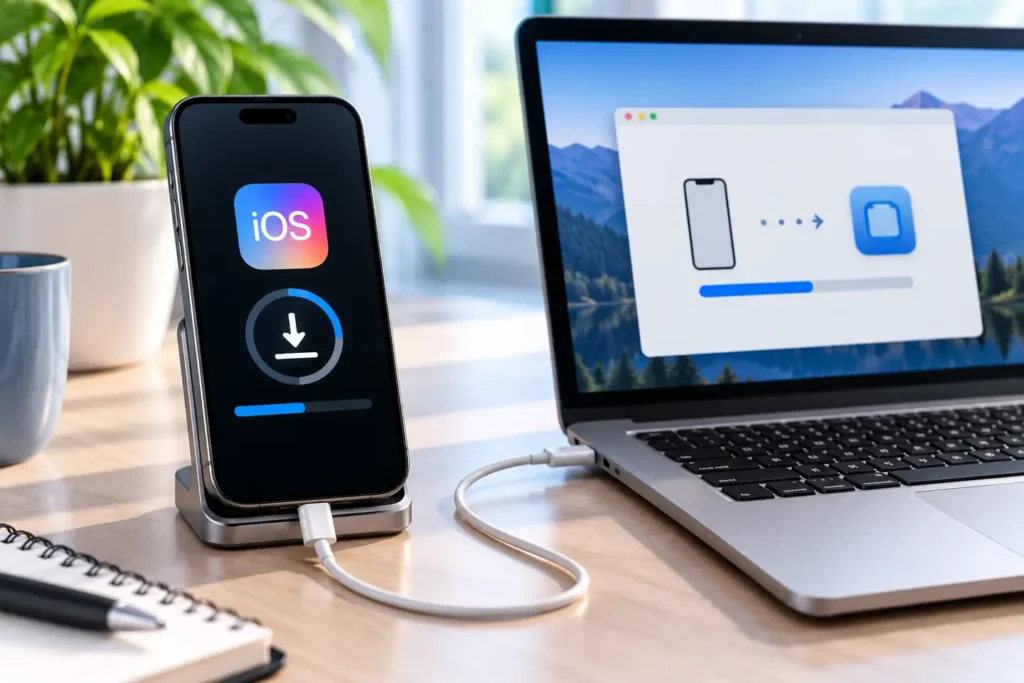
9. Update Your iPhone Using a Mac or Windows PC
If wireless verification continues failing, Apple recommends using a computer.
This allows your iPhone to update through a different supported method.
Before beginning, back up important information whenever possible.
Update through Finder on a Mac
For a Mac running macOS Catalina or later:
- Open Finder.
- Connect your iPhone using a compatible cable.
- Select the iPhone in Finder’s sidebar.
- Open the General tab.
- Click Check for Update.
- If an update is available, choose Download and Update.
- Follow the onscreen instructions.
- Keep the connection stable until the process completes.
Update through Apple Devices on Windows
- Install or open the current Apple Devices application.
- Connect your iPhone to your computer.
- Select the iPhone in the sidebar.
- Open General.
- Select Check for Update, if available.
- Choose Update and follow the instructions.
Older supported Windows and macOS configurations may use iTunes instead.
What if the computer cannot detect the iPhone?
Check the cable, USB connection, computer software, and whether the phone requires you to unlock it or approve a trust prompt.
Don’t select Restore simply because the ordinary update method failed.
Update and Restore are different operations. Restore can erase your iPhone.
10. Use Recovery Options Only When Necessary
If the iPhone remains unresponsive, displays a persistent Apple logo without completing startup, or cannot update through the normal supported methods, you may need more advanced assistance.
However, recovery mode should not be your first response to the message Verifying Update.
Understand recovery mode
Apple provides a computer-based recovery process for devices that cannot start or update normally.
Depending on the situation, a computer may offer:
Update: Attempts to reinstall or update iOS while preserving your data.
Restore: Erases the iPhone and reinstalls its software.
Apple recommends trying Update before Restore when an update is possible and preserving data is the goal.
Even so, a software update is not a substitute for a backup.
If the iPhone is stuck on the Apple logo
An Apple logo with an installation progress bar is different from a Verifying Update message.
Apple’s guidance for a stuck installation advises checking whether the progress bar is moving and allowing the current process to complete.
For certain frozen startup or migration situations, Apple provides recovery-mode instructions.
Use the procedure for your specific model instead of following random button combinations.
When to contact Apple Support
Seek additional assistance if:
- Verification fails on multiple reliable networks.
- The iOS update repeatedly fails after a fresh download.
- Finder or Apple Devices displays persistent update errors.
- Your iPhone becomes unresponsive during installation.
- The computer cannot recognize the device.
- You have important data without a recent backup.
Start with Apple’s iPhone Support.
If the device is still usable, preserve your data before attempting more disruptive recovery methods.
iPhone Stuck on Verifying Update for a Long Time
If Verifying Update remains on the screen much longer than expected, check whether the device is responsive and whether installation has actually started.
If the iPhone is still on the verification screen, review network access and update-server connectivity.
If the screen is completely unresponsive and verification isn’t progressing, an appropriate restart may be needed.
However, if the device has switched to the Apple logo and progress bar, allow installation time to finish.
A slow installation isn’t necessarily a frozen installation.
iPhone Stuck on Verifying Update After Restart
If the problem returns after restarting, don’t keep restarting the phone repeatedly.
Check whether the internet connection is stable.
Try a different trusted Wi-Fi network.
Then review iPhone Storage and determine whether the downloaded update can be deleted and downloaded again.
If the same problem persists, using a Mac or Windows computer may be more effective than repeating the same wireless attempt.
Unable to Verify Update: Internet Connection Required
Sometimes an iPhone displays an error indicating that the update cannot be verified because of an internet connection problem.
That doesn’t always mean Wi-Fi is turned off.
Your iPhone may be connected to a router that cannot reach the update service.
Apple recommends trying the same network again, then switching to another network if the problem continues.
If a VPN or filter is involved, investigate it carefully.
If the error appears across different reliable networks, try Apple’s supported computer-based update method.
iPhone Stuck on Preparing Update vs. Verifying Update
These two messages indicate different stages.
Preparing Update generally refers to work performed before installation, such as preparing downloaded software.
Verifying Update refers to checking the update before installation can proceed.
Although the underlying causes may overlap, they shouldn’t be treated as identical.
For both problems, checking storage, network reliability, and the downloaded update file can be useful.
If the phone moves to the Apple logo with a progress bar, you should treat it as an installation rather than merely a verification problem.
Can You Cancel Verifying Update Without Losing Data?
If your iPhone is still usable and the installation hasn’t started, you may be able to exit the update process or restart normally.
Deleting a downloaded iOS update file through iPhone Storage also normally leaves your personal content intact.
However, interrupting an active software installation can create additional problems.
Don’t assume that every screen showing an Apple logo or a progress indicator is safe to cancel.
If you’re uncertain whether installation is underway, follow Apple’s guidance for that stage before restarting.
Frequently Asked Questions
Why is my iPhone stuck on Verifying Update?
Possible causes include unreliable internet access, failure to reach Apple’s update servers, insufficient storage, an incomplete update download, or a temporary software problem.
How do I fix iPhone Stuck on Verifying Update?
Check power and Wi-Fi first. If verification repeatedly fails, restart when safe, delete the downloaded update, and download it again. Use a Mac or Windows computer if wireless updating continues to fail.
How long should Verifying Update take on iPhone?
There isn’t a universal completion time. Duration depends on the update, device, network, and verification conditions. A temporary delay isn’t automatically a failure.
Can I restart my iPhone while it says Verifying Update?
If the verification stage has genuinely frozen and installation hasn’t started, restarting may help. Don’t casually interrupt an active installation displaying the Apple logo and progress bar.
Will deleting an iOS update delete my photos?
No. Deleting the downloaded update package normally removes the installer, not your photos, apps, or personal files.
Why does my iPhone say Unable to Verify Update?
The device may be unable to reach the update service, or the downloaded update may need to be replaced. Check internet access and try another network before downloading the update again.
Does iPhone Verifying Update require Wi-Fi?
Wireless software updates require an appropriate internet connection, and some updates specifically require Wi-Fi. Use a reliable network that meets the requirements shown by your iPhone.
Can a VPN block an iOS update?
A VPN or network filtering configuration can interfere with some connections. If you control the VPN, temporarily disconnecting it can help determine whether it’s involved.
Can I install the update using my computer?
Yes. Apple supports software updates through Finder on compatible Macs and through Apple Devices or iTunes on supported Windows configurations.
Does recovery mode erase an iPhone?
Entering recovery mode isn’t itself the same as selecting Restore. However, choosing Restore erases the device. Try Apple’s Update option when appropriate before considering Restore.
Final Thoughts
If your iPhone is stuck on Verifying Update, start by identifying whether the phone is genuinely frozen or still processing the update.
Next, check power, internet access, and available storage.
If verification repeatedly fails, Apple’s recommended approach includes trying another network, removing the downloaded update package, and downloading it again.
When wireless updating doesn’t work, use a supported Mac or Windows update process.
Most importantly, protect your data and avoid unnecessary factory resets. The Verifying Update screen doesn’t automatically mean your iPhone is damaged or that its contents need to be erased.
Following the correct sequence can help you troubleshoot the problem without disrupting an active installation or taking unnecessary risks.
Official Apple Support Resources
- Apple: If Your iPhone or iPad Won’t Update
- Apple: Update iPhone Using Finder on Mac
- Apple: Update iPhone Using Apple Devices on Windows
- Apple: Apple Logo With Progress Bar After an Update
- Apple: If Your iPhone Freezes on the Apple Logo
- Apple: If You Can’t Update or Restore iPhone
- Apple: iPhone Support