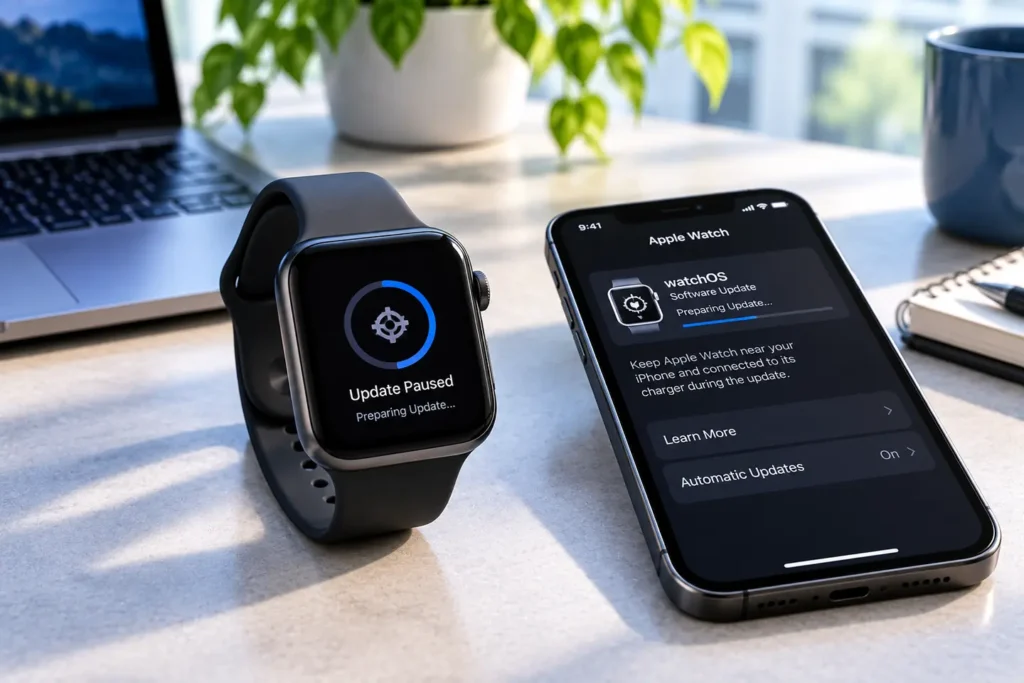
Is your Apple Watch not updating even though a new watchOS version is available? Maybe the update is stuck on Preparing, the verification process keeps failing, or your iPhone displays an error saying it cannot install the software.
Sometimes the Watch app shows an update but nothing happens when you tap Install. Other times, the download completes, only for the installation to stop unexpectedly.
Fortunately, an Apple Watch update failure doesn’t always indicate a hardware problem. Insufficient battery power, poor Wi-Fi connectivity, limited storage, software compatibility, or an incomplete update file may prevent watchOS from installing.
In this guide, we’ll explain 12 practical fixes for Apple Watch software update problems, starting with simple checks before moving to storage management and more advanced recovery options.
We’ll also explain when restarting is safe, which Apple Watch models support watchOS 27, and how to avoid unnecessary data loss.
Table of Contents
Quick Answer: How to Fix Apple Watch Not Updating
If your Apple Watch won’t install an update, try these steps first:
- Make sure your Apple Watch is compatible with the watchOS version.
- Update your paired iPhone to the latest compatible iOS version.
- Charge your Apple Watch to at least 50%.
- Leave the watch connected to its magnetic charger.
- Connect your iPhone to reliable Wi-Fi.
- Keep your iPhone close to your Apple Watch.
- Open the Watch app → My Watch → General → Software Update.
- Follow the onscreen installation instructions.
- If the update fails before installation, restart both devices and try again.
- If the update file is damaged or the process repeatedly fails, remove the downloaded update and download it again.
Important: If watchOS is actively installing and the Apple logo or progress wheel appears, do not restart your Apple Watch or iPhone. Apple specifically advises leaving the watch on its charger and allowing installation to complete.
Why Is My Apple Watch Not Updating?
Your Apple Watch must meet several requirements before it can download, verify, and install a watchOS update.
If one of these conditions isn’t met, the process may fail or refuse to start.
Common reasons include:
- An incompatible Apple Watch model.
- An outdated or incompatible iPhone.
- Less than 50% Apple Watch battery.
- A charging connection that isn’t working.
- Weak Wi-Fi or interrupted internet access.
- Insufficient storage on the Apple Watch.
- An incomplete software update download.
- A temporary software problem.
- An existing beta software configuration.
- An organization-managed device restriction.
- An update that is still preparing or installing.
The message on your screen can help identify the problem.
Checking for Update: Your device is trying to determine which software is available.
Downloading: The update is being transferred.
Preparing: The downloaded software is being prepared for installation.
Verifying: The system is checking the software before installation.
Installing: The Apple Watch is applying the software update.
The last stage requires particular care because interrupting an active installation can cause additional problems.
1. Check Whether Your Apple Watch Update Is Actually Stuck
Before trying to fix the problem, determine whether the update is still progressing.
Apple Watch updates can take considerably longer than ordinary app updates.
According to Apple, a watchOS update can take anywhere from several minutes to approximately an hour, depending on the update and device conditions.
A slow progress indicator doesn’t automatically mean something has gone wrong.
What to check
- Open the Watch app on your paired iPhone.
- Go to My Watch → General → Software Update.
- Review the current update status.
- Look at the Apple Watch for an installation progress wheel.
- Keep the watch charging.
- Leave the paired iPhone nearby.
- Avoid repeatedly closing the Watch app or restarting either device.
Preparing vs. installing
If your iPhone still shows Preparing, the update may be processing its downloaded files.
If the Apple Watch shows an Apple logo surrounded by a progress wheel, it may already be installing.
That distinction is important.
If installation is actively running, Apple recommends leaving both devices alone until it completes.
Only begin the restart and update-file troubleshooting steps after confirming that installation is not currently underway.
2. Check Apple Watch and iPhone Compatibility
A common reason an Apple Watch is not updating is that the device doesn’t support the software version you expect.
Not every Apple Watch can install the newest major watchOS release.
As of 2026, Apple identifies the following devices as compatible with watchOS 27:
- Apple Watch Series 9 and later.
- Apple Watch SE 3.
- Apple Watch Ultra 2 and later.
Apple also states that updating to watchOS 27 requires an iPhone 11 or later, or iPhone SE (2nd generation) or later, running iOS 27.
How to identify your Apple Watch
On the watch:
- Open Settings.
- Tap General.
- Select About.
- Review the model information.
You can also use the Watch app on your paired iPhone to view device information.
What if you have an older Apple Watch?
An older Apple Watch may still receive the latest compatible version available for that model.
However, it may not support watchOS 27.
For example, Apple Watch Series 7 and Series 8 are not included in Apple’s watchOS 27 compatibility list.
That doesn’t automatically mean those watches are malfunctioning.
If Software Update indicates that your watch is already running its latest supported software, there’s no reason to repeatedly restart or reset it in an attempt to install an incompatible version.
Always check Apple’s current compatibility requirements before troubleshooting further.
3. Charge Your Apple Watch to at Least 50%
Low battery is one of the easiest update requirements to overlook.
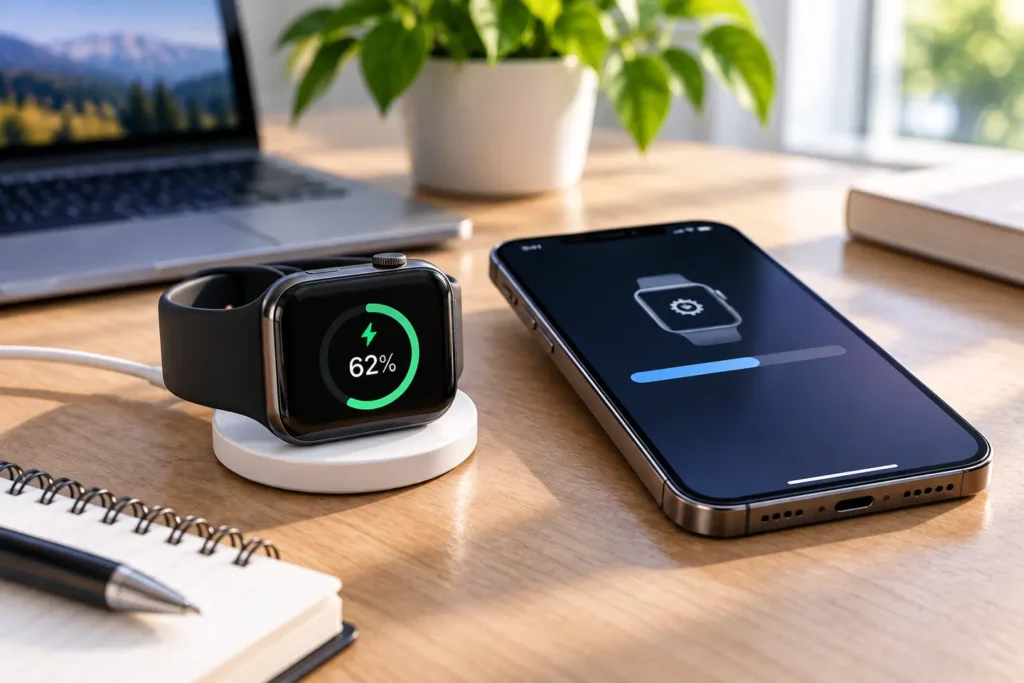
Apple requires an Apple Watch to have at least 50% battery charge before updating.
The watch should also remain connected to its charger during installation.
Check the battery
- Press the side button to open Control Center.
- Review the battery percentage.
- If it’s below 50%, place the watch on its charger.
- Make sure the magnetic charging connector is properly aligned.
- Allow the battery to charge above the required level.
- Keep the watch on the charger while attempting the update.
What if the watch isn’t charging?
Check the power adapter, charging cable, and magnetic connection.
Try another compatible Apple Watch charger if one is available.
Remove any protective film accidentally left on a new charging accessory.
Avoid charging the watch if it shows physical damage, battery swelling, or unsafe overheating.
Important: Having 50% battery isn’t enough if the charging connection is unstable. Make sure the watch remains properly connected to power throughout installation.
4. Update Your Paired iPhone First
Apple recommends updating the paired iPhone to its latest compatible iOS version before installing a new watchOS update.
This is especially important when the watchOS version has specific iPhone software requirements.
Update the iPhone
- Open Settings on your iPhone.
- Tap General.
- Select Software Update.
- Review the installed iOS version.
- Check for an available compatible update.
- Back up important data.
- Follow the instructions to install the update if necessary.
After the iPhone finishes updating, check the Apple Watch update again.
Keep both devices close
When updating through the Watch app, leave the paired iPhone close to the Apple Watch.
Keep Bluetooth enabled, and connect the iPhone to Wi-Fi.
Apple recommends keeping the devices near each other throughout the process.
If the iPhone and watch aren’t communicating properly, the update may fail to start or complete.
For a separate connection issue, see our guide:
Apple Watch Not Pairing With iPhone? 10 Easy Fixes
If both devices are paired correctly and updated, continue with the next check.
5. Check Wi-Fi and Internet Connectivity
If your Apple Watch is not updating and you see Unable to Verify Update, check the internet connection.
Apple explains that the watch needs to reach the update service through its paired iPhone or a supported direct connection.
An iPhone displaying the Wi-Fi symbol doesn’t guarantee that the internet is working.
Test your connection
- Open Safari on your iPhone.
- Visit a trusted website.
- Confirm that it loads normally.
- Open Settings → Wi-Fi.
- Check that the iPhone is connected to a reliable network.
- If necessary, reconnect to the network.
- Try the Apple Watch update again when the connection is stable.
If you’re updating directly from your Apple Watch, make sure the watch is connected to Wi-Fi.
Unable to Verify Update
Apple’s recommended troubleshooting begins with confirming internet access.
If the watch still cannot verify the update despite a working connection, restart the watch when it isn’t actively installing and try again.
If the error continues, investigate storage and the downloaded update file.
Check for service problems
If multiple devices cannot reach Apple’s update services, you can also check:
If Apple reports an update-related service interruption, repeatedly resetting your watch is unlikely to help until the service is restored.
6. Try Updating Directly on Apple Watch
You don’t always have to install watchOS through the iPhone’s Watch app.
Apple also supports installing updates directly from compatible Apple Watch models.
This is a useful alternative when the Watch app on your iPhone isn’t completing the process.
Update directly from the watch
- Connect the Apple Watch to Wi-Fi.
- Place it on its charger.
- Make sure the battery is at least 50%.
- Open Settings on your Apple Watch.
- Tap General.
- Select Software Update.
- Wait while the watch checks for updates.
- Tap Install if an update is available.
- Follow the onscreen instructions.
Keep your Apple Watch connected to power during installation.
Apple explains that the watch will restart automatically when the update completes.
When is this method useful?
Try this method if the iPhone Watch app repeatedly fails to start an update but your Apple Watch remains otherwise functional.
If the watch itself also reports Unable to Verify Update or insufficient storage, address those problems rather than repeatedly switching between update methods.
Do not restart the watch while it is actively installing the update.
7. Restart Apple Watch and iPhone Safely
If an update fails before installation begins, a normal restart may help clear a temporary software problem.
Apple recommends restarting both the Apple Watch and paired iPhone when troubleshooting an update that won’t start.
Restart Apple Watch
- Remove the watch from its charger if it’s connected and no update is running.
- Press and hold the side button to access the power controls.
- Tap the power icon if your watchOS version requires it.
- Drag the Power Off slider.
- Wait for the watch to shut down.
- Press and hold the side button until the Apple logo appears.
Restart your paired iPhone
For iPhones with Face ID:
- Press and hold the Side button and either Volume button.
- Drag the power-off slider.
- Wait approximately 30 seconds.
- Press and hold the Side button until the Apple logo appears.
After restarting both devices, reconnect the Apple Watch to its charger and retry the update.
When should you avoid restarting?
If the Apple Watch displays an active installation progress wheel, don’t interrupt it.
This restart method is intended for an update that hasn’t started correctly or has already failed.
If your watch becomes stuck on the Apple logo after a completed or failed installation, read our separate guide:
Apple Watch Stuck on Apple Logo? 10 Safe Fixes
8. Delete the Failed watchOS Update File
Sometimes the downloaded update file may be incomplete or may need to be downloaded again.
Apple specifically recommends removing the update file if the Apple Watch update won’t start.
Delete the update file
- Open the Watch app on your iPhone.
- Tap My Watch.
- Select General.
- Tap Storage.
- Look for the downloaded watchOS update.
- Select the update file if it’s listed.
- Choose Delete or Delete Update, as displayed.
- Confirm the action.
Download again
- Return to My Watch → General → Software Update.
- Check for an available update.
- Download the software again.
- Keep your iPhone connected to reliable Wi-Fi.
- Leave your Apple Watch charging and nearby.
- Follow the installation instructions.
Deleting the downloaded update package is different from erasing the Apple Watch.
Don’t select Erase All Content and Settings to remove an update file.
If no update file appears in Storage, don’t delete unrelated apps or system content unnecessarily.
Instead, continue to the next troubleshooting step.
9. Free Up Apple Watch Storage
An Apple Watch with insufficient available storage may be unable to download or install a software update.
This is especially relevant for older watches with smaller storage capacities.
Apple recommends freeing space by removing synchronized music, photos, and unnecessary applications.
Check available storage
On your Apple Watch:
- Open Settings.
- Select General.
- Tap Storage.
- Review the available capacity.
- Check which categories are using space.
You can also view watch storage through the paired iPhone’s Watch app.
Remove unnecessary media
Consider removing:
- Downloaded music you no longer need.
- Offline podcasts.
- Synchronized photos you don’t need on the watch.
- Applications you rarely use.
The exact controls vary by app and watchOS version.
If you’re removing synced photos or music, check whether the original content remains safely stored on your iPhone or in the relevant service.
Retry the update
After freeing space, restart the watch if no installation is active.
Then check Software Update again.
Apple does not provide one universal free-storage requirement for every watchOS update. Follow the requirement displayed for the software and watch model.
If the watch still says it needs more storage after you’ve removed unnecessary content, Apple’s more advanced instructions include unpairing and setting up as new before updating.
That is a last-resort option discussed in Fix 12.
10. Check Beta Software and Device Management
If your Apple Watch previously ran developer or public beta software, its update configuration may be different from a device using standard public releases.
A managed Apple Watch or paired iPhone may also have software restrictions.
Review beta updates
On supported versions, check the available beta update controls in the Apple Watch software update settings.
Make sure the selected update channel matches the version you’re trying to install.
For older installations using beta configuration profiles, Apple provides instructions for removing a beta profile before moving to a different software release.
Do not delete an unfamiliar profile without first identifying what it controls.
Check a work or school device
If your iPhone is managed by an organization, update behavior may be controlled by its administrator.
Possible restrictions include:
- Software update deferrals.
- Managed device compatibility requirements.
- Network security policies.
- Restrictions on beta software.
Don’t bypass organizational controls or remove required management profiles.
Contact the device administrator if you suspect an update restriction.
Avoid unofficial firmware downloads
Apple Watch doesn’t use the same ordinary consumer computer-based recovery workflow as an iPhone.
Don’t download unofficial watchOS firmware files or use third-party tools promising to force-install an unsupported version.
Use Apple’s supported Watch app, on-watch update process, and service options.
11. Try a Different Reliable Network
If your Apple Watch continues displaying verification or connection errors, the problem may involve the current network.
A home router, captive portal, VPN, or network-filtering configuration can sometimes interfere with access to Apple’s services.
Compare another network
- Make sure no watchOS installation is currently running.
- Connect your paired iPhone to another trusted Wi-Fi network.
- Confirm normal internet access in Safari.
- Keep the Apple Watch nearby.
- Return to the Watch app’s Software Update screen.
- Try checking for the update again.
If you use a personally managed VPN, you may temporarily disconnect it for troubleshooting when safe.
If the update works on another network, investigate the original Wi-Fi network rather than resetting your Apple Watch.
What about public Wi-Fi?
Avoid networks with unreliable connections or repeated browser sign-in prompts.
A stable home, office, or other trusted Wi-Fi connection is preferable for a substantial software update.
If the failure occurs on multiple reliable networks, the downloaded update, compatibility, storage, or another device issue may need attention.
Don’t repeatedly erase network settings when other internet features work correctly.
12. Unpair and Update Only as a Last Resort
If your Apple Watch is not updating after checking connectivity, restarting, and freeing storage, Apple provides a more advanced procedure involving unpairing the watch.
This is not a harmless troubleshooting step.
Unpairing erases the Apple Watch as part of the normal process. Make sure you understand the backup and account requirements before proceeding.
Before unpairing
- Keep the watch and iPhone close together.
- Confirm that the paired iPhone is backed up where appropriate.
- Make sure you know your Apple Account credentials.
- Check whether important watch information has synchronized.
- If you have a GPS + Cellular model, consider the cellular plan.
- If the watch is managed by an organization, contact the administrator first.
Apple normally creates an Apple Watch backup during a successful unpairing through the iPhone.
However, if the watch cannot communicate normally, don’t assume that every recent change has been saved.
Unpair through the Watch app
- Open the Watch app on the iPhone.
- Tap My Watch → All Watches.
- Tap the information button beside the affected watch.
- Select Unpair Apple Watch.
- For GPS + Cellular models, choose to keep the cellular plan if you intend to pair the same watch again.
- Confirm the unpairing.
- Enter your Apple Account password when requested.
Set up and update
If normal unpairing succeeds, follow Apple’s advanced update troubleshooting procedure.
- Pair the Apple Watch with the iPhone again.
- When asked, select Set Up as New Apple Watch.
- Complete the necessary setup.
- Open Software Update.
- Download and install the compatible watchOS update.
Apple recommends setting up as new for certain persistent verification and storage failures.
Restore your previous backup
After the software update succeeds, Apple’s instructions allow you to unpair the watch again and then pair it while selecting Restore from Backup.
Restoring a backup may require a compatible watchOS version.
If this process seems too disruptive, or if you have important unsynchronized information, contact Apple Support before proceeding.
The goal is to install the update without unnecessarily risking your personal data.
Apple Watch Stuck on Preparing Update
If the Watch app continues displaying Preparing, begin by checking whether the update is still processing.
Apple Watch updates can take time.
Make sure the watch is charging, your iPhone is nearby, and the internet connection is reliable.
If the preparing stage repeatedly fails before installation, restart both devices when safe.
Then check whether the downloaded update file can be removed under Watch → General → Storage.
Download the software again and retry.
Avoid force-restarting a watch that has already moved into the active installation stage.
Apple Watch Unable to Verify Update
Apple has specific guidance for this error.
First, confirm that your Apple Watch has a working internet connection through the paired iPhone or a supported direct connection.
Then restart the watch when no installation is running.
If verification continues failing, free up storage by removing unnecessary music, photos, or applications.
Retry the update.
If these steps don’t work, Apple describes an advanced unpair-and-update procedure.
You shouldn’t jump directly to erasing the watch without trying the less disruptive options.
Apple Watch Says Unable to Install Update
An Unable to Install Update message doesn’t necessarily mean that the watch is physically damaged.
The problem may involve the update file, available storage, software compatibility, or a temporary installation failure.
Check:
- Whether the watch supports the requested watchOS version.
- Whether the paired iPhone runs the required iOS version.
- Whether the watch has at least 50% battery.
- Whether it remains connected to its charger.
- Whether enough storage is available.
- Whether the downloaded update file needs to be replaced.
If the error returns after these checks, contact Apple Support for more specific guidance.
Apple Watch Not Updating Because of Storage
If your Apple Watch reports insufficient storage, the most useful action is to remove content that can be restored later.
Start with downloaded music and photos.
Then review apps that you no longer need.
Apple recommends checking Settings → General → Storage on the watch.
Don’t assume that deleting data from the paired iPhone automatically frees space on the watch.
If the storage problem persists after safe cleanup, Apple documents an unpair, set-up-as-new, update, and restore procedure.
Use that more disruptive option only after considering your backups.
Apple Watch Not Updating After iPhone Update
Sometimes an Apple Watch update issue appears after updating the paired iPhone.
This can involve software compatibility, especially when moving to a new major iOS version.
Start by checking whether the watch supports the newer watchOS release.
Next, check whether your iPhone is running the required iOS version.
For watchOS 27, Apple requires a compatible iPhone with iOS 27.
If your watch is older and cannot run watchOS 27, look for the newest compatible watchOS version offered to your particular model.
If the watch fails to pair at all after the iPhone update, our separate Apple Watch pairing guide covers that problem.
Apple Watch Update Taking Too Long
A long update isn’t always a failed update.
Apple says installing watchOS can take from several minutes to approximately an hour.
The duration depends on the software and device conditions.
While the installation progress wheel is visible, keep the Apple Watch on its charger, keep the paired iPhone nearby, and avoid restarting either device.
If the watch remains stuck and unresponsive after the normal update process, consult Apple’s support instructions.
Repeatedly interrupting an installation can make the problem more difficult to resolve.
Frequently Asked Questions
Why is my Apple Watch not updating?
Common causes include insufficient battery charge, unreliable internet access, lack of available storage, an incomplete update download, or an incompatible Apple Watch or iPhone.
How do I force my Apple Watch to update?
You cannot safely force-install an incompatible version. Use Watch app → General → Software Update or Apple Watch Settings → General → Software Update and follow Apple’s supported instructions.
Why is my Apple Watch stuck on Preparing?
The update may still be processing. If preparation repeatedly fails, check storage, network access, charging, and whether the downloaded update needs to be deleted and downloaded again.
How much battery does Apple Watch need to update?
Apple requires at least 50% battery charge. The watch must also remain on its charger during installation.
Can I update Apple Watch without an iPhone?
You can install supported watchOS updates directly on the Apple Watch when it is set up, connected to Wi-Fi, and meets the update requirements.
Why does my Apple Watch say Unable to Verify Update?
The watch may be unable to reach Apple’s update service. Apple recommends checking internet access, restarting when safe, freeing storage, and considering advanced recovery steps if necessary.
Can I delete an Apple Watch update without erasing the watch?
Yes. Apple provides a method to delete a downloaded update file through the Watch app’s General → Storage screen. This is different from erasing the watch.
Why won’t Apple Watch update to watchOS 27?
Your watch or paired iPhone may not meet the compatibility requirements. Apple supports watchOS 27 on Series 9 and later, SE 3, and Ultra 2 and later, with a compatible iPhone running iOS 27.
Will unpairing Apple Watch delete my data?
Normal unpairing erases the watch, although a successful unpairing through the paired iPhone ordinarily creates a backup. Confirm your data situation before proceeding.
Can I update Apple Watch using a Mac?
Apple’s normal consumer update procedures use the Watch app on a paired iPhone or the Settings app on the watch itself. A Mac isn’t a standard direct watchOS update method.
Should I force restart Apple Watch during an update?
No. Apple advises against restarting the watch while watchOS is actively installing. A restart is appropriate only when the update has not started, has failed, or Apple’s specific recovery guidance calls for it.
What if nothing fixes my Apple Watch update?
Contact Apple Support. Provide the Apple Watch model, paired iPhone model, software versions, exact error message, and troubleshooting steps already attempted.
Final Thoughts
If your Apple Watch is not updating, start with the basic requirements: compatibility, sufficient battery, stable Wi-Fi, and a working charging connection.
Next, update your paired iPhone and try the watchOS update again.
If the update fails before installation, restart the devices when safe and consider deleting the downloaded update file.
Storage problems can often be addressed by removing unnecessary media or applications.
Unpairing and setting up as new should remain a last resort because the process erases the watch.
Most importantly, don’t interrupt an active watchOS installation simply because the progress wheel seems slow.
Following Apple’s supported troubleshooting sequence helps you identify the problem while protecting your watch and its data.