MacBook trackpad not working even though your laptop is turned on? Maybe the cursor refuses to move, the trackpad won’t click, or scrolling and gestures suddenly stop responding on your MacBook Air or MacBook Pro.
Sometimes the trackpad works until you connect an external mouse. In other cases, it stops responding after sleep, during login, or following a macOS update.
Fortunately, a MacBook trackpad not working doesn’t automatically mean you need an expensive hardware replacement. The problem may involve accessibility settings, an incorrect tracking speed, an external pointing device, low battery power, or a temporary software issue.
In this guide, we’ll explain 12 practical fixes for MacBook trackpad problems, covering an unresponsive cursor, Force Touch and clicking issues, scrolling, gestures, and possible hardware failures.
These solutions apply to supported MacBook Air and MacBook Pro models, including Apple silicon and Intel-based Macs. Some settings and diagnostic procedures may differ depending on your macOS version.
Important: If your trackpad is physically raised, difficult to press, or surrounded by a bulging laptop enclosure, stop using and charging the MacBook. Battery swelling may be involved, and professional inspection is necessary.
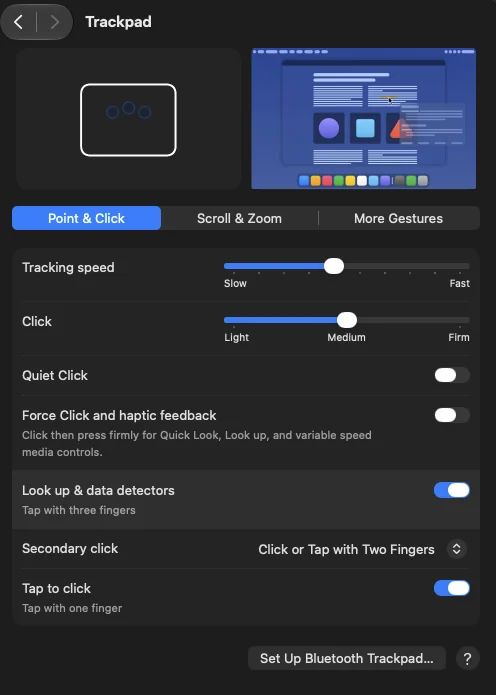
Table of Contents
Quick Answer: Fix MacBook Trackpad Not Working
If your MacBook trackpad isn’t responding, try these checks:
- Use one finger to move the pointer.
- Connect your MacBook to a suitable charger.
- Restart your MacBook.
- Disconnect external mice, hubs, and pointing devices.
- Disable “Ignore built-in trackpad when mouse or wireless trackpad is present.”
- Turn off Mouse Keys if it is interfering with trackpad input.
- Check tracking speed and Tap to Click.
- Review Force Click and haptic feedback settings.
- Clean and dry the trackpad surface.
- Test the MacBook in Safe Mode.
- Install available compatible macOS updates.
- Run Apple Diagnostics if the problem continues.
Start with the simplest steps. There’s no need to reset or erase your MacBook before checking its settings.
Why Is My MacBook Trackpad Not Working?
Several issues can prevent a MacBook trackpad from responding normally.
Common causes include:
- An unusually low battery.
- A temporary macOS software problem.
- An external mouse disabling the built-in trackpad.
- Mouse Keys accessibility settings.
- Incorrect tracking speed or clicking preferences.
- Force Touch or haptic-feedback settings.
- Moisture, dirt, or residue on the trackpad.
- Software that changes pointer behavior.
- Problems involving startup items or extensions.
- A failing internal trackpad or hardware connection.
- Physical damage or battery swelling.
The symptoms can help identify the likely cause.
If the pointer moves but clicking doesn’t work, check your click preferences and Force Touch behavior.
If the trackpad stops responding only when an external mouse is connected, check the accessibility option that disables the built-in trackpad.
If the pointer and clicking both fail even in Safe Mode, hardware inspection may be necessary.
1. Use One Finger
Before changing any settings, make sure you’re using the trackpad correctly.
Apple notes that you normally move the pointer using one finger.
Using two or more fingers can trigger scrolling and other gestures instead of moving the cursor.
What to do:
- Remove your hands from the trackpad.
- Place a single finger on its surface.
- Move your finger slowly in different directions.
- Watch whether the pointer responds.
- Try clicking a desktop item.
If the pointer moves but scrolling doesn’t work, that is a different issue from a completely unresponsive trackpad.
We’ll cover scrolling and gesture settings below.
If the pointer remains completely still, continue with the next step.
2. Connect the Charger
Low battery power can sometimes make a MacBook trackpad appear unresponsive.
According to Apple, the computer may be displaying a low-battery alert that you cannot see.
Connecting the MacBook to power is therefore an important early troubleshooting step.
Try this:
- Connect a compatible power adapter.
- Plug the adapter into a working wall outlet.
- Confirm that the MacBook is receiving power.
- Allow the battery to charge briefly.
- Test the trackpad again.
If your MacBook has a Force Touch trackpad, remember that its clicking sensation is produced electronically.
A Force Touch trackpad may not provide its normal tactile clicking feedback when the MacBook is powered off.
This doesn’t necessarily mean the trackpad is broken.
If the computer itself isn’t charging, read our MacBook Not Charging troubleshooting guide.
If the MacBook is running normally and has sufficient power, move on to the next check.
3. Restart Your MacBook
A temporary software problem can sometimes interfere with trackpad input.
Restarting macOS can refresh the computer’s operating state.
Steps:
- Save any open documents if possible.
- Open the Apple menu.
- Select Restart.
- Allow your MacBook to restart normally.
- Test the trackpad after logging in.
If the trackpad doesn’t respond, you can connect an external USB mouse to navigate the Apple menu.
If the entire MacBook is frozen, including the keyboard and display, a forced shutdown may be necessary.
However, holding the power button to force a shutdown can cause unsaved work to be lost.
Only use that method when the computer is genuinely unresponsive.
If the trackpad begins working after a normal restart, a temporary software issue may have been responsible.
4. Disconnect External Devices
Sometimes a MacBook’s built-in trackpad stops working after an external mouse or pointing device is connected.
macOS includes a setting that can intentionally disable the trackpad while another pointing device is present.
Before changing that setting, try disconnecting unnecessary accessories.
What to do:
- Disconnect an external USB mouse.
- Turn off or disconnect any paired wireless mouse.
- Disconnect external pointing devices and unnecessary docking accessories.
- Test the built-in trackpad.
- Reconnect accessories one at a time if the trackpad begins working.
If removing an external mouse immediately restores trackpad control, the issue may be related to accessibility settings rather than hardware.
If the trackpad remains unresponsive, continue below.
5. Disable Ignore Built-in Trackpad
This is one of the most useful settings to check when your trackpad stops working after connecting a mouse.
macOS includes an option called Ignore built-in trackpad when mouse or wireless trackpad is present.
When enabled, the system can intentionally disable the built-in trackpad.
To check:
- Open Apple menu > System Settings.
- Select Accessibility.
- Click Pointer Control.
- Find the Mouse & Trackpad section.
- Locate Ignore built-in trackpad when mouse or wireless trackpad is present.
- Turn the option off if enabled.
- Test your MacBook trackpad again.
The precise arrangement of controls may vary slightly with macOS versions.
If you normally use both an external mouse and the built-in trackpad, keeping this option disabled allows both to remain available.
Apple also notes that software supplied with some third-party mice can affect how this setting behaves.
If the issue began after installing mouse customization software, investigate that software as well.
6. Turn Off Mouse Keys
Mouse Keys is an accessibility feature that allows you to control the pointer using keyboard keys.
On supported configurations, enabling Mouse Keys can also disable the built-in trackpad.
This may make your MacBook appear to have a trackpad hardware problem.
Try these steps:
- Open Apple menu > System Settings.
- Select Accessibility.
- Click Pointer Control.
- Find Ignore built-in trackpad when mouse or wireless trackpad is present.
- Turn this setting off if it’s enabled.
- Check whether Mouse Keys is enabled under Alternate Control Methods.
- If Mouse Keys is enabled, turn it off and test the trackpad again.
When the option to ignore the built-in trackpad is enabled, your MacBook may disable its trackpad whenever an external mouse or wireless trackpad is connected.
This is normal behavior for that setting, not necessarily a hardware failure.
Disconnect any external pointing devices and test the built-in trackpad again.
7. Check Force Touch and Click Settings
If your MacBook trackpad moves the pointer but won’t click, the problem may involve its click settings.
Most modern MacBook Air and MacBook Pro models use Force Touch trackpads, which rely on pressure sensors and haptic feedback.
Unlike traditional mechanical trackpads, Force Touch trackpads create a simulated clicking sensation.
What to do:
- Open Apple menu > System Settings.
- Click Trackpad.
- Select Point & Click.
- Review the Click pressure setting.
- Try a lighter click pressure if the option is available.
- Turn on Tap to click.
- Test whether tapping the trackpad registers as a normal click.
On supported models, you can also check Force Click and haptic feedback.
If the pointer moves normally but the clicking sensation is missing, determine whether clicks still register on the screen.
A missing physical sensation doesn’t always mean the entire trackpad has failed.
However, Force Touch trackpads require electrical power to produce haptic feedback. If the MacBook isn’t receiving power, the trackpad may feel unusually rigid.
If your trackpad feels raised, distorted, or difficult to press and the laptop case appears swollen, stop using the MacBook and arrange professional inspection.
8. Test the Trackpad in Another App
Sometimes the trackpad works normally, but a particular application doesn’t respond to clicks or gestures.
This can happen when an application freezes or has problems handling input.
Before changing additional system settings, test the trackpad in different locations.
Try these checks:
- Open Finder.
- Move the pointer across the desktop.
- Click a folder or application.
- Open Safari and test scrolling.
- Try clicking and dragging a window.
- Compare the results.
If the trackpad works normally in Finder and Safari but fails in one application, that application may be responsible.
Close and reopen the affected application.
You can also check whether an update is available.
If the entire MacBook becomes unresponsive, the issue may involve a broader system freeze rather than the trackpad itself.
Avoid assuming that every frozen application indicates damaged trackpad hardware.
9. Start Your MacBook in Safe Mode
If your MacBook trackpad still isn’t working properly, Safe Mode can help identify certain software-related problems.
Safe Mode limits some software that normally loads during startup.
If the trackpad works in Safe Mode but fails after a normal restart, a third-party application or startup item may be contributing to the problem.
For Apple Silicon MacBooks
- Shut down your MacBook.
- Press and hold the power button.
- Release it when startup options appear.
- Select your startup disk.
- Press and hold the Shift key.
- Click Continue in Safe Mode.
- Log in and test your trackpad.
For Intel-Based MacBooks
- Shut down your MacBook.
- Turn it on.
- Immediately press and hold the Shift key.
- Release the key when the login screen appears.
- Log in and test the trackpad.
If the built-in trackpad doesn’t work, connect a compatible external mouse to navigate the screen.
Once Safe Mode loads, test pointer movement, clicking, and scrolling.
If the problem disappears, review recently installed applications, login items, and third-party input utilities.
Restart normally to exit Safe Mode.
For complete instructions, see Apple Support: Start Up Your Mac in Safe Mode.
10. Update macOS
An outdated or malfunctioning software component may sometimes affect trackpad behavior.
Keeping macOS updated helps ensure that your MacBook receives available system fixes and compatibility improvements.
However, a software update cannot repair physically damaged trackpad hardware.
Steps:
- Open Apple menu > System Settings.
- Select General.
- Click Software Update.
- Check whether a compatible update is available.
- Back up important files before installing a major update.
- Install the update following Apple’s instructions.
- Restart the MacBook and test the trackpad again.
If your trackpad stopped working immediately after a macOS update, don’t automatically assume the update damaged it.
Check accessibility settings and test Safe Mode to investigate whether startup software is involved.
Avoid erasing or reinstalling macOS as your first troubleshooting step.
11. Run Apple Diagnostics
If the trackpad remains unresponsive after checking settings and software, Apple Diagnostics may help identify a hardware issue.
Apple Diagnostics is built into supported Mac computers.
The startup procedure depends on whether your MacBook uses Apple silicon or an Intel processor.
Apple Silicon MacBooks
- Shut down your MacBook.
- Disconnect unnecessary accessories.
- Press and hold the power button until startup options appear.
- Release the power button.
- Press and hold Command + D.
- Follow the onscreen instructions.
Intel-Based MacBooks
- Shut down your MacBook.
- Turn it on.
- Immediately press and hold the D key.
- Release it when the diagnostic process begins.
- Follow the onscreen instructions.
If your Mac is running a supported newer version of macOS, Apple Diagnostics may allow you to select a specific trackpad test.
Record any reference code displayed after the test.
A diagnostic result can help Apple Support investigate the problem, but passing the test doesn’t guarantee that every possible hardware issue has been ruled out.
For more information, visit Apple Support: Use Apple Diagnostics.
12. Check for Hardware Damage
If your MacBook trackpad is not working after all the software checks, physical damage may be responsible.
Possible causes include:
- Liquid exposure.
- Internal connector damage.
- A faulty trackpad sensor.
- Damage from an impact or drop.
- Battery swelling beneath the trackpad.
- Failure of the trackpad’s haptic feedback system.
Important: A swollen battery can create pressure beneath the trackpad and distort the laptop’s case.
If the trackpad appears raised, the case is bulging, or you suspect battery swelling, stop using and charging the MacBook.
Do not attempt to flatten the trackpad, open the battery compartment, or apply pressure to the affected area.
Contact Apple Support or an Apple Authorized Service Provider.
If the issue is limited to the built-in trackpad, you may be able to use a compatible external mouse temporarily, provided there are no signs of battery damage or other safety concerns.
Professional inspection can help determine whether the trackpad itself or another internal component needs repair.
MacBook Trackpad Not Working After Sleep?
Sometimes a MacBook trackpad appears unresponsive immediately after the laptop wakes from sleep.
Start by checking whether the entire system is responding.
Try pressing a keyboard key, opening an application, or connecting an external mouse.
If the system is otherwise functioning, restart the MacBook and test the trackpad again.
You can also review connected accessories and third-party input software.
If the problem happens repeatedly after waking from sleep, test Safe Mode and check for compatible macOS updates.
A recurring problem after sleep doesn’t automatically mean the trackpad hardware is damaged.
MacBook Trackpad Not Working at Login Screen?
If your trackpad doesn’t work at the MacBook login screen, first determine whether the computer has enough power.
Connect it to a compatible charger if necessary.
Next, try a wired external mouse.
If the external mouse works, log in and review trackpad and accessibility settings.
Make sure the built-in trackpad isn’t disabled when an external pointing device is connected.
If the trackpad works in Safe Mode but fails after a normal startup, startup software may be contributing to the issue.
If neither the trackpad nor a known-working external mouse responds, investigate whether macOS itself is frozen.
MacBook Trackpad Moves but Won’t Click?
If the pointer moves but clicking doesn’t work, the cause may involve trackpad settings or haptic feedback.
Open System Settings > Trackpad > Point & Click.
Try adjusting click pressure and enabling Tap to click.
If tapping registers a click but pressing does not, investigate the Force Touch settings and whether the MacBook has sufficient power.
On supported Force Touch trackpads, the clicking sensation is generated electronically.
If the trackpad is physically distorted or raised, don’t continue pressing it. Seek professional assistance.
MacBook Trackpad Not Scrolling?
If the pointer moves and clicks normally but scrolling doesn’t work, review your gesture settings.
Open System Settings > Trackpad > Scroll & Zoom.
Check that the desired scrolling gestures are enabled.
For most MacBook trackpads, scrolling requires moving two fingers across the surface.
You can also test scrolling in Safari, Finder, or another application.
If scrolling works in some applications but not others, the problem may be application-specific.
Avoid resetting your entire MacBook just to resolve one disabled gesture.
Frequently Asked Questions
Why Is My MacBook Trackpad Not Working?
A MacBook trackpad may stop responding because of accessibility settings, low battery power, software problems, an external mouse setting, or hardware damage. Start by restarting the MacBook and checking Pointer Control settings.
Why Is My MacBook Air Trackpad Not Working?
MacBook Air trackpad problems can involve incorrect settings, a temporary macOS issue, or hardware failure. Check the battery, restart the laptop, and test whether an external mouse works.
Why Is My MacBook Pro Trackpad Not Working?
Possible causes include disabled trackpad settings, a frozen application, software conflicts, or a damaged trackpad. Test the pointer, click feedback, and Safe Mode before considering repair.
How Do I Reset My MacBook Trackpad?
There isn’t a dedicated factory-reset button for the built-in MacBook trackpad. You can restart the MacBook, review trackpad settings, disable conflicting accessibility options, and test Safe Mode.
Why Does My MacBook Trackpad Move but Not Click?
Click pressure settings, disabled tap-to-click behavior, or Force Touch feedback problems may explain the issue. Check System Settings > Trackpad > Point & Click.
Can a MacBook Trackpad Stop Working After an Update?
Yes, trackpad problems can sometimes appear after an update, but the timing doesn’t prove that the update caused them. Restart the MacBook, review settings, test Safe Mode, and install any relevant compatible updates.
Why Is My MacBook Trackpad Not Working When a Mouse Is Connected?
The accessibility option Ignore built-in trackpad when mouse or wireless trackpad is present may be enabled. Turn it off under System Settings > Accessibility > Pointer Control.
Why Is My MacBook Trackpad Not Working After Sleep?
A temporary system freeze or software issue may affect the trackpad after waking. Try restarting your MacBook and checking external mouse behavior, startup software, and macOS updates.
Will Resetting macOS Fix a MacBook Trackpad?
A complete macOS reset is not recommended as an initial troubleshooting step. It can be disruptive and won’t fix physically damaged trackpad hardware. Check settings and run diagnostics first.
Can I Use a Mouse if My MacBook Trackpad Is Broken?
Yes. You can connect a compatible USB or Bluetooth mouse to your MacBook. However, stop using the laptop if you suspect battery swelling or another unsafe hardware condition.
Does a MacBook Trackpad Need Replacement if It Stops Clicking?
Not necessarily. Modern Force Touch trackpads use electronic haptic feedback, so a missing clicking sensation isn’t always proof of mechanical failure. Review settings and power before considering repair.
How Do I Know if My MacBook Trackpad Needs Repair?
Professional service may be necessary if the trackpad remains unresponsive across different startup environments, Apple Diagnostics reports a relevant problem, or there is visible physical damage.
Final Thoughts
If your MacBook trackpad is not working, begin with the simplest troubleshooting steps.
Check that your MacBook has sufficient power, restart it, and test whether an external mouse works.
Next, review Trackpad settings and Accessibility > Pointer Control.
An enabled option that ignores the built-in trackpad when a mouse is connected can make a perfectly functional trackpad appear broken.
If pointer movement works but clicking doesn’t, check the Force Touch and Tap to click settings.
For persistent problems, Safe Mode and Apple Diagnostics can help narrow down possible software and hardware causes.
Most importantly, stop using the MacBook if the trackpad is physically distorted or there are signs of a swollen battery.
If none of these checks resolves the problem, contact Apple Support or an Apple Authorized Service Provider.
For more MacBook troubleshooting, explore our Apple Guides on The Synced Desk.