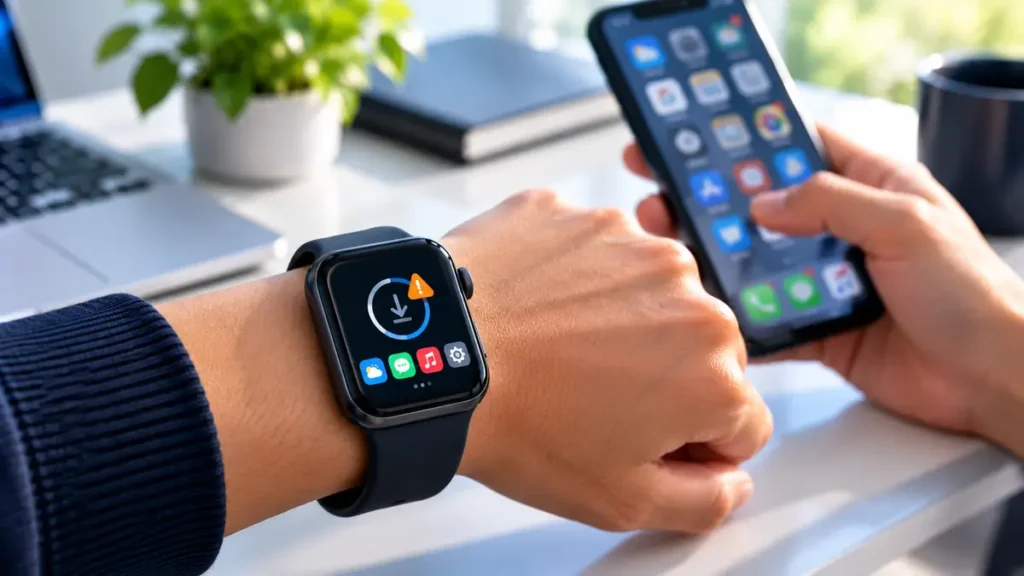
Apple Watch apps not installing even though your iPhone works normally? Maybe the download icon keeps spinning, an app stays stuck on Waiting, or tapping Install in the Watch app does nothing.
Sometimes applications disappear from the Available Apps list. In other cases, you can download apps on your iPhone, but their watchOS versions never appear on your Apple Watch.
These problems can be frustrating, especially when you’re setting up a new watch or installing an app you need for fitness, productivity, or communication.
Fortunately, an Apple Watch app installation problem doesn’t automatically mean something is wrong with the hardware.
The cause could involve a missing watchOS version of the app, an interrupted internet connection, insufficient storage, App Store authentication, content restrictions, or temporary software issues.
In this guide, we’ll explain 12 proven fixes for Apple Watch apps not installing, including how to troubleshoot stuck downloads, install apps manually, check compatibility, and fix App Store problems.
We’ll also cover what to do when apps stop installing after a watchOS update or remain stuck on the installation screen.
Table of Contents
Quick Answer: Fix Apple Watch Apps Not Installing
If your Apple Watch won’t install apps, try these steps:
- Confirm the app supports your Apple Watch.
- Install the app directly from the watch’s App Store.
- Try installing it through the paired iPhone.
- Check Bluetooth, Wi-Fi, and cellular connectivity.
- Check available Apple Watch storage.
- Restart your Apple Watch and iPhone.
- Complete App Store authentication and check your Apple Account.
- Review Automatic Downloads settings.
- Update iOS and watchOS.
- Check Screen Time restrictions.
- Check app availability and try downloading it again.
- Contact Apple Support if the problem continues.
Important: Don’t erase or unpair your Apple Watch immediately. Start with compatibility, connectivity, storage, and App Store checks before attempting disruptive troubleshooting.
Why Are Apple Watch Apps Not Installing?
Apple Watch can download compatible apps through its own App Store or through the Watch app on a paired iPhone.
However, not every iPhone app includes an Apple Watch version.
Even when an app supports watchOS, successful installation may depend on several conditions.
Common Causes
- The app doesn’t offer an Apple Watch version.
- Your watchOS version is too old for the app.
- Internet connectivity is unreliable.
- Apple Watch storage is nearly full.
- App Store authentication hasn’t been completed.
- The Apple Account has a payment or verification issue.
- Automatic Downloads is disabled.
- A download has become temporarily stuck.
- Screen Time restrictions prevent installing the app.
- The app isn’t available in your country or region.
- The paired iPhone or watch needs a software update.
- A temporary App Store or watchOS problem is interfering.
Identify Your Problem
| Symptom | What to check first |
|---|---|
| Install button does nothing | Connection and app compatibility |
| Download icon keeps spinning | Network, storage, and restart |
| App missing from Available Apps | watchOS compatibility |
| App says Waiting | Connectivity and available storage |
| Can’t find an app in App Store | Regional availability |
| Password or payment error | Apple Account settings |
| Apps stopped installing after update | Software and compatibility |
| Apps won’t install on a child’s watch | Screen Time and family settings |
Identifying the symptom will help you avoid unnecessary resets.
1. Confirm the App Supports Apple Watch
The first step is checking whether the app actually has a compatible watchOS version.
Not every iPhone app can be installed on Apple Watch.
Some applications support only iPhone and iPad, while others require a newer watchOS version.
Check App Compatibility
- Open the App Store on your iPhone.
- Search for the app.
- Open its product page.
- Review the compatibility information.
- Look for Apple Watch support.
- Check the minimum watchOS requirement.
- Compare it with the software installed on your watch.
You can check your watchOS version by opening Settings > General > About on your Apple Watch.
Why Isn’t an iPhone App Available?
An iPhone app may work perfectly without offering a dedicated Apple Watch app.
In this situation, there’s nothing to install on the watch.
You may still receive certain mirrored notifications from the iPhone app, but notification support isn’t the same as having a standalone watchOS application.
Does the App Require an iPhone?
Some Apple Watch apps also require a companion iPhone app.
Apple confirms that certain apps must have their iOS version installed on the paired iPhone.
If an app requires an iPhone companion, install or update that app first.
If your watch doesn’t meet the app’s minimum software requirements, you’ll need a compatible watchOS version before installation can succeed.
2. Install the App Directly on Apple Watch
Apple Watch includes its own App Store.
This means you don’t always need to initiate an installation through the paired iPhone.
Trying the watch’s App Store can help determine whether the problem affects one installation method or all downloads.
Install Through Apple Watch
- Press the Digital Crown.
- Open the App Store.
- Tap Search.
- Enter the app’s name.
- Select the correct app.
- Tap Get or the displayed price.
- Double-click the Side button when prompted.
- Complete any required authentication.
- Allow the download to finish.
The App Store may show a download symbol instead of a price for an app you’ve already purchased.
What if Nothing Happens?
Check whether the download requires confirmation.
Apple specifically instructs users to double-click the Side button to complete App Store purchases or downloads when prompted.
A download that seems unresponsive may simply be awaiting this step.
Also check whether the App Store displays an error message.
If you’re receiving a payment, password, or account verification warning, investigate that message rather than repeatedly tapping Get.
3. Install Apps Through Your iPhone
If installing an app directly on Apple Watch doesn’t work, try the paired iPhone.
Apple provides an installation option inside the Watch app.
The exact menu structure depends on your watchOS and iOS versions.
On Recent Software
- Open the Watch app on your iPhone.
- Tap My Watch.
- Open Apps if that section is available.
- Scroll to Available Apps.
- Find the app you want.
- Tap Install.
- Allow installation to complete.
On older software, Available Apps may appear directly on the My Watch screen.
Follow the layout displayed by your device.
What if the Install Button Is Missing?
Several explanations are possible:
- The app is already installed.
- The app doesn’t support your Apple Watch.
- Its watchOS version is incompatible.
- The companion iPhone app is required.
- The app isn’t available in your region.
Don’t assume every missing Install button indicates a software malfunction.
Check the App List
On supported Apple Watch models and recent watchOS versions, pressing the Digital Crown may show frequently used apps first, followed by the full app collection.
If an application appears missing, check the complete app list before trying to reinstall it.
For Apple’s detailed instructions, see Download Apps on Apple Watch.
4. Check Bluetooth and Wi-Fi Connections
Your Apple Watch needs an appropriate network connection to download apps.
It may communicate through its paired iPhone, a compatible Wi-Fi network, or cellular service on supported models.
If connectivity is unreliable, downloads may fail or remain pending.
Check the Paired iPhone
- Keep your iPhone near your Apple Watch.
- Open Settings on the iPhone.
- Confirm Bluetooth is enabled.
- Check that Wi-Fi or cellular internet access works.
- Open a webpage to test the connection.
Check Apple Watch
- Press the Side button to open Control Center.
- Review the connection indicators.
- Check that Airplane Mode is off.
- Confirm the watch is connected to the paired iPhone or another suitable network.
- Try downloading a small compatible app.
Try a Different Network
If the connection is slow or unstable, connect your iPhone to a reliable Wi-Fi network.
Avoid starting large downloads on an unreliable connection.
A cellular Apple Watch may also download supported apps using mobile data, but data charges can apply.
If Your Watch Keeps Disconnecting
If Bluetooth or Wi-Fi connectivity fails repeatedly, resolve that problem before focusing on App Store installation.
You can also read our iPhone Bluetooth Not Finding Devices guide for related Bluetooth troubleshooting.
5. Check Apple Watch Storage
Apps need available storage space before they can install.
If your Apple Watch is nearly full, downloads may fail, remain pending, or display an error.
Apple provides a storage overview directly on the watch.
Check Storage
- Open Settings on Apple Watch.
- Tap General.
- Select Storage.
- Review available space.
- Check which apps and content use the most storage.
You can also check storage through the paired iPhone:
Watch app > My Watch > General > Storage.
Free Up Space
If storage is low, consider removing content you no longer need.
For example:
- Unused applications.
- Downloaded music.
- Downloaded podcasts.
- Other offline media.
Be careful when removing apps containing important information.
Some apps store data locally, and deleting them may remove information that hasn’t been synchronized elsewhere.
How Much Space Is Required?
There isn’t one universal amount of free storage required for every app.
The necessary space depends on the application’s size and installation requirements.
Review the app’s size in the App Store and make sure the watch has sufficient free space.
If storage is no longer an issue, try installing again.
6. Restart Apple Watch and iPhone
Temporary software problems can interrupt downloads.
Restarting both devices may clear an unresponsive App Store process or temporary connection issue.
Restart Apple Watch
- Remove Apple Watch from its charger.
- Press and hold the Side button.
- Tap the power button when the controls appear.
- Drag the Power Off slider.
- Wait for the watch to shut down.
- Press and hold the Side button to turn it back on.
Restart iPhone
- Save any open work.
- Shut down the iPhone normally.
- Turn it on again.
- Unlock the device.
- Confirm internet access works.
After both devices restart, try installing the app again.
Should You Force Restart?
Apple recommends a regular restart before using a forced restart.
If the watch itself is completely unresponsive, Apple provides a separate force-restart procedure.
However, forcing a restart isn’t necessary for an ordinary slow download when the watch still responds normally.
For official instructions, read Restart Apple Watch.
7. Check App Store Authentication
Some Apple Watch downloads require Apple Account authentication or a payment verification step.
If you overlook the prompt, installation may not continue.
Complete Download Confirmation
When downloading directly from Apple Watch:
- Open the App Store.
- Select the app.
- Tap Get or its price.
- Double-click the Side button when asked.
- Complete the requested authentication.
If the App Store displays an Apple Account warning, follow the message carefully.
Check Payment Problems
Apple explains that a valid payment method may sometimes be required even for free App Store downloads.
A previous billing problem or a verification-required message can also prevent transactions from completing.
If you’re seeing one of these warnings, review the payment method associated with your Apple Account.
Don’t Change Settings Without an Error
If other apps install normally and you don’t see an account or payment warning, a billing issue is less likely.
Focus on compatibility or the affected application’s installation instead.
For additional guidance, read Apple’s App Store Download Troubleshooting.
8. Review Automatic Download Settings
Apple Watch includes settings that control automatic app downloads and updates.
These are separate from manually installing an app.
If an iPhone app isn’t appearing automatically on the watch, the relevant settings may be disabled.
Check Automatic Downloads
- Open Settings on your Apple Watch.
- Tap App Store.
- Review Automatic Downloads.
- Enable it if you want eligible app purchases to download automatically.
- Review Automatic Updates separately.
You can also manage the App Store settings through the Watch app on the paired iPhone.
Automatic Downloads vs. Automatic Updates
These features have different purposes.
Automatic Downloads helps install eligible watchOS apps purchased on other devices.
Automatic Updates downloads newer versions of applications that are already installed.
Turning on Automatic Updates doesn’t guarantee that a previously missing application will install.
What About Automatic App Install?
Some Watch app versions also offer an Automatic App Install option for compatible iPhone applications.
If it’s disabled, you may need to install those apps manually.
On newer versions, the Watch app’s layout can differ from older tutorials.
Use the available Apps and App Store settings rather than relying on outdated screenshots.
See Apple’s App Store Settings Guide.
9. Update iOS and watchOS
Software compatibility matters when installing Apple Watch apps.
Some applications require a minimum watchOS version.
Others may need an updated companion iPhone app.
If your devices are running older software, installation may be unavailable.
Update Your iPhone
- Open Settings.
- Tap General.
- Select Software Update.
- Check for available updates.
- Back up important information.
- Install a compatible update if appropriate.
Update Apple Watch
- Open the Watch app on your paired iPhone.
- Tap My Watch.
- Select General.
- Open Software Update.
- Check the compatible watchOS version.
- Follow Apple’s installation instructions.
You can also check through Settings > General > Software Update directly on supported watches.
Update Requirements
Apple recommends:
- Charging Apple Watch to at least 50%.
- Keeping it connected to its charger during installation.
- Connecting the paired iPhone to Wi-Fi.
- Keeping the devices appropriately close when updating through iPhone.
As of October 2026, watchOS 27 is available for compatible Apple Watch models, but some older watches use earlier supported versions.
Don’t attempt to install a version that your model doesn’t support.
Will Updating Fix App Downloads?
An update may fix some software-related installation problems.
However, it cannot make an incompatible app compatible with an unsupported model.
Always check the application’s watchOS requirements.
For complete instructions, see Update Your Apple Watch.
10. Check Screen Time Restrictions
Screen Time can restrict access to applications, downloads, and purchases.
This is especially relevant for an Apple Watch configured for a child or family member.
If some applications are unavailable while others work normally, review the applicable restrictions.
Check the iPhone
- Open Settings on the managing iPhone.
- Tap Screen Time.
- Select the relevant person or device where appropriate.
- Open Content & Privacy Restrictions.
- Review app installation and purchase restrictions.
- Check any applicable age ratings or download permissions.
The precise menu labels vary by iOS version and device configuration.
Check Family Restrictions
For an Apple Watch managed through Apple Watch For Your Kids, a parent or guardian may control permitted downloads.
Some purchases or free apps may require Ask to Buy approval.
If approval is pending, the installation won’t necessarily proceed immediately.
Should You Disable Screen Time?
You usually don’t need to disable every restriction.
Instead, identify the specific setting preventing the installation.
If the watch belongs to a child, keep appropriate protections in place while resolving the download problem.
Apple provides details in Change App Store Settings on Apple Watch.
11. Check App Availability and Retry
Sometimes the problem affects one application rather than every download.
An app may no longer be available, may not support your region, or may require a newer watchOS version.
Check the App Store Listing
- Open the App Store on Apple Watch.
- Search for the app by name.
- Open its listing if available.
- Check compatibility.
- Review the developer and software requirements.
- Try another compatible app for comparison.
Download a Previously Purchased App
Apple allows users to view purchased applications in the watch’s App Store.
To check:
- Open the App Store on Apple Watch.
- Scroll to the bottom.
- Tap Account.
- Select Purchased.
- Find the app.
- Download it again if available.
You ordinarily don’t need to pay again for a previously purchased app using the same Apple Account.
However, regional availability, developer changes, and compatibility requirements still apply.
Check for App Store Service Problems
If numerous unrelated apps suddenly stop downloading on multiple Apple devices, you can review Apple System Status.
A service disruption may explain why App Store operations are failing.
Don’t assume an outage without checking current service information.
If the problem affects only one app, contact its developer when appropriate.
12. Get Apple Support Before Resetting
If your Apple Watch still cannot install compatible apps after the earlier checks, further assistance may be useful.
Before contacting support, collect information that can help identify the problem.
Record These Details
- Your Apple Watch model.
- Installed watchOS version.
- Paired iPhone and iOS version.
- The name of the affected app.
- Any installation error message.
- Whether other apps install normally.
- Available storage space.
- Whether downloads fail directly on the watch and through iPhone.
Should You Unpair Apple Watch?
Unpairing is a more disruptive option and should not be the first step.
It removes the pairing and erases the watch as part of the process.
If you have a cellular model, you must also consider how its mobile plan will be preserved or restored.
Apple may recommend unpairing in specific troubleshooting situations, but it isn’t guaranteed to solve App Store account or app compatibility problems.
When to Contact Apple Support
Seek help when:
- Multiple compatible apps repeatedly fail.
- App Store authentication cannot complete.
- Downloads fail despite a stable network and sufficient storage.
- The issue persists after normal restart and compatible software updates.
- The watch shows persistent installation errors.
Avoid installing unknown third-party repair utilities or unofficial watchOS packages.
Use Apple’s official support channels for additional troubleshooting.
Apple Watch Apps Stuck Installing
If your Apple Watch apps are stuck installing, start by checking whether the download is waiting for confirmation.
Open the App Store and review the app’s current status.
Then check your network connection and available storage.
If the watch is responsive but the installation never finishes, restart it normally and try again.
You can also attempt installation through the paired iPhone.
If every app becomes stuck, investigate network connectivity, App Store authentication, and software compatibility.
Don’t erase your watch simply because one download appears slow.
Apple Watch Apps Not Downloading
If apps aren’t downloading at all, determine whether the problem affects every app or only one.
Try downloading a small, free, compatible application.
If that works, investigate the original app’s compatibility or availability.
If no apps download, check the watch’s internet connection, Apple Account verification, storage, and App Store settings.
Remember that an application must actually support watchOS to appear on Apple Watch.
A normal iPhone-only app cannot be installed as a watchOS app merely by changing settings.
Apple Watch Install Button Not Working
If tapping Install in the Watch app does nothing, start by checking whether the app is compatible with your watch.
Then confirm that the iPhone and Apple Watch are connected.
Try using the watch’s App Store directly.
If that method works, the problem may involve the Watch app’s installation process rather than the entire App Store service.
Restart both devices and try again.
If the app requires a companion iPhone app, make sure that version is installed and up to date.
Apple Watch Apps Not Showing After Installation
Sometimes an app installs successfully but doesn’t appear where expected.
On recent watchOS versions, the Home Screen may initially show frequently used apps.
Press the Digital Crown and browse the full app collection.
Check whether the app is listed as installed in the Watch app on your iPhone.
If the application is installed but hidden from the watch, review any available Show App on Apple Watch option.
Also check whether the developer provides an actual watchOS app rather than only iPhone-based notifications or complications.
Apple Watch Apps Not Installing After Update
If app installation stopped after a watchOS update, check whether the affected app supports the new software version.
Restart your Apple Watch and paired iPhone.
Then review App Store authentication, available storage, and network connectivity.
Try installing the application directly from the watch.
If other apps install normally, the issue may be limited to the affected application or its current compatibility.
Avoid assuming that the watchOS update caused the failure solely because the timing coincides.
For operating-system update failures, use our separate Apple Watch Not Updating guide rather than treating an app download failure as a watchOS installation problem.
Apple Watch Apps Not Installing on a New Watch
A newly paired Apple Watch may need time to complete its initial setup and synchronize compatible applications.
Keep the watch and paired iPhone connected to suitable networks.
Check whether the initial setup has finished.
Review Automatic Downloads and the Available Apps list.
If an app doesn’t appear, confirm that it offers a compatible watchOS version.
A new watch doesn’t automatically support every iPhone application.
If installation remains unsuccessful, restart both devices and try downloading one compatible app directly from the watch’s App Store.
Frequently Asked Questions
Why Are My Apple Watch Apps Not Installing?
Possible causes include incompatible apps, unstable internet connectivity, low storage, incomplete App Store authentication, content restrictions, or temporary software issues.
How Do I Install Apps on Apple Watch?
Open the App Store on Apple Watch, select a compatible app, tap Get, and complete the required confirmation. You can also install supported apps through the paired iPhone’s Watch app.
Why Is My Apple Watch App Stuck on Waiting?
A pending download may be affected by network connectivity, storage, or App Store authentication. Check the connection, available storage, and download status before restarting.
Why Is the Install Button Not Working?
The app may be incompatible, the watch may be disconnected, or the installation process may have stalled. Try installing directly from Apple Watch after checking compatibility.
Do All iPhone Apps Work on Apple Watch?
No. Only applications with compatible watchOS versions can be installed directly on the watch.
How Do I Enable Automatic App Downloads?
Open Settings > App Store on Apple Watch and review Automatic Downloads. Related settings may also be available through the Watch app on iPhone.
Can Low Storage Prevent App Installation?
Yes. Apps require available storage space. Check Settings > General > Storage on Apple Watch and remove unnecessary content if space is low.
Can I Install Apps Without My iPhone?
Yes. Supported Apple Watch models can download compatible applications directly through their App Store using an appropriate network connection and Apple Account.
Why Can’t I Find an App in the Apple Watch App Store?
The app may not support watchOS, may require newer software, or may be unavailable in your region.
Will Updating watchOS Fix App Installation?
It may resolve some compatibility or software problems. However, it doesn’t guarantee that every app will install, especially if the app isn’t supported.
Why Does Apple Watch Ask for a Password When Downloading Apps?
App Store downloads can require Apple Account verification or confirmation through the Side button. Payment verification may also be required in some circumstances.
Should I Reset My Apple Watch?
Not as an initial solution. Check compatibility, storage, connection, authentication, and software updates first. Unpairing is more disruptive and may require additional setup afterward.
Final Thoughts
If your Apple Watch apps are not installing, start with the simplest checks.
Confirm that the app offers a compatible watchOS version, then try downloading it directly through the watch’s App Store.
If the download fails, try the paired iPhone’s Watch app.
Check your internet connection, available storage, Apple Account authentication, and Automatic Downloads settings.
If the problem continues, restart both devices and review compatible software updates.
For family-managed watches, remember to check Screen Time restrictions and approval requirements.
Most importantly, don’t erase or unpair your Apple Watch before completing the safer troubleshooting steps.
For related Apple troubleshooting, read our iPhone Bluetooth Not Finding Devices guide, or explore other Apple Watch connection and update guides on The Synced Desk.
Last updated: October 27, 2026.
Official Apple Support References
- Apple: Download Apps on Apple Watch
- Apple: Get Apps in the App Store on Apple Watch
- Apple: Change App Store Settings on Apple Watch
- Apple: Check App Settings and Storage
- Apple: Restart Apple Watch
- Apple: Update Your Apple Watch
- Apple: Manually Update Apps
- Apple: App Store Download Troubleshooting
- Apple System Status