iPhone Screen Time App Limits not working? You might have set a daily limit for Instagram, YouTube, or another app, only to discover that the app remains accessible after its allowance expires.
Before resetting anything, check which version of Screen Time your iPhone uses.
In iOS 27, Apple introduced Time Allowances and Screen Time Schedules. On iOS 26 and earlier, the familiar App Limits controls are used instead.
The correct fix depends on whether the problem involves activity tracking, an incorrect category, an Always Allowed exception, or parental-control settings.
This guide explains how to identify the cause, check the appropriate settings, and determine whether your restrictions are working as intended.
Table of Contents
Quick Answer
If iPhone Screen Time App Limits are not working, start with these checks:
- Make sure Screen Time activity tracking is enabled.
- Check whether you’re using iOS 27 or an older version.
- In iOS 27, open Screen Time > Time Allowances and review your categories and daily allowances.
- In iOS 26 or earlier, open Screen Time > App Limits and check the relevant limits.
- On older versions, enable Block at End of Limit if the option is available and you want the app blocked.
- Confirm that the app isn’t excluded through Always Allowed.
- Check the Screen Time passcode and Family Sharing settings.
- Restart the iPhone and install compatible software updates.
Important: In iOS 27, Time Allowances and Screen Time Schedules replace much of the older App Limits and Downtime setup. Don’t follow old menu instructions without checking your software version first.
Identify Why Your Screen Time Limit Isn’t Working
Before changing several settings, identify which of these symptoms matches your problem.
The App Opens After Its Daily Limit
Check whether the app belongs to the category you’ve restricted.
On iOS 27, open Settings > Screen Time > Time Allowances, then review the relevant category and its allowance.
Also check Always Allowed, because exempted apps may remain accessible.
Screen Time Shows No Usage Information
Open Settings > Screen Time > Manage Screen Time.
Confirm that App & Website Activity is enabled.
Without activity tracking, the normal usage reports and associated Screen Time features won’t function as expected.
The Limit Works on One Device but Not Another
Check Share Across Devices under Manage Screen Time.
On iOS 27, Apple requires compatible version 27 software across participating devices for the new shared Screen Time experience.
If sharing is disabled, each device manages its own settings.
A Child’s iPhone Ignores the Restriction
On the authorized parent or guardian’s iPhone, open:
Settings > Family > Child’s Name > Time Allowances
Confirm that the intended category and allowance are configured.
Apple’s redesigned parental controls require compatible software and the appropriate Family Sharing setup.
What Should Happen After Correcting the Setting?
Test the relevant restriction using a nonessential app.
Confirm that its usage is recorded under the intended category and that the configured allowance or restriction behaves as expected.
If the problem remains, follow the detailed troubleshooting sections below rather than immediately resetting your iPhone.
Why iPhone Screen Time App Limits Stop Working
Screen Time lets you track device usage and manage access to apps, websites, and certain device features.
However, a configured time limit doesn’t always mean every app will be immediately inaccessible.
Several settings affect how limits behave.
Common causes include:
- App & Website Activity isn’t enabled.
- The wrong app or category has been selected.
- A limit is configured as a reminder rather than a strict block on an older iOS version.
- The app is included in Always Allowed.
- A Screen Time passcode hasn’t been configured appropriately.
- Different Apple devices aren’t sharing Screen Time settings.
- Family Sharing restrictions haven’t synchronized.
- The iPhone is running an outdated version of iOS.
- A temporary software problem is affecting Screen Time.
- The device is using the newer iOS 27 Time Allowances interface.
Let’s identify the cause and fix it.
1. Check Your iOS Version
Before changing Screen Time settings, determine which iOS version your iPhone is using.
This matters because Apple’s Screen Time interface changed significantly with iOS 27.
Check Your iOS Version
- Open Settings.
- Tap General.
- Select About.
- Find iOS Version.
- Check the version number.
If You’re Using iOS 27
Apple introduced redesigned Screen Time controls, including:
- Time Allowances for app categories.
- Screen Time Schedules.
- Updated parental controls.
- New options for managing family device access.
Instead of looking for the older App Limits menu, open:
Settings > Screen Time > Time Allowances
For a child managed through the latest Family Sharing controls, open:
Settings > Family > Child’s Name > Time Allowances
If You’re Using iOS 26 or Earlier
The familiar App Limits controls may still be available.
Open:
Settings > Screen Time > App Limits
You can create or edit daily restrictions for selected apps and categories.
Understanding this difference can save time when troubleshooting an iPhone after a major software update.
2. Turn On App & Website Activity
Screen Time needs its activity tracking feature enabled before its main usage-management tools can operate properly.
If App & Website Activity is turned off, the iPhone won’t apply the usual Screen Time limits and schedules.
Check Activity Tracking on iOS 27
- Open Settings.
- Tap Screen Time.
- Open Manage Screen Time.
- Look for App & Website Activity.
- If prompted, turn it on.
- Return to Screen Time.
- Review Time Allowances.
Depending on the interface, you may also see the option to activate App & Website Activity when opening Time Allowances or Screen Time Schedule.
Check Activity Tracking on iOS 26
- Open Settings.
- Select Screen Time.
- Tap App & Website Activity if it isn’t already enabled.
- Choose Turn On App & Website Activity.
- Return to App Limits.
If tracking was disabled, recheck your saved limits because some settings may need to be configured again.
Tip: Don’t turn off App & Website Activity merely to refresh Screen Time unless you’re prepared for the consequences. Disabling it also turns off associated usage reporting and restrictions.
3. Reconfigure App Limits or Time Allowances
If Screen Time is enabled but your daily limits aren’t behaving as expected, check the actual allowance configuration.
A common mistake is setting a time limit for the wrong category or misunderstanding how multiple apps share an allowance.
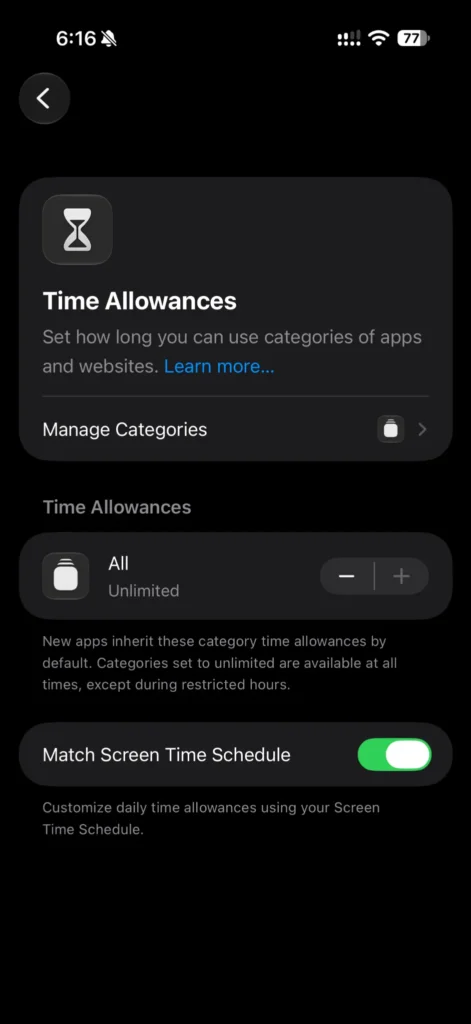
On iOS 27: Check Time Allowances
- Open Settings.
- Tap Screen Time.
- Select Time Allowances.
- Review your overall daily allowance.
- Check the allowances for categories such as Entertainment, Games, and Social Media.
- Adjust the relevant category using the available controls.
- Tap Manage Categories if you need to inspect or create a category.
Apple’s updated system allows usage management across categories.
A category may contain several apps, and the allowance is not necessarily a separate amount for every app.
For example, if several social media apps belong to the same category, their usage can contribute toward that category’s allowance.
On iOS 26: Check App Limits
- Open Settings.
- Tap Screen Time.
- Open App Limits.
- Select an existing limit.
- Confirm which apps or categories it covers.
- Review the daily time limit.
- Check Customize Days if you’re using different limits on different days.
If necessary, delete an incorrectly configured limit and create a new one.
Test the Correct Category
If you’re trying to limit Instagram, for example, verify that Instagram is actually included in the affected app category or custom selection.
Don’t assume that all apps of a similar type are automatically grouped exactly as expected.
A properly configured category is essential for accurate usage restrictions.
4. Check Block at End of Limit on Older iOS Versions
One major reason Screen Time App Limits appear ineffective on older iOS versions is that the limit may only display a reminder.
With the appropriate configuration, a user may be able to ignore the limit and continue using an app.
If you want stronger restrictions on iOS 26 or an earlier version, check whether Block at End of Limit is available.
Check the Setting
- Open Settings.
- Tap Screen Time.
- Make sure a Screen Time passcode is configured where appropriate.
- Open App Limits.
- Select the relevant limit.
- Look for Block at End of Limit.
- Enable it if available and appropriate.
The option’s availability can depend on your software version and Screen Time setup.
What If Block at End of Limit Is Missing?
First, confirm your iOS version.
If you’re using iOS 27, Apple has redesigned the interface around Time Allowances and schedules, so older instructions may no longer match your settings.
On iOS 26 and earlier, review whether your Screen Time passcode has been set up.
A passcode helps protect usage restrictions from unauthorized changes.
Important: This older Block at End of Limit troubleshooting step should not be confused with the newer iOS 27 Time Allowances controls.
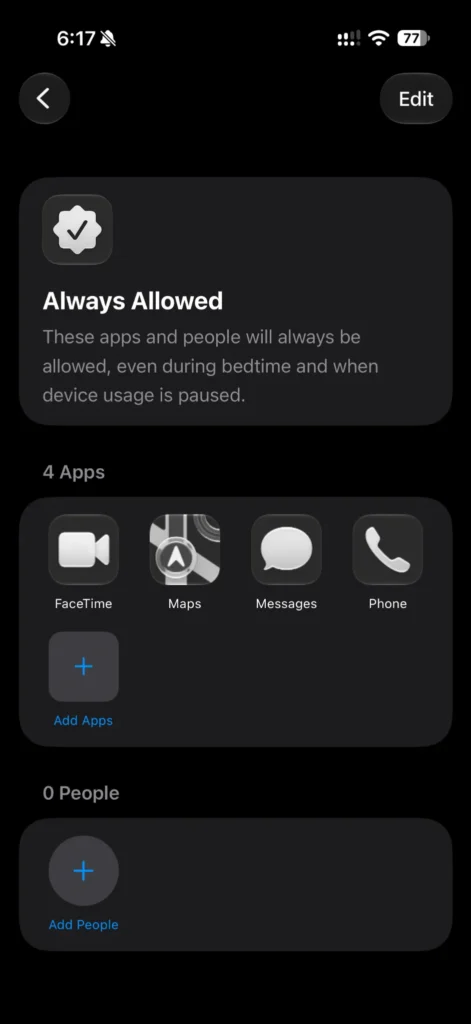
5. Review Always Allowed Apps
Screen Time includes an Always Allowed feature for apps and contacts that should remain accessible during restrictions.
This is useful for essential communication, health, navigation, and other important activities.
However, it can also explain why certain apps remain available when you expected them to be restricted.
Check Always Allowed
- Open Settings.
- Select Screen Time.
- Tap Always Allowed.
- Review the list of allowed applications.
- Identify whether the app you’re trying to restrict appears there.
- Remove it from the allowed list if appropriate.
In iOS 27, Apple continues to provide Always Allowed controls alongside Time Allowances and Screen Time Schedules.
Should You Remove Every App?
No.
Some applications or contacts may need to remain accessible for emergencies or essential communication.
For a child’s device, review these settings carefully and maintain appropriate emergency access.
The goal is to correct an unintended exception, not disable every safety-related feature.
If an app remains available after you’ve removed its exception, review the category allowance and current schedule.
6. Check the Screen Time Passcode
A Screen Time passcode helps protect restrictions from being changed without authorization.
It’s different from the passcode used to unlock an iPhone.
If restrictions are intended to manage a child’s usage, the Screen Time passcode should be configured by the authorized parent or guardian.
On iOS 27
- Open Settings.
- Tap Screen Time.
- Find Passcode and Management.
- Review the available passcode controls.
- Set or update the Screen Time passcode if necessary.
For a child managed through Family Sharing, the parent or guardian should manage the passcode through their own authorized device.
On iOS 26 or Earlier
- Open Settings.
- Select Screen Time.
- Find Lock Screen Time Settings or the corresponding passcode option.
- Follow the instructions to set a Screen Time passcode.
- Review the relevant App Limits again.
Why the Passcode Matters
Without an appropriate passcode, certain restrictions may be easier to change or ignore.
However, a passcode alone won’t fix an incorrectly configured time limit.
You still need to confirm that the right categories and allowances are selected.
If other settings are inaccessible, such as your Apple Account details, read our Apple ID Greyed Out in Settings guide, which explains how Screen Time restrictions can affect account controls.
Never use unofficial passcode-bypass tools to change restrictions on a device you aren’t authorized to manage.
7. Fix Family Sharing Restrictions
If you’re a parent and your child’s iPhone ignores configured Screen Time limits, Family Sharing settings deserve attention.
Apple allows parents and guardians to manage eligible restrictions remotely.
However, the devices must meet the necessary software and account requirements.
Check Family Sharing on iOS 27
- Open Settings on the parent’s iPhone.
- Tap Family.
- Select the child’s name.
- Open Time Allowances.
- Review the assigned categories and daily allowances.
- Make sure the intended restrictions are configured.
- Check Screen Time Schedule if you’re also limiting device access during certain hours.
Apple recommends keeping devices in the Family Sharing group updated to compatible software versions before upgrading to the redesigned parental controls.
Check Older Family Sharing Settings
On older versions, the child may appear under Screen Time on the parent’s device.
Open the child’s Screen Time controls and review the existing App Limits, Downtime, and passcode settings.
Use Separate Apple Accounts
Apple recommends that each child have their own Apple Account rather than sharing an adult’s account.
Sharing accounts can make device management and privacy more complicated.
If Changes Don’t Appear
Check that:
- Both devices have working internet connections.
- The child remains in the correct Family Sharing group.
- The parent is managing the intended child’s account.
- The devices have compatible software.
- The required parental-control upgrade has been completed, if applicable.
Don’t remove a child from Family Sharing as an initial troubleshooting step.
If communication restrictions are also causing problems with calling, our FaceTime Call Failed guide covers separate FaceTime connection and calling issues.
8. Check Share Across Devices
Another possible reason iPhone Screen Time App Limits aren’t working as expected is an incorrect Share Across Devices configuration.
Screen Time can synchronize usage reports and restrictions between compatible Apple devices signed in to the same Apple Account.
Check the Setting on iOS 27
- Open Settings.
- Tap Screen Time.
- Select Manage Screen Time.
- Find Share Across Devices.
- Review whether it’s enabled.
On Older iOS Versions
Open Settings > Screen Time and look for Share Across Devices.
The option may appear directly on the main Screen Time page.
Understand the Difference
When Share Across Devices is enabled, supported devices can share Screen Time settings and usage data.
When disabled, each device manages its own Screen Time information.
For example, a user might set a daily limit on one device and expect that same limit to apply to another device, even though cross-device sharing is turned off.
Check Software Compatibility
Apple states that using the new shared Screen Time features introduced in iOS 27 requires compatible software across participating devices.
If one device still uses older software, you may need to retain the previous controls or update devices before switching to the new shared experience.
Don’t expect a new iOS 27 allowance to synchronize perfectly with a device that hasn’t met the software requirements.
9. Restart and Update Your iPhone
Temporary software problems can sometimes prevent Screen Time controls from behaving correctly.
A normal restart is a sensible troubleshooting step after checking your configuration.
Restart Your iPhone
On a recent iPhone with Face ID:
- Press and hold the Side button and either Volume button.
- Wait for the power-off slider.
- Drag the slider to turn off the device.
- Wait approximately 30 seconds.
- Hold the Side button until the Apple logo appears.
After restarting, open Screen Time and check your limits.
Update iOS
- Open Settings.
- Tap General.
- Select Software Update.
- Check for available compatible updates.
- Install an appropriate update after protecting your important data.
Software updates can include fixes for bugs affecting system features.
If you recently upgraded to iOS 27, review the redesigned Time Allowances settings after the update.
If your iPhone cannot complete an update because it becomes stuck during verification, see our iPhone Stuck on Verifying Update guide.
Update Family Devices Together
If you rely on Family Sharing, check the software versions of the parent’s and child’s devices.
Apple recommends updating the family group to compatible versions before moving to the new Screen Time experience.
10. Recreate the Limit and Contact Apple
If the problem continues, remove and recreate the affected limit through the controls available on your software version.
This can help identify whether a particular restriction was configured incorrectly.
Recreate App Limits on iOS 26
- Open Settings.
- Tap Screen Time.
- Select App Limits.
- Review the existing limit.
- Delete the affected limit if you’re authorized to do so.
- Restart your iPhone.
- Return to App Limits.
- Create a new limit.
- Configure the appropriate passcode and blocking options.
Reconfigure Time Allowances on iOS 27
- Open Settings.
- Tap Screen Time.
- Select Time Allowances.
- Review the applicable category.
- Adjust its allowed time.
- Check Manage Categories if needed.
- Review your Screen Time Schedule.
- Confirm that the intended apps aren’t exempt through Always Allowed.
For Family Sharing, make changes through the authorized parent or guardian controls.
Test the New Configuration
Choose a nonessential app or category and temporarily configure a short allowance for testing, where supported.
Use the app long enough to check whether the expected restriction or warning appears.
Remember that how restrictions behave can differ between iOS versions.
Don’t intentionally test restrictions on essential emergency apps.
When to Contact Apple Support
If the correct restrictions still fail after updating and reconfiguring Screen Time, contact Apple Support.
Explain:
- Your iPhone model.
- Your iOS version.
- Whether you’re using App Limits or Time Allowances.
- Whether Family Sharing is involved.
- Whether the issue affects all apps or only certain categories.
- Whether Share Across Devices is enabled.
This information can help identify whether you’re dealing with a configuration problem or a software issue.
App Limits vs Time Allowances: What’s Different?
Apple redesigned Screen Time with iOS 27, introducing a different approach to daily app access.
App Limits on iOS 26 and earlier:
- Uses the familiar App Limits menu.
- Supports restrictions for selected apps and categories.
- May include Block at End of Limit.
- Works alongside Downtime.
- Uses Screen Time passcode controls.
Time Allowances on iOS 27:
- Uses the Time Allowances menu.
- Supports allowances for app categories.
- Includes overall daily usage controls.
- Works alongside Screen Time Schedules.
- Integrates with redesigned family controls.
Both systems aim to help manage device usage, but their settings and behavior aren’t identical.
That’s why troubleshooting must begin with your iOS version.
Frequently Asked Questions
Why are my iPhone Screen Time App Limits not working?
Your usage tracking may be disabled, the wrong app category may be selected, or Always Allowed may exempt the app. On older versions, check Block at End of Limit and your Screen Time passcode. On iOS 27, review Time Allowances.
Where did App Limits go in iOS 27?
Apple introduced Time Allowances in the redesigned Screen Time interface. Open Settings > Screen Time > Time Allowances to manage supported daily app-category limits.
Why can my child still use apps after Screen Time runs out?
Check the child’s allowance, applicable schedule, and Always Allowed exceptions. On older iOS versions, also review whether the limit can be ignored and whether a Screen Time passcode is configured.
Does Screen Time need a passcode?
A Screen Time passcode helps protect restrictions from unauthorized changes. It is especially important when managing usage limits for a child, but the correct category and schedule settings must also be configured.
How do I fix Screen Time not blocking apps?
First confirm the iOS version and whether activity tracking is enabled. Then review App Limits or Time Allowances, inspect Always Allowed exceptions, and check your passcode settings. Restart the iPhone if the problem persists.
Does Share Across Devices affect App Limits?
Yes. On compatible Apple devices, Share Across Devices can synchronize Screen Time settings and usage information. If disabled, different devices manage their own settings.
Can I still use App Limits on iOS 26?
Yes. iOS 26 uses the older Screen Time App Limits interface, which is different from the redesigned Time Allowances system in iOS 27.
Will restarting my iPhone delete Screen Time settings?
A normal restart does not intentionally erase Screen Time settings. However, disabling App & Website Activity or deleting restrictions can change your saved configuration.
Should I reset my entire iPhone to fix Screen Time?
No. A full reset is not an appropriate first response. Check the settings, restart, update iOS, and contact Apple Support before considering disruptive measures.
Final Thoughts
If iPhone Screen Time App Limits are not working, start by checking your installed iOS version.
For iOS 26 and earlier, focus on App Limits, Screen Time passcodes, and the available blocking settings.
For iOS 27, review the new Time Allowances interface, category restrictions, Screen Time Schedules, and Always Allowed exceptions.
If you manage a child’s iPhone, also verify Family Sharing and software compatibility.
Most importantly, avoid disabling every parental-control setting or resetting your phone before investigating the actual configuration.
With the correct settings, Screen Time can remain a useful tool for managing device usage and reducing unnecessary distractions.
Official Apple Support resources: