Is your iPhone Camera Control button not working when you try to open the camera, take a photo, or adjust the zoom?
The first step is to identify exactly which action fails. Camera Control supports several different gestures, including a full click, light press, double light press, and swipe.
For example, if the button opens the Camera app but won’t adjust zoom, the problem may involve the gesture settings rather than the physical button.
We’ll check the Camera Control configuration, accessibility options, sensitivity, and possible physical interference to identify the cause before considering more disruptive troubleshooting.
These instructions apply to supported iPhone models, including the iPhone 16 and iPhone 17 series models equipped with Camera Control.
Table of Contents
Quick Answer
If the iPhone Camera Control button isn’t responding, try these checks first:
- Confirm that your iPhone model supports Camera Control.
- Open Settings > Accessibility > Camera Control and make sure the feature is enabled.
- Go to Settings > Camera > Camera Control and select Camera rather than None.
- Check whether the button is configured for a single or double click.
- Enable Light-Press and Swipe in Camera Control accessibility settings.
- Adjust the Light-Press Force and Double Light-Press Speed.
- Remove your phone case and test the physical button directly.
- Restart your iPhone and check for compatible iOS updates.
If the button still doesn’t work after these steps, investigate whether the Camera app itself is malfunctioning or whether the physical control needs professional service.
Important: A full click, a light press, and a swipe are different Camera Control actions. Learning the correct gesture is essential before deciding that the button is defective.
Identify Which Camera Control Feature Isn’t Working
Before changing your settings, identify which symptom matches your problem.
1. Pressing Camera Control Does Nothing
Open Settings > Accessibility > Camera Control.
Make sure the main Camera Control switch is enabled.
Next, open Settings > Camera > Camera Control and confirm that Camera is selected instead of None.
Also check whether Single Click or Double Click is selected.
Expected result: Camera should open when you use the configured click gesture.
2. Camera Opens but Zoom Doesn’t Work
Open Settings > Accessibility > Camera Control.
Check that both Light-Press and Swipe are enabled.
Then:
- Open Camera using Camera Control.
- Lightly press the control twice.
- Select Zoom from the adjustment overlay.
- Slide your finger across Camera Control.
Expected result: The camera’s zoom level should change when you slide your finger.
Remember that not every adjustment is available in every camera mode.
3. Light Press Doesn’t Respond
Go to Settings > Accessibility > Camera Control.
Review Light-Press Force and Double Light-Press Speed.
Try a more comfortable pressure setting and a slower double-press speed if necessary.
Apple provides an interactive area for practicing the light-press gesture.
Expected result: The iPhone should recognize the gesture more consistently.
4. The Button Works Without a Case
Remove your protective case and repeat the same Camera Control gesture.
If clicking and swiping work normally without the case, the accessory may be interfering with the control.
Consider a case designed to accommodate Camera Control properly.
5. Nothing Works Even After Checking Settings
Open Apple’s Camera app using its normal app icon.
Try taking a photo using the on-screen shutter button.
If the camera works normally but Camera Control still doesn’t respond, the issue may involve the physical control or its configuration.
Restart your iPhone and check for compatible software updates.
If the control remains completely unresponsive, contact Apple Support for further diagnosis.
Why iPhone Camera Control Stops Working
Camera Control combines a physical click mechanism with touch-sensitive input on supported devices.
This allows the same control to perform different actions.
A firm click can open the Camera app or capture an image, while lighter gestures can access camera settings.
Common reasons Camera Control stops responding include:
- Camera Control is disabled in Accessibility.
- The button is assigned to None or another application.
- Double Click is enabled instead of Single Click.
- Light-Press or Swipe has been disabled.
- The light-press sensitivity is too firm.
- The double light-press speed doesn’t match how quickly you press.
- A protective case interferes with the control.
- The Camera app is temporarily unresponsive.
- An iOS software problem affects the feature.
- The physical control has been damaged.
The best troubleshooting method is to determine exactly which Camera Control action isn’t working.
1. Check Your iPhone Model
Before changing settings, confirm that your iPhone has the physical Camera Control feature.
Apple introduced Camera Control with the iPhone 16 generation, and it is available on supported later models.
However, not every iPhone has the same physical buttons.
The Action button and Camera Control are separate features.
Identify Camera Control
Look along the side of your iPhone for the dedicated camera control.
On compatible models, it is positioned below the Side button.
Unlike the normal Side button, Camera Control supports additional gestures for adjusting camera settings.
Check Your iPhone Model
- Open Settings.
- Tap General.
- Select About.
- Find Model Name.
- Confirm that the model supports Camera Control.
If your iPhone doesn’t include Camera Control, you can still use other supported methods to open the Camera app.
For example, some iPhones let you assign Camera to the Action button.
But changing the Action button won’t give an unsupported device the Camera Control feature.
2. Enable Camera Control in Accessibility
One of the first things to check when the iPhone Camera Control button is not working is whether the feature has been disabled.
Apple provides an Accessibility setting that can turn Camera Control off entirely.
This means the button may appear physically normal while no longer responding to its usual camera actions.
Enable Camera Control
- Open Settings.
- Select Accessibility.
- Scroll to Camera Control.
- Open the Camera Control settings.
- Find the main Camera Control switch.
- Make sure it is enabled.
If the switch was disabled, enable it and try the button again.
Test the Button
Return to the Home Screen.
Press Camera Control using a normal click.
Depending on your current click configuration, one or two clicks may be needed to open the assigned application.
If the button now responds, no additional troubleshooting may be necessary.
If it still doesn’t respond, leave the main feature enabled while checking the remaining settings.
3. Check Which App Camera Control Opens
Camera Control can be configured to launch something other than Apple’s Camera app.
Depending on your iPhone and available apps, you may be able to choose Camera, Code Scanner, Magnifier, or a compatible third-party camera application.
Apple also provides a None setting that prevents Camera Control from opening an application.
If the button is set to None, pressing it may seem to do nothing.
Check Camera Control’s Assigned App
- Open Settings.
- Scroll down to Camera.
- Tap Camera Control.
- Review the available application options.
- Select Camera if you want Apple’s Camera app to open.
Now return to the Home Screen and test the button again.
Why This Matters
Suppose you previously configured Camera Control to launch Code Scanner.
Later, you press the control expecting the regular Camera app to open.
The button may still be functioning correctly, but it is launching a different feature than expected.
Similarly, selecting None can make a functioning button appear unresponsive.
For troubleshooting, choosing Apple’s Camera app provides a straightforward test.
You can restore your preferred application after confirming that the button works.
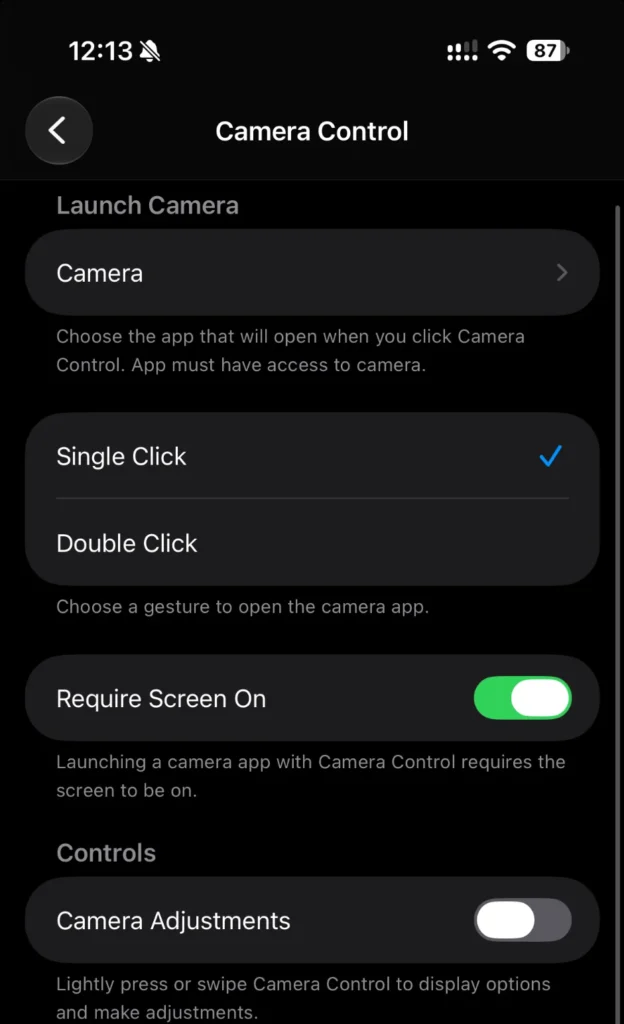
4. Check Single Click and Double Click
Another common explanation for iPhone Camera Control button not working is an unexpected click configuration.
Apple allows you to choose whether Camera Control opens the assigned camera application with one click or two.
If Double Click is enabled, pressing the button once won’t produce the launch behavior you’re expecting.
Change Camera Control Click Behavior
- Open Settings.
- Select Camera.
- Tap Camera Control.
- Find the click setting.
- Choose Single Click or Double Click.
For troubleshooting, select Single Click temporarily.
Return to the Home Screen and press Camera Control once.
If the Camera app opens, the physical click mechanism is responding.
Why Use Double Click?
Double Click can help reduce accidental camera launches when you hold your iPhone or press against the control unintentionally.
However, it can also cause confusion if you’ve forgotten that the setting was changed.
After testing, choose whichever behavior you prefer.
Note: The Single Click and Double Click setting controls camera launching. It is different from the light double-press gesture used to open Camera Control’s adjustment menu.
5. Use the Correct Camera Control Gestures
Camera Control supports several input gestures, and using the wrong one can make the feature appear broken.
A firm click is different from a light press.
Likewise, sliding your finger across the control isn’t the same as pressing the button.
Open the Camera
Press Camera Control using a normal click.
The assigned camera application should open according to your configured Single Click or Double Click setting.
Take a Photo
Once Camera is open, click Camera Control to capture an image.
Record a Video
In Photo mode, click and hold Camera Control to begin recording a video.
Release the control to stop the recording.
If the Camera app is already in Video mode, clicking the control starts video recording.
Open the Adjustment Menu
While Camera is open:
- Lightly press Camera Control twice.
- Look for the camera settings overlay.
- Slide your finger along the control to browse available settings.
- Lightly press to select the setting.
- Slide again to change its value.
Available settings may include Zoom, Exposure, Depth, Cameras, Styles, and Tone.
Not every setting is available in every camera mode.
Why Light Press Matters
If you’re pressing too firmly, the iPhone may interpret the action as a normal click rather than a gesture intended to open the adjustment overlay.
Try a gentler touch before assuming the light-press feature has failed.
If this still doesn’t work, check the Accessibility settings next.
6. Enable Light-Press and Swipe Gestures
Camera Control has separate accessibility options for light presses and swipe gestures.
These controls can be turned off independently.
As a result, the physical button may successfully open Camera and take photos while zoom and other adjustments stop responding.
Check Light-Press
- Open Settings.
- Select Accessibility.
- Tap Camera Control.
- Find Light-Press.
- Turn it on if disabled.
Now open Camera and lightly press the control twice to test the adjustment overlay.
Check Swipe
Return to the same Camera Control Accessibility screen.
Find Swipe and make sure it is enabled.
Open Camera, access the adjustment overlay, and try sliding your finger across Camera Control.
What If Clicking Works but Swiping Doesn’t?
This can indicate a gesture setting problem rather than a failure of the entire physical button.
First, make sure Swipe is enabled.
Then remove any case or accessory covering the control and try again.
Also confirm that you have selected a camera adjustment that supports sliding.
If swiping continues to fail while regular clicking works, proceed to the sensitivity settings.
Check Camera Adjustments: Open Settings > Camera > Camera Control and make sure Camera Adjustments is enabled. If it is turned off, the light-press and swipe controls for adjusting camera settings may not work as expected, even when the physical button can open the Camera app.
7. Adjust Camera Control Sensitivity
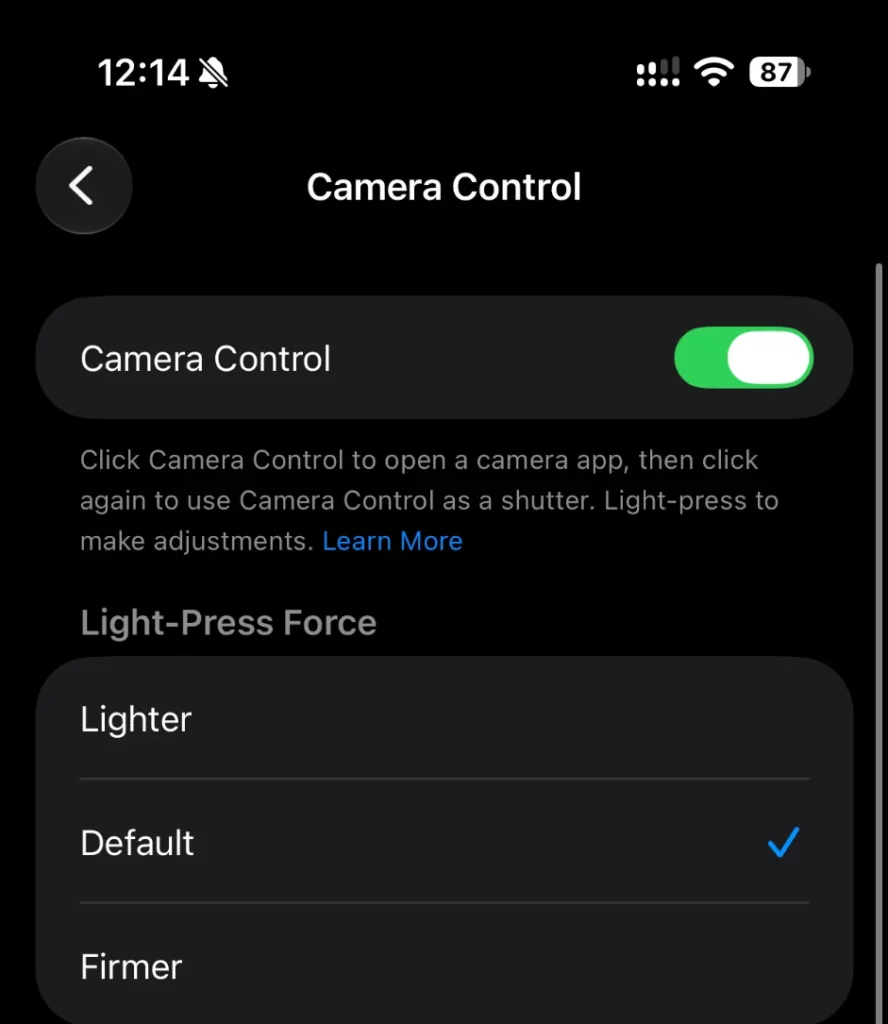
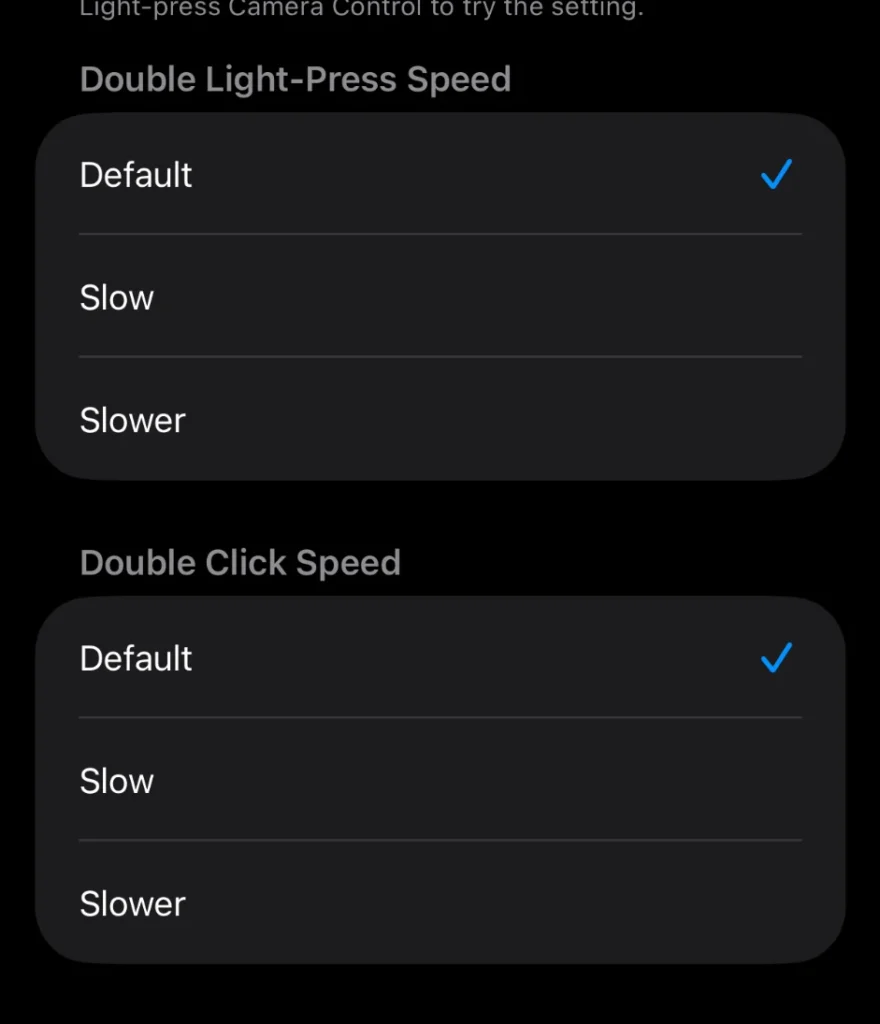
Apple allows you to customize how firmly you must touch Camera Control and how quickly light presses must occur.
These settings are particularly useful if the light-press gesture feels unresponsive.
A firm sensitivity setting may require more pressure than you normally use.
Likewise, a fast double light-press requirement may make the adjustment menu difficult to open.
Adjust Light-Press Force
- Open Settings.
- Select Accessibility.
- Tap Camera Control.
- Find Light-Press Force.
- Choose an available sensitivity option.
- Practice the gesture using the on-screen test area.
Try a lighter setting if ordinary light presses aren’t being recognized.
The goal is to find a setting that responds comfortably without triggering unintended actions.
Adjust Double Light-Press Speed
- Stay in Accessibility > Camera Control.
- Find Double Light-Press Speed.
- Review the available speed options.
- Choose a slower option if you have difficulty making two light presses quickly.
- Test the gesture again.
Test Both Settings Separately
Change one setting at a time.
Otherwise, you may not know which adjustment resolved the problem.
If a softer light-press force restores the feature, you can keep that setting.
If changing the speed fixes it, you may prefer the slower double-press configuration.
These adjustments are especially useful when iPhone Camera Control button not working actually means that the button opens the camera but its touch gestures aren’t recognized.
8. Remove Your Case and Inspect the Button
Sometimes a physical accessory interferes with Camera Control.
Certain protective cases have a dedicated Camera Control cutout or an integrated surface designed for the control.
If the case is poorly aligned or the covering doesn’t interact properly with the control, some gestures may become difficult.
Test Without the Case
- Remove your iPhone case carefully.
- Inspect the Camera Control area.
- Check for visible dirt or damage.
- Open Camera.
- Test a normal click.
- Test the light double-press gesture.
- Try a swipe gesture.
If the control works normally without the case, the accessory may be responsible.
Inspect the Control Safely
If you see superficial dirt around the button, gently clean the exterior with a suitable soft, lint-free cloth.
Do not insert sharp objects into openings or scrape around the control.
Avoid pouring liquids directly onto the button.
If the button looks cracked, displaced, or physically damaged, stop trying to force it.
Test Another Case
If you have a compatible case that properly accommodates Camera Control, compare its behavior.
A case may allow normal clicks while making light presses or swipes less reliable.
If removing the case restores normal operation, choosing a better-fitting accessory is preferable to changing unrelated iPhone settings.
9. Restart Your iPhone and Test Camera
If the Camera Control settings appear correct, check whether the problem involves the Camera app itself.
A temporary application or system issue can sometimes make a button seem unresponsive.
Test Camera Without the Physical Button
- Return to the Home Screen.
- Open the Camera app normally.
- Select Photo mode.
- Take a picture using the on-screen shutter button.
- Switch to Video mode.
- Record a short test clip.
- Check the results in Photos.
Interpret the Results
Camera works normally, but Camera Control doesn’t:
Focus on the button settings, gesture sensitivity, case, or physical control.
Camera opens, but the preview is black:
This may be a separate camera problem.
Our guide to iPhone Camera Black Screen covers that situation.
Camera captures photos, but they are blurry:
The problem may involve focus or the camera lenses rather than Camera Control.
Read our iPhone Camera Not Focusing guide for the appropriate troubleshooting steps.
Restart Your iPhone
On a recent iPhone with Face ID:
- Press and hold the Side button and either Volume button.
- Wait for the power-off slider.
- Drag the slider to turn off the device.
- Wait approximately 30 seconds.
- Press and hold the Side button until the Apple logo appears.
After restarting, open Camera and test Camera Control again.
A normal restart doesn’t intentionally delete your photos, apps, or other personal information.
10. Update iOS and Check for Hardware Damage
If the iPhone Camera Control button is not working after checking the configuration, look for an available iOS update.
Software updates may resolve bugs or improve compatibility with device features.
However, they cannot repair a physically damaged button.
Check for iOS Updates
- Open Settings.
- Tap General.
- Select Software Update.
- Check for an available compatible update.
- Review its details.
- Install it when appropriate.
Back up important information before installing a major update.
After the update, test the Camera Control button again.
When Hardware Service May Be Necessary
Consider contacting Apple Support if:
- Camera Control doesn’t respond to normal clicks.
- The control remains unresponsive with Accessibility enabled.
- Removing the case doesn’t help.
- The Camera app works normally using its on-screen controls.
- A restart and software update don’t resolve the problem.
- The control has visible physical damage.
These results don’t prove that the hardware is defective, but they provide useful information for diagnosis.
If the iPhone recently suffered an impact or liquid exposure, mention that when requesting service.
What to Avoid
Don’t attempt to pry open the button.
Avoid unofficial hardware repair methods or applying pressure beyond normal operation.
Don’t erase the entire iPhone as an early troubleshooting step for a physical control.
You can often narrow down the problem without taking disruptive actions.
Camera Control vs Action Button: What’s the Difference?
The Camera Control and Action button aren’t interchangeable.
Camera Control is designed for launching the camera, capturing photos and videos, and using supported touch gestures for camera adjustments.
Action button can be customized to perform different actions, such as opening Camera, enabling Silent mode, or launching a shortcut.
If your iPhone has both controls, changing the Action button settings won’t necessarily change how Camera Control works.
If you’re troubleshooting the camera’s capture function, make sure you’re pressing the correct physical control.
Also remember that the on-screen Screen Recording button in Control Center is unrelated to the physical Camera Control button.
If you have problems capturing your iPhone display rather than taking a photo, follow our iPhone Screen Recording Not Working guide.
Frequently Asked Questions
Why is my iPhone Camera Control button not working?
Camera Control may be disabled in Accessibility, set to open no application, configured for Double Click, or affected by an incorrect gesture sensitivity setting. A case, temporary software issue, or hardware fault may also contribute.
How do I turn Camera Control back on?
Open Settings > Accessibility > Camera Control and enable the main Camera Control switch. Then check Settings > Camera > Camera Control to confirm that Camera is selected.
Why does my Camera Control button need two presses?
The button may be configured for Double Click. Open Settings > Camera > Camera Control and select Single Click if you prefer opening Camera with one click.
Why does Camera Control open the camera but not zoom?
Light-Press or Swipe may be disabled, or the adjustment overlay may not be open. Enable the gestures under Accessibility > Camera Control, then lightly press twice inside Camera and select Zoom.
How do I change Camera Control sensitivity?
Open Settings > Accessibility > Camera Control. Adjust Light-Press Force and Double Light-Press Speed using the available options.
Does Camera Control work on every iPhone?
No. Camera Control is available only on supported iPhone models. Older devices without the physical feature cannot gain it through a software update.
Can an iPhone case stop Camera Control from working?
A case may interfere with clicking or touch gestures if it doesn’t fit or accommodate the control properly. Remove the case and test the button directly to check.
Can Camera Control open an app other than Camera?
Yes. On supported models and software versions, Apple allows Camera Control to open options such as Code Scanner, Magnifier, or supported third-party camera applications.
Does restarting an iPhone reset Camera Control settings?
A normal restart doesn’t intentionally erase your Camera Control configuration. It can, however, resolve certain temporary software problems.
Is Camera Control broken if light press doesn’t work?
Not necessarily. Check whether Light-Press is enabled and whether the pressure or speed settings are suitable. Also test the control without a case.
When should I contact Apple Support?
Contact Apple Support if normal clicks and gestures remain unresponsive after checking settings, removing accessories, restarting, and updating the device, especially if the control has visible damage.
Final Thoughts
If your iPhone Camera Control button is not working, start with its dedicated settings rather than resetting the entire phone.
Confirm that Camera Control is enabled, the correct application is assigned, and Single Click or Double Click is configured as expected.
If regular clicking works but light presses or swipes don’t, review the Accessibility gesture settings and test without your protective case.
Finally, restart your iPhone, check for compatible software updates, and compare the physical button with the Camera app’s on-screen controls.
Most importantly, identify whether the problem involves the button, its gestures, the assigned application, or the camera itself.
If Camera Control remains unresponsive after all these checks, professional diagnosis may be necessary.