AirDrop not working between your iPhone and Mac, even though it works with other Apple devices? Your Mac might not appear in the AirDrop menu, an incoming file may remain stuck on Waiting, or a transfer might work in one direction but fail in the other.
AirDrop between an iPhone and Mac involves several Mac-specific settings, including Finder, Control Center, receiving permissions, and potentially network security restrictions.
This guide focuses on diagnosing those iPhone-to-Mac and Mac-to-iPhone connection problems. If your issue involves transferring between two iPhones, see our iPhone AirDrop Not Working guide.
Table of Contents
Quick Answer: Fix AirDrop Between iPhone and Mac
- Enable Wi-Fi and Bluetooth on both devices.
- Keep your iPhone and Mac within approximately 30 feet (10 meters).
- On your Mac, open Control Center and make sure AirDrop is enabled.
- Set Mac AirDrop receiving to Everyone temporarily if Contacts Only isn’t working.
- On your iPhone, check AirDrop receiving permissions in Control Center.
- Disconnect Personal Hotspot if it’s active.
- Open Finder > AirDrop on your Mac and test sending a small file.
- Check for an incoming notification or an AirDrop code request.
- If only one transfer direction fails, troubleshoot the receiving device’s settings.
If these checks don’t resolve the issue, continue with the Mac-specific troubleshooting steps below.
1. Make Sure Both Apple Devices Are Nearby
AirDrop works primarily between nearby compatible Apple devices.
If your iPhone and Mac are too far apart, they may fail to discover each other.
Apple recommends keeping both devices within approximately 10 metres or 30 feet when starting a transfer.
For troubleshooting, place them on the same desk or within a few feet of each other.
Make sure both devices are awake and that you can see any incoming transfer notification.
If your Mac is asleep or the receiving iPhone is unavailable, it may not respond as expected.
Tip: Try transferring one photo between devices while they are close together before testing larger files.
Some newer Apple systems can continue an initiated AirDrop transfer over the internet after the devices move out of normal wireless range. However, the initial discovery still requires the devices to be nearby.
2. Turn On Wi-Fi and Bluetooth
AirDrop requires Wi-Fi and Bluetooth on both the sending and receiving devices.
Even though you may not need an internet connection for a standard nearby AirDrop transfer, the wireless features themselves must be enabled.
On iPhone or iPad:
- Open Settings.
- Select Wi-Fi.
- Make sure Wi-Fi is enabled.
- Return to Settings.
- Select Bluetooth.
- Turn Bluetooth on.
On Mac:
- Open System Settings.
- Select Wi-Fi and enable it.
- Open Bluetooth.
- Make sure Bluetooth is enabled.
If both are already on, try turning them off and back on in Settings.
Then open the file you want to share and test AirDrop again.
You do not need to connect both devices to the same Wi-Fi network for ordinary AirDrop sharing.
Related Reading: If your iPhone connects to Wi-Fi but cannot access the internet, read our guide: iPhone Connected to Wi-Fi but No Internet? 10 Fixes to Try (2026).
3. Change AirDrop Settings to Everyone for 10 Minutes
Incorrect receiving settings are a common reason AirDrop does not show nearby devices.
An iPhone can restrict AirDrop to contacts or prevent incoming transfers altogether.
To check:
- Open Settings on your iPhone.
- Tap General.
- Select AirDrop.
- Choose Everyone for 10 Minutes.
- Try sending the file again.
Alternatively, open Control Center, press and hold the connectivity controls, and select AirDrop.
This setting temporarily lets nearby Apple devices discover your iPhone.
After 10 minutes, the setting automatically changes back according to your device’s configuration.
On a Mac, open Control Center, select AirDrop, and choose the appropriate receiving permission.
Important: Everyone for 10 Minutes is useful for testing, but you should not leave unnecessarily broad discovery settings active in public places.
4. Check Contacts Only Settings
If AirDrop works with Everyone but fails with Contacts Only, the problem may involve saved contact information.
When Contacts Only is selected, the receiving device must be able to identify the sender using contact details associated with the sender’s Apple Account.
To troubleshoot:
- Open the Contacts app on the receiving device.
- Find the sender’s contact card.
- Verify their Apple Account email address or phone number.
- Update incorrect or outdated details.
- Try AirDrop again.
For example, if a person’s Apple Account uses an email address that is missing from their saved contact card, AirDrop may not recognise the person correctly.
If you are sharing files between two devices signed in to the same Apple Account, transfers may be accepted automatically.
If you’re transferring files between different accounts, check that the recipient has the correct receiving permissions.
5. Disconnect Personal Hotspot
Personal Hotspot can sometimes interfere with AirDrop connections.
Apple recommends disconnecting Personal Hotspot when troubleshooting AirDrop.
On your iPhone:
- Open Settings.
- Select Personal Hotspot.
- Turn off Allow Others to Join, if available.
- Disconnect devices currently using the hotspot.
- Try AirDrop again.
Ask the other person to disconnect their Personal Hotspot as well if it is active.
You can enable Personal Hotspot again after finishing the file transfer.
If AirDrop still fails, the next step is to verify that the receiving Mac is discoverable.
6. Enable AirDrop on Your Mac
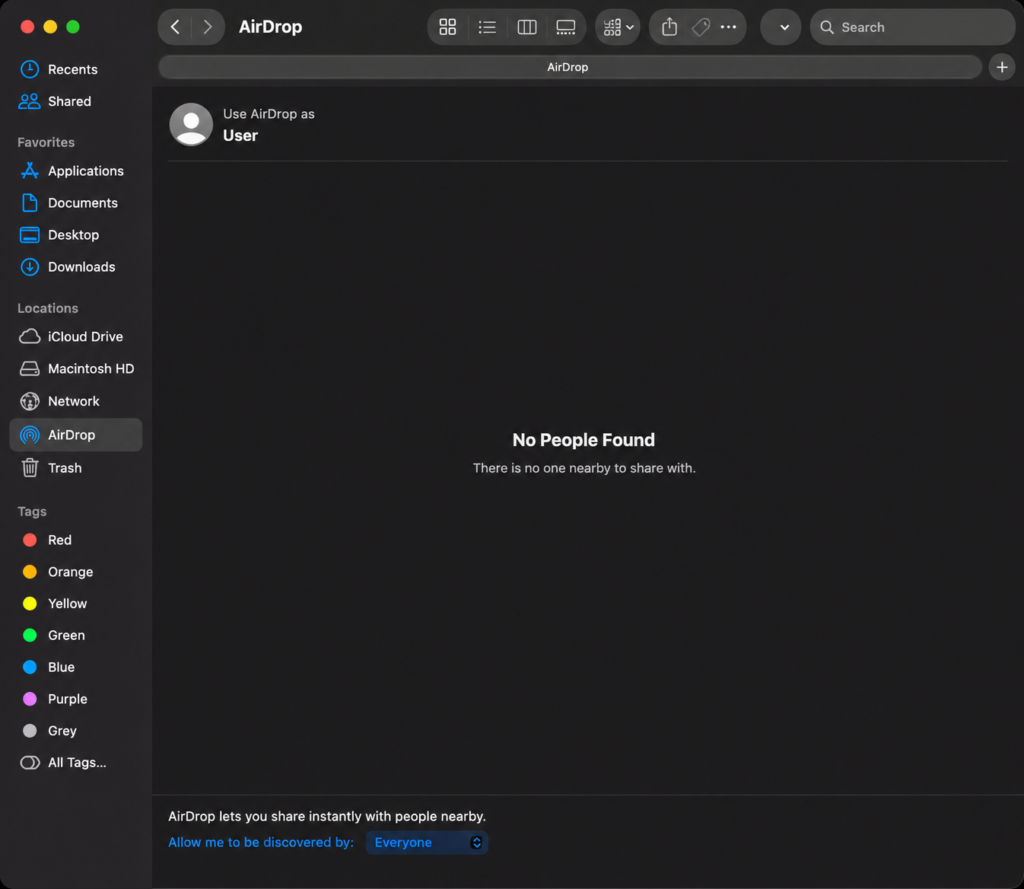
If AirDrop is not working between an iPhone and Mac, check the Mac’s receiving settings.
A Mac may not appear in your iPhone’s AirDrop list if discovery is restricted.
To enable AirDrop:
- Open Finder on your Mac.
- Select AirDrop from the sidebar.
- Check the receiving settings.
- Choose Contacts Only or Everyone, depending on your needs.
- Keep both devices nearby and try again.
You can also access AirDrop through Control Center in the Mac menu bar.
On supported macOS versions, AirDrop options are also available under System Settings → General → AirDrop & Continuity.
If Contacts Only is not working, temporarily use Everyone to determine whether contact recognition is the cause.
After the transfer, switch back to your preferred privacy setting.
AirDrop Works in One Direction but Not the Other
If AirDrop works from your Mac to your iPhone but fails from your iPhone to your Mac, the problem may be related to how your Mac receives transfers.
Test iPhone to Mac
- On your Mac, open Finder and select AirDrop.
- Confirm that AirDrop receiving is enabled.
- Temporarily select Everyone if Contacts Only is preventing discovery.
- On your iPhone, open Photos and select a non-sensitive test photo.
- Tap Share > AirDrop.
- Select your Mac.
- Check the Mac for an incoming transfer request.
Expected result: Your Mac receives the file or displays an acceptance request.
If Finder is displaying AirDrop, the acceptance notification may appear inside Finder rather than Notification Center.
Test Mac to iPhone
- Open Finder on your Mac.
- Select a small test file.
- Control-click it and choose Share > AirDrop, or use the available Share controls.
- Select your iPhone.
- Check the iPhone for the incoming transfer.
Expected result: Your iPhone accepts and saves the file, or asks you to approve the transfer.
When both devices use the same Apple Account, supported AirDrop transfers are normally accepted automatically.
Interpret the Results
Only iPhone to Mac fails: Review Mac AirDrop receiving permissions, Finder notifications, and network restrictions.
Only Mac to iPhone fails: Review the iPhone’s AirDrop receiving settings and any restrictions affecting discovery.
Both directions fail: Check wireless connectivity, device proximity, Personal Hotspot, and VPN configuration.
The devices are visible but the transfer stays on Waiting: Check for an acceptance request or AirDrop code prompt.
This comparison helps identify which device needs attention instead of repeatedly resetting both devices.
7. Check AirDrop Notifications and Transfer Requests
Sometimes AirDrop identifies the receiving device, but a transfer remains on Waiting.
This can happen when the recipient has not yet accepted the incoming request.
When someone sends a file to another person’s Apple device, the recipient may see a notification asking whether to Accept or Decline.
Check the receiving device’s screen.
If a notification appears, select Accept.
On supported software versions, sharing with someone who is not in your contacts may require an AirDrop code.
For example, newer versions beginning with iOS 26.2 and corresponding iPadOS and macOS versions support AirDrop codes for certain transfers involving people who are not in your contacts.
Follow the on-screen instructions to generate and enter the code when requested.
Security tip: Share an AirDrop code only with the person you intend to exchange files with.
If you’re sending between your own Apple devices signed in to the same Apple Account, the transfer may be accepted automatically.
8. Check VPN and Security Software
VPN applications, network filters, and certain security configurations can interfere with nearby-device communication.
If AirDrop stopped working after you installed a VPN or changed a network configuration, investigate those settings.
Try the following:
- Open your VPN application’s settings.
- Check whether local network connections are restricted.
- If permitted and safe, temporarily disconnect the VPN.
- Test AirDrop again.
- Restore the appropriate security settings afterward.
Not every VPN interferes with AirDrop. Many configurations work normally.
On an organization-managed Mac or iPhone, security rules may be intentionally enforced.
Do not remove managed profiles or disable required security software without permission.
If a VPN appears to cause the problem, contact its provider or your IT administrator to identify a configuration that allows local communication.
9. Send a Smaller File First
If AirDrop discovers the recipient but the transfer fails, try a small file.
AirDrop can transfer different types of content, but testing with a single photo makes it easier to identify a problem.
On iPhone:
- Open Photos.
- Select one photo.
- Tap the Share button.
- Choose AirDrop.
- Select the receiving device.
- Wait for the transfer to complete.
If the single photo transfers successfully, try sharing multiple photos or another document.
If a larger transfer fails, divide the files into smaller groups.
You should also check whether the file was received successfully but saved in a location you did not expect.
On Mac, transferred files commonly appear in the Downloads folder. On iPhone, the destination depends on the file type and the app receiving it.
10. Restart Your iPhone and Mac
Restarting both devices can resolve temporary wireless and system issues.
If your settings appear correct but AirDrop still isn’t working, a restart is a sensible next step.
Restart an iPhone with Face ID:
- Press and hold the side button and either volume button.
- Drag the power-off slider.
- Wait for the device to shut down.
- Press and hold the side button until the Apple logo appears.
Restart a Mac:
- Save any open documents.
- Select the Apple menu.
- Click Restart.
- Allow the Mac to restart completely.
After restarting, make sure Wi-Fi and Bluetooth are enabled.
Then attempt a small AirDrop transfer.
Apple includes restarting devices among its recommended AirDrop troubleshooting steps.
11. Update iOS and macOS
Software issues can occasionally affect wireless connectivity and device discovery.
If AirDrop stopped working after a recent software change, check whether another compatible update is available.
On iPhone:
- Open Settings.
- Select General.
- Tap Software Update.
- Check for available updates.
- Follow the installation instructions.
On Mac:
- Open System Settings.
- Select General.
- Click Software Update.
- Install an appropriate update if available.
Before installing a major system update, back up important information.
Make sure the device has sufficient battery power and storage space.
Updating is not a guaranteed fix for every AirDrop problem. Check receiving permissions and wireless settings first.
12. Review Screen Time Restrictions and Firewall Settings
AirDrop can be restricted by Screen Time, device management, or security configurations.
If the AirDrop feature itself is missing, check whether it has been disabled.
On an iPhone, open Settings → Screen Time → Content & Privacy Restrictions and review the allowed apps and features. The exact options may vary between software versions.
On a Mac, open System Settings → Screen Time → Content & Privacy and check the applicable feature restrictions.
If you use a company or school device, AirDrop might be restricted by the organization’s administrator.
Advanced Mac network settings are also worth reviewing if ordinary troubleshooting has failed.
To inspect the Mac firewall, go to System Settings → Network → Firewall.
Do not turn off security protections permanently just to fix file sharing.
If the device is managed, ask your administrator before changing restrictions.
AirDrop Not Working Between iPhone and Mac: Quick Checklist
If your iPhone cannot discover your Mac, work through this checklist:
- Wi-Fi is enabled on both devices.
- Bluetooth is enabled on both devices.
- Both devices are nearby and awake.
- AirDrop receiving is enabled on the Mac.
- The iPhone’s AirDrop permissions allow the transfer.
- Personal Hotspot is disconnected.
- Contact information is correct when using Contacts Only.
- Any required AirDrop code has been entered.
- VPN or managed security settings permit local networking.
Try sending a photo from iPhone to Mac, then a document from Mac to iPhone.
If one direction works and the other fails, investigate the receiving settings on the device that cannot accept files.
Frequently Asked Questions
Why is my AirDrop stuck on Waiting?
AirDrop may remain on Waiting when the recipient has not accepted the transfer, the receiving device is not responding, or the connection cannot be completed. Check the recipient’s screen, wireless settings, and AirDrop permissions.
Why is my Mac not showing up in AirDrop?
Your Mac may have restricted AirDrop discovery or disabled Wi-Fi or Bluetooth. Open Finder → AirDrop or use Control Center to confirm that AirDrop is enabled and that the receiving setting allows the sender.
Does AirDrop require internet?
Ordinary nearby AirDrop transfers do not require a conventional internet connection. They use local wireless communication. On supported software versions, a transfer that has already started can continue over the internet after devices move out of local range.
Can AirDrop transfer files from iPhone to Android?
Native Apple AirDrop is intended for compatible Apple devices. Alternative cross-platform file-sharing tools may be available, but they operate differently from Apple’s native AirDrop.
Why does AirDrop work with Everyone but not Contacts Only?
Contacts Only depends on saved contact information matching details associated with the sender’s Apple Account. Missing or outdated contact details may prevent recognition.
Where do AirDrop files go on a Mac?
Many AirDrop files are saved to the Downloads folder. Some types of files may open in another app or allow you to choose a destination. Check Finder → Downloads if you cannot locate the file.
Final Thoughts
If AirDrop is not working on your iPhone or Mac, start with Wi-Fi, Bluetooth, device distance, and receiving permissions.
For devices that cannot discover each other, temporarily enable Everyone for 10 Minutes. For transfers that remain on Waiting, check the recipient’s notifications, any required AirDrop code, and whether the file can be sent individually.
If the issue continues, restart both devices, review security restrictions, and check for appropriate software updates.
The most effective troubleshooting method is to change one setting at a time and test after each step.
For official instructions, visit Apple Support’s AirDrop guide.
The Synced Desk | Practical solutions for everyday technology problems.