Is your iPhone hotspot not working? Maybe your laptop cannot find the hotspot, your iPhone keeps disconnecting, or another device connects successfully but still has no internet access.
Personal Hotspot is a useful iPhone feature that allows you to share your cellular data connection with a Mac, Windows laptop, iPad, or another compatible device. It’s especially helpful when your home Wi-Fi goes down or you need internet while traveling.
However, the feature can stop working because of incorrect settings, carrier restrictions, weak cellular service, Wi-Fi compatibility problems, or temporary software errors.
In this guide, we’ll explain 12 practical fixes for iPhone Personal Hotspot not working, including solutions for connection failures, missing networks, and devices connected without internet access.
Table of Contents
Quick Answer: How to Fix iPhone Hotspot Not Working
If your iPhone hotspot is not working, start with these quick checks:
- Make sure Cellular Data is turned on and working on your iPhone.
- Open Settings → Personal Hotspot and enable Allow Others to Join.
- Keep the Personal Hotspot settings screen open while connecting.
- Turn Wi-Fi off and back on on the device trying to connect.
- Check the hotspot’s Wi-Fi password.
- Enable Maximize Compatibility if your iPhone supports it.
- Restart both devices and try again.
If none of these steps works, continue with the detailed solutions below.
Why Is My iPhone Hotspot Not Working?
There are three common types of hotspot problems:
- Hotspot not showing: Your laptop or another phone cannot find your iPhone’s hotspot in the available Wi-Fi networks.
- Hotspot not connecting: The network is visible, but the connection fails or repeatedly disconnects.
- Hotspot connected but no internet: The other device connects to your iPhone but cannot load websites or access online services.
These problems can have different causes.
For example, if the hotspot does not appear, receiving and Wi-Fi compatibility settings are worth investigating. If the connection succeeds but websites cannot load, start by checking whether cellular data works directly on the iPhone.
Identifying the specific symptom makes troubleshooting faster.
Quick Diagnosis: Which Hotspot Problem Do You Have?
iPhone hotspot not showing: Open Settings → Personal Hotspot, enable Allow Others to Join, and keep that screen open while connecting. If necessary, try Maximize Compatibility.
iPhone hotspot visible but not connecting: Check the Wi-Fi password, forget the saved hotspot connection on the other device, and reconnect.
iPhone hotspot connected but no internet: Turn off Wi-Fi on the iPhone and verify that Cellular Data works directly in Safari. Check your active data plan and selected SIM if necessary.
iPhone hotspot keeps disconnecting: Restart both devices, move them closer together, and check for available software updates.
Start with the fix matching your symptom rather than resetting every network setting immediately.
1. Check Whether Cellular Data Is Working
Before changing hotspot settings, make sure your iPhone has a working cellular internet connection.
Personal Hotspot shares your iPhone’s cellular data connection. It does not normally rebroadcast an existing Wi-Fi connection.
If your mobile data is not working, your connected laptop will not have internet access through the hotspot either.
Follow these steps:
- Open Settings.
- Tap Cellular or Mobile Data, depending on your region.
- Make sure Cellular Data is enabled.
- Disconnect from Wi-Fi temporarily.
- Open Safari and try loading a website using cellular data.
If Safari cannot access the internet, the problem may be related to your mobile network, SIM or eSIM, cellular plan, or coverage.
Check your signal strength and whether your plan has remaining usable data.
You may need to contact your carrier if cellular service remains unavailable.
Important: Fix the underlying cellular data problem before continuing with Personal Hotspot troubleshooting.
2. Turn On Personal Hotspot Correctly
If mobile data works but other devices cannot discover your hotspot, check the hotspot settings.
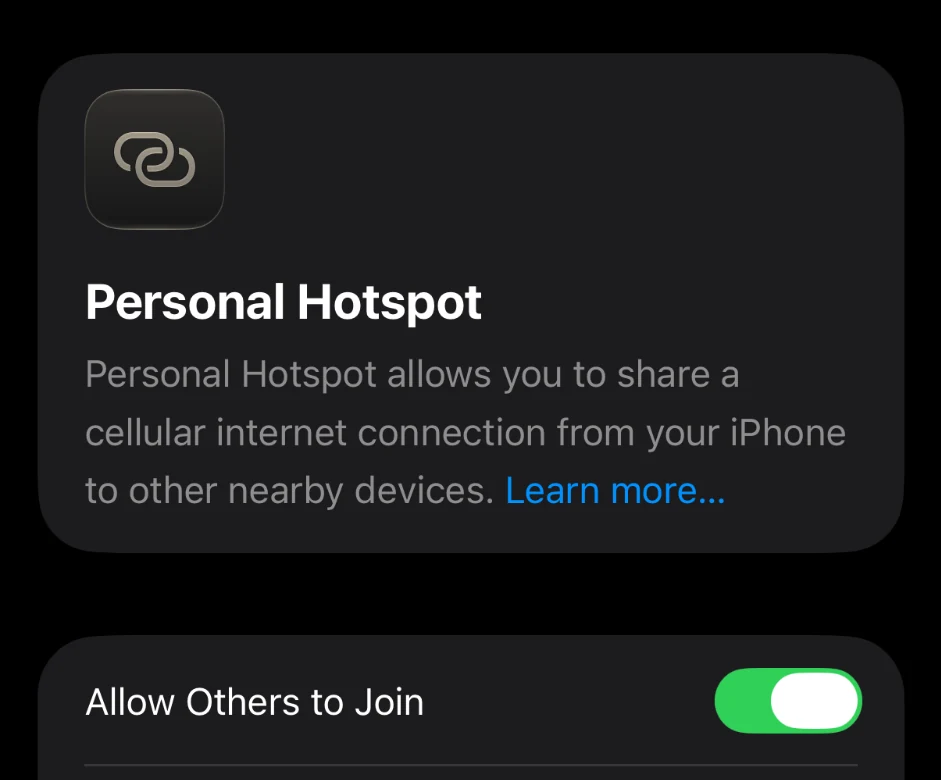
On your iPhone:
- Open Settings.
- Tap Personal Hotspot.
- Turn on Allow Others to Join.
- Check the Wi-Fi password displayed on the screen.
- Keep this settings screen open while connecting another device.
On some iPhones, you may need to open Settings → Cellular → Personal Hotspot.
If you’re connecting from a Mac or another Apple device using Instant Hotspot, connection behavior can differ when both devices use the same Apple Account.
For ordinary Wi-Fi hotspot troubleshooting, enabling Allow Others to Join is a useful starting point.
If the hotspot is still invisible, move on to the next fixes. If your Personal Hotspot connects but cannot provide internet access, first check whether mobile data works on your iPhone. See our iPhone Cellular Data Not Working? 12 Fixes guide for additional troubleshooting.
3. Check Whether Your Carrier Supports Personal Hotspot
Not every cellular plan includes the same tethering features.
Your iPhone may support Personal Hotspot, but your mobile carrier can restrict it or require a compatible data plan.
This is particularly important if the Personal Hotspot option is missing, greyed out, or unavailable.
What to check:
- Confirm that your SIM or eSIM has an active cellular data plan.
- Make sure your carrier supports Personal Hotspot.
- Check whether tethering is included in your current plan.
- Verify whether your data allowance has been exhausted or restricted.
- Contact your carrier if the feature is unavailable despite working mobile data.
If you’ve recently switched carriers or changed your cellular plan, your hotspot configuration may also need to be refreshed.
Avoid manually changing APN settings unless your carrier provides the required values.
Incorrect cellular network settings can make the problem worse.
4. Verify the Hotspot Name and Password
An incorrect Wi-Fi password can prevent another device from connecting to your iPhone hotspot.
The hotspot network name is normally based on your iPhone’s device name.
To check the details:
- Open Settings → Personal Hotspot.
- Find the Wi-Fi Password field.
- Verify the password carefully.
- Check that you’re connecting to the correct iPhone network.
To change your iPhone’s device name:
- Open Settings.
- Tap General.
- Select About.
- Tap Name.
- Enter your preferred device name.
Keep the name simple and easy to recognize, especially when multiple nearby devices have similar names.
For troubleshooting, you can also change the hotspot password to a strong, memorable password that is easy to enter accurately.
Do not share your hotspot password publicly.
After changing the password, reconnect your other device using the updated credentials.
5. Forget the Hotspot Network and Reconnect
Sometimes your laptop remembers outdated connection details from a previous hotspot session.
This can happen if you change the iPhone’s name, update its hotspot password, or experience repeated connection failures.
Removing the saved connection can help.
On a Mac:
- Open System Settings.
- Select Wi-Fi.
- Find the saved hotspot network under known networks or its details.
- Choose the option to forget the network.
- Return to the Wi-Fi menu and reconnect.
On Windows:
- Open Settings.
- Go to Network & Internet → Wi-Fi.
- Open Manage Known Networks.
- Select your iPhone’s hotspot.
- Click Forget.
- Reconnect using the correct password.
The precise menu names may vary by Windows or macOS version.
After reconnecting, test whether Safari, Chrome, or another browser can load a website.
If the hotspot still does not appear, check compatibility settings next.
6. Turn On Maximize Compatibility
If your iPhone hotspot is not showing on another device, Maximize Compatibility may help.
Apple includes this setting on supported iPhone models, including iPhone 12 and later.
It can improve compatibility with some devices that have difficulty detecting or connecting to the hotspot’s normal Wi-Fi configuration.
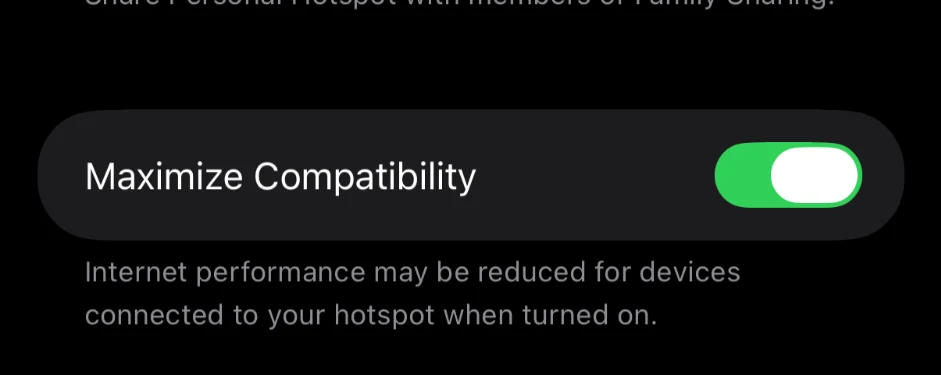
To enable it:
- Open Settings.
- Select Personal Hotspot.
- Find Maximize Compatibility.
- Turn it on.
- Try connecting your laptop again.
This setting can be useful when connecting older laptops, tablets, or other devices.
However, Apple notes that enabling Maximize Compatibility may reduce hotspot performance and Wi-Fi security for connected devices.
For that reason, use it when compatibility is a problem rather than assuming it should always remain enabled.
If your laptop connects successfully after enabling it, you have likely identified a compatibility issue.
7. Restart Your iPhone and the Connecting Device
Temporary software problems can interfere with hotspot discovery, authentication, or internet sharing.
Restarting both devices can clear some of these temporary issues.
Restart an iPhone with Face ID:
- Press and hold the side button and either volume button.
- Wait until the power-off slider appears.
- Drag the slider to turn off your iPhone.
- Wait approximately 30 seconds.
- Press and hold the side button until the Apple logo appears.
Restart the laptop, tablet, or other phone trying to connect as well.
After both devices restart:
- Turn on Cellular Data.
- Open Personal Hotspot.
- Enable Allow Others to Join if needed.
- Reconnect your other device.
- Test the internet connection.
Apple recommends restarting the hotspot device and the connecting device during troubleshooting.
8. Update iOS and Check Carrier Settings
Outdated software may contain network bugs or compatibility issues that have been resolved in later updates.
If your hotspot repeatedly disconnects or stopped working after a software change, checking for updates is worthwhile.
Check iOS updates:
- Open Settings.
- Tap General.
- Select Software Update.
- Review any available compatible update.
- Follow the instructions if you choose to install it.
You can also check for carrier settings updates.
Open Settings → General → About and wait briefly. If a carrier settings update is available, your iPhone may display a prompt.
Install carrier settings updates when appropriate.
Before a major iOS update, make sure important data is backed up.
You should also ensure that the connecting computer has a supported and reasonably current operating system.
Software updates are not a guaranteed fix, so check the simpler connection settings first.
9. Try Connecting Through USB
If your iPhone hotspot does not work over Wi-Fi, try using a USB cable.
USB tethering can be particularly useful when Wi-Fi connectivity is unreliable.
To connect an iPhone to a Mac:
- Turn on Personal Hotspot on your iPhone.
- Connect your iPhone to the Mac with a compatible USB cable.
- Unlock the iPhone if required.
- If prompted, tap Trust This Computer and enter your passcode.
- Approve any required accessory connection prompt on your Mac.
- Open System Settings → Network and check the iPhone USB connection.
If the iPhone USB network service is missing, follow Apple’s instructions for adding it.
For a Windows computer, Apple’s device software may be needed for USB tethering, depending on the setup.
A successful USB connection can help determine whether the problem is specifically related to Wi-Fi discovery rather than cellular data sharing.
Remember that USB tethering still uses your iPhone’s cellular data allowance.
10. Check Bluetooth and Instant Hotspot
Personal Hotspot can also work through Bluetooth on compatible devices.
Apple’s Instant Hotspot feature makes connecting between eligible Apple devices more convenient.
If you’re connecting an iPhone to a Mac, make sure Wi-Fi and Bluetooth are enabled on both devices.
For Instant Hotspot, confirm that the devices meet Apple’s requirements and use the appropriate Apple Account settings.
Keep the devices close together, preferably within approximately 10 metres (30 feet).
If you want to test a Bluetooth connection:
- Turn on Bluetooth on the iPhone.
- Open Bluetooth settings on your Mac.
- Make sure the iPhone is discoverable.
- Select the iPhone from the available devices when appropriate.
- Follow the pairing instructions.
- Connect to the Personal Hotspot through the supported network interface.
If a pairing code appears, confirm that it matches on both devices.
Bluetooth tethering is not always as fast as Wi-Fi tethering, but it can be useful for troubleshooting.
11. Check Dual SIM, VPN, and Cellular Restrictions
If your iPhone hotspot connects but provides no internet, review the configuration of your cellular data connection.
This is especially important if you use two SIMs or eSIMs.
On an iPhone using Dual SIM, Personal Hotspot shares the cellular data connection from the line selected for mobile data.
Check Settings → Cellular → Cellular Data and verify that the intended line is selected.
If you use a VPN, network-filtering app, or employer-managed security profile, it may also affect traffic on the hotspot connection.
Where safe and permitted, test whether the problem changes when an optional VPN is disconnected.
Do not remove organization-managed profiles or required security software without permission.
Also check whether your carrier has reached a tethering-specific data limit or applied speed restrictions.
A hotspot may appear connected even when the cellular connection is too slow or restricted to load websites reliably.
If your iPhone’s own cellular internet is not working, investigate that first.
12. Reset Network Settings as a Last Resort
If none of the previous fixes works, resetting network settings may resolve certain persistent configuration problems.
However, this should be one of your final troubleshooting steps because it removes saved network information.
To reset network settings:
- Open Settings.
- Select General.
- Tap Transfer or Reset iPhone.
- Tap Reset.
- Choose Reset Network Settings.
- Enter your passcode if prompted.
- Wait for the process to complete.
Your iPhone may restart during the process.
After the reset, you will need to reconnect to saved Wi-Fi networks and configure relevant network connections again.
Important: Reset Network Settings removes saved Wi-Fi networks and passwords and resets certain cellular, VPN, and APN settings. It does not erase your photos or ordinary personal files.
If your carrier uses special APN settings, confirm what is needed before resetting.
Test Personal Hotspot again once the iPhone is ready.
If the problem persists, contact Apple Support or your cellular carrier.
iPhone Hotspot Connected but No Internet: What Does It Mean?
A successful hotspot connection does not guarantee that the connected device has working internet access.
For example, your laptop may display a connected Wi-Fi symbol even when your iPhone’s cellular data connection is unavailable.
To diagnose this situation, check the following:
- Does Safari work on the iPhone when Wi-Fi is turned off?
- Is the correct cellular data line selected?
- Is the cellular data allowance active?
- Is the laptop connected to the correct hotspot network?
- Do other devices experience the same problem?
- Are VPN or security restrictions interfering with traffic?
If multiple devices connect to the hotspot but cannot access the internet, focus on the iPhone’s cellular connection and carrier plan.
If only one laptop fails, investigate its saved Wi-Fi profile, operating system, and network settings.
iPhone Connected to Wi-Fi but No Internet? 10 Fixes to Try (2026)
Frequently Asked Questions
Why is my iPhone hotspot not showing up?
Your iPhone hotspot may be hidden because Allow Others to Join is disabled, the receiving device has a Wi-Fi compatibility problem, or the carrier has not enabled Personal Hotspot. Keep the Personal Hotspot settings screen open during initial connection and try Maximize Compatibility if supported.
Why does my iPhone hotspot keep disconnecting?
Disconnections can happen because of weak cellular coverage, temporary network errors, power-saving behavior, or compatibility issues. Check both devices’ software, move them closer, restart them, and test with another device.
Why is my hotspot connected but there is no internet?
Your laptop can connect to the hotspot’s local wireless network even when the iPhone has no usable cellular internet connection. Test mobile data directly on the iPhone before changing the laptop’s settings.
Does Personal Hotspot use mobile data or Wi-Fi?
Personal Hotspot uses the iPhone’s cellular data connection to provide internet access to other devices. The connection between the iPhone and the other device can use Wi-Fi, Bluetooth, or USB.
Does Personal Hotspot work without cellular data?
An ordinary iPhone Personal Hotspot internet connection requires a working cellular data service. The feature does not normally share an existing Wi-Fi connection as a Wi-Fi repeater.
Is Maximize Compatibility better?
Maximize Compatibility can improve connections with certain devices, but it may reduce performance and Wi-Fi security. Enable it when needed for compatibility rather than treating it as a universal performance improvement.
Will resetting network settings delete my photos?
No. Reset Network Settings does not erase your photos or ordinary personal files. However, it removes saved Wi-Fi networks and passwords and resets some other network configurations.
Final Thoughts
If your iPhone hotspot is not working, begin by confirming that cellular data works on the iPhone itself.
Next, check Personal Hotspot permissions, the Wi-Fi password, and whether the connecting device can find the correct network.
For persistent problems, try Maximize Compatibility, restart both devices, update their software, or test a USB connection.
If the hotspot connects but internet access remains unavailable, investigate the cellular plan, selected data line, and carrier restrictions.
Resetting network settings should be reserved for problems that remain after the simpler troubleshooting steps have failed.
For more detailed technical guidance, consult Apple’s official Personal Hotspot troubleshooting instructions.
The Synced Desk | Practical solutions for everyday technology problems.