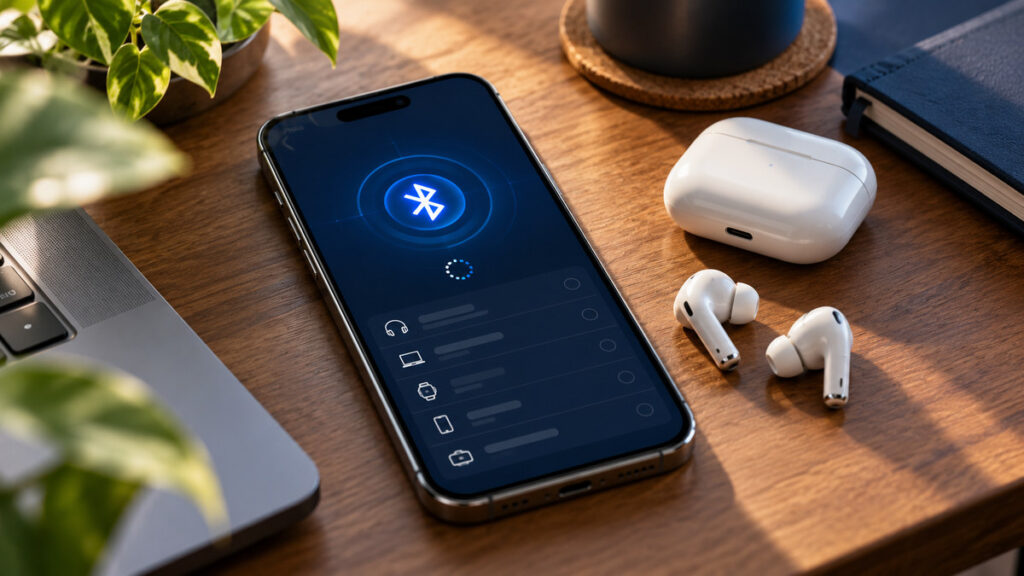
Is your iPhone Bluetooth not finding devices, even when your headphones, speaker, or car stereo is nearby? The device may not appear in the Bluetooth list at all, or it might show up but refuse to connect.
The good news is that most connection problems can be checked without special tools. Start with the accessory itself: it must be powered on, compatible with your iPhone, and placed in pairing mode. Then work through the iPhone settings below.
This guide explains 11 practical fixes for an iPhone not finding Bluetooth devices, plus how to tell whether the problem is with your iPhone or the accessory.
Quick Answer: What to Do When iPhone Bluetooth Is Not Finding Devices
- Open Settings → Bluetooth and make sure Bluetooth is on.
- Put the headphones, speaker, or other accessory into pairing/discovery mode.
- Bring the devices close together, ideally within a few feet.
- Charge and restart the Bluetooth accessory.
- Disconnect it from other phones or computers that may have claimed the connection.
- If the accessory was paired before, choose Forget This Device, then pair it again.
If it still does not appear, continue with the detailed checks below.
Table of Contents
Why Is My iPhone Not Finding Bluetooth Devices?
Bluetooth devices must be discoverable before a new phone can pair with them. Simply turning on headphones or a speaker does not always make them visible. Some accessories leave pairing mode after a short time, while others reconnect automatically to a previously used device.
Other common reasons include a low battery, distance or interference, outdated software, an incompatible accessory, or a temporary connection issue.
There are two useful distinctions:
- Device not showing: Your accessory is missing from the list under Settings → Bluetooth → Other Devices. Focus on pairing mode, power, distance, and competing connections.
- Device showing but not connecting: Your iPhone sees the accessory, but pairing fails. Focus on restarting, forgotten pairings, compatibility, and software.
Follow the fixes in order rather than resetting your phone immediately.
1. Turn Bluetooth Off and On in Settings
Open Settings → Bluetooth and confirm the Bluetooth switch is enabled. If it is already on, switch it off, wait a few seconds, and turn it back on. Then watch the list of nearby accessories.
For a full Bluetooth restart, use the Settings app, not only the Control Center button. Apple’s Control Center Bluetooth button generally disconnects accessories rather than fully switching off the Bluetooth radio.
If the Bluetooth control is greyed out or cannot be enabled, skip to the support guidance near the end of this article. This may require a different kind of troubleshooting.
2. Put Your Accessory Into Pairing Mode
This is often the most important fix when an iPhone Bluetooth device is not showing up.
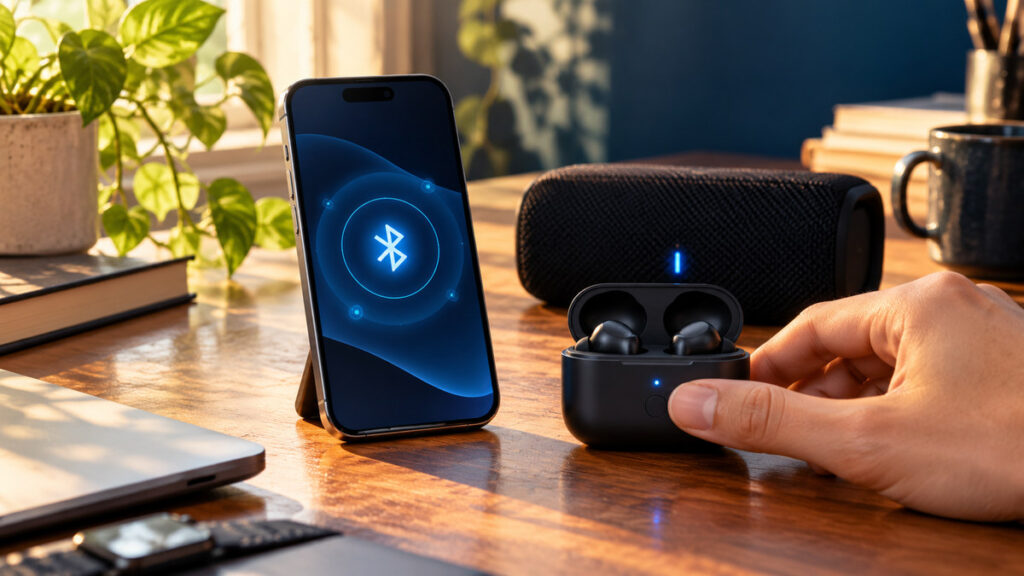
A new accessory must be in pairing or discovery mode to appear in the available-devices list. The exact method varies by product:
- Turn on the accessory.
- Find its pairing button or follow the instructions from the manufacturer.
- Watch for a flashing indicator or a voice prompt, if the accessory provides one.
- Keep Settings → Bluetooth open on the iPhone.
- Tap the accessory name when it appears under available devices.
Some earbuds enter pairing mode when you open their case, while others require holding a button. For car audio systems, look for Add Phone, Pair New Device, or the manufacturer’s equivalent option. Do not assume all products use the same method.
If pairing mode times out, activate it again and retry promptly.
If Bluetooth works but your iPhone still cannot discover nearby devices through AirDrop, the problem may involve AirDrop visibility, Wi-Fi, or receiving permissions. Read our guide, iPhone AirDrop Not Working? 12 Fixes to Try (2026), for detailed troubleshooting steps.
3. Charge and Restart the Bluetooth Accessory
A low battery or temporary accessory fault can interrupt Bluetooth discovery even when an indicator light still turns on.
Charge the headset, speaker, keyboard, or other accessory and then power it off and back on. If it uses replaceable batteries, check or replace them as needed.
For wireless earbuds, confirm both earbuds and the case have sufficient charge. Follow the manufacturer’s instructions for restarting the case or earbuds. Avoid performing a factory reset unless the simpler power cycle fails and you know how to pair the device again.
Now reopen Settings → Bluetooth and look for the device.
If your iPhone connects to your car but Apple CarPlay still doesn’t start, our Apple CarPlay Not Working guide covers wireless and wired CarPlay issues.
4. Move the Devices Closer and Reduce Interference
Apple’s iPhone guide recommends keeping the phone within approximately 10 metres (33 feet) of an accessory for pairing. For troubleshooting, start much closer, on the same desk if possible.
Walls, crowded wireless environments, metal surfaces, and nearby electronics can make a weak connection harder to establish.
Try these checks:
- Put your iPhone and accessory next to each other.
- Remove the accessory from a bag or enclosed cabinet.
- Move away from a cluster of wireless devices if practical.
- Retry pairing after both devices are stationary.
You do not need to turn off your home Wi-Fi as a standard Bluetooth fix. Test for interference only if you have a specific reason to suspect it.
5. Disconnect the Accessory From Another Device
Many Bluetooth products automatically connect to the last phone, laptop, or tablet they used. When that happens, the accessory may stop advertising itself for a new pairing.
If your headphones connect to a Mac or Android phone but are invisible on your iPhone:
- Open Bluetooth settings on the previously connected device.
- Disconnect or unpair the accessory there, if appropriate.
- Put the accessory back into pairing mode.
- Return to Settings → Bluetooth on the iPhone and try again.
This is especially helpful with speakers, car stereos, and earbuds that do not support simultaneous connections. If the product supports multipoint pairing, check its instructions for adding a second device.
6. Forget the Old Pairing and Pair Again
Use this fix only if the accessory is already listed under My Devices on your iPhone.
- Open Settings → Bluetooth.
- Tap the ⓘ information button beside the accessory.
- Select Forget This Device and confirm.
- Put the accessory back into pairing mode.
- Tap its name when it reappears and follow any prompts.
Forgetting an accessory removes its saved pairing. You may need to repeat setup and enter a PIN if the manufacturer requires one.
Note: Apple says unpairing an accessory can also affect that accessory’s pairing across devices signed in to your Apple Account. Be prepared to reconnect it elsewhere.
7. Restart Your iPhone
Restarting can clear a temporary issue with the Bluetooth connection process.
On an iPhone with Face ID, hold the side button and either volume button until the power-off slider appears. Slide to turn off, wait around 30 seconds, and power the iPhone on again.
After restarting:
- Open Settings → Bluetooth.
- Make sure Bluetooth is enabled.
- Activate pairing mode on the accessory.
- Look under available devices and try connecting.
If you can, also test the accessory with a second phone. That will help reveal which side is having trouble.
8. Check Bluetooth Permission for the Accessory’s App
Some fitness trackers, smart home devices, and specialized accessories rely on a companion app to discover or configure them. If pairing works through an app, check its Bluetooth permission.
- Open Settings on the iPhone.
- Tap Privacy & Security.
- Select Bluetooth.
- Find the relevant companion app and allow access if you trust it and need that feature.
- Reopen the app and follow the manufacturer’s pairing instructions.
This setting applies to apps requesting Bluetooth access. It is not usually required just to play audio through ordinary wireless headphones or speakers.
Avoid enabling Bluetooth access for unrelated apps solely in the hope of fixing connection issues.
9. Update iOS and the Accessory’s Firmware
An update may fix a compatibility or connection bug, although it is not guaranteed to solve every Bluetooth problem.
To check iOS, open Settings → General → Software Update. Review the available compatible update, back up important data, and follow Apple’s instructions if you decide to install it.
Bluetooth accessories can also have firmware updates. Check the manufacturer’s official app or support website for your exact model. Do not install firmware from an unknown third-party download site.
After updating, restart the accessory if its instructions recommend doing so, then attempt pairing again.
10. Confirm Compatibility and Test Another Accessory
Not every device that uses Bluetooth supports the same pairing profiles or iPhone features.
A specialized keyboard, game controller, car system, or older accessory might require an app, a particular setup method, or manufacturer-specific compatibility support.
Check the accessory manual or the manufacturer’s official compatibility list. Then test your iPhone with a different known-working Bluetooth device, such as another pair of headphones.
- Only one accessory fails: The problem is more likely to involve that accessory, its pairing state, or compatibility.
- Every accessory fails: Check the iPhone’s Bluetooth controls and contact Apple Support if the issue persists.
Important: Pairing two phones over Bluetooth is not the standard way to transfer photos or files from an iPhone. For supported Apple-to-Apple file sharing, use AirDrop instead.
Related reading: AirDrop Not Working on iPhone or Mac? 12 Fixes to Try (2026).
11. Consider Reset All Settings Only as a Last Resort
Most people should not need this step. Apple describes Reset All Settings as a rarely necessary option for persistent issues after simpler fixes have failed.
Before proceeding, understand the effects. This reset does not erase your photos, messages, apps, or documents, but it resets many preferences and connections. Those can include Bluetooth pairings, Wi-Fi passwords, Apple Pay cards, privacy settings, Face ID settings, and other customizations.
If Apple Support or careful troubleshooting indicates this is appropriate, back up your iPhone first and go to:
Settings → General → Transfer or Reset iPhone → Reset → Reset All Settings.
Do not choose Erase All Content and Settings. That is a different option that removes your data.
Because this is a substantial reset, consider asking Apple Support before using it if you rely on work profiles, Apple Watch pairing, or carefully configured settings.
What if My iPhone Can See Bluetooth Devices but Won’t Connect?
If the accessory appears in the list but pairing fails, start with its battery level and pairing instructions. Next, check whether it is connected to another phone or computer. If it was paired previously, forget the old pairing and retry.
If the device asks for a PIN or code, follow the manufacturer’s instructions rather than guessing. If it connects briefly and then drops, test it near the iPhone with another accessory temporarily disconnected.
An accessory that repeatedly fails only with one iPhone may require manufacturer support or help from Apple.
Frequently Asked Questions
Why is my iPhone Bluetooth not showing nearby devices?
The accessory may not be in pairing mode, may be connected to another device, or may have insufficient battery. Open Settings → Bluetooth, place the accessory in discovery mode, and bring the devices close together.
Why can my iPhone connect to some Bluetooth devices but not others?
Different devices support different Bluetooth features. An accessory may require a companion app, a specific pairing procedure, updated firmware, or a compatible iPhone model. Check the manufacturer’s documentation.
Do I have to be connected to Wi-Fi for Bluetooth pairing?
No. Standard local Bluetooth pairing does not require an active Wi-Fi internet connection. An accessory’s companion app may separately require internet access for account setup or updates.
Can I connect my iPhone to two Bluetooth headphones at once?
Some Apple and Beats headphones support Apple’s Audio Sharing feature with a compatible iPhone or iPad. General support for using two arbitrary Bluetooth headphones simultaneously depends on the devices and feature involved.
Will Forget This Device delete my photos?
No. Forget This Device removes the saved pairing for that Bluetooth accessory. It does not delete photos or other ordinary files from your iPhone.
Should I reset network settings to fix Bluetooth?
Not as the first step. For Bluetooth discovery, pairing mode, power, distance, and existing pairings are better starting points. Apple’s broader Reset All Settings option is rarely necessary and affects many preferences, so use caution.
Final Thoughts
When an iPhone Bluetooth is not finding devices, the fastest route is usually to check pairing mode, power, distance, and whether the accessory has already connected to another phone or computer. Those checks solve many discovery problems without changing anything important on your iPhone.
If your device appears but won’t pair, forget the old pairing if one exists and try again. Check app permissions only when a companion app is involved. Then review updates and compatibility.
If Bluetooth cannot be turned on, is greyed out, or fails with every known-working accessory, contact Apple Supportrather than repeatedly resetting your iPhone.
For authoritative guidance, see Apple’s official pages: If a Bluetooth accessory won’t connect, Connect a Bluetooth accessory, and Reset All Settings on iPhone or iPad.
The Synced Desk | Practical solutions for everyday technology problems.