Trying to turn off Stolen Device Protection on your iPhone, but Face ID keeps failing or your phone insists that you wait an hour?
This can be confusing, especially when you’re preparing to sell your iPhone, resetting Face ID, or changing important Apple Account settings.
The good news is that Stolen Device Protection refusing to turn off does not always mean your iPhone is broken. In many cases, the restriction is an intentional security feature.
In this guide, we’ll explain why you can’t turn off Stolen Device Protection, how Apple’s Security Delay works, and seven legitimate ways to troubleshoot the problem.
Table of Contents
How to Turn Off Stolen Device Protection if Face ID Isn’t Working
If you can’t turn off Stolen Device Protection, first identify whether your iPhone is requiring a normal Security Delay or whether Face ID is failing.
Check these settings:
- Open Settings > Face ID & Passcode.
- Enter your iPhone passcode.
- Tap Stolen Device Protection.
- Check whether Require Security Delay is set to Always or Away from Familiar Locations.
- Follow the authentication instructions displayed on your iPhone.
If a Security Delay appears: Complete the initial biometric authentication, start the delay, wait for the required period (normally one hour), and authenticate again when prompted.
If you’re at home but still see a delay: Check whether Always is selected. Your iPhone may also need time to recognize a familiar location.
If Face ID is completely unavailable: A passcode cannot substitute for biometric authentication when Stolen Device Protection requires it. Contact Apple Support for help with the underlying authentication problem.
Important: Do not erase your iPhone or use third-party tools claiming to bypass Stolen Device Protection. This feature is designed to protect sensitive information if your device is stolen.
Why Can’t You Turn Off Stolen Device Protection?
Stolen Device Protection is an iPhone security feature designed to protect your personal information if someone steals your device and knows its passcode.
For certain sensitive actions, it requires Face ID or Touch ID without allowing a passcode as an alternative.
Some changes also trigger a Security Delay, which involves a biometric check, approximately one hour of waiting, and another biometric check.
You may encounter this restriction when:
- Trying to disable Stolen Device Protection
- Changing your Apple Account password
- Adding or removing Face ID
- Changing your iPhone passcode
- Changing certain Apple Account security settings
Whether the delay applies can depend on your location and the security settings you selected.
Important: These security protections are intentional. There is no legitimate passcode shortcut to bypass a required biometric check.
1. Use the Correct Stolen Device Protection Settings
First, make sure you’re trying to disable the feature through the appropriate settings menu.
On an iPhone with Face ID:
- Open Settings.
- Tap Face ID & Passcode.
- Enter your iPhone passcode.
- Scroll down and tap Stolen Device Protection.
- Attempt to turn the feature off.
On an iPhone with Touch ID, use Touch ID & Passcode instead.
If your iPhone asks for Face ID, Touch ID, or a Security Delay, continue with the relevant steps below.
You should not need to erase your iPhone simply because this setting requires additional authentication.
2. Complete the One-Hour Security Delay
One of the most common reasons users cannot immediately turn off Stolen Device Protection is Apple’s Security Delay.
When required, follow these steps:
- Attempt to turn off Stolen Device Protection.
- Complete the initial Face ID or Touch ID authentication.
- Tap Start Security Delay when prompted.
- Wait for the required period, normally one hour.
- Return to the Stolen Device Protection settings.
- Complete the second biometric authentication.
- Finish turning off the feature.
The wait is part of the security system, not necessarily a software malfunction.
If the time has passed but the feature remains enabled, reopen the relevant settings and check whether the final authentication is still required.
Avoid repeatedly changing security settings while waiting.
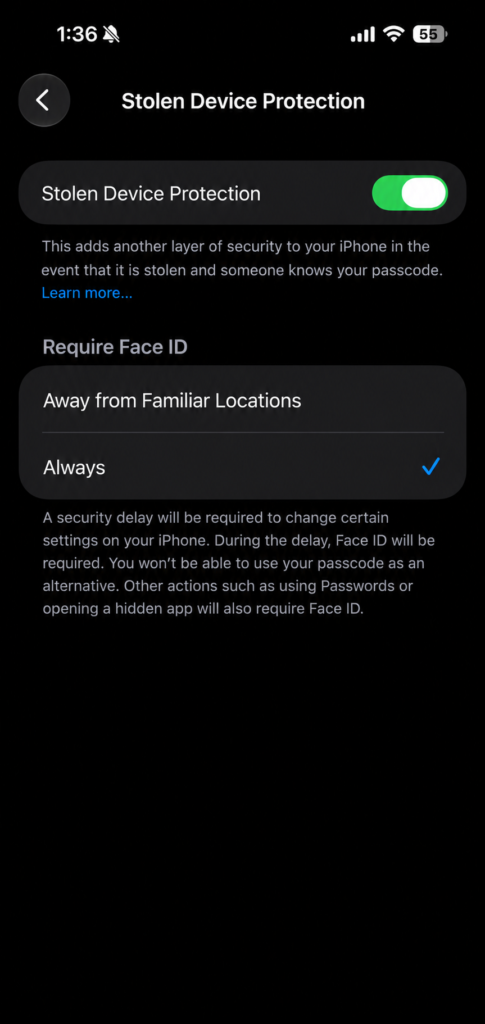
3. Check Your Familiar Location Settings
Your iPhone can apply different Stolen Device Protection requirements depending on whether it recognizes a familiar location.
Apple provides two options:
Away from Familiar Locations: Additional security restrictions apply when your iPhone is away from familiar places such as home or work.
Always: Additional protection applies regardless of where you are.
To view your selected option, open:
Settings → Face ID & Passcode → Stolen Device Protection
Then look for the setting controlling when additional security measures are required.
If you selected Always, being at home does not automatically remove the Security Delay.
If you selected Away from Familiar Locations, your iPhone may still require a delay if it does not recognize its current location.
Apple also notes that a new or recently restored device can take time to recognize familiar locations.
Changing locations is not a guaranteed way to remove a delay that has already started.
4. Check Whether Face ID Is Working
If Face ID cannot authenticate you, the iPhone may prevent you from completing certain Stolen Device Protection actions.
Start with these basic checks:
- Gently clean the TrueDepth camera area.
- Remove any accessory that might cover the camera.
- Make sure your face is clearly visible.
- Hold the iPhone at a natural viewing distance.
- Check that Face ID works for normal authentication.
You can also review your Face ID settings by opening Settings → Face ID & Passcode.
If Face ID fails only occasionally, improving camera visibility may help.
However, if you see a message indicating that Face ID is unavailable or the TrueDepth camera has a problem, there could be a hardware or software issue requiring further attention.
For a more detailed guide, see our Face ID Not Working After iOS 27? 8 Fixes (2026).
5. Restart Your iPhone and Check for Software Updates
If Stolen Device Protection settings are unresponsive, basic software troubleshooting may help.
Before starting a new Security Delay, try restarting your iPhone.
Then check for software updates:
- Open Settings.
- Tap General.
- Select Software Update.
- Install an available compatible update after backing up your important data.
Once the device restarts and any update finishes, check whether Face ID works normally.
Then return to Stolen Device Protection and follow Apple’s authentication prompts.
Note: A software update is not a way to bypass an active Security Delay. The normal security requirements may still apply.
6. Check Whether Your iPhone Was Recently Set Up or Restored
Did the issue begin after switching to a new iPhone or restoring an iCloud backup?
This detail matters.
Apple explains that Stolen Device Protection settings can be restored when you transfer information from another iPhone or restore from iCloud Backup.
The extra security requirements can therefore be active on a newly configured device.
Your iPhone may also need time to recognize familiar locations again.
If you recently transferred devices:
- Confirm that Face ID is functioning.
- Review the Stolen Device Protection settings.
- Check whether the security requirement is set to Always.
- Follow any Security Delay shown on the device.
Avoid assuming that the feature is malfunctioning merely because the phone is new.
7. Contact Apple Support if Face ID Is Completely Unavailable
Sometimes, the real problem is not Stolen Device Protection. It is that the required biometric authentication cannot be completed.
For example, Face ID might stop working after physical damage, a camera problem, or another hardware fault.
If your iPhone requires Face ID for a protected action, entering the passcode may not be an alternative.
In that situation:
- Check Apple’s official Face ID troubleshooting instructions.
- Back up your iPhone if possible.
- Contact Apple Support or an Apple Authorized Service Provider.
- Explain that Stolen Device Protection is enabled and biometric authentication is unavailable.
Avoid third-party tools that claim to bypass Apple’s security protections. Such claims can expose your personal information or create additional device problems.
Apple’s security requirements are specifically intended to prevent someone who knows the passcode from taking control of the device.
What if Stolen Device Protection Is Still On After One Hour?
If you’ve waited an hour and the toggle remains enabled, check whether you’ve completed the second Face ID or Touch ID authentication.
The timer ending is not necessarily the final step.
Also confirm that the original delay actually started successfully and that you are following the instructions displayed on your device.
If the process repeatedly fails, note the exact error message and contact Apple Support.
Do not erase your device as a speculative fix.
Should You Turn Off Stolen Device Protection?
In normal daily use, leaving the feature enabled provides valuable additional security.
You might reasonably need to disable it before selling, giving away, or trading in your iPhone.
Apple recommends turning it off before transferring your device to another person.
However, disabling it simply to avoid occasional security prompts reduces the protection available if your phone is stolen.
If the inconvenience is caused mainly by your location settings, review the available options and consider whether Away from Familiar Locations is appropriate for your needs.
Frequently Asked Questions
Can I turn off Stolen Device Protection without Face ID?
When a protected action requires biometric authentication, Apple does not provide a passcode fallback. If Face ID is completely unavailable, contact Apple Support for assistance rather than attempting an unauthorized bypass.
Why does my iPhone require a one-hour Security Delay?
The delay is designed to stop someone who has stolen your iPhone and learned its passcode from immediately changing important security settings.
Does the Security Delay happen at home?
It can. If your protection is set to Always, the security requirements also apply at familiar locations. Even with the location-based setting, your iPhone might not immediately recognize a familiar place.
Can I turn off Stolen Device Protection before selling my iPhone?
Yes, provided you can complete the required authentication. Apple recommends disabling the feature before selling, gifting, or trading in your device.
Will resetting Face ID fix Stolen Device Protection?
Not necessarily. Resetting Face ID is itself a sensitive action that may require additional authentication or a Security Delay. If Face ID cannot function because of a hardware problem, resetting settings may not solve the issue.
Final Thoughts
If you can’t turn off Stolen Device Protection on your iPhone, the first thing to determine is whether you’re facing a normal Security Delay or a genuine Face ID problem.
Most importantly, follow Apple’s required authentication process rather than looking for shortcuts that claim to bypass security.
If the issue involves a failing TrueDepth camera or Face ID that cannot authenticate you, professional support may be necessary.
For more iPhone troubleshooting, explore our other Face ID guides on The Synced Desk.