Is your iPhone battery draining faster after installing iOS 27? Whether you’re running iOS 27.0.1, iOS 27.1, iOS 27.2, or a newer update, unexpected battery drain can make your iPhone difficult to use throughout the day.
However, not every battery problem is caused by an iOS update. Background processing, unusually active apps, weak cellular reception, display settings, and battery aging can all affect battery life.
The good news is that you can investigate most of these problems without resetting your iPhone or deleting personal data.
This guide explains nine practical fixes for iOS 27 battery drain, how to identify the actual cause, and when to seek additional assistance.
Last reviewed: November 17, 2026.
Table of Contents
Quick Answer: How to Fix iOS 27 Battery Drain
If your iPhone battery drains unusually quickly after an update, start by opening Settings > Battery.
Check for an Ongoing iOS Update message, compare your recent battery usage with previous days, and identify any apps using excessive power.
Next, update your apps, restart your iPhone, review display settings, and enable Low Power Mode if necessary.
Apple explains that certain background processes continue after software installation. These activities can temporarily affect battery performance.
If you updated recently, allow a few days before judging whether battery life has genuinely become worse.
Does iOS 27 Cause Battery Drain?
Installing iOS 27 can temporarily increase battery usage while the system completes background tasks.
However, the timing of a battery problem doesn’t automatically establish that the operating system caused it.
Common explanations include:
- Post-update background processing.
- Increased activity from installed apps.
- High display brightness or long screen-on time.
- Poor cellular reception.
- Location services and background refresh.
- Reduced battery health.
- Changes in personal usage patterns.
The most reliable approach is to inspect your iPhone’s Battery settings before changing multiple features.
How to Find What’s Draining Your iPhone Battery
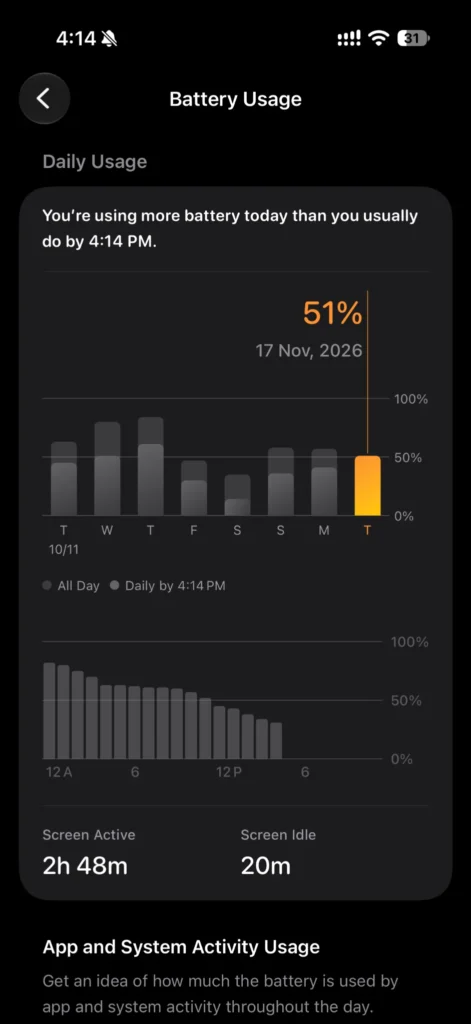
Open Settings > Battery and review your daily battery activity.
Compare days with similar usage rather than simply checking how much charge remains at bedtime.
If available, select View All Battery Usage to examine app-level activity and the amount of time your screen remained active.
Look for unusual patterns.
For example, a video streaming app using considerable power during several hours of viewing may be functioning normally.
An app consuming substantial energy in the background when you rarely use it deserves closer examination.
Also review low-signal activity and any system insights displayed in Battery settings.
iOS 27 Battery Draining Fast? Find the Cause First
If you’re experiencing iOS 27 battery drain, identifying when and how your battery loses power can help you choose the right fix.
Battery draining immediately after updating: Check Settings → Battery for an Ongoing iOS Update insight. Background processing may temporarily affect battery life.
Battery draining overnight: Review battery usage during the hours your iPhone was idle. Check for unexpected background activity and poor cellular reception.
Battery draining while using apps: Compare app activity with your actual screen time. Video calls, gaming, and prolonged streaming can consume considerable power.
Battery draining with little screen time: Investigate background app usage, cellular signal strength, and battery health.
Battery draining after several days: If update-related processing has finished, investigate persistent app activity or battery health rather than assuming the software update is responsible.
Quick tip: Change one setting at a time and compare battery performance under similar usage conditions.
1. Allow Post-Update Background Processing to Finish
One of the first things to investigate after installing iOS 27 is ongoing background activity.
Apple confirms that an iPhone may continue completing update-related tasks after installation.
These tasks can temporarily affect battery life and device temperature.
To check:
- Open Settings.
- Select Battery.
- Look for an Ongoing iOS Update insight.
- If it appears, allow background processing to continue.
- Reassess battery performance after a few days.
Avoid immediately resetting your iPhone because battery life was worse on the first day after updating.
If excessive drain continues after the update has finished processing, continue with the remaining fixes.
2. Identify Apps Consuming Excessive Battery Power
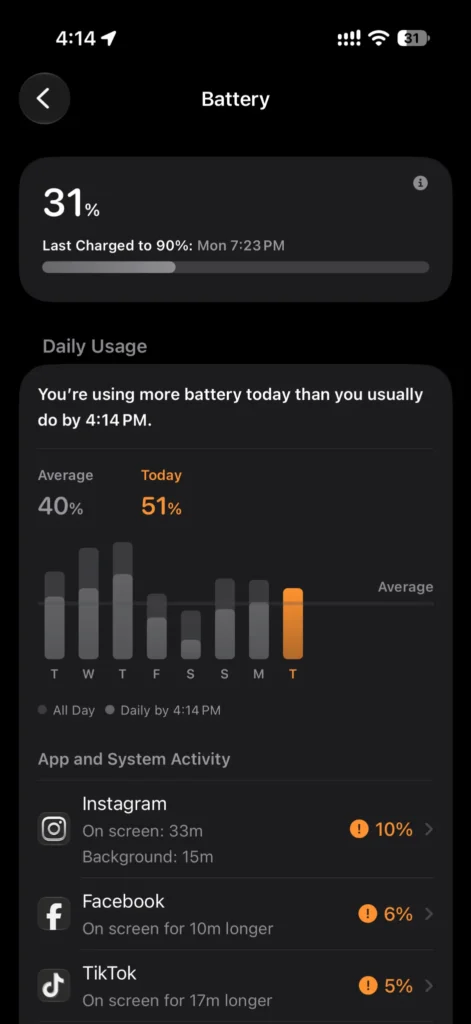
Apps can use battery power while actively running and during certain background operations.
Go to Settings > Battery > View All Battery Usage, if the option appears on your iPhone.
Review which applications consume the largest share of battery power.
Pay particular attention to apps showing unexpected background activity.
If an app appears to be behaving unusually, update it, review its permissions, or temporarily limit unnecessary background activity.
Remember that an app’s battery usage percentage represents its share of recorded power consumption. It doesn’t directly correspond to the number of battery percentage points lost.
3. Update Your Apps and Check for iOS Updates
Outdated applications can sometimes behave unexpectedly after an operating-system update.
Open the App Store, tap your account picture, and check for available app updates.
Install relevant updates, particularly for applications that appear unusually active in your Battery report.
Next, open Settings > General > Software Update.
Install an appropriate stable software update when available, preferably after backing up important information.
Apple released iOS 27.2.1 on November 9, 2026. That release included security fixes, but it should not be described as a confirmed universal solution for battery drain.
Software updates can resolve particular defects, but they do not guarantee longer battery life for every device.
4. Restart Your iPhone
Restarting your iPhone can help when an app or temporary system process is behaving unexpectedly.
For most recent Face ID models:
- Press and hold the side button and either volume button.
- Drag the power-off slider.
- Wait for the iPhone to turn off.
- Press and hold the side button to switch it back on.
After restarting, compare battery performance during normal usage.
If the problem continues, investigate other causes rather than repeatedly force-restarting the device.
5. Reduce Unnecessary Display Power Consumption
Your iPhone display can consume a substantial amount of energy, especially during extended screen-on time.
Reduce brightness to a comfortable level and enable Auto-Brightness.
To enable Auto-Brightness, open:
Settings > Accessibility > Display & Text Size > Auto-Brightness
You can also open Settings > Display & Brightness > Auto-Lock and select a shorter interval.
On compatible models, consider whether Always On Display is necessary for your daily use.
These changes are particularly useful when Battery settings show high display activity.
6. Review Background App Refresh
Background App Refresh allows certain apps to update their information even when you’re not actively using them.
Some background activity is useful, but it may not be necessary for every application.
Go to:
Settings > General > Background App Refresh
Review the list of applications and disable unnecessary background refresh for apps you rarely use.
Avoid disabling essential functions indiscriminately.
Also understand that Background App Refresh settings do not control every type of background system activity.
7. Check Location Services and Notifications
Applications frequently requesting location information may contribute to battery consumption.
Open Settings > Privacy & Security > Location Services.
Review individual app permissions and consider using While Using the App where appropriate.
Keep the permissions needed for navigation, safety and important services.
Next, inspect Settings > Notifications.
Reducing unnecessary notifications may decrease how frequently your display wakes, although the impact will depend on your usage.
8. Check Cellular Reception and 5G Settings
Weak cellular reception can increase power consumption because your iPhone must work harder to maintain a stable connection.
If your battery drains particularly quickly in areas with poor coverage, compare performance when connected to reliable Wi-Fi.
On supported iPhones and networks, consider enabling 5G Auto.
Depending on your region and carrier, you can find this under:
Settings > Cellular > Cellular Data Options > Voice & Data
5G Auto allows the iPhone to use an appropriate network connection when full 5G performance is unnecessary.
If you’re regularly in areas with limited cellular coverage, poor reception may be a larger factor than the iOS version itself.
9. Use Low Power Mode or Adaptive Power
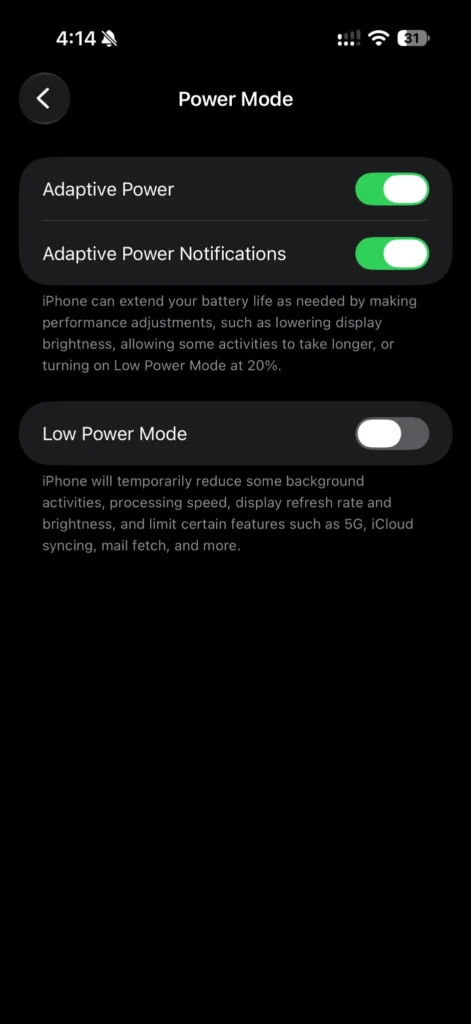
Apple provides built-in features that can extend battery life.
On supported newer iPhones, open:
Settings > Battery > Power Mode
Enable Low Power Mode when you need to conserve battery power.
Low Power Mode reduces or limits certain background activities and visual effects.
Compatible models also offer Adaptive Power, which can adjust certain performance settings when power consumption is unusually high.
Check whether Adaptive Power is available on your model.
These options can help extend daily battery life, but they don’t necessarily eliminate the underlying cause of abnormal drain.
Check Your iPhone Battery Health
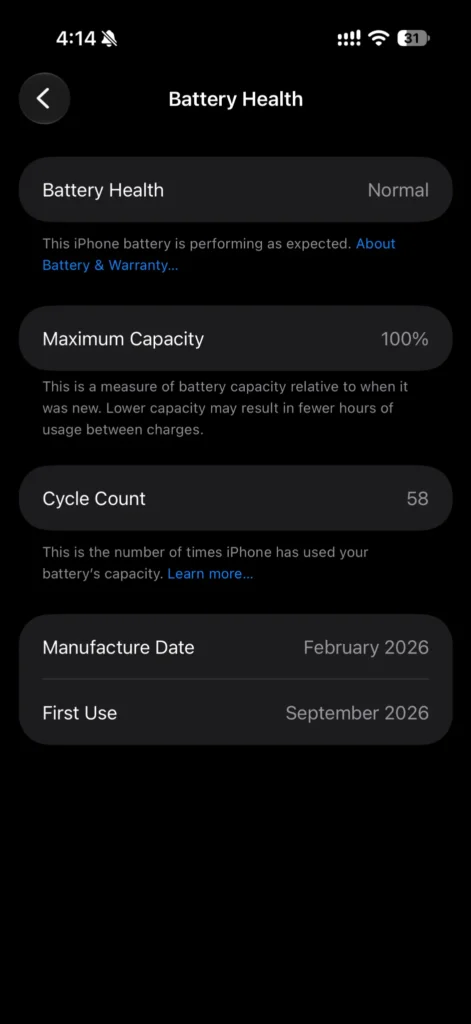
If battery life remains poor despite troubleshooting, inspect the battery’s condition.
On iPhone 15 and later, go to Settings > Battery > Battery Health.
On some older models, the relevant section is called Battery Health & Charging.
Review the available battery health information and any service recommendations.
Rechargeable batteries gradually lose capacity as they age.
If your battery is significantly degraded, changing software settings cannot restore its original physical capacity.
If the device recommends battery service, contact Apple or an authorized service provider.
For separate charging problems, read our iPhone Not Charging troubleshooting guide.
iOS 27 Battery Drain After Different Updates
Battery concerns can occur after different releases within the iOS 27 family.
Battery Drain After iOS 27.0.1
If battery life declined immediately after installing iOS 27.0.1, check for ongoing update processing and investigate unusually active apps.
Apple’s release information should not be interpreted as guaranteeing a battery-drain fix for every device.
Battery Drain After iOS 27.1 or 27.2
Use the same diagnostic approach: review Battery settings, compare screen-on and background activity, check battery health, and install appropriate app updates.
Do not assume that every complaint following an update represents a widespread software defect.
Battery Drain After iOS 27.2.1
Apple released iOS 27.2.1 on November 9, 2026.
If your battery drains faster after installing this version, check whether post-update processing is still underway.
Review recent app activity, cellular reception, and available battery insights.
If problems continue for several days, consider contacting Apple Support.
What About Future iOS 27 Updates?
These troubleshooting methods also apply to later iOS 27 releases because they focus on identifying battery usage rather than relying on a single version-specific fix.
Check Apple’s release information for any newly documented battery-related changes.
How to Tell Whether Your Fix Worked
Compare battery behavior over two days with similar usage.
Check screen-on time, background activity, network conditions, charging patterns, and update processing.
If you spend significantly more time on video calls or games one day, faster battery consumption may be expected.
The goal is to identify meaningful improvements rather than focus on minor daily percentage differences.
Frequently Asked Questions
Is iOS 27 battery drain normal?
Temporary battery drain can occur after installing an update while background processing continues. Persistent or severe battery drain requires further investigation.
How long should battery drain last after an update?
Apple recommends waiting a few days before reassessing battery life following an update. There is no guaranteed recovery time for every iPhone.
Does iOS 27.2.1 fix battery drain?
Apple’s published release information does not establish iOS 27.2.1 as a universal battery-drain fix. It includes security fixes. Individual battery performance may vary.
Can Low Power Mode damage battery health?
No. Low Power Mode is an Apple feature intended to reduce energy usage. It may temporarily limit certain operations, but normal use does not damage battery health.
Should I factory reset my iPhone?
A factory reset is not an appropriate first step for ordinary battery drain. Start with Battery settings, app updates, battery health and less disruptive troubleshooting.
When should I contact Apple Support?
Seek assistance if your iPhone continues losing charge unusually quickly, becomes excessively hot, shuts down unexpectedly, or displays a battery service warning.
Final Thoughts
If you’re experiencing iOS 27 battery drain, begin by identifying what’s consuming power.
Check whether an update is still processing, compare app activity, review cellular reception, and investigate battery health.
Use Apple’s power-saving options when appropriate, but avoid changing every setting without understanding the cause.
The same diagnostic approach can remain useful throughout the iOS 27 update cycle.
For another common update-related issue, read our Face ID Not Working After iOS 27 guide.
Official References
- Apple Support: If your iPhone battery drains too quickly
- Apple: iOS 27.2.1 security update
- Apple Developer: Software releases
Originally published October 13, 2026. Substantially updated November 17, 2026.