iPhone App Store not downloading apps? Maybe an app stays on Waiting, a download circle never finishes, updates get stuck, or tapping Get doesn’t do anything. Some iPhone owners also see Verification Required, a payment warning, or a message saying the app isn’t available.
These symptoms don’t all mean the App Store itself is broken. The cause might be a connection issue, a paused download, limited storage, Apple Account verification, restrictions, or an app that isn’t compatible with your iPhone.
This guide walks through 12 practical fixes for iPhone App Store not downloading apps, beginning with the least disruptive checks. We’ll also explain how to fix apps stuck on Waiting, why even free downloads sometimes require account verification, and when to contact Apple.
Table of Contents
Quick Answer: How to Fix iPhone App Store Not Downloading Apps
Try these steps in order:
- Confirm the internet connection works and check Apple’s System Status page.
- Switch between a trusted Wi-Fi network and cellular data to isolate a connection problem.
- Complete the App Store’s Get, Side-button, Face ID, Touch ID, or password prompts.
- Try manually updating an app from the App Store account screen.
- Touch and hold a waiting app and choose Prioritize Download, if offered.
- Pause and resume the affected download rather than deleting valuable app data.
- Restart the iPhone and try downloading a small, trusted app.
- Check available iPhone storage before retrying a large installation.
- Resolve Verification Required or billing warnings using Apple’s official account settings.
- Review Screen Time, Ask to Buy, age confirmation, and family restrictions.
- Confirm that the app supports your device, iOS version, and country or region.
- Check for a compatible iOS update and contact Apple Support if downloads still fail.
Important: Never enter your Apple Account password into a random website or message claiming to fix an App Store error. Use the iPhone’s Settings app, the official App Store, or Apple’s verified support pages.
Why Is the App Store Not Downloading Apps on My iPhone?
The first step is to identify what happens when you try to download an app. Different error messages require different solutions.
1. The Get button doesn’t respond
Tap Get once and watch for the Side-button confirmation, Face ID prompt, or Apple Account password request.
Expected result: After successful authentication, the app should begin downloading.
2. An app stays on Waiting
Touch and hold its Home Screen icon. Select Prioritize Download if the option appears.
Check your internet connection and available storage if the download doesn’t start.
Expected result: The app should begin showing download progress once the blocking condition is resolved.
3. Verification Required appears
This message may indicate an unpaid previous purchase or another billing issue.
Open Settings > Your Name > Payment & Shipping and review the available account information.
Expected result: Once the billing problem is resolved, App Store downloads should become available again.
4. The App Store says Cannot Connect
Try loading a trusted website in Safari and switch between Wi-Fi and cellular data.
If other internet services work, check Apple’s System Status page for an App Store outage.
5. Only one app refuses to install
Open its App Store listing and inspect the compatibility requirements, available regions, and supported iOS versions.
Expected result: If the app is compatible and available, the download should proceed once any account or network restrictions are resolved.
6. Apps won’t download on a child’s iPhone
Check whether Screen Time restrictions, Ask to Buy, or age-verification requirements are preventing installation.
The parent or family organizer may need to approve the download.
Important: Don’t delete an existing app with valuable local data simply because an update is stuck. Try the safer troubleshooting steps first.
1. Check Your Connection and Apple’s System Status
An App Store download requires access to Apple’s servers. If Safari cannot open a trusted website or other internet apps also fail, investigate the connection before changing App Store settings.
- Open Safari and visit a familiar secure website.
- If it doesn’t load, test another trusted website.
- If available, check Apple System Status for a current App Store problem.
- Retry the download only after connectivity or service is restored.
A Wi-Fi symbol doesn’t always guarantee a working internet connection. A router or public-network login problem can leave the iPhone connected locally but unable to contact the App Store.
Related reading: iPhone Connected to Wi-Fi but No Internet? 10 Fixes to Try (2026). Use that guide if your Wi-Fi shows as connected but browsing and downloads fail together.
2. Test Wi-Fi and Cellular Data Separately
If your App Store download fails only on a particular network, switching networks helps identify the cause.
- Connect to a known, reliable Wi-Fi network and test the App Store.
- If it still fails, temporarily turn off Wi-Fi and test using an active cellular data plan, if appropriate.
- Check whether your plan has enough data and whether roaming charges could apply.
- Restore your preferred connection after the test.
On some networks, a captive-portal sign-in, VPN, parental filter, or administrator policy can interrupt app downloads. Don’t disable workplace or school security controls without permission.
If you can’t use cellular data in any app, that’s a separate problem. Related reading: iPhone Cellular Data Not Working? 12 Fixes to Try (2026).
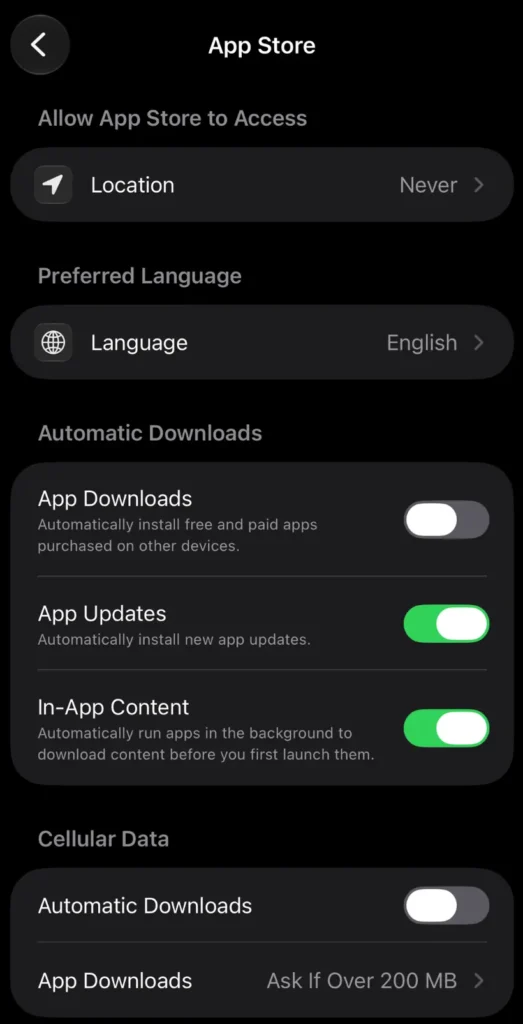
3. Finish the Download Authentication Prompt
When you tap Get or an app’s price in the App Store, Apple may require an additional authentication step. The action can appear stalled if you don’t complete it.
On many Face ID iPhones:
- Open the official App Store.
- Find the app and tap Get, the price, or the redownload icon.
- Follow the on-screen instruction to double-click the Side button, if shown.
- Confirm with Face ID or enter your Apple Account password if requested.
- Watch the app icon for a download progress indicator.
Apple notes that an Open button usually means you already have the app or previously downloaded it. If an app is already installed, search for it in the App Library before assuming that downloading failed.
Don’t repeatedly approve unexpected purchase prompts. Check that the app and price are what you intended before confirming a transaction.
4. Update an App Manually from the App Store
If the issue concerns an existing app rather than a new installation, Apple’s guidance recommends trying a manual update.
- Open the App Store.
- Tap your account photo near the top.
- Open the available App Updates or update list, depending on your iOS version.
- Tap Update beside the affected app, if offered.
- Wait to see whether the progress starts.
If updates work for one app but not another, the second app might have a specific problem, or the required version might not support your iPhone.
If no update is listed, there may be nothing new available. Repeatedly refreshing the App Store won’t create an update that the developer hasn’t published.
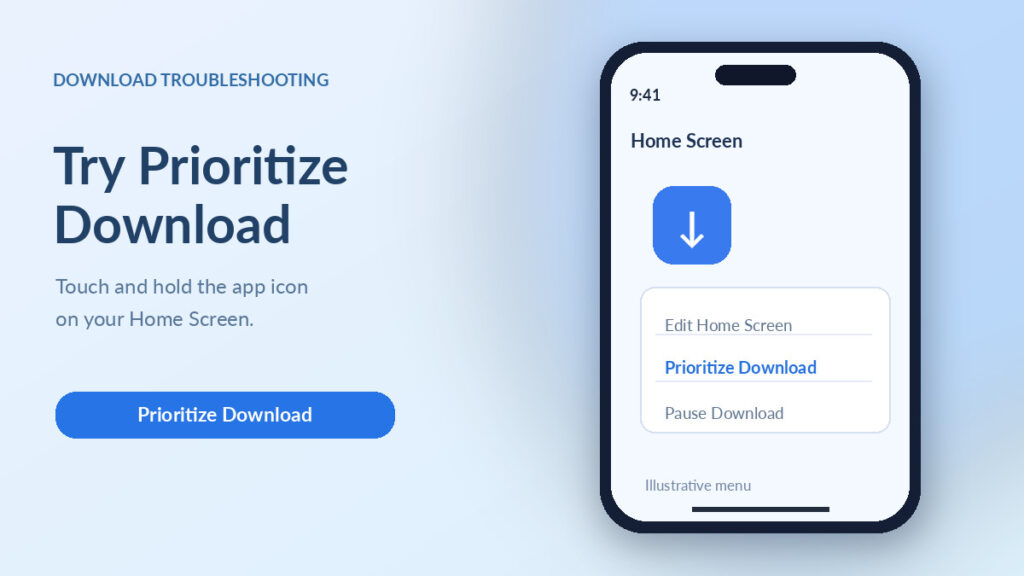
5. Prioritize a Download Stuck on Waiting
Apple specifically recommends Prioritize Download for an app that is waiting on the Home Screen. This can help when several downloads or updates are queued.
To try it:
- Go to the Home Screen and find the app icon showing Waiting or a progress indicator.
- Touch and hold the app icon.
- Tap Prioritize Download, if it appears in the menu.
- Give the app time to resume, especially if the download is large.
- Confirm that the progress indicator changes.
If that option isn’t present, don’t assume something is broken; menu choices vary by iOS version and app state.
Prioritizing one download doesn’t override a billing restriction, App Store outage, or unsupported app. If the app still cannot begin, use the next checks.
6. Pause and Resume a Stuck App Safely
A stalled download can sometimes recover after a short pause. If the Home Screen app icon shows a progress circle, tap it once to pause when that option is available, wait briefly, and tap again to resume.
Watch what happens before taking further action. An app that is already installed might contain important saved content. Don’t delete an existing app merely to clear a download problem unless you’ve confirmed its data is backed up or recoverable.
If the app is a brand-new incomplete download and has no personal data, canceling it and starting again may be reasonable. But check the icon and purchase history first; not every app that appears to be “waiting” is safe to remove blindly.
For a large game or productivity app, allow enough time for the download and installation on a stable connection.
7. Restart the iPhone and Retry One App
Apple includes restarting the device in its App Store troubleshooting advice. A normal restart can help clear a temporary problem without changing account details or erasing data.
For an iPhone with Face ID:
- Hold the Side button and either Volume button.
- Drag the power-off slider.
- Wait around 30 seconds.
- Hold the Side button again to turn the iPhone on.
- Connect to the internet and retry a small, trusted app.
A regular restart is preferable to repeated force restarts when the phone responds normally. If it works afterward, leave the remaining settings alone.
8. Check Whether Your iPhone Has Enough Storage
New apps need storage for the download and installation. An iPhone with very little free space may be unable to finish a large installation or update.
- Open Settings → General → iPhone Storage.
- Review the available free space.
- Compare it with the size of the app you’re trying to install.
- Follow Apple’s storage recommendations if space is limited.
- Retry after freeing appropriate space.
You can offload unused apps if that option fits your situation, but understand that deleting an app and offloading it do not have the same data consequences. Back up important media and app content before removing anything.
A 10 GB game needs a different amount of space from a small utility. Don’t erase personal photos without checking whether storage is actually the issue.
9. Resolve Verification Required and Payment Problems
If the App Store displays Verification Required or Billing Problem with Previous Purchase, the issue may belong to your Apple Account rather than the internet connection.
Apple says an account may need a valid payment method on file even when you want to download a free app. Previous unpaid balances can also affect purchases and updates.
Open Settings → [your name] → Payment & Shipping, where available, or follow the verification prompt inside the official App Store. Review the account’s current payment method and any outstanding billing notice.
If the payment method is expired or rejected, follow Apple’s official instructions or contact the financial institution. Accepted payment methods vary by country and region.
Security reminder: Never share your full payment-card details or one-time account verification codes with a stranger claiming to offer App Store support.
10. Check Screen Time, Ask to Buy, and Age Restrictions
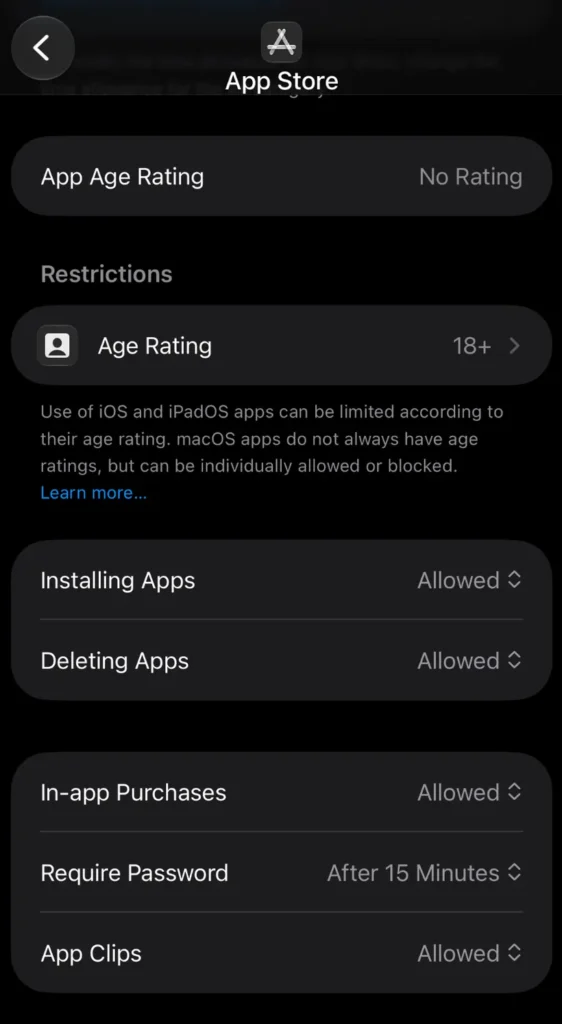
Restrictions can stop an app from appearing or installing, even when the network works. Apple documents an Installing Apps restriction that can hide the App Store on a device.
If you manage your own device, look under Settings → Screen Time → Content & Privacy Restrictions and review the app installation settings. Depending on iOS, you may see iTunes & App Store Purchases or a similar heading.
If you’re part of a Family Sharing group, a child’s download may need Ask to Buy approval. In some countries or regions, Apple may also require age confirmation or family-group participation before certain apps can be downloaded.
Don’t bypass a parent’s, school administrator’s, or employer’s controls. Ask the account organizer or administrator for assistance when a restriction is intentional.
11. Check App Compatibility, Availability, and Apple Account Region
If one app fails but other App Store downloads work, check the app’s listing. Some apps require a newer iOS version, a particular iPhone capability, or availability in your country or region.
Review the Compatibility section and other requirements in the App Store listing. If the developer no longer supports your software version, the app may not install on that device.
An app can also be unavailable in your Apple Account country or region, regardless of whether friends elsewhere can download it. Avoid changing your Apple Account region casually, because doing so can affect subscriptions, balances, and available content.
If the app was previously downloaded, check its purchase history or redownload options. Availability for redownloading can still depend on the developer and store policies.
12. Update iOS and Contact Apple if Downloads Still Fail
If multiple compatible apps fail on stable networks, check Settings → General → Software Update for an available compatible update. Back up important data before significant updates, and make sure your device has power and enough storage.
If the same App Store error continues, capture the exact message and contact Apple Support. Explain whether the app never starts, stays on Waiting, fails during updating, or displays payment verification.
Do not immediately sign out of your Apple Account, remove all payment methods, reset network settings, or erase the iPhone. Those actions are more disruptive and may not address the actual cause.
iPhone Apps Stuck on Waiting: What Should You Try First?
When an app icon says Waiting, first check that the internet works. If other apps are downloading simultaneously, touch and hold the waiting icon and use Prioritize Download if available. Let the download run briefly, then restart the iPhone if it remains stuck.
Check storage if the app is particularly large. If the Home Screen indicates the app is paused, resume it once. Avoid deleting an app with important existing data unless you know how that data is stored.
Why Won’t the App Store Download Free Apps?
A Get button does not mean Apple’s account checks are automatically skipped. Apple may require an authentication prompt or valid payment method, and an unpaid prior balance can trigger Verification Required even during a free download.
Start by completing the legitimate Side-button, Face ID, or Apple Account authentication prompt. If a payment warning remains, use the official Payment & Shipping settings and Apple’s billing guidance. Do not enter credit-card information into third-party “fix” websites.
App Store Says Cannot Connect but Safari Works
If trusted websites open in Safari but App Store requests fail, check Apple’s System Status page and retry using another authorized network. Review any personally managed VPN or filter that could affect App Store traffic, then reconnect it after testing.
A site loading in Safari doesn’t prove every Apple service is healthy. Conversely, an App Store outage doesn’t require you to reset your router or replace an iPhone.
Frequently Asked Questions
Why does the App Store ask for payment verification for a free app?
Apple says a valid payment method may be required even for free downloads, and a previous unpaid balance may trigger verification. Review your official account billing settings.
Will restarting my iPhone delete downloaded apps?
A normal restart doesn’t erase installed apps or personal data. It can help if a temporary App Store process is stuck.
Can a weak Wi-Fi connection stop App Store downloads?
Yes. Downloads require a functioning internet connection. Test a stable Wi-Fi network or cellular data to isolate the issue.
Why does one app fail to install while others work?
That app may require a newer iOS release, more storage, specific hardware, or regional availability. Check its App Store listing.
Why can’t my child download an app?
Screen Time restrictions, Ask to Buy approvals, content ratings, or age verification may apply. The parent or family organizer can review the relevant settings.
Why is the App Store missing from my iPhone?
Apple says restrictions on installing apps can hide the App Store. Check Screen Time if you manage the device, or ask the device administrator.
Will deleting an app fix a failed update?
Not necessarily. Deleting an installed app can remove local data, so check backup and recovery options first. Try manual updates and restart before deleting anything.
Should I reset network settings for an App Store download error?
Not as an initial step. Confirm the network works, examine account prompts and app restrictions, and try Apple’s recommended download steps first.
When should I contact Apple Support?
Contact Apple if multiple compatible apps cannot download or update after checking the internet, account verification, storage, restrictions, restart, and available software updates.
Final Thoughts
If your iPhone App Store is not downloading apps, avoid applying random resets. First test the internet connection and finish any legitimate download authentication. For apps stuck on Waiting, use Prioritize Download where available and give the device time to complete its queue.
If you see Verification Required, investigate the Apple Account’s billing status using official settings. If only one app fails, review its compatibility and regional availability. And if several downloads continue failing, Apple Support can help determine whether it’s an account or device issue.
The best troubleshooting sequence is the one that identifies the cause without risking apps, purchases, or personal data.
Official Apple Support Resources
- If you can’t download or update apps on your iPhone or iPad
- Download apps on your iPhone or iPad
- Payment methods you can use with your Apple Account
- Get apps in the App Store on iPhone
The Synced Desk | Practical solutions for everyday technology problems.