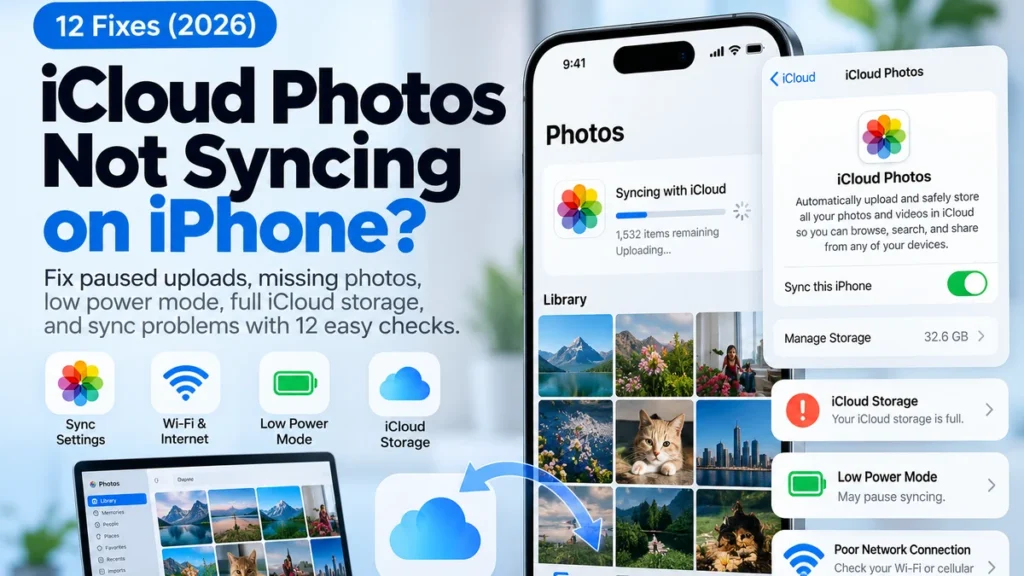
iCloud Photos not syncing on iPhone? Your photos may be stuck uploading, missing from your Mac, or displaying a “Syncing with iCloud Paused” message.
The solution depends on what’s stopping synchronization.
For example, Low Power Mode can temporarily pause uploads, while full iCloud storage prevents additional photos from syncing. If your photos appear on iCloud.com but not your iPhone, the problem may involve downloading or your device’s library settings instead.
Before changing anything, check the synchronization status inside the Photos app. It can reveal whether your iPhone is uploading, waiting for power, experiencing network problems, or running out of storage.
This guide explains 12 safe fixes for iCloud Photos syncing problems, including the newer synchronization controls in iOS 27.
Important: Don’t delete your photos or repeatedly turn off iCloud Photos to force a restart. Apple recommends keeping synchronization enabled while investigating a paused library.
Table of Contents
Quick Answer: How to Fix iCloud Photos Not Syncing
If your iPhone photos aren’t syncing to iCloud, try these checks first:
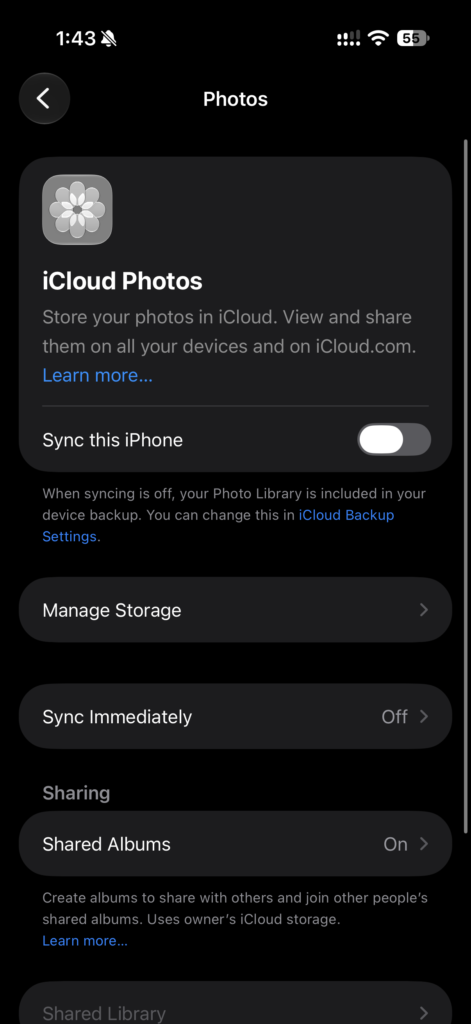
- Open Settings → [Your Name] → iCloud → Photos and confirm that Sync this iPhone is enabled.
- Open the Photos app and check its syncing status.
- Connect your iPhone to a reliable Wi-Fi network.
- Plug your iPhone into a charger and allow time for syncing.
- Check whether Low Power Mode or Low Data Mode is pausing uploads.
- Make sure you have available iCloud storage.
- Confirm that your devices use the same Apple Account.
If your library contains thousands of photos or large videos, syncing may take several hours or longer.
Important: Don’t turn off iCloud Photos just because syncing has paused. Apple advises against this because it can restart the syncing process.
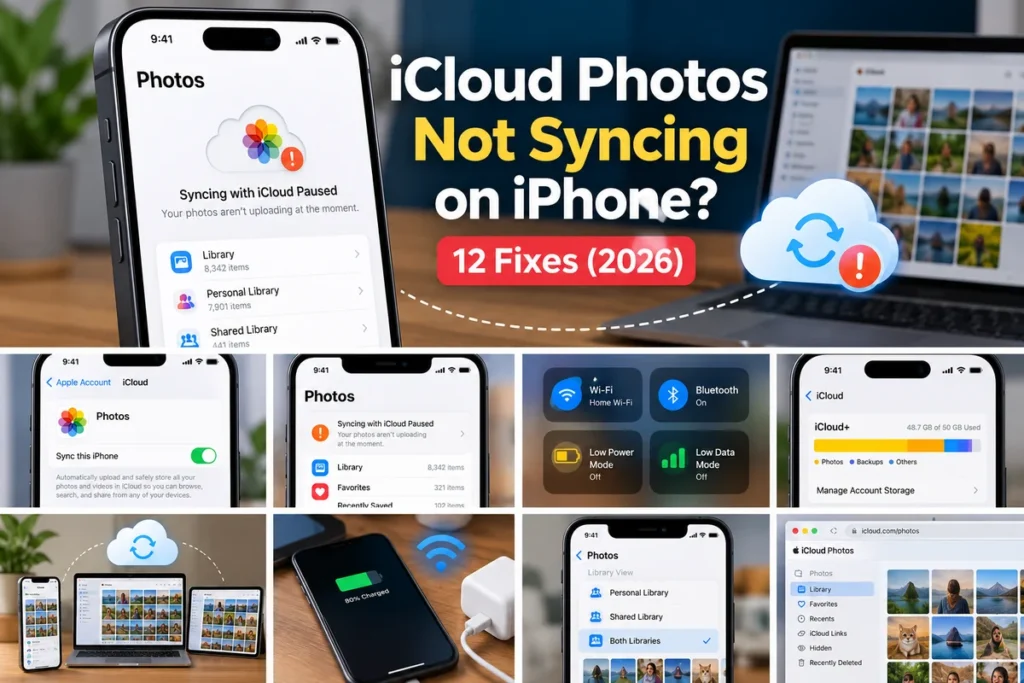
Why Is iCloud Photos Not Syncing on iPhone?
iCloud Photos is designed to keep your photo and video library updated across devices signed in to the same Apple Account.
When you take a picture on your iPhone, the device can upload it to iCloud. Other connected devices can then display that photo.
However, syncing depends on several conditions.
Common reasons for problems include:
- iCloud Photos isn’t enabled.
- Your iPhone has a weak or unstable internet connection.
- Low Power Mode or Low Data Mode is active.
- Your battery is too low.
- Your iCloud storage is full.
- Your device is temporarily too warm.
- Your devices use different Apple Accounts.
- A photo or video cannot be uploaded.
- Apple’s iCloud services are experiencing an outage.
The best solution depends on the status message displayed in the Photos app.
1. Make Sure iCloud Photos Is Turned On
Before troubleshooting anything else, confirm that photo syncing is enabled.
Follow these steps:
- Open Settings.
- Tap your name at the top.
- Select iCloud.
- Tap Photos.
- Check whether Sync this iPhone is enabled.
If it’s already on, leave it enabled and continue to the next step.
If it was previously disabled, enabling it begins the process of syncing your library with iCloud.
Remember that enabling iCloud Photos doesn’t guarantee an immediate upload. Your iPhone may need time to process a large collection.
2. Check the Syncing Status in the Photos App
The Photos app can tell you why your iCloud library isn’t updating. Checking its status is more useful than changing multiple settings without knowing the cause.
To check your synchronization status:
- Open the Photos app.
- Go to Collections.
- Tap your account profile icon near the top of the screen.
- Look for the iCloud Photos synchronization status.
- Follow the instructions associated with any warning or paused status.
What the Status Messages Mean
| Status | What to do |
|---|---|
| Syncing with iCloud Paused | Check the specific reason displayed |
| Low Power Mode | Connect to power and review Low Power Mode |
| Low Data Mode | Check Wi-Fi or cellular data-saving settings |
| Low Battery | Charge your iPhone |
| Poor Network Connection | Try a more reliable internet connection |
| iCloud Storage Is Full | Free iCloud storage or review your storage plan |
| iPhone Needs to Cool Down | Allow your device to return to a normal temperature |
| Unable to Upload | Investigate the affected photos or videos |
Expected result: Once the condition preventing synchronization is resolved, your iPhone should be able to resume uploading or downloading photos.
Large photo libraries can take several hours or longer to finish syncing.
Can You Manually Resume Syncing?
If your Photos app displays a Sync Now option, you can try it.
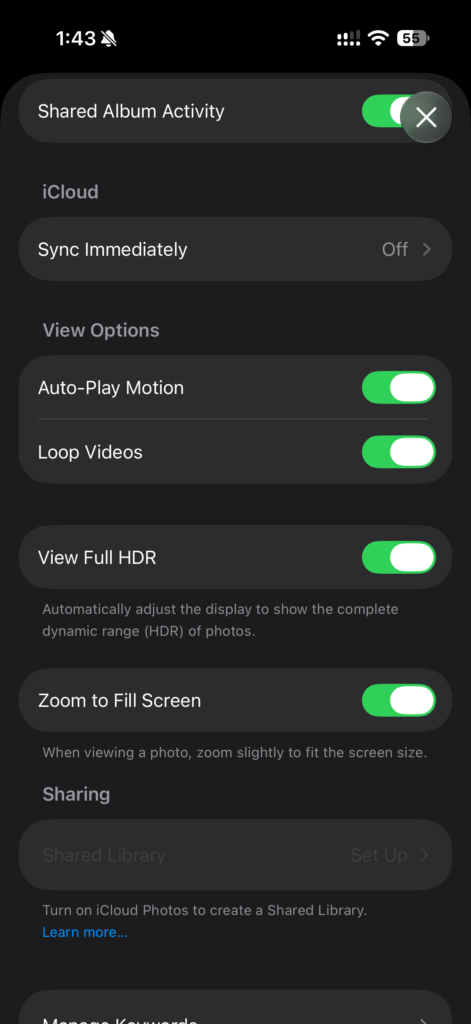
On supported iPhones running iOS 27 or later, Apple also provides a Sync Immediately option under Settings > Your Name > iCloud > Photos.
This can prioritize synchronization, but it won’t overcome full storage, an unavailable network, or an iCloud service outage.
Don’t repeatedly disable and re-enable iCloud Photos. Doing so can restart the syncing process and delay completion.
3. Connect to Stable Wi-Fi and Charge Your iPhone
A weak internet connection is a common reason photos take a long time to sync.
Try this:
- Connect your iPhone to a reliable Wi-Fi network.
- Open Safari and confirm that websites load properly.
- Connect your iPhone to a charger.
- Leave it connected to Wi-Fi and power.
- Allow sufficient time for your photo library to sync.
Apple recommends allowing syncing to continue overnight when necessary.
Large libraries, lengthy videos, and slow upload speeds can significantly increase syncing time.
If the Wi-Fi connection itself keeps failing, read our iPhone Wi-Fi Keeps Disconnecting guide.
4. Check Low Power Mode
Low Power Mode helps conserve battery by reducing certain background activities.
However, it can also temporarily pause iCloud Photos syncing.
To check:
- Open Settings.
- Tap Battery.
- Find the available power mode controls.
- If Low Power Mode is enabled, consider turning it off temporarily.
- Connect your iPhone to a charger.
Return to Photos and check whether syncing resumes.
If your battery is below 20%, charge the device before attempting a lengthy sync.
You don’t need to keep Low Power Mode disabled permanently. The goal is to determine whether it is contributing to the paused upload.
5. Check Low Data Mode
Low Data Mode reduces network data usage and may postpone some background transfers.
If your Photos app reports that syncing is paused because of Low Data Mode, review the setting for your current connection.
For Wi-Fi:
- Open Settings → Wi-Fi.
- Tap the information button beside your connected network.
- Look for Low Data Mode.
- Turn it off temporarily if appropriate.
- Recheck Photos.
If you’re using cellular data, Low Data Mode settings may also be available under your cellular plan’s data options.
Be aware that enabling additional syncing over cellular data could increase data usage or charges.
For large photo libraries, stable Wi-Fi is usually the more practical choice.
6. Check Whether Your iCloud Storage Is Full
iCloud Photos requires enough available cloud storage to upload new content.
If your iCloud storage is full, additional photos and videos may stop syncing.
Check your storage:
- Open Settings.
- Tap your name.
- Select iCloud.
- Review the storage information displayed.
If you’ve reached your limit, you may need to manage stored data or upgrade your iCloud storage plan.
Be careful when deleting photos. With iCloud Photos enabled, deleting a picture from one synced device generally deletes it from your other synced devices too.
Instead of immediately deleting photos, first review your storage usage and make sure important files have independent backups.
Also remember that iPhone storage and iCloud storage are different. Free space on your phone doesn’t necessarily mean your iCloud account has available space.
A common reason for iCloud Photos not syncing is a full iCloud account, even when your iPhone itself has plenty of free storage.
iCloud Photos and iCloud Drive share your available iCloud storage, but they use different syncing features. If documents are also missing or failing to update, see our iCloud Drive Files Not Syncing on iPhone guide for additional troubleshooting.
7. Confirm You’re Using the Same Apple Account
Sometimes photos appear to be missing because two devices are connected to different Apple Accounts.
For example, your iPhone might use one account while your Mac uses another.
On your iPhone:
- Open Settings.
- Tap your name.
- Review the Apple Account shown.
- Compare it with the account on your other device.
You can also visit iCloud Photos on the web and sign in to check whether your uploaded pictures appear there.
This provides a useful clue:
Photos appear on iCloud.com but not your Mac: Investigate the Mac’s syncing settings and account.
Recent photos aren’t on iCloud.com either: Your iPhone may not have completed uploading them.
Avoid signing out of iCloud as an initial troubleshooting step. First establish whether the accounts actually differ.
8. Try Sync Immediately on iOS 27
Apple introduced an option to prioritize iCloud Photos syncing in iOS 27 and later.
If your device supports this feature, try the following:
- Open Settings.
- Tap your name.
- Go to iCloud → Photos.
- Select Sync Immediately.
- Choose For Today.
This can prioritize your library’s syncing activity.
However, it cannot overcome every problem. A full iCloud account, service outage, or unusable network connection may still prevent successful uploads.
If Photos is allowed to use cellular data, prioritizing syncing may consume more mobile data.
If the option isn’t visible, continue with the other checks instead.
9. Check Your Shared Photo Library View
Some pictures may appear missing even when syncing is working correctly.
If you use iCloud Shared Photo Library, your Photos app can display different library views.
A photo moved into a Shared Library may no longer appear when you’re viewing only your Personal Library.
To investigate:
- Open the Photos app.
- Look for the available library viewing options.
- Switch to Both Libraries, if available.
- Search for the missing pictures again.
If they reappear, the issue may have been the selected library view rather than a syncing failure.
Also check Recently Deleted if a photo has actually been deleted.
Remember that iCloud Photos synchronizes deletions as well as new photos and edits.
10. Check Your Internet Connection and Apple’s System Status
Sometimes the issue is outside the Photos app.
Start by checking whether other online services are working.
Try opening a website in Safari. Then check whether other iCloud services function normally.
If your iPhone shows a Wi-Fi connection but websites won’t load, read our Wi-Fi Connected but No Internet troubleshooting guide.
You should also check Apple’s System Status page for any reported iCloud-related interruptions.
If Apple is experiencing an outage, changing your iPhone settings may not solve the problem.
Wait for the service to recover before attempting more disruptive troubleshooting.
11. Check for Photos That Cannot Upload
If most of your library syncs successfully but a few items remain missing, the problem may involve particular files.
Apple recommends checking for an album called Unable to Upload.
If that album appears:
- Open Photos.
- Locate the affected items.
- Review the files that cannot upload.
- Follow Apple’s instructions for editing, retrying, or reimporting those files.
Some file problems can prevent individual photos or videos from completing their uploads.
This is different from your entire iCloud library being paused.
Avoid deleting the affected original files before confirming that you have safe copies.
12. Update iOS and Contact Apple Support if Necessary
If none of the earlier steps resolves the problem, check whether a compatible iOS update is available.
- Open Settings.
- Tap General.
- Select Software Update.
- Review any available update.
Back up important information before making major software changes.
After updating, connect to Wi-Fi and power, then check the Photos app again.
If the library still won’t sync, contact Apple Support and explain:
- Your iPhone model and iOS version.
- The exact syncing status message.
- Whether your iCloud storage is full.
- Whether the problem affects all photos or only a few.
- Whether the missing photos appear on iCloud.com.
This information can help narrow down the problem without unnecessary resets.
iCloud Photos Not Syncing to Mac: What Should You Check?
If photos appear on your iPhone and iCloud.com but not your Mac, check iCloud Photos on the Mac.
- Open System Settings.
- Select your Apple Account.
- Open iCloud → Photos.
- Confirm that Sync this Mac is enabled.
Also make sure your Mac is connected to the same Apple Account.
If you’re using multiple photo libraries on a Mac, iCloud Photos syncs with the designated System Photo Library.
Allow the Mac time to download new items, especially if your library is large.
How Long Does iCloud Photos Take to Sync?
There is no single syncing time that applies to every iPhone.
The duration depends on the number of photos and videos, their file sizes, your network’s upload speed, and whether syncing is paused.
A small number of pictures may sync quickly. A large library containing thousands of photos and high-resolution videos may take much longer.
If you’re setting up iCloud Photos for the first time, leave your iPhone connected to power and Wi-Fi overnight before assuming something is wrong.
Frequently Asked Questions
Why is iCloud Photos not syncing even though I have Wi-Fi?
Your Wi-Fi network may be connected but have poor internet access. Syncing can also pause because of Low Power Mode, low battery, full iCloud storage, or another library status issue.
Why does my iPhone say Syncing with iCloud Paused?
Photos may pause syncing to conserve battery power, reduce data usage, protect an overheating device, or respond to limited storage or network conditions. Check the Photos app’s status message for the specific reason.
Will turning off iCloud Photos fix syncing?
Not as a recommended first step. Apple advises leaving iCloud Photos enabled when troubleshooting paused syncing because turning it off can restart the syncing process.
Can I force iCloud Photos to sync?
If your Photos app provides Sync Now, you can try it. On supported iOS 27 devices, Sync Immediately can also prioritize syncing. These options still require suitable network, storage, and device conditions.
Why are some iPhone photos missing from iCloud?
Some items may still be uploading, may be located in a Shared Library, or may have encountered an upload error. Check the syncing status, the selected library view, and any Unable to Upload album.
Does Optimize iPhone Storage delete photos from iCloud?
No. Optimize iPhone Storage is designed to save space on your device by keeping smaller local versions when appropriate, while full-resolution originals remain in iCloud. However, deleting a photo from your synced library is different and generally deletes it across your devices.
Why Are My iCloud Photos Not Showing on My iPhone?
If your photos appear on iCloud.com but not on your iPhone, first make sure you’re signed in with the same Apple Account.
Go to Settings > [Your Name] > iCloud > Photos and confirm that Sync this iPhone is enabled.
Next, open the Photos app and check its syncing status. If syncing is paused, follow the message shown.
If you use iCloud Shared Photo Library, select Both Libraries to check whether the missing photos are in your Shared Library.
Keep your iPhone connected to Wi-Fi and power while syncing. Avoid repeatedly turning iCloud Photos off and on.
Final Thoughts
If iCloud Photos is not syncing on your iPhone, start by checking the Photos app’s library status rather than changing multiple settings randomly.
Confirm that syncing is enabled, connect to reliable Wi-Fi and power, check available iCloud storage, and make sure your devices use the same Apple Account.
Most importantly, protect your existing photo library. Avoid deleting pictures or disabling iCloud Photos simply because syncing is taking longer than expected.
When troubleshooting iCloud Photos not syncing, always check the library status and available storage before changing important settings.