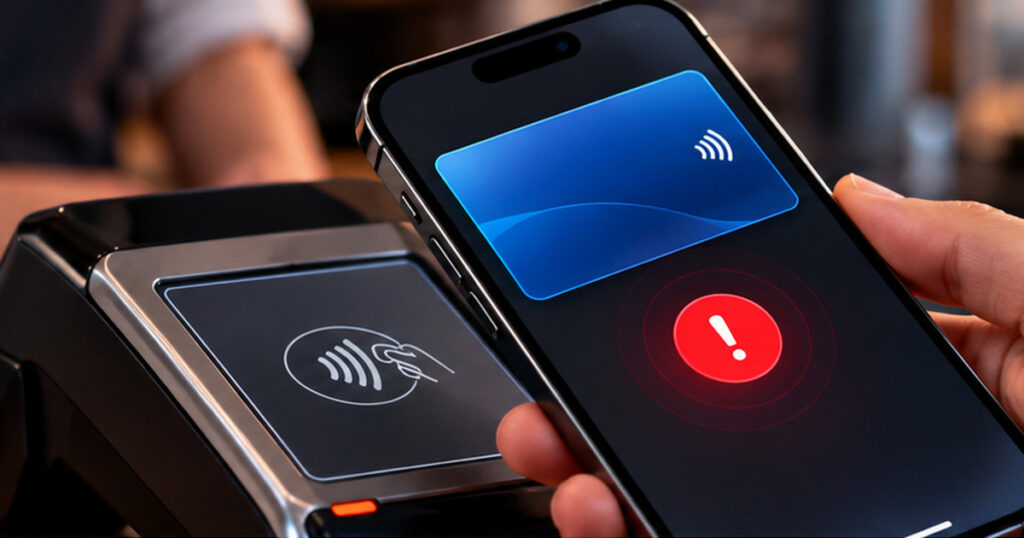
Is Apple Pay not working on iPhone when you try to make a payment? Maybe your iPhone won’t respond to a contactless reader, Apple Wallet refuses to open, or your debit or credit card keeps getting declined.
Sometimes Apple Pay works at one store but fails at another. You might also experience problems after changing your iPhone, adding a new bank card, or installing an iOS update.
The good news is that not every Apple Pay failure means something is wrong with your phone.
Payment problems can involve your card issuer, Apple Wallet settings, device authentication, contactless payment terminals, or temporary software issues.
In this guide, we’ll explain 12 practical fixes for Apple Pay not working on iPhone, including NFC payment failures, declined cards, Wallet problems, and Apple Pay errors after software updates.
We’ll also explain when you should contact your bank instead of changing settings on your iPhone.
Table of Contents
Quick Answer
If Apple Pay isn’t working on your iPhone, try these checks:
- Identify whether Apple Pay fails in stores, online, or during card setup.
- Confirm that your card and bank support Apple Pay.
- Test the contactless reader and phone positioning.
- Check Wallet and the Side button shortcut.
- Verify Face ID, Touch ID, or passcode authentication.
- Review the default contactless payment app.
- Contact your bank if the payment is declined.
- Investigate errors when adding a card.
- Check your Apple Account and security settings.
- Test your internet connection for online payments.
- Restart your iPhone and check for updates.
- Contact Apple Support if the problem continues.
Important: Don’t remove all your payment cards, reset your iPhone, or share sensitive banking information simply because one transaction failed.
Why Is Apple Pay Not Working on iPhone?
Apple Pay allows you to make payments with eligible cards stored in the Apple Wallet app.
In stores, Apple Pay uses Near Field Communication, commonly called NFC, to communicate with supported contactless payment terminals.
For security, payments normally require authentication using Face ID, Touch ID, or your device passcode.
However, several different systems are involved in completing a transaction.
For example, your iPhone may communicate successfully with the terminal, but your bank might still decline the payment.
Alternatively, your bank card may be perfectly valid while the iPhone fails to open Wallet or communicate with the reader.
Common causes include:
- An unsupported or restricted bank card.
- Temporary problems with a payment terminal.
- Incorrect contactless payment positioning.
- A disabled Wallet shortcut.
- Face ID or Touch ID authentication problems.
- A different default contactless payment app.
- Bank restrictions or declined transactions.
- Card activation or verification problems.
- Apple Account security restrictions.
- An outdated iOS version.
- A possible hardware issue affecting contactless payments.
The key is identifying which part of the payment process fails.
1. Identify the Apple Pay Problem
Before changing any settings, determine exactly what happens when you attempt a payment.
Apple Pay problems generally fall into four categories.
Wallet Won’t Open
You double-click the Side button, but your payment cards don’t appear.
This may involve Wallet settings, the button shortcut, or device authentication.
The Reader Doesn’t Respond
Your payment card appears on the screen, but the contactless reader doesn’t recognize your iPhone.
This may involve positioning, terminal compatibility, or communication with the reader.
Payment Gets Declined
Your iPhone communicates with the terminal, but the transaction is rejected.
This often requires contacting your bank or card issuer.
You Can’t Add a Card
Apple Wallet displays an error when you try to add or activate a payment card.
This may involve card eligibility, verification, or account restrictions.
Why this matters: The solution for a declined payment is different from the solution for a Wallet shortcut that won’t open.
If Apple Pay is not working on iPhone, identifying the exact symptom should always be your first step.
2. Check Card Eligibility
Apple Pay requires an eligible payment card issued by a participating bank or financial institution.
Even when your physical debit or credit card works normally, it may not automatically qualify for Apple Pay.
Apple recommends confirming card support directly with the issuer.
To investigate:
- Open the Wallet app.
- Select the payment card you’re trying to use.
- Check whether Wallet displays a warning or verification request.
- Confirm that your card is active.
- Check that your bank supports Apple Pay.
- Verify that your device and region support the service.
In the United States, many major banks and card issuers support Apple Pay.
However, eligibility can vary by card type, institution, account, and other conditions.
What If Your Card Is Unsupported?
Contact your bank and ask whether the specific card can be used with Apple Pay.
An eligible physical card is not always sufficient if the issuer has not enabled it for digital wallet payments.
You can also review Apple’s official list of participating banks.
Avoid repeatedly attempting to add a card that your issuer does not support.
3. Test the Contactless Reader
If your payment card appears normally but the terminal does not respond, check how you’re holding your iPhone.
Apple instructs users to hold the top of the iPhone near the contactless reader after authenticating the payment.
To test:
- Look for the contactless payment symbol at the checkout.
- Open Apple Wallet.
- Select your payment card.
- Authenticate using Face ID, Touch ID, or your passcode.
- Hold the top of your iPhone close to the contactless reader.
- Keep it there briefly.
- Look for Done or a checkmark.
Don’t move the phone away immediately before the terminal has a chance to communicate.
Check the Terminal
A payment terminal may occasionally be unavailable, incorrectly configured, or unable to process a particular payment.
Ask the merchant whether contactless payments are currently working.
If possible, compare the behavior at another legitimate merchant.
If Apple Pay works elsewhere, the first terminal may have been responsible.
Does Apple Pay Need NFC Enabled?
Apple Pay uses the iPhone’s built-in NFC hardware.
Unlike some Android devices, iPhones do not provide an ordinary user-facing NFC on/off switch for Apple Pay.
Therefore, instructions telling you to open Settings and manually enable an NFC toggle may not apply to your iPhone.
If several compatible terminals cannot detect your phone, continue troubleshooting rather than searching for a nonexistent setting.
4. Check Wallet Shortcuts
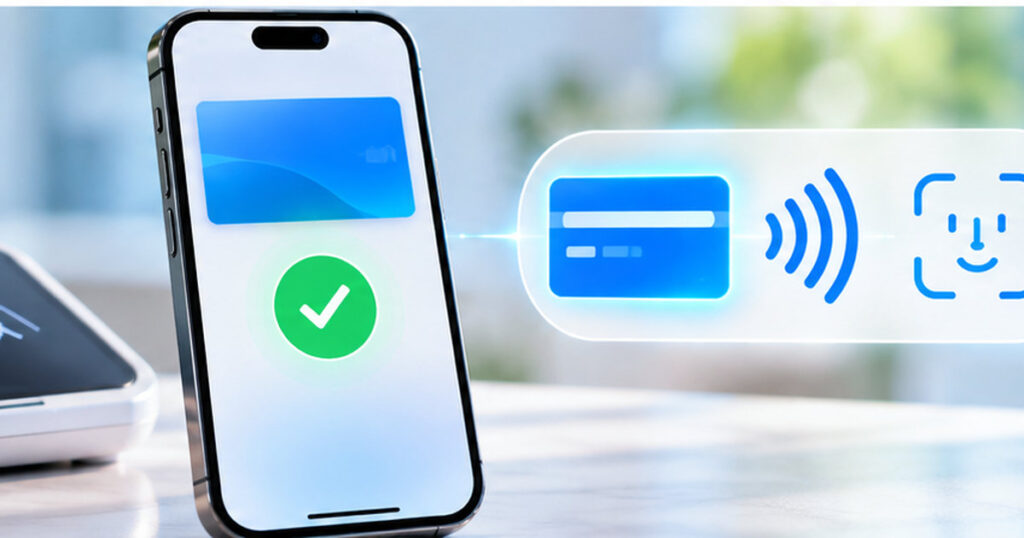
On iPhones with Face ID, double-clicking the Side button normally opens Apple Wallet for payment.
If nothing happens, check whether the shortcut is enabled.
To review:
- Open Settings.
- Select Wallet & Apple Pay.
- Find Double-Click Side Button.
- Enable the option if appropriate.
- Return to the Home Screen.
- Double-click the Side button.
- Check whether Wallet opens.
On compatible iPhones with a Home button, the equivalent option may involve the Home button.
What If the Button Is Damaged?
Try opening the Wallet app directly.
If Wallet opens normally but the physical button consistently fails, the issue may involve button input rather than your payment card.
You can also review accessibility options for alternative payment confirmation methods.
Avoid pressing a damaged button repeatedly.
If the button is physically stuck or unresponsive, Apple Support can advise on suitable service options.
5. Check Face ID or Touch ID
Apple Pay usually requires secure device authentication.
If Face ID or Touch ID cannot authenticate you, a payment may fail to proceed normally.
For iPhones with Face ID:
- Open Settings.
- Tap Face ID & Passcode.
- Enter your device passcode.
- Look for Wallet & Apple Pay.
- Make sure it is enabled if you want to use Face ID for payments.
- Try authenticating again.
On compatible Touch ID devices, review the corresponding Touch ID settings.
Test Authentication Separately
Try unlocking your iPhone normally.
If Face ID struggles to recognize you across multiple features, the issue may involve the authentication system rather than Apple Pay itself.
If Face ID works normally elsewhere but fails only during a specific payment, investigate the payment flow and Wallet settings.
For broader Face ID troubleshooting, read our Face ID Not Working in Apps guide.
Remember that passcode authentication may be available in supported payment situations.
Never disable important device security features merely to complete a payment.
6. Check the Default Payment App
On supported iPhones and in applicable regions, users may be able to choose a contactless payment app other than Apple Wallet.
Apple explains that selecting another app as the default can change what happens when you double-click the Side button or approach a payment terminal.
If Apple Wallet unexpectedly stops opening, review the default contactless application.
To investigate:
- Open Settings.
- Look for the available default contactless app settings.
- Check which application is selected.
- Choose Apple Wallet if you want it to handle supported contactless payments.
- Open Wallet and test the normal payment procedure.
The precise settings available depend on your iOS version and region.
If another payment app is intentionally your default, you can still open Apple Wallet manually to make supported Apple Pay transactions.
Don’t change a default app unnecessarily if your preferred payment setup already works.
7. Contact Your Bank for Declines
This is one of the most important steps when Apple Pay is not working on iPhone during checkout.
A payment may be declined even when the NFC connection works correctly.
Apple explains that payment approval decisions are handled by banks and card issuers.
Apple does not independently decide whether your payment card should be approved.
Reasons for declined transactions can vary.
Possible examples include:
- Insufficient available funds or credit.
- A card that has been locked or restricted.
- Bank security checks.
- Transaction limits.
- An expired or replaced card.
- An account requiring additional verification.
- A merchant or transaction type that the issuer does not approve.
What Should You Do?
Open your bank’s official app or contact the bank through its verified support channel.
Ask whether the card is active and eligible for Apple Pay.
If the bank identifies a restriction, follow its official verification instructions.
If you have another eligible payment card, you can test it when appropriate.
Important Security Advice
Never share your banking password, one-time passcode, card PIN, or account verification code with an unexpected caller.
A payment decline does not mean you should disclose security information to someone claiming to fix Apple Pay.
8. Fix Card Addition Errors
Sometimes the problem begins before you can make a payment.
You open Wallet, select Add Card, and receive an error.
Apple documents several messages, including:
- Could Not Add Card
- Invalid Card
- Card Device Limit
These messages may indicate that the issuer or another eligibility requirement needs attention.
Start with these checks:
- Confirm the card supports Apple Pay.
- Verify your Apple Account is signed in.
- Check that a passcode or biometric authentication is configured.
- Make sure your iPhone uses a compatible iOS version.
- Check whether additional bank verification is required.
- Contact your card issuer if the error continues.
What If Apple Blocks Card Addition?
Apple’s newer guidance explains that some devices can be temporarily or permanently restricted from adding payment cards for security reasons.
On supported software, including iOS 27, an affected device may offer a Request a Review option.
If this appears, follow Apple’s onscreen instructions.
The review process is handled by Apple.
Repeatedly attempting to add cards while a review is pending may not resolve the restriction.
Important: A card addition error is not the same as an ordinary declined purchase.
Use the exact error message to determine which support channel is appropriate.
9. Review Apple Account Security
Apple Pay also depends on important device and account security requirements.
Apple recommends confirming that your Apple Account is properly configured and that two-factor authentication is enabled.
To review your account:
- Open Settings.
- Tap your name.
- Review your Apple Account information.
- Check whether any account security warnings appear.
- Follow Apple’s official instructions if verification is required.
You should also confirm that your device has an appropriate passcode.
If your Apple Account is locked, disabled, or otherwise restricted, some Apple Pay setup features may become unavailable.
Should You Sign Out of iCloud?
No, not as an early troubleshooting step.
Signing out can affect important services and may remove payment cards from the device.
Apple explains that removing your passcode or signing out of iCloud can remove stored payment cards from that iPhone.
It’s better to identify the account problem before taking disruptive action.
If you’re unable to complete a required security check, use Apple’s official support channels.
10. Check Internet Connectivity
An important detail about Apple Pay is that in-store NFC payments do not normally require an active Wi-Fi or cellular connection on your iPhone.
Apple confirms that contactless purchases can work even when your iPhone isn’t connected to the internet.
However, online Apple Pay purchases, card setup, issuer verification, and some account-related features may require connectivity.
If Apple Pay fails inside a website or app, test your connection.
Try these steps:
- Open Safari.
- Visit a reliable website.
- Check whether it loads.
- Switch between Wi-Fi and cellular data if available.
- Return to the website or application.
- Attempt the normal checkout again.
If the merchant’s website or app is experiencing problems, the failure may not involve Apple Pay itself.
Online Payment Versus Store Payment
If Apple Pay works at physical terminals but fails on one website, investigate the website, checkout method, and available payment options.
If online payments work but no contactless terminal recognizes your phone, focus on the reader, positioning, Wallet settings, and possible hardware problems.
If your cellular internet also fails, see our iPhone Cellular Data Not Working guide.
11. Restart and Update iOS
If Apple Pay is not working on iPhone after an update or without an obvious cause, a normal restart is a reasonable non-destructive step.
Restarting your iPhone can help resolve some temporary software issues.
For modern Face ID iPhones:
- Press and hold the Side button and either Volume button.
- Wait for the power-off slider.
- Slide to shut down.
- Wait approximately 30 seconds.
- Hold the Side button to turn the iPhone on.
- Unlock the device.
- Open Wallet and test it again.
If the problem continues, check for an available software update.
Check iOS Updates
- Open Settings.
- Tap General.
- Select Software Update.
- Review any compatible update.
- Back up important information before major updates.
- Follow Apple’s installation instructions.
Apple recommends using an up-to-date operating system for Apple Pay.
However, an update cannot guarantee that a declined card will become approved.
What If Wallet Keeps Crashing?
If the Wallet app itself unexpectedly closes or freezes, investigate application stability rather than payment authorization.
You can also review our iPhone Apps Keep Crashing guide.
Don’t factory reset the iPhone simply because Wallet failed to open once.
12. Contact Apple Support
If all appropriate checks fail, Apple Support may be able to help identify the next step.
Professional assistance is particularly appropriate when:
- Apple Wallet repeatedly fails to open.
- Payment cards cannot be added because of an Apple security restriction.
- The iPhone reports a payment-system error.
- The Side button or biometric authentication system has a persistent problem.
- Several legitimate contactless terminals cannot detect the iPhone.
- An Apple Pay problem continues after suitable software troubleshooting.
Before contacting Apple, collect useful information.
Include the iPhone model, iOS version, exact error message, and whether the issue happens in stores, online, or during card setup.
Bank or Apple: Who Should You Contact?
Contact your bank or card issuer when a payment is declined, a card is unsupported, or issuer verification fails.
Contact Apple Support when Wallet, account security, device authentication, or contactless hardware appears to be malfunctioning.
If you’re unsure, start with the exact error message.
You can reach Apple through its official iPhone Support page.
Apple Pay Not Working at Stores?
If Apple Pay works online but not at physical payment terminals, the problem may involve NFC communication or the terminal itself.
Check that the store accepts contactless payments.
Then open Wallet, authenticate, and hold the top of your iPhone near the reader.
If one terminal fails, ask the merchant to check it.
If multiple compatible readers cannot detect the iPhone, contact Apple Support after ruling out obvious configuration issues.
A contactless problem is not automatically a hardware failure.
Apple Pay Not Working After Update?
If the problem began immediately after an iOS update, first identify which part of Apple Pay stopped working.
Does Wallet open normally? Can you authenticate? Do payments fail only at contactless terminals?
Check for available software updates and review your payment card’s status.
If the device reports a security restriction, follow Apple’s official process rather than attempting repeated workarounds.
Avoid installing unofficial software or configuration profiles that promise to repair Apple Pay.
Apple Pay Not Working on New iPhone?
After switching to a new iPhone, you may need to set up your payment cards again.
Even when you transfer apps and other information, a card issuer may require fresh verification before the card can be used with Apple Pay.
Open Wallet and review your available cards.
If necessary, use the official Add Card process and follow your bank’s verification requirements.
Don’t assume that a card appearing on an older iPhone automatically means it is active and ready for payments on the new device.
If activation fails, contact the issuer.
Apple Wallet Won’t Open?
If the Wallet app doesn’t open when you double-click the Side button, check whether that shortcut is enabled.
You can also try opening Wallet directly from the Home Screen or App Library.
If the app opens manually, review the shortcut and default contactless app settings.
If Wallet freezes or crashes, a normal restart and software update check may help.
A button shortcut issue is different from a card-authorization failure.
Frequently Asked Questions
Why is Apple Pay not working on my iPhone?
Possible causes include Wallet settings, payment-card restrictions, authentication problems, incompatible terminals, software issues, or a declined transaction. Identify whether Wallet fails to open, the terminal fails to respond, or the issuer rejects the payment.
Why is Apple Pay declining my card?
Apple says card issuers approve or decline payment transactions. Contact your bank to find out why the payment was rejected. The reason may involve available funds, account restrictions, transaction limits, or security checks.
Why won’t my iPhone tap to pay?
Check that Wallet opens normally, authenticate the payment, and hold the top of the iPhone close to a supported contactless reader. If multiple readers fail to recognize the phone, further troubleshooting may be needed.
Do I need Wi-Fi for Apple Pay?
Not normally for in-store NFC payments. Apple confirms that supported contactless payments can work without a Wi-Fi or cellular connection on the iPhone. Online transactions and some account features may need internet access.
How do I enable NFC on iPhone?
Apple Pay uses built-in NFC hardware automatically. iPhones don’t ordinarily provide a separate manual NFC switch for Apple Pay in Settings.
Why won’t Apple Wallet add my debit card?
The card may be unsupported, issuer approval may be required, or the device may have an account or security restriction. Check the exact error and follow Apple’s official guidance.
Why doesn’t double-clicking open Apple Pay?
Review the Double-Click Side Button setting under Wallet & Apple Pay. On supported devices, the default contactless application can also affect shortcut behavior.
Can Face ID problems stop Apple Pay?
Yes. Secure authentication is an important part of Apple Pay. Check Face ID & Passcode settings and test whether Face ID works normally in other situations.
Should I remove my card and add it again?
Not as your first troubleshooting step. Removing a card can require you to complete bank verification again. Identify the actual problem and follow your issuer’s instructions if card reactivation is necessary.
Will resetting my iPhone fix Apple Pay?
A factory reset is not a recommended early solution. It erases local data and may not resolve bank restrictions or a hardware problem. Use non-destructive checks and seek appropriate support first.
Final Thoughts
If Apple Pay is not working on iPhone, don’t immediately assume that the phone or its NFC hardware is damaged.
First, identify where the payment process fails.
If Wallet won’t open, investigate its shortcuts and authentication settings.
If your phone doesn’t communicate with a terminal, check the reader, payment positioning, and device behavior.
If your card is declined, contact your bank rather than repeatedly changing iPhone settings.
For card setup problems, follow Apple’s eligibility and security guidance.
Most importantly, avoid unnecessary resets or removing all your payment cards without understanding the consequences.
The safest approach is to identify the failure, choose the relevant troubleshooting steps, and contact the right provider when necessary.
Official Apple References
- Apple Support: If You Can’t Add a Card to Apple Wallet
- Apple Support: If Your Apple Pay Card Is Declined
- Apple Support: Make Purchases Using Apple Pay
- Apple Support: Set Up Apple Pay
- Apple Support: Apple Pay on iPhone
- Apple: Apple Pay
- Apple System Status
Last reviewed: October 22, 2026. Available settings and features may vary by iPhone model, iOS version, issuer, and region.