Are your iPhone apps keep crashing problems interrupting your day? Maybe Instagram closes as soon as you open it, WhatsApp crashes during a conversation, or several apps suddenly return to the Home Screen after an iOS update.
An app that repeatedly crashes can be frustrating, especially when it contains important messages, documents, or work-related information.
The good news is that most app crashes can be investigated without erasing your iPhone. Common causes include an outdated app, an app-specific bug, low available storage, temporary software problems, or an interruption involving the app’s online service.
This guide explains 12 practical fixes for iPhone apps that keep crashing, starting with the easiest and safest options.
Table of Contents
Quick Answer: How to Fix iPhone Apps That Keep Crashing
If your iPhone apps keep crashing, try these solutions in order:
- Close and reopen the affected app.
- Restart your iPhone.
- Update the crashing app.
- Check for an iOS update.
- Check available iPhone storage.
- Test your Wi-Fi or cellular connection.
- Check whether the app’s service is down.
- Review the app’s permissions and settings.
- Remove unnecessary app downloads or cached content.
- Offload and reinstall the affected app.
- Delete and reinstall the app only after protecting its data.
- Contact the app developer or Apple Support if crashes continue.
Important: Don’t immediately delete a crashing app. Some apps store conversations, documents, game progress, or authentication information locally, and reinstalling them may erase that data.
Why Do iPhone Apps Keep Crashing?
An app crash occurs when an application unexpectedly closes or stops functioning.
Sometimes the app disappears and you return to your Home Screen. Other times, it freezes on its loading screen, shows an error, or fails to open entirely.
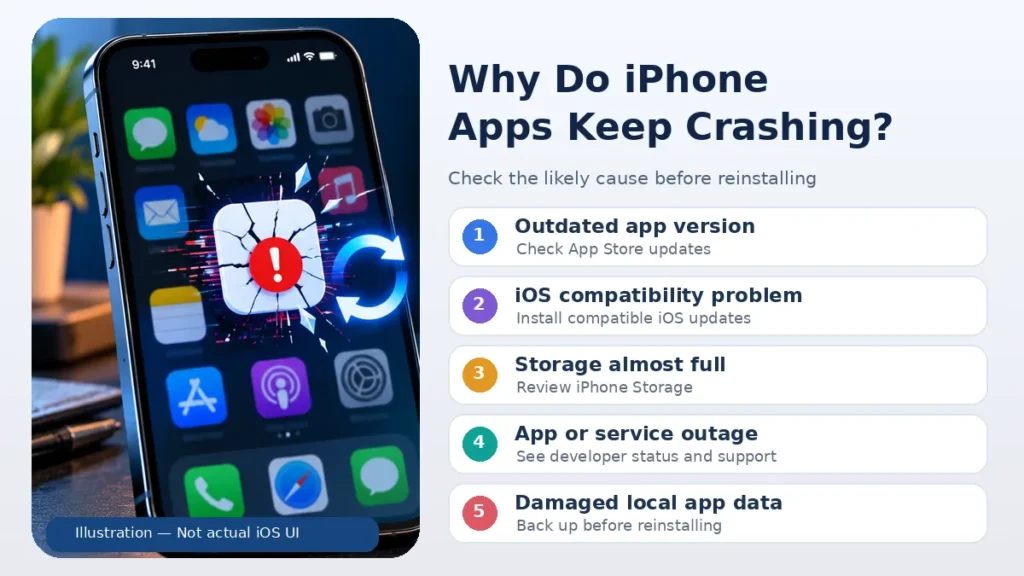
Common causes include:
- Bugs within the app itself.
- Compatibility problems following an iOS update.
- Outdated versions of the app.
- Very low available device storage.
- Problems with downloaded app content or local app data.
- Temporary iOS software issues.
- Internet or server problems affecting online apps.
- A broader issue affecting several applications.
One important distinction is whether only one app crashes or many apps crash.
If only Instagram crashes, for example, the problem may be specific to Instagram. If several unrelated apps stop working, investigate iOS, available storage, and overall device stability.
1. Close and Reopen the Crashing App
The first thing to try is closing the problematic app and opening it again.
On an iPhone with Face ID:
- Swipe up from the bottom of the screen and pause in the middle.
- Find the affected app in the App Switcher.
- Swipe upward on its preview to close it.
- Return to the Home Screen.
- Open the app again.
On an iPhone with a Home button, double-press the Home button to open the App Switcher.
Closing and reopening an unresponsive app can help when it is temporarily frozen.
However, you don’t need to force-close every app regularly. iOS manages background apps automatically, and repeatedly closing functioning apps does not improve battery life.
If the application still crashes immediately, continue to the next fix.
2. Restart Your iPhone
When multiple iPhone apps keep crashing, restarting the phone is a useful next step.
A normal restart closes running processes and starts the operating system again without deleting your personal information.
On most iPhones with Face ID:
- Press and hold the Side button and either Volume button.
- Wait for the power-off slider.
- Drag the slider to turn off the iPhone.
- Wait approximately 30 seconds.
- Hold the Side button until the Apple logo appears.
After restarting, open the affected app and check whether it operates normally.
If the issue disappears, a temporary software problem may have been involved.
If the crash happens again, don’t repeatedly restart your phone. Move to the next troubleshooting step.
3. Update the App Through the App Store
An outdated application may contain bugs that the developer has already fixed.
This is particularly worth checking if the problem started recently or after an iOS update.
To update an app:
- Open the App Store.
- Tap your profile picture.
- Open the available app updates section.
- Find the app that keeps crashing.
- Tap Update, if available.
You can also search for the application’s App Store listing and check whether an Update button is displayed.
After updating, reopen the app and test the feature that previously caused the crash.
For example, if a messaging app closed whenever you opened a conversation, return to that same conversation to see whether the problem is resolved.
If there is no update available, continue with the next fix.
If the App Store itself is failing, read our iPhone App Store Not Downloading Apps troubleshooting guide.
4. Check for an iOS Software Update
Apps are designed to work with particular versions of iOS.
Sometimes an app update requires a newer iOS version. In other cases, an iOS software bug may affect how applications behave.
To check:
- Open Settings.
- Tap General.
- Select Software Update.
- Wait while your iPhone checks for available updates.
- Review the details of any compatible update.
- Back up important information before installing it.
Use a stable internet connection and make sure the device has sufficient battery or is connected to a charger.
An iOS update may resolve a software compatibility problem, but it cannot guarantee that every third-party app will stop crashing.
Developers sometimes need to release their own updates following a major iOS change.
5. Check Available iPhone Storage
Low storage can make an iPhone behave unpredictably.
Applications may need free space to store temporary data, download content, or complete certain tasks.
Apple recommends maintaining at least 1GB of available storage to avoid slowdowns. For practical everyday use, having more free space can be helpful.
Check your storage:
- Open Settings.
- Select General → iPhone Storage.
- Wait for the storage information to load.
- Check the available space at the top.
- Review the largest apps and files.
If your storage is almost full, consider removing unnecessary downloads, old videos, or apps you no longer use.
Avoid deleting important photos or documents before confirming they are backed up.
You can also read our detailed iPhone System Data Taking Up Storage guide for further storage troubleshooting.
Remember that storage problems may contribute to app instability, but clearing space will not fix every crash.
6. Test Your Internet Connection
Some applications rely heavily on internet services.
For example, a streaming app may fail while loading content, or a social media app may stop responding when it cannot communicate with its servers.
A weak connection doesn’t automatically mean the application has crashed. However, network problems can produce errors, freezes, and failed loading attempts that resemble crashes.
Try this:
- Open Safari and visit a reliable website.
- Check whether the page loads normally.
- Switch between Wi-Fi and cellular data, if available.
- Reopen the affected app.
- Compare its behavior on each connection.
If the app functions normally on cellular data but not Wi-Fi, investigate your wireless network.
You can follow our iPhone Connected to Wi-Fi but No Internet guide for additional troubleshooting.
Don’t repeatedly reset network settings for an app that keeps crashing without any connection-related symptoms. A network reset removes saved Wi-Fi networks and passwords, cellular network settings, and certain VPN configurations. It is mainly worth considering when crashes appear closely connected to an actual network problem.
If your internet connection works normally and only one app is crashing, move to the next solution instead.
9. Check App Permissions and Settings
Some apps depend on specific permissions to perform particular tasks. For example, a camera app may require camera access, while a navigation app may need location access.
Although missing permissions should not normally cause a well-designed app to crash, an app bug may appear when you try to use a particular feature.
To investigate:
- Open Settings.
- Scroll to Apps and select the affected application.
- Review its available permissions.
- Check whether the permissions needed for the feature are enabled.
- Close and reopen the app.
- Test the same feature again.
You can also review permissions through Settings → Privacy & Security.
For example, if a video-calling app crashes whenever you activate the camera, checking its camera permission is reasonable.
However, don’t grant unnecessary access simply to troubleshoot a crash. Apps should only receive the permissions they actually need.
If iPhone apps keep crashing during a particular task, remember exactly what you were doing before each crash. This information can help identify whether the problem involves permissions, the app itself, or a connected service.
10. Delete and Reinstall the Crashing App Carefully
If an app keeps crashing after you’ve restarted your iPhone and installed available updates, reinstalling it may help.
Reinstallation replaces the installed application with a fresh copy. This can resolve problems associated with damaged installation files or certain app-specific issues.
Important: Deleting an app can permanently remove information stored locally inside it.
Before deleting anything, verify whether your data is backed up or synchronized to an account.
This is particularly important for messaging applications, password managers, banking apps, authenticator apps, and games with locally stored progress.
To reinstall an app:
- Confirm that important app data is backed up.
- Touch and hold the affected app on your Home Screen.
- Tap Remove App.
- Select Delete App and confirm.
- Restart your iPhone if appropriate.
- Open the App Store.
- Search for the app and download it again.
- Sign in and check whether the crashing problem continues.
If you prefer a less disruptive option, review Settings → General → iPhone Storage → [App Name] → Offload App.
Offloading removes the installed app while preserving its documents and data. However, this means some problematic app data may remain, so offloading is not equivalent to a clean reinstallation.
If the problem continues immediately after reinstalling, it may be caused by a software incompatibility, an account issue, or a bug that requires an update from the developer.
Avoid repeatedly deleting and reinstalling the same app when nothing changes.
11. Check Whether Multiple Apps Are Crashing
There is an important difference between one problematic app and an iPhone experiencing system-wide instability.
If only Instagram crashes while other applications work normally, the problem is more likely to involve Instagram or something it depends on.
If several unrelated apps keep closing, investigate the device more broadly.
Start with these checks:
- Open several built-in apps, such as Settings, Photos, and Safari.
- Note whether they also freeze or close unexpectedly.
- Check available storage under Settings → General → iPhone Storage.
- Confirm that your iPhone is running a compatible, up-to-date version of iOS.
- Restart your device normally.
- Check whether the problem began immediately after an iOS update.
Low available storage, an incomplete update, or system instability may contribute to problems across multiple apps.
If storage is almost full, see our iPhone System Data and storage troubleshooting guide for safe ways to recover space. If that link is not yet active, use the published URL of our System Data article.
Should You Reset All iPhone Settings?
Usually, no.
Apple documents Reset All Settings as an option for certain persistent system problems, but it should not be a routine step for one crashing app.
It does not delete personal media or app data, but it resets numerous preferences and connections, including saved Wi-Fi settings and other device configurations.
If Apple Support recommends it, the option is located under:
Settings → General → Transfer or Reset iPhone → Reset → Reset All Settings
Do not confuse this with Erase All Content and Settings, which deletes the contents of your iPhone.
Consider a general settings reset only after less disruptive troubleshooting and after understanding what will change.
12. Contact the App Developer or Apple Support
If iPhone apps keep crashing after you’ve followed the appropriate troubleshooting steps, the problem may require help from the developer.
An app can contain a software bug that only its developer can correct.
For example, an application might crash on a particular iPhone model, during a specific login process, or after a new iOS version is released.
To contact the developer:
- Open the App Store.
- Search for the affected app.
- Open its product page.
- Scroll down to find App Support, if available.
- Follow the developer’s support instructions.
Provide useful details, including:
- Your iPhone model.
- Your current iOS version.
- The affected application’s name and version.
- When the crashes started.
- Whether they began after an update.
- Whether the app crashes immediately or during a particular action.
- Which troubleshooting steps you have already tried.
If many unrelated applications are crashing, or the iPhone itself frequently freezes and restarts, contact Apple Support.
Repeated device restarts or system-wide instability deserve further investigation rather than repeatedly reinstalling individual applications.
Why Do iPhone Apps Keep Crashing After an iOS Update?
Some users first notice crashing problems immediately after updating iOS.
A new operating system version can introduce changes that an older application has not yet fully accommodated. An app may also need an update to correct a compatibility problem.
However, timing alone does not prove that the iOS update caused the crashes.
Your iPhone may also be completing background tasks after the update, or the affected app may have received a separate update around the same time.
The best approach is to:
- Check whether the developer has released a newer app version.
- Restart your iPhone.
- Confirm that your device has sufficient available storage.
- Install any appropriate follow-up iOS update.
- Check whether other users are reporting the same problem through the developer’s official support channels.
If the app is temporarily incompatible with your iOS version, you may need to wait for the developer to release a fix.
Avoid installing unofficial modified applications or downloading unknown configuration profiles as a workaround.
Why Does an iPhone App Crash Immediately After Opening?
An app that closes as soon as you tap its icon may be experiencing an initialization problem.
Possible explanations include a software bug, incompatible app version, corrupted local app data, insufficient storage, or a problem with a service the application depends on.
First, force-close and reopen the application. If that doesn’t help, restart your iPhone and check for an app update.
If only one app is affected, contacting its developer is often more productive than changing unrelated iPhone settings.
If multiple apps close immediately, investigate available device storage and the current iOS version.
What If Only WhatsApp, Instagram, or YouTube Keeps Crashing?
When only one application crashes, begin with steps specific to that application.
For example, if Instagram crashes while Safari and other apps work normally, resetting every setting on your iPhone is unlikely to be the best starting point.
Instead, check whether an update is available and whether the developer has reported an issue.
For apps that require internet access, try a different reliable connection to determine whether the problem is related to networking.
If the app contains important conversations, downloaded media, or other personal information, verify how that information is stored before reinstalling it.
Important: Do not assume that signing into an app again will automatically restore everything that was stored locally.
Frequently Asked Questions
Why do my iPhone apps keep crashing randomly?
Random crashes can be caused by app bugs, outdated software, limited device storage, compatibility problems, or other issues. Start by reopening the affected app, restarting your iPhone, and checking for updates.
Why do apps keep closing on my iPhone after an update?
Some applications may need updates to remain compatible with changes introduced by a newer iOS version. However, the cause could also be unrelated. Check for app and iOS updates before attempting more disruptive fixes.
How do I stop an iPhone app from crashing without deleting it?
Try force-closing and reopening the app, restarting the iPhone, updating the app, checking available storage, and investigating any relevant connection or permission issue. These steps generally do not require deleting the application.
Does clearing RAM stop iPhone apps from crashing?
iOS automatically manages memory. There is no general-purpose RAM-clearing requirement for normal app troubleshooting. Closing a frozen application or restarting the phone may help, but repeatedly force-closing every app is not a reliable long-term solution.
Will deleting and reinstalling an app fix crashes?
It sometimes helps, particularly when an installation or local app-data issue is involved. However, the underlying problem may be a developer bug or compatibility issue. Deleting the application can also remove locally stored data.
Can low iPhone storage cause apps to crash?
Very limited available storage can interfere with normal device and app operation. Review Settings → General → iPhone Storage and free space safely if the device is nearly full.
Why do all my iPhone apps keep crashing?
If several unrelated apps fail, investigate system-wide causes such as severe storage shortages, software issues, or device instability. Install appropriate updates and contact Apple Support if the problem persists.
Should I factory reset my iPhone if apps keep crashing?
A factory reset is not a recommended first step for ordinary app crashes. It erases device content and introduces the risk of data loss without a complete backup. Try the safer troubleshooting methods first and seek professional support when necessary.
Final Thoughts
If iPhone apps keep crashing, begin with simple and safe troubleshooting steps rather than immediately deleting applications or resetting your device.
Force-close and reopen the affected app, restart your iPhone, check for app and iOS updates, and confirm that enough storage is available.
For crashes affecting only one application, concentrate on that app and its developer. For widespread instability affecting several applications, investigate your iPhone’s storage, software, and overall performance.
Most importantly, protect your app data before attempting reinstallation or any reset.
Not every iPhone application includes a dedicated Clear Cache button. Unlike some Android devices, iOS does not provide one universal option to clear the cache of every installed app.
If an application does not offer cache management, avoid deleting important files just to free up space.
You can also visit Settings > General > iPhone Storage to check how much space individual apps occupy.
10. Offload the App Without Deleting Its Documents
If your iPhone apps keep crashing, offloading an affected application may help when its installation files are causing problems.
Offloading removes the application itself while preserving its documents and data.
Follow these steps:
- Open Settings.
- Select General.
- Tap iPhone Storage.
- Find the application that keeps crashing.
- Select Offload App.
- Confirm your choice.
- Tap Reinstall App or use the app icon to download it again.
Once the installation finishes, launch the application and check whether the problem continues.
Important: Offloading preserves existing app data. If corrupted data is responsible for the crashes, offloading may not solve the problem.
Also, make sure the app remains available for download from the App Store.
11. Delete and Reinstall the Problematic App
If offloading does not help, reinstalling the application completely is another troubleshooting option.
A fresh installation may resolve problems involving damaged application files or corrupted local settings.
Before proceeding, understand that deleting an application can also remove locally stored information.
For example, some applications may contain unsynced notes, downloaded files, saved game progress, or unfinished projects.
To reinstall safely:
- Confirm that important information is backed up or synchronized.
- Locate the affected application on your Home Screen.
- Touch and hold its icon.
- Select Remove App.
- Tap Delete App and confirm.
- Open the App Store.
- Search for the original application.
- Download it again.
- Sign in and restore your information if available.
Test the application before changing additional settings.
If the app works normally after reinstalling, the previous installation or its local data may have contributed to the problem.
However, reinstalling does not guarantee a solution when the underlying issue involves software compatibility or a developer-side bug.
12. Reset All Settings Only When Multiple Apps Keep Crashing
If several unrelated iPhone apps keep crashing despite updating the applications, restarting your device, and checking storage, the issue may involve system settings.
As a last resort, consider resetting your iPhone settings.
This option restores system settings to their defaults without deleting personal files, installed applications, or photos.
To proceed:
- Open Settings.
- Go to General.
- Select Transfer or Reset iPhone.
- Tap Reset.
- Choose Reset All Settings.
- Enter your passcode if requested.
- Confirm and follow the on-screen instructions.
Important: Reset All Settings can remove saved Wi-Fi networks and passwords, Apple Pay cards, Bluetooth pairings, and various device preferences. You may need to configure these again.
Do not select Erase All Content and Settings, which is a different operation and removes personal data.
This reset is rarely necessary and should not be your first troubleshooting step, especially when only one third-party application is malfunctioning.
Why Do iPhone Apps Keep Crashing After an iOS Update?
Sometimes an application starts crashing shortly after an iOS update.
This does not automatically mean the update damaged your iPhone.
Possible explanations include:
- The application has not been updated for compatibility with the newer iOS version.
- Existing application data conflicts with updated software.
- A bug affects a particular application feature.
- The application requires a newer version from its developer.
- Available storage is insufficient for normal operation.
First, check the App Store for an application update. Then check Settings > General > Software Update for any available iOS fixes.
If only one app keeps crashing, the developer may need to release a compatibility update.
Avoid factory-resetting your iPhone simply because an application has not yet been optimized for a newer iOS version.
What If Only One iPhone App Keeps Crashing?
When only one application crashes while everything else works, focus on that application.
Check its available updates, storage requirements, permissions, and known problems.
If none of the previous solutions works, contact the app developer through its App Store support information.
Explain when the crash occurs and include your iPhone model, iOS version, and app version.
This helps the developer investigate the issue.
If multiple unrelated applications crash repeatedly, contact Apple Support for further troubleshooting.
How to Prevent iPhone Apps From Crashing Again
Although crashes cannot always be prevented, several habits can reduce avoidable software problems.
- Keep iOS and important applications updated.
- Maintain sufficient free storage.
- Avoid installing unofficial or modified applications from untrusted sources.
- Back up important app data regularly.
- Remove unnecessary downloads periodically.
- Check application compatibility before relying on an older app after a major iOS update.
- Avoid repeatedly resetting your iPhone when a problem clearly affects only one application.
Apple recommends maintaining at least 1 GB of free space to help avoid device slowdowns. Additional free space may be useful for large downloads, updates, and demanding applications.
Frequently Asked Questions
Why do my iPhone apps keep crashing immediately after opening?
An application may crash immediately because of a software bug, damaged local data, compatibility problems, or limited available storage. Start by updating the app, restarting your iPhone, and checking for iOS updates.
Will deleting an app fix crashing problems?
Sometimes. Reinstalling can replace damaged application files and remove problematic local data. However, deleting an app may permanently remove information that has not been backed up or synchronized.
Does offloading an app delete its data?
No. Offloading normally removes the application while keeping its documents and data on your iPhone. Reinstalling the application allows it to access that retained information.
Can low storage cause iPhone apps to crash?
Yes. Very limited available storage can interfere with an application’s ability to create temporary files, download content, or save information properly.
Why does an app crash after an iOS update?
The app may contain a compatibility bug or require an update from its developer. Check for both app and iOS updates before attempting more disruptive troubleshooting.
Should I factory reset my iPhone if apps keep crashing?
Usually not. A factory reset is far more disruptive than restarting, updating, offloading, or reinstalling an application. Try the safer solutions first and seek support if the problem continues.
Final Thoughts
When iPhone apps keep crashing, the most effective approach is to identify whether the problem affects one application or the entire device.
Start with simple solutions such as reopening the application, restarting your iPhone, installing updates, and checking available storage.
If the problem continues, review application permissions, clear unnecessary downloads, and consider offloading or reinstalling the affected app.
Reserve system-wide resets for persistent problems involving multiple applications.
Most importantly, protect your personal information before deleting apps or changing major system settings.
With a careful troubleshooting approach, you can often restore normal app performance without unnecessary data loss.