Is your iPhone No Service message appearing even though your mobile plan is active? Maybe your iPhone suddenly loses its cellular signal, shows SOS Only, keeps Searching for a network, or refuses to make ordinary phone calls.
Sometimes the problem appears after an iOS update, an eSIM transfer, or a change of mobile carrier. Other times, your iPhone loses service without an obvious reason.
The good news is that a missing cellular signal doesn’t automatically mean your iPhone needs an expensive repair.
Coverage problems, carrier outages, inactive SIM or eSIM lines, and temporary network registration issues can all prevent an iPhone from connecting to its normal cellular network.
In this guide, we’ll explain 12 practical fixes for iPhone No Service, including SOS Only, lost signal, carrier activation issues, and network problems after updates.
We’ll begin with safe checks before considering more disruptive changes.
Table of Contents
Quick Answer
If your iPhone shows No Service, try these steps:
- Check whether the status reads No Service, Searching, or SOS Only.
- Move somewhere with better cellular coverage and check for an outage.
- Turn Airplane Mode on for at least 15 seconds, then turn it off.
- Confirm your carrier account and mobile plan are active.
- Restart your iPhone.
- Make sure the correct SIM or eSIM line is enabled.
- Check your physical SIM if your iPhone has a SIM tray.
- Review eSIM activation if you recently switched devices.
- Check for a carrier settings update.
- Review roaming settings if you’re traveling.
- Update iOS and consider a network-settings reset only if appropriate.
- Contact your carrier or Apple Support if service doesn’t return.
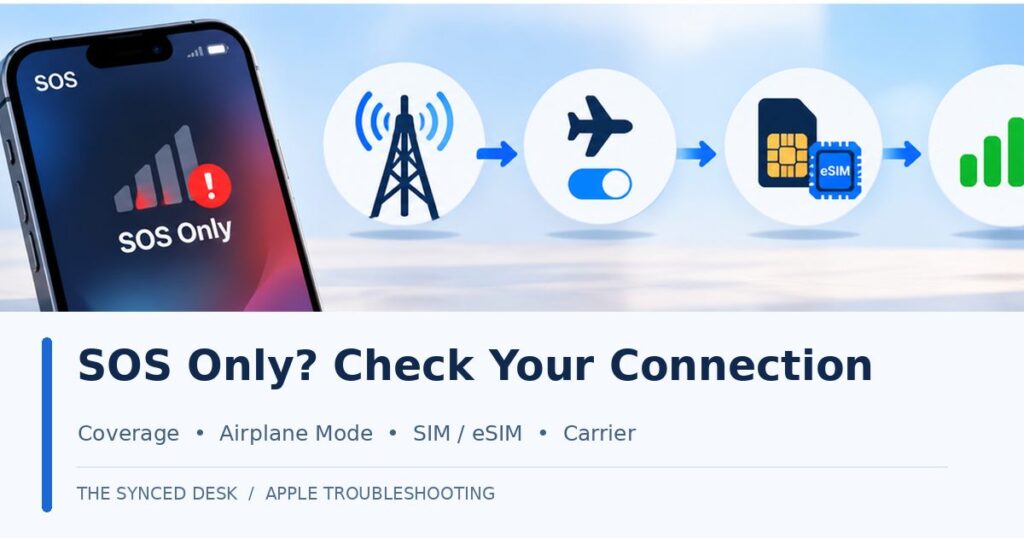
Important: SOS Only doesn’t mean your normal mobile service is restored. In supported countries, it means your iPhone may still be able to place emergency calls using another available carrier network.
Why Does My iPhone Say No Service?
Your iPhone must register with a compatible cellular network before ordinary mobile service becomes available.
If this process fails, your phone may display No Service or Searching.
There are several possible explanations.
Poor Cellular Coverage
Your current location might have weak or unavailable signal from your carrier.
Carrier Outage
The mobile network may be experiencing a temporary disruption.
SIM or eSIM Problem
Your cellular line might be inactive, incorrectly configured, damaged, or not fully activated.
Carrier Account Restriction
A suspended account, incomplete number transfer, or carrier-imposed restriction can prevent normal service.
Software or Carrier Settings
An outdated or incompatible network configuration may interfere with carrier registration.
Hardware Damage
In less common cases, a fault involving the cellular hardware can prevent the iPhone from connecting.
The goal is to identify which explanation fits your symptoms instead of changing every setting at once.
1. Identify No Service, Searching, or SOS Only
Before troubleshooting, check the exact message displayed on your iPhone.
These indicators provide different information about cellular connectivity.
No Service
If your iPhone displays No Service, it isn’t currently connected to a cellular network for normal service.
You may be unable to make standard cellular calls, send ordinary SMS messages, or use mobile data.
Searching
Searching indicates that the iPhone is trying to locate or connect to a suitable cellular network.
If it remains in this state, the device may be unable to register successfully.
SOS or SOS Only
In supported countries, including the United States, SOS or SOS Only means the iPhone isn’t connected to its normal carrier network, but emergency calling through another available carrier may still be possible.
It doesn’t mean ordinary calls and cellular data are working.
Signal Bars but No Internet
If you see LTE or 5G signal bars and can make ordinary calls, but websites won’t load, you may have a different problem.
Read our iPhone Cellular Data Not Working guide instead.
That article focuses on mobile internet failures when network service is present.
For this guide, continue if your iPhone cannot obtain normal cellular service.
2. Check Cellular Coverage and Outages
One of the first things to investigate when iPhone No Service appears is the available mobile network coverage.
Even a properly configured iPhone cannot connect to a carrier network that isn’t available at its location.
Move to a Better Location
Try these checks:
- Move away from underground parking areas or enclosed basements.
- Test near a window or outdoors where safe.
- Wait briefly to see whether the cellular signal returns.
- Check another nearby location if practical.
Buildings, terrain, and distance from cellular towers can affect coverage.
Check Other Phones
If possible, ask someone nearby who uses the same mobile carrier whether their phone has service.
If several phones on the same network lose signal simultaneously, a carrier outage becomes more likely.
However, different phones can still experience different reception conditions.
Check Your Carrier
Visit your carrier’s official service-status page or app using Wi-Fi, if available.
In the United States, examples of major carriers include Verizon, AT&T, and T-Mobile.
Check for local outage reports or service announcements.
Don’t assume your iPhone is faulty just because service disappears in one location.
If your carrier confirms an outage, wait for service restoration rather than repeatedly resetting the device.
3. Turn Airplane Mode On and Off
Apple recommends toggling Airplane Mode when troubleshooting an iPhone that cannot reconnect to its cellular network.
This temporarily turns off cellular radio connectivity and then allows the device to attempt registration again.
How to Do It
- Open Settings.
- Turn Airplane Mode on.
- Leave it enabled for at least 15 seconds.
- Turn Airplane Mode off.
- Wait for the iPhone to reconnect.
- Check whether the cellular indicator changes.
You can also access Airplane Mode through Control Center.
Why This Can Help
A temporary network registration issue might prevent your iPhone from maintaining a normal connection.
Disabling and re-enabling cellular radio access gives the device another opportunity to reconnect.
What if No Service Remains?
Airplane Mode won’t fix a suspended carrier account, unavailable network, or damaged SIM.
If the status doesn’t change, continue with the carrier checks.
Avoid repeatedly toggling Airplane Mode without investigating the underlying problem.
4. Check Your Carrier Account and Plan
Sometimes the iPhone itself is working correctly, but the mobile provider hasn’t enabled normal service for your line.
This can happen after switching carriers, transferring a number, activating an eSIM, or experiencing an account restriction.
Verify Your Account
Using Wi-Fi or another device:
- Open your carrier’s official website or app.
- Sign in securely.
- Confirm the account is active.
- Check that your mobile number is assigned to the intended plan.
- Review any service suspension or restriction notices.
- Contact the provider if the account details are unclear.
Ask About Network Registration
If you contact the carrier, ask whether:
- Your mobile line is active.
- Your phone number transfer is complete.
- Your device is authorized to use the network.
- There is an outage affecting your area.
- Your SIM or eSIM profile is provisioned correctly.
Does an Expired Data Plan Cause No Service?
Not necessarily.
Depending on your carrier and plan, running out of mobile data might affect internet access without disconnecting ordinary cellular voice service.
A displayed No Service message should therefore be investigated as a broader network registration or account problem.
When to Wait
If the carrier confirms a temporary outage or incomplete activation, follow its official instructions.
Avoid deleting your eSIM or performing a factory reset while service activation is still being processed.
5. Restart Your iPhone
Restarting can sometimes resolve a temporary software or cellular-network connection issue.
It is less disruptive than resetting network settings.
Restart iPhones With Face ID
- Press and hold the Side button and either Volume button.
- Wait for the power-off slider.
- Drag the slider to switch off the iPhone.
- Wait approximately 30 seconds.
- Press and hold the Side button to turn it back on.
- Unlock your iPhone.
- Wait for the cellular indicator to update.
Older iPhones may have a different shutdown method.
After Restarting
Check whether the carrier name, signal bars, or cellular network type reappears.
If normal service returns, try an appropriate test call.
If you’re troubleshooting an active carrier outage, restarting won’t necessarily restore service.
Should You Force Restart?
A force restart is generally intended for an unresponsive device.
If your iPhone responds normally, use the standard restart process first.
A regular restart doesn’t erase your photos, apps, or messages.
6. Check Your SIM or eSIM Line
Many recent iPhones support Dual SIM configurations.
A line can be installed on the device but disabled in cellular settings.
If you’re using multiple lines, it’s important to confirm which one should provide service.
Check the Line
- Open Settings.
- Select Cellular or Mobile Data.
- Review the listed SIM and eSIM lines.
- Tap the intended mobile line.
- Make sure Turn On This Line is enabled.
- Return to the main Cellular screen.
- Wait for the service indicator to update.
What if the Line Is Missing?
If the expected line doesn’t appear, the plan may not be installed or activated.
Contact your carrier rather than adding random cellular profiles.
What if One SIM Works and the Other Doesn’t?
Check whether the issue affects a particular line.
If one carrier works normally while another remains unavailable, the problem may involve that second provider, plan, or SIM configuration.
Avoid changing a working line unless there’s a specific reason.
SIM Not Supported?
If your iPhone displays a SIM Not Supported message rather than No Service, carrier locking or activation compatibility may be involved.
Read our iPhone SIM Not Supported guide for that specific problem.
7. Check the Physical SIM Card
If your iPhone uses a physical SIM card, a damaged or improperly seated card may interfere with cellular service.
However, not every iPhone has a physical SIM tray.
For example, iPhone 14 and later models purchased in the United States generally use eSIM instead of a physical SIM tray.
If Your iPhone Has a SIM Tray
- Turn off the iPhone.
- Locate the SIM tray.
- Use an appropriate SIM-eject tool.
- Remove the SIM tray carefully.
- Check the card and tray for obvious damage.
- Reinsert the SIM correctly.
- Turn the iPhone back on.
- Check whether service returns.
Don’t force the tray or insert objects into unrelated openings.
What if the SIM Is Damaged?
Contact your carrier about replacing the card.
Apple recommends obtaining a replacement if the SIM is damaged, doesn’t fit properly, or was transferred from another device and no longer works reliably.
What if Your iPhone Is eSIM-Only?
Skip this physical SIM procedure entirely.
Do not attempt to open or modify the device to find a SIM tray.
Instead, check your eSIM activation status.
8. Review eSIM Activation After Changing Phones
An eSIM lets your iPhone connect to a mobile network without a removable SIM card.
If iPhone No Service started immediately after transferring to another phone or changing carriers, activation may be incomplete.
Check Whether the eSIM Is Present
- Open Settings → Cellular.
- Review the available plans.
- Find the intended eSIM line.
- Check whether it is enabled.
- Confirm that the carrier and phone number appear correctly.
If the eSIM Is Missing
The activation process may not be finished.
Depending on the carrier, setup may involve a carrier app, activation link, QR code, or approved device-to-device transfer.
Follow your provider’s official instructions.
What Not to Do
Don’t delete your eSIM simply because No Service appears.
Removing it could require the carrier to issue another activation or transfer.
Likewise, don’t erase the entire iPhone to troubleshoot an inactive line.
Related Troubleshooting
If the phone displays Activating or Unable to Activate eSIM, read our dedicated iPhone eSIM Not Activating guide.
That article covers activation failures rather than a previously working line losing signal.
9. Check for a Carrier Settings Update
Your iPhone uses carrier settings to communicate with your mobile provider’s network.
Apple recommends checking for carrier settings updates when the device can’t connect normally.
How to Check
- Connect your iPhone to a working Wi-Fi network.
- Open Settings.
- Tap General.
- Select About.
- Wait briefly.
- Install a carrier settings update if prompted.
Not every visit to the About screen produces an update.
If no update appears, your device may already have the available settings.
After Changing a SIM or Carrier
When you insert a new physical SIM or activate another provider, the iPhone may need the correct carrier settings.
If a prompt appears, follow the official update process.
Why Carrier Settings Matter
These settings help the device work with features and configurations supported by its network provider.
However, installing an update won’t fix a carrier outage or inactive mobile plan.
After checking, wait for the iPhone to reconnect and review the cellular indicator.
10. Check Roaming and Network Compatibility
If your iPhone loses service while traveling, the problem may involve roaming agreements or available network types.
A mobile plan that works in your home country might not automatically provide service abroad.
Check Your Roaming Plan
Before changing settings:
- Contact your carrier or review its official app.
- Confirm your plan permits roaming at your destination.
- Check which partner networks are supported.
- Review potential additional charges.
Review Roaming Settings
On supported configurations:
- Open Settings.
- Tap Cellular.
- Select the intended mobile line if necessary.
- Open Cellular Data Options.
- Review Data Roaming.
Apple recommends checking data roaming when traveling internationally.
However, enabling Data Roaming is primarily a mobile-data setting. It does not guarantee that a carrier without a voice or network roaming agreement will provide normal cellular service.
Check Older Network Compatibility
Some carriers have retired older 3G networks.
An older iPhone may have limited compatibility with the networks still available in a particular area.
Apple recommends reviewing LTE settings on compatible older devices when they show No Service.
If you’re using a very old iPhone, ask your provider whether it supports the network technologies required for service.
What if You’re Traveling in the United States?
An international visitor may need a compatible travel plan, roaming agreement, or locally activated SIM/eSIM.
Do not assume every unlocked phone supports every cellular frequency used by every US carrier.
11. Update iOS and Review Network Settings
Software updates can address certain device and carrier compatibility issues.
Apple recommends using the latest compatible iOS version when troubleshooting cellular service problems.
Check for iOS Updates
- Connect to reliable Wi-Fi.
- Open Settings.
- Select General.
- Tap Software Update.
- Check whether an update is available.
- Back up important data before major updates.
- Install an appropriate official update.
After updating, allow the phone to reconnect to your cellular provider.
Should You Reset Network Settings?
A network reset may be worth considering for persistent configuration problems, but it should not replace carrier-account and coverage checks.
Before doing it, make sure you know your Wi-Fi passwords and any network configuration details you need.
To perform the reset:
- Open Settings.
- Tap General.
- Select Transfer or Reset iPhone.
- Tap Reset.
- Choose Reset Network Settings.
- Follow the confirmation prompts.
This removes saved network configurations, including previously used Wi-Fi networks and certain VPN settings.
It does not normally erase photos or ordinary personal files.
Important: Do not choose Erase All Content and Settings or Delete All eSIMs. These are different actions with significantly different consequences.
If your phone is managed by an employer or school, ask the administrator before changing network settings.
What if No Service Remains?
Don’t keep resetting the phone.
Move on to checking the account, network and device hardware with the appropriate provider.
12. Contact Your Carrier or Apple Support
If your iPhone continues displaying No Service after the basic checks, the next step is to determine whether the problem comes from your carrier or the device.
Contact Your Carrier First When
- You recently transferred your mobile number.
- Your SIM or eSIM isn’t recognized correctly.
- Your carrier line is missing from Cellular settings.
- You suspect an outage.
- You changed plans or carriers.
- Your device may have an account or network restriction.
Ask the provider to confirm that your number is active and the device is authorized to use its network.
Contact Apple Support When
- Your carrier confirms that the account and local network are working.
- Your iPhone repeatedly loses service in multiple covered locations.
- Another working line or SIM still can’t establish service, when testing is supported and authorized.
- The device shows a cellular-related hardware or diagnostic warning.
- The problem began after physical damage or liquid exposure.
Use Apple’s Diagnostic Tools
Apple notes that supported iPhones running iOS 18 or later can use the Apple Support app for additional diagnostics that may help identify the source of a cellular problem.
Follow the available instructions rather than using unofficial repair software.
Prepare These Details
Before contacting support, record:
- iPhone model and iOS version.
- Exact status: No Service, SOS Only, or Searching.
- Whether the issue occurs in multiple locations.
- Carrier name and recent account changes.
- Whether you use physical SIM, eSIM, or Dual SIM.
- Results of the earlier troubleshooting checks.
Don’t share account passwords, one-time passcodes, or sensitive authentication information.
iPhone No Service After iOS Update?
If No Service appeared after installing an iOS update, restart your iPhone and check the cellular line.
Connect to Wi-Fi and check for a carrier settings update through Settings → General → About.
Confirm that your mobile provider isn’t experiencing an outage.
If your SIM or eSIM settings changed during the update process, ask your carrier to verify the line’s activation.
An issue appearing immediately after an update doesn’t necessarily prove the software caused it.
If the problem continues, document your iOS version and contact your provider or Apple Support.
iPhone SOS Only vs No Service
These two messages are related, but they aren’t identical.
No Service: Your iPhone isn’t connected to a normal cellular network.
SOS Only: In supported regions, the phone isn’t connected to your regular carrier network but may still be able to contact emergency services through another available carrier.
For US users, SOS Only can be particularly confusing because it may appear even when the phone still has limited access to emergency calling.
If there’s an emergency, use the emergency calling options available on your device and follow local emergency instructions.
Don’t assume ordinary calls, texts and mobile data are available merely because SOS appears.
iPhone No Service With eSIM
If your iPhone uses eSIM and suddenly loses service, start by confirming that the intended line still appears under Settings → Cellular.
Make sure it’s enabled.
Check whether you recently changed carriers, transferred your number, or restored the device.
An installed eSIM isn’t necessarily proof that your carrier has successfully activated the plan.
If the line is missing or inactive, contact the provider.
Avoid deleting the profile unless the carrier explicitly instructs you to do so and provides a way to reactivate it.
iPhone No Service but Wi-Fi Works
Wi-Fi and cellular networks are separate services.
Your iPhone can connect to a home router and access the internet even when its normal cellular network is unavailable.
This doesn’t prove that your mobile provider has restored service.
If Wi-Fi works but cellular calls fail, check coverage, SIM/eSIM activation, and carrier account status.
If supported and already configured, Wi-Fi Calling may be an alternative for some ordinary calls.
For problems with that feature, see our iPhone Wi-Fi Calling Not Working guide.
However, Wi-Fi Calling availability depends on your carrier and account.
iPhone No Service in One Location
If your phone works normally elsewhere but repeatedly loses signal in one building or area, network coverage may be the main problem.
Check whether the location has weak indoor reception.
Compare coverage outdoors if possible.
Ask nearby users of the same carrier whether they experience similar problems.
Review the provider’s official coverage information and outage announcements.
Avoid factory resetting an otherwise functioning iPhone to solve a location-specific coverage gap.
iPhone No Service After Switching Carriers
Changing providers can involve number transfers, SIM activation, carrier compatibility checks, and account verification.
If normal service hasn’t appeared after the switch, contact the new carrier.
Ask whether the transfer is complete and whether your device is properly provisioned.
Also verify that the phone supports the provider’s network and isn’t restricted to a different carrier.
A carrier-lock message should be handled separately from an ordinary No Service warning.
Don’t install unofficial unlocking tools or random cellular configuration files.
Frequently Asked Questions
Why is my iPhone saying No Service?
Your iPhone may be outside your carrier’s coverage, affected by an outage, using an inactive SIM/eSIM, or experiencing a network registration problem. Check coverage and your account first.
How do I fix iPhone No Service?
Try Airplane Mode for at least 15 seconds, restart your iPhone, check your cellular line, verify your carrier account, and look for a carrier settings update. Contact the provider if service remains unavailable.
What does SOS Only mean on iPhone?
In supported countries, SOS Only means your iPhone isn’t connected to its normal carrier network, but emergency calls through another available network may still be possible.
Can I use Wi-Fi if my iPhone has No Service?
Yes. Wi-Fi internet can continue working independently of your cellular signal. However, ordinary carrier calls and texts may remain unavailable.
Does No Service mean the SIM card is damaged?
Not necessarily. Coverage gaps, account issues and outages are common alternatives. A damaged SIM is only one possible explanation.
Can an eSIM cause No Service?
An eSIM line that is disabled, missing or not fully activated can prevent normal service. Check Settings → Cellular and contact your carrier before deleting it.
Will updating iOS restore my signal?
Sometimes an update can resolve a software-related compatibility problem. It won’t fix missing network coverage or a suspended carrier account.
Will Reset Network Settings delete my photos?
No. Reset Network Settings doesn’t normally erase photos, messages or ordinary app files. It does remove saved network configurations.
Why does No Service appear after switching carriers?
Your new line may not be fully activated, your number transfer may be incomplete, or the device may have a carrier compatibility restriction. Ask the new provider to verify the transfer.
Why is my iPhone stuck on Searching?
Your iPhone may be attempting to find or register with an available cellular network. Check coverage, Airplane Mode, SIM settings and carrier status.
Can I call 911 with SOS Only?
In the United States, SOS Only indicates that emergency calling through another available carrier network may be possible. Actual connectivity still depends on available service and the device.
Does No Service mean my iPhone is broken?
No. Many cases involve coverage, outages, account activation or configuration. Hardware diagnosis is more appropriate after the carrier verifies that its network and your account are working.
Final Thoughts
If your iPhone No Service message appears unexpectedly, start by checking whether the problem involves local coverage or a wider carrier outage.
Next, try Airplane Mode and restart your iPhone.
Review your SIM or eSIM line and confirm that your mobile provider has activated the correct account.
Carrier settings updates and iOS updates may help with some connectivity problems, but they won’t resolve every case.
If service disappears only in one location, investigate network coverage before changing advanced settings.
If No Service continues across multiple covered areas, contact your carrier and then Apple Support if device diagnostics are necessary.
The most effective approach is to check coverage, account status and cellular configuration separately, avoiding unnecessary resets or eSIM deletion.
Official Apple References
- Apple Support: If You See SOS, No Service, or Searching
- Apple Support: Reset iPhone Settings to Their Defaults
- Apple Support: How to Unlock Your iPhone for Another Carrier
Last reviewed: October 23, 2026. Cellular menus, emergency calling availability, and network features vary by iPhone model, country, carrier and iOS version.