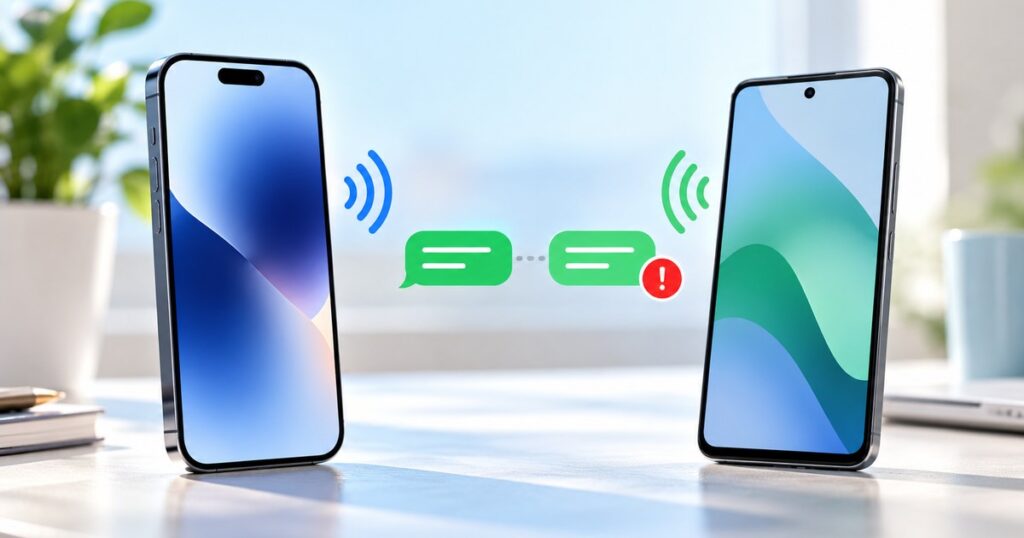
Is your iPhone not sending text messages to Android, even though you can text other iPhone users normally? Maybe your green messages show Not Delivered, your texts remain stuck, or you can send messages to some Android contacts but not others.
Sometimes ordinary texts work, but pictures, videos, or group messages fail. Other times, the problem starts after an iOS update, an eSIM transfer, or a change of mobile carrier.
Fortunately, a failed message doesn’t automatically mean your iPhone is damaged or the recipient has blocked your number.
Messages between iPhone and Android devices can use RCS, SMS, or MMS. These messaging services have different connection requirements, and some features depend on your wireless carrier.
In this guide, we’ll explain 12 practical fixes for iPhone not sending text messages to Android, including RCS problems, SMS failures, incorrect phone numbers, Dual SIM issues, carrier restrictions, and messaging errors after software updates.
We’ll begin with simple checks before considering advanced settings.
Table of Contents
Quick Answer
If your iPhone won’t send text messages to an Android phone, follow these steps:
- Check whether the message uses RCS, SMS, or MMS.
- Confirm that the recipient’s phone number is correct.
- Check your cellular signal and active mobile plan.
- Test your Wi-Fi or cellular internet connection.
- Verify that RCS Messaging is available and enabled.
- Try sending a simple text without attachments.
- Check which SIM or eSIM line is sending the message.
- Retry any message marked Not Delivered.
- Review group messaging and photo attachment problems.
- Restart your iPhone.
- Update iOS and check your carrier settings.
- Contact your carrier if SMS or RCS still fails.
Important: Green message bubbles aren’t necessarily SMS. On supported iPhones and carriers, green conversations can also use RCS or MMS.
Why Is My iPhone Not Sending Text Messages to Android?
When you send a message from your iPhone to an Android phone, the communication doesn’t normally use Apple’s iMessage service.
Instead, Messages uses an available supported messaging service such as RCS, SMS, or MMS.
These services work differently.
RCS Messaging
RCS is a modern messaging service provided through supported carriers.
It can support higher-quality photos, videos, typing indicators, and delivery receipts.
RCS needs a compatible carrier and an internet connection through Wi-Fi or cellular data.
SMS Messaging
SMS is the traditional cellular text messaging service.
It normally relies on cellular network access, although supported Wi-Fi Calling configurations can allow SMS over Wi-Fi.
MMS Messaging
MMS is commonly used for multimedia messages and certain group conversations where RCS isn’t available.
Its availability and attachment limits depend on your carrier.
Why This Difference Matters
Your iPhone might successfully send an SMS even when RCS isn’t working.
Likewise, internet-based messaging may be available while ordinary cellular messaging has a problem.
Identifying the message type is therefore the first useful troubleshooting step.
1. Identify the Message Type
Before changing settings, check what happens when you send a message to the Android recipient.
Open the Messages app and examine the affected conversation.
Green Message Bubble
A green bubble indicates that the conversation is using RCS, SMS, or MMS rather than iMessage.
It doesn’t identify the precise cause of a sending failure.
Red Exclamation Mark
A red exclamation mark or Not Delivered message indicates that the sending attempt failed.
Apple recommends checking the connection and using the available retry option.
No Delivery Receipt
Not every SMS conversation provides a delivery receipt.
A missing Delivered label doesn’t automatically prove that an ordinary SMS failed.
Only Photos Fail
If text messages work but photos and videos fail, investigate MMS, RCS, cellular data, carrier support, and attachment limits.
Only One Android Contact Is Affected
This may point toward an incorrect number, an issue with the recipient’s service, or a problem limited to that conversation.
What to do next: Determine whether all Android recipients are affected or only one contact. This makes the remaining checks more useful.
2. Check the Recipient’s Number
If your iPhone is not sending text messages to Android for one particular person, verify the contact information before modifying your network settings.
How to Check
- Open Contacts.
- Find the person you’re trying to message.
- Review their mobile number.
- Check the country code if applicable.
- Remove outdated or duplicate numbers when you can verify which is correct.
- Open Messages and start a new conversation using the verified number.
Why Phone Numbers Matter
RCS and SMS conversations generally use telephone numbers rather than the Apple Account email addresses sometimes used for iMessage.
If you select an old number or an email-only contact entry, your message may not reach the intended Android phone.
International Messages
If you’re texting another country, make sure the number includes the correct international dialing format.
Also confirm that your mobile plan permits international messaging.
Important
Don’t assume the recipient has blocked you because one message fails.
The error alone isn’t enough to establish that.
If the number is correct, continue with the cellular network checks.
3. Check Cellular Signal and Service
SMS normally requires an active cellular connection.
If your iPhone has no normal carrier service, sending traditional text messages may fail.
Check Your Signal
Look at the status bar.
Check whether your iPhone displays cellular signal bars, No Service, Searching, or SOS Only.
SOS Only doesn’t mean ordinary carrier messaging has been restored.
Try Airplane Mode
- Open Settings.
- Turn Airplane Mode on.
- Wait at least 15 seconds.
- Turn Airplane Mode off.
- Allow the iPhone to reconnect to your carrier.
- Retry a short text message.
Check the Account
Using your carrier’s official website or app, confirm that:
- Your mobile account is active.
- Your plan includes the appropriate messaging service.
- Your line isn’t suspended.
- There isn’t a local network outage.
What if Calls Also Fail?
If normal cellular calls and SMS both fail, the problem may involve your carrier connection rather than the Messages app.
An iPhone that cannot connect to the cellular network needs network troubleshooting first.
What if Only Texting Fails?
If calls work but SMS fails, contact your provider about SMS availability and account provisioning.
Avoid resetting your entire iPhone before investigating the mobile service.
4. Test Your Internet Connection
RCS messaging needs a working internet connection.
That means iPhone not sending text messages to Android may be related to unreliable cellular data or Wi-Fi when the conversation is using RCS.
Test Wi-Fi
- Open Settings → Wi-Fi.
- Confirm that you’re connected to the intended network.
- Open Safari.
- Load a website.
- Return to Messages.
Test Cellular Data
If Wi-Fi doesn’t work:
- Open Settings → Cellular.
- Confirm Cellular Data is enabled.
- Temporarily disconnect from Wi-Fi.
- Test a website using mobile internet.
- Try sending your message again.
Why This Matters
RCS can use an internet connection, while ordinary SMS usually depends on carrier cellular service.
A functioning Wi-Fi connection doesn’t necessarily prove that your SMS service is working.
Similarly, an active cellular signal doesn’t guarantee that mobile internet access is functioning correctly.
If Cellular Data Isn’t Working
Read our iPhone Cellular Data Not Working guide for more detailed troubleshooting.
If your internet works normally, move on to the RCS settings.
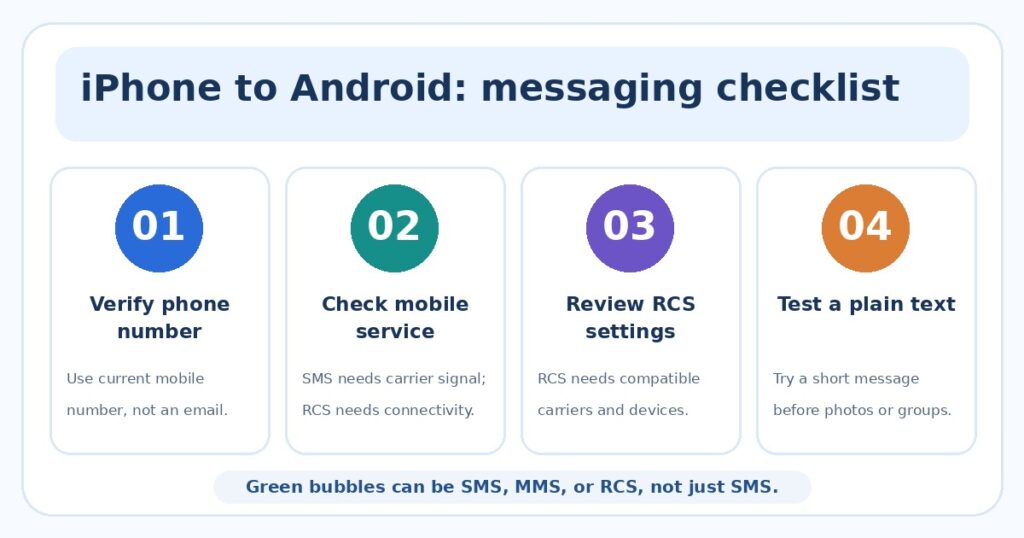
5. Check RCS Messaging Settings
Apple supports RCS messaging on iPhones running iOS 18 or later, provided the carrier supports the service.
RCS allows iPhone and Android users to exchange supported rich messages without relying on iMessage.
If regular SMS messages work but RCS remains stuck on activation, the issue may involve your carrier or mobile line configuration. Our RCS Waiting for Activation on iPhone guide covers the additional steps you can try.
Check Whether RCS Is Available
On a supported iPhone:
- Open Settings.
- Tap Apps.
- Select Messages.
- Tap RCS Messaging, if available.
- Check whether RCS Messaging is enabled.
- Return to Messages and test the conversation.
What if RCS Messaging Is Missing?
That doesn’t necessarily indicate a damaged iPhone.
RCS availability depends on your carrier, plan, region, and software.
Some providers don’t offer the feature for every supported line.
Check US Carrier Support
If you’re using a carrier in the United States, Apple’s official carrier feature list can help identify which messaging services are supported.
You can check Apple’s US carrier support page.
Should You Turn RCS Off and On?
If the setting is available and RCS appears stuck, you can try turning it off and then back on as a troubleshooting test.
Allow time for the service to reconnect.
However, changing RCS settings isn’t guaranteed to fix a carrier-side issue.
If ordinary SMS works while RCS doesn’t, the distinction is useful information to share with your mobile provider.
6. Send a Simple Text Message
Sometimes the problem involves an attachment or group conversation rather than basic text messaging.
A plain text test can help identify the difference.
How to test
- Open the Messages app on your iPhone.
- Tap the New Message button.
- Enter the phone number of a trusted Android user.
- Type a short message such as “Test message.”
- Tap Send.
- Wait briefly and check whether an error appears.
- Try sending a message to a second Android number if possible.
How to Understand the Result
If the first person receives your message, basic cross-platform texting is working.
If messages fail only for one person, check that person’s phone number and whether they can receive messages from other people.
If messages fail for every Android contact but iMessage still works, investigate your cellular service, SMS and RCS configuration, or carrier account.
If ordinary text works but photos fail, the issue may involve RCS or MMS rather than standard SMS.
Important: A green message bubble does not automatically prove delivery. Green bubbles indicate RCS, SMS, or MMS messaging rather than iMessage.
5. Check RCS Messaging on iPhone
If iPhone not sending text messages to Android continues, check whether RCS messaging is available and enabled.
RCS, or Rich Communication Services, supports modern messaging features between compatible devices.
Depending on carrier support, RCS can provide:
- Read and delivery receipts.
- Typing indicators.
- Higher-quality photo and video sharing.
- Improved group messaging.
- Messaging over Wi-Fi or cellular data.
Apple introduced RCS support on iPhone with iOS 18.
However, availability depends on your carrier and region.
How to Check RCS Settings
- Open Settings.
- Tap Apps.
- Select Messages.
- Find RCS Messaging.
- Turn on RCS Messaging if available and appropriate.
- Return to Messages.
- Try sending a message to an Android contact who supports RCS.
What if RCS Messaging Is Missing?
If the option doesn’t appear, your carrier, plan, region, or software configuration may not support RCS on iPhone.
This does not necessarily prevent ordinary SMS texting.
You can still send SMS messages if your carrier and cellular plan support them.
What if RCS Is Already Enabled?
If RCS is enabled but messages fail, test whether SMS works separately.
You may also try turning RCS off temporarily as a diagnostic step, then attempting an ordinary text.
Don’t repeatedly switch the setting on and off. RCS activation or reactivation may take time.
Why This Matters
RCS and SMS are different messaging services.
A temporary RCS problem doesn’t always mean your iPhone has lost its ability to send traditional text messages.
Identifying which service is failing helps avoid unnecessary changes.
6. Review SMS Fallback Settings
Modern iPhones support several messaging methods.
When iMessage isn’t available, your iPhone may attempt to send an SMS, depending on its settings and carrier support.
Apple provides a Send as Text Message option in Messages settings.
How to Check
- Open Settings.
- Tap Apps.
- Select Messages.
- Find Send as Text Message.
- Enable it if you want your iPhone to attempt SMS when iMessage is unavailable.
The displayed options can vary by carrier and iOS version.
Try a Failed Message Again
If you see a red exclamation mark beside a failed message:
- Tap the red exclamation mark.
- Select Try Again.
- If the option is offered, choose Send as Text Message.
- Check whether the recipient receives it.
Carrier messaging charges may apply.
Important Limitation
Send as Text Message is primarily an iMessage fallback setting.
It does not guarantee that an unsupported or failing RCS conversation will automatically switch to SMS.
If you’re troubleshooting Android messaging, also verify RCS availability, cellular service, and carrier support.
What if Text Messages Still Fail?
Continue by checking whether your iPhone is using the correct cellular line.
This is particularly important for devices with Dual SIM or eSIM.
7. Check Your SIM or eSIM Messaging Line
If your iPhone uses two phone numbers, the wrong line may be selected when sending messages.
For example, you might have a personal number and a business number configured on the same device.
If one line has limited service, an inactive plan, or an SMS restriction, messages sent through that line may fail.
How to Check Your Cellular Lines
- Open Settings.
- Tap Cellular or Mobile Service.
- Review your installed SIM and eSIM lines.
- Make sure the intended line is enabled.
- Check whether it has cellular service.
- Confirm that the line supports texting.
How to Change the Sending Line
- Open Messages.
- Tap the New Message button.
- Enter the Android recipient’s contact information.
- Tap the current phone number or sending line if that option appears.
- Choose the correct number.
- Send a short test message.
You can also change the conversation line through the contact or conversation details on supported iOS versions.
What if You Recently Changed eSIM?
An incomplete activation or carrier provisioning problem may affect texting.
Verify that the number is active and that your carrier has enabled SMS and any supported RCS features.
Don’t Delete Your eSIM Immediately
Removing an eSIM is not an appropriate first troubleshooting step.
You may need carrier assistance to reactivate it.
Check the account and line settings before considering changes to the eSIM itself.
8. Restart Your iPhone
Temporary software or network problems can sometimes interfere with messaging.
A normal restart is a safe step to try before changing advanced settings.
Restart an iPhone With Face ID
- Press and hold the Side button and either Volume button.
- Wait for the power-off slider.
- Drag the slider.
- Wait approximately 30 seconds.
- Press and hold the Side button to turn the iPhone back on.
Restart an iPhone With a Home Button
Use the power-off procedure appropriate for your iPhone model.
After restarting, unlock the device and allow it to reconnect to your cellular network.
Test Messaging Again
- Open Messages.
- Choose an Android contact.
- Send a short text.
- Watch for any delivery error.
- Try another contact if necessary.
Does Restarting Delete Messages?
A normal restart doesn’t erase existing conversations, contacts, or photos.
You don’t need to erase your iPhone to investigate a temporary messaging problem.
What if the Problem Comes Back?
If messages begin working after restarting but fail again later, record when the issue occurs.
Note whether it happens after switching cellular lines, moving between network coverage areas, or using RCS.
Those details may help your carrier identify the cause.
9. Check for a Carrier Settings Update
Carrier settings help your iPhone communicate with your wireless network.
Apple explains that carrier updates can improve network connectivity and introduce or support certain cellular features.
Although a carrier update won’t fix every messaging problem, checking for one is reasonable when SMS or RCS behaves unexpectedly.
How to Check
- Connect your iPhone to Wi-Fi or a working cellular network.
- Open Settings.
- Tap General.
- Select About.
- Wait briefly.
- If a carrier settings update appears, follow the instructions.
If no update appears, you don’t need to install anything manually from an unofficial website.
When This May Help
Checking carrier settings is particularly relevant if:
- You recently activated a new SIM or eSIM.
- You switched mobile carriers.
- Messaging stopped after changing plans.
- Cellular service works but SMS behaves unexpectedly.
- Your carrier recently introduced support for new messaging features.
What if There Is No Update?
An absent update prompt doesn’t necessarily indicate a problem.
Move to the next fix or contact your carrier if multiple Android contacts cannot receive your texts.
10. Update iOS and Review Messaging Settings
If your iPhone is running an outdated software version, a compatible iOS update may resolve certain software problems.
Updates can include bug fixes, security improvements, and changes to messaging functionality.
How to Check for Updates
- Open Settings.
- Tap General.
- Select Software Update.
- Review any available compatible update.
- Back up important information before a major update.
- Install the update if appropriate.
Keep your phone sufficiently charged during the process.
Review the Messages App
After updating:
- Open Settings.
- Tap Apps.
- Open Messages.
- Review RCS Messaging if available.
- Check the available text-message options.
- Return to Messages and test again.
What About the Default Messaging App?
On iOS versions and regions that support choosing a default app for SMS, MMS, and RCS, review whether you’ve changed that setting.
If another messaging application has been selected, check its configuration before assuming Apple’s Messages app is responsible.
What if the Problem Started After Updating?
Avoid immediately erasing your iPhone.
Instead, check cellular signal, carrier settings, RCS availability, and the exact type of message that fails.
If the issue began after an update and affects many contacts, contact the carrier to check for provisioning or service problems.
11. Check Whether Only Photos or Group Messages Fail
Sometimes ordinary text messages work while photos, videos, or group conversations fail.
These symptoms can indicate a different problem from standard SMS failure.
Understand the Message Types
SMS: Primarily used for ordinary text messages through the cellular messaging network.
MMS: Supports multimedia messaging and certain group conversations, depending on carrier support.
RCS: Supports richer messaging features over Wi-Fi or cellular data when supported.
How to Test
- Open Messages.
- Send a short plain-text message to an Android contact.
- Confirm whether it arrives.
- Try sending a small photo to the same person.
- Compare the results.
- Test a group conversation separately if the problem affects groups.
If Plain SMS Works but Photos Fail
Check your Wi-Fi or cellular data connection.
Also confirm that the relevant messaging service is supported by your carrier and the recipient.
Some carriers impose attachment-size limits for multimedia messages.
Try a Smaller Image
If your photo is unusually large, try sharing a smaller version.
On supported iOS versions, the Messages settings may include options for sending lower-quality images or previews.
If Group Messages Fail
Check whether the affected conversation uses RCS, MMS, or another group-messaging method.
Group delivery may depend on support from the participating devices and carriers.
Don’t delete an important group conversation simply to troubleshoot delivery.
What if No Messages Work?
If even a short text fails with several Android contacts, focus on cellular service, SMS provisioning, and carrier support rather than image size.
12. Contact Your Carrier and Consider Advanced Troubleshooting
If you’ve completed the earlier fixes and iPhone not sending text messages to Android remains unresolved, your mobile carrier is an important next contact.
Apple directs users to their carrier when SMS, MMS, or RCS sending and receiving problems persist.
What to Tell Your Carrier
Explain that:
- Your iPhone can or cannot send iMessages.
- Messages to Android contacts fail.
- You have already checked your cellular connection.
- You’ve verified the recipient phone numbers.
- You’ve reviewed RCS and SMS settings.
- You’ve tested more than one Android contact.
- You’ve restarted your iPhone.
Also mention any displayed error message.
Ask Your Carrier to Verify
- Whether SMS is enabled on your account.
- Whether RCS is supported on your plan and iPhone.
- Whether the SIM or eSIM is properly provisioned.
- Whether outgoing text messages are restricted.
- Whether there is a network outage.
- Whether messaging works to other carriers or international numbers.
- Whether a carrier-side configuration issue requires correction.
Should You Reset Network Settings?
Only consider this after less disruptive checks and carrier guidance, or when your iPhone has broader network problems.
To reset network settings on a supported iPhone:
- Open Settings.
- Tap General.
- Select Transfer or Reset iPhone.
- Tap Reset.
- Choose Reset Network Settings.
- Read the confirmation carefully before proceeding.
This can remove saved Wi-Fi networks and passwords, cellular settings, and VPN or APN configurations.
It does not normally erase your existing text-message conversations, but it can create extra work restoring network access.
Important: Reset Network Settings is not guaranteed to resolve SMS or RCS failures caused by your carrier.
Avoid choosing Erase All Content and Settings while attempting routine messaging troubleshooting.
When to Contact Apple Support
If your carrier confirms that the line and messaging services are working correctly, but the Messages app continues to behave unexpectedly, contact Apple Support for device-specific assistance.
iPhone Not Sending Text Messages to Android but iMessage Works
This is an important clue.
iMessage uses Apple’s messaging service and can work over Wi-Fi or cellular data.
SMS depends on cellular messaging service, while RCS depends on supported carrier services and internet connectivity.
Therefore, successful iMessages don’t prove that SMS or RCS is functioning.
If iMessage works but Android messages fail:
- Check your cellular signal.
- Verify your SIM or eSIM line.
- Test a plain SMS.
- Review RCS settings.
- Confirm messaging support with your carrier.
This helps separate an Apple-to-Apple messaging success from a carrier messaging problem.
iPhone Not Sending Text Messages to Android After iOS Update
If the issue started after an iOS update, avoid assuming the update itself is the confirmed cause.
First, check whether cellular service is available.
Then verify Messages settings, the selected SIM line, and carrier settings.
Restart the iPhone and test a short message with more than one Android contact.
If the issue continues, check for another compatible software update and contact your carrier.
Green Text Messages Not Sending From iPhone
Green message bubbles are normal when communicating through RCS, SMS, or MMS instead of iMessage.
A green bubble isn’t an error by itself.
However, if a message displays a red exclamation mark or Not Delivered, that indicates a problem.
Try sending again, confirm your network connection, and check whether the message is using SMS or RCS.
If messages fail to all Android contacts, investigate carrier support rather than assuming the bubble color is the cause.
iPhone Not Sending Pictures to Android
If normal text messages work but pictures fail, the problem may involve RCS or MMS.
Confirm that your iPhone has a working internet connection for RCS or MMS.
Check your carrier’s multimedia-messaging support and any applicable attachment-size limits.
Try sending a smaller picture.
If it works, the issue may be related to the original attachment or the messaging service used.
iPhone Texts Fail to One Android Contact
When messages fail only to one person, start by checking their number.
Make sure you’re using the correct country code and haven’t saved an outdated phone number.
Try creating a new conversation using the verified number.
Ask whether they can receive messages from other people.
Also check whether the conversation previously used another messaging service and whether the recipient recently changed phones.
If you suspect blocking or filtering, recognize that a failed message alone cannot prove you’ve been blocked.
What Not to Do
Avoid making these mistakes while troubleshooting:
- Don’t erase your iPhone just because a text message failed.
- Don’t delete your eSIM without carrier instructions.
- Don’t assume every green bubble represents SMS; it may be RCS or MMS.
- Don’t repeatedly toggle RCS settings and expect immediate activation.
- Don’t install unknown messaging repair applications.
- Don’t change advanced carrier settings without understanding them.
- Don’t disable security settings or share verification codes with support impersonators.
- Don’t assume that successful iMessages mean your SMS service is working.
- Don’t repeatedly send an urgent message without checking whether an earlier attempt was actually delivered.
Begin with simple tests and identify which messaging service is affected.
Frequently Asked Questions
Why is my iPhone not sending text messages to Android?
Possible causes include weak cellular service, SMS restrictions, an RCS configuration problem, an incorrect phone number, a SIM or eSIM issue, or a temporary carrier problem. Check the network and try sending a plain SMS first.
Why can I text iPhones but not Android phones?
Messages to iPhones may use iMessage, while messages to Android devices use RCS, SMS, or MMS. These services have different requirements, so one may work even when another fails.
Does RCS need to be enabled to text Android users?
No. Traditional SMS can work without RCS when your carrier and plan support SMS. RCS provides additional features but isn’t required for basic cross-platform text messaging.
Why are my messages green when texting Android?
Green bubbles indicate RCS, SMS, or MMS rather than iMessage. This is normal for most iPhone-to-Android conversations.
Can I send SMS without mobile data?
Yes. Traditional SMS normally uses the cellular messaging network rather than mobile internet data. A suitable cellular connection is generally required, although supported Wi-Fi Calling arrangements may allow SMS over Wi-Fi.
Why does my iPhone say Not Delivered?
The message may have failed because of connectivity, carrier service, messaging configuration, or a temporary delivery issue. Check the network and tap the error indicator for available retry options.
Why are my pictures not sending to Android?
Photo messages may use RCS or MMS. Check your internet connection, carrier support, and attachment size. Test a smaller image to help identify the problem.
Can I send Android texts over Wi-Fi?
RCS can work over Wi-Fi when supported and enabled. Traditional SMS generally uses cellular signaling, although certain supported Wi-Fi Calling configurations can carry SMS over Wi-Fi.
Does turning on iMessage fix Android texting?
Not necessarily. iMessage is Apple’s messaging service and isn’t the normal service used to communicate with Android phones. Focus on SMS and RCS troubleshooting for Android delivery problems.
Why is RCS Messaging missing from my iPhone?
RCS availability depends on compatible iOS software, your region, your carrier, and your cellular plan. If the option is missing, ask your carrier whether it supports RCS on iPhone.
Can an eSIM cause outgoing SMS problems?
An inactive, improperly provisioned, or incorrectly selected eSIM line may interfere with texting. Check the line’s status and contact your carrier before deleting or reinstalling the eSIM.
Should I reset network settings to fix text messaging?
Only after simpler steps fail and there is a reasonable reason to suspect a broader network configuration problem. Resetting network settings can remove saved network information and won’t fix every carrier-side issue.
Final Thoughts
If your iPhone is not sending text messages to Android, begin by identifying the type of message that’s failing.
A successful iMessage doesn’t necessarily mean SMS or RCS is functioning correctly.
Start by confirming the recipient’s phone number, cellular service, and ability to send an ordinary text.
Then review RCS settings, SMS fallback options, and your selected SIM or eSIM line.
If texts work but pictures or group messages fail, investigate RCS or MMS separately.
Restart your device and review carrier settings before considering a network reset.
Most importantly, remember that cellular messaging services are managed by your carrier.
If your iPhone can communicate through iMessage but repeatedly fails to send SMS, MMS, or RCS messages, the carrier may need to investigate your account or network.
Test each fix individually, avoid unnecessary resets, and contact your carrier when ordinary troubleshooting doesn’t resolve the problem.
Official Apple References
- Apple Support: If You Can’t Send or Receive Messages on iPhone or iPad
- Apple Support: Turn On RCS Messaging on Your iPhone
- Apple Support: Why Your iPhone Messages Are Green
- Apple Support: Using Dual SIM With an eSIM
- Apple Support: Manually Update Carrier Settings
Last reviewed: October 23, 2026. Available messaging features and menu locations may vary by iOS version, carrier, country, and cellular plan.