Is your iPhone visual voicemail not working, even though you can make and receive normal phone calls? Maybe your voicemail messages have disappeared, the Phone app keeps showing an empty list, or you see an error when trying to play a message.
Sometimes the Voicemail tab is missing entirely. Other times, the problem begins after an iOS update, an eSIM transfer, or switching mobile carriers.
Fortunately, a Visual Voicemail problem doesn’t automatically mean your messages are gone or your iPhone is damaged.
Visual Voicemail depends on supported carrier services, your active mobile line, and the Phone app. Network connectivity and temporary software problems can also affect how voicemail messages appear.
In this guide, we’ll explain 10 practical fixes for iPhone visual voicemail not working, including missing messages, setup failures, voicemail playback errors, carrier settings, and problems after software updates.
We’ll start with checks that don’t erase your messages or change important account settings.
Table of Contents
Quick Answer
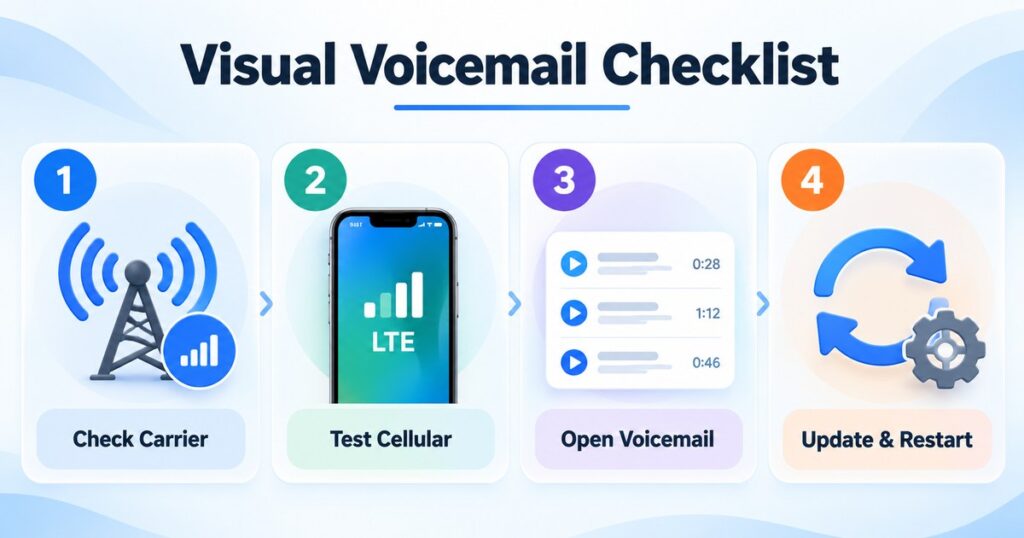
If Visual Voicemail isn’t working on your iPhone, try these steps:
- Identify whether voicemail is missing, unavailable, or refusing to play.
- Confirm your carrier and plan support Visual Voicemail.
- Check your cellular signal and active SIM or eSIM.
- Test cellular data and reconnect to your mobile network.
- Find voicemail in the correct Phone app layout.
- Check whether traditional carrier voicemail still works.
- Look for a carrier settings update.
- Restart your iPhone.
- Update iOS and distinguish Visual Voicemail from Live Voicemail.
- Contact your carrier to check voicemail provisioning before considering advanced resets.
Important: Don’t delete existing voicemail messages, erase your eSIM, or reset your iPhone as your first troubleshooting step.
Why Is iPhone Visual Voicemail Not Working?
Visual Voicemail lets you see a list of voicemail messages inside the Phone app.
Instead of calling a traditional voicemail mailbox and listening to messages in sequence, you can choose which message to play or delete.
However, several things can prevent this feature from working normally.
Carrier Support Problems
Not every carrier or cellular plan supports Visual Voicemail.
Even with a compatible iPhone, the carrier needs to provide the appropriate service.
Cellular Connection Problems
Your iPhone may have difficulty retrieving voicemail information when its mobile connection is unavailable or malfunctioning.
SIM or eSIM Changes
Switching carriers, transferring a number, or activating a new eSIM may require the carrier to check your voicemail configuration.
Phone App Layout Changes
Newer iOS versions can display voicemail in different locations depending on the selected Phone app layout.
Sometimes messages aren’t missing. They’re simply accessed differently.
Software or Account Problems
An outdated carrier configuration, temporary Phone app issue, or account provisioning problem may affect voicemail availability.
The following fixes will help identify the cause.
1. Identify the Exact Voicemail Problem
Before changing settings, determine what happens when you try to access voicemail.
Different symptoms may require different solutions.
The Voicemail List Is Missing
Open the Phone app.
If you cannot find a Voicemail tab, check whether your iPhone is using the newer Unified Phone layout.
The voicemail list may be available through the Calls screen instead.
Voicemail Says Unavailable
If the Phone app displays a message that Visual Voicemail is unavailable, your carrier service or network connection may need attention.
Messages Won’t Play
If the voicemail list appears but individual recordings refuse to play, investigate the connection and playback behavior.
Try another message if available.
Old Messages Have Disappeared
Missing historical messages can involve synchronization, a carrier change, deletion, or a different voicemail mailbox.
Avoid resetting the service until you know whether the carrier can recover the messages.
Only Voicemail Transcriptions Are Missing
If recordings play normally but written transcriptions are unavailable, the recording service may still be working.
Transcription availability depends on supported features, languages, and other conditions.
What to do next: Identify the symptom that matches your situation. Then test each appropriate fix separately.
2. Confirm Your Carrier Supports Visual Voicemail
If iPhone visual voicemail not working continues, verify that your mobile carrier supports the feature.
Apple explains that Visual Voicemail is available only through selected carriers in supported countries and regions.
Check Your Mobile Plan
Using your carrier’s official website or app:
- Sign in to your mobile account.
- Review your active plan.
- Check whether Visual Voicemail is included.
- Confirm that the feature is available for your device and line.
- Contact your carrier if the information is unclear.
What About US Carriers?
Apple’s official US carrier feature list identifies Visual Voicemail support for major providers including AT&T, T-Mobile and Verizon.
However, availability can still depend on the particular plan and account configuration.
If you’re using a prepaid plan or smaller carrier, confirm support directly with that provider.
You can also check Apple’s US and Canada carrier feature list.
Why Carrier Support Matters
A functioning Phone app doesn’t guarantee that every voicemail feature is enabled.
Traditional voicemail and Visual Voicemail are related but different services.
Your carrier may allow callers to leave messages without providing a visual message list in the Phone app.
What if Your Carrier Doesn’t Support It?
Use your carrier’s supported traditional voicemail service.
Don’t install unknown applications that promise to activate an unsupported carrier feature.
If your plan does support Visual Voicemail, continue with the next step.
3. Check Cellular Signal and Your SIM or eSIM
Visual Voicemail is associated with your mobile phone number and carrier service.
If your cellular line isn’t active or cannot connect normally, voicemail features may not work as expected.
Check Your Cellular Connection
Look at the status bar on your iPhone.
If you see No Service, Searching, or SOS Only, investigate cellular service first.
Try making a normal phone call.
If calls also fail, the problem may involve your mobile connection rather than voicemail alone.
Check Your Active Line
- Open Settings.
- Select Cellular or Mobile Service.
- Review the available mobile lines.
- Confirm that the number associated with voicemail is active.
- Check whether the line has cellular coverage.
If You’re Using Dual SIM
A Dual SIM iPhone can have two phone numbers with separate carrier services.
Check which number is associated with the missing voicemail messages.
A voicemail mailbox on one line doesn’t necessarily contain messages sent to your other line.
What if You Recently Changed eSIM?
An incomplete number transfer or carrier provisioning problem can interfere with voicemail service.
Contact the carrier if the issue started immediately after activating a new eSIM.
Don’t delete the eSIM as a troubleshooting experiment.
Related Troubleshooting
If your iPhone cannot connect to its normal cellular network, read our iPhone No Service guide.
Restore ordinary cellular service before making unnecessary changes to voicemail.
4. Test Cellular Data and Reconnect to the Network
Some Visual Voicemail problems involve the mobile data connection or the carrier’s network service.
Testing connectivity can help distinguish a broader network failure from a voicemail-specific problem.
Test Your Cellular Data
- Open Settings.
- Tap Cellular.
- Confirm cellular data is enabled for the intended line.
- Temporarily disconnect from Wi-Fi.
- Open Safari.
- Try loading a website.
- Return to the Phone app and check voicemail.
This test doesn’t prove that Visual Voicemail is provisioned correctly, but it helps identify whether cellular internet access is working.
Try Airplane Mode
- Open Settings.
- Turn Airplane Mode on.
- Wait approximately 15 seconds.
- Turn Airplane Mode off.
- Allow the iPhone to reconnect to the carrier.
- Check Visual Voicemail again.
If Cellular Data Doesn’t Work
The problem may affect more than voicemail.
Read our iPhone Cellular Data Not Working guide for network troubleshooting.
If Cellular Data Works Normally
Your data connection may be functioning while Visual Voicemail itself remains unavailable.
This can point toward a carrier service issue, a Phone app issue, or a problem limited to your voicemail account.
Proceed to the next fix.
5. Find Voicemail in the Correct Phone App Layout
Newer versions of iOS support different Phone app layouts.
Because of this, voicemail may not appear in the same location on every iPhone.
Sometimes users believe their voicemail has disappeared when the app is simply displaying it differently.
If Your iPhone Uses the Classic Layout
- Open the Phone app.
- Tap Voicemail at the bottom.
- Review the available messages.
- Tap a recording to play it.
If the carrier doesn’t offer Visual Voicemail, the app may instead provide instructions for accessing traditional voicemail.
If Your iPhone Uses the Unified Layout
- Open the Phone app.
- Go to Calls.
- Look through the recent call and voicemail entries.
- Tap the filter button.
- Select Voicemails if available.
- Review your voicemail list.
Why This Matters
The absence of a separate Voicemail tab doesn’t necessarily mean your carrier voicemail service has stopped working.
Check the Phone app layout before resetting network or account settings.
What if Messages Are Still Missing?
Try checking traditional carrier voicemail directly.
This will help determine whether the recordings exist in your carrier’s mailbox.
6. Test Traditional Carrier Voicemail
One useful way to diagnose iPhone visual voicemail not working is to check whether the traditional carrier voicemail system still responds.
Visual Voicemail provides an interface for managing messages, while the carrier may also provide access through a telephone-based mailbox.
How to Check
Use the voicemail access method provided by your carrier.
If your Phone app displays Call Voicemail, follow that option.
Alternatively, your carrier may provide a voicemail access number or instructions for calling your own mobile number.
Some providers allow you to access voicemail by calling your number and entering a mailbox password.
The exact method varies.
Compare the Results
If traditional voicemail works: Your mailbox may be available even though its visual interface isn’t loading correctly.
If traditional voicemail also fails: The issue may involve carrier provisioning, your mailbox, or your account.
If only voicemail transcription fails: The recording itself may still be accessible.
What if You Forgot Your Voicemail Password?
Don’t repeatedly guess the password.
Some carriers restrict access after too many incorrect attempts.
Use your carrier’s official password reset procedure.
On supported iPhones, a Change Voicemail Password setting may also appear under Settings → Apps → Phone.
Important Precaution
Don’t use unofficial dialer codes or websites that promise to reset voicemail without your carrier’s authorization.
If messages are important, ask your carrier about preserving them before any mailbox reset.
7. Check for a Carrier Settings Update
Carrier settings updates help your iPhone communicate with your mobile provider.
Apple explains that these updates can improve network connectivity and enable certain carrier features.
Checking for an update is reasonable when Visual Voicemail stops working after a SIM change, eSIM transfer, or network configuration change.
How to Check
- Connect your iPhone to Wi-Fi or a functioning cellular network.
- Open Settings.
- Tap General.
- Select About.
- Wait briefly.
- If a carrier settings update appears, follow the onscreen instructions.
What if No Update Appears?
You may already have the latest available carrier settings.
An absent update notification doesn’t necessarily indicate an error.
After Updating
Return to the Phone app.
Check whether Visual Voicemail appears and whether your messages can be played.
If the problem remains, restart your iPhone before requesting advanced support.
What if You Changed Carriers Recently?
Contact the new carrier and confirm that voicemail service has been provisioned for your transferred number.
A carrier update alone cannot guarantee that a missing account feature will become active.
8. Restart Your iPhone
A temporary software or network problem can sometimes affect the Phone app.
Restarting is a reasonable low-risk troubleshooting step.
Restart an iPhone With Face ID
- Press and hold the Side button and either Volume button.
- Wait for the power-off slider.
- Drag the slider.
- Wait approximately 30 seconds.
- Press and hold the Side button to restart.
Restart an iPhone With a Home Button
Follow the normal power-off procedure for your model.
After the phone restarts:
- Unlock it.
- Wait for the cellular network connection.
- Open the Phone app.
- Navigate to voicemail.
- Try playing an available message.
Will Restarting Delete Voicemail?
A normal restart doesn’t ordinarily erase saved voicemail messages.
However, voicemail availability and retention depend partly on the carrier and whether messages are stored locally, in iCloud, or on the carrier’s systems.
If Restarting Doesn’t Work
Avoid restarting repeatedly.
Move on to checking software and voicemail feature settings.
9. Update iOS and Check Live Voicemail
If your iPhone is running an outdated software version, a compatible update may address software issues.
However, it’s also important to understand the difference between Visual Voicemail and Live Voicemail.
They aren’t the same feature.
Check for iOS Updates
- Open Settings.
- Tap General.
- Select Software Update.
- Review any available compatible updates.
- Back up important information.
- Install the update if appropriate.
After updating, return to the Phone app and check voicemail again.
Visual Voicemail vs Live Voicemail
Visual Voicemail lets you browse and play saved voicemail messages through the Phone app.
Live Voicemail can display a real-time transcription while a caller is leaving a message on supported iPhones and in supported regions.
Disabling or enabling Live Voicemail isn’t a universal fix for a carrier’s Visual Voicemail service.
Check Live Voicemail Separately
If your actual problem involves live transcription during an incoming call:
- Open Settings.
- Tap Apps.
- Select Phone.
- Find Live Voicemail if available.
- Review whether it is enabled.
The feature may not be offered in every region or language.
If Only Transcriptions Are Missing
Check whether the voicemail audio itself plays.
If the recording is available but its transcription isn’t, investigate transcription support separately.
Don’t erase the voicemail or reset your carrier account merely because written text isn’t displayed.
What if the Problem Started After Updating iOS?
Check your Phone app layout, mobile connection, and carrier settings.
A problem beginning after an update doesn’t automatically establish that the update caused it.
10. Contact Your Carrier Before Advanced Resets
If iPhone visual voicemail not working continues after these checks, your carrier may need to review the voicemail service on your line.
This is especially important when the problem began after a number transfer, SIM replacement, eSIM activation, or change of mobile plan.
What to Tell Your Carrier
Explain that Visual Voicemail isn’t working, and describe the exact symptom.
For example:
- Voicemail messages aren’t appearing in the Phone app.
- The Phone app displays a voicemail unavailable message.
- Recordings appear but cannot be played.
- Voicemail worked before switching to a new iPhone.
- Traditional voicemail works but Visual Voicemail doesn’t.
- The issue began after activating a new SIM or eSIM.
Ask the Carrier to Check
- Whether Visual Voicemail is supported by your plan.
- Whether the feature is active on the correct phone number.
- Whether voicemail is provisioned correctly.
- Whether the mailbox is active.
- Whether there is a carrier-side service issue.
- Whether a voicemail password or mailbox reset is necessary.
Should You Reset Network Settings?
Not as your first step.
A network-settings reset can remove saved Wi-Fi passwords and other network configurations.
It also won’t resolve every carrier-side voicemail issue.
Only consider it when there is evidence of a wider network configuration problem or a trusted support representative recommends it.
Don’t Erase Your iPhone
Factory resetting your iPhone is not an appropriate routine fix for Visual Voicemail.
It creates unnecessary risks for personal data and may not resolve a carrier service problem.
Contact Apple Support
If your carrier confirms that Visual Voicemail is correctly provisioned and supported, but the Phone app still fails, contact Apple Support.
Mention the exact iOS version, carrier, device model, and any error displayed.
Visual Voicemail Not Working After iOS Update
If voicemail stopped appearing after an iOS update, first inspect the Phone app layout.
A different layout may change where voicemail messages are displayed.
Then check your cellular connection and carrier settings.
Restart the iPhone and test the voicemail list again.
If the issue continues, contact your carrier to confirm that Visual Voicemail remains correctly configured.
Avoid erasing saved messages or performing a factory reset without identifying the cause.
iPhone Visual Voicemail Not Working on Verizon, AT&T or T-Mobile
Major US carriers including Verizon, AT&T and T-Mobile support Visual Voicemail on compatible services.
However, individual account or plan conditions may still affect availability.
If your iPhone uses one of these carriers:
- Verify your mobile account is active.
- Confirm Visual Voicemail is included in your service.
- Check for an outage or account restriction.
- Test traditional voicemail.
- Review carrier settings.
- Ask the carrier to investigate voicemail provisioning if necessary.
Don’t assume that identical iPhone models use identical voicemail configurations across every carrier.
Visual Voicemail Messages Not Showing Up
If callers can leave messages but the Phone app displays an empty list, check the Phone app’s voicemail filter and layout.
Then try accessing voicemail through your carrier’s telephone-based mailbox.
If messages appear there, the issue may be with how Visual Voicemail retrieves or displays them.
If messages are absent from the carrier mailbox too, ask the carrier whether they were received, deleted, or affected by an account change.
Avoid resetting the mailbox before asking whether important messages can be preserved.
iPhone Visual Voicemail Not Working After eSIM Transfer
An eSIM transfer can involve changes to your mobile line’s activation or provisioning.
If voicemail stopped working after switching to a new iPhone, confirm that your number is active on the correct eSIM.
Check ordinary calls and cellular data.
Then ask your carrier whether the voicemail service has been configured for the transferred line.
Do not delete and reinstall the eSIM without instructions from your provider.
If the eSIM itself isn’t active, see our iPhone eSIM Not Activating guide.
Visual Voicemail Unavailable but Normal Calls Work
Being able to make normal calls is useful information, but it doesn’t confirm that Visual Voicemail is working.
Voice calling and Visual Voicemail are separate carrier features.
If ordinary calls succeed:
- Check the Phone app’s voicemail location.
- Test cellular data.
- Try accessing traditional voicemail.
- Verify support on your carrier plan.
- Contact your provider about voicemail provisioning.
If calls never reach your phone and instead go directly to voicemail, that’s a different problem.
Read our iPhone Calls Going Straight to Voicemail guide for that situation.
What Not to Do
Avoid these mistakes while troubleshooting:
- Don’t delete important voicemail recordings.
- Don’t erase your iPhone as a first step.
- Don’t delete your eSIM without carrier instructions.
- Don’t repeatedly enter an unknown voicemail password.
- Don’t use unofficial voicemail reset codes.
- Don’t assume Live Voicemail and Visual Voicemail are interchangeable.
- Don’t perform a carrier mailbox reset before checking whether recordings can be preserved.
- Don’t install unknown voicemail repair applications.
- Don’t assume a missing Voicemail tab means the service is permanently unavailable.
Start with the Phone app layout, carrier support and normal network checks.
Frequently Asked Questions
Why is my iPhone visual voicemail not working?
Possible causes include unsupported carrier service, a provisioning problem, cellular connectivity issues, software problems, or changes to the Phone app layout. Identify the exact symptom before changing settings.
How do I turn Visual Voicemail back on?
Visual Voicemail depends on carrier support and an appropriately configured mobile line. Check the Phone app, confirm your plan supports the feature, and contact the carrier if setup or provisioning is missing.
Where did my Voicemail tab go on iPhone?
Newer Phone app layouts can display voicemail through the Calls screen and a Voicemails filter rather than a separate traditional tab. Check which layout your iPhone is using.
Can Visual Voicemail work without cellular data?
Availability and delivery behavior depend on the carrier. Some voicemail features require data connectivity to retrieve or update messages. Traditional carrier voicemail may remain accessible by calling the mailbox.
Why can I call my voicemail but not see messages?
The traditional mailbox may be functioning while the Visual Voicemail interface isn’t retrieving or displaying its contents. Check carrier support, cellular connectivity, and voicemail provisioning.
Will restarting my iPhone delete voicemail?
A normal restart doesn’t ordinarily delete saved voicemail messages. Retention still depends on how messages are stored and on your carrier’s policies.
Is Visual Voicemail the same as Live Voicemail?
No. Visual Voicemail displays saved voicemail recordings, while Live Voicemail can show real-time transcription during an incoming voicemail on supported devices and in supported regions.
Does Verizon support Visual Voicemail on iPhone?
Apple lists Visual Voicemail among Verizon’s supported iPhone carrier features. Confirm that the feature is available and correctly provisioned on your specific plan.
Why is Visual Voicemail not working after changing eSIM?
The new or transferred line may need carrier-side activation or voicemail provisioning. Verify that your number and normal cellular service are active before changing the eSIM.
Can I recover missing voicemail messages?
Possibly, depending on where the messages were stored, whether they were deleted, and your carrier’s retention rules. Check Deleted Messages when available and contact your carrier before resetting the mailbox.
Should I reset network settings to fix Visual Voicemail?
Not immediately. Try the simpler checks first. Reset Network Settings removes saved network configurations and isn’t guaranteed to fix a carrier-side voicemail problem.
Why are voicemail transcriptions missing?
Transcription support varies by feature, language and region. If the recording still plays, the underlying voicemail may be working even when transcription is unavailable.
Final Thoughts
If your iPhone visual voicemail not working problem continues, begin by identifying whether messages are missing, unavailable, or refusing to play.
First, confirm that your carrier and mobile plan support Visual Voicemail.
Then check your cellular service, SIM or eSIM, and mobile data connection.
If the Phone app looks different after an update, check whether voicemail has moved into the newer Calls interface.
Traditional voicemail access can help determine whether the problem involves the mailbox itself or only the visual message list.
Restart the iPhone and review carrier settings before attempting more disruptive changes.
Most importantly, protect existing recordings and avoid resetting the carrier mailbox without understanding the consequences.
Check each step individually, preserve important voicemail messages, and contact your carrier if the service remains unavailable.
Official Apple References
- Apple Support: Set Up Voicemail on iPhone
- Apple Support: Check Your Voicemail on iPhone
- Apple Support: Change Your Voicemail Greeting and Settings
- Apple Support: Manually Update Carrier Settings
- Apple Support: US and Canada Wireless Carrier Features
Last reviewed: October 23, 2026. Available features, Phone app layouts and voicemail behavior may vary by carrier, plan, country and iOS version.