Is your Apple Watch battery draining fast even though you charged it recently? Maybe your watch used to last throughout the day but now needs charging by lunchtime, loses battery overnight, or runs down much faster after a watchOS update.
Unexpected battery drain can be frustrating, especially when you rely on your Apple Watch for notifications, workouts, sleep tracking, and everyday activities.
Fortunately, a shorter battery life doesn’t always mean your Apple Watch needs a new battery. Background tasks after an update, weak wireless connections, display settings, GPS workouts, and normal battery aging can all affect how long it lasts.
In this guide, we’ll explain 12 practical fixes for Apple Watch battery drain, including which settings genuinely save power, how to check Battery Health, and when Apple recommends service.
We’ll start by identifying the cause rather than turning off useful features unnecessarily.
Table of Contents
Quick Answer: How to Fix Apple Watch Battery Draining Fast
If your Apple Watch suddenly loses charge faster than usual, try these steps first:
- Open Settings → Battery on your Apple Watch and review its recent battery history.
- Open Battery → Battery Health and check Maximum Capacity.
- If you recently updated watchOS, allow a few days for background tasks to finish.
- Keep your Apple Watch near its paired iPhone when possible.
- Turn on Low Power Mode if you need to extend battery life.
- Consider turning off Always On if your model supports it.
- Review Background App Refresh and disable unnecessary background updates.
- Restart your Apple Watch if the drain continues unexpectedly.
Important: Low Power Mode changes certain health monitoring, notification, and connectivity functions. Review those limitations before keeping it enabled for extended periods.
If Battery Health displays Battery Needs Service, contact Apple Support rather than relying solely on software adjustments.
Why Is My Apple Watch Battery Draining So Fast?
Apple Watch battery life depends on the model, battery age, software, network conditions, and how you use its features.
Even two watches of the same model can have different battery endurance.
Common reasons for unusually fast battery drain include:
- A recent watchOS update performing background tasks.
- An aging battery with reduced maximum capacity.
- The watch remaining away from its paired iPhone.
- Weak Wi-Fi or cellular coverage.
- Continuous cellular usage.
- Always On display.
- Apps refreshing in the background.
- Long GPS workouts.
- Audio playback through the watch speaker.
- A charging session that stopped before the expected battery level.
- A temporary software problem.
Some of these conditions are normal.
For example, a long outdoor workout with GPS and heart-rate tracking will consume more power than a quiet day spent checking the time.
The goal is to identify whether the battery is behaving normally for your usage or draining unusually quickly.
1. Check Battery Usage and Recent Charging History
Before disabling features, check what your Apple Watch reports about its battery.
Apple provides a battery history view that can help you understand how quickly the charge has decreased.
How to check battery usage
- Press the side button to open Control Center.
- Check your current battery percentage.
- Open Settings on the Apple Watch.
- Scroll down and tap Battery.
- Review the battery charge graph.
- Check when your Apple Watch was last charged.
The Battery screen shows recent charge history rather than a comprehensive breakdown of power consumption by every individual application.
What to look for
Compare battery behavior across similar days.
For example, if your watch normally drops from 100% to 60% during your morning routine but now falls to 20% with similar use, that difference is worth investigating.
Also consider whether you:
- Completed a longer workout.
- Spent several hours away from your iPhone.
- Used cellular data more frequently.
- Installed an update.
- Changed your watch face or added apps.
A single unusually short day doesn’t prove the battery is defective.
Use a consistent routine to make comparisons meaningful.
2. Check Apple Watch Battery Health
One of the most useful steps when your Apple Watch battery is draining fast is checking Battery Health.
Like other rechargeable lithium-ion batteries, Apple Watch batteries gradually lose capacity as they chemically age.
This means an older battery may hold less energy than it did when new.
Check Maximum Capacity
- Open Settings on your Apple Watch.
- Tap Battery.
- Select Battery Health.
- Scroll to Maximum Capacity.
- Review the percentage displayed.
- Check whether a battery service message appears.
Maximum Capacity compares the battery’s current capacity with its capacity when new.
For example, a watch showing 85% maximum capacity is reporting less available battery capacity than when it was new.
However, the percentage alone doesn’t identify every possible cause of battery drain.
When should you consider service?
Apple recommends contacting support if Battery Health displays Battery Needs Service or you believe the battery may require replacement.
If the watch is several years old and has lost substantial capacity, turning off background features may improve runtime but cannot restore the battery’s original physical capacity.
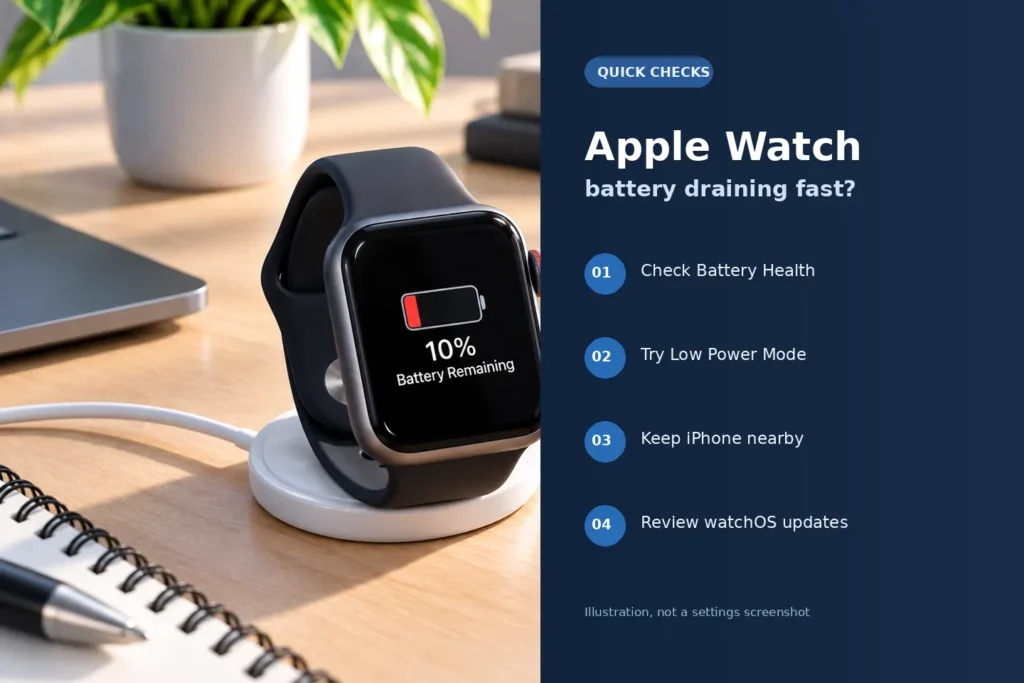
3. Check Whether Battery Drain Started After a watchOS Update
Did your Apple Watch battery life suddenly become worse after installing a new watchOS version?
That doesn’t necessarily mean the update permanently damaged battery performance.
Apple confirms that software-related tasks can continue running in the background after an update finishes installing.
These tasks can temporarily affect battery life.
What to do
- Confirm that the watchOS update completed successfully.
- Charge your Apple Watch normally.
- Continue using it under your usual conditions.
- Allow a few days for post-update background tasks to settle.
- Compare battery performance again.
Avoid changing every power-related setting immediately after an update.
Otherwise, it becomes difficult to determine whether battery life improved because of a setting or because the background work finished.
What about watchOS 27?
Apple’s newer battery-management features in watchOS 27 can automatically pause certain infrequently used features to conserve power on supported devices.
When that happens, you may see an Extending Battery notification explaining which feature has been paused.
You can review the relevant feature in Settings if you want to restore it.
This automatic behavior should not be confused with a battery malfunction.
If severe drain continues several days after the update, continue with the remaining checks.
4. Keep Your Apple Watch Near Its Paired iPhone
Apple explains that an Apple Watch is especially power-efficient when it remains connected to its paired iPhone over Bluetooth.
When your iPhone is nearby, the watch can rely on that connection for certain communication tasks.
When you’re away from your phone, the watch may need to use Wi-Fi or cellular connectivity instead.
What to check
- Make sure Bluetooth is enabled on your paired iPhone.
- Keep the iPhone reasonably close to your Apple Watch.
- Check whether the devices are connected.
- Use both devices normally for a period of time.
- Compare battery performance with days when you spend more time away from your iPhone.
Don’t turn off Bluetooth on your iPhone solely to save Apple Watch battery. Doing so can prevent the most efficient connection and make the watch depend on other wireless connections.
If the watch repeatedly disconnects or refuses to reconnect, read our Apple Watch Not Pairing With iPhone guide.
Pairing problems and battery drain are different issues, but connection failures can contribute to unnecessary power use.
5. Improve Wi-Fi and Cellular Signal Conditions
When your Apple Watch isn’t near its paired iPhone, it may connect using Wi-Fi or cellular data, depending on the model and available networks.
Apple explains that Wi-Fi generally uses less battery power than cellular connectivity.
Poor signal strength can also increase power consumption.
Check the connection
- Press the Apple Watch side button to open Control Center.
- Review the wireless connection indicators.
- Check whether the watch is connected to Wi-Fi or cellular.
- If your iPhone isn’t nearby, prefer a reliable Wi-Fi connection when available.
- Avoid unnecessary cellular streaming in areas with weak reception.
What about Airplane Mode?
If you know you’ll be in an area without useful Wi-Fi or cellular coverage, Airplane Mode may help conserve battery power.
However, Airplane Mode can interrupt connectivity and prevent certain communications or notifications.
Only use it when those limitations are acceptable.
If you rely on your Apple Watch for important calls or alerts, maintaining the necessary connectivity is more important than saving a small amount of battery.
For everyday use, keeping the watch near its paired iPhone is generally the simplest approach.
6. Turn On Low Power Mode
Low Power Mode is one of Apple’s main battery-saving features for Apple Watch.
It reduces energy consumption by disabling or limiting certain functions.
How to enable Low Power Mode
- Press the side button on your Apple Watch.
- Open Control Center.
- Tap the battery percentage.
- Turn on Low Power Mode.
- Review the information displayed.
- Select Turn On.
You can also choose Turn On For when available and set a duration such as one, two, or three days.
What changes in Low Power Mode?
Depending on your model and watchOS version, Low Power Mode can affect:
- Always On display.
- Background heart-rate measurements.
- Certain blood oxygen measurements.
- Heart-rate notifications.
- Some gesture controls.
- Background App Refresh.
- Wi-Fi and cellular availability when the iPhone isn’t nearby.
- Notification delivery and certain alerts.
These changes can meaningfully affect how the watch operates.
Important: If you depend on particular heart-related notifications or other monitoring features, consider the implications before enabling Low Power Mode.
Apple also notes that Low Power Mode normally turns off automatically after charging above 80%, unless you’ve selected a timed duration.
Use it when you want battery savings, rather than assuming it must remain enabled permanently.
7. Turn Off Always On Display
If your Apple Watch supports Always On, the display can continue showing the watch face while your wrist is lowered.
This is convenient, but it also uses power.
Apple recommends turning it off when maximizing battery life is a priority.
How to disable Always On
- Open Settings on the watch.
- Tap Display & Brightness.
- Select Always On, if available.
- Turn the feature off.
- Use your Apple Watch normally and compare battery life.
With Always On disabled, the screen generally turns off when you’re not actively using it.
You can raise your wrist or tap the display to wake it.
Should you leave Always On disabled?
That’s a personal preference.
If you frequently glance at the watch without raising your wrist, Always On may be worth the additional battery use.
If your priority is lasting longer between charges, turning it off can help.
Models without Always On support won’t show this setting.
You don’t need to change the feature if your current battery life is already satisfactory.
8. Reduce Background App Refresh
Some Apple Watch apps continue refreshing information when you aren’t actively using them.
For example, they may check for updated content or other information in the background.
Apple allows you to control Background App Refresh to reduce unnecessary activity.
How to change Background App Refresh
- Open Settings on your Apple Watch.
- Select General.
- Tap Background App Refresh.
- Review the applications listed.
- Disable background refresh for apps that don’t need frequent updates.
You can also turn Background App Refresh off more broadly, but doing so may affect how quickly information becomes available.
Which apps should you disable?
Start with applications you rarely use or that don’t need to refresh in the background.
Don’t disable useful features simply because they appear in the list.
Important: Apple explains that complications displayed on the active watch face can continue refreshing even when an app’s normal background refresh setting is off.
If you use a watch face containing several frequently updating complications, consider whether every complication is necessary.
9. Optimize GPS and Workout Battery Usage
Workout tracking can require additional power, especially during outdoor activities.
Apple Watch may use GPS, heart-rate monitoring, and other sensors while recording a workout.
The amount of power consumed depends on your model and the activity being tracked.
Use Low Power Mode during workouts
- Open Settings on your Apple Watch.
- Scroll to Workout.
- Find Low Power Mode.
- Enable it if appropriate for your needs.
On supported watches, Low Power Mode can be enabled automatically when you begin a workout.
Reduce GPS and heart-rate readings
Certain models offer a feature called Fewer GPS and Heart Rate Readings.
To check:
- Open Settings → Workout.
- Look for Fewer GPS and Heart Rate Readings.
- Enable it if your model supports it and you accept reduced measurement frequency.
Apple lists support for this feature with watchOS 9.1 or later on Apple Watch SE (2nd generation), Series 8 and later, and Ultra and later.
It applies to supported outdoor walking, running, and hiking workouts when Low Power Mode is active.
Reduced measurement frequency may affect the detail of your workout data.
Choose the settings that match your priorities rather than automatically sacrificing workout accuracy.
10. Reduce Audio Playback Through the Watch Speaker
Some newer Apple Watch models can play audio directly through their built-in speakers.
This can be convenient, but Apple notes that speaker playback may use more power.
If you regularly listen to audio directly from your watch, consider using AirPods or another compatible Bluetooth audio device instead.
What to do
- Check whether audio is currently playing through the watch speaker.
- Stop unnecessary playback when you’re finished.
- Connect compatible Bluetooth headphones if you want to listen longer.
- Avoid leaving streaming sessions active when you don’t need them.
Also consider whether your watch is using cellular connectivity to stream the audio.
Streaming over cellular can increase overall power consumption compared with less demanding usage.
If you don’t use speaker playback, you can skip this section.
There’s no reason to disable unrelated sound alerts just because you want to improve battery endurance.
11. Check Charging and Optimized Charge Limit
A watch that starts the day at 80% rather than 100% may appear to drain faster simply because it began with less stored energy.
Apple offers battery charging optimization features designed to protect long-term battery health.
These include Optimized Battery Charging and, on supported models, Optimized Charge Limit.
What these features do
Optimized Battery Charging learns from your charging habits and reduces how long the battery remains fully charged.
Optimized Charge Limit may stop charging below 100% under certain conditions.
This is not the same as a battery unexpectedly losing power while you’re wearing the watch.
Check your charging settings
- Open Settings on your Apple Watch.
- Tap Battery.
- Select Battery Health.
- Review the available charging optimization settings.
- Check whether a charging limit explains the level you see.
Apple allows supported features to be temporarily disabled when you specifically need the longest possible runtime between charges.
However, regularly disabling charging optimization can increase battery wear over time.
Don’t turn off Optimized Battery Charging as a routine fix for rapid battery drain. The feature primarily protects battery lifespan rather than controlling everyday power consumption.
Also confirm that your charging cable, adapter, and magnetic connector are working properly.
If your watch never reaches the expected charge level, investigate charging separately from battery discharge.
12. Restart, Update, and Consider Battery Service
If the Apple Watch continues draining unusually fast after the earlier checks, restart it.
A restart may help clear temporary software problems.
Restart Apple Watch normally
- Remove the watch from its charger if it’s charging.
- Press and hold the side button to access the power controls.
- Open the power-off control.
- Drag the Power Off slider.
- Wait for the watch to shut down.
- Press and hold the side button until the Apple logo appears.
The exact controls can vary by watchOS version.
Do not restart Apple Watch while a software update is actively installing.
Check for an update
On your paired iPhone:
- Open the Watch app.
- Tap My Watch.
- Open General → Software Update.
- Check for a compatible update.
- Back up important information and follow the installation instructions.
You can also check for watchOS updates directly on supported Apple Watch models.
Keep the devices properly charged and follow Apple’s installation requirements.
When to contact Apple Support
If the same severe battery drain continues after allowing post-update tasks to finish and checking the major power-consuming conditions, review Battery Health again.
Apple recommends service if the watch reports Battery Needs Service or the battery requires replacement.
Avoid repeatedly erasing and re-pairing your Apple Watch without a clear reason. Doing so can disrupt settings and may not correct an aging battery.
If your watch also becomes stuck during startup, see our separate Apple Watch Stuck on Apple Logo guide.
You can start a repair assessment through Apple Watch Service and Repair.
Apple Watch Battery Draining Fast After watchOS Update
If the drain started immediately after installing watchOS, Apple recommends waiting a few days before judging the long-term impact.
Some software tasks continue in the background after installation.
Keep your watch charged normally, stay near your paired iPhone when practical, and compare battery performance after several days.
If the drain remains severe, check Battery Health, wireless connection conditions, Always On, and Background App Refresh.
A recent update alone doesn’t prove that the battery has developed a hardware fault.
Apple Watch Battery Draining Overnight
If your Apple Watch loses more battery than expected while you’re sleeping, consider what the watch is doing overnight.
Sleep tracking, background connectivity, and other active features can consume energy.
First, check the battery history in Settings → Battery.
Then compare nights under similar conditions.
Consider whether:
- Your watch is near the paired iPhone.
- Wi-Fi or cellular reception is poor.
- A recent software update is still settling.
- You have installed a new app or changed watch settings.
You can test a different supported power configuration, but remember that Low Power Mode changes certain background health functions.
If you rely on overnight health tracking, don’t disable it casually just to reduce battery consumption.
Apple Watch Battery Draining Fast Without Using It
An Apple Watch can use power even when you aren’t actively touching the screen.
Wireless connections, background app activity, sensors, and display features may continue operating.
Check Background App Refresh and whether your watch is repeatedly using cellular data rather than staying connected to its iPhone.
If your model has Always On, consider temporarily disabling it to compare results.
If the watch loses charge unusually quickly during minimal activity on multiple days, check Battery Health and contact Apple Support if necessary.
Apple Watch Battery Draining Fast on Cellular
Cellular Apple Watch models can operate more independently from the paired iPhone.
However, cellular connectivity generally uses more power than a Bluetooth connection to your nearby iPhone or a suitable Wi-Fi network.
In areas with weak coverage, the watch may use additional power maintaining connectivity.
To improve battery endurance:
- Keep the paired iPhone nearby when practical.
- Use reliable Wi-Fi when away from the iPhone.
- Avoid unnecessary cellular streaming.
- Check signal conditions.
- Consider Airplane Mode only when you can safely go without the affected connections.
If cellular battery drain is severe even with good coverage and light use, investigate further rather than assuming it’s always normal.
Apple Watch Charging Stops at 80%
If your watch repeatedly stops charging around 80%, this may be normal battery optimization behavior.
Optimized Charge Limit or Optimized Battery Charging can delay or limit charging to reduce long-term battery wear.
This is different from rapid battery drain.
Check the relevant settings under Settings → Battery → Battery Health.
If you specifically need a full charge for an extended day, Apple provides options to override supported charging optimization temporarily.
For everyday charging, keeping optimization enabled can help preserve battery lifespan.
Frequently Asked Questions
Why is my Apple Watch battery draining so fast?
Possible causes include software-update background tasks, weak wireless signals, cellular use, Always On display, long workouts, background apps, and battery aging.
How do I stop Apple Watch battery drain?
Check Battery Health and recent usage first. Then review Low Power Mode, Always On, Background App Refresh, wireless connections, and watchOS updates.
Does watchOS 27 cause battery drain?
Battery life can temporarily decrease after a watchOS update because background tasks continue running. That doesn’t prove watchOS 27 permanently reduces battery performance.
Does Low Power Mode save Apple Watch battery?
Yes. Apple designed Low Power Mode to reduce energy use by changing certain display, wireless, notification, and health-monitoring functions.
Why does my Apple Watch battery drain overnight?
The watch can continue tracking sleep, maintaining connections, and performing background tasks while you’re asleep. Compare battery history across similar nights and check for unusually high drain.
Does turning off Always On improve battery life?
It can help reduce power consumption on supported models. Whether the difference is significant depends on your watch and usage.
Does cellular drain Apple Watch battery faster than Bluetooth?
Generally, yes. Apple identifies Bluetooth connectivity to the paired iPhone as the most efficient connection and recommends Wi-Fi over cellular when the iPhone isn’t nearby.
Should I turn off Background App Refresh?
Consider disabling it for apps that don’t need regular background updates. Avoid turning off useful features without understanding what they provide.
How do I check Apple Watch Battery Health?
Open Settings → Battery → Battery Health on your Apple Watch, then check Maximum Capacity and any service warnings.
Does charging to 80% mean the battery is damaged?
No. Supported Apple Watch charging optimization features can intentionally limit or delay charging to protect long-term battery health.
Will restarting my Apple Watch fix battery drain?
Restarting may resolve temporary software behavior, but it won’t restore the original capacity of an aging battery.
When should I replace my Apple Watch battery?
Consider Apple’s service options when Battery Health reports Battery Needs Service or persistent battery problems remain after appropriate troubleshooting.
Final Thoughts
If your Apple Watch battery is draining fast, start by checking Battery Health and recent charge history.
Next, determine whether the issue began after a watchOS update, during more frequent cellular usage, or after changing display and app settings.
Apple’s Low Power Mode, Always On controls, Background App Refresh settings, and workout power options can help extend battery life.
However, not every battery-saving change is worth making. Health alerts, connectivity, and activity tracking may be more important to you than maximizing battery duration.
If the watch continues losing charge unusually quickly after the recommended checks, or Battery Health indicates service is needed, contact Apple Support.
The best solution is to identify what’s consuming power while preserving the features you actually rely on.
Official Apple Support Resources
- Apple: If Your Apple Watch Battery Drains Too Quickly
- Apple: Check Battery Health and Usage on Apple Watch
- Apple: Extend Apple Watch Battery Life
- Apple: Use Low Power Mode
- Apple: Apple Watch Battery and Performance
- Apple: Adjust Apple Watch Display Settings
- Apple: Charge Apple Watch
- Apple: Apple Watch Service and Repair