Is your iPhone touchscreen not working even though the screen is clearly visible? Maybe your iPhone has suddenly stopped responding to taps, you can’t swipe to unlock it, or only part of the display responds when you touch it.
This can be frustrating, especially when you’re trying to answer a call, enter your passcode, or open an important application.
Fortunately, an unresponsive touchscreen doesn’t always mean your display needs replacing. A temporary software freeze, moisture on the screen, a faulty charging accessory, or a poorly fitted screen protector may interfere with touch input.
In this guide, we’ll explain 12 practical fixes for an iPhone touchscreen that isn’t responding, starting with simple checks before moving to software troubleshooting, data protection, and professional repair.
Table of Contents
Quick Answer: How to Fix iPhone Touchscreen Not Working
If your iPhone touchscreen suddenly stops responding, try these steps first:
- Make sure the screen and your fingers are clean and dry.
- Disconnect the charging cable and other accessories.
- Remove the case or screen protector if it could be interfering with touch.
- Force restart your iPhone using the correct button combination.
- Check whether the touchscreen works after restarting.
- If only one application is affected, close and reopen that app.
- If the problem persists, check for physical damage and consider Apple Support.
For iPhone 8 and later, including modern Face ID models:
- Press and quickly release Volume Up.
- Press and quickly release Volume Down.
- Press and hold the Side button until the Apple logo appears.
- Release the button and allow your iPhone to restart.
Important: A force restart doesn’t normally erase your data. Avoid factory resets or computer-based restores until you’ve considered your backup options.
Why Is My iPhone Touchscreen Not Working?
Your iPhone uses a touch-sensitive display to recognize taps, swipes, and gestures.
If something interferes with touch detection or the operating system stops responding, the screen may remain visible while touch input fails.
Common causes include:
- A temporary iOS freeze.
- Water, sweat, or dirt on the screen.
- A poorly fitted or damaged screen protector.
- Interference from a charging cable or accessory.
- A frozen application.
- Touch accessibility settings changing how gestures are recognized.
- Overheating or liquid exposure.
- Damage after a drop.
- A problem with a replacement display.
- A hardware fault affecting the touchscreen.
The symptoms matter.
The entire screen doesn’t respond: Investigate a system freeze, accessory interference, or display hardware.
Only part of the screen doesn’t respond: Check the screen protector, physical damage, and whether the same area fails in different apps.
Touch works intermittently: Investigate moisture, charging accessories, accessibility settings, and possible hardware problems.
The screen presses things by itself: This is often described as ghost touch and requires a slightly different approach.
Let’s work through the possible causes.
1. Identify the Touchscreen Problem
Before changing settings, determine whether the issue affects the entire screen or only certain areas.
This helps separate app-related problems from broader touch failures.
Check the symptoms
If part of the screen still responds:
- Open a simple application such as Notes.
- Try selecting different controls.
- Check whether taps work near the top and bottom of the display.
- Try an ordinary swipe.
- Repeat the test in another app.
- Notice whether the same area fails each time.
Don’t enter passwords or other sensitive information just to test the touchscreen.
If the same section fails consistently across different applications, the problem may involve the display rather than a particular app.
If only one application ignores touch, the issue may be limited to that application.
If nothing responds at all, skip tests requiring touch and proceed directly to the cleaning, accessory, and force-restart steps.
2. Clean and Dry the Screen
Apple recommends checking that the screen is clean and free of debris or water when touch input is intermittent or overly sensitive.
Moisture, sweat, or buildup on the display can sometimes interfere with touch recognition.
Clean the display
- Disconnect your iPhone from its charger.
- Make sure your hands are dry.
- Use a clean, soft, lint-free cloth.
- Gently wipe the display.
- Remove visible smudges or moisture.
- Test the touchscreen again.
If ordinary dry wiping isn’t enough, follow Apple’s model-specific cleaning instructions rather than applying household cleaning products at random.
Avoid spraying liquid directly onto the device.
Don’t use abrasive materials or scrape the screen with a sharp object.
What if the iPhone is wet?
If your iPhone has been exposed to liquid, take additional precautions.
Avoid charging through a wet connector. Don’t use heat, compressed air, or rice to dry the device.
Allow the phone to dry according to Apple’s guidance.
If the screen stopped responding after significant liquid exposure, seek professional inspection rather than repeatedly pressing the display.
3. Disconnect Chargers and Accessories
If your iPhone touchscreen is not working while charging, the connected accessory deserves attention.
Apple specifically recommends disconnecting Lightning and USB-C accessories when investigating intermittent or overly sensitive touch input.
A faulty or incompatible accessory may interfere with normal touchscreen behavior.
Test without accessories
- Disconnect the charging cable.
- Remove connected USB-C or Lightning accessories.
- If you’re using an adapter or dock, disconnect it.
- Make sure your hands and screen are dry.
- Test the touchscreen while the iPhone is unplugged.
If the touchscreen begins responding normally, reconnect only one accessory at a time to identify whether the problem returns.
You can also test a different compatible cable, power adapter, or wall outlet.
Important: Don’t continue using a damaged charger or cable that causes abnormal device behavior.
If the problem occurs only during charging, there’s no reason to immediately replace the display.
4. Remove the Screen Protector and Case
A damaged, poorly fitted, or unusually thick screen protector can sometimes affect touchscreen performance.
Apple recommends removing cases and screen protectors when investigating touch-response problems.
Check the accessories
- Remove the phone case carefully.
- Inspect whether the case is pressing against the display.
- Look for cracks, lifting edges, trapped debris, or bubbles in the screen protector.
- If appropriate, remove the screen protector.
- Clean the display gently.
- Test the touchscreen again.
If the problem disappears after removing the protector, replacing it with a properly fitted one may help.
This is particularly relevant when touch issues begin immediately after installing a new protector.
However, removing the screen protector won’t repair damaged internal touchscreen components.
If your display is cracked or has loose glass, avoid pulling away attached material aggressively.
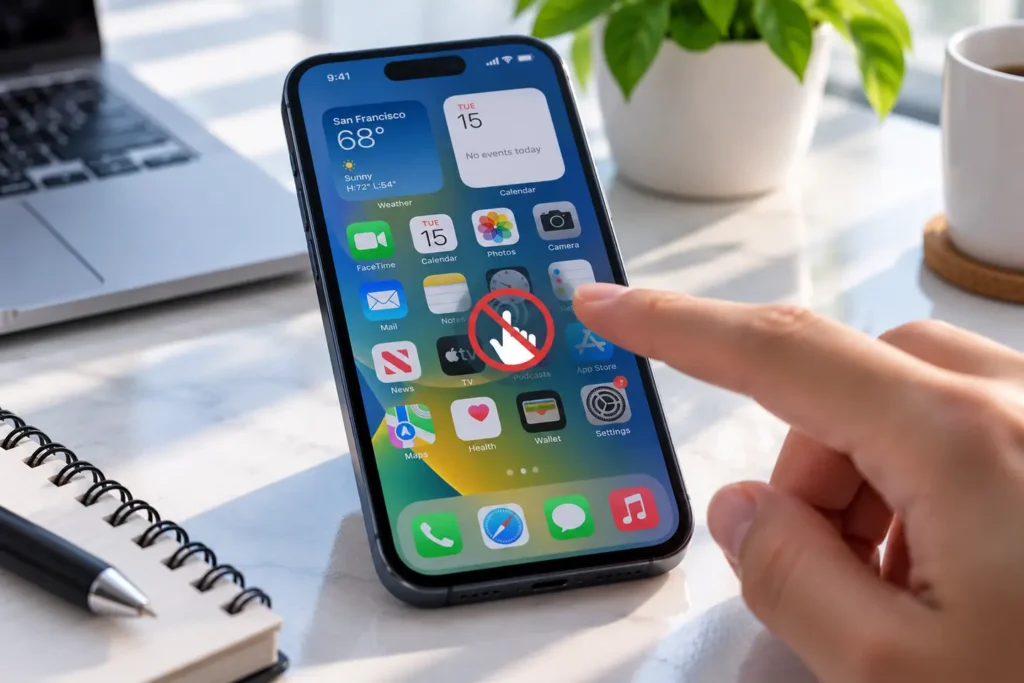
5. Force Restart iPhone 8 or Later
If your touchscreen doesn’t respond at all, you may not be able to use the normal power-off slider.
A force restart lets you restart the iPhone using its physical buttons.
Apple recommends force restarting an iPhone that becomes unresponsive.
How to force restart
For iPhone 8 and later, including compatible modern Face ID models:
- Press and quickly release the Volume Up button.
- Press and quickly release the Volume Down button.
- Immediately press and hold the Side button.
- Keep holding until the Apple logo appears.
- Release the Side button.
- Allow the iPhone to finish restarting.
The Volume Up and Volume Down presses should be quick.
Don’t hold all three buttons simultaneously.
It can take longer than 10 seconds for the Apple logo to appear.
Once your iPhone restarts, test ordinary taps and swipes.
Does a force restart erase anything?
A force restart doesn’t normally delete photos, applications, messages, or personal information.
It simply attempts to restart the device when the usual interface isn’t responding.
If the touchscreen works afterward, the cause may have been a temporary software issue.
If the screen remains completely unresponsive, continue with the remaining checks.
Apple’s official instructions are available in its Force Restart iPhone guide.
6. Force Restart Older iPhone Models
Older iPhones use different button combinations.
If you use an iPhone 7, iPhone 6s, or first-generation iPhone SE, follow the instructions for your device.
iPhone 7 and iPhone 7 Plus
- Press and hold the Side button.
- At the same time, hold Volume Down.
- Continue holding both buttons until the Apple logo appears.
- Release the buttons.
- Wait for the phone to restart.
iPhone 6s, iPhone SE (1st generation), and earlier
- Press and hold the Home button.
- Hold the Side button or top button at the same time, depending on your model.
- Keep holding until the Apple logo appears.
- Release both buttons.
- Allow the phone to restart.
After restarting, test the touchscreen again.
If you’re unsure which iPhone generation you own, identify the model before repeating button combinations.
If the display turns black and never shows the Apple logo, the issue may no longer be limited to touch input.
At that point, charging, display, and startup troubleshooting become relevant.
7. Check Touch Accessibility Settings
Some accessibility features intentionally change how an iPhone responds to taps, swipes, and gestures.
These settings are useful for people who need different touch controls, but they can cause confusion if enabled unintentionally.
This step only applies if you can still navigate the device or have an accessible method of controlling it.
Check Touch Accommodations
- Open Settings.
- Select Accessibility.
- Tap Touch.
- Select Touch Accommodations.
- Review whether the feature is enabled.
- If you don’t intentionally use it, temporarily disable it for comparison.
- Test your touchscreen again.
Apple explains that Touch Accommodations can adjust how long the screen must be touched before it responds.
For example, Hold Duration can cause short taps and swipes to be ignored.
Ignore Repeat can treat multiple taps within a specified interval as one touch.
Check VoiceOver
If your iPhone speaks the names of onscreen controls and a single tap selects rather than activates them, VoiceOver may be enabled.
With VoiceOver, you typically double-tap to activate a selected item.
This isn’t a touchscreen malfunction.
If you intentionally use accessibility features, don’t permanently disable them merely to troubleshoot. Instead, review their settings according to your needs.
See Apple’s Touch Accommodations guide.
8. Check Whether Only One App Freezes
Sometimes the touchscreen works normally on the Home Screen but stops responding inside one application.
This suggests the app itself may be frozen.
Test another app
- Return to the Home Screen if possible.
- Open another familiar application.
- Try tapping and scrolling.
- Compare the behavior with the affected app.
If touch input works elsewhere, close and reopen the problematic application.
On iPhones with Face ID, swipe up from the bottom and pause to open the App Switcher. Then swipe the affected app upward.
On models with a Home button, double-press the Home button to open the App Switcher.
After closing the app, open it again.
If the problem continues, check the App Store for an update.
Don’t force-close every application routinely. Apple recommends closing an app when it isn’t responding as expected.
What if only the keyboard fails?
If taps work elsewhere but typing doesn’t, the onscreen keyboard may be the real problem.
Our separate iPhone Keyboard Not Working guide covers missing keyboards, typing delays, incorrect letters, and keyboard settings.
9. Check Heat and Liquid Damage
Temperature and moisture can affect iPhone behavior.
Apple explains that excessive internal temperature can reduce display functionality and system performance.
If your phone becomes unusually hot, allow it to cool before performing further tests.
If the phone is overheating
- Stop demanding activities such as gaming or extended video recording.
- Move the iPhone out of direct sunlight.
- Disconnect charging accessories when appropriate.
- Place the phone in a cooler, well-ventilated environment.
- Allow it to return to a normal temperature.
- Test touch input again.
Avoid using a refrigerator, freezer, or ice pack to cool the phone.
Rapid temperature changes can introduce additional risks.
If the phone has been exposed to water
Stop using damaged or wet charging accessories.
If touch failures began after a spill or submersion, internal damage may be possible even if the screen looks normal.
Apple’s water-resistance ratings don’t mean that an iPhone is immune to liquid damage.
If the touchscreen remains unresponsive after the device is safely dry, consider professional inspection.
For a different problem involving a screen that becomes dark rather than unresponsive to touch, read our iPhone Screen Keeps Dimming guide.
10. Update iOS When Touch Input Is Available
A software update can sometimes resolve performance or compatibility problems.
However, this step is practical only if the touchscreen responds sufficiently for you to navigate Settings, or you have a supported alternative input method.
Check for an update
- Open Settings.
- Tap General.
- Select Software Update.
- Check whether an appropriate update is available.
- Back up your important information.
- Follow the update instructions.
- Test touchscreen responsiveness afterward.
An iOS update may help with a software-related problem, but it isn’t a guaranteed fix for hardware damage.
What if the touchscreen is completely dead?
Don’t attempt to start a complex update blindly if you cannot interact with the device.
You may encounter passcode requests, confirmations, or setup screens that require touch input.
If the phone works except for the touchscreen, consider data backup and professional inspection before attempting a computer-based reinstall.
Do not select Restore or Erase All Content and Settings as an early touchscreen fix. Those actions can erase your information without fixing the underlying problem.
11. Check for Display Damage or Previous Repairs
If only one section of the touchscreen consistently fails, investigate possible physical causes.
A touchscreen can become partly or completely unresponsive after a drop, a damaged display assembly, or an unsuccessful repair.
Possible warning signs include:
- A particular strip of the screen never responds.
- Touch input fails after a fall.
- The display flickers or shows colored lines.
- The screen lifts away from the phone’s frame.
- Touch issues began after a screen replacement.
- The phone registers taps you didn’t make.
Check Parts and Service History
If touch input is available, some iPhone models can display repair information in Settings.
- Open Settings.
- Go to General → About.
- Look for Parts and Service History, if shown.
- Review any available display-related information.
Apple may identify a replacement display as Genuine, Used, Unknown, or another applicable status depending on the model and repair.
An Unknown Part message alone doesn’t prove that a touchscreen failure is caused by the replacement display.
However, it may be useful information when discussing a recent repair with a technician.
Apple provides further details in its iPhone Parts and Service History guide.
If the screen is lifting, the frame is bent, or the battery appears swollen, stop using or charging the device and seek professional assessment.
12. Arrange Apple-Supported Screen Service
If your iPhone touchscreen is not working after cleaning, disconnecting accessories, removing the screen protector, and force restarting, it may require service.
Apple states that a touchscreen which remains unresponsive after its recommended checks may need repair.
Before arranging service, record what you’ve already tested.
Useful details include:
- Your iPhone model.
- Your current iOS version, if known.
- Whether the entire screen or only part of it fails.
- Whether the issue began after charging, a drop, a repair, or an update.
- Whether the screen works after a force restart.
- Whether it responds without the case and screen protector.
- Whether it registers unwanted touches.
These details help a technician assess the device without immediately assuming the display needs replacement.
You can begin with Apple’s iPhone Screen Service and Repair page.
Repair costs and service options depend on your model, location, coverage, and the results of the inspection.
Avoid opening the iPhone yourself unless you have the proper equipment, training, and a suitable repair procedure.
How to Protect Your Data Before Screen Repair
If your touchscreen has stopped working completely, data protection becomes especially important.
A black or unresponsive screen doesn’t automatically mean your photos, messages, and files are gone.
However, you may not be able to unlock the device, approve a computer connection, or initiate a new backup.
Check existing backups
If you previously enabled iCloud Backup, check whether a recent backup exists using a supported Apple device or account recovery method.
If you already use a trusted Mac or Windows PC with your iPhone, connect it and check whether Finder or the Apple Devices app recognizes the device.
A backup may be possible if the required trust and authentication conditions have already been satisfied.
However, Apple can require you to unlock the iPhone and approve Trust This Computer on the phone itself.
If the touchscreen cannot respond, these requirements may prevent a new backup.
Don’t assume that connecting a cable will automatically bypass device security.
Before authorizing repair
Tell the service provider if you have important data without a recent backup.
Ask whether the proposed service could erase the device or require a replacement.
Avoid performing an unnecessary factory reset simply to troubleshoot touch sensitivity.
iPhone Touchscreen Not Working After an Update
If touch problems began after installing a new iOS version, a software issue is one possibility.
However, the timing alone doesn’t prove that the update caused the problem.
Begin by force restarting your iPhone.
Then test the screen without connected accessories or a screen protector.
If touch input works again, check for any later compatible software update.
If the problem persists throughout the system, consider professional diagnosis.
Don’t erase your device solely because the issue appeared after updating.
iPhone Touchscreen Not Working After a Drop
An iPhone that stops responding to touch after being dropped may have suffered physical damage.
The glass can sometimes remain intact while other display components are affected.
Check for visible cracks, a bent frame, or a screen that has separated from the housing.
Avoid repeatedly pressing hard on the glass to make the display respond.
If the screen is damaged or lifting, stop using it and seek professional inspection.
A force restart can rule out some temporary software problems, but it cannot repair a damaged display component.
Bottom Half of iPhone Touchscreen Not Working
If the bottom half of your iPhone screen doesn’t respond, but the upper half works normally, first remove the case and inspect the screen protector.
Then test the same region in different applications.
For example, check whether the lower part of the screen fails in both Settings and Notes.
If the same physical area consistently ignores touch, a localized display problem becomes more plausible.
You shouldn’t assume this is a keyboard setting merely because the bottom of the screen contains the keyboard.
Persistent failure in one region may require display service.
iPhone Touchscreen Not Working While Charging
If the touchscreen becomes erratic only when you connect a charger, test the iPhone unplugged.
Apple recommends disconnecting accessories when investigating touch sensitivity problems.
Try a different compatible cable, adapter, and working outlet.
Avoid using visibly damaged or unreliable charging accessories.
If the issue disappears when unplugged, investigate the charging setup before replacing the display.
If touch problems persist even without accessories, continue with the normal touchscreen checks.
iPhone Screen Tapping Itself: Ghost Touch
Ghost touch describes a problem where an iPhone registers taps or gestures that you didn’t intentionally make.
You may notice apps opening by themselves, the keyboard typing unexpected characters, or the screen moving without input.
Possible contributors include moisture, a damaged screen protector, charging accessories, or display hardware.
Try the following:
- Disconnect the charger.
- Dry and clean the screen.
- Remove the case or screen protector when appropriate.
- Force restart the device.
- Check whether the problem continues.
Don’t enter passwords or perform financial transactions while ghost touch is occurring. Unwanted taps could trigger actions you didn’t intend.
If ghost touch persists, arrange professional assessment.
iPhone Touchscreen Not Working but Buttons Work
If your volume buttons and Side button respond but the touchscreen doesn’t, the iPhone may still be running normally in other respects.
Try a force restart first.
Then disconnect accessories and remove anything interfering with the display.
If the screen remains visible and the phone continues receiving calls or notifications, that doesn’t guarantee the touchscreen hardware is healthy.
A service provider can investigate the display and other relevant components.
Avoid repeated incorrect passcode attempts on a partially responsive touchscreen.
Frequently Asked Questions
Why is my iPhone touchscreen not working?
Common causes include a frozen system, moisture, dirt, a damaged screen protector, charging accessory interference, accessibility settings, or display hardware problems.
How do I restart an iPhone when the touchscreen doesn’t work?
For iPhone 8 and later, quickly press Volume Up, quickly press Volume Down, then hold the Side button until the Apple logo appears.
Will force restarting my iPhone erase data?
No. A force restart doesn’t normally delete photos, apps, messages, or documents. It is different from a factory reset.
Why is only part of my iPhone touchscreen working?
A localized touch failure may be related to the screen protector, physical damage, or the display assembly. Test different applications to check whether the same area fails consistently.
Can a screen protector stop an iPhone touchscreen from working?
Yes. A damaged, incorrectly fitted, or interfering screen protector can affect touch response. Apple recommends removing protectors when troubleshooting intermittent or overly sensitive touch.
Why does my iPhone touchscreen stop working while charging?
The charging accessory or power connection may be contributing. Test without the charger, then compare with another compatible cable, adapter, or outlet.
Can an iOS update fix an unresponsive touchscreen?
An update may resolve certain software problems, but it cannot repair a damaged display. Back up important data before updating, and avoid blind recovery attempts when touch input is completely unavailable.
What is ghost touch on iPhone?
Ghost touch occurs when the screen registers unintended taps or gestures. It can be associated with moisture, accessories, screen damage, or other display problems.
Why is my iPhone touchscreen not working after a screen replacement?
The replacement display, installation, calibration, or another component may need inspection. Contact the repair provider and check available Parts and Service History information.
Can I back up an iPhone when touch doesn’t work?
Sometimes. A previously trusted computer may allow a backup, but unlocking the iPhone or approving a Trust prompt may still be necessary.
Should I factory reset my iPhone to fix the touchscreen?
Not as an initial troubleshooting step. A factory reset erases the device and may not help if the display hardware is damaged.
When should I replace the iPhone screen?
Consider professional service when touch remains unresponsive after the recommended checks, especially following physical damage or when the same area repeatedly fails.
Final Thoughts
If your iPhone touchscreen is not working, begin with the simplest checks: clean and dry the screen, disconnect charging accessories, and remove any case or screen protector that could be interfering.
Next, perform the correct force restart for your iPhone model.
If only one app is affected, investigate that application. If taps behave strangely because of accessibility settings, review Touch Accommodations and VoiceOver.
Persistent failure across the display, especially after a drop or repair, may require an Apple-supported screen assessment.
Most importantly, protect your personal data before attempting resets or recovery procedures that could erase your iPhone.
By working through the safest steps first, you can determine whether the problem is temporary or needs professional attention.