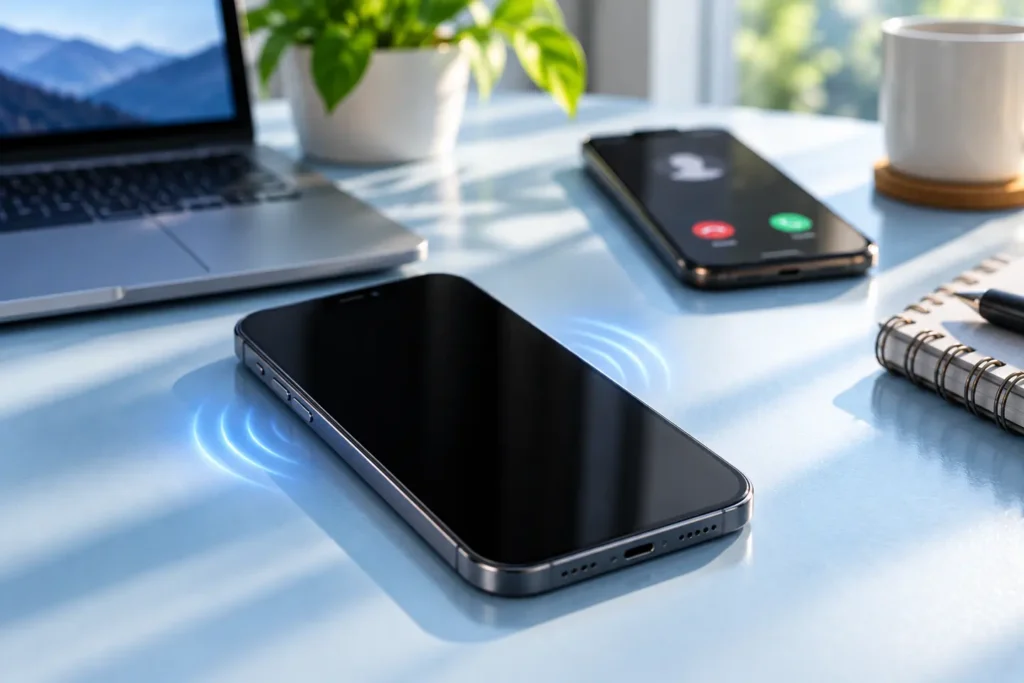
Is your iPhone black screen but still on, with calls coming through, notifications sounding, or vibrations continuing even though the display shows nothing?
Maybe your iPhone suddenly went black while you were using an app. You can still hear alerts or Siri, but pressing the Side button doesn’t bring the screen back.
This is often described as the iPhone black screen of death, although that name doesn’t identify the actual problem.
A frozen iOS process, a power problem, an accessibility setting, or a damaged display may be responsible. The important distinction is that an iPhone with a black screen isn’t necessarily completely powered off.
In this guide, we’ll explain 10 practical ways to troubleshoot an iPhone black screen while the phone is still running, starting with simple checks and proceeding carefully to data protection, software recovery, and professional repair.
Table of Contents
Quick Answer: Fix iPhone Black Screen but Still On
If your iPhone has a black screen but you can still hear it or feel it vibrating, start with a force restart.
For an iPhone 8 or later, including modern Face ID models and iPhone SE (2nd or 3rd generation):
- Press and quickly release Volume Up.
- Press and quickly release Volume Down.
- Press and hold the Side button.
- Keep holding until the Apple logo appears. This can take longer than 10 seconds.
- Release the button and allow the iPhone to restart.
If the screen remains completely black, connect the phone to a working charger and investigate whether it is still receiving power.
For older iPhone models, the force-restart button combination is different. We’ll cover those instructions below.
Important: A force restart doesn’t normally erase your photos, messages, or apps. Don’t perform a factory reset or select Restore on a computer before considering your data.
Why Is My iPhone Screen Black but the Phone Still Works?
An iPhone can continue operating even when its display is not showing an image.
That’s because the display is only one part of the device. Its processor, cellular connection, speakers, vibration system, and other components can continue working independently.
Possible causes include:
- A temporary iOS freeze or system problem.
- A malfunctioning screen or display connection.
- A low battery or unstable power supply.
- Excessive heat causing protective display behavior.
- Physical damage from a drop or liquid exposure.
- A connected accessory interfering with normal operation.
- VoiceOver Screen Curtain intentionally turning the display black.
- A software problem that requires additional diagnosis.
The symptoms help narrow down the possibilities.
Phone rings but the screen stays black: The phone may still be connected to the network while the display isn’t responding.
The iPhone vibrates but displays nothing: The device may still be operating, although vibration alone doesn’t reveal which component is failing.
No sound, vibration, or other response: The device may be powered off, fully discharged, or experiencing a more general hardware issue.
None of these observations alone proves that the screen needs replacement.
Start with the least disruptive checks.
1. Confirm That Your iPhone Is Still Running
Before troubleshooting a display, determine whether your iPhone is actually powered on.
A phone that receives calls but displays nothing needs a different diagnosis from one that is completely unresponsive.
Test for signs of activity
- Use another phone to call your iPhone number.
- Listen for ringing or feel for vibration.
- Check whether the iPhone produces a notification sound.
- If Siri was already enabled, try a normal Siri request.
- Notice whether the device responds to its buttons.
- Record which functions still work.
If the iPhone rings or responds to Siri, that’s useful evidence that at least part of the device is functioning.
However, an incoming call reaching voicemail or another device doesn’t prove that the affected iPhone itself is active.
Likewise, a phone that makes no sound isn’t automatically dead. Silent Mode, Focus settings, or a depleted battery can affect the result.
Don’t repeatedly enter your passcode on an invisible screen. Incorrect attempts can create additional access problems.
Once you’ve checked for signs of activity, attempt the appropriate force restart.
2. Force Restart iPhone 8 or Later
When your iPhone black screen but still on problem appears suddenly, a force restart is usually the most useful first action.
Apple recommends this procedure when an iPhone is unresponsive or showing a black screen.
It forces the system to restart without requiring access to the touchscreen.
For iPhone 8 and later
This includes many newer models with Face ID and iPhone SE (2nd and 3rd generation).
- Locate the Volume Up button.
- Press and quickly release it.
- Press and quickly release Volume Down.
- Immediately press and hold the Side button.
- Continue holding until the Apple logo appears.
- Release the Side button and allow startup to complete.
The first two button presses should be quick.
Do not hold all three buttons simultaneously.
If the display has temporarily frozen, the Apple logo may appear and the phone may return to normal.
What if the logo never appears?
If you can hear the phone responding but the display remains completely black, the force restart may not be enough.
Check the power and charging setup before assuming the display is damaged.
If the phone was dropped, exposed to liquid, or recently repaired, physical damage also becomes an important possibility.
Official instructions: Apple’s guide for an unresponsive iPhone.
3. Use the Correct Force Restart for Older iPhones
Older iPhone models use different restart combinations.
Using the wrong sequence can make a working phone appear unresponsive.
iPhone 7 and iPhone 7 Plus
- Press and hold the Side button and Volume Down together.
- Keep holding until the Apple logo appears.
- Release both buttons.
- Allow the phone to finish restarting.
iPhone 6s, iPhone SE (1st generation), and earlier
- Press and hold the Home button.
- At the same time, hold the Side button or top button, depending on your model.
- Continue until the Apple logo appears.
- Release the buttons.
- Wait for the iPhone to restart.
These procedures are intended for an unresponsive device.
They aren’t the same as the ordinary restart process where you drag the power-off slider.
If you don’t know your iPhone model, identify it before repeatedly trying different button combinations.
When the display returns, check whether the phone is working normally before making further changes.
If the screen remains black, proceed to power troubleshooting.
4. Charge Your iPhone for One Hour
Even if the iPhone was recently working, the battery may now be too low to complete a normal startup.
Apple recommends charging an iPhone with a black screen or one that won’t turn on for up to one hour before testing again.
How to check charging
- Connect your iPhone to a compatible charging cable and power adapter.
- Plug the adapter into a working wall outlet.
- Make sure all connections are secure.
- Leave the device charging for approximately one hour.
- Check whether the screen displays a charging or startup indicator.
- Try the appropriate force-restart sequence again if necessary.
If the display remains black but the iPhone produces sounds or vibrations, it may still be functioning independently of its display.
If the phone gives no response at all, charging remains an important basic check.
Safety warning: Don’t charge an iPhone that shows signs of battery swelling, severe physical damage, or unsafe overheating.
If the device has recently become wet, follow Apple’s liquid-exposure instructions before reconnecting wired power.
5. Check the Charging Cable and Power Source
Sometimes the problem appears worse because the iPhone isn’t charging consistently.
A damaged cable, unreliable adapter, or poor electrical connection can make startup troubleshooting difficult.
Try a different charging setup
- Disconnect the current charging cable.
- Examine it for visible damage.
- Check the power adapter and electrical outlet.
- Use another compatible charging cable if available.
- Try a different working outlet.
- If your iPhone supports wireless charging, test a compatible charger when the device is dry and safe to charge.
- Check whether the iPhone responds.
Inspect the charging port only from the outside.
Don’t insert metal tools or sharp objects to remove debris.
If you see signs of moisture, avoid charging until the port is dry.
If the iPhone begins responding with another charger, the original power accessory may have been part of the problem.
However, successful charging does not automatically prove that the display hardware is functioning.
For more detailed charging troubleshooting, read our iPhone Not Charging guide.

6. Disconnect Accessories and Remove Anything Pressing on the Screen
A connected accessory or poorly fitted case can sometimes contribute to abnormal iPhone behavior.
Apple recommends removing connected accessories and certain cases or screen protectors when troubleshooting display and touch problems.
To test:
- Disconnect external USB-C or Lightning accessories.
- Remove any charging dock or attached peripheral.
- Remove the case if it interferes with the buttons or screen.
- Inspect the screen protector for damage or pressure.
- Gently clean the exterior with a suitable dry, lint-free cloth.
- Check whether the display responds when you wake or restart the iPhone.
If the screen starts working after removing an accessory, test the device without that accessory before reconnecting it.
You may need to replace a damaged charger or peripheral.
A case that holds down a button can also interfere with normal use.
However, removing a screen protector won’t repair a physically failed display panel.
Don’t attempt to pry open the screen or disconnect internal components.
If the display remains black, investigate the accessibility setting described next.
7. Check VoiceOver Screen Curtain
Here’s a less obvious cause of an iPhone screen that stays completely black while the phone continues to operate.
Apple includes a VoiceOver feature called Screen Curtain.
Screen Curtain intentionally turns off the visible display while keeping VoiceOver navigation and device functions active.
It’s designed for privacy and accessibility.
If the black screen appeared while using VoiceOver, Screen Curtain may be enabled rather than the display being broken.
How to turn off Screen Curtain
If VoiceOver is enabled:
- Wake your iPhone.
- Place three fingers on the screen.
- Quickly triple-tap using those three fingers.
- Check whether the display becomes visible.
If both VoiceOver and Zoom are enabled, Apple specifies a three-finger quadruple-tap instead.
You can also use an already connected Bluetooth keyboard with Apple’s supported Screen Curtain shortcut.
Important: These gestures are only relevant when VoiceOver is active. They are not a universal way to repair a black iPhone display.
If you never use VoiceOver and the iPhone isn’t speaking interface items aloud, this is less likely to explain your problem.
See Apple’s Screen Curtain instructions.
8. Check for Overheating, Drops, or Liquid Exposure
Your iPhone can reduce display brightness when its internal temperature gets too high.
Apple confirms that the screen can also go black under certain thermal conditions.
This is particularly relevant if the issue began while:
- Playing a demanding game.
- Recording video for a long time.
- Using GPS navigation in direct sunlight.
- Charging in a hot environment.
- Leaving the iPhone in a parked vehicle.
If the iPhone is unusually warm
- Stop demanding activities.
- Disconnect charging if appropriate.
- Move the phone out of direct sunlight.
- Place it in a cooler, well-ventilated environment.
- Allow it to return to a normal temperature.
- Check whether the display responds afterward.
Never place your iPhone in a freezer or against ice to cool it quickly.
If the iPhone was dropped or exposed to liquid
Inspect for cracked glass, frame distortion, or visible moisture.
An impact can damage a display or internal connection even if the front glass looks intact.
Liquid exposure can also cause problems that aren’t immediately visible.
If the phone is wet, don’t connect it to a wired charger until it has dried according to Apple’s instructions.
If the device shows severe damage, swelling, or unusual heat, stop using it and arrange professional inspection.
If your issue is that the screen becomes darker but remains visible, our separate iPhone Screen Keeps Dimming guidecovers that different problem.
9. Connect to a Computer and Protect Your Data
If your iPhone still rings or vibrates but the display remains black, consider your data before trying disruptive recovery procedures.
A broken screen doesn’t necessarily mean that photos, messages, or other information have been erased.
However, accessing or backing up that information may be difficult when the screen cannot display the passcode or trust prompts.
Check whether a computer recognizes the iPhone
- Use a compatible cable to connect the iPhone to your Mac or Windows PC.
- On a modern Mac, open Finder.
- On Windows, open the Apple Devices app.
- On older supported setups, use iTunes where appropriate.
- Check whether the connected iPhone appears.
- If it does, review whether an existing trusted connection allows a backup.
Can you back up an iPhone with a black screen?
Possibly, but not always.
Apple may require the iPhone to be unlocked, a passcode to be entered, or a Trust This Computer prompt to be approved.
If the display doesn’t work, those requirements can prevent a new computer backup.
A previously trusted computer may offer more options, depending on the phone’s current security state.
Don’t use unverified software claiming to bypass iPhone security or extract encrypted data.
If the information is important and you don’t have a recent backup, seek professional advice before restoring or erasing the iPhone.
A display repair may be more appropriate than a software restore when the device itself is still running.
10. Consider Recovery Mode Carefully if a Software Problem Is Suspected
If the phone isn’t starting normally and simpler troubleshooting hasn’t helped, Apple provides computer-based iOS recovery procedures.
However, this option requires particular care when the screen is completely black.
A black screen caused by hardware failure may not be resolved by reinstalling iOS.
Before using recovery mode
- Check whether you have an existing backup.
- Confirm that the charging cable and computer connection work.
- Consider whether the iPhone was recently dropped or exposed to liquid.
- Make sure the problem isn’t simply Screen Curtain.
- Avoid erasing your device just to test the display.
Recovery mode and data safety
If an iPhone needs an iOS reinstall and your computer identifies it in recovery mode, Apple may offer two choices:
Update: Attempts to reinstall iOS while preserving personal data.
Restore: Erases the iPhone and reinstalls its software.
Apple advises choosing Update rather than Restore when reinstalling iOS without erasing data is appropriate.
However, even Update is not a guaranteed repair or a substitute for a backup.
If the screen is black, you may not be able to verify the recovery screen on the iPhone itself. Follow Apple’s instructions for your exact model and use the status shown by Finder or the Apple Devices app.
If the phone works normally apart from displaying an image, a display fault may be more likely than a software issue.
Don’t repeatedly attempt recovery mode, DFU procedures, or factory resets without understanding their consequences.
See Apple’s official recovery instructions.
If your iPhone still remains black, arrange an Apple-supported repair assessment.
iPhone Black Screen but Still Rings
If your iPhone rings when someone calls but the screen remains black, the phone may still be running.
Begin with the appropriate force restart.
If you continue receiving calls after restarting but cannot see anything, investigate Screen Curtain if VoiceOver is enabled.
Also consider whether the device has experienced a drop or other physical damage.
A display or display-related component problem becomes a possibility if the phone otherwise functions normally.
Avoid erasing the device without first considering your backup and repair options.
iPhone Black Screen but Still Vibrates
If the iPhone vibrates when notifications arrive but no image appears, the vibration provides evidence of some ongoing device activity.
However, it doesn’t prove that the operating system, screen, or battery is completely healthy.
Test the force-restart sequence, check charging, and observe whether the phone produces other normal responses.
If the screen stays black while sounds and vibrations continue, arrange further diagnosis.
Do not assume the battery is dead simply because the display doesn’t turn on.
iPhone Black Screen After a Drop
A black screen immediately after an impact deserves particular attention.
Sometimes the glass remains intact even when internal display components have been damaged.
If your iPhone still makes sounds, receives notifications, or connects to a trusted computer, the device may be partially functional despite the black display.
Avoid bending the device or applying pressure to the screen.
If the iPhone is visibly damaged, swollen, or unusually hot, stop using it.
Contact Apple Support or an authorized service provider for inspection, particularly if the device contains important data without a recent backup.
iPhone Screen Went Black While Using an App
If the screen suddenly went black while you were browsing, watching video, or using an application, a temporary software issue may be involved.
Try the force-restart procedure appropriate for your model.
If the iPhone starts normally, check whether the issue happens again in the same app.
You can then review available iOS and app updates using ordinary Settings and App Store controls.
If the black screen recurs across multiple applications, or the entire display remains black while the phone responds, investigate the display itself rather than repeatedly reinstalling the app.
When Does an iPhone Black Screen Need Repair?
An iPhone may require service if:
- It continues receiving calls but the display remains black after a force restart.
- The screen stopped working immediately after physical damage.
- A known-good charger and power source don’t change the behavior.
- Screen Curtain and ordinary software checks don’t explain the issue.
- The iPhone is detected by a computer but still shows no image.
- The screen repeatedly fails or shows other signs of physical damage.
These symptoms don’t establish the exact part that has failed.
Apple or an authorized service provider can assess whether the display, another component, or the software needs attention.
Service costs depend on your iPhone model, location, warranty, and coverage.
Start with Apple’s iPhone Screen Service and Repair page.
Before authorizing any repair that involves erasing the device, ask how your data may be affected.
Frequently Asked Questions
Why is my iPhone black screen but still on?
The iPhone may have a frozen display, software issue, damaged screen, temperature-related problem, or Screen Curtain enabled with VoiceOver. The exact cause requires troubleshooting.
How do I fix an iPhone black screen without losing data?
Begin with a force restart, check charging, and investigate Screen Curtain if relevant. These steps don’t normally erase content. Avoid Restore or factory-reset options until you’ve considered backups.
Why is my iPhone screen black but it still rings?
The phone may still be connected to the cellular network even though its display isn’t functioning. Try a force restart and seek a display assessment if the problem persists.
Can a force restart fix a black iPhone screen?
Yes, it can resolve certain temporary software or responsiveness problems. However, it won’t repair a physically damaged display.
How long should I hold the Side button during a force restart?
On iPhone 8 and later, press Volume Up and Volume Down quickly in sequence, then hold the Side button until the Apple logo appears. Apple notes that it can take longer than 10 seconds.
Does a black screen mean my iPhone data is gone?
No. A black display doesn’t automatically mean the data has been erased. But access to that data can be limited until the phone is repaired or can be unlocked.
Can I back up an iPhone with a broken screen?
Sometimes, if the device can be recognized and the required trust or authentication steps are already satisfied. A new backup may be impossible if the phone requires on-screen confirmation.
Can overheating make an iPhone screen black?
Yes. Apple states that excessive internal temperature can cause the display to dim or go black as part of the device’s protection behavior.
What is iPhone Screen Curtain?
Screen Curtain is a VoiceOver accessibility feature that keeps the iPhone active while hiding the display. It’s not generally responsible for black screens on phones that aren’t using VoiceOver.
Should I use recovery mode for a black screen?
Only when a software recovery problem is reasonably suspected and after considering the risk to your data. Recovery mode doesn’t repair physical screen damage, and selecting Restore erases the device.
How do I know whether my iPhone display is broken?
A phone that consistently rings, vibrates, or connects to a computer while showing no image may have a display issue. However, those signs alone can’t confirm hardware failure. Professional diagnosis may be necessary.
Should I factory-reset my iPhone to fix the black screen?
Not as an early troubleshooting step. A factory reset erases the device and may do nothing if the problem is caused by damaged display hardware.
Final Thoughts
If your iPhone black screen but still on problem occurs unexpectedly, start by checking for calls, vibrations, and other signs of activity.
Next, perform Apple’s model-specific force restart.
If that doesn’t restore the display, investigate charging, connected accessories, temperature, and VoiceOver Screen Curtain where relevant.
A phone that continues working but never displays an image may need a professional screen assessment.
Most importantly, protect your data before attempting recovery or factory-reset procedures. A black screen does not necessarily mean your information is lost, and an unnecessary restore can make recovery more difficult.
By following the least disruptive steps first, you can narrow down the cause without taking unnecessary risks.
Official Apple Support Resources
- Apple: If Your iPhone Won’t Turn On or the Screen Is Black
- Apple: Restart Your iPhone
- Apple: If the Screen Isn’t Working
- Apple: Screen Curtain With VoiceOver
- Apple: If Your iPhone Gets Too Hot or Too Cold
- Apple: If Your iPhone Won’t Update or Restore
- Apple: Trust This Computer
- Apple: iPhone Screen Repair