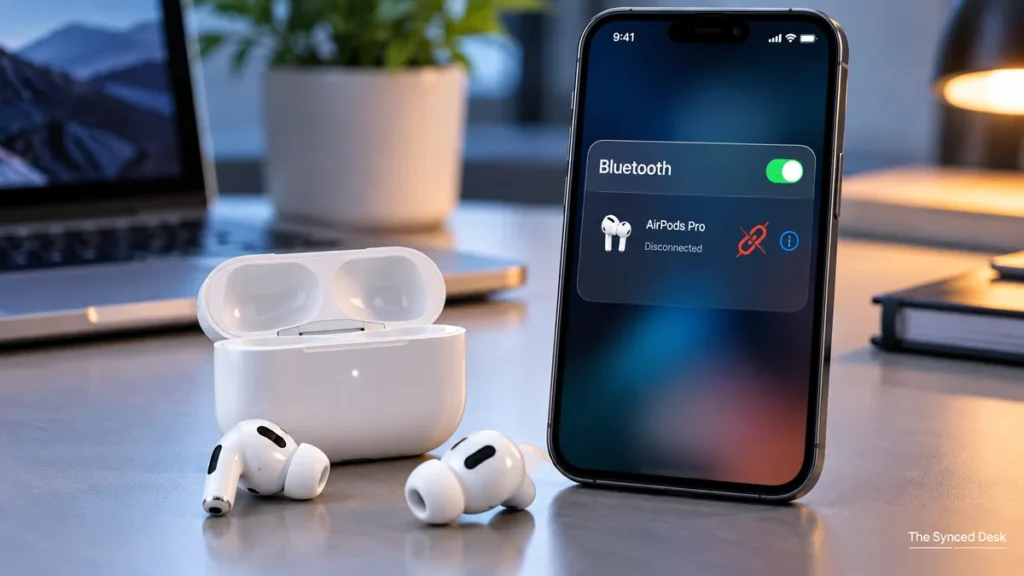
Why do my AirPods keep disconnecting even when they have enough battery and my iPhone is sitting right next to me?
If you’ve been asking yourself this question, you’re not alone. Your AirPods might connect normally, play music for a few minutes, and then suddenly stop. Sometimes they reconnect automatically. Other times, your audio switches back to your iPhone speaker.
The problem can be particularly frustrating during phone calls, FaceTime conversations, online meetings, or when you’re listening to music.
Fortunately, AirPods keep disconnecting problems aren’t always caused by damaged earbuds.
Bluetooth interference, automatic device switching, low battery, outdated firmware, and temporary connection errors can all contribute to unexpected interruptions.
In this guide, we’ll explain 12 practical fixes for AirPods that keep disconnecting, including solutions for regular AirPods, AirPods Pro, and repeated connection drops on iPhone.
We’ll also help you identify whether the issue involves Bluetooth, audio routing, your iPhone, or the AirPods themselves.
Table of Contents
Quick Answer
If your AirPods keep disconnecting from your iPhone, try these solutions:
- Check the battery level of both earbuds.
- Keep your AirPods close to your iPhone.
- Move away from Bluetooth interference.
- Check automatic switching between Apple devices.
- Select AirPods as your audio output.
- Test Automatic Ear Detection.
- Restart your AirPods.
- Restart your iPhone.
- Update your iPhone software.
- Check AirPods firmware updates.
- Forget your AirPods and reconnect them.
- Reset your AirPods using the correct method.
Start with the simpler checks before resetting anything.
Why AirPods Disconnect
There isn’t one universal reason why AirPods disconnect unexpectedly.
The cause often depends on whether the Bluetooth connection actually ends or the audio simply moves to another device.
Here are some common explanations.
Bluetooth interference: Nearby wireless equipment, physical obstacles, or crowded environments can weaken Bluetooth communication.
Automatic switching: Supported AirPods can automatically move between an iPhone, Mac, or iPad signed in to the same Apple Account.
Battery problems: An individual AirPod with insufficient battery power may stop playing or disconnect.
Automatic Ear Detection: Your AirPods may pause or redirect audio if they incorrectly detect that you’ve removed an earbud.
Software issues: Temporary Bluetooth problems or outdated device software may affect connection stability.
Hardware problems: A defective battery or internal component can sometimes cause persistent disconnections.
An important distinction is that audio stopping does not always mean Bluetooth has disconnected.
For example, if your AirPods switch from your iPhone to your Mac, they’re still connected to an Apple device.
The following fixes will help you identify what is actually happening.
1. Check the Battery
One of the easiest things to overlook is the battery level of each AirPod.
Your left and right AirPods have separate batteries. One earbud may still have plenty of power while the other is nearly empty.
If one AirPod repeatedly loses power, the listening experience can seem like a Bluetooth connection problem.
Check Battery Levels
- Put both AirPods inside their charging case.
- Open the case near your unlocked iPhone.
- Check the battery information if it appears.
- Alternatively, use the Batteries widget on your iPhone.
- Review the charging level of each earbud.
- Charge the AirPods if either battery is low.
Make sure both earbuds sit properly inside the charging case.
If an earbud isn’t making proper contact with its charging connection, it might not charge even when the case has enough power.
What to Look For
If your AirPods disconnect after approximately the same amount of listening time every day, compare their battery levels before and after the problem occurs.
A significant difference between the two earbuds may point toward a battery or charging issue.
However, normal battery drain alone doesn’t prove that the hardware is defective.
2. Move Closer to Your iPhone
AirPods communicate with your iPhone through Bluetooth.
Bluetooth connections work best when the devices are reasonably close and there aren’t major obstacles between them.
Walls, floors, metal surfaces, and certain physical barriers can affect wireless performance.
Test the Distance
- Place your iPhone on a desk.
- Sit a few feet away.
- Connect your AirPods.
- Play some downloaded music.
- Listen for several minutes.
- Check whether the audio stops or disconnects.
If your AirPods work consistently nearby but disconnect when you move farther away, distance or obstacles may be contributing to the issue.
Apple recommends keeping your connected device close and reducing obstructions when troubleshooting Bluetooth audio interruptions.
For related iPhone connectivity problems, see our guide on iPhone Bluetooth Keeps Disconnecting.
3. Avoid Bluetooth Interference
Bluetooth interference is another possible reason AirPods keep disconnecting and reconnecting.
AirPods share the 2.4 GHz wireless spectrum with many other devices.
In certain environments, competing wireless signals can contribute to audio interruptions.
Potential interference sources include:
- Crowded public areas with many wireless devices.
- Nearby Wi-Fi equipment.
- Some wireless speakers.
- Poorly shielded cables.
- Microwave ovens and other electronic equipment.
You don’t need to turn off every wireless device around you.
Instead, try a simple comparison.
Test Another Location
Move to a quieter room or another area with fewer nearby wireless devices.
Keep your iPhone close and listen to music again.
If the problem disappears in the new location, interference may be involved.
Try Downloaded Music
Apple recommends comparing streamed audio with music stored directly on your device.
- Download a song to your iPhone.
- Connect your AirPods.
- Play the downloaded song.
- Observe whether audio interruptions continue.
- Compare the results with streaming music.
If downloaded music plays normally but streaming audio repeatedly pauses, the problem may involve internet connectivity or streaming performance rather than an AirPods Bluetooth disconnection.
This distinction can save you from performing unnecessary resets.
4. Check Automatic Switching
Automatic device switching is useful, but it can sometimes create confusion.
Supported AirPods can move between compatible Apple devices signed in to the same Apple Account.
For example, you might be listening to music on your iPhone when your Mac begins playing audio.
Your AirPods may switch to the Mac, making it seem as though they unexpectedly disconnected from your iPhone.
Change Switching Settings
- Connect your AirPods to your iPhone.
- Open Settings.
- Tap your AirPods name near the top.
- Find Connect to This iPhone.
- On supported versions, you may need to open Audio & Routing first.
- Select When Last Connected to This iPhone.
This changes how supported AirPods automatically switch back to your iPhone.
The exact menu layout may vary by AirPods generation and iOS version.
Check Your Mac
If your AirPods frequently switch to your Mac, you can adjust the corresponding setting on your computer.
Open System Settings, select your AirPods, and look for Connect to This Mac.
Choose When Last Connected to This Mac if that option is available.
If automatic switching was causing the interruption, this adjustment may make the connection more predictable.
5. Select the Correct Audio Output
Sometimes your AirPods remain connected through Bluetooth, but the sound suddenly switches to your iPhone speaker.
This is an audio-routing problem rather than a complete Bluetooth disconnection.
Choose AirPods Manually
- Put your AirPods in your ears.
- Start playing music or a video.
- Open Control Center on your iPhone.
- Locate the media playback controls.
- Tap the AirPlay or audio-output icon.
- Select your AirPods.
- Check whether playback resumes normally.
If audio immediately returns, your AirPods may never have disconnected.
Instead, your iPhone was sending sound somewhere else.
You can repeat this test when the issue happens during music playback.
If your AirPods repeatedly disappear from the available audio-output list, continue investigating the Bluetooth connection.
6. Test Automatic Ear Detection
Automatic Ear Detection allows supported AirPods to recognize when you’re wearing them.
Normally, removing an AirPod pauses playback or changes how audio is routed.
However, if ear detection isn’t behaving correctly, music may pause unexpectedly.
That can feel similar to a connection dropout even when Bluetooth remains active.
Temporarily Disable It
- Connect your AirPods.
- Open Settings on your iPhone.
- Tap your AirPods name.
- Find Automatic Ear Detection.
- On some versions, open Audio & Routing first.
- Turn the feature off temporarily.
- Play music and compare the behavior.
If playback becomes stable after disabling the feature, ear detection may be contributing to the interruptions.
However, this test doesn’t establish that Bluetooth itself is malfunctioning.
Automatic Ear Detection controls playback behavior, not the Bluetooth radio connection.
Remember that turning it off changes how your AirPods behave when you remove them.
You can re-enable it afterward.
For more detailed troubleshooting, read our AirPods Automatic Ear Detection Not Working guide.
7. Restart Your AirPods
Before performing a factory reset, try restarting your AirPods.
A restart is a simpler troubleshooting step and doesn’t normally require removing their saved pairing.
Restart AirPods or AirPods Pro
- Remove both AirPods from your ears.
- Put them inside the charging case.
- Close the lid.
- Wait at least 10 seconds.
- Open the lid again.
- Reconnect the AirPods to your iPhone.
- Test audio playback.
This procedure applies to regular AirPods and AirPods Pro.
AirPods Max use a different restart procedure involving the Digital Crown and listening-mode button.
Apple recommends restarting AirPods before moving to more extensive connection troubleshooting.
If the issue was caused by a temporary connection state, a restart may help.
8. Restart Your iPhone
Sometimes the problem isn’t with your AirPods.
Your iPhone may be experiencing a temporary Bluetooth or software issue.
Restarting the iPhone is a straightforward way to test that possibility.
Restart an iPhone With Face ID
- Press and hold the Side button and either Volume button.
- Wait for the power-off slider.
- Drag the slider to turn off the iPhone.
- Wait approximately 30 seconds.
- Press and hold the Side button until the Apple logo appears.
- Unlock your iPhone.
- Reconnect your AirPods.
If you use an iPhone with a Home button, follow the appropriate restart instructions for your model.
After restarting, test your AirPods with music and a phone call.
If other Bluetooth accessories were also disconnecting before the restart, pay attention to whether their behavior improves.
That comparison may help determine whether the issue affects the iPhone more broadly.
9. Update Your iPhone
An outdated iOS version can sometimes contribute to compatibility or connectivity problems.
Apple recommends keeping the connected iPhone, iPad, or Mac updated when troubleshooting wireless headphone audio.
Check for Updates
- Open Settings.
- Tap General.
- Select Software Update.
- Wait while your iPhone checks for available updates.
- Review any available compatible update.
- Back up important data before updating.
- Install the update if appropriate.
After installation, reconnect your AirPods and test them again.
An update may resolve some software-related problems, but it isn’t guaranteed to fix every connection issue.
If the problem began immediately after an update, first test the other solutions before assuming the update permanently damaged your AirPods.
10. Check AirPods Firmware
AirPods use their own firmware to manage device functions and wireless behavior.
Apple periodically releases firmware updates that may include improvements and bug fixes.
Unlike iOS updates, AirPods firmware normally installs automatically under supported conditions.
Check Your Firmware
- Connect your AirPods to your iPhone.
- Open Settings.
- Tap Bluetooth.
- Tap the information button beside your AirPods.
- Scroll to the firmware information.
- Check the version installed.
You can compare the installed version with Apple’s official AirPods firmware information.
Allow Firmware to Update
For AirPods or AirPods Pro:
- Make sure your iPhone, iPad, or Mac is updated.
- Enable Bluetooth on the device.
- Connect the device to Wi-Fi.
- Connect your AirPods through Bluetooth.
- Place the AirPods in their charging case.
- Connect the case to power.
- Close the lid.
- Keep the case near the paired Apple device for at least 30 minutes.
- Reconnect and check the firmware version again.
AirPods Max use a different charging procedure.
There isn’t a normal manual firmware installation button in the iPhone settings.
Avoid downloading unofficial firmware utilities that claim to repair AirPods connection problems.
11. Forget and Reconnect
If your AirPods keep disconnecting from your iPhone after trying the earlier fixes, removing the existing Bluetooth pairing may help.
Apple recommends unpairing and reconnecting wireless headphones when connection interruptions persist.
Forget Your AirPods
- Open Settings.
- Tap Bluetooth.
- Find your AirPods.
- Tap the information button beside their name.
- Select Forget This Device.
- Confirm your choice.
- Restart your iPhone.
Connect Again
Put your AirPods into their charging case and open the lid near your iPhone.
Follow the onscreen pairing instructions if they appear.
If automatic pairing doesn’t begin, use your model’s pairing procedure.
Older AirPods and AirPods Pro models use a setup button on the back of the case. Newer models, including AirPods 4, AirPods 5, and AirPods Pro 3, use a front-tap pairing method.
Important: Forgetting AirPods may also remove their pairing from other Apple devices associated with your Apple Account.
Make sure you know how to reconnect your model before removing the saved connection.
If your AirPods refuse to connect at all, see our separate AirPods Not Connecting to iPhone troubleshooting guide.
12. Reset Your AirPods
If the connection continues failing after restarting, updating, and reconnecting, you can try resetting your AirPods.
A reset removes their saved configuration and requires pairing them again.
However, different AirPods generations use different reset methods.
AirPods 1, 2, 3 and AirPods Pro 1 or 2
- Place both AirPods in their case.
- Close the lid and wait 30 seconds.
- Forget the AirPods through your iPhone’s Bluetooth settings if they are still paired.
- Open the charging-case lid.
- Press and hold the setup button on the back for approximately 15 seconds.
- Wait for the status light to flash amber and then white.
- Follow the iPhone pairing instructions.
AirPods 4, AirPods 5 and AirPods Pro 3
These models use a different reset process.
- Put your AirPods inside the case.
- Close the lid for 30 seconds.
- Forget the AirPods through Bluetooth settings if paired.
- Open the charging-case lid.
- Double-tap the front of the case while its status light is on.
- Double-tap again when the light flashes white.
- Double-tap a third time when the light flashes faster.
- Wait until the status light flashes amber, then white.
- Reconnect your AirPods.
AirPods Max have a separate reset procedure.
Always check the instructions for your exact model before resetting.
Apple provides an updated AirPods reset guide covering the different generations.
A reset may help with configuration problems, but it won’t repair a defective battery or other damaged components.
Disconnecting During Calls
If your AirPods disconnect mainly during phone calls, try comparing the behavior with music playback.
Make a short test call, then play music using the same AirPods.
If music works normally but calls repeatedly lose audio, the issue might involve call routing or the calling application.
Check whether the call is using your AirPods as its audio device.
If you’re using FaceTime, Zoom, WhatsApp, or another application, review the application’s audio settings.
Also check whether your AirPods switch to another nearby Apple device when the interruption happens.
If you notice the same problem in every calling application, test the AirPods with another compatible phone.
This can help identify whether the issue follows the earbuds or remains limited to your iPhone.
Disconnecting During Music
If your AirPods keep disconnecting while listening to music, first determine whether audio is pausing or Bluetooth is actually disconnecting.
These are different problems.
Test Offline Audio
Download a song and play it without relying on an active streaming connection.
If the downloaded song plays without interruptions but streamed music repeatedly stops, investigate the streaming app or network connection.
Check Ear Detection
If playback stops when you move your head or adjust an earbud, test Automatic Ear Detection.
Check Bluetooth Status
When audio stops, open Settings → Bluetooth.
See whether your AirPods are still listed as connected.
If they remain connected, check the audio destination and playback controls.
If they repeatedly switch to a disconnected state, focus on Bluetooth interference, battery, firmware, and pairing.
One AirPod Disconnects
Sometimes only the left or right AirPod disconnects while the other continues working.
Because each earbud contains its own battery and components, this symptom deserves separate attention.
Start by checking the battery level of both AirPods.
Then:
- Place both earbuds in the charging case.
- Confirm they’re charging.
- Test the left AirPod independently.
- Test the right AirPod independently.
- Compare their behavior.
- Check whether the same side repeatedly disconnects.
If one earbud consistently fails while the other works normally, there may be a charging or individual hardware issue.
Try reconnecting the AirPods before considering service.
Avoid resetting your entire iPhone simply because one earbud behaves differently.
AirPods Pro Keep Disconnecting
AirPods Pro can experience the same Bluetooth and device-switching problems as regular AirPods.
Start by checking battery levels, nearby devices, and connection stability.
If you notice interruptions while using Noise Cancellation or Transparency mode, compare playback with a different listening mode.
This test may help distinguish an audio-processing issue from a full Bluetooth disconnection.
If sound becomes distorted or crackles but Bluetooth remains connected, the problem may be related to audio quality rather than pairing.
Try a different listening environment and a downloaded audio file.
If the earbuds continue disconnecting regardless of listening mode or device, proceed with firmware checks and a model-specific reset.
When to Contact Apple
If you’ve completed the troubleshooting steps and your AirPods still disconnect repeatedly, test them with another compatible device.
This is one of the most useful final checks.
If the AirPods work normally with another device: The original iPhone, Mac, or its software configuration may be involved.
If the AirPods disconnect on multiple devices: The problem may involve the earbuds, their batteries, or other internal components.
Neither result is a guaranteed hardware diagnosis.
Possible signs that professional inspection may be useful include:
- One AirPod repeatedly shutting off despite adequate charging.
- Frequent disconnections across multiple devices.
- An earbud becoming completely unresponsive.
- Visible physical or liquid damage.
- Charging problems that continue after basic troubleshooting.
Contact Apple Support or an Apple Authorized Service Provider for further assessment.
Repair or replacement options depend on your AirPods model, warranty coverage, and inspection results.
Frequently Asked Questions
Why do my AirPods keep disconnecting?
AirPods can disconnect because of Bluetooth interference, low battery, automatic device switching, temporary software problems, or faulty hardware. First determine whether Bluetooth is disconnecting or audio is simply moving to another device.
Why do my AirPods keep disconnecting from my iPhone?
Common reasons include unstable Bluetooth communication, a low battery in one earbud, and automatic switching to another Apple device. Try moving closer, checking battery levels, and reconnecting the AirPods.
Why do my AirPods disconnect and reconnect repeatedly?
Repeated disconnections may indicate interference, a temporary pairing problem, unstable battery power, or a hardware issue. Test the AirPods close to your iPhone and compare their behavior on another device.
Why do my AirPods disconnect when I get a call?
Your iPhone may change audio routing when a call begins, or the AirPods may switch between connected Apple devices. Check the active call’s audio output and compare normal calls with other audio applications.
Why do my AirPods keep disconnecting at full battery?
A full battery doesn’t rule out Bluetooth interference, automatic switching, software problems, or hardware faults. Test the AirPods in another location and with another compatible device.
Can outdated firmware cause AirPods to disconnect?
Firmware-related issues can sometimes affect performance or compatibility. Apple recommends keeping AirPods firmware updated, although updating isn’t guaranteed to fix every disconnection.
Does resetting AirPods fix connection problems?
Resetting AirPods may resolve certain persistent pairing or configuration issues. However, it cannot repair damaged hardware or a failing battery.
Why do AirPods disconnect when I move?
Movement can change the distance or obstacles between your AirPods and the connected device. If sound pauses rather than Bluetooth disconnecting, also check Automatic Ear Detection.
Do AirPods need Wi-Fi to stay connected?
AirPods normally use Bluetooth for audio communication. A direct Wi-Fi connection isn’t required for ordinary listening, although Wi-Fi is relevant to certain Apple services and firmware updates.
How do I stop AirPods from switching devices?
On supported models, open your connected AirPods settings and look for Connect to This iPhone. Choose When Last Connected to This iPhone to reduce automatic switching.
Final Thoughts
If you’re wondering why do my AirPods keep disconnecting, the best approach is to identify what happens immediately before the audio stops.
Start with battery levels, Bluetooth distance, and interference. Then check whether your AirPods are switching between Apple devices or simply pausing playback because of Automatic Ear Detection.
Restarting your AirPods and iPhone may resolve temporary connection problems.
If interruptions continue, check for software and firmware updates, remove the existing pairing, and reset your AirPods using the correct method for your model.
Most importantly, don’t assume that every audio interruption is a Bluetooth failure.
By testing downloaded music, audio routing, and another compatible device, you can narrow down the cause without immediately resetting your iPhone or replacing your AirPods.
If the earbuds continue failing across multiple devices after these checks, professional assessment may be the next appropriate step.
Official Apple Support Resources
For additional guidance, refer to these official resources:
- If the Sound From Wireless Headphones Cuts Out
- Restart, Unpair, or Reset Your AirPods
- How to Reset AirPods and AirPods Pro
- About Firmware Updates for AirPods
- Change Your AirPods Settings
The Synced Desk | Practical solutions for everyday technology problems.