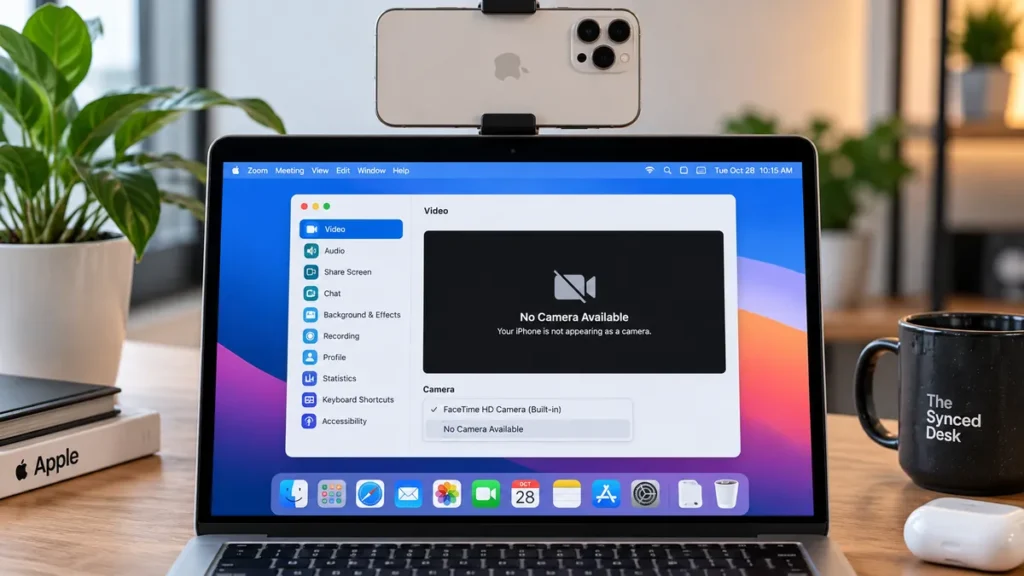
Is Continuity Camera not working when you try to use your iPhone as a webcam on your Mac? Maybe your iPhone doesn’t appear in the camera list, FaceTime keeps using the built-in webcam, or Zoom shows a black screen instead of your iPhone camera.
Continuity Camera is one of Apple’s most useful features for people who regularly switch between an iPhone and a Mac. It allows you to use your iPhone’s camera for video calls, online meetings, and recordings without purchasing a separate webcam.
But sometimes the connection fails even when both devices seem to be working normally.
The good news is that most Continuity Camera problems involve device settings, wireless connections, compatibility requirements, or temporary software issues.
In this guide, we’ll explain 10 practical ways to fix Continuity Camera not working on Mac, including problems with wireless detection, USB connections, FaceTime, Zoom, and other video applications.
Table of Contents
Quick Answer
If Continuity Camera is not working on your Mac, start with these checks:
- Make sure your iPhone and Mac support Continuity Camera.
- Enable Continuity Camera in your iPhone settings.
- Turn on Wi-Fi and Bluetooth on both devices.
- Confirm both devices use the same Apple Account.
- Lock your iPhone and position it near your Mac.
- Select your iPhone manually in your video application.
- Disconnect conflicting Apple Continuity features.
- Check VPN and network restrictions.
- Connect your iPhone using a USB cable.
- Restart both devices and install available software updates.
Try the first few solutions before changing advanced settings.
Why It Stops Working
Continuity Camera uses Apple’s wireless connectivity features to let compatible iPhones function as Mac webcams.
Unlike an ordinary USB webcam, wireless Continuity Camera depends on several conditions being met simultaneously.
Common causes include:
- Wi-Fi or Bluetooth being disabled.
- Different Apple Accounts on the iPhone and Mac.
- Continuity Camera being switched off.
- An iPhone that is unlocked or incorrectly positioned.
- Conflicting Apple features such as AirPlay or Sidecar.
- An application selecting the wrong camera.
- VPN configurations that interfere with local networking.
- Software compatibility problems.
- Missing USB trust permissions.
A camera that does not appear in the application list is different from a camera that connects but displays a black screen.
Identifying which problem you have can help you choose the right fix.
1. Check Compatibility
Before changing settings, confirm that both devices meet Apple’s minimum requirements.
For using an iPhone as a Mac webcam, Apple specifies:
iPhone requirements:
- iPhone XR or later, including compatible newer iPhone models.
- iOS 16 or later.
Mac requirements:
- A Mac compatible with macOS Ventura 13 or later.
- macOS Ventura 13 or a newer compatible version.
Both devices must also support the required Continuity features.
An older Mac running macOS Monterey or earlier cannot use the iPhone-as-webcam feature through Apple’s built-in Continuity Camera system.
There is also an important distinction between using Continuity Camera as a webcam and using it to scan documents.
The document-scanning feature has different compatibility requirements.
If your devices meet the webcam requirements, continue with the following fixes.
2. Enable Continuity Camera
One of the first settings to check is whether Continuity Camera is enabled on your iPhone.
Although Apple normally enables this feature by default, it can be turned off manually.
To check the setting:
- Open Settings on your iPhone.
- Tap General.
- Select AirPlay & Continuity.
- Find Continuity Camera.
- Make sure the switch is enabled.
On some older iOS versions, the menu may be called AirPlay & Handoff.
If Continuity Camera is already enabled, turn it off, wait a few seconds, and enable it again.
Now open FaceTime or another compatible camera application on your Mac and check whether your iPhone appears.
If it doesn’t, move to the next solution.
3. Check Wi-Fi and Bluetooth
Continuity Camera relies on wireless communication between your iPhone and Mac.
Both devices need Wi-Fi and Bluetooth enabled for wireless operation.
On your iPhone:
- Open Settings.
- Tap Wi-Fi and confirm it is enabled.
- Return to Settings.
- Tap Bluetooth and make sure it is enabled.
On your Mac:
- Click the Apple menu.
- Open System Settings.
- Select Wi-Fi and confirm it is turned on.
- Open Bluetooth and check that it is enabled.
Keep your iPhone and Mac close together while testing.
Apple recommends keeping the devices within approximately 30 feet (10 meters) of each other.
For troubleshooting, placing them on the same desk is ideal.
You don’t necessarily need to connect both devices to the same Wi-Fi network, but their wireless features must be available.
Also, remember that Continuity Camera doesn’t require you to pair your iPhone with your Mac manually through the normal Bluetooth device list.
If you’re experiencing broader Bluetooth connection problems, read our guide on iPhone Bluetooth Keeps Disconnecting.
4. Check Your Apple Account
Your iPhone and Mac must be signed in to the same Apple Account for Continuity Camera to work.
Apple also requires two-factor authentication.
If you recently changed your Apple Account password, signed out of iCloud, or switched accounts on one device, the connection may stop working.
Check your iPhone:
- Open Settings.
- Tap your name at the top.
- Check the Apple Account you’re using.
Check your Mac:
- Open System Settings.
- Click your name or Apple Account section.
- Confirm it matches the account on your iPhone.
If the accounts are different, Continuity Camera won’t work between those devices.
Also, make sure two-factor authentication is enabled.
You can review the security settings under Sign-In & Security in your Apple Account settings.
Avoid signing out of your Apple Account as an initial troubleshooting step. Signing out can interrupt iCloud syncing and other connected services.
5. Lock and Position Your iPhone
Your iPhone’s position and screen state can affect whether your Mac recognizes it as a webcam.
For normal Continuity Camera use, Apple recommends that your iPhone be:
- Near your Mac.
- Locked.
- Stable and properly mounted.
- Positioned with its rear cameras facing you.
- Preferably in landscape orientation for automatic camera selection.
You can use a dedicated Continuity Camera mount or a stable phone stand.
Place the iPhone horizontally above or beside your Mac display.
Make sure your fingers, phone case, or mounting accessory aren’t covering the rear camera lenses.
If you recently restarted your iPhone, unlock it once using your passcode or Face ID, then lock it again.
This is one of Apple’s recommended troubleshooting steps.
Important: Unlocking your iPhone while Continuity Camera is active can pause the webcam session. Lock the phone again and restart the video in your application if necessary.
6. Select the Correct Camera
Sometimes Continuity Camera is working correctly, but your video application continues using your Mac’s built-in webcam.
This can happen in FaceTime, Zoom, Google Meet, or other compatible applications.
FaceTime
- Open FaceTime on your Mac.
- Click Video in the menu bar.
- Look for your iPhone under available cameras.
- Select your iPhone.
The video feed should switch to your iPhone’s rear camera.
If your iPhone is not listed, try the other connection fixes in this guide.
Zoom
If Continuity Camera is not working in Zoom:
- Open Zoom on your Mac.
- Go to the video settings or camera selection menu.
- Find the available camera options.
- Select your iPhone if it appears.
- Restart the video preview.
Make sure Zoom is updated to a version compatible with your macOS installation.
Google Meet
For Google Meet:
- Open your meeting in a supported browser.
- Open the meeting settings.
- Select Video.
- Find the camera selection menu.
- Choose your iPhone if available.
If your camera works in FaceTime but not Google Meet, check browser camera permissions and the meeting’s camera selection.
On your Mac, you can also review permissions under:
System Settings → Privacy & Security → Camera
Allow camera access for the affected application when it appears in the list.
If the iPhone camera works in one app but not another, focus on the app’s settings before changing your iPhone configuration.
7. Stop Conflicting Features
Certain Apple Continuity features can conflict with wireless Continuity Camera operation.
Apple specifically notes that wireless Continuity Camera cannot be used while the Mac is using AirPlay or Sidecar.
Other Continuity activities, including iPhone Mirroring, may also interfere with camera availability.
Try temporarily stopping these features:
- End any active AirPlay session.
- Disconnect an iPad being used through Sidecar.
- Close an active iPhone Mirroring session.
- Return to FaceTime or your preferred video app.
- Check whether your iPhone now appears.
Another important condition involves internet sharing.
Your iPhone should not be sharing its cellular connection through Personal Hotspot, and your Mac should not be sharing its internet connection while using Continuity Camera.
Check these settings before trying again.
If several Apple wireless features are failing at the same time, our guide on AirDrop Not Working on iPhone or Macmay help you investigate related connectivity problems.
8. Check VPN Restrictions
A VPN or network security application can sometimes interfere with communication between nearby devices.
Apple advises checking VPN configurations when they prevent local networking.
However, not every VPN causes Continuity Camera problems.
The important question is whether the VPN or security software restricts local device discovery.
Try this test:
- Check whether a VPN is active on your iPhone or Mac.
- If you manage the connection, temporarily disconnect it.
- Keep Wi-Fi and Bluetooth enabled.
- Close and reopen your video application.
- Check whether your iPhone camera appears.
If Continuity Camera works after disconnecting the VPN, investigate the application’s local network settings.
Look for options relating to local device access, LAN connections, or trusted networks.
Some VPN applications provide settings that allow local networking while keeping the VPN connected.
Security note: Do not disable employer-managed VPNs, security profiles, or network protections without permission.
For related iPhone VPN troubleshooting, see our article on iPhone VPN Keeps Turning On.
9. Try a USB Connection
If wireless Continuity Camera is still not working, connecting your iPhone directly to your Mac is one of the most useful tests.
Apple supports both wired and wireless Continuity Camera connections.
A USB connection may help you determine whether the problem is associated with wireless communication.
Follow these steps:
- Get a compatible USB cable for your iPhone and Mac.
- Connect your iPhone directly to your Mac.
- Unlock your iPhone if prompted.
- Tap Trust if you see the Trust This Computer message.
- Enter your iPhone passcode if requested.
- Approve any accessory permission prompt on your Mac.
- Lock and position your iPhone.
- Open FaceTime or another video application.
- Select your iPhone from the camera menu.
If your iPhone appears when connected through USB but not wirelessly, focus on Bluetooth, Wi-Fi, competing Continuity features, and network restrictions.
If USB doesn’t work either, check the cable and ports.
Try another compatible cable if available.
A charging-only cable may not support the data connection required for this setup.
You should also avoid faulty USB hubs or adapters while troubleshooting.
Connect directly to your Mac when possible.
10. Restart and Update
If you’ve checked the connection requirements and Continuity Camera is still not working, restart both devices.
Temporary software issues can sometimes prevent a Mac from discovering an otherwise compatible iPhone.
Restart your iPhone:
- Press and hold the side button and either volume button on a Face ID model.
- Drag the power-off slider.
- Wait approximately 30 seconds.
- Turn your iPhone back on.
Restart your Mac:
- Click the Apple menu.
- Select Restart.
- Allow your Mac to start normally.
After restarting, unlock your iPhone once and lock it again before testing Continuity Camera.
You should also check for software updates.
On iPhone: Settings → General → Software Update.
On Mac: System Settings → General → Software Update.
Install suitable updates if they’re available, preferably after backing up important data.
Also update the video application you’re trying to use.
An outdated version of Zoom, another conferencing application, or an unsupported browser configuration may cause problems even when Continuity Camera itself is functioning properly.
After updating, test the connection again in FaceTime before trying third-party apps.
iPhone Camera Not Showing on Mac
If your iPhone doesn’t appear in the camera selection menu, the problem is usually related to detection rather than camera quality.
Start with these checks:
- Confirm Continuity Camera is enabled.
- Make sure both devices use the same Apple Account.
- Check that Wi-Fi and Bluetooth are enabled.
- Lock your iPhone and position it near your Mac.
- Disconnect conflicting Apple features.
- Try a direct USB connection.
You should also check whether your iPhone was previously disconnected from a Continuity Camera session using the Disconnect button.
Apple explains that this can remove the iPhone from available camera and microphone lists.
If that happens, reconnecting the iPhone to your Mac using USB and mounting it can restore its availability.
Continuity Camera Shows Black Screen
A black screen is not necessarily the same as a missing camera.
If your Mac recognizes your iPhone but displays no video, try opening FaceTime to see whether the problem also happens there.
If FaceTime works normally, the affected application may have a camera selection or permission problem.
If FaceTime also shows a black screen:
- Make sure your iPhone’s rear cameras aren’t obstructed.
- Confirm the iPhone is locked and properly positioned.
- Stop and restart the camera session.
- Disconnect and reconnect the USB cable if you’re using one.
- Restart both devices.
You can also open the Camera app on your iPhone separately to check whether its rear camera works normally.
If the iPhone camera itself displays a black screen, the issue may be unrelated to Continuity Camera.
Avoid performing a factory reset solely because one video application displays a black preview.
Camera Keeps Disconnecting
Does Continuity Camera connect successfully but stop working after a few minutes?
First, check whether you unlocked your iPhone or moved it away from its mount.
Apple notes that unlocking the iPhone can pause an active camera session.
Incoming calls can also interrupt video temporarily.
Other possible causes include:
- Your iPhone moving outside Bluetooth range.
- Wireless interference.
- An unstable USB cable.
- A video application temporarily losing access to the camera.
- An iPhone battery running low.
Try keeping your phone locked, connected to power if necessary, and positioned on a stable mount.
If the disconnections occur only when using the camera wirelessly, test a USB connection.
One detail worth knowing: Apple says an iPhone may occasionally disconnect from Wi-Fi to optimize wireless Continuity Camera performance. This does not automatically mean the webcam connection has failed.
During this behavior, the iPhone may use cellular data for background activity.
If this causes problems, Apple recommends using a wired connection or disabling cellular data when appropriate.
Frequently Asked Questions
Why is my Continuity Camera not working?
Continuity Camera may fail because Wi-Fi or Bluetooth is disabled, your devices use different Apple Accounts, the feature is switched off, or another Apple Continuity feature is interfering. Start by checking compatibility and connection settings.
Why isn’t my iPhone showing as a camera on Mac?
Your iPhone may not meet the connection requirements, may be unlocked or improperly positioned, or may have been disconnected from a previous session. Try locking and mounting it, then connecting through USB.
Does Continuity Camera need Wi-Fi?
For wireless operation, Wi-Fi and Bluetooth must be enabled on both devices. However, Continuity Camera doesn’t necessarily require both devices to join the same Wi-Fi network. A compatible USB connection is also supported.
Can Continuity Camera work with Zoom?
Yes. Compatible versions of Zoom can use an iPhone as a webcam through Continuity Camera. If Zoom doesn’t recognize the camera, check the application’s video settings and compare its behavior with FaceTime.
Why does Continuity Camera stop when I unlock my iPhone?
Apple designed the feature to work with the iPhone locked and properly positioned. Unlocking the phone can pause the webcam session. Lock the iPhone again and resume the camera connection.
Can I use Continuity Camera without a USB cable?
Yes. Continuity Camera supports wireless connections when the compatible iPhone and Mac meet Apple’s requirements. A USB cable is optional but can be useful when troubleshooting wireless problems.
Does Continuity Camera work on older Macs?
It depends on macOS compatibility. The iPhone-as-webcam feature requires macOS Ventura 13 or later and a compatible iPhone running iOS 16 or later. Older Macs that cannot run macOS Ventura do not support this built-in webcam feature.
Final Thoughts
When Continuity Camera is not working, the first thing to check is whether your iPhone and Mac meet Apple’s compatibility and connection requirements.
In many cases, enabling Continuity Camera, turning on Wi-Fi and Bluetooth, locking your iPhone, or selecting the correct camera in your video application can restore the connection.
If wireless detection continues to fail, connecting your iPhone through USB is an excellent way to narrow down the problem.
You usually don’t need to reset your network settings, erase your iPhone, or reinstall macOS just because Continuity Camera stops responding.
If your devices meet every requirement and the camera still fails in FaceTime and other applications, contact Apple Support for further assistance.
Official Apple Support Resources
For additional technical guidance, refer to Apple’s official documentation:
- Continuity Camera: Use iPhone as a webcam for Mac
- Continuity features and requirements for Apple devices
- Use your iPhone as a webcam on Mac
These resources explain device compatibility, wireless requirements, camera selection, and Apple’s recommended troubleshooting procedures.
The Synced Desk | Practical solutions for everyday technology problems.