Is your MacBook wifi not working even though your iPhone and other devices connect to the internet without any problems? Maybe your MacBook Air keeps saying “No Internet Connection,” your MacBook Pro refuses to join a wireless network, or Wi-Fi suddenly stops working after waking your laptop from sleep.
A Wi-Fi problem can be frustrating, especially when you’re trying to attend online meetings, download files, stream videos, or get work done.
Fortunately, MacBook wifi not working doesn’t necessarily mean your laptop has a hardware problem.
Incorrect network settings, temporary macOS issues, router problems, VPN interference, and expired IP addresses can all prevent your MacBook from connecting properly.
Sometimes, your MacBook may actually be connected to Wi-Fi, but the router doesn’t have a working internet connection.
In this guide, we’ll explain 12 practical fixes for MacBook WiFi not working, including solutions for MacBook Air, MacBook Pro, Apple silicon Macs, and Intel-based models.
We’ll also cover Wi-Fi problems after macOS updates, missing wireless networks, connections that stop working after sleep, and situations where your MacBook connects to Wi-Fi but has no internet.
Table of Contents
Quick Answer
If your MacBook Wi-Fi isn’t working, try these solutions in order:
- Check whether Wi-Fi is enabled on your Mac.
- Confirm you’re connecting to the correct network.
- Check whether other devices can access the internet.
- Restart your MacBook.
- Restart your router and modem.
- Move closer to the router and check interference.
- Forget the Wi-Fi network and reconnect.
- Renew your Mac’s DHCP lease.
- Check VPN, DNS, and proxy settings.
- Verify the date, time, and public Wi-Fi login.
- Run Apple’s Wireless Diagnostics.
- Update macOS and check router compatibility.
Start with the first few solutions before changing advanced network settings.
Why MacBook WiFi Not Working Happens
MacBook Wi-Fi problems can occur for several reasons.
The most common causes include:
- Wi-Fi disabled: Your Mac’s wireless connection may be turned off.
- Incorrect password: The saved Wi-Fi password may no longer match your router.
- Router problems: Your router or modem may be experiencing a temporary issue.
- Weak wireless signal: Distance and physical obstacles can affect the connection.
- Network configuration errors: An expired DHCP lease or incorrect DNS setting can prevent internet access.
- VPN interference: Certain VPN applications or security filters can block network traffic.
- macOS issues: Temporary software problems can affect wireless connectivity.
- Router compatibility: Some wireless security settings may not work correctly with your Mac.
- Hardware faults: Less commonly, a MacBook’s wireless hardware may need professional attention.
Before changing anything, identify the exact problem.
| MacBook Wi-Fi problem | Possible cause |
|---|---|
| Wi-Fi won’t turn on | Software, restrictions, or hardware |
| Network not appearing | Signal, router, or wireless discovery |
| Incorrect password | Saved password or authentication |
| Connected but no internet | Router, ISP, DNS, VPN, or DHCP |
| Wi-Fi disconnects after sleep | Reconnection or software issue |
| Wi-Fi works on other devices | Mac-specific settings or compatibility |
Now let’s troubleshoot the connection.
1. Check Wi-Fi Settings
The first thing to do when your MacBook wifi not working problem appears is verify that Wi-Fi is actually enabled.
You can check this through System Settings or the Wi-Fi icon in the menu bar.
Follow These Steps
- Click the Apple menu in the upper-left corner.
- Select System Settings.
- Click Wi-Fi in the sidebar.
- Make sure Wi-Fi is turned on.
- Wait for available networks to appear.
- Select your preferred network.
- Enter the password if requested.
If Wi-Fi is already enabled, try turning it off and back on once.
Wait a few seconds before reconnecting.
Check the Network Status
Open System Settings → Network to review your Mac’s network connection status.
A connected Wi-Fi service generally shows a green status indicator.
However, a connected network doesn’t automatically guarantee internet access.
If Wi-Fi appears connected but Safari won’t open websites, continue with the following steps.
What If Wi-Fi Is Unavailable?
If the Wi-Fi option is missing or greyed out, restart your Mac.
If the problem continues, Apple Support may need to investigate the wireless hardware or system configuration.
Avoid deleting macOS configuration files or using unfamiliar Terminal commands as an initial solution.
2. Check Your Network Password
Sometimes your MacBook tries to connect using an outdated Wi-Fi password.
This commonly happens after replacing a router, changing the network password, or connecting to another network with a similar name.
Verify the Connection
- Open System Settings.
- Select Wi-Fi.
- Find the correct network.
- Click Connect if available.
- Enter the current wireless password.
- Wait for the connection to finish.
Wi-Fi passwords are case-sensitive.
Make sure Caps Lock is disabled and check similar-looking characters, particularly uppercase O and the number 0.
Check the Network Name
Some routers broadcast multiple networks.
For example, you might see HomeWiFi, HomeWiFi-5G, and HomeWiFi-Guest.
These may have different passwords or access restrictions.
Make sure you’re connecting to the intended network.
What About Password Sharing?
If you’re trying to connect your MacBook using a password shared from an iPhone, Apple’s password-sharing requirements also matter.
For that specific feature, read our iPhone WiFi Password Sharing Not Working guide.
If manually entering the correct password doesn’t solve the problem, continue troubleshooting.
3. Test Other Devices
Before resetting your MacBook, determine whether the problem affects your entire wireless network.
This is one of the most useful ways to identify the cause.
Compare Your Devices
- Connect your iPhone to the same Wi-Fi network.
- Open Safari or another browser.
- Try loading a website.
- Repeat the test on another device if available.
- Compare the results with your MacBook.
Understand the Results
If every device has problems: Your router, modem, or internet service provider may be responsible.
If only your MacBook has problems: Investigate your Mac’s network settings, software, or compatibility.
If your MacBook works on another network: The original wireless router or its configuration is a stronger suspect.
Try an iPhone Hotspot
You can also connect your MacBook to a personal hotspot from an iPhone with a working cellular data connection.
If your MacBook connects to the hotspot successfully, its Wi-Fi hardware can communicate with at least that network.
However, this test doesn’t completely rule out hardware problems.
If the hotspot itself doesn’t work, see our iPhone Personal Hotspot Not Working guide.
Important: Personal Hotspot uses cellular data, which may count toward your mobile plan.
4. Restart Your MacBook
A simple restart can resolve temporary macOS networking problems.
Apple specifically recommends restarting a Mac when it connects to Wi-Fi but cannot access the internet.
Restarting may also renew the IP address assigned by your router.
Restart Your Mac
- Save your open documents.
- Close applications that require an active internet connection.
- Click the Apple menu.
- Select Restart.
- Allow your MacBook to restart completely.
- Unlock your Mac.
- Open Wi-Fi settings.
- Reconnect to your preferred network.
Now open Safari and visit a website.
If the connection works normally, the issue may have involved a temporary networking state.
Should You Shut Down Instead?
A normal restart is usually sufficient for this initial test.
You don’t need to erase your Mac, reset NVRAM, or perform other advanced recovery procedures simply because the wireless connection temporarily stops working.
For Apple silicon Macs, such as models using M-series chips, a normal restart is also an appropriate first troubleshooting step.
5. Restart Your Router
If your MacBook still cannot connect, the router may be responsible.
Routers can occasionally experience temporary software problems, connection failures, or issues assigning network addresses.
Restarting your network equipment may restore normal operation.
Restart the Router and Modem
- Save any work requiring internet access.
- Disconnect power from the router.
- Disconnect the modem too if it’s a separate device.
- Wait approximately 30 seconds.
- Reconnect the modem first.
- Wait until its connection indicators stabilize.
- Reconnect the router.
- Allow the wireless network to become available.
- Try connecting your MacBook again.
If you use a combined modem-router, restarting that single device may be enough.
Avoid a Factory Reset
Do not press the small factory-reset button on your router.
A factory reset may erase the network name, password, and custom configuration.
If other devices also have no internet after restarting the equipment, contact your internet service provider.
On an office or school network, ask the administrator before restarting shared equipment.
6. Check Signal and Interference
A weak Wi-Fi signal can cause repeated disconnections, slow speeds, or unsuccessful connection attempts.
This is especially relevant if your MacBook works near the router but stops connecting in another room.
Test Your Wireless Signal
- Move your MacBook into the same room as the router.
- Keep it a few feet away.
- Open Wi-Fi settings.
- Connect to your wireless network.
- Browse the internet for several minutes.
- Check whether the connection remains stable.
If the problem disappears near the router, wireless coverage or interference may be contributing.
Reduce Interference
Try positioning your router away from:
- Thick walls and metal furniture.
- Microwave ovens.
- Large electronic equipment.
- Crowded wireless devices.
- Obstructions that block the signal.
Modern routers often support 2.4 GHz and 5 GHz bands, while some also support 6 GHz.
Different bands provide different coverage and performance characteristics.
If your router exposes separate network names, test another band supported by your Mac.
Avoid permanently disabling security settings or wireless bands without a specific reason.
If your iPhone also has intermittent connectivity on the same router, read our iPhone Wi-Fi Keeps Disconnecting guide.
7. Forget and Rejoin Wi-Fi
Sometimes the saved network information on your MacBook becomes outdated.
Forgetting the network and reconnecting replaces the existing saved connection.
This can help when your Mac repeatedly rejects a network or continues using an outdated password.
Forget the Network
- Open System Settings.
- Select Wi-Fi.
- Find the affected network.
- Click Details if you’re currently connected.
- Choose Forget This Network, if available.
- Confirm your decision.
You can also find previously saved connections under Known Networks in Wi-Fi settings.
Reconnect to Wi-Fi
- Return to the available wireless networks.
- Select the correct network.
- Enter the current password.
- Wait for the connection to finish.
- Test internet access.
Important: Make sure you know the network password before forgetting it.
If your network is managed by a workplace or school, consult the administrator before changing managed configurations.
Forgetting a network doesn’t delete your personal documents, applications, or photos.
8. Renew Your DHCP Lease
If your MacBook wifi not working problem occurs even though the laptop appears connected, an IP address issue may be involved.
Your router normally assigns your MacBook an IP address using DHCP.
An expired or conflicting DHCP lease can sometimes prevent communication with the network.
Apple provides a built-in option to renew the lease.
Renew the IP Address
- Click the Apple menu.
- Open System Settings.
- Select Network.
- Click Wi-Fi.
- Open Details.
- Select TCP/IP.
- Click Renew DHCP Lease, if available.
- Confirm the change.
- Test your internet connection.
The option appears when the network uses DHCP.
What Does This Do?
Renewing the DHCP lease asks the network to refresh the IP address assigned to your Mac.
This doesn’t erase your files or reset the entire computer.
It may help if the Mac’s previous network address is no longer valid or conflicts with another device.
However, it won’t solve a router outage or a broken broadband connection.
9. Check VPN, DNS, and Proxy
VPN applications, DNS settings, and proxy configurations can affect how your Mac reaches websites.
Sometimes Wi-Fi remains connected while internet traffic fails.
This can create the impression that the MacBook’s wireless connection is broken.
Test Your VPN
If you use a personally managed VPN:
- Open the VPN application.
- Check whether it is connected.
- Temporarily disconnect it if safe and permitted.
- Open Safari.
- Try loading several websites.
- Compare the results.
If internet access returns after disconnecting the VPN, investigate the VPN application’s configuration.
You may need to update the application or contact the provider.
Check DNS Settings
To review DNS:
- Open System Settings.
- Select Network.
- Click Wi-Fi.
- Open Details.
- Select DNS.
Review the listed DNS servers.
If unexpected manual servers are present, they might be affecting domain-name resolution.
Record the existing settings before making changes.
Check Proxies
In the same network details window, open Proxies.
Unexpected proxy settings can prevent websites and applications from connecting properly.
However, don’t remove settings required by an employer, school, or organization.
Security note: Do not disable required network-protection software merely to increase internet speed or bypass an administrator’s restrictions.
10. Check Date and Public Wi-Fi
An incorrect system date or time can interfere with secure connections.
Apple recommends verifying date and time when troubleshooting some Mac internet problems.
Check Your Mac’s Date
- Open System Settings.
- Select General.
- Click Date & Time.
- Confirm the date and time are correct.
- Enable automatic time settings if appropriate.
- Reconnect to your Wi-Fi network.
Now try accessing a website again.
Check Public Wi-Fi Sign-In
If you’re using hotel, airport, university, or café Wi-Fi, the network may require a browser login.
Your Mac may show that Wi-Fi is connected even though access is restricted until you accept the network’s terms.
Try these steps:
- Connect to the public network.
- Wait for the sign-in window.
- Open Safari if necessary.
- Look for the network’s official welcome page.
- Complete the authorized login process.
- Test internet access.
Avoid entering sensitive information into public network login pages unless you can verify the provider.
A captive portal problem is different from defective MacBook Wi-Fi hardware.
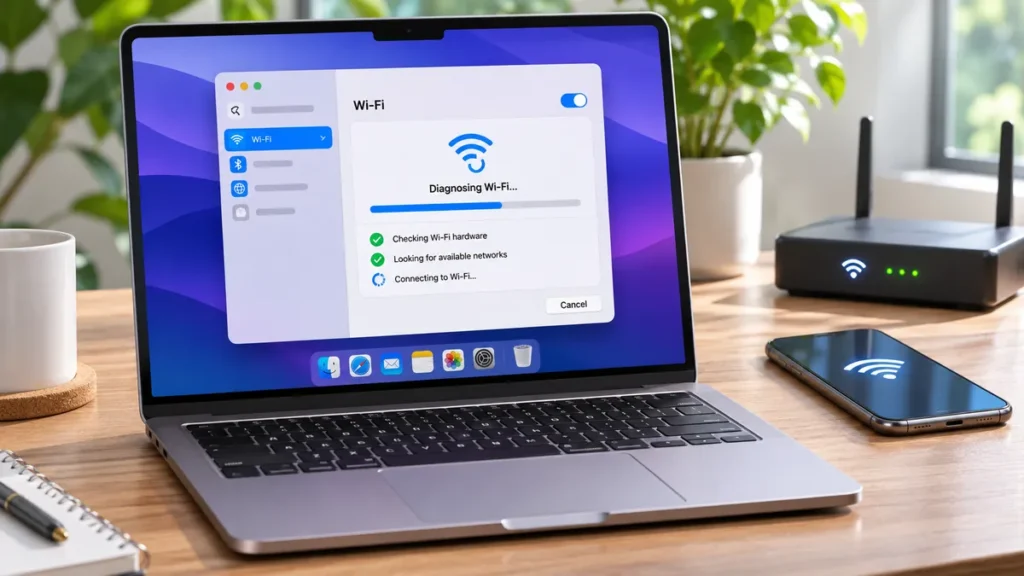
11. Run Wireless Diagnostics
Apple includes a troubleshooting tool called Wireless Diagnostics.
It analyzes your Mac’s wireless environment and provides information about detected connection problems.
This can be useful when your MacBook connects but the connection is unreliable.
Open Wireless Diagnostics
- Connect to the Wi-Fi network you’re troubleshooting, if possible.
- Hold the Option key on your keyboard.
- While holding Option, click the Wi-Fi icon in the menu bar.
- Select Open Wireless Diagnostics.
- Follow the onscreen instructions.
- Wait for the analysis to finish.
- Review the results and recommendations.
Apple explains that Wireless Diagnostics doesn’t automatically change your network settings.
The tool may identify wireless conditions that need attention.
Check Wi-Fi Recommendations
You may also see Wi-Fi Recommendations in the Wi-Fi menu when macOS detects a problem.
If available, open it and review the suggestions.
This feature isn’t available for all networks, including certain enterprise configurations and personal hotspots.
Avoid immediately applying unfamiliar advanced configuration changes without understanding their purpose.
12. Update macOS and Router Firmware
If your MacBook wifi not working issue continues after the earlier checks, review your software versions.
Apple recommends keeping macOS updated and using current router firmware.
Software updates can improve compatibility, security, and network stability.
Update macOS
- Open System Settings.
- Select General.
- Click Software Update.
- Wait while macOS checks for updates.
- Review any compatible update.
- Back up important data.
- Install the update if appropriate.
If your MacBook has no internet connection, you may need another trusted network or a supported alternative connection.
Update Router Firmware
If you manage your router:
- Identify the router manufacturer and model.
- Open its official management application or configuration page.
- Check for available firmware updates.
- Follow the manufacturer’s instructions.
- Restart the router if required.
- Test the MacBook connection again.
Never install firmware intended for another router model.
Check Router Security
Apple recommends using modern Wi-Fi security configurations.
Depending on your router and connected devices, appropriate options can include WPA3 Personal or WPA2/WPA3 Transitional mode.
Avoid outdated security protocols and disabling encryption.
If your Mac cannot join several known-working networks after these steps, contact Apple Support for further diagnosis.
MacBook WiFi Not Working but Connected
Does your MacBook show a Wi-Fi connection but refuse to open websites?
This is different from being unable to join a network.
A working Wi-Fi connection only means your Mac has established communication with the local wireless network.
The router still needs a working internet connection.
Troubleshoot This Situation
First, test whether other devices connected to the same router can access the internet.
If they cannot, investigate your router or internet service provider.
If only the MacBook is affected, try renewing its DHCP lease.
Then check DNS, VPN, and proxy settings.
Also verify the date and time.
If your Mac works on another network, the original router or its configuration may be responsible.
Avoid repeatedly forgetting the network when the real problem is an internet service outage.
MacBook WiFi Not Working After Sleep
Some users notice that Wi-Fi works normally until they close their MacBook lid.
After reopening it, the computer may display a connection but fail to load websites.
Other times, the MacBook doesn’t automatically reconnect to the preferred network.
What to Try
- Unlock your MacBook completely.
- Open System Settings → Wi-Fi.
- Confirm Wi-Fi is enabled.
- Reconnect to the preferred network.
- Check whether automatic joining is enabled.
- Renew the DHCP lease if you’re connected but have no internet.
- Restart your MacBook if the problem continues.
- Install a compatible macOS update when available.
Also check whether your Mac is automatically joining another nearby network.
If the problem happens after every sleep cycle, record the behavior and consider checking with Apple Support.
Do not delete macOS networking files using outdated Terminal commands without appropriate guidance.
MacBook WiFi Not Working After Update
If your MacBook loses its Wi-Fi connection after a macOS update, begin with the standard connection checks.
An update may coincide with a router compatibility issue, a VPN problem, or outdated network settings.
However, the timing alone doesn’t prove the update caused the problem.
Try These Fixes
Start by restarting your MacBook.
Next, try reconnecting to the wireless network.
If it still fails, forget the saved connection and join again using the correct password.
Test another trusted network if available.
Check whether VPN or security applications need compatible updates.
You should also review System Settings → General → Software Update for any newer fixes.
If Wi-Fi remains unavailable across multiple working networks, contact Apple Support.
MacBook Wi-Fi Network Not Showing
If your MacBook cannot find a particular Wi-Fi network, confirm the router is working.
Check whether another nearby device can see the network.
Move your MacBook closer to the access point and try again.
If other devices can see the network but your Mac cannot, restart the Mac and review compatible router settings.
Some networks use hidden SSIDs or administrator-controlled configurations.
If you’re connecting to an enterprise or educational network, contact its administrator for the correct connection instructions.
Avoid weakening the router’s security simply to make the network visible.
MacBook WiFi Not Working on MacBook Air
If your MacBook wifi not working issue affects a MacBook Air, start by checking the wireless connection in System Settings.
Whether you use an Apple silicon or Intel-based MacBook Air, the basic troubleshooting process is similar.
Make sure Wi-Fi is enabled, restart your MacBook, and test another trusted network.
If your MacBook Air connects to a mobile hotspot but not your home router, investigate the router’s security settings and compatibility.
You should also check whether VPN software or a saved network configuration is interfering with the connection.
MacBook WiFi Not Working on MacBook Pro
A MacBook wifi not working problem on a MacBook Pro can have many of the same causes.
First, determine whether your MacBook Pro can detect available Wi-Fi networks.
If networks appear but connections fail, verify the password and try forgetting the affected network.
If the MacBook connects but cannot access websites, check DNS settings, VPN software, and the router’s internet connection.
Try Wireless Diagnostics if the connection remains unreliable.
MacBook WiFi Not Working After Restart
If MacBook wifi not working continues even after restarting, the problem may involve saved network settings or the router.
Try connecting to another trusted network. If that works, the original router or its configuration deserves attention.
If multiple known-working networks fail, check for available macOS updates and contact Apple Support if necessary.
When to Contact Apple Support
Most temporary MacBook Wi-Fi problems can be investigated without replacing hardware.
However, professional assessment may be appropriate when:
- Wi-Fi cannot be enabled in System Settings.
- Your MacBook cannot detect any known-working wireless networks.
- Multiple trusted networks fail on the Mac while working on other devices.
- The problem continues after software updates and diagnostic checks.
- Apple Diagnostics reports a wireless hardware issue.
- You suspect physical or liquid damage.
Apple Diagnostics can help identify some internal hardware problems, including wireless components.
However, it cannot identify every software or router issue.
Contact Apple Support or an Apple Authorized Service Provider if you suspect hardware failure.
Frequently Asked Questions
Why is my MacBook wifi not working?
Your MacBook may have an incorrect saved password, a temporary macOS issue, weak wireless signal, router problem, VPN interference, or an IP address configuration error. Start by checking Wi-Fi settings and testing another network.
Why won’t my MacBook connect to Wi-Fi when my iPhone does?
The MacBook may have outdated saved network information, incorrect DNS settings, a VPN issue, or a compatibility problem with the router. Try forgetting the network and testing another trusted connection.
Why does my MacBook say connected but no internet?
Your MacBook can connect to a router even when the router has no working internet connection. DNS, VPN, proxy, or DHCP issues can also prevent online access.
How do I fix MacBook WiFi not working after sleep?
Reconnect to the preferred network, check automatic joining, renew the DHCP lease if necessary, and restart the Mac. Install compatible macOS updates if the problem repeats.
How do I reset Wi-Fi on a MacBook?
There isn’t a single universal reset procedure equivalent to the iPhone’s Reset Network Settings button. Start by forgetting and rejoining the affected network, restarting the Mac, or renewing its DHCP lease.
Will forgetting Wi-Fi delete my MacBook files?
No. Forgetting a Wi-Fi network removes saved connection information. It doesn’t erase your personal documents, installed applications, or photos.
Can VPN software stop MacBook Wi-Fi from working?
Yes. Some VPN applications and network filters can interfere with internet traffic. Wi-Fi may remain connected while websites and applications fail to load.
Why is my MacBook Wi-Fi slow but my phone is fast?
Different wireless capabilities, signal conditions, frequency bands, VPN configurations, and application activity can produce different performance results. Compare both devices near the same router.
Does updating macOS fix Wi-Fi issues?
A compatible macOS update may resolve certain software-related connectivity problems. However, it won’t repair a defective router or guarantee a solution for every Wi-Fi issue.
How do I know whether my MacBook Wi-Fi hardware is damaged?
Test several known-working networks and use Apple’s diagnostic tools. If wireless networking remains unavailable despite software checks, contact Apple Support for hardware evaluation.
Final Thoughts
If your MacBook wifi not working problem prevents you from getting online, don’t immediately assume that your MacBook Air or MacBook Pro needs repair.
Start by checking Wi-Fi settings, confirming the network password, and comparing the connection with another device.
Restarting your MacBook or router can resolve temporary issues.
If the connection remains unavailable, forget the saved network, check DHCP and DNS settings, and investigate VPN interference.
Apple’s Wireless Diagnostics tool can also help identify connection problems without automatically changing your settings.
Most importantly, avoid deleting system files, disabling router security, or erasing your MacBook before investigating the underlying cause.
If your MacBook continues failing across multiple known-working wireless networks after these checks, Apple Support can help you determine whether further software troubleshooting or hardware service is necessary.
Official Apple Support Resources
For additional guidance, refer to Apple’s official documentation:
- If Your Mac Isn’t Connecting to the Internet Over Wi-Fi
- Use Wireless Diagnostics on Your Mac
- Renew Your IP Address From the DHCP Server
- Recommended Settings for Wi-Fi Routers
The Synced Desk | Practical solutions for everyday technology problems.