Apple Pencil not charging even though it’s attached to your iPad? Maybe the battery is stuck at 0%, the Pencil isn’t showing a charging indicator, or it connects but never gains battery percentage.
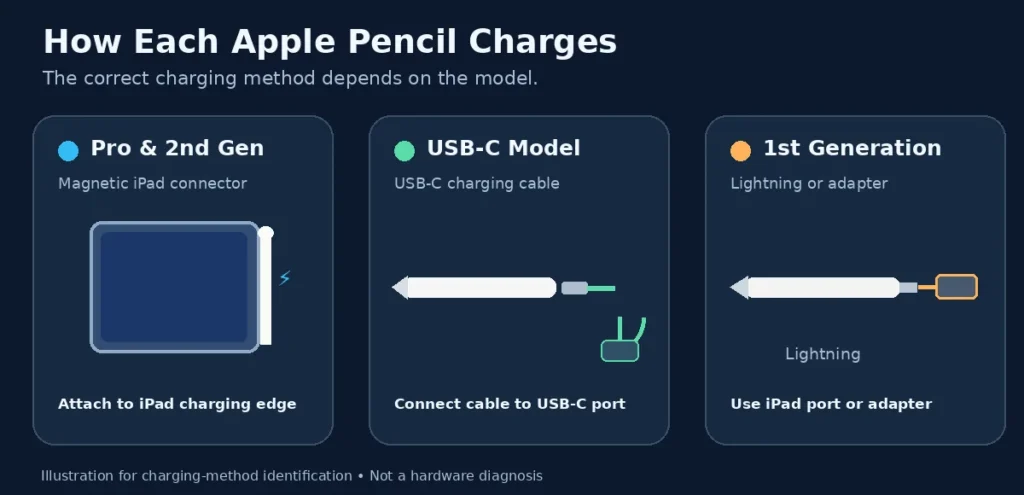
Before assuming the battery has failed, check how your specific Apple Pencil charges. Apple Pencil Pro and the 2nd-generation model charge magnetically, while Apple Pencil (USB-C) and the 1st-generation model require a physical charging connection.
This guide covers 10 practical fixes for Apple Pencil charging problems, including magnetic connector issues, USB-C and Lightning charging, battery detection, and problems that appear after an iPadOS update.
Table of Contents
Quick Answer: How to Fix Apple Pencil Not Charging
If your Apple Pencil won’t charge, start with these checks:
- Use the correct charging method for your Pencil model.
- Confirm that the Pencil is compatible with your device.
- Check that your iPad has power and Bluetooth is enabled.
- Remove any case interfering with magnetic charging.
- Inspect the charging connector for dirt or damage.
- Try a different USB-C cable or charging adapter, if applicable.
- Allow the Pencil time to charge and check its battery percentage.
- Restart your iPad and install available software updates.
- Forget and reconnect your Apple Pencil if it isn’t recognized.
- Contact Apple Support if the Pencil remains unresponsive.
Start with the model identification below. Using the wrong charging method is easy to overlook.
How Does Each Apple Pencil Charge?
Not every Apple Pencil uses the same charging connection.
| Apple Pencil model | Charging method |
|---|---|
| Apple Pencil Pro | Magnetic connector on a compatible iPad |
| Apple Pencil (2nd generation) | Magnetic connector on a compatible iPad |
| Apple Pencil (USB-C) | USB-C cable connected to a supported device or power adapter |
| Apple Pencil (1st generation) | Lightning connection or supported charging adapter |
Important: Apple Pencil (USB-C) can attach magnetically to the side of an iPad for storage. That attachment does not charge it.
Apple also requires a USB-C to Apple Pencil Adapter when using the 1st-generation Pencil with certain USB-C iPads, including iPad (10th generation) and iPad (A16).
If you’re unsure which model you own, use Apple’s official compatibility guide before continuing.
Why Is Your Apple Pencil Not Charging?
Several problems can prevent charging:
- The Pencil isn’t positioned correctly on the magnetic connector.
- An iPad case or cover interferes with charging.
- The USB-C cable, Lightning connection, or adapter is damaged.
- The iPad itself has a power or connection problem.
- The Pencil and iPad are incompatible.
- A software or Bluetooth issue prevents the battery status from updating.
- The Pencil battery or charging hardware has failed.
A missing battery indicator doesn’t always prove that charging has stopped. Sometimes the Pencil simply isn’t being recognized by the iPad.
The fixes below help distinguish between these situations.
1. Charge Apple Pencil the Correct Way
The first fix is also the most important.
Apple Pencil Pro
- Turn on Bluetooth in Settings → Bluetooth.
- Attach the Pencil to the magnetic charging connector along the long edge of your compatible iPad.
- Make sure it is properly aligned.
- Check the Pencil battery level in Settings or the Batteries widget.
Apple Pencil Pro charges through the magnetic connector. You don’t need a USB-C cable connected directly to the Pencil.
Apple Pencil (2nd Generation)
- Enable Bluetooth.
- Attach the Pencil to the magnetic connector on the right side of a compatible iPad.
- Allow the Pencil to establish its connection.
- Check whether the battery level appears and changes.
If nothing happens, remove the Pencil and attach it again carefully.
Apple Pencil (USB-C)
- Slide open the end of the Pencil to expose its USB-C port.
- Connect a compatible USB-C charging cable.
- Connect the other end to a supported iPad or suitable USB-C power adapter.
- Check whether the Pencil is recognized and charging.
The magnetic attachment is for storage only. It cannot replace the USB-C charging cable.
Apple Pencil (1st Generation)
For compatible iPads with a Lightning connector:
- Remove the Pencil cap.
- Plug the Lightning connector into the iPad.
- Keep the connection secure while charging.
For iPad (10th generation) or iPad (A16), use the required USB-C to Apple Pencil Adapter and USB-C cable.
Do not force a connector into a device that doesn’t support it.
2. Check Apple Pencil and iPad Compatibility
An unsupported Apple Pencil will not become compatible simply by attaching it to the side of an iPad.
Apple Pencil Pro, for example, works with selected newer iPad Pro, iPad Air, and iPad mini models. The 2nd-generation Apple Pencil uses a different compatibility list.
To check your iPad model:
- Open Settings → General → About.
- Find Model Name.
- Compare it with Apple’s compatibility list.
This is especially important if you’ve recently replaced your iPad but kept an older Pencil.
A magnetic attachment alone does not establish compatibility.
3. Check Your iPad Power and Bluetooth
Before investigating the Pencil, make sure your iPad is functioning normally.
Try the following:
- Check the iPad battery percentage.
- Connect your iPad to a reliable charger if its battery is low.
- Open Settings → Bluetooth and make sure Bluetooth is enabled.
- Reconnect the Pencil using its supported charging method.
Apple recommends keeping Bluetooth enabled when pairing and charging supported magnetic Apple Pencil models.
If your iPad itself is not charging, fix that first. Our iPad Not Charging troubleshooting guide explains how to check the power adapter, cable, outlet, and charging port.
Do not assume that every Apple Pencil charging problem is caused by Bluetooth. A damaged battery or charging connector can produce similar symptoms.
4. Remove Your iPad Case and Reposition the Pencil
This fix is most relevant to Apple Pencil Pro and Apple Pencil (2nd generation).
Some thick cases, covers, magnetic accessories, or poorly aligned holders can interfere with the intended charging connection.
Try this:
- Remove the iPad case temporarily.
- Detach the Apple Pencil.
- Position the Pencil directly on the proper magnetic charging edge.
- Check whether the iPad recognizes it.
- Leave it attached while monitoring the battery level.
If charging works without the case, the case may be preventing proper contact or alignment.
Consider a case designed for your specific iPad and Apple Pencil combination.
Do not rely on magnetic attachment alone as evidence of charging. Confirm the battery percentage instead.
5. Inspect the Charging Connection
Dirt, residue, or physical damage can interfere with charging.
For magnetic Apple Pencil models, examine the Pencil’s charging surface and the corresponding area of the iPad.
For Apple Pencil (USB-C), inspect the USB-C connector and cable. For the 1st-generation Pencil, check the Lightning connector and adapter.
Look for:
- Visible dust or debris
- Damaged or bent connectors
- Cracked or loose charging accessories
- Signs of liquid exposure
- Misalignment between the Pencil and charging surface
Use a soft, dry, lint-free cloth to wipe accessible surfaces gently.
Avoid inserting sharp tools into charging ports or applying liquids directly to connectors.
If you notice corrosion, bent contacts, or significant physical damage, stop attempting to force the connection and seek professional inspection.
6. Try Another Cable or Charging Adapter
This step applies primarily to Apple Pencil (USB-C) and Apple Pencil (1st generation).
A faulty cable or adapter may prevent the Pencil from receiving power even when the iPad works normally.
For a USB-C Pencil:
- Disconnect the existing cable.
- Try another known-working USB-C cable.
- Connect the Pencil to a suitable USB-C power source.
- Check the battery level again after allowing time to charge.
For a 1st-generation Pencil, check the supported Lightning charging connection or required adapter.
If charging works with another cable, the original accessory may be faulty.
This step does not apply to Apple Pencil Pro or 2nd-generation models, which do not have a direct USB charging port.
7. Check Whether the Battery Percentage Increases
Sometimes an Apple Pencil is recognized by the iPad but seems stuck at 0% or another battery percentage.
Instead of relying only on the charging pop-up, check the battery reading directly.
You can:
- Open Settings → Apple Pencil on a compatible iPad.
- Check the displayed battery percentage, if available.
- Alternatively, add or view the Batteries widget.
- Connect the Pencil using its correct charging method.
- Observe whether the percentage increases after several minutes.
If the Pencil was deeply discharged, give it some time before checking again.
Apple advises allowing at least a short charging period when a Pencil cannot be paired, but there is no universal guaranteed recovery time for a severely depleted or damaged battery.
If the percentage remains unchanged even after you’ve checked the cable, alignment, and compatibility, the problem may involve the battery or charging hardware.
8. Restart Your iPad and Update iPadOS
A temporary software issue may affect Apple Pencil recognition or the displayed battery status.
First, restart the iPad normally.
Then:
- Open Settings → General → Software Update.
- Install an available compatible update.
- Reconnect your Apple Pencil.
- Check its battery percentage.
Some iPad users have reported Apple Pencil battery readings becoming stuck or charging behaving inconsistently after software updates. Such reports are useful troubleshooting clues, but they do not prove that every iPadOS update causes a widespread charging defect.
A restart or update may fix a software-related issue. It will not repair a physically damaged charging connector or battery.
9. Forget and Reconnect Your Apple Pencil
If the iPad doesn’t recognize the Pencil or its battery status isn’t appearing, a pairing problem may be involved.
Try this only after checking the charging method.
- Open Settings → Bluetooth.
- Find your Apple Pencil under My Devices, if listed.
- Tap the information button beside it.
- Select Forget This Device.
- Reconnect the Pencil using its correct model-specific method.
- Follow any pairing instructions that appear.
If the Pencil is absent from Bluetooth settings, skip the Forget This Device step.
Apple recommends reconnecting the Pencil and allowing it a short charging period if the pairing prompt doesn’t appear.
For additional pairing-specific troubleshooting, see our guide to Apple Pencil Not Connecting to iPad.
If Bluetooth itself is malfunctioning on your iPad, our iPad Bluetooth Not Working guide covers that separate issue.
Note: Re-pairing may restore recognition, but it cannot fix a defective battery.
10. Check for Battery or Hardware Failure
If the Apple Pencil still doesn’t charge, the hardware may need inspection.
Possible warning signs include:
- The battery never increases from 0% despite correct charging.
- The Pencil repeatedly disconnects while securely attached.
- The Pencil is no longer detected with compatible equipment.
- A charging connector is visibly damaged.
- Charging remains inconsistent across different working cables or adapters.
Avoid opening the Apple Pencil, attempting to replace its internal battery yourself, or using improvised charging methods.
Apple Pencil batteries are not designed for routine user replacement.
Contact Apple Support or an Apple Authorized Service Provider for diagnostic and service options.
The appropriate solution may depend on the Pencil’s age, warranty status, and whether the fault involves the Pencil or the iPad.
Apple Pencil Not Charging: What Does Your Symptom Mean?
Different symptoms point toward different checks.
| What you see | What to check first |
|---|---|
| Apple Pencil battery stuck at 0% | Charging method, connection, and battery condition |
| Pencil attaches magnetically but doesn’t charge | Model type, compatibility, alignment, and case |
| Pencil charges only when cable is moved | Cable, connector, and adapter condition |
| Pencil isn’t shown in Settings | Bluetooth recognition, pairing, and device compatibility |
| Battery percentage freezes after an update | Restart, software update, and battery-status refresh |
| Pencil charges but won’t write | Pairing, app behavior, and Pencil functionality |
This table is a troubleshooting guide, not a definitive hardware diagnosis.
How to Prevent Apple Pencil Charging Problems
A few practical habits may reduce charging-related inconvenience:
- Use the charging method supported by your specific model.
- Keep charging connectors and magnetic surfaces clean and dry.
- Avoid damaging cables or bending adapters.
- Make sure magnetic charging areas remain unobstructed.
- Check compatibility before purchasing a replacement Pencil.
- Store the Pencil away from excessive heat.
- Avoid leaving the Pencil completely discharged for unnecessarily long periods.
If you notice unusual swelling, significant heat, or physical damage, discontinue use and arrange an inspection.
Frequently Asked Questions
Why is my Apple Pencil not charging when attached to the iPad?
If you own Apple Pencil Pro or 2nd generation, check compatibility, magnetic alignment, and whether a case is interfering. If you own Apple Pencil (USB-C), remember that magnetic attachment is for storage rather than charging.
Why is my Apple Pencil stuck at 0%?
The battery may be deeply discharged, the charging connection may be failing, or the iPad may not be displaying the current battery status correctly. Check the correct charging method and monitor the battery percentage.
Does Apple Pencil (USB-C) charge magnetically?
No. Apple Pencil (USB-C) magnetically attaches to compatible devices for storage but requires a USB-C cable to charge.
How do I know if my Apple Pencil is charging?
Check Settings → Apple Pencil or the Batteries widget on a compatible device. Monitor whether the battery percentage increases while the Pencil is connected correctly.
Why is my Apple Pencil Pro not charging?
Common possibilities include incorrect magnetic alignment, an interfering case, iPad compatibility, a software recognition issue, or hardware failure. Start by removing the case and reattaching the Pencil.
Can Apple Pencil battery problems happen after an iPadOS update?
Users have reported charging and battery-status issues after some software updates, but individual reports do not establish a universal iPadOS defect. Restart the iPad, install compatible updates, and rule out physical charging problems.
Why is my Apple Pencil connected but not charging?
Bluetooth connectivity does not guarantee that power is reaching the Pencil. Check the model’s actual charging method and confirm that its battery percentage increases.
Can I replace the battery inside my Apple Pencil?
Apple Pencil is not designed for user battery replacement. Apple Support or an authorized provider can explain available service options.
Final Thoughts
If your Apple Pencil is not charging, begin with its model and the correct charging method.
Apple Pencil Pro and 2nd generation charge magnetically, Apple Pencil (USB-C) charges through a USB-C cable, and the 1st-generation model uses a Lightning connection or supported adapter.
Next, check battery detection, alignment, cables, Bluetooth, and iPadOS.
If the battery still won’t accept a charge after these checks, contact Apple Support rather than repeatedly resetting your iPad or attempting hardware repairs.
For additional guidance, refer to Apple’s official Apple Pencil pairing and troubleshooting instructions.